Microsoft Expression Encoder 4: how to record your PC screen for free (in HD)

In the following you can find how you can easily and for free make a PC screen recording, allowing also to add, in a side windows, your speaking image if you think that it can be useful for the listener. I know that there are also other free available alternative SW (e.g. CamStudio) … but not with the same quality and features (e.g.  to add, in a side windows, your speaking image), even though they can be useful anyway and may be even easier to be used: anyway, in case you will decide to use for example CamStudio, as I did in the past, be careful to click the proper button that download that SW, that is nearly at the end of the page; moreover do during the installation, do not agree to the installation of all the other companion useless sw!!! Moreover I know that several versions of CamStudio, that you can find on Internet, are now not virus and worm free …. 😦

Microsoft Expression Encoder 4 is part of the Microsoft Expression tools that Microsoft decided to leave available for free so you can download the last version  (4 with Service Pack 2) form here. You can find a guide in this link related to previous Visual Studio versions.  I think that is a pity that Microsoft leave this SW development .. but it is wonderful than the tool (as it was) was leaved available for free!!

NOTE: even though I read that this tool can be used for free, installing the las t release from here , it is asked a key code in order to have all the available features on: therefore, if you need them, you could use the one made available from this YouTube video (6WDDQ-K7D4F-GQGF4-2VYBJ-8K6MB).

You can download the SW from the following link the Microsoft Expression Encoder 4 with Service Pack 2 (SP2)  (you can use also this different link if you want to choose a language different than English): be careful that online there are also previous versions, so please download that SP2 one that, also if dated (11/2/2011), it is (till now) the last one. It works great! … even in Windows 10 (see note at the end of this post).

If you will need more detailed instructions on how to use this application, you can have a look in the online manual at the following link, even though I believe that only my few instructions will be sufficient to do what you need: Working with Screen Capture.

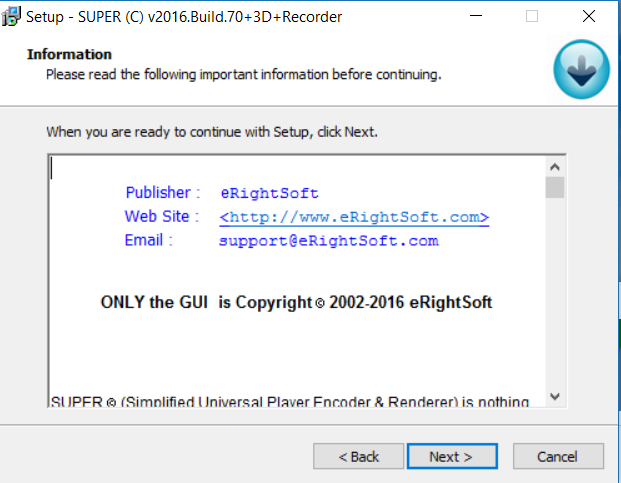
So, let’s go on! First, you have to launch the installer, downloaded from the previously provided link. This will install on your Windows PC both the Expression Encoder 4 and the Expression Encoder 4 Screen Capture: this last one will be used for doing the screen capture!

Installation of Expression Encoder 4 SP2

Installation of Expression Encoder 4 SP2

After the installation, you will have two new application listed among the available ones, as shown in the following screenshot related to a Windows 10 PC.

Two new applications available

Two new applications available

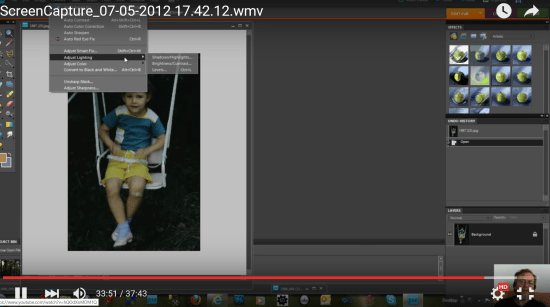
Clicking on the following image, you will see the recording I did with Expression Encoder 4, three years ago with a Windows 7 PC: you can notice my speaking face at the bottom right side of the screen.

Example

Example of screen recording

=============

NOTE

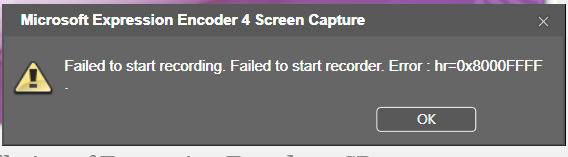
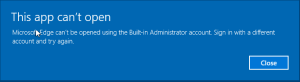
I had problems with a PC updated to Windows 10 (see this post in Microsoft Forum where there are different testimonials and the support seems iffy. It seems that with new PCs (so with new graphic cards), it works also with Windows 10 …). With Windows 10 Pro Insider Preview build 14257 release 160131-1800, I did not succeed to make it works because of the error showed below:  … but it was only a matter of some preview version of Windows 10 as it was already pointed out in the following post I found in the Feedback app where it seems that in retail Windows 10 it works …

Error running <em>Expression Encoder 4</em> in a PC updated to <em>Windows 10 Pro Insider Preview build 14257 release 160131-1800</em>

Error running Expression Encoder 4 in a PC updated to Windows 10 Pro Insider Preview build 14257 release 160131-1800

From the Feedback app

From the Feedback app

Now, with the build 14267 release 160213-0213, Microsoft Expression Encoder works again!!! 😉

Pubblicato in Review e test, Windows | 2 commenti

Some useful gestures, commands and shortcuts when using Windows 10 (using touchpad or when you are in tablet mode)

Very often we are used to use mouse/keyboard for interacting with our PC and, even when it could be used as a tablet, we continue to feel the need of them.

Both Windows 8 UI and, even more, Windows 10 one have been designed to have an easy interaction with fingers, using the touchscreen.  In the following I will insert all the information I find and experiment in order to better use the Windows 10 UI in tablet mode: you will see how easy it is and you won’t need the mouse and keyboard anymore!!


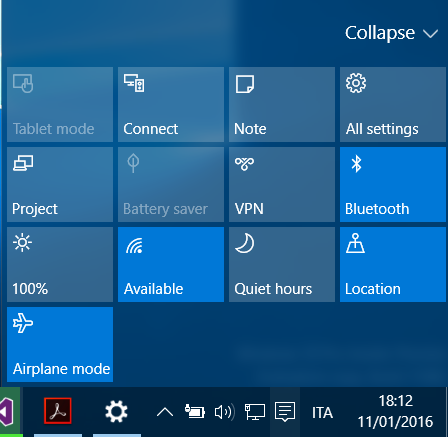
PS: be careful that the Tablet mode button, available in the Action Center, is disabled whenever you have multiple displays set as “Extend these display”: in fact only one display can be handled by touch.

Tablet mode button disabled whenever you have multiple displays set as "Extend these display"

Tablet mode button disabled whenever you have multiple displays set as “Extend these display”

If you want to set the Tablet mode, and so have that button enabled, when you have multiple displays, you need to set “Duplicate these displays“: this is true also id, as second display you have a projector.

Tablet mode button enabled whenever you have multiple displays set as "Duplicate these display"

Tablet mode button enabled whenever you have multiple displays set as “Duplicate these display”


Browser Edge full screen: Windows + Shift + Enter (to go and the same to return to normal view)

====================================

Hardware shortcut

printscreen   Windows button (HW) + Volume-down button (HW)  [or, using the in the touchpad, Fn + Space ]

cntl+alt+del   Windows button (HW) + power-on/off button (HW)

Note that, till now, in Windows 10 there is no shortcut option to switch to Desktop when we are in a Tablet mode. We can only access the desktop, if we turn off the Tablet mode from the Action center: you only have to swipe left from the right edge to have the Action center appear when the PC is in tablet mode and so there is no more the need to have a specific Desktop tile but some shortcut to easily switch to desktop could be anyway useful!

Soft reset – hold together the volume rocker up and power on until it restart (for several seconds).

How to Factory Restore and/or Restore Recovery Partition – see video

_____________________________

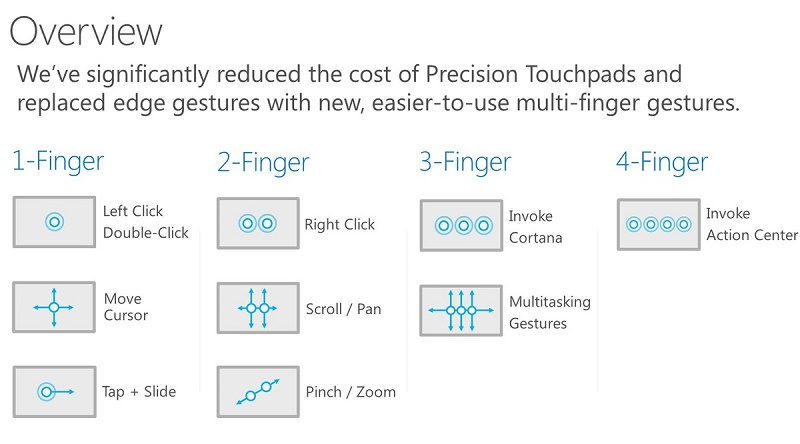
Touchpad gestures

  • 3 Finger Up – Task View

Move your 3 fingers to top of the touch pad and it activates task view, which opens all the open apps, programs, and windows.

  • 3 Finger Down – Show Desktop

Moving 3 fingers downwards minimizes all the open apps, programs, and windows to show desktop.

  • 3 Finger flick left to right – Switch to previous app

Flick three fingers from left to right to go back to the previous app.

  • 3 Finger Swipe left to right – Alt-Tab (Task View)

Swiping 3 fingers from left to right is same as pressing the famous key combo ALT + Tab key, which pops up open tasks and you can select the app you want (remove fingers to select).

Touchpad gestures

Touchpad gestures

Pubblicato in Windows | Lascia un commento

What to do if Visual Studio does not install correctly and it continues asking for a reboot

I did an update of Visual Studio 2015 and, as usual, at the end it asked for a reboot to complete the installation. However I was doing something else and I did not agree for an immediate reboot: that is quite usual, but the start of problems came when I decided, during a break, to do a system files clean-up (Disk Cleanup utility with administrator rights), deleting all the suggested groups, even the temporary files!! … this surely deleted also some files useful to Visual Studio to completed the upgrade after the reboot.

Then even after a reboot, launching Visual Studio 2015 it shows a windows saying that a reboot is needed to complete an installation … and so ever and ever. Trying to run again the installation or even uninstall that program, gave the same result!! Neither deleting the cache, as suggested herecd “C:\ProgramData\Package Cache -> Del /F /S *.msiDelete /F /S *.cab“) changed something.

The solution was to run, from Command Prompt (Admin), the installation file forcing the Repair switch:

Force <em>repair</em> using the proper command switch

Force repair using the proper command switch

Note that, as usually happens in prompt commands, the /? parameter displays (this time outside from the command prompt window, that is in a new one) all the available switches:

All the available switches for Visual Studio setup command

All the available switches for Visual Studio setup command

Moreover, if at the end of the repairing Visual Studio 2015 process the following error message is displayed (as it happened to me) related to the installation of the emulators, you only have to launch again the VS installation, click on Modify button and then uncheck the Universal Windows App Development Tools -> Emulators for Windows 10 Mobile option and press Next button. After that, you should have to check the same option again in order to have installed that component, this time without errors 😉

Solve the error related to emulators installation

Solve the error related to emulators installation

Pubblicato in Smartphone OS, Windows | Lascia un commento

Tip and trick: what to do if the Tablet mode cannot be enabled in Windows 10

As well explained here there are the following two ways to set a Windows 10 PC/tablet work in tablet mode (that is with the best user interface if you are using a touch interaction and not a mouse & keyboard one):

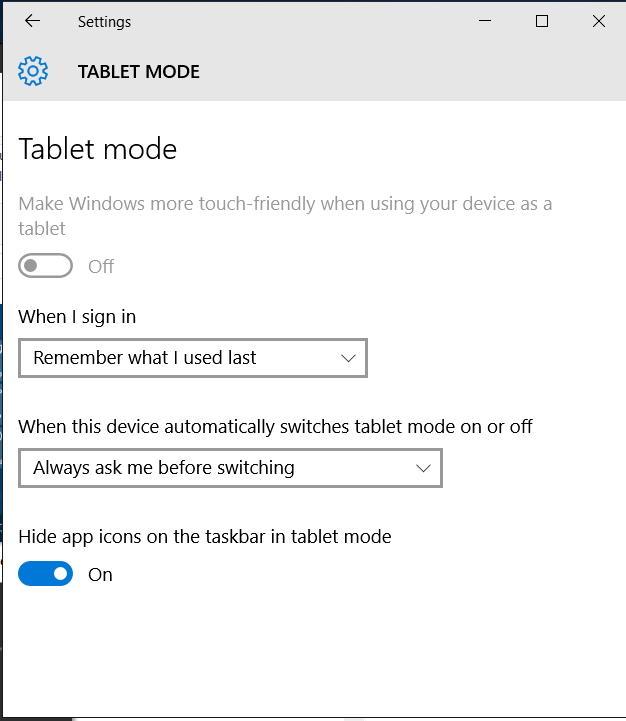
  • Go to Settings -> System -> Tablet mode and then enable the related available switch.
  • Use the Tablet mode button, available in the Action Center.

However, it could happen that using both those available methods, the Tablet mode cannot be enabled because the button/switch is greyed so it is not possible to interact with it.

Settings -> System -> Tablet mode

Settings -> System -> Tablet mode

Tablet mode button available in the Action Center

Tablet mode button available in the Action Center

The matter is because you are working with multiple displays and, in particular, setting the Extend option in order to see different things on each display: this is the only situation that does not allows to switch to Tablet mode, while all the others (PC screen only, Duplicate, Second screen only) let that option able to be possibly set.

This seems to be logic if you think (e.g. if you are doing for example a presentation and you are connected to a projector, if you want to use the PC in Tablet mode to show something, you surely will choose the Duplicate screen option in order to project what are you doing acting on the PC touchscreen), but may be, the for time, it can surprise you if you usually work with two screens set in Extend mode!!

Pubblicato in Windows | Lascia un commento

Agenzia delle Entrate: come riuscire a utilizzare comunque software obsoleti e non aggiornati da anni anche con i nuovi sistemi operativi (i.e. utilizzare Voltura 1.1 – per la compilazione delle volture catastali – con sia Windows 10 sia Windows 7)

Non ci volevo credere … ma toccando con mano, non ho potuto che constatare il dato di fatto!
I SW forniti dall’Agenzia delle Entrate, scaricabili dal  loro sito, sono obsoleti ed alcuni presentano seri problemi con qualsiasi PC in cui sia installato un sistema operativo Windows degli ultimi 6 anni!!

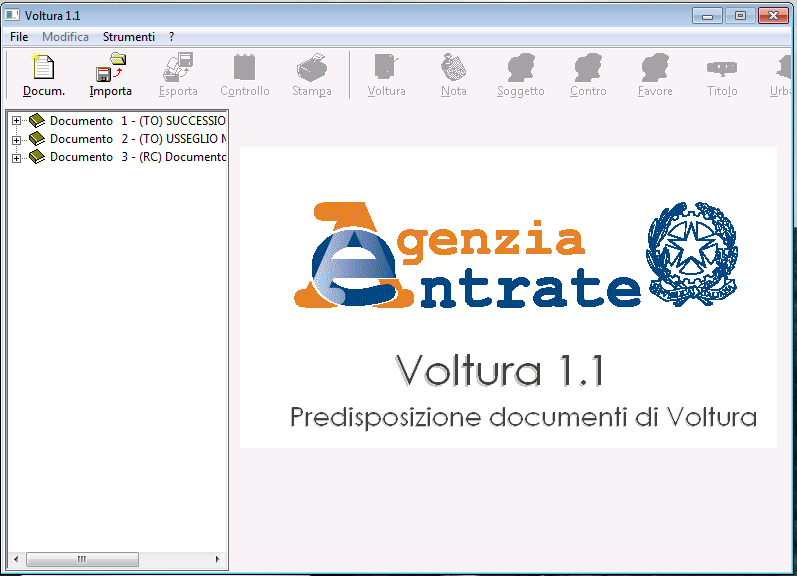
Un amico geometra, ha dovuto installare il SW Voltura 1.1 (reso appunto disponibile sul sito dell’Agenzia delle Entrate per la compilazione delle volture catastali) e mi ha detto che sul suo PC con Windows 7 la finestra in cui opera tale applicazione non risultava espandibile in modo da avere visualizzate (e quindi utilizzabili) parte delle icone presenti nel menu principale, rendendo praticamente inutilizzabile tale applicazione.  Si noti che tale funzionamento assai anomalo (che ovviamente non ho mai avuto modo di riscontrare in nessun’altra applicazione professionale!) si verifica già con Windows 7, oltre con le successive versioni, vale a dire con un sistema operativo rilasciato ormai nel lontano 2009 … e si noti, non certo a discolpa, che l’ultima release 1.1 di Voltura è stata rilasciata nel 2003, vale a dire quasi un anno dopo la disponibilità al pubblico  addirittura della versione  successiva di Windows vale a dire Windows 8!!

Sempre dal sito dell’Agenzia delle Entrate  si legge con stupore: “La risoluzione consigliata, per un’ottimale visualizzazione degli schermi della procedura, è 800 x 600 pixel.” … e quindi:Attenzione: Il path di installazione proposto è C:\Voltura1″ nel caso in cui si decida di cambiarlo si fa presente che non devono essere utilizzate directory i cui nomi contengano il carattere spazio (es. non C:Programma Voltura” ma C:\Programma\Voltura”)“.

Già queste indicazioni, relative all’installazione, evidenziano la poca professionalità di questo SW che risulta di riferimento per tutti coloro che hanno a che fare con l’Agenzia dell’Entrate per questa problematica!! Penso che un PC con una risoluzione 800×600 ormai sia più di un decennio che non ne vedo più in giro (… comunque anche impostando lo schermo a quella ridicola risoluzione suggerita, il malfunzionamento evidenziato relativo al menu persiste) così come la necessità di non installare un programma in una qualsivoglia directory.

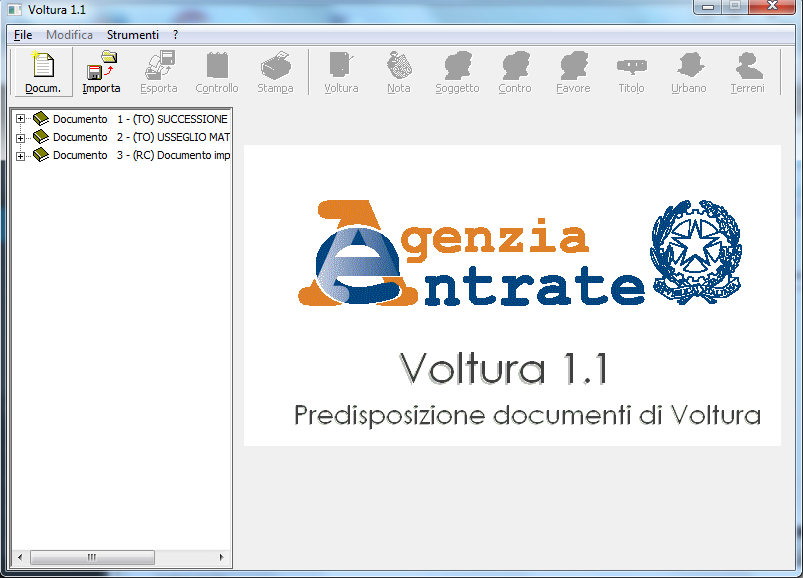
Voltura 1.1 ... la finestra aperta al massimo non mostra tutte le icone del menu

Voltura 1.1 –  La finestra, anche se aperta al massimo, non mostra tutte le icone del menu

Ovviamente nessun’altra indicazione viene fornita nel solito sito  qualora uno desideri utilizzare tale SW con un qualsiasi PC acquistato negli ultimi 6 anni: fortunatamente però i motori di ricerca ci vengono in aiuto fornendoci alcuni link utili a superare l’ostacolo imputabile ad una scarsa professionalità di una applicazione.

Particolarmente utile è il post Come installare il software voltura 1.1 per Windows 7  (video, sezione video tutorial) da cui riporto alcune istruzioni utili a modificare alcune impostazioni di default di sistema, presenti da Windows 7 in poi, in modo da riuscire a visualizzare correttamente il SW Voltura 1.1  (dal momento che, con le impostazioni di default, non si vedono tutte – si vede parzialmente quella per aggiungere gli immobili urbani e manca del tutto l’icona relativa all’aggiunta dei terreni – e la finestra di quell’applicazione non risulta ingrandibile).

Risulta infatti necessario modificare la dimensione dei font relativi alle icone, in quanto quella impostata di default è troppo grande per come è stata costruita (malamente) l’interfaccia utente di quel programma!

Diversa è la procedura necessaria per effettuare questa modifica a seconda della versione di Windows, per cui nel seguito analizzerò separatamente quanto si deve fare con Windows 7 e con diverse versioni di Windows 10.

======================

Con Windows 7

Per effettuare le opportune modifiche nella configurazione del Sistema Operativo Windows 7, posizionare il mouse su una qualsiasi parte vuota qualsiasi del desktop, fare click con il tasto destro del mouse e scegliere l’opzione personalizza; fare quindi click sull’icona Colore finestre.

voltura

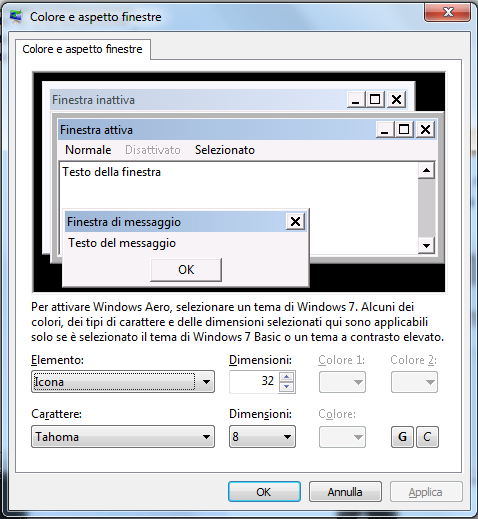
Nella finestra che si apre, relativa all’impostazione personalizzata degli elementi mostrati sul desktop, agendo sulla combo evidenziata nello figura seguente, selezionare la voce Icona.

voltura

La finestra, che viene così aperta, consente di impostare per le icone una dimensione custom mentre per i caratteri permette di agire sia sulla loro dimensione sia sul tipo di font. Agendo opportunatamente quindi sull’impostazione relativa al Carattere, si riesce a sopperire alla scarsa professionalità del codice (che, se ben fatto, avrebbe dovuto prevedere una dimensione della finestra maggiore – o per lo meno dimensionabile e  magari con una scrollbar orizzontale  –  oppure forzare le caratteristiche dei caratteri utilizzati internamente all’applicazione stessa).
Una delle possibili modifiche del Carattere che può andare bene è, ad esempio il tipo Tahoma con dimensione 8. Dal menù a tendina selezionare quindi il Carattere Tahoma e quindi, a fianco, come Dimensioni inserire 8: per confermare tali modifiche premere, infine, il pulsante Applica o anche solo quello di OK.

Possibile modifica del Carattere di sistema

Possibile modifica del Carattere di sistema

Rilanciando ora l’applicazione Volture 1.1, essendo ora più piccole le dimensioni dei caratteri, risulteranno visualizzate tutte le voci del menù, comprese quelle più a destra che prima uscivano fuori dalla finestra e non risultavano quindi accessibili all’utente.

Volture 1.1 - Tutte le icone del menu risultano visibili dopo la personalizzazione del carattere di sistema

Volture 1.1 – Tutte le icone del menu risultano visibili dopo la personalizzazione del carattere di sistema

======================

Con Windows 10

Per effettuare le opportune modifiche nella configurazione del Sistema Operativo Windows 10, dipende dalla versione installata.

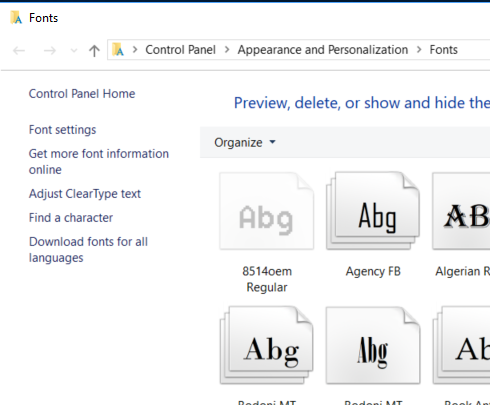
Fino almeno all’agosto 2005, come testimoniato da questo video YouTube , esisteva una voce apposita in Settings -> Personalization e ricercando Fonts: si accedeva quindi alla sezione Control Panel\Appearance and Personalization\Fonts e sul menù di sinistra compariva la voce Change font size desiderata.

Settings -> Personalization – ricerca fonts

In Control Panel\Appearance and Personalization\Fonts  esisteva la voce di menù Change font size

Selezionando Icon, si poteva impostare una nuova dimensione del font associato

Dopo gli innumerevoli aggiornamenti di Windows 10, dalla sua versione 1703 (Creator Update), non so sinceramente per quale motivo, quella voce di menù è scomparsa rendendo più complicato effettuare tale operazione!
Spero che nei prossimi aggiornamenti venga nuovamente fornita tale funzionalità da interfaccia utente, presumibilmente nuovamente in questa sezione che mi sembra la più appropriata. Ho introdotto nell’Hub di feedback di Windows 10 questa richiesta, per cui, se la desideri anche tu, votala in modo che venga maggiormente presa in considerazione nei prossimi sviluppi.

La voce di menu Change font size ora non esiste più

Qualora, si abbia una versione aggiornata di Windows 10, come molto probabilmente si ha essendo di default impostato che gli aggiornamenti avvengano automaticamente, almeno per ora la via più agevole per modificare la dimensione (ed eventualmente il tipo) di font è quella di utilizzare uno dei tool gratuiti di terze parti, come anche suggerito in questo post del forum Microsoft, ad esempio i seguenti:

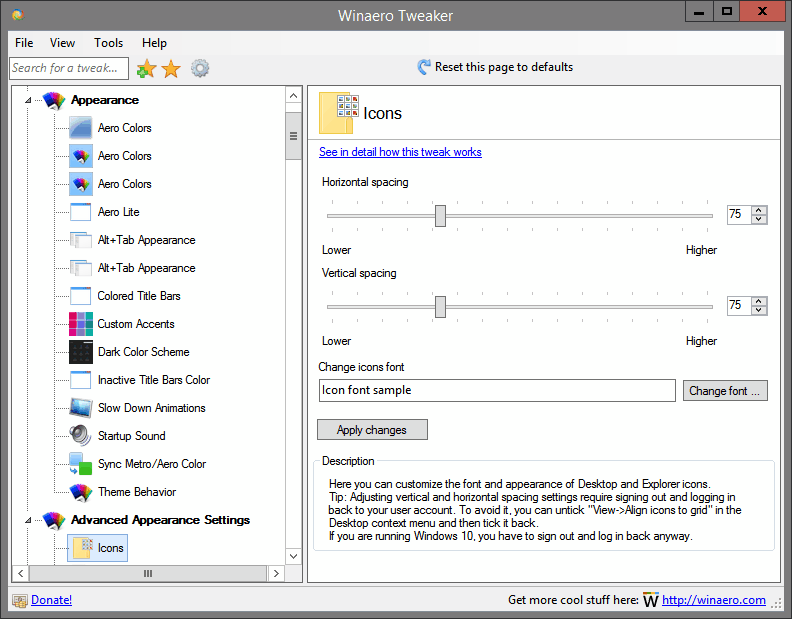
Winaero Tweaker – Esempio cambio font – Advanced Appearance Settings -> Icons


Winaero Tweaker – Esempio cambio font  – Change font to Tahoma 8

Winaero Tweaker – Esempio cambio font – Apply changes and Sign out

Se si utilizza invece il programma Advance System Font Changer, la procedura è simile e  comporta sempre il cambiamento del font per le icone in modo che abbiano dimensioni minori (e.g. Tahoma 8):

Advanced System Font Changer: Change tab -> Icon

Da un post del forum della Community Microsoft compare questa spiegazione che parzialmente motiva l’attuale scomparsa di quella voce di menù per modificare il font: vedi anche, se credi, il post Display tab and other font customizations are no longer available after upgrade to Creators Update.

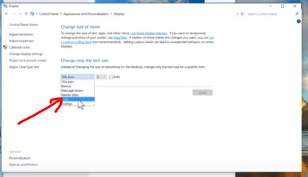
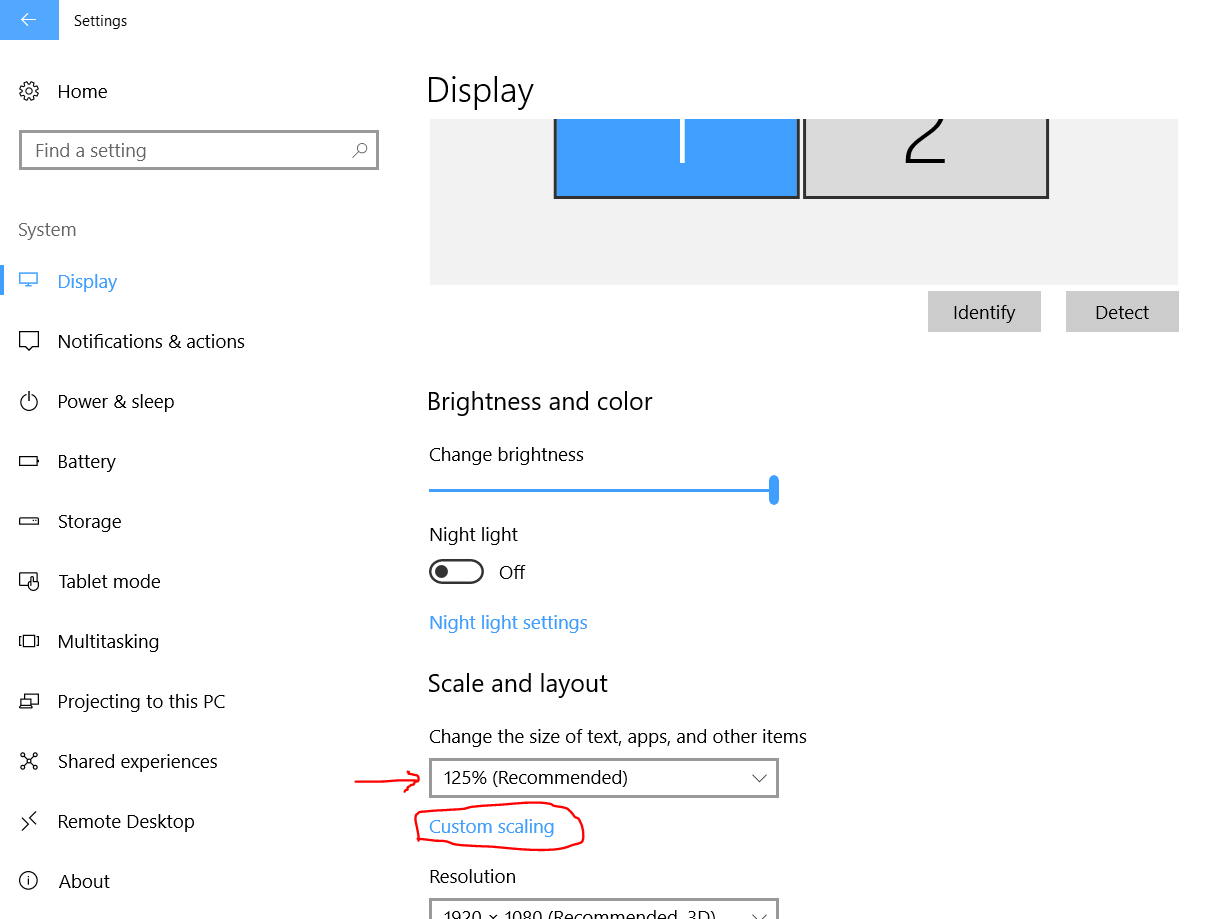
Si consiglia di utilizzare in Settings -> Display l’impostazione di Scale and layout e, se si vuole il font ancora più grande o più piccolo di quanto permesso dalle voci della combobox, eventualmente utilizzare il link sottostante di Custom scaling che permette solo di modificare la percentuale di dimensione dei font da 100% a 500% … nulla relativamente al tipo di font e alla possibilità di distinguere se relativi ad icona o quant’altro … 😦

Possibile customizzazione della grandezza del testo, apps ed altri item

========

Esiste inoltre un ulteriore metodo alternativo che sembrerebbe funzionare a detta di molti: tuttavia comporta l’installazione di un SW ResizeEnable, che penso sarebbe poi da lanciare prima di ogni attivazione di Voltura 1.1 (o una volta per tutte??) e che probabilmente effettua quelle medesime modifiche alle impostazioni di sistema. Tuttavia quel SW da scaricare ed installare risulta di provenienza non certa … e potrebbe in teoria fare anche altre cose meno piacevoli al tuo PC … per cui sicuramente è da preferire il metodo indicato precedentemente, anche se comporta di fatto una modifica al carattere di default di sistema e quindi utilizzato da tutto il sistema operativo di default: comunque non risulta molto differente per cui la trovo una soluzione comunque accettabile.

Nei seguenti link puoi trovare indicazioni relativi a quella soluzione alternativa, che personalmente tuttavia considero potenzialmente pericolosa:

Pubblicato in Giustizia, burocrazia e malcostume | 6 commenti

How to configure more Windows 10 Mobile devices, owned by the same user, in order they are not synchronized (e.g. there are not shown in all devices the SMS sent-to/received-by all their associated phone numbers)

Windows 10, and in particular also Windows 10 Mobile, allows you to have all your devices synchronized: therefore, for example, if you add some preferences in the browser on one device, you will find also on the browser of every other device you own (you registered your Windows account while configuring them) when you logon with your Microsoft account, … and the same for every other setting you may have set.

However there are situations where this automatic synchronization, that is configured by default, is not very nice.
For example you may want to have on one PC your Microsoft account user with the O.S. in English, while on your tablet you want it in your native language (e.g. Italian) … and this because, may be, you use your main PC for programming while your tablet for hobby and you want Cortana to work properly (see Problems running Cortana on your Windows 10 PC?).
Or may be you give your wife/son/daughter your “old” Lumia, because you bought the newest model 😉 … and you don’t want to configure it again from start…  and/or possibly you may want to use it occasionally for your purposed. To change device owner, at least actually, you have to reset completely the device and start from zero:  it is true that, if your wife/son/daughter had already a Windows Phone/Windows device, recovering a backup saved on cloud makes the new setup easier … but it may take some times especially if you had installed many apps and configured several email accounts, APNs and so on!!

So it is clear that in some cases you may want to stop some kind of automatic synchronizations …
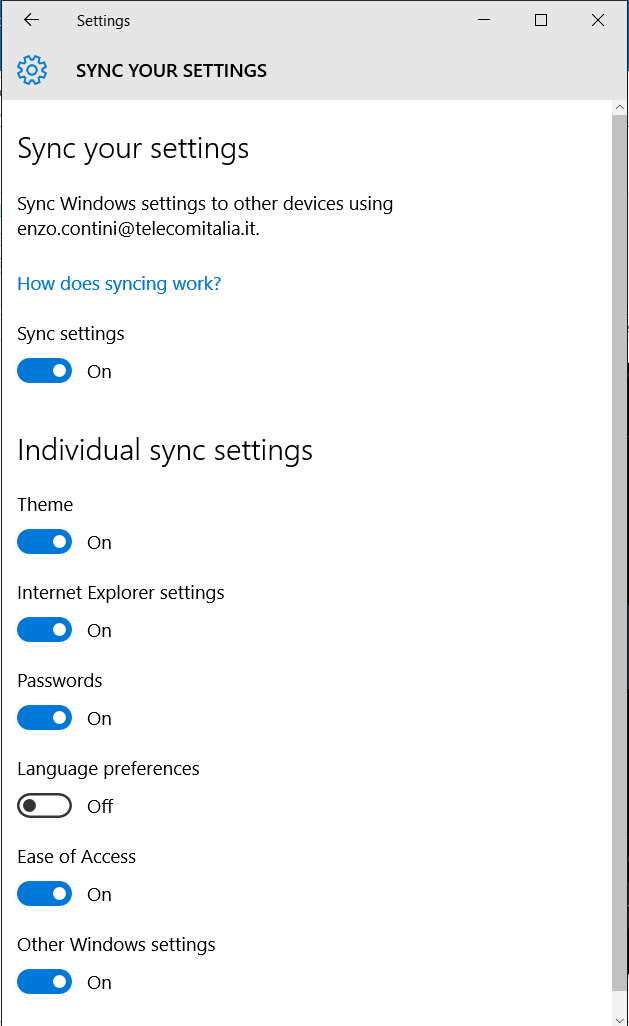
In the first example I did, related to PC/tablet, it is sufficient to set to OFF the synchronization of the language in Settings -> Account, as I explained in this post, otherwise every time you change the language of the O.S. on one device, it will be changed also on the other one (at next restart … so it could be hard, at the beginning, to understand what it is happening!). May be you could want to disable some other kind of synchronization there listed:

Settings ->Synch your settings

Settings ->Synch your settings

For the second example, related to smartphones, you have to do the following:

    1. Disable the notifications for all the email accounts that are not related to the user that usually is using that device (e.g. your wife/son/daughter): on the contrary also those notifications will be listed in the notification center … and this is boring! Obviously you could also delete that accounts, but may be it can be useful to leave them configured, just in case you have to use them in special situations (e.g. your phone stop working because it falls down or drains off!).
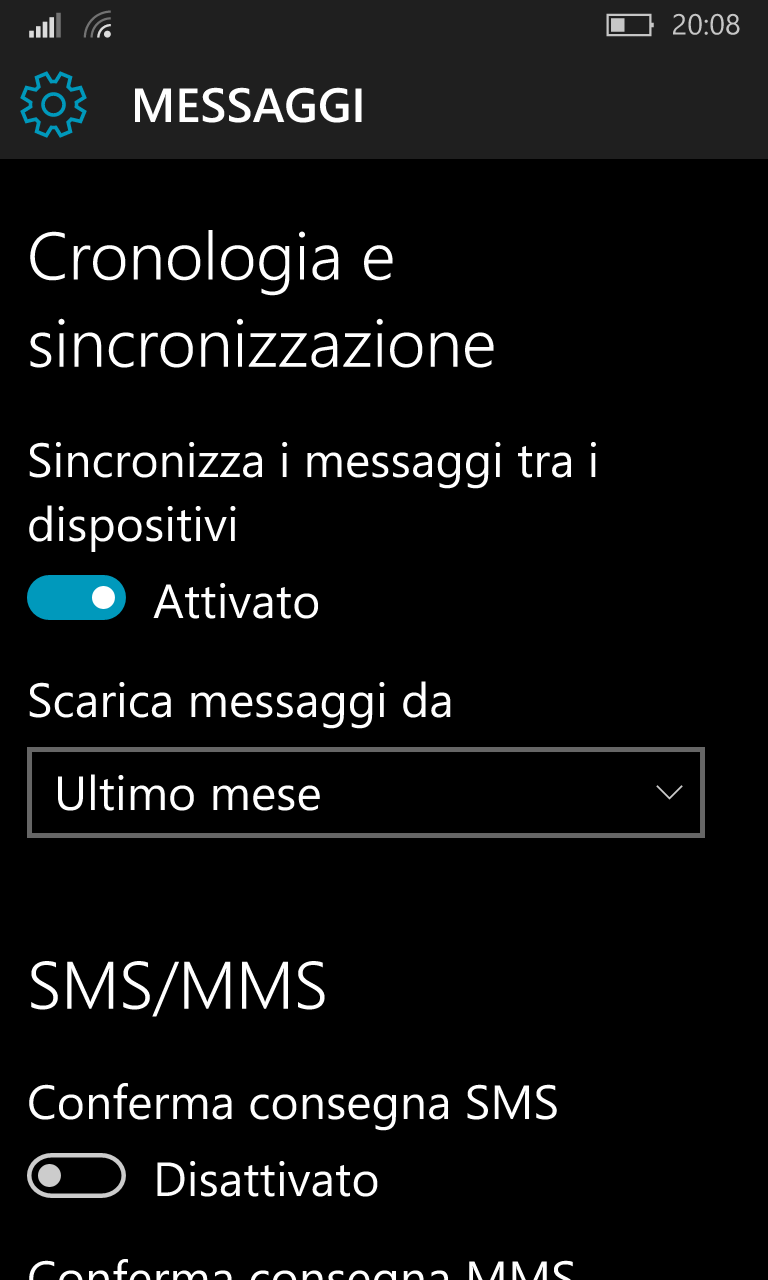
    2. Disable the synchronization of SMS messages among devices (Settings -> System -> Messages), otherwise all the SMS, both the sent and received one by all  devices each one with a different phone number, will be listed in the Messages [IT: Conversazioni] page.
      SMS for my wife and for me are received on both devices owned by me

      SMS for my wife and for me are received on both devices owned by me (also the sent one even it is not shown in this screenshot)

      So you must to set to OFF the following “Synchronize messages among devices” [IT: “Sincronizza i messaggi tra i dispositivi“] option:

      Settings -> System -> Messages

      Settings -> System -> Messages

    3. May be you could also want to disable in the device owned by you but not usually used by you, the option Settings -> Account -> Sync your settings, as shown in the following:
Settings -> Account -> Sync your settings

Settings -> Account -> Sync your settings

Pubblicato in Smartphone OS | 1 commento

Profilo tariffario TIM per Noi: come visualizzare il proprio traffico? Sito www.myBusiness.it e app Impresa Semplice

Nel seguito riporto le possibili modalità,  sia da PC sia da cellulare,  di visualizzazione del traffico effettuato dal proprio telefono aziendale: al fondo riporto anche alcuni link della Intranet aziendale TIM, contenenti indicazioni utili relative alla nuova tariffazione prevista per i suoi dipendenti.

La prima modalità possibile di visualizzazione e monitoraggio del proprio traffico è quella tramite browser, accedendo all’area clienti del sito www.myBusiness.it (alias https://mycompany.telecomitalia.it/mycompany): per l’accesso, la prima volta è necessario registrarsi fornendo un qualsiasi username/password e fornendo quindi sia il proprio numero di telefono aziendale sia alcuni dati relativi all’azienda (compresa la partita IVA Telecom Italia: 00488410010).

Riepilogo consumi

Riepilogo consumi

La seconda modalità (che, in verità, è la migliore potendo essere usufruibile agevolmente anche da smartphone) è tramite l’app Impresa Semplice, disponibile per tutte le principali piattaforme (cellulari Android, iOSWindows 10/Windows 10 Mobile, oltre che per PC Windows 10/Windows 8.1). Si tratta dell’app commerciale disponibile per tutta la clientela business … e anche i dipendenti possono utilizzarla principalmente per controllare il traffico del proprio telefono aziendale: l’accesso avviene utilizzando le proprie credenziali, registrabili unicamente tramite il sito web www.myBusiness.it.

L’app Impresa Semplice installata su cellulare presenta l’interfaccia seguente, nel caso si tratti di un dispositivo con Windows 10 Mobile / Windows Phone 8.1: funzionalità analoghe si hanno anche su un cellulare Android / iOS.

App su Windows 10 Mobile / Windows Phone 8.1 (1)

App su Windows 10 Mobile / Windows Phone 8.1 (1)

App su Windows 10 Mobile / Windows Phone 8.1 (2)

App su Windows 10 Mobile / Windows Phone 8.1 (2)

App su Windows 10 Mobile / Windows Phone 8.1 (3)

App su Windows 10 Mobile / Windows Phone 8.1 (3)

App su Windows 10 Mobile / Windows Phone 8.1 (4)

App su Windows 10 Mobile / Windows Phone 8.1 (4)

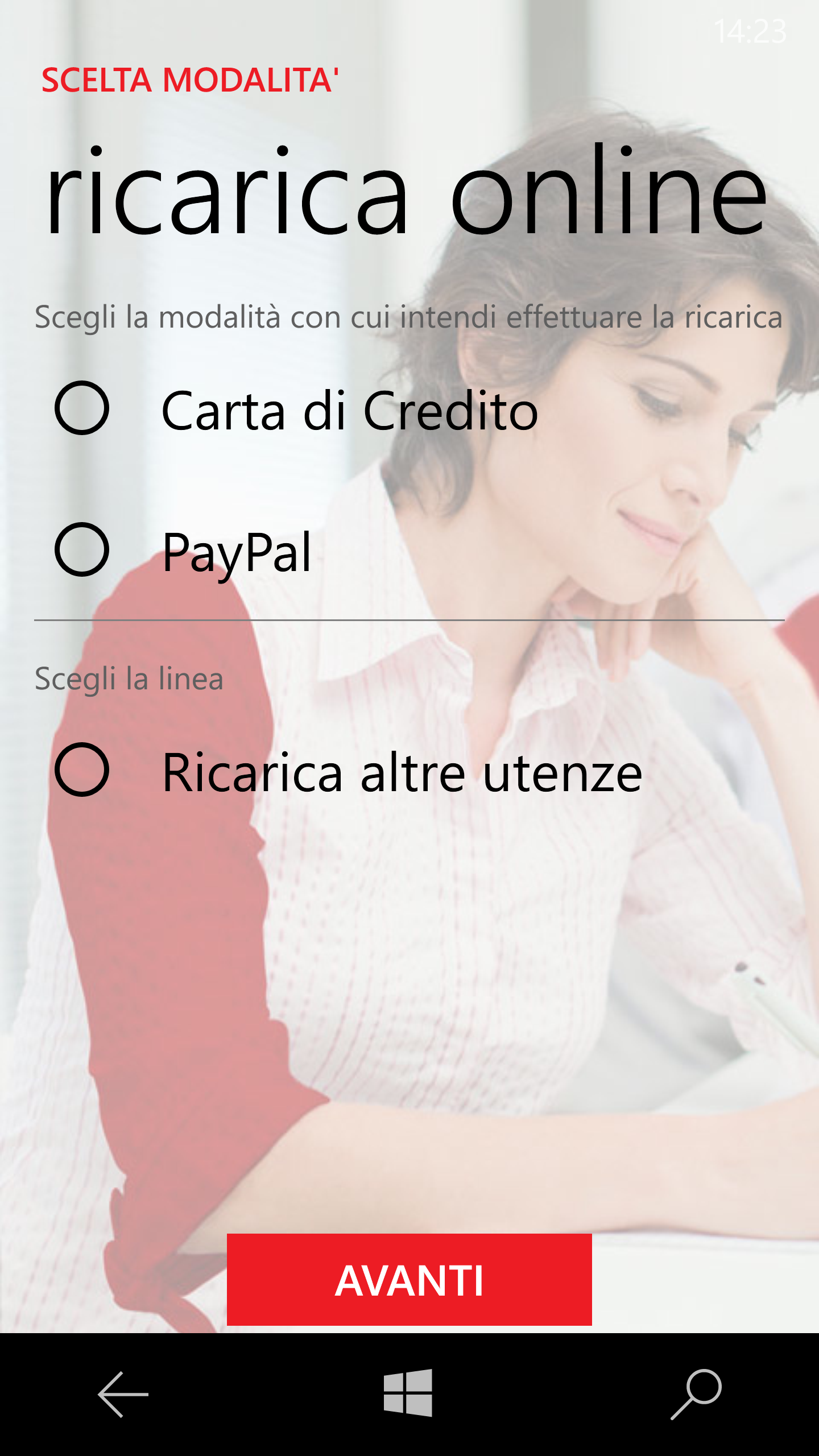
Si noti che, da un’apposita sezione dell’app risulterebbe anche possibile ricaricare una qualsiasi carta TIM, funzionalità disponibile anche nell’app 187  che può comunque tornar comoda anche avere qui disponibile [P.S. questa funzionalità esiste solo nella versione per cellulare Windows Phone 8.1 / Windows 10 Mobile e non in quella per PC: si tratta infatti di due app distinte e non di una stessa Universal app, come raccomandato dalle linee guida più recenti relative agli sviluppi su piattaforme Windows]. Purtroppo questa sezione ha un bug bloccante (il campo di input, in cui inserire l’intestatario della carta di credito con cui si intende pagare, consente l’inserimento di soli 4 caratteri, per cui il pagamento fallisce in quanto i dati forniti non sono corretti!!

Pubblicità, ricarica e offerta estero

Pubblicità, ricarica e offerta estero

App su Windows 10 Mobile / Windows Phone 8.1 (4)

App su Windows 10 Mobile / Windows Phone 8.1 (4)

L’app Impresa Semplice, quando installata su PC /tablet Windows 10 / Windows 8.1, appare come segue: presenta anche qui funzionalità analoghe a quelle disponibili anche da web, ma risulta sicuramente più agevole da consultare soprattutto su un dispositivo munito di schermo touchscreen (come in genere avviene utilizzando una qualsiasi app rispetto alla navigazione da browser del corrispettivo sito web).

App su Windows 10 / Windows 8.1 (1)

App su Windows 10 / Windows 8.1 (1)

App su Windows 10 / Windows 8.1 (2)

App su Windows 10 / Windows 8.1 (2)

App su Windows 10 / Windows 8.1 (3)

App su Windows 10 / Windows 8.1 (3)

NOTA: con l’app Impresa Semplice su PC non si riesce ad oggi ad autenticarsi se si è connessi alla rete aziendale o tramite Wi-Fi INTELECOMITALIA: è necessario collegarsi a una rete pubblica o anche a WifiArea.
Con l’APN Telecom invece l’app sullo smartphone non ha problemi di autenticazione.

===========================================

Concludendo …

L’app Impresa Semplice la trovo quindi assai utile e la trovo assai più usufruibile soprattutto in mobilità … anche se risulta sicuramente migliorabile! Purtroppo, in ambiente Windows, non è stata sviluppata come Universal App (unico binario installabile su tutte le piattaforme Windows di ultima generazione – e.g. Windows 10, Windows 10 Mobile) per cui ne esiste una versione per PC ed una per cellulare che differiscono abbastanza tra loro non solo a livello di presentazione ma anche di funzionalità offerte: comunque quella principale, relativa al monitoraggio del traffico, è ovviamente presente ovunque, sia sul sito web sia su tutte le versioni di app.

Sulla versione per Windows, ed in particolare per quella per Windows 10 Mobile, evidenzio i seguenti bug e possibili migliorie che si potrebbero apportare:

  • La sezione dell’app per la ricaricare una qualsiasi carta TIM, presente solo nella versione per cellulare Windows Phone 8.1 / Windows 10 Mobile, ha un bug bloccante : il campo di input, in cui inserire l’intestatario della carta di credito con cui si intende pagare, consente l’inserimento di soli 4 caratteri, per cui il pagamento fallisce in quanto i dati forniti non sono corretti!
  • La pagina CONSUMI-> traffico non risulta scollabile e la toolbar copre parte del consumo totale (su Lumia 950).
  • Il nome delle due tile relative alle offerte attive, nel caso di Profilo TI NEW_sts, è lo stesso per il bundle dati nazionali e per quelli roaming, rendendo poco chiara l’interfaccia utente.
  • L’immagine di sfondo è troppo invadente, rendendo poco leggibile il testo sovraimpresso … che poi è quello che interessa: la renderei più trasparente e meno colorata; il testo rosso su bianco si legge poi male (su  Lumia 950) … almeno lo metterei bold 😉
  • La tile di Start di Impresa Semplice non si dimensiona correttamente (il testo viene troncato nel tile medio e ciò si nota soprattutto su smartphone [e.g. Lumia 950]).
  • Non mi sembra sia poi possibile registrarsi dall’app, ma solo tramite il sito mybusiness.it: converrebbe consentire la registrazione anche da app.
  • Perché poi chiamare il sito myBusiness e l’app Impresa Semplice??
  • Non è chiaro lo scopo delle icone telefono/cellulare (in alto a sinistra): sulla versione per cellulare, quella del telefono porta alla home, quella del cellulare al traffico: perché poi rendere grigia la tile selezionata (vedrei anzi più logico evidenziare con il colore l’opzione selezionata)? Anche nella versione per PC risulta strana la scelta di evidenziare con cerchio rosso la voce NON selezionata e rendere grigia quella selezionata! Perché poi avere un cerchio rosso con dentro il telefono nella versione per PC e semplicemente il telefono rosso nella versione per smartphone? Queste inutili diversità sarebbero ovviamente risolte automaticamente se si trattasse di una Universal App …
App su <em>Windows 10 Mobile / Windows Phone 8.1</em> - Selezionata l'icona cellulare che risulta grigia ... e non quella <em>telefono</em> evidenziata in rosso!

App su Windows 10 Mobile / Windows Phone 8.1 – Selezionata l’icona cellulare che risulta grigia … e non quella telefono evidenziata in rosso!

App su Windows 10 Mobile / Windows Phone 8.1 - Selezionata l'icona cellulare (App su <em>Windows 10 / Windows 8.1</em>) che risulta grigia ... e non quella telefono evidenziata cerchiata in rosso!

App su Windows 10 / Windows  8.1 – Selezionata l’icona cellulare che risulta grigia … e non quella telefono evidenziata cerchiata in rosso!

====================================================

NOTA IMPORTANTE – PER DISATTIVARE I SERVIZI VAS A PAGAMENTO leggi questo mio successivo post.

====================================================

Link utili della intranet:

======================

Può essere di interesse tuo anche il successivo post: Come riuscire a vedere i dettagli del traffico del telefonino aziendale dei dipendenti TIM, qualora vengano riportati dei costi sul proprio stipendio.

Questo post si aggiunge ad altri che sono specificatamente indirizzati a colleghi di TILAB e talvolta anche a tutta TIM in generale. 🙂

PS: puoi trovare gli altri post filtrando, nella combobox a destra, sulla categoria “Aziendali”. Alcuni sono protetti da password per cui se ti interessano puoi contattarmi tramite l’email aziendale o telefonicamente.

Pubblicato in Aziendali, Review e test | 4 commenti

Mail app: how to see Sent items in Mail universal app (Windows 10 /Windows 10 Mobile devices)

I know that the topic of this post seems to be obvious … however if you defined (or imported from a backup) a lot of email accounts during the configuration of your Windows 10 Mobile device (e.g. ten, as I did) you could be taken into this issue … as I was!!

In fact, once in Windows 8.1 you had one email app defined for each email you configured and you had a toolbar menù allowing you to move from one folder (e.g. Inbox emails) to another one (e.g. Sent emails).

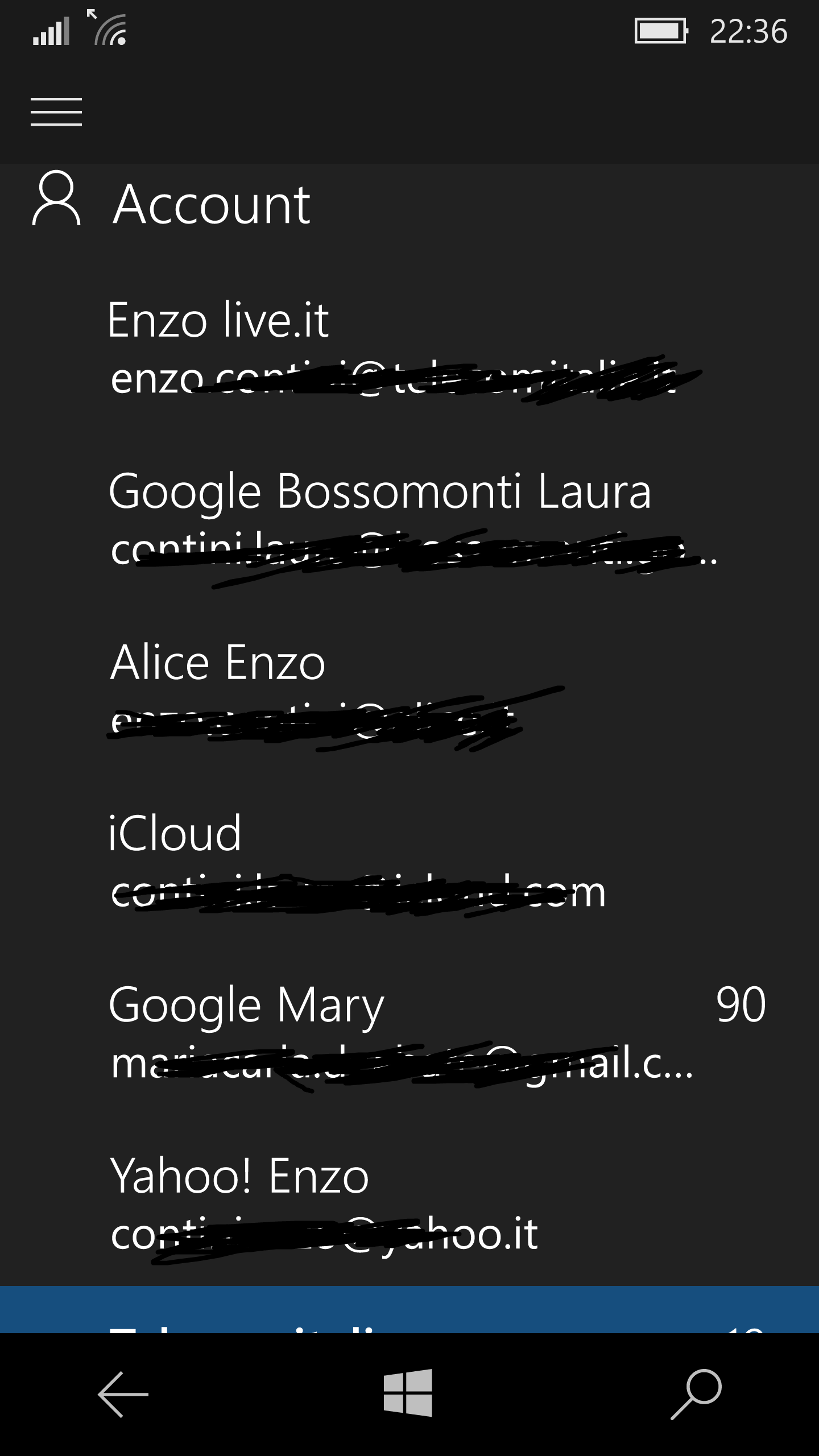
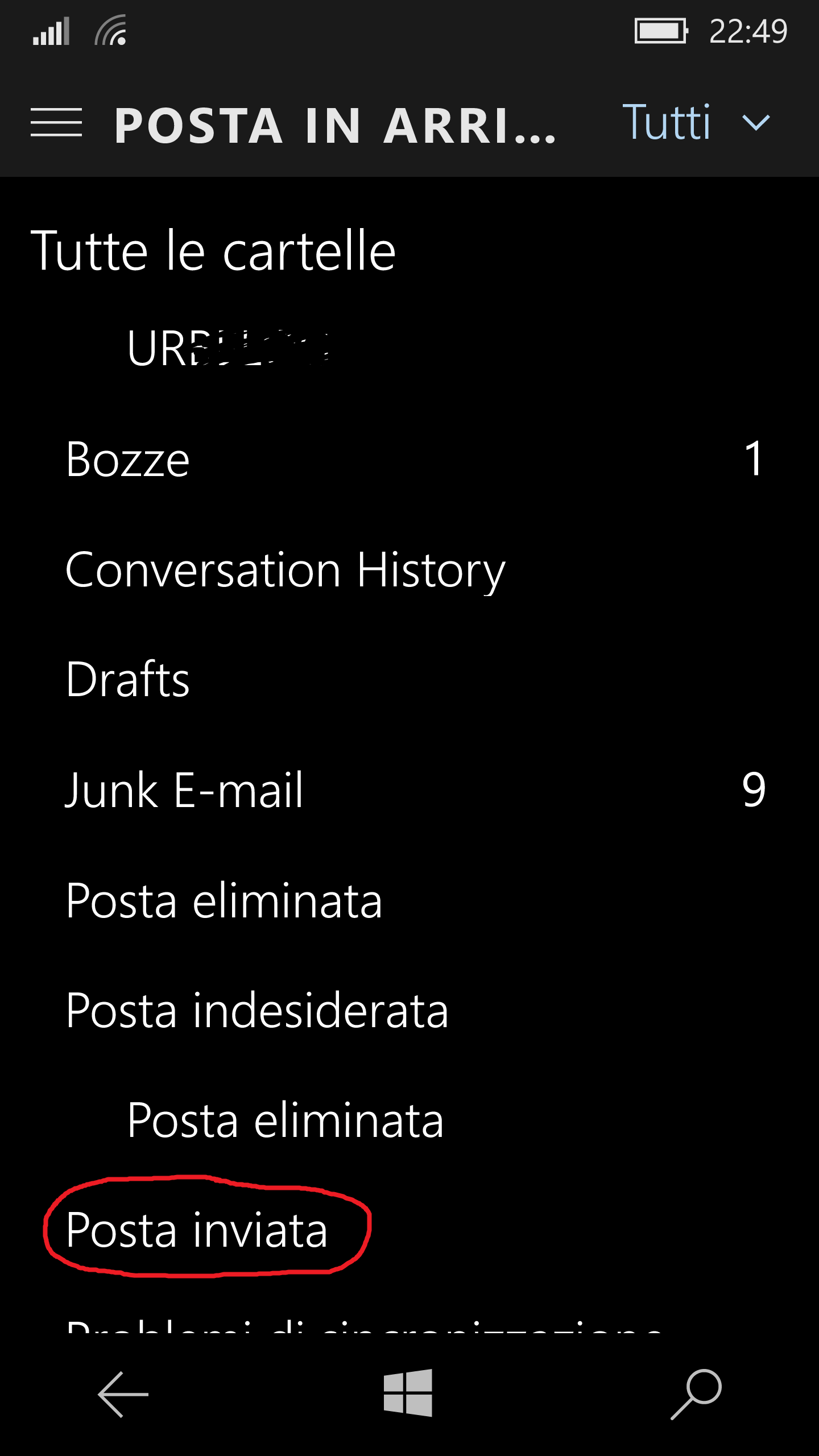
Now, in Windows 10 Mobile (as it is in any Windows 10 versions) there is the Mail universal app [IT: Posta di Outlook] that allows you to handle all the configured email accounts. As usually happens in universal apps, there is a hamburger menù at the top left, from where all your emails are listed and, below that list, there is a Folder [IT: Cartelle] section where are listed all the folders related to the email account you selected in the upper list. Moreover, if in that selected email you have defined more folders (e.g. not only Inbox, Drafts, Sent items but also custom ones, for example one for each project you are following), may be you have to click on the last More [IT: Altro] item to see all the folders … may be even the Sent items one, being folders listed in alphabetic order.

If you are new to this app and you have many emails defined in your device, you can understand that you could not have scrolled what it is shows in the hamburger menù and so have not noticed the folder section, or may be not noticed the More item … and still wonder how to find Sent items!! 😉

List of configured emails

List of configured emails

Selected email and folders defined there

Selected email and folders defined there

If the folders are a lot, More [Altro] item must be selected

If the folders are a lot, More [Altro] item must be selected

Finally the Sent items folder for my TELECOMITALIA email account!!

Finally the Sent items folder for my TELECOMITALIA email account!!

Therefore, handling all your email accounts from one app it is nice, especially when you can see all the thread of exchanged emails for each communication, clicking on the last one received, … but you must habit to the new user interface 😉


Pubblicato in Smartphone OS | 1 commento

Antivirus for Windows 10 Mobile: why not?

In Windows Phone 8 there was no antivirus: here you can download a white paper that discusses and contains information about Windows Phone 8 security.

I wondered if in Windows 10 Mobile there would be something like the Defender embedded antivirus feature, as available in the PC version of that new Microsoft Operating System. I know that the architectures of the PC and Mobile Windows 10 versions are different, but I also know that Edge browser and, in general, all the Universal apps (e.g. the embedded Outlook app) have the same binary for all platforms … so it seems to be reasonable to make that question.

After some posts exchange in the Microsoft Social forum I realized that also in my Windows 10 Mobile phone there is no need for an antivirus and all the needed features to make it secure, also relating my privacy, are already there … even though I have to use them! So it is like in iOS phone devices, where also there no antivirus is needed because the S.O. itself was defined in a proper way to prevent virus to infect.

So, why no antivirus is needed in Windows 10 Mobile devices?
First of all, to be published in the Windows Store, an app must pass several validation tests (mainly automatic ones, even though a manual testing is foreseen for apps that are reported by users): customer apps are only available for downloading from the official Microsoft app Store (unless you explicitly set some developer specific options in Settings -> Update & Security -> For Developers and you install apps from your PC … or, worse, if you do a  Jailbreak: but in this case you are warned!).

Anyway Windows 10 Mobile apps, on the contrary of Android ones, cannot have access to the whole system, but only to a secure and protected memory space and can interact through specific secured APIs. So, each installed app (and so Edge browser app too) can operate in a limited sandbox and can’t access directly to system areas: it works in a confined virtual space, like a system alone and it cannot run code outside from there. This implies also that no antivirus app could be developed because, being itself an app, it could not have access/scan the system (as antivirus applications must do).

If, for example, an app wants to make a call, send an SMS or an email, it must use platform specific features calling specific APIs and the proper interface will be shown to the user that will have to confirm his will to do that. So whilst Google App Store has multiple antivirus app available for download to counter these very real threats, in Windows 10 Mobile Store there are not!
The same white paper, that discusses and contains information about Windows Phone 8 security, is still valid in Windows 10 Mobile too.

It remains anyway the problem of the user privacy: an installed app that you agreed to have access to specific information (e.g. your position, your contacts) could send them wherever it wants (e.g. to a server that app can contact). Too often when someone installs an app, he does not read carefully all the rights that app is asking for … and too often we agree without thinking the possible consequences!

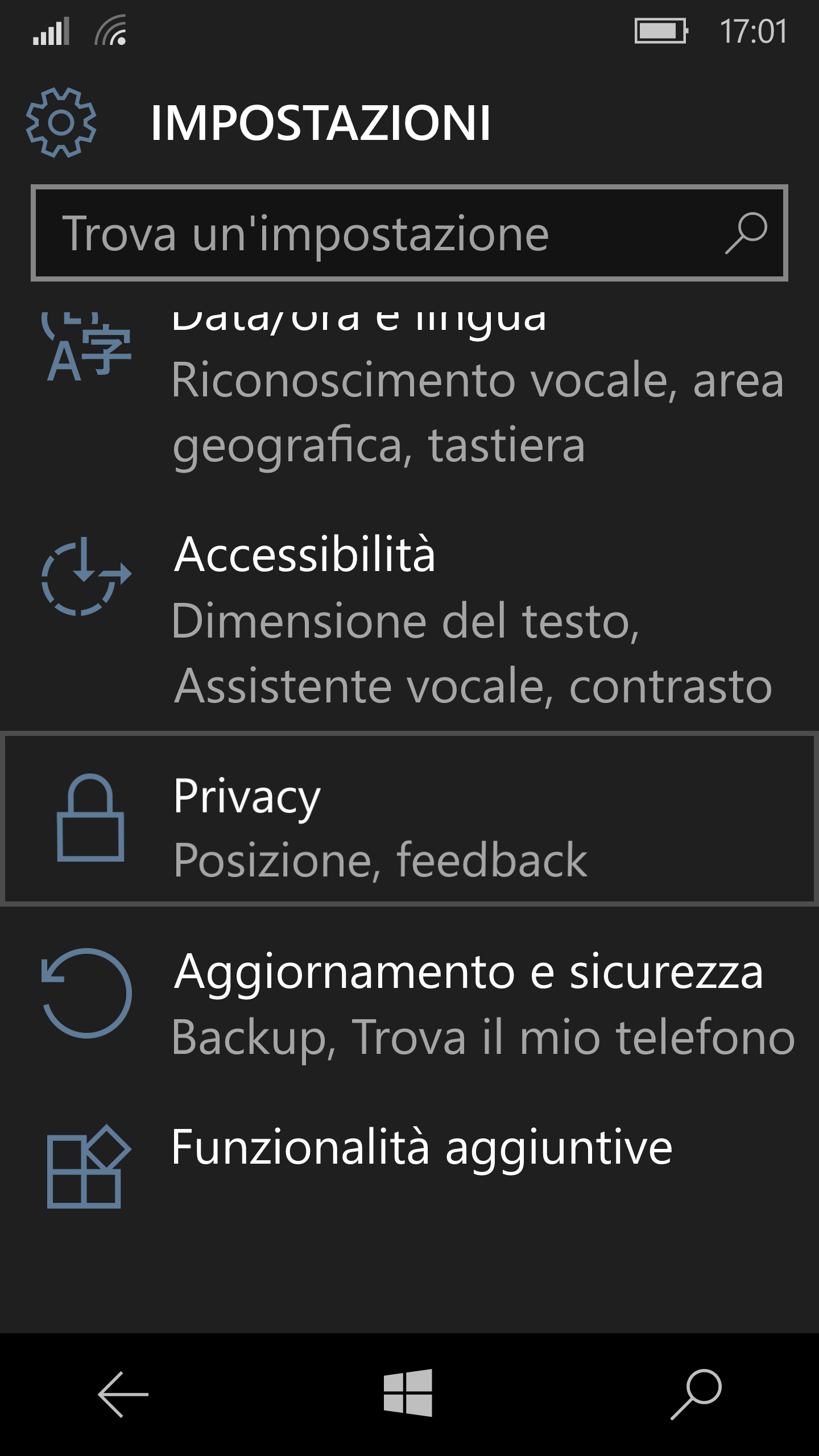
It would be very nice if in the future the Windows 10 Mobile will provide a specific functionality that, when activated, in background will check all the possible privacy concerned actions of the running apps, in order than the user can be better aware of what it is happening underneath. Anyway already now you can handle the list of apps that hare having access to some privacy information (e.g. your Contacts, your Position): if you go to Settings -> Privacy, you will see a specific section for each privacy concerned area. For example, clicking in the Contacts area link, you will see the list of all the apps you gave the rights to get your contacts … and you will probably find some that you wonder why (e.g.  ilMeteo, Car Dash, Film & TV, QR code reader)!! So you better disable this right for some of them, if you like, and in any time you can change your mind going back to that section. May be you can even decide to uninstall some apps that requested “strange” permissions in order to be installed and possibly report them to Microsoft.

Settings -> Privacy

Settings -> Privacy

Settings -> Privacy - Contacts (1)

Settings -> Privacy – Contacts (1)

Settings -> Privacy - Contacts (2)

Settings -> Privacy – Contacts (2) – enable/disable


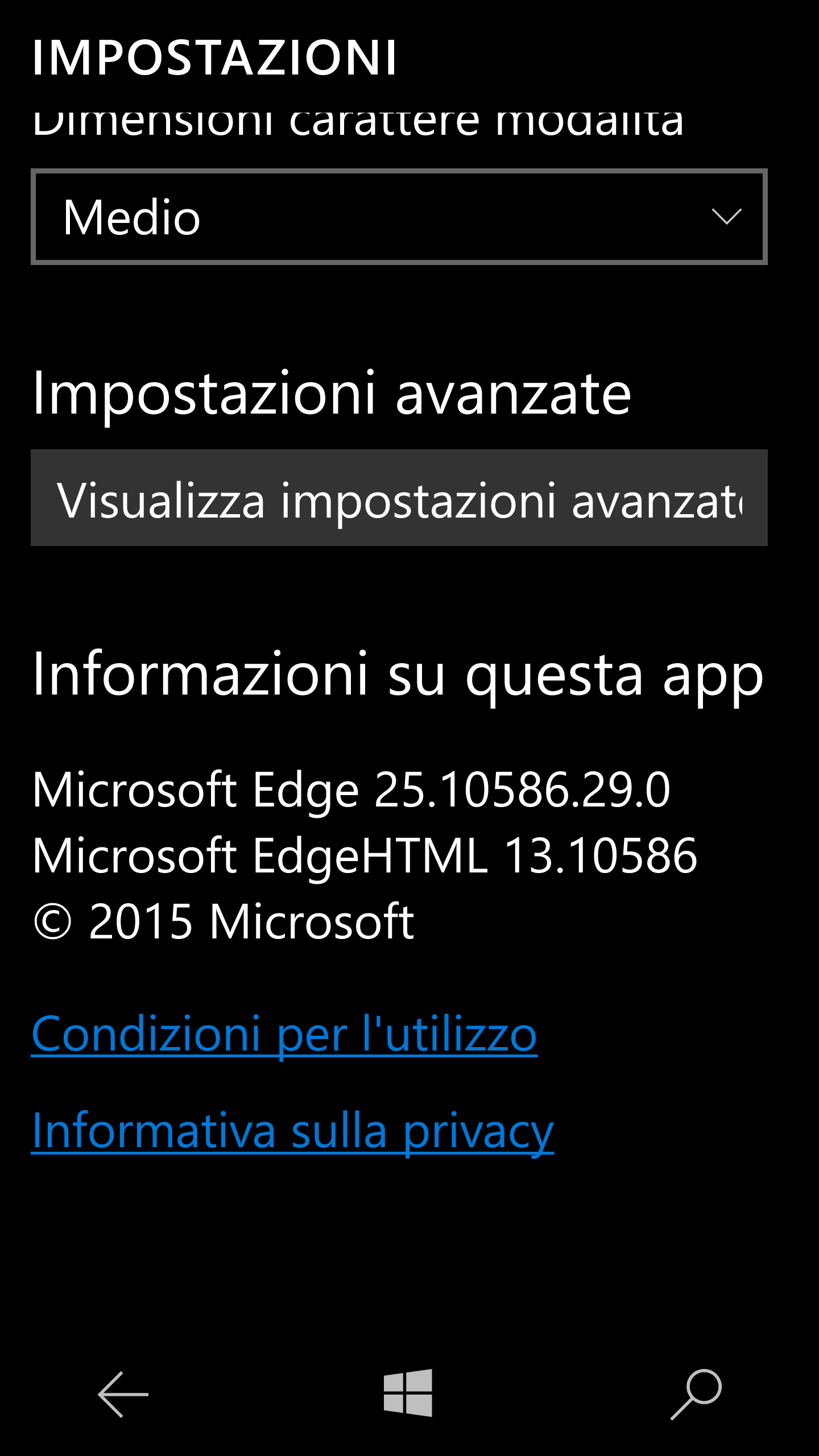
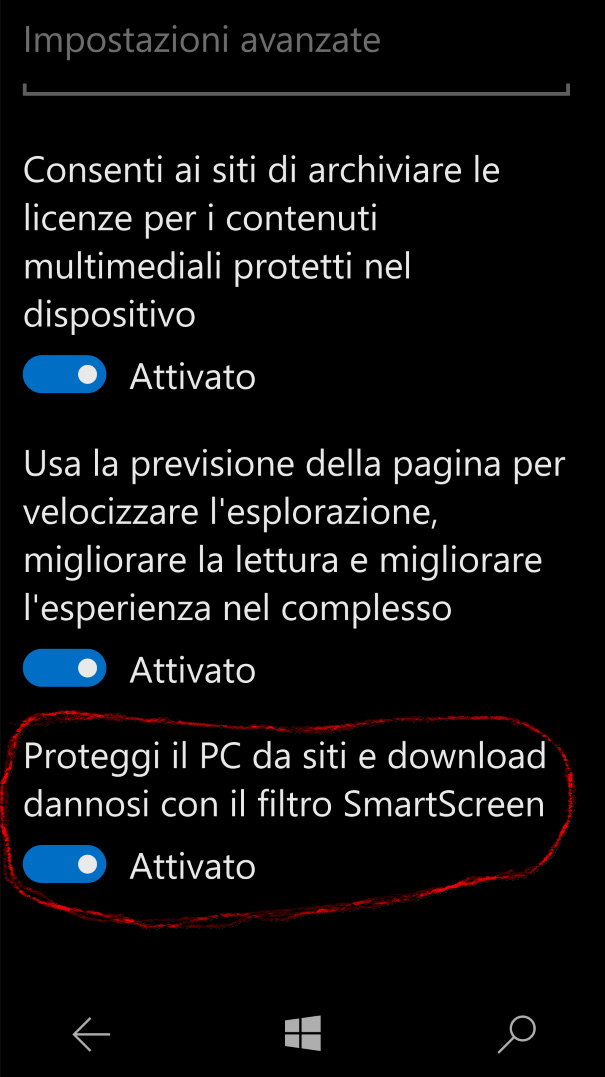
Finally the built-in Edge browser supports protection from malicious sites, set on as default: you can handle this option going in the Microsoft Edge’s … -> Options -> Settings – Advanced settings -> Help protect me from malicious sites and downloads with SmartScreen Filter [IT: … -> Impostazioni -> Visualizza impostazioni avanzate -> Proteggi il PC da siti e download dannosi con il filtro SmartScreen].

Edge browser options

Edge browser options

Edge browser options - Advanced

Edge browser options – Advanced

Edge browser options - Advanced - Protect from sites

Edge browser options – Advanced – Protect from sites

Finally, if you receive a virus warning visiting a site, do not worry … you got fooled by Social Engineering … as it is said also in this post 🙂

========================================================

Related to what antivirus you have to choose for your Windows PC, in the following I give some advices.

Personally, I always had doubt in using free antivirus … let me explain: why they give you it for free? What is their business? Sometime I wonder if they could be in some way  in relation with people that makes virus themselves…
Microsoft Defender is free too, but the business of Microsoft is clear to me: they want to defend their O.S. and doing it with that integrated antivirus for their business … Moreover, I think: who, more than Microsoft, is interested to make a good antivirus or its O.S.?

Therefore, personally I use Defender since it was introduced with Windows 7 and I never had problems with virus. Obviously I never navigate on possibly dangerous sites without a virtual machine … 🙂

About PC performance issues in using Defender, possibly they can rise  … sometime it makes the PC slower, especially if you have an old and not good one. You can see another post of mine about this issue: How to possibly fix high CPU usage in Windows 10. However, what I personally noticed is that many friends, not technician ones, had their PC become slower because they have more antivirus installed and possibly more active, at least partially (some of them was possibly preinstalled when they bought the PC, so sponsored ones to let them buy it after some months …): most of their PC problems disappeared when I uninstalled all the other antivirus (mostly free version ones and installed clicking on some advertisement … so more “virus” than antivirus!!) and leaving active and updated the embedded Defender.

However, if you want to try some other antivirus, I recommend not free ones and you can see a useful compare table form in this site: https://ilmigliorantivirus.com/il-miglior-antivirus-a-pagamento/.

Pubblicato in Smartphone OS | Lascia un commento

Villanova Mondovì: dietro la cappella di San Bernardo nuovo “belvedere”… con vista sulla cava!

Ho appena trascorso qualche giorno nel bel paese di Villanova Mondovì dove c’è il monte Calvario con la sua pineta (purtroppo attaccata da anni dalla processionaria) e sono presenti piccoli tesori d’arte quali la vecchia chiesa di Santa Caterina, di cui ho già avuto modo di parlare in un post precedente. Anche del monte Calvario, del santuario di Santa Lucia e della cappella di San Bernardo ho anche già parlato in un post di qualche anno fa… ma dopo una passeggiata recente, posso finalmente annunciare che anche Villanova Mondovì ha un suo nuovo “belvedere”, collocato su un piccolo promontorio presente proprio dietro la ricollocata cappella di San Bernardo: peccato che si affacci direttamente sulla cava e perciò il paesaggio che si può “ammirare”, non appena uno abbassa un po’ lo sguardo, non è molto edificante… come mostrano le foto seguenti!

Salita al "belvedere"

Salita al “belvedere” (1)

WP_20151230_11_49_36_Rich_LI

Salita al “belvedere” (2)

Piazzale "belvedere"

Piazzale “belvedere”

Ciò che si vede è ...

WP_20151230_11_51_47_Rich_LI WP_20151230_11_52_12_Rich_LI WP_20151230_11_53_48_RichCiò che si vede è …

Ne approfitto anche per evidenziare che avevo già avuto modo di “apprezzare” la robusta quanto inutile cancellata che impedisce ora l’accesso al porticato della cappella di San Bernardo, così non si può nemmeno più sbirciare l’interno della cappella dalle finestrelle ivi presenti (vedi sotto fotografie dell’interno della cappella, da me fatte anni fa quando ancora erano raggiungibili). Viene allora da chiedersi il motivo che ha indotto la costruzione di tale cancellata di notevole fattura (e di costo sicuramente non indifferente), mai esistita originariamente e che modifica sia l’estetica sia la funzione originaria del porticato, sicuramente costruito originariamente per dare riparo dalla pioggia o dal sole ai pellegrini di un tempo. C’erano forse stati atti di vandalismo su questo piccolo edificio, da sempre presente nella zona (sebbene spostato con tecniche “avanzate” – vedere questo post – con notevole dispendio di soldi, per lasciar spazio alla cava… forse questo è l’unico atto vandalico legalizzato che gia subito!)? Dalle foto che avevo fatto quando ancora si trovava nella posizione originaria, ed era possibile accedere fin dentro la cappella (vedi le foto seguenti degli interni, da me fatte nel 2002) direi proprio di no! Nemmeno la presenza di scritte di innamorati che talvolta purtroppo si trovano sui monumenti …
Sicuramente sarebbe costato molto di meno (e sarebbe, stato secondo me, di maggiore utilità) collocare, sulla strada principale, un cartello turistico per segnalare il sentiero che conduce a tale cappella e che poi prosegue verso il santuario di Santa Lucia, che dista solo pochi minuti di distanza: purtroppo solo i locali conoscono tale sentiero per cui un’indicazione turistica sarebbe assai opportuna! Io ne avevo messa una artigianale provvisoria più di due anni fa, sperando di “stimolare” una sua sostituzione con una “professionale” … ma ho notato ora che è stata tolta per lasciar posto… nuovamente al nulla.

=============================================================

Ecco com’era nel 2002, nella sua collocazione originaria, da cui si poteva ammirare tutta la vallata (essendo appunto su un promontorio e con la facciata rivolta verso la valle):

1/9/2002 San Bernardo com'era (1)

1/9/2002 San Bernardo com’era (1)

Ecco com’era nel 2012, dopo la sua ricollocazione, ma ancora priva di cancellata:

8/2012 - San Bernardo oggi (3)

8/2012 – San Bernardo nel 2012

Ecco com’è ora, dal 2014, dopo che è stata collocata la cancellata, perennemente serrata:

San Bernardo 2014

San Bernardo 2014

=====================================================

Foto del 2002 / 2004: cappella di San Bernardo nella sua originale collocazione.

1/9/2002 - Sentiero per arrivare alla cappella di San Bernardo

1/9/2002 – Sentiero per arrivare alla cappella di San Bernardo

1/9/2002 - Panorama da San Bernardo

1/9/2002 – Panorama da San Bernardo

1/9/2002 San Bernardo com'era (2)

1/9/2002 San Bernardo com’era (2)

1/9/2002 San Bernardo com'era (3)

1/9/2002 San Bernardo com’era (3)

1/9/2002 San Bernardo com'era (4)

1/9/2002 San Bernardo com’era (4)

1/9/2002 San Bernardo com'era (5)

1/9/2002 San Bernardo com’era (5)

1/9/2002 San Bernardo com'era (6)

1/9/2002 San Bernardo com’era (6)

1/9/2002 San Bernardo com'era (7)

1/9/2002 San Bernardo com’era (7)

1/9/2002 San Bernardo com'era (8)

1/9/2002 San Bernardo com’era (8)

1/9/2002 San Bernardo com'era (9)

1/9/2002 San Bernardo com’era (9)

1/9/2002 San Bernardo com'era (10)

1/9/2002 San Bernardo com’era (10)

1/9/2002 San Bernardo com'era (11)

1/9/2002 San Bernardo com’era (11)

1/9/2002 San Bernardo com'era (12)

1/9/2002 San Bernardo com’era (12)

======================================
Ricollocazione nel 2004:

San Bernardo (1)

aprile 2004 – San Bernardo (1)

aprile 2004 - San Bernardo (2)

aprile 2004 – San Bernardo (2)

aprile 2004 - San Bernardo (3)

aprile 2004 – San Bernardo (3)

aprile 2004 - San Bernardo (4)

aprile 2004 – San Bernardo (4)

aprile 2004 - San Bernardo (5)

aprile 2004 – San Bernardo (5)

==================================

Foto del 2012:

8/2012 - San Bernardo oggi (5)

8/2012 – San Bernardo

8/2012 - San Bernardo oggi (16)

8/2012 – San Bernardo

8/2012 - San Bernardo oggi (8)

8/2012 – San Bernardo

8/2012 - San Bernardo oggi (9)

8/2012 – San Bernardo

8/2012 - San Bernardo oggi (14)

8/2012 – San Bernardo

8/2012 - San Bernardo oggi (12)

8/2012 – San Bernardo

8/2012 - San Bernardo oggi (15)

8/2012 – San Bernardo

8/2012 - San Bernardo oggi (10)

8/2012 – San Bernardo

8/2012 - San Bernardo oggi (11)

8/2012 – San Bernardo

8/2012 - San Bernardo oggi (13)

8/2012 – San Bernardo

8/2012 - San Bernardo oggi (7)

8/2012 – San Bernardo

8/2012 - San Bernardo oggi (6)

8/2012 – San Bernardo

8/2012 - San Bernardo oggi (4)

8/2012 – San Bernardo

8/2012 - San Bernardo oggi (2)

8/2012 – San Bernardo

… ed ecco come la cava si presentava negli anni ’30, con relativo trenino per il trasporto della ghiaia:

WP_20160103_14_26_29_RichWP_20160103_14_31_20_Rich_LI (2)WP_20160103_14_31_28_Rich_LI (2)

Ecco la piazza Maggiore di Villavecchia e la sua chiesa di Santa Caterina negli anni ’30:

WP_20160103_14_28_10_Rich_LI (2)WP_20160103_14_28_43_Rich

Ed ecco il Santuario di Santa Lucia nel 1957:

WP_20160103_14_31_51_Rich_LI (2)WP_20160103_14_32_36_Rich_LI (2)

Vedi anche il post Monte Calvario a Villanova Mondovì (santuario di Santa Lucia e cappella di San Rocco): rifugio faunistico o sfruttamento indiscriminato delle risorse ambientali?

_________________________
Pubblicato in Giustizia, burocrazia e malcostume, Pensieri&Parole | 8 commenti

How to change font size in Windows 10 Mobile

Depending on the resolution of the Windows 10 Mobile phone, the displayed text could be to little … especially if you are over 50 like me!! 😉

Don’t worry, anyway! … you can set font size (and possibly style) as you like that is one of the several setting available in the Easy of Access [IT: Accessibilità] section . You only have to go to Settings -> Easy of Access -> Other options and, in the Visual options [IT: Opzioni visive] put the text size to e.g. 140%.

In the following animated gif, you can see how to do to let the font be sized differently, in order to see better the displayed text (e.g. also the Messages).

Changing the text size

Changing the text size

However be careful that, if you choose the font size too big (e.g. 200%), it could happen that some SO displayed text will overflow the available space, as you can see in the following screenshots: this easy access feature should be handled better in Windows 10 Mobile and may be next Windows 10 Mobile releases will do that …

Moreover you can also use the Magnifier [IT: Lente di ingrandimento] option that let you magnify the text double tapping the screen and then, holding both fingers, scrolling up or down them in order to set the wanted size: unfortunately with that method the text is magnified only from the centre of the screen so I personally think it is not so useful!

wp_ss_20151227_0002 wp_ss_20151227_0001


Pubblicato in Smartphone OS | 1 commento

Protetto: How to add a new APN in Windows 10 Mobile (e.g. an employee one)

Il contenuto è protetto da password. Per visualizzarlo inserisci la password qui sotto.

Pubblicato in Aziendali, Smartphone OS | Inserisci la tua password per visualizzare i commenti.

How to record a phone call using the embedded Windows 10 Phone feature (even though it is the Italian version of the OS)

Windows 10 Mobile has embedded in the phone call page the feature to possibly record it (or a part of it): in the past I heard that this feature would be available only in some countries, like US, where the law is not so concerned about privacy and so not in Italy. On the contrary this feature is already available also in my new Windows 10 Mobile Lumia 950 😉
As far as I know, other OS have apps that allows to do that but it is not an embedded feature and you have to run by hand that app in background before starting the call.

So, let we describe the few simple steps needed to record a phone call, function very useful, for example, when the other party is telling you something that you want to annotate. Note that I have this feature in my Lumia 950 (build 10586.29) and not in my Lumia 920, updated to Windows 10 Mobile as an Insider (build 10586.36) … and this is a little strange!

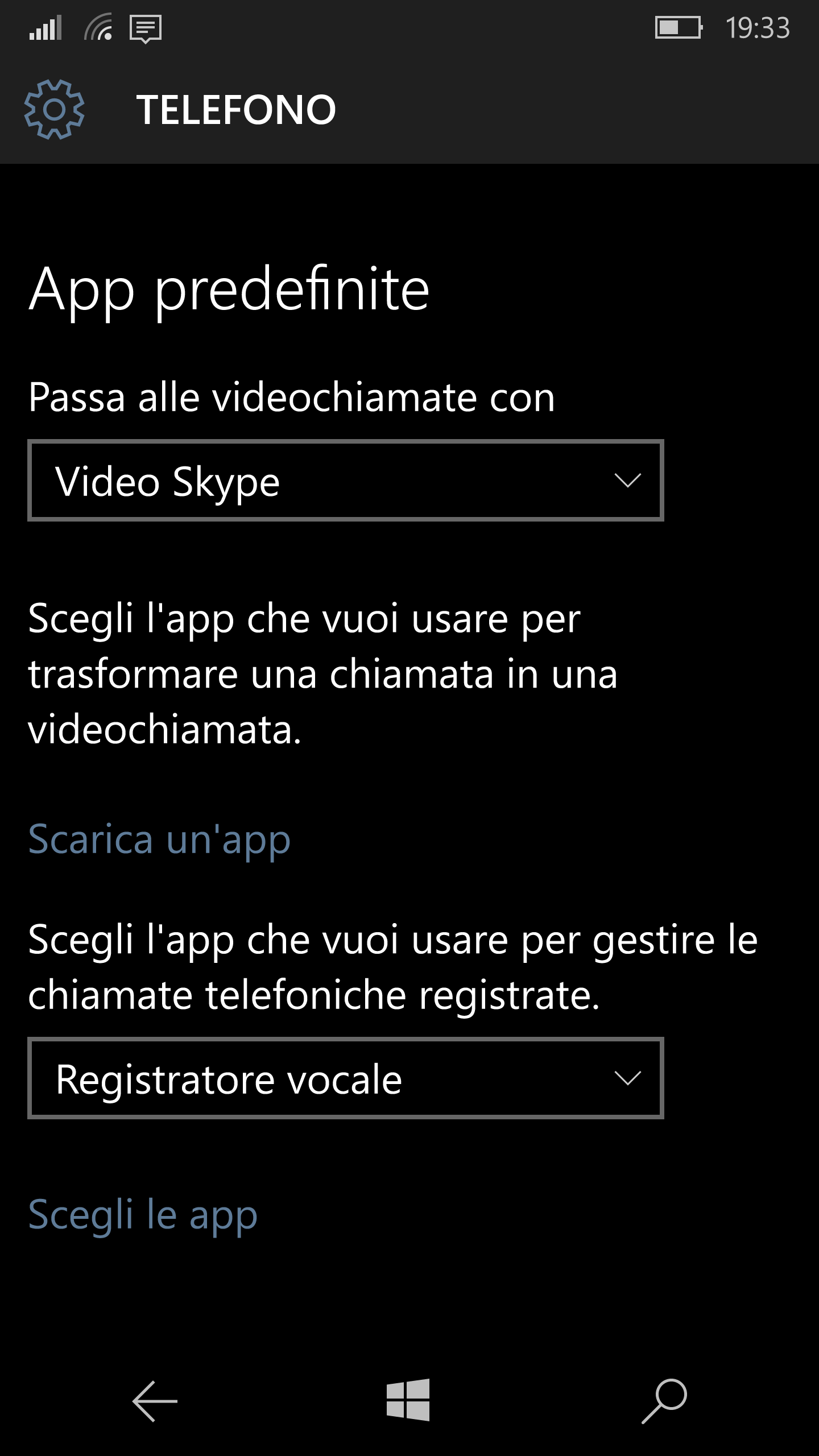
First of all, only the first time,  you have to set the appropriate application that the OS must use to do the recording (e.g. the embedded Voice recorder – IT: Registratore vocale). Go to Settings -> System -> Phone [IT: Impostazioni->Sistema->Telefono] and then, at the bottom of the page, select in the combo the app you want to use for the recording: by default no app is selected in that combo and so the recording button is not shown during a call. Note that you will find listed in that combo all the installed apps that register themselves in the OS as able to provide the recording feature (e.g. Call recorder [IT Registratore vocale]).

Choose the appropriate app that does the recording

Choose the appropriate app that does the recording

Between the lines, clicking the Apps selection [IT: Scegli le app] link that follows (at the very end of the page), allows you to select both the app able to filter and block undesired calls (e.g. IT: Blocca e filtra) and the other one you want to get each calling number (possibly none).

Further call options

Further call options

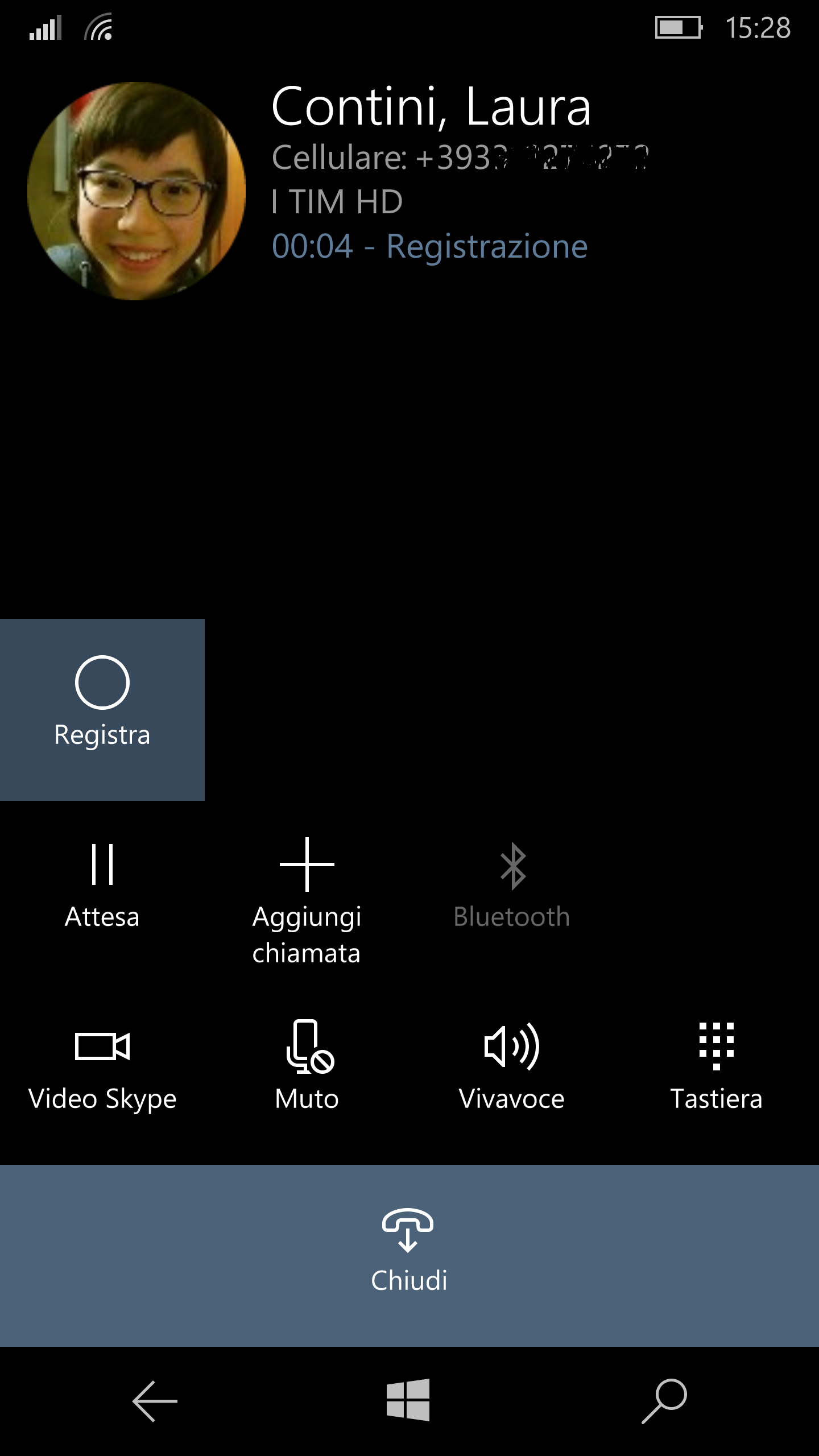
Selecting a recording app let the Record [IT: Registra] button be visible during a call, among the others (e.g. Mute, Speakerphone, Keyboard, Video Skype): when clicked once, the recording starts and the button change color. You can stop the recording during the call, clicking again that button (its will become again with no color) or it will end automatically ending the call itself.

Record button (off)

Record button (off)

Record button (on)

Record button (on)

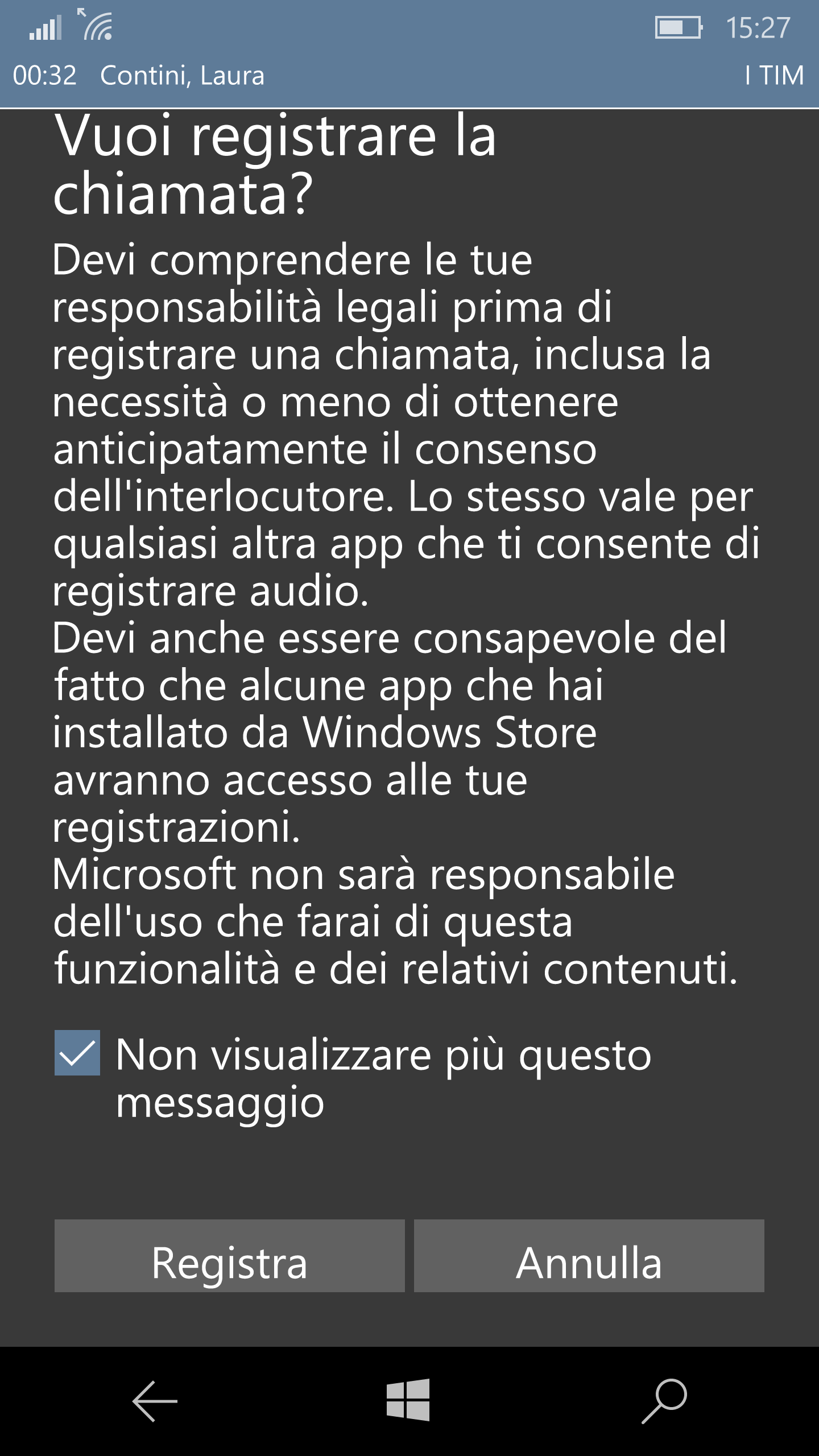
The first time you use the recording function, the following alert page will appear to you and you have to click the Record [IT: Registra] button to confirm again your will: if you check the Do not display that message again [IT: Non visualizzare più questo messaggio] checkbox, this boring page won’t be displayed anymore and next recordings will starts immediately. This page simple inform you that, for legal and privacy reasons, you should have the consent of the other party to start a recording.

Alert and needed agreement

Alert and needed agreement

Then, once ended a recording call, where I can find it? Actually the procedure is not so obvious!!
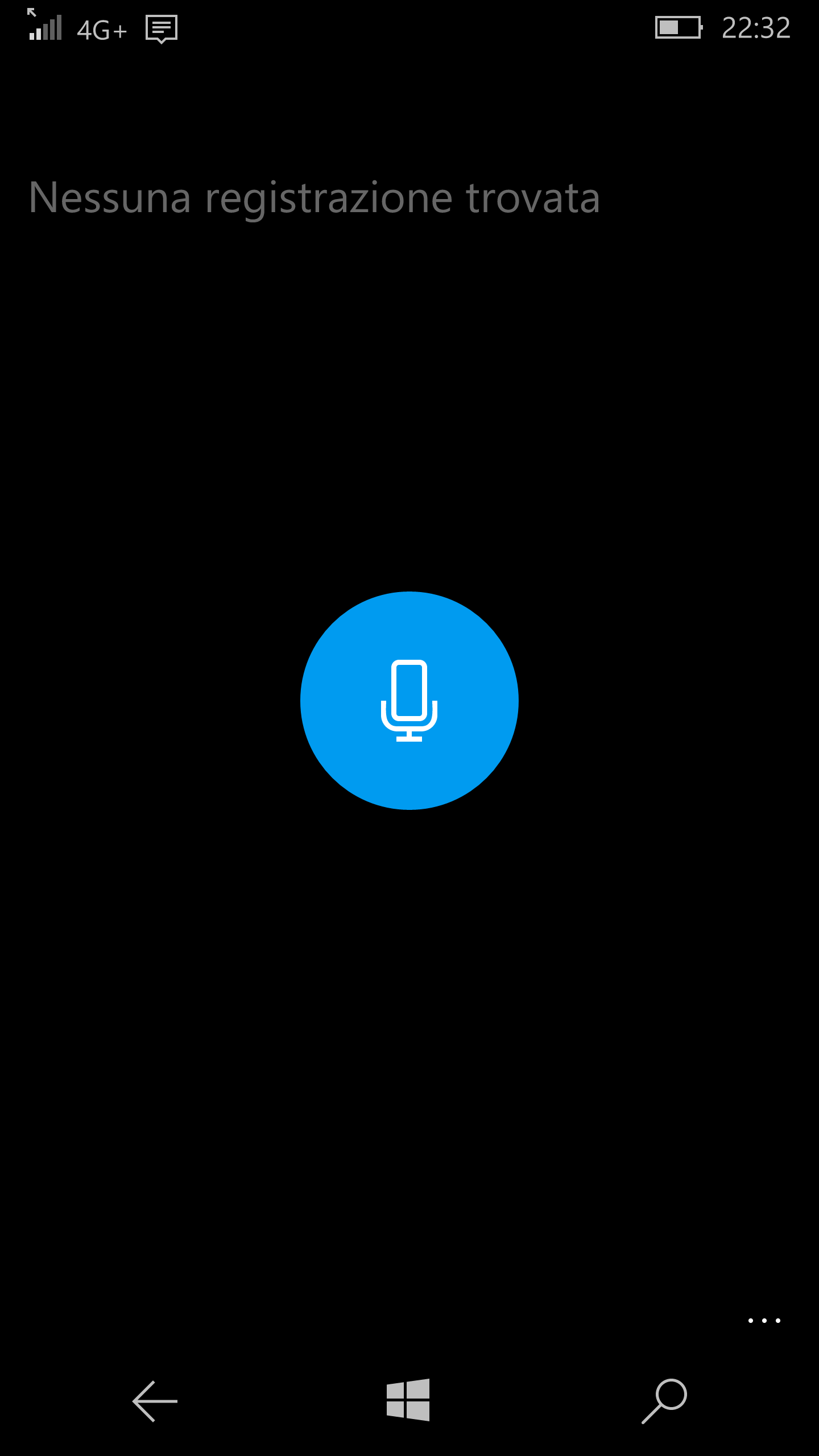
The first think you should try is to open the app you choose to make the record (e.g. Voice recorder – IT: Registratore vocale) … as I did: but you won’t find any new recording file listed in it.

No recording available from the choosen recorder app

No recording available from the choosen recorder app (e.g. Voice recorder – IT: Registratore vocale)

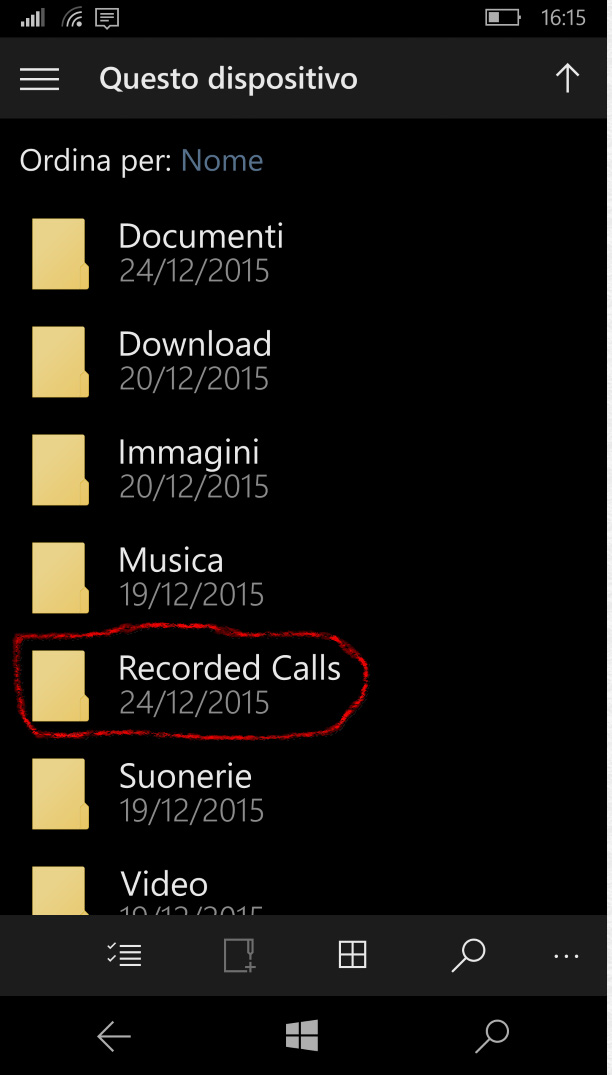
You must run the embedded File explorer [IT: Esplora file] app and you will see in the device memory a folder called Recorded Calls. Note that you find the same not translated folder name even in the Italian OS version … even though the other default folders (e.g. Music, Rings tones, Documents) are translated in Italian (e.g. Musica, Suonerie, Documenti): possibly that this feature is still in a beta version and very probably it will be improved in the near future.

If you go inside that Recorded Calls folder you will see the file list of all the recorded calls named with the Surname, Name of the party and an incremental number: the date of the call is visible, but not the hour. If you click on one of that audio files, the default audio app Grove [IT: Groove Musica] will play it.

File Explorer -> Recorded Calls

File Explorer -> Recorded Calls

Recorded call files

Recorded call files

Pubblicato in Review e test, Smartphone OS | 1 commento

Consigli per gli acquisti e link utili

Link utili:

===============================================

Consigli per acquisti

_____________
Elettronica

_____________

Per bimbi

_____________

Bricolage

_____________
Altro

Pubblicato in Just for fun! | Lascia un commento

Having squared contact tiles in the Start page of Windows 10 Mobile

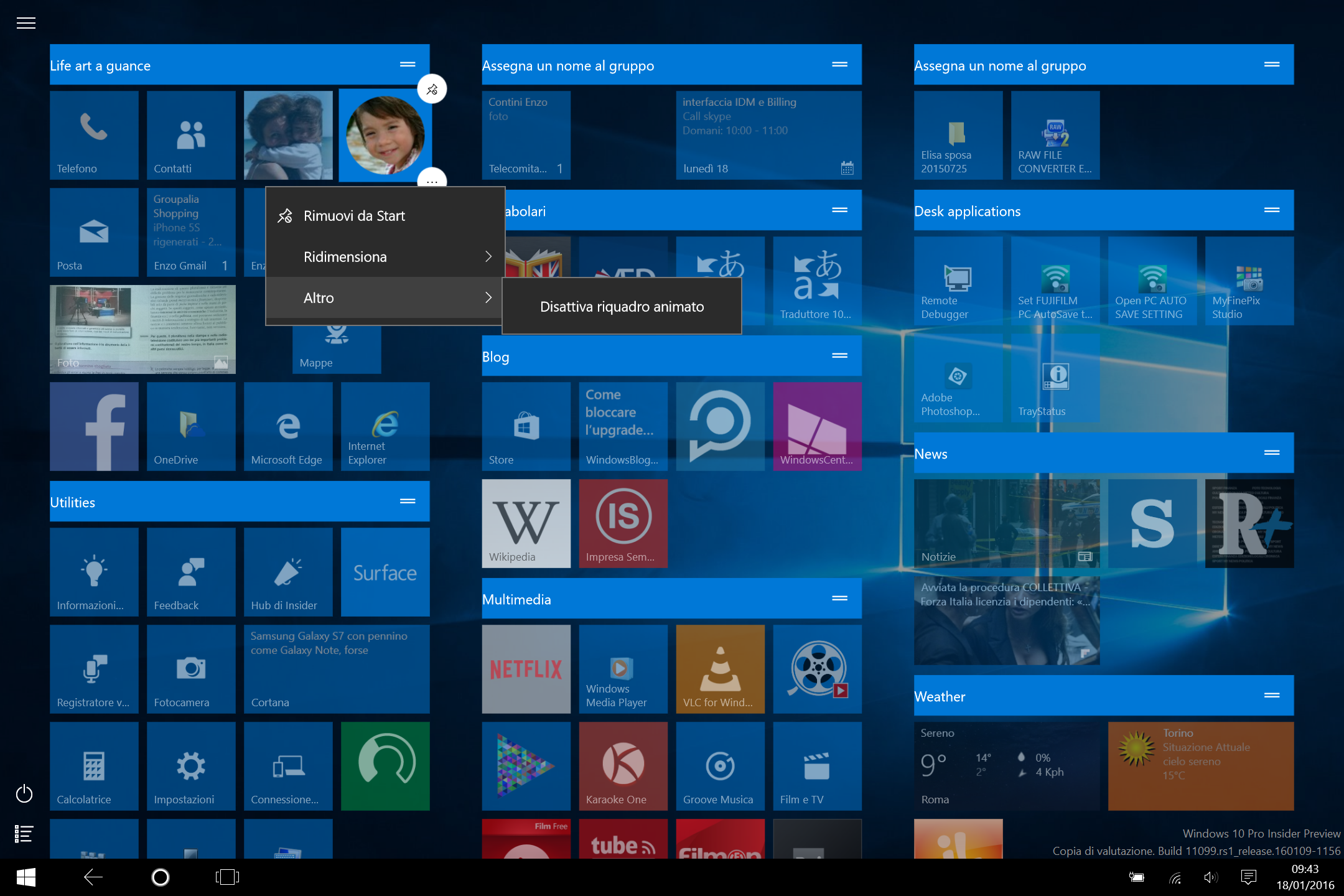
I hate to have, in a Windows 10 Mobile‘s Start tile, the picture of a contact inside a circle: it reduces both the size and the visibility of the picture, … moreover it is, in my opinion, not very nice looking! Much better was the “old” Windows Phone 8.1 squared picture style!! Note that in a PC with Windows 10, if you pin a contact in the Start page and then you disable the animation (right click  More -> Disable animation  – IT: Altro -> Disattiva quadro animato) the image returns squared and there is no more the is no more the overlaid circle: however, unfortunately this option (that is a work around for not having a pinned contact inside a circle) seems not to be available in the mobile version of that operating system.

Disable tile animation to let a contact tile picture remain squared

Disable tile animation to let a contact tile picture remain squared

BUT I succeeded in some way to have the same feature even in Windows 10 Mobile …  let’s go on!

Now, after having changed in the  Settings -> Customization – Start – Show more tiles and changing the Lumia 950 default in order to have less tiles (that is bigger ones), I was surprised to have all the contact tiles I had in my Start page become squared (as I’d like!) … and they remains the same even when I turned back to have more tiles, as it was before by default!!

I thought that I finally found the way to have a squared contact tile as I’d like, even though the procedure was very strange, but when I tried to add a new tile for a further contact, it had again the picture inside a circle (while all the other contact tiles remained squared) and even trying to change again the more tiles or not option,  does change nothing! So now I have the old inserted contact tiles with squared pictures (as I like) and the new inserted one again into a circle! Notice that this last one is a “very” live tile (as it was in the default phone configuration) and when the name of the contact appears, the image rotare anticlockwise and the upside of the circle picture goes out of the tile: very bad looking!!!

Do anyone let me know what is the way to let the contact tiles to be squared? I succeeded to do that in some way but I couldn’t reproduce how it happens 😦 . Note that now the squared contact tiles are not “so” live (as it was, anyway, in WP 8.1, only a label over the picture is shown somehow) while the new ones I can insert (that have a rounded picture) are “very” live tiles and the picture even rotate and go partially out of the tile (horrible!).

Contact live tile (now the old with squared picture and the new with a rounded picture ...

Contact live tile (now the old with squared picture and the new with a rounded picture …


Contact live tile (now the old with squared picture and the new with a rounded picture ... that rotate somehow when the name is shown!)

Contact live tile (now the old with squared picture and the new with a rounded picture … that rotate somehow when the name is shown!)

All the new contact tiles, inserted in the Start page, are inside a circle! :-/

All the new contact tiles, inserted in the Start page, are inside a circle! :-/

Pubblicato in Smartphone OS | Lascia un commento

How to … in Windows 10 Mobile

The new Settings section available in Windows 10 Mobile is much better than the one of  Windows Phone 8.1: now you can easily find the proper section where to get what you want!
Anyway, in this ongoing post, I will list some useful links and path that can be useful in configuring a new Windows 10 Mobile device:

Pubblicato in Smartphone OS | Lascia un commento

How to get, in a new Windows Phone/Windows 10 Mobile device, the same configuration you had in an old one (… and then change the new device name)

If you buy a new Windows Phone/Windows 10 Mobile device (e.g. a Lumia 930 or 950) and you have already an other Windows Phone, probably you would like to restore the same configuration you had in that old device: in fact, this is one of the proposed options that you have while configuring the new device with a wizard.

It is very convenient to have a Wi-Fi connection (as fast as possible) when you do the following procedure.

First you have to force a backup on your old phone (Settings -> Backup) in order to have in the cloud the last configuration of that phone. Then on the new one select, during the wizard setup, the restore option of the restore from the old phone. The new phone will install all the app you have, configure the emails you have, compose the Start page with the same tiles you have on the old phone! … then it will take a while to download all the apps and may be you will be requested to insert a password for each email account, but at the end you will have the new phone with the same configuration of the old one, the same apps installed, the same tiles position in the Start screen, the same WiFi connections already configured with password (at least for some of them, but this surprise me anyway!) … BUT even in the name!! … and this last thing could be not nice! 😉
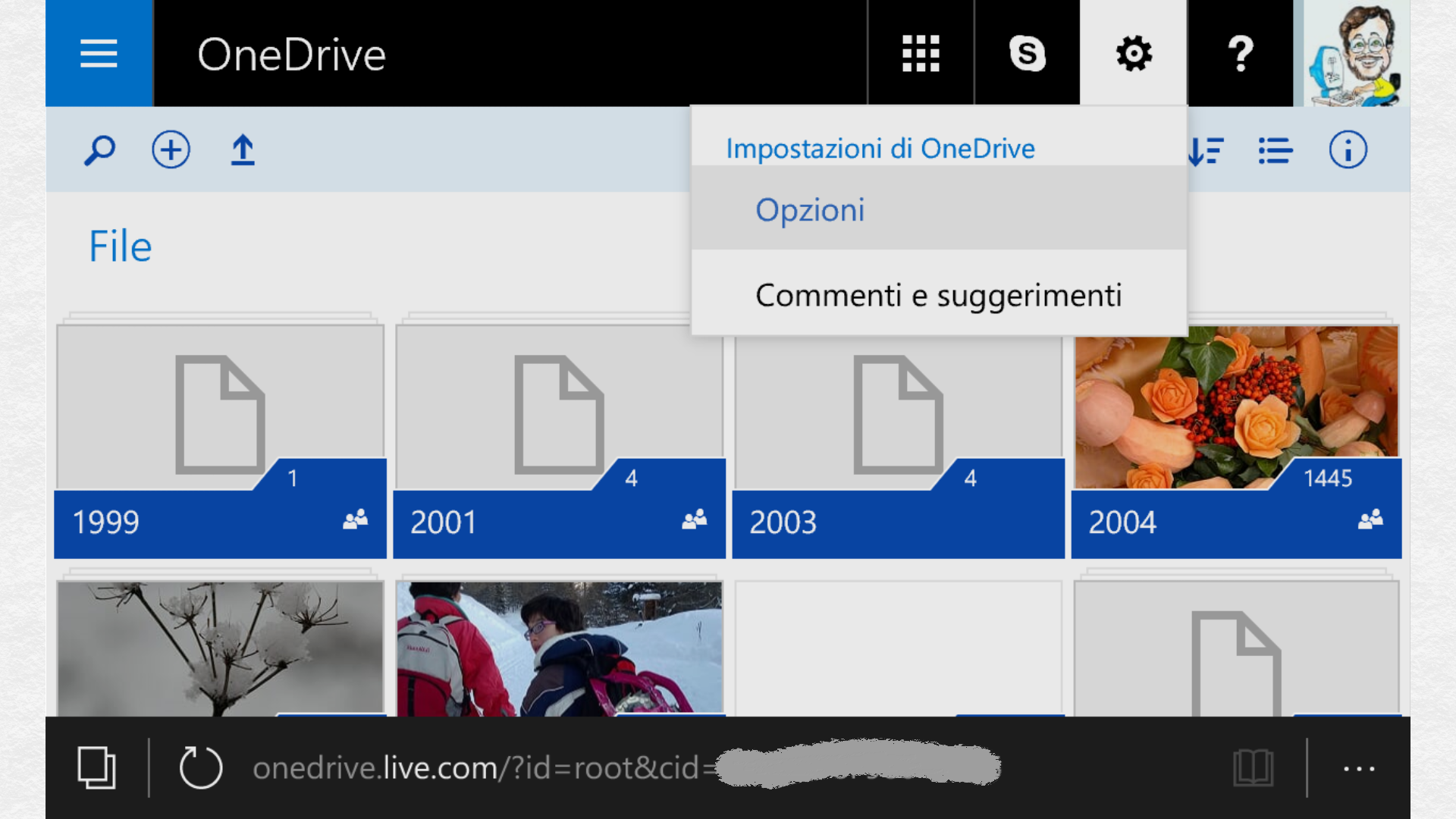
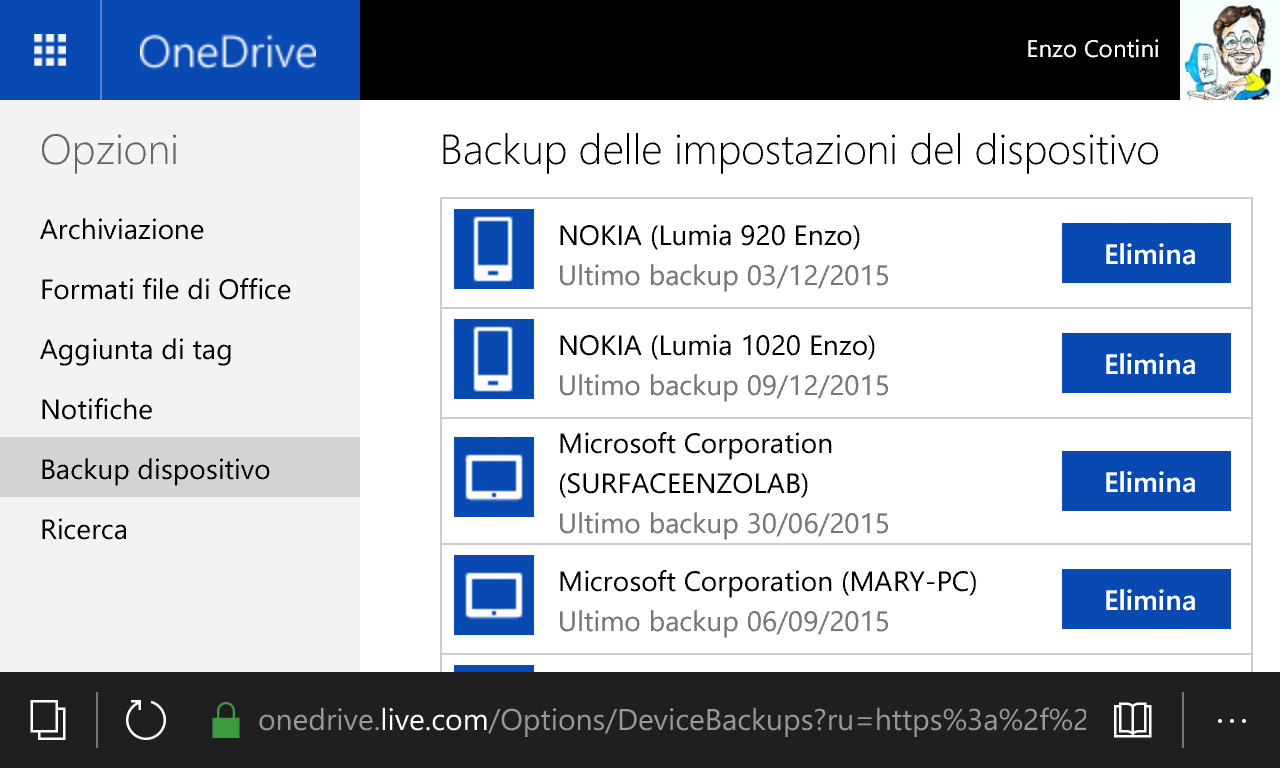
Between the lines, note that all backups of all your devices are in your OneDrive space and you can see them (and possibly delete some) from the OneDrive site going to Setting -> Options – Device Backup.

OneDrive Settings

OneDrive Settings

OneDrive - Devices backup

OneDrive – Devices backup

So, how to change the name assigned to the new phone?

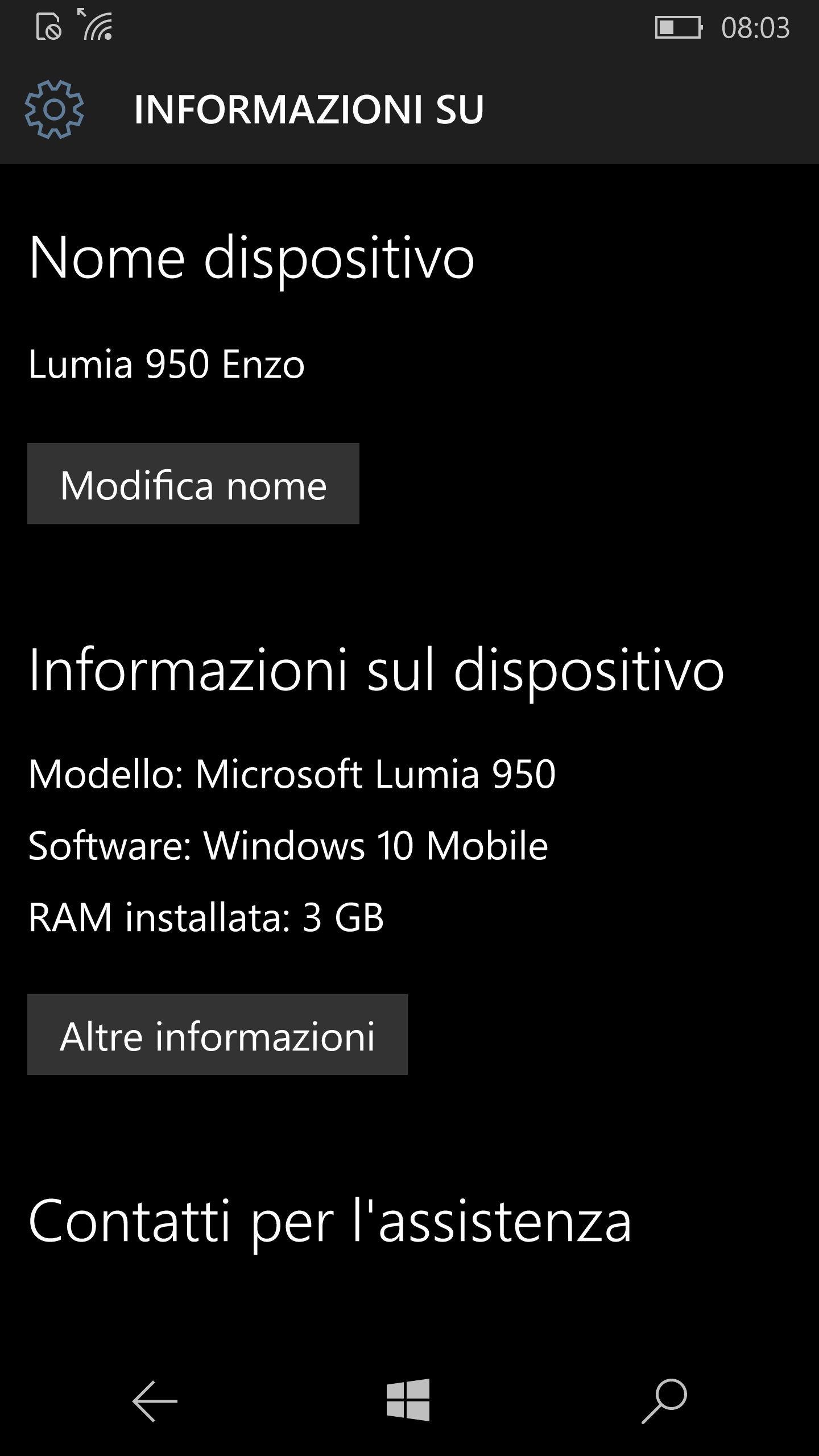
If you have the new Lumia 950 with already preinstalled Windows 10 Mobile, it is very easy: just go to Settings -> System -> Information about and then click on the Modify name button.

wp_ss_20151221_0001

Modify the device name in Windows 10 Mobile

If your new smartphone (e.g. Lumia 930) has instead still Windows Phone 8.1, once there was the Windows Phone app for desktop that allowed to handle a Windows Phone device (and, among other things, allowing to change its name, the one visible also when you try to get a Bluetooth pairing). Now, in Windows 10, there is the Phone Companion app (that is no more specific for handling a Windows Phone / Windows 10 Mobile but it can be used with whatever phone device – e.g. Android , iOS), a lot of features are (for now?) not available. Anyway most of them can be performed very easily in other ways: for example the renaming of the device.

The simple procedure (that must be used for Windows Phone 8.1 devices but can be used also, as an alternative, for Windows 10 Mobile ones) consists in opening File Explorer in your PC, connecting your Phone to that PC via USB, selecting This PC (note: on Device and drives section the Phone icon will appear) and then  renaming its label (click, wait and change the label text: see the following animated gift).

Change the device name

Change the device name

Note that this simple procedure changes the name of the device also in the device itself, non only for that PC: in fact, if you then go to see on the phone the Settings -> Information, you will see that the name of the device has been changed; the same if you try to configure a Bluetooth connection, for example, with a PC.

Bluetooth pairing to verify the new device name

Bluetooth pairing to verify the new device name


Pubblicato in Review e test, Smartphone OS, Windows | Lascia un commento

How to archive and clean up your Outlook email account

Sometimes it happens that you receive from the Outlook server a notification that the space available for your email account is nearly full and so you have to do something in order to be able to send and receive new emails.

  • The first thing to do is to sort by size all the folders, especially the Inbox and Sent Items ones, in order to identify possible emails with very huge attachments that should be saved locally, if the case, and then deleted. It can be very useful also to have a look to the File tab and then select Cleanup Tools -> Mailbox Cleanup…, just to see what kind of folders are taking you more space. Take care also to check the size of the Conversation History folder (where are stored all the chats done with Skype for Business / Link ) and those related to Synchronization problems: if the case they can be deleted going in the Home tab and looking into the homonymous folders.

View Mailbox size (1)

View Mailbox size (1)

View Mailbox size (2)

View Mailbox size (2)

Delete Conversation History and Synchronization problems

Delete Conversation History and Synchronization problems folders content

  • The second suggestion is to create an archive: personally I create one archive for each year. I have just created the 2015 one … and this is why I had the idea to share some suggestions in this post 😉 !
    There are several ways to create an archive, even setting some auto-archive rules: in the following I will show my simple way to create an archive for the past year’s sent/received email and calendar too, that should be sufficient in most of cases.
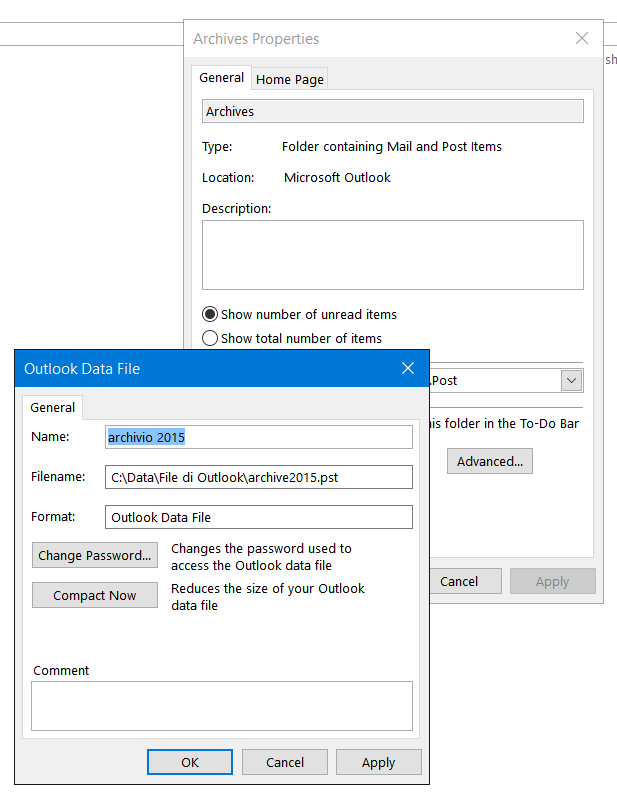
    You must go to File tab and then select Cleanup Tools -> Archive… and give the proper path/name where to save the archive .pst file and choosing the date till when you want to archive: note that you have to do this procedure (choosing the same name, e.g. archive2015) for each folder you want to archive (e.g. Inbox, Sent Items, Calendar). Moreover it can be useful to store the archive files not in a user specific folder (as proposed by default) but in a generic one (e.g. C:\Data\Outlook archives\archive2015.pst) in order it can be accessible from any user account you could have on that PC.

Creating an archive

Creating an archive

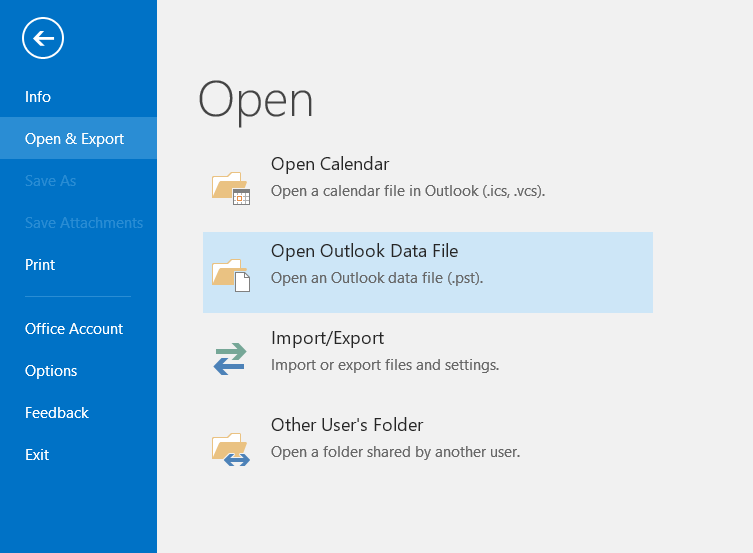
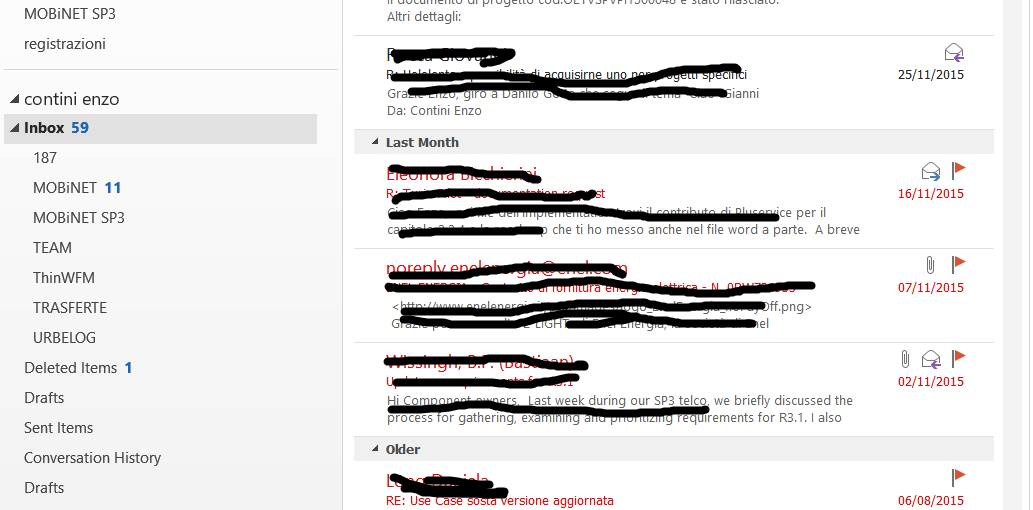
After having created the archive, you can then open it in order to be able to read its content from the Home tab.

Open the archive in the Home tab

Open the archive in the Home tab

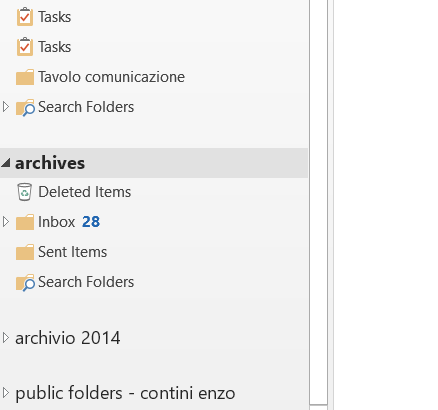
Select the archive you want to read

Select the archive you want to read

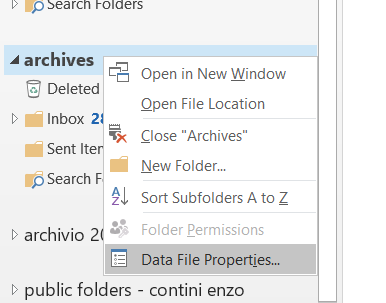
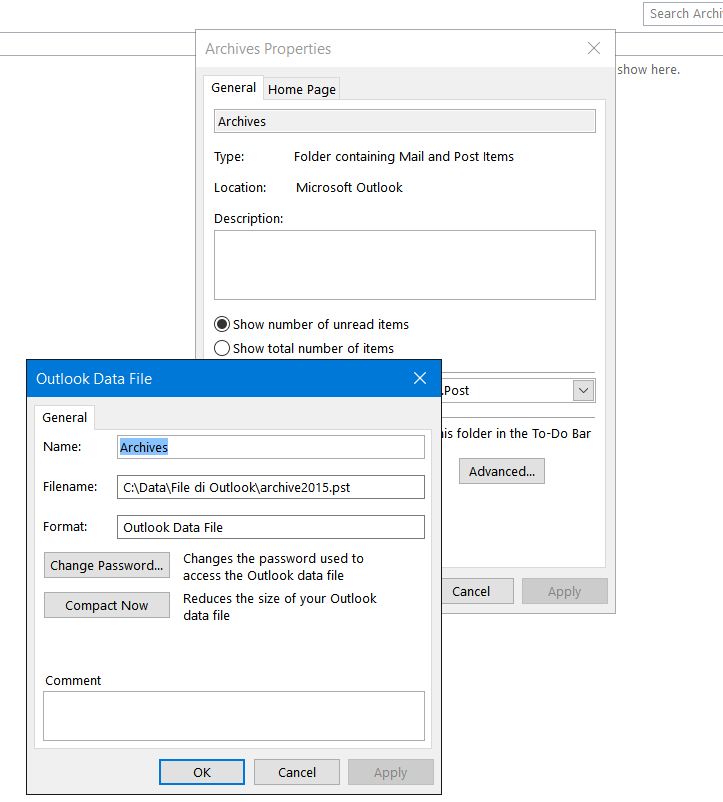
Possibly rename the showed folder

Possibly rename the showed folder (1)

Possibly rename the showed folder (2)

Possibly rename the showed folder (2)

Possibly rename the showed folder (3)

Possibly rename the showed folder (3)

Possibly rename the showed folder (4)

Possibly rename the showed folder (4)

Possibly rename the showed folder (4)

Possibly rename the showed folder (4)

Possibly rename the showed folder (5)

Possibly rename the showed folder (5)

I notice that emails red flagged (i.e. signed as Follow up) are not archived and remains in the main email folder: if you want, you have to move them manually on the proper archive folder.

Follow up emails are not archived

Follow up emails are not archived

Pubblicato in Windows | Lascia un commento

Treasure Tag … a nice gadget for Windows Mobile devices!

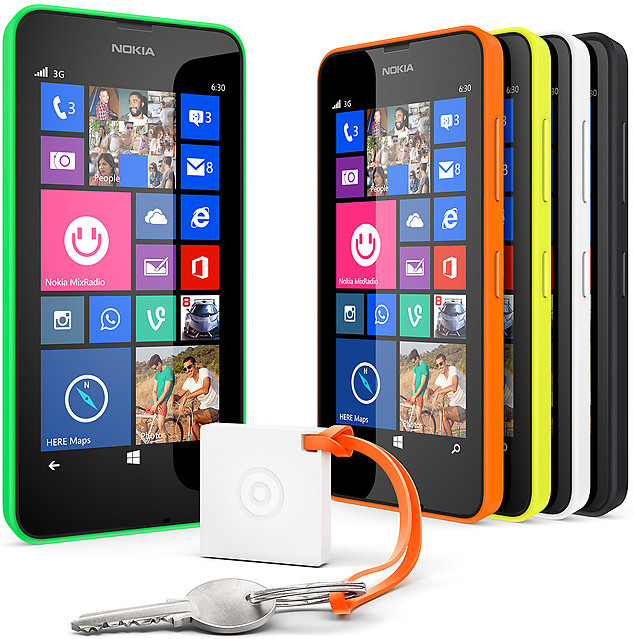
I think that Nokia Treasure Tag is a nice gadget and I suggest you to have a look to this page where all its features are listed: the nicest one is that, attaching it the to your belongings, it alerts you when you are about to leave them behind, … and you can pair up to 4 tags. There are two versions, Treasure Tag WS-2 and Treasure Tag Mini WS-10 (both measuring in at the same 30mm x 30mm face, the second one is nearly half the as thin  – 5.8 mm vs. the full size’s 10mm-  and less than half as heavy – 6.2g vs. 13g). As said in WindowsCentral blog, most notably, the Treasure Tag Mini doesn’t include NFC, so pairing will have to be done manually. The Treasure Tag Mini also doesn’t include a buzzer speaker, so if it’s separated from your Windows Phone only the smartphone will sound the alarm. The battery is also significantly smaller (1/3 the capacity of the full size Treasure Tag), but with the reduced feature set also comes savings in battery life — you’ll still get 120 days of life out of a CR2016 coin cell alkaline battery.

Unfortunately it is not cheep (you can find at about 23€) … but I think I will buy one anyway, I think the WS-2 that is NFC one even though a little bit thicker! So I had a look at the app to be used. Ones it was the Treasure Tag app but, just some days ago, a new one was released called Gadget app. I succeeded to install it on my Windows Phone 8.1 device directly accessing to the app page in the Store (in fact the search function does not find it) but, unexpectedly, I was not able to install it in my Windows 10 Mobile (build 10586 for Insiders) device because in the Store the App download button seems disabled (may be in Edge my device is not seen as a mobile one??) … anyway I think it is only a matter of time because I read that Gadget app is already preinstalled in the new Lumia 950.

Treasure Tag WS-2

Treasure Tag WS-2

Treasure Tag Mini WS-10

Treasure Tag Mini WS-10


Pubblicato in Smartphone OS | Lascia un commento

How to disable the ‘New wifi available’ notification in Windows 10 Mobile

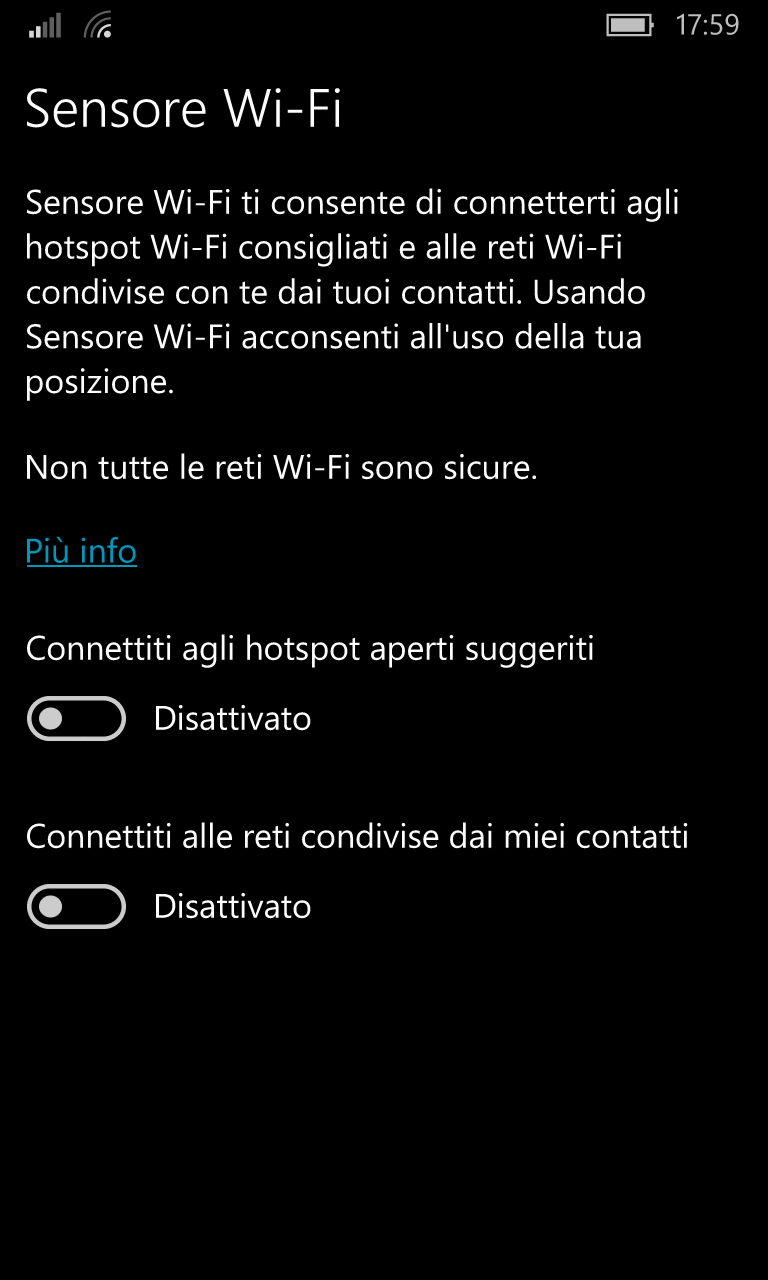
This kind of toast notification is very annoying, especially when you are using a navigator. It is not listed in the notification list, available in Windows 10 Mobile, and so it seems not possible to disable it!! On the contrary, fortunately you can: you must go to Settings -> Network and wireless -> Wi-Fi, click on the Wi-Fi sense button and then turn everything off.

wifi sense

Wi-Fi sense

Personally I think that currently you have to disable things that are not necessary related to the fact that you do not want to receive a notification when a new wifi is available … it should be much better if this could be managed in the Settings’ notification management section, possibly choosing the kind of notification you might like (e.g. sound, banner …).

Pubblicato in Smartphone OS | 1 commento

What to do if the following error occurs: “Unable to locate ‘C:\…\Visual Studio 2015\Projects\MyProject\.nuget\nuget.exe”

It may happen that downloading a package from GitHub (e.g. WpWinNl.MapBindingDemo) after compiling the solution, the dependences are resolved but still remains an error like “Unable to locate ‘C:\…\Visual Studio 2016\Projects\MyProject\.nuget\nuget.exe“. What to do?

A simple solution is to download the nuget.exe file from here e put it in the proper path where the error says it is missing. Other solutions, may be more clean but a little more complex to implement, can be found in this forum thread: Prevent needing to add NuGet.exe to source control.

😉


Pubblicato in Smartphone OS, Windows | Lascia un commento

How to use web.whatsapp.com with Microsoft Edge browser

P.S.  7/2/2016 –  Finally web whatsapp supports also Edge, … without doing the following workaround! Therefore now it is sufficient to open a new tab and write the https://web.whatsapp.com URL. For further information see this post.

____________

I  must admit that I don’t like WhatsApp very much … and the only reason why I have in my Windows 10 Mobile phone is because it is very popular … and for a chat this is relevant!

There are a lot of better alternatives for chatting and exchanging pictures, video, voice messages and much more (e.g. Telegram, Skype, Messenger) and I think that all of them work better and have more additional features. Moreover WhatsApp has a boring limitation if you havea voice/data sim associated to a only data one (both having the same phone number, being the second become master – so voice/data – if the device using the first one is not connected with a GSM/LTE network): in that case you can have WhatsApp app working only on one of that phones (even though they have the same phone number) unless every time you do a new registration with a resend of SMS and so on: this is really boring and it is a drawback that you have only with that app!

… but WhatsApp still remains the most popular and so it is nearly a must on a mobile phone.

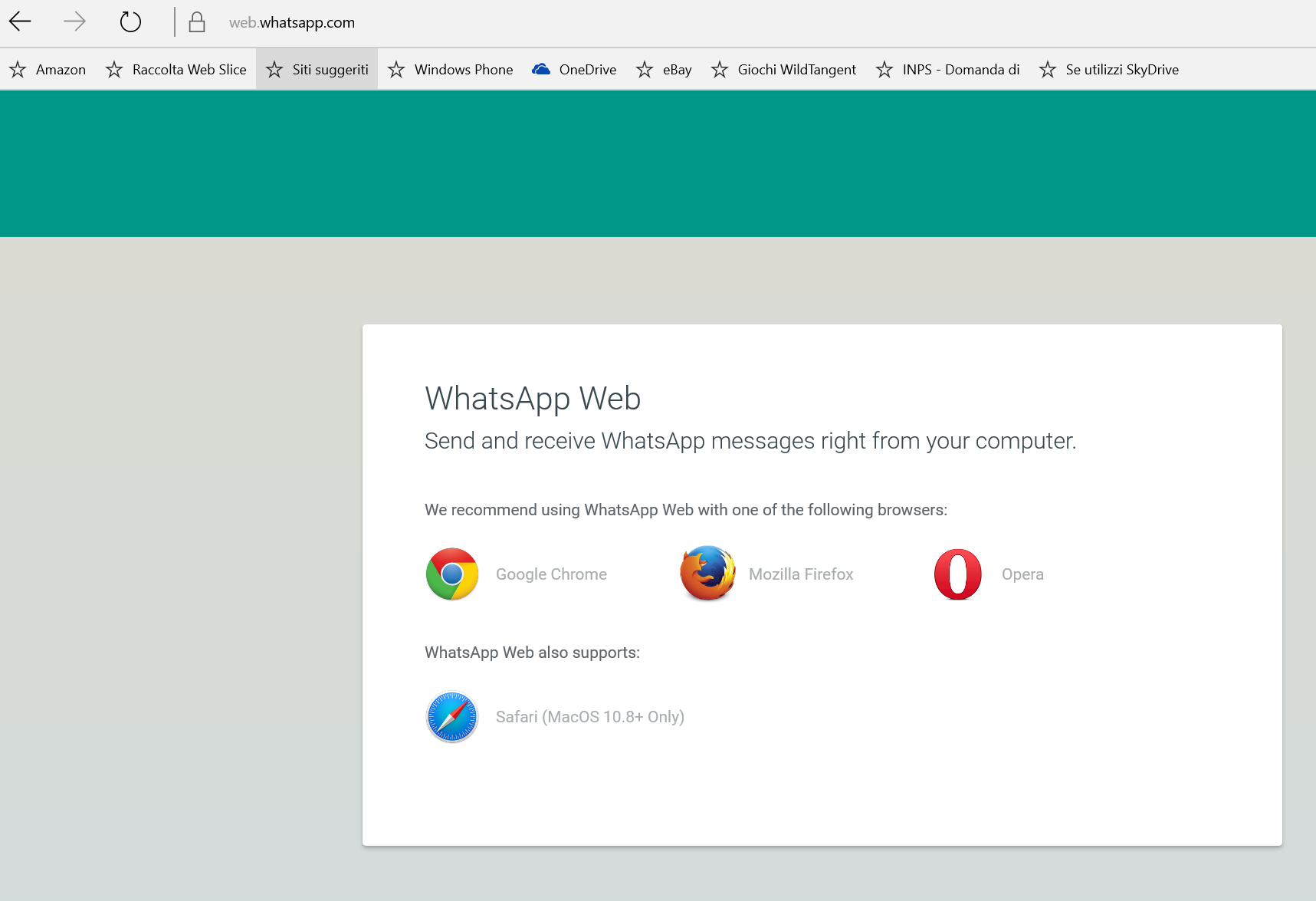
You probably know that it is possible to use WhatsApp also from a browser, for example from a Windows 10 PC. However, if you try to go to web.whatsapp.com with both Internet Explorer 11 or Microsoft Edge,that are the default browsers available by default in Windows 10, a page is displayed saying that that site supports only other browsers … and let you not proceed further!! I personally found it very very strange and I suddenly understood that it was not a technical problem but only a commercial one :-/ 

WhatsApp web

WhatsApp web

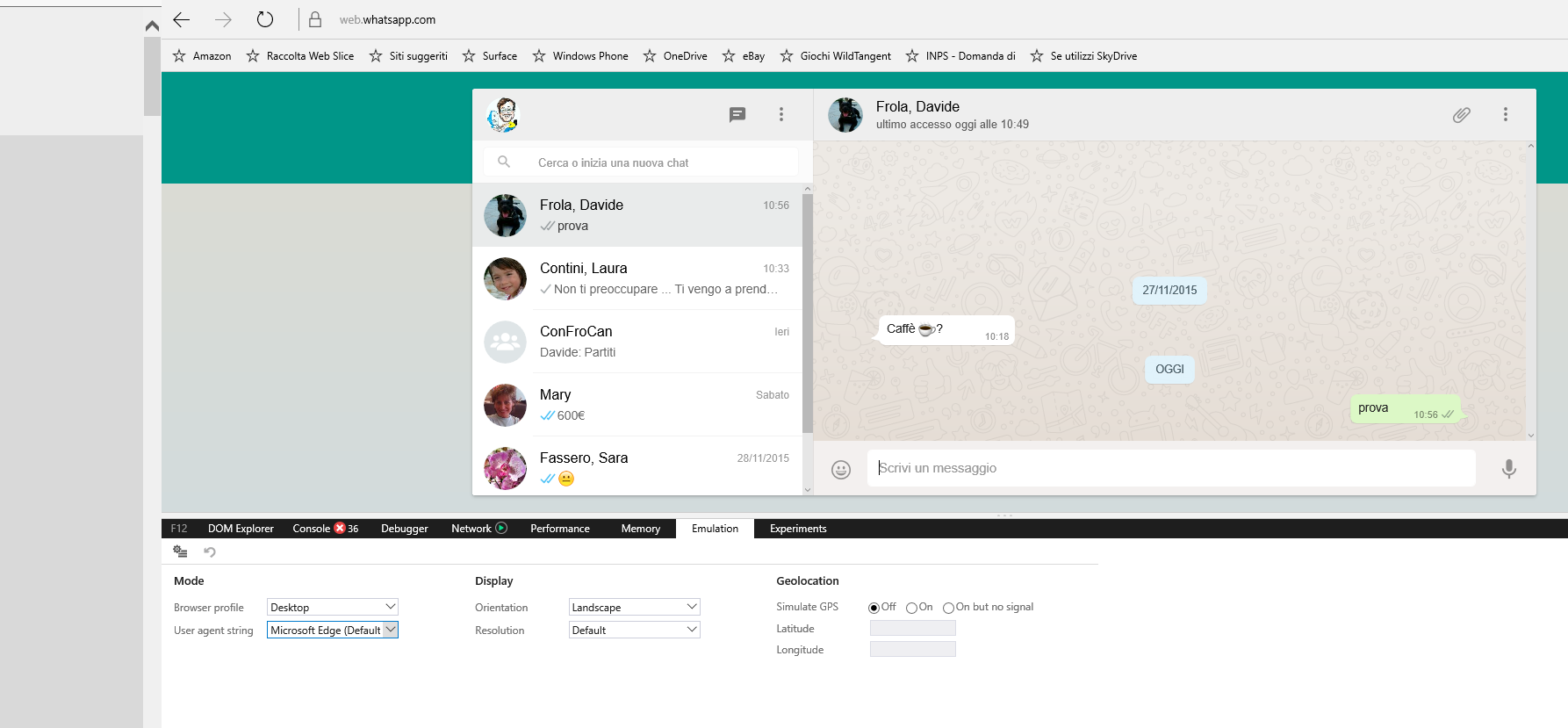
So I tried to change the user agent string that the browser send to the site in order it can be identified, changing it from the default Microsoft Edge to the Google Chrome one: in this way the site think that my browser is the Google one and not the Microsoft one 🙂
To do so it is very simple:

  • press F12 or select More -> F12 Developer Tools
  • Select the Emulation tab in the below section and then select Google Chrome in the combo related to the User agent string Mode
  • Refresh the page (e.g. ctrl+F5)
  • The QR code to link the browser to your Phone will be displayed and after that procedure WhatsApp will be available also in your Edge browser

F12 Developer Tools

F12 Developer Tools

User agent string

User agent string

Note that, after that association between browser and phone, you can set again the User agent string to the default Microsoft Edge.

User agent string again to Edge

User agent string again to Edge

Pubblicato in Smartphone OS, Windows | Lascia un commento

Create an app for end-users and even for business without coding: Microsoft AppStudio, Microsoft PowerApps and Microsoft Project Siena (all Beta)

In the last few months, Microsoft released several tools that allow to create apps without coding, even for business and for any device (e.g. Windows 8 and Windows 10 devices, iPhone and iPad; support for Android devices will be available in the near future).

For end-user apps:

For business apps:

NOTA: i controlli usati da Windows App Studio sono resi disponibili nel progetto Windows App Studio Libraries su GitHub e quindi risultano utilizzabili anche in nostri progetti.

===================

Update 18/4/2016 – See also the installer companion Windows App Studio Installer app  as explained in this article.

===================

Update 4/5/2016 – Just released the PowerApps Preview to the public. This milestone launch brings major improvements – many the direct result of feedback from private preview users like you.

  • PowerApps Studio for Windows delivers improvements for creating apps from data, offers new form controls, contextual help, and a lot more.
  • PowerApps for iOS has new refined look-be sure to install the latest so you can use all of your apps, old and new.
  • PowerApps for Android is here! Get it and start using your apps right away.
  • PowerApps on the web is already updated and ready to go. You’ll notice a new home page with easy ways to get started, and you can now use apps in any web browser!

Learn more about the many improvements and new features in PowerApps, and see the new community site.

There is also the new Microsoft Flow, which you may recognize as a significant evolution of the Logic Flows feature in PowerApps. Now you can create flows that automate your notifications, sync files, capture data, handle approval workflows and more. Read more about what Microsoft Flow can do.

Pubblicato in Smartphone OS, Windows | Lascia un commento

How to locally download a streaming video with Edge browser (e.g. the Verdi’s grandest opera AIDA or the Puccini’s Boheme)

Sometime there are streamed video that you may want to download locally because you want to see even when network connection is not available (or you have to pay for) or because you can see it free on Internet for a limited range of time. That is the case of the Verdi’s grandest opera AIDA available, free of charge, for 6 months from theoperaplatform.eu site that I suggest you to visit, especially if you are a Opera fan. I saw live in Turin the dress rehearsal of this wonderful event  that also celebrate the reopening of the Turin Museo Egizio — the world’s biggest Egyptian Museum after Cairo.

Unfortunately the streaming of this event will be available in theoperaplatform.eu site only for few months, so why not to download it locally and try to do that with Edge, the new Windows 10  browser? 😉

It is very simple and it works as it is in Chrome browser: in the following the few steps to do this “work”!

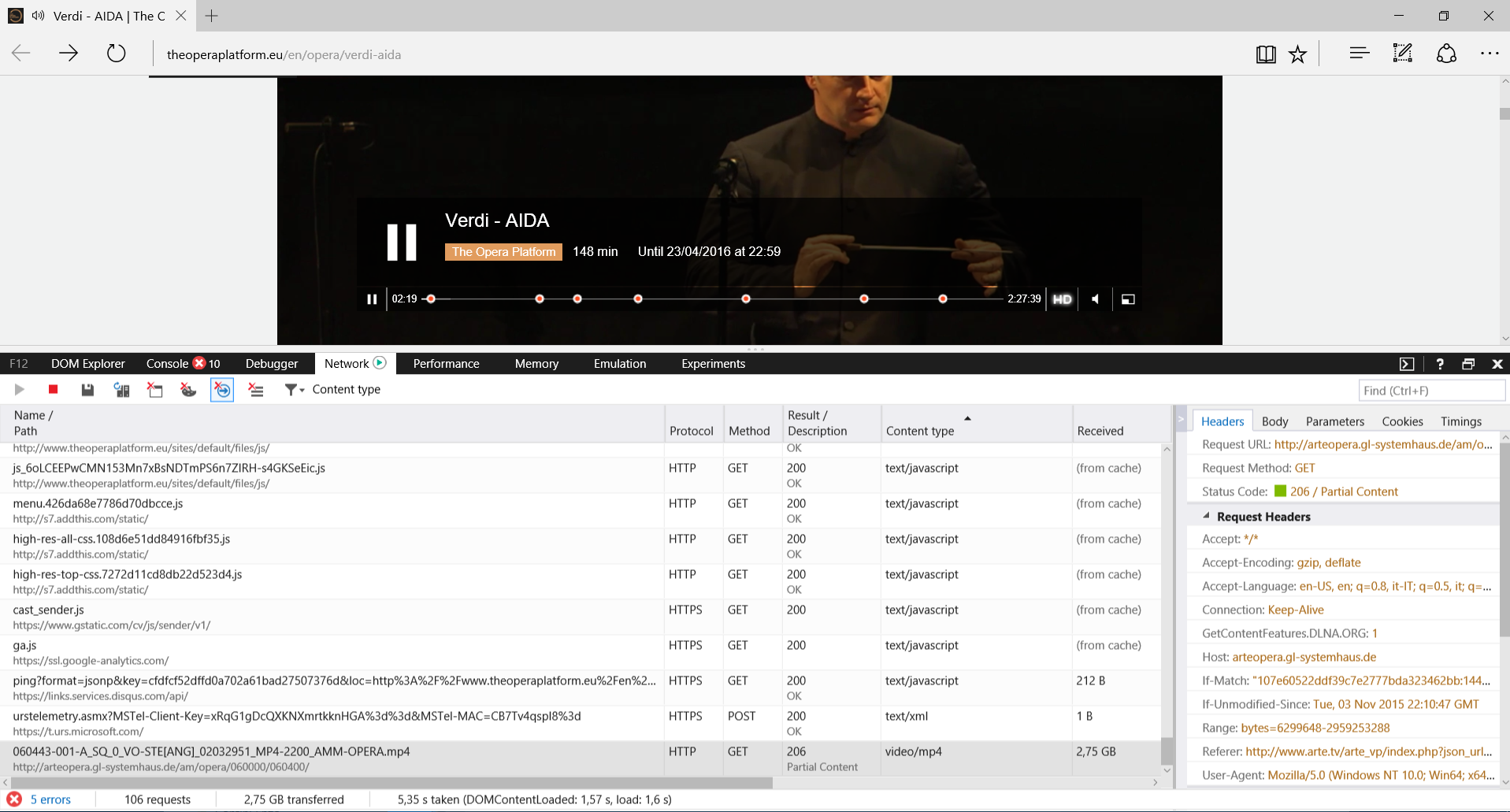
  1. With Edge browser, go to the page where there is the stream of the video you want to download locally (e.g. theoperaplatform.eu site) and then press F12 (or select from the More… menu the Developer Tools voice)."Step
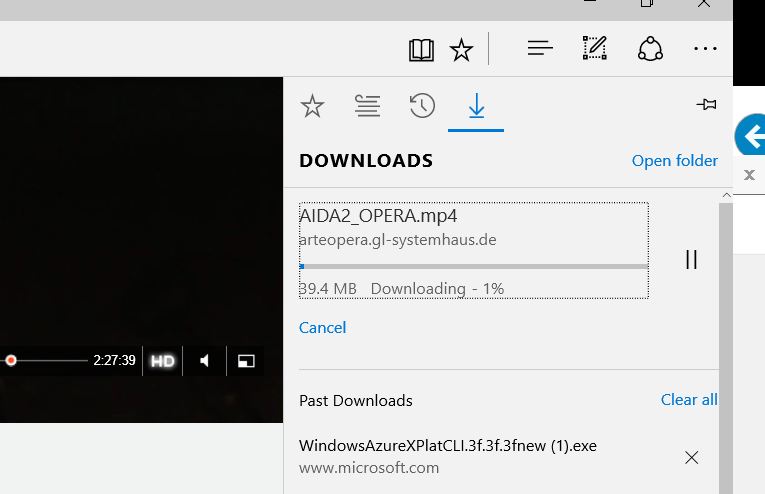
  2. Go in the Network tab and, possibly after ordering the list by Content type (click on that column and search for video/mp4) or Received (the size of the mp4 will become the bigger content downloaded), select the line related to the mp4 http get: right clicking on that line select Copy URL to put in the clipboard the URL available in the first column Name/Path. If you do not find any mp4 files, see next step."Step
  3. If you cannot find a mp4 file directly in any http get, you can search the URL of the video file looking into the code of the page: select the Debugger tab (step 1) and search for “mp4” (step 2) in the text of that page code. Possibly you will find, among all the mp4 found, a reference to a mp4 file URL,  as it happens in the page related to the opera Boheme (always performed in the Teatro Regio of Turin) available in the theoperaplatform.eu site. Select that URL and copy it (step 3) .
    Search for the mp4 file URL in the page code

    Search for the mp4 file URL in the page code

  4. Open, always in Edge, a new browser tab and go to the mp4 URL just copied in the previous step. Possibly close all the other browser tabs to avoid more simultaneous downloads.
    Step 3: go to the mp4 URL

    Step 3: go to the mp4 URL

  5. Right click on the streamed video and choose Save video as option, possibly select the proper name and folder for the saved file.
    Step 4: save video

    Step 4: save video

  6. If you like, you can click cntl + j (or select Hub -> Downloads) to see the progress of the download."Step
  7. When the download ends (it could take several minutes, depending on the mp4 file size), check if the whole file has been properly downloaded (move the play cursor of the video player you choose, till the video end) just to verify that no network problems stopped the download before it ended. If not the full video was downloaded, try again from step 4!

============================

PS: see also How to locally download video and mp3 (from YouTube or other sites)

See also other posts of mine:
Pubblicato in Just for fun!, Musica, Review e test, Windows | 6 commenti

How to manage users and groups in Windows 10 (Pro and Home edition) and add the Local Users & Groups in the Control Panel

If you have a Windows 10 Pro edition,  the management of local users and groups con be easily handled right clicking on the Start Windows Key menu icon, choosing Computer Management and then selecting the Local users and Groups folder. From this windows you can see all the users defined in the PC (even the built-in Administrator) and manage both their roles and their password (if the logged user have admin rights).

Windows 10 Pro - Local User and Group management

Windows 10 Pro – Local User and Group management

On the contrary, if you have a Windows 10 Home edition, like it was in Windows 8, Local users and Groups folder is missing in Computer Management as it is unable to connect to active directory so there is no real need for it, so you can only manage users in the old fashion way, through Control Panel -> User Accounts.

Windows 10 Home - Change user role in Control Panel -> User Accounts

Windows 10 Home – Change user role in Control Panel -> User Accounts

_______________

To add Local Users & Groups Snap-in, you can follows the instructions available in this post that talk about the use of the Microsoft Management Console application (mmc.exe) to display various management plug-ins accessed from the Control Panel, such as the Device Manager or the Local Users & Groups management:

  • Run mmc.exe from the Run dialog box;
  • From the Management Console window click File -> Add/Remove Snap-in;
  • Select Local Users & Groups [Available snap-ins section] and click Add;
  • Choose Target Machine window, click Finish).

This will add the Local Users & Groups Snap-in to Windows functionality and you can use it

Snap-in insertion

Snap-in insertion


 NOTE: Come attivare la funzionalità Anti-Adware di Windows Defender su Windows 10 (anche in Windows 10 Home edition)


Pubblicato in Windows | Lascia un commento

How to give a feedback and suggestions and/or report a bug in Windows 10 and in Windows 10 Mobile

Do you have suggestions for Windows 10 / Windows 10 Mobile new features (or do you want to vote for some already inserted)? Go to Windows Community forums: Windows Feature Suggestions … future developments will take care of this end user requests!! And if you are an Insider you can use the specific Forum for Insiders.

Windows 10 was designed taking into account end users suggestions: at the first place there is the end user perceptive and this was the basis of the UI changes from Windows 8. Also now there is the possibility to give a feedback and/or report errors:

  • Very often there is a smiling face to give your feedback (or there is a specific voice in a menu, possibly a bottomAppBar, «Send feedback») (ex. Weather app, Internet Explorer; Edge).
  • From Start: Windows Feedback (always available and it cannot be uninstalled), Insider Hub (automatically installed when you agreed to be an Insiders).
  • Sometimes (at least for Insiders) a popup windows is shown asking for a feedback.

In Windows 10 Mobile too there is the Windows Feedback app available by default in the App’s list. However, the easiest way to send feedback to Microsoft is using an hardware keys to launch that app: by pressing the power key and volume down button at the same time, this will launch the Windows Feedback app. The benefit of doing it this way is that it will open the app directly to the focal area of the app where you launched Windows Feedback from and possibly have also included a screenshot of the current page where the error could be occurred. For example, if you were using the Windows Store app and you pressed the feedback button combination, it will open up the app directly to the Windows Store section, making it easier for you to look at relevant feedback content or submit your own if needed. Obviously, Windows Community forums can be used also for the Mobile version of Windows 10: Windows Feature Suggestions.

Feedback in Edge browser

Feedback in Edge browser

Feedback in Internet Explorer browser

Feedback in Internet Explorer browser

Feedback in Maps app

Feedback in Maps app

Send feedback from Photos app's Settings BottomAppBar

Send feedback from Photos app’s Settings BottomAppBar

___________________

Maybe you are interested also in these other posts:


Pubblicato in Smartphone OS, Windows | 1 commento

Visual Studio Team Services (previously called Visual Studio Online)

Visual Studio Online is now Visual Studio Team Services and extends its features. It is an on-cloud Team Foundation Server (TFS) and so it is a set of complementary cloud basis services that help a team to write code better in an agile way: agile project management tools, code browsing, editing, repository, build services, tests run, management of test cases, deploy app, telemetry on your app (Application Insight) and better understand how your app performing from the traffic and performance prospective.

As said yesterday in the  Connect(); 2015 event at New York, Microsoft changed the name of Visual Studio Online to Visual Studio Team Services to help make it clear in the name that these cloud development services have become a central part of agile team collaboration and DevOps services. New features in Team Services include a plugin for IntelliJ IDEA, a new customizable and task-based Build service, dashboards that provide visibility into a team’s progress, and preview extensions for Code Search, Package Management, and Release Management. The team has a number of posts on the Visual Studio ALM blog where you can explore all these improvements in depth.

If you do not want to install and configure Team Foundation Server (TFS 2015) at your premises, you might prefer to consider using a free Visual Studio Team Services account for personal use. Because it’s in the cloud, you won’t have to install SQL Server and TFS on your own hardware and you won’t need to do things like manage your own backups.

The prices are available here, and you can also use the Azure Prizing Calculator: up to 5 free basic users (that can check-in code, build, can invite other people to participate to that team project …) and you can have unlimited private team projects. Moreover, if you have an MSDN account, you can use the 128€/month credit you have for using Azure services.

If you go on the MSDN account page, you can find the Create a Visual Studio Team Service account link as follows and you can create from there a new team project in the cloud.

Create a Visual Studio Team Services account from MSDN

Create a Visual Studio Team Services account from MSDN

New team project in the cloud.

New team project in the cloud.

Overview page

Overview page

Team Project Dashboard - Overview (empty)

Team Project Dashboard – Overview (empty)


Team Project Dashboard - Overview (example)

Team Project Dashboard – Overview (example)

Team Project - Code (repository)

Team Project – Code (repository)

Team Project - Work (features, backlog items, sprints)

Team Project – Work (features, backlog items, sprints)

Team Project - Work (backlog item)

Team Project – Work (backlog item)

Team Project - Work (backlog items)

Team Project – Work (backlog items)

Team Project - Test

Team Project – Test

Team Project - Releases

Team Project – Releases

Team room

Team room

Team users

Team users


==============================================================

In the following there are some links useful to understand how to start with Visual Studio Team Services / Visual Studio Online:


Courses on “agile”

On the Microsoft Virtual Accademy there are a lot of useful courses on agile technologies (not necessarily related to Microsoft products):

Webcasts

=====================================================

To create UML modeling projects and diagrams, you have to install Visual Studio Enterprise, the only one that have also specific architecture and modeling features.

Modeling project template (1)

Modeling project template (1)

Modeling project template (2)

Modeling project template (2)

Pubblicato in Review e test, Smartphone OS, Windows | Lascia un commento

Aggiornare il proprio PC a Windows 10: e perché no?

Per un anno (fino al 29 luglio 2016) l’aggiornamento (da Windows 7 in poi) sarà gratuito e le nuove funzionalità introdotte sono tali che dovrebbero indurre anche i più restii ad effettuare per tempo tale upgrade.

=============================================================

PS: anche se ufficialmente l’aggiornamento gratuito a Windows 10 è terminato il 29/7/2016, esiste ancora il seguente modo per eseguire l’aggiornamento gratuitamente e legalmente (da WindowsBlogItalia): Aggiornamento gratuito a Windows 10 per i clienti che usano tecnologie assistive


=============================================================

Come fare? Che vantaggi ne derivo? Cosa rischio? … e perché farlo?

… e perché poi non prendere in considerazione di utilizzare uno smartphone con il medesimo sistema operativo, con il quale risulta quindi possibile utilizzare la medesima interfaccia utente e condividere le medesime app?

In questa presentazione, preparata per alcuni incontri di Learn&Teach in TILAB, cerco di rispondere ai quesiti precedentemente posti …

PS:  scaricabile in ppt anche da qui.

E perchè no

NOTE:

Pubblicato in Smartphone OS, Windows | 1 commento

How to report a fake/spam app published in the Windows Store

Sometime, may be too often, you search in the new Windows Store an app (called in some way or that could do a feature) and you find some that are fake / spam / not appropriate.

This is a problem common to every platform’s Stores and the best way to contrast this, it is a prompt reaction of the end-user. In fact, also in stores where an app must be certified before it can be published (like the Windows one), this procedure is automatic in most of cases, using a tool available to developers too: this tool verifies, for example, that all the needed relevant information are defined [note that the declaration of the app’s used features to the user – e.g. localization – it is implicitly done using APIs that allows to get those features themselves – if you do not declare them,  you can’t use specific namespaces and so the compilation your code fails]. Is it true that there is a Microsoft team of the Store that periodically tries some apps, doing a manual analysis … but anyway they cannot try all of them, otherwise the certification process would take several weeks (penalizing correct developers). At the beginning of the Windows Phone app Store, the certification was always done also manually, … but there weren’t so many new apps to be validated!

Therefore the best procedure is that you, end-user that find a fake app (e.g. an app that doesn’t do anything a part advertising or that does different thinks from what declared in the Store description) report it to Microsoft, in order they can valuate and possibly delete that app from the Store: I hope that, whenever a very evident violation of the requirements has been done by a developer, this one will be put under control and possibly banned from publishing in the Store!

Unfortunately the way to report a violation is not so highlighted and possibly you can’t find it easily: it is at the bottom of each specific app page in the Additional information section (see screenshot) and it is called “Report that app to Microsoft” (“Segnala l’app a Microsoft“, in Italian).

Report linkReport link

Report this app link

I suggest to Microsoft to make it more visible (like it did for receiving a feedback), possibly with an appropriate icon. Personally I succeeded to found that link thanks to an MVP, because I was searching it in the home page of the Store, while it is in the page of each specific app. Note that (I wonder why) this link is available only if you go to a specific app page from the Store app, while I couldn’t find it from the Store site available from a browser.

Personally I reported yesterday several apps I found after searching in the Store [from my Windows 10 Mobile (preview) Lumia] the term “here“, looking to possible new universal versions of the well known HERE Drive navigator: I found so many fake apps that are using the Here name, logo, …. even screen captures shows sometime the ones of that app, while the content of the app was completely different (basically only advertising). Personally I think that, for cases like these, Microsoft people – in charge of handling the Store – could have a more appropriate attention: so guys, … I do not think it is so difficult to find out fake apps that use the name of well known apps!! I know that HERE term may be not a trademark but …

============

In the following you can find an example of fake app, may be the worst I found looking the here term: as you can see, even the screen captures showed are the ones of Here Drive and not those of that app!! … but there were so many fake apps, … that at the end I stopped trying :-/ (often navigation features are stressed in the description while, in best cases, only your current position is shown on a map, … among advertisements)

Typical example of a fake app

Typical example of fake app


Pubblicato in Smartphone OS, Windows | 1 commento

The last Windows 10 Mobile build 10581 is very stable and it is the first Windows 10 Mobile build I feel useable, with battery life more on par with WP 8.1, e.g. outstanding, than with previous insider builds. Therefore I think it can be already used to update (as an Insider) your “old” Windows Phone 8.1 Lumia.

One of the uses of a smartphone is nowadays to be a navigator, so I think that at least a good app that perform this feature (possibly for free) is very relevant to be in a Store. I personally think that HERE Drive+ app is a nice and well designed navigator app and when it was released in Windows Phone 8 it was one of the possible good reasons to choose a Windows Phone device. Unfortunately, after the problems of Nokia and its partial acquisition from Microsoft, HERE (that now it is owned by the three main German cars factories) implemented a version of its app also for the other two platforms (Android and iOS) and in some way froze the Windows Phone release. If you look to the here site you will soon notice that the Windows Store logo is missing in their client apps. I don’t know what is the roadmap of HERE navigation app for the new Windows 10 (quite never the roadmap are public also because they always change depending on end user feedbacks; … sometimes there are still public defined roadmaps, like for Office 365): I suppose that it will depend on the future of this SO on platforms that could be used as a navigator (so not necessarily only smartphones, but also tablets, car devices and so on). The Windows Phone 8 version of HERE Drive is not an Universal app, so in the Windows Store you can’t find it from a PC/tablet (able to run only old Windows apps or Universal ones) but only from a Windows 10 Mobile device (that is able to run, for compatibility reasons, all the “old” app developed with every technology used for Windows Phone 8 and 8.1 – not for WP 7). I hope that in the near future HERE will release a new version of its app as an Universal App and that also the new features included in the current Android/iOS versions will be available in Windows 10 platform one too: we will see … but being Maps app the future default navigator in Windows 10, may be they could continue to invest less than on other platforms :-/
[7 January 2016 Note: it is now more than one month than all the HERE apps are not available any more in the Windows Store. At this link there is the following official declaration: “For new users, the HERE apps are temporarily unavailable in the Windows Store due to an issue unrelated to Microsoft. HERE apologizes for any inconvenience and we are working to resolve the situation as soon as possible“. Let we see … :-/

22 February 2016 Note: all the HERE apps are again available in the Windows Store and one of them [HERE Maps] it is also available for tablet/PC 😉
]

Anyway, as I read, Microsoft bought the rights (for many years) for using the Navteq charts and now implemented, in its great Universal App Maps, also a turn-by-turn navigation. It is for now very basic, as the MVP (Minimal Viable Product) methodology suggests.

The Maps app is great … it has a lot of features (may be too much for a single app): the 3D maps are impressing and the street view too, better than Google ones: the only problem is that they are now available only for too few places … but this is not a matter of the app! Navigating inside one city is an incredible experience, especially using a touchscreen that allows you to easily rotate and zoom …

Maps: examples of 3D maps

Maps: examples of 3D maps

Maps: example of street view

Maps: example of street view

I personally think that it was the right decision to internally implement a navigator, in order to be independent, of this relevant feature, from other app developers (free or buy ones): Windows 10 MUST have a free good embedded navigator! I said “embedded”, but it is not completely right because, being an app, it can be updated independently from the operating system … or it can be even uninstalled if you don’t need or like it: that first consideration is, in my opinion, the most relevant one, because I expect that the now missing features will be available in next updates … so let suggest to Microsoft which missing one you’d like more to have and what of the current user interface seems not to be very usable to you! However, unfortunately, the feedback link can be found not very easily (it is placed as one of the toolbar menu voices while navigating!): usually, in new Universal Apps, this link is available in the home page, possibly as a visible smile icon … and this will be my first suggestion to Microsoft developers! Alternatively, to provide feedback, you can also use from the Start, the Feedback app or the Insider Hub (this last one is available only to Insiders) or the Windows Feature Suggestions Windows Community forum.

In this post, I report my first impressions of using the turn-by-turn feature from the Directions voice menu of the embedded Maps app. I’ll try also to underline the lacks that this new app still has and I’ll give some suggestions for possible improvements. Sometimes I will do also a comparison with the HERE Drive+ app because I think that it can be taken as an example of a good user interface for a navigator app and also … because it uses the same charts and (possibly) services. In fact, both Maps and HERE Drive+ apps use the same Navteq cartography, the same traffic information and the same services and logic for the calculation of alternative paths (even though, after some trials, I have now some doubts on this last point – see screenshots below).

=======================================================

The following basic features are already implemented in Maps app:

  • Directions from site A (possibly your current position) to site B: too often only one solution is proposed.
  • Launch of Maps app from Cortana in order to navigate to one specific place.
  • Synthesized voice instructions.
  • Current speed.
  • Current speed limit and alert when exceeded more than the value configured among the options.
  • Distance of site B from site A, duration of the trip and arrival time.
  • Selection of directions for travels by car, bus or walking.

You can also save your car position in order to find it (Steps:

  1. Once you have parked your car in the parking spot, open Maps app.
  2. Click on Favorites icon.
  3. Under Car, select Add location.
  4. Optionally take a picture of the parking spot or add notes to help remind you where you parked the car.  Adjust the estimated parking location if needed.
  5. Get directions to your car when you’re ready to navigate back to the parking location.

Reminder for parked car

Reminder for parked car

)

=======================================================

In the following there is the list of missing features or the ones that can be improved in Maps app, … in my opinion: they are not in priority order, because they are all relevant for a nice navigator app!

  1. The UI is not designed for use in a car behind a wheel: this is the main lack!! The interface is super tiny, one won’t be able to change anything once driving … and even without driving the use of that interface with a small touchscreen device is hard: for example, the setting of the preferences are very hard to be used. For example, there are slider controls to set the speed limit alert overcoming and when you scroll to see all the available options, it is very easy to change those values without wanting to: slider controls shouldn’t be used in a scrolling page!
  2. The UI is heavily in favor to work on portrait mode, that is the one that normally is NOT used for a navigator: in landscape mode, lots of map space is wasted on the top for few text indications (or nothing … only background) and you really feel tight, looking to the road in the map.
  3. No vocal interaction internal to Maps app is available till now and the integration with voice recognition and Cortana is limited to launching that app, asking for directions to a specific place. In particular the interactions with maps and directions seems to be only of the following typology (at least looking to the page related to Windows Phone 8‘s Cortana (no documentation is still available for the Windows 10 version):
    [eng] “Get me directions to the Grand Canyon“; “Where am I?“; “How long will it take me to get to the Space Needle?“; “Show me a map of 123 Main Street“; “How far to Four Corners National Park?“; “What’s traffic like on the way to work?
    [ita] “Dammi le indicazioni per arrivare a Castello Sforzesco“; “Dove mi trovo?“; “Quanto ci vuole per arrivare in Duomo?“; “Mostrami una mappa di Via del Corso 123“; “Quanto è distante il Parco Nazionale dello Stelvio?“; “Com’è il traffico sulla strada per arrivare a lavoro?“). I tried also other commands like the Italian “Portami in Piazza Castello” (that it is like saying “Take me to … one specific place”) and Maps app was launched to navigate to that place, … so I suppose that  Cortana’s capabilities are much more than the previous declared few phrase structures.
  4. No way to plan a trip going from site A to site B passing through other sites (e.g. site C).
  5. Too often, especially for long trips, only one path is suggested: much better it would be if more alternatives should be always shown and the user could choose the one he prefers. Strangely, if you ask for a  short trip (let say inside a town) it is more common than more than one alternative is proposed, while always (in my current experience) only on is proposed for longer trips.
  6. There is no POI (Point Of Interest) management: it does not have not only the  capability to import external defined POIs from standard or common format files, but it doesn’t have neither embedded ones.
  7. No favorite site and travels management is available. You can only set favorite places, not travels and, moreover, those ones are for all the Maps app features and not only to its navigation part: maybe you want to have New York as a favorite place but you’ll never plan a trip to that place!! So there is the need to have navigator specific favorites in terms of places and trips.
  8. An history of last travels is missing, so you cannot select from a list the same travel you did in the past and set it as the current desired one (as people often do using a generic navigator).
  9. The start of a navigation is not friendly: it is nearly hard to find that Maps app includes also a turn-by-turn navigation if you don’t know! A shortcut should be provided to start, directly from the home page, a turn-by-turn navigation: I know that there is already the feature to launch Maps and a navigation with Cortana, but this only from outside Maps app and I think it is not sufficient.
  10. The feedback link for receiving user feedback is not easily available (it is placed as one of the toolbar menu voices while navigating!). Very often in new Universal Apps this link is available in the home page, possibly as a visible smile icon.
  11. The voice messages are only provided with vocal synthesis of one typology: it is, at least for me, very hard to use that kind of instructions for a long journey!! Much better a recorded voice (choosing from a male or female one) that simply gives the essentials driving instructions (without giving the street name that, quite always, is not needed … and whenever you need, you have only to look the street name on the screen!).
  12. It is not possible to create a tile associated to a specific travel (e.g. from home to work and viceversa) in order to get, also directly from that tile, traffic information or whatever news, nearly the time slots selected for the going and return trips. (Here’s My travels feature).
  13. It is not possible to save your current position, possibly afterwards to set directions to go back to that place (and possibly store it in your favorites places). A Find my car feature can be a further specific usage of the same feature that could anyway be conveniently added as a specific voice menu/button, because it can be often used.
  14. There is no way to define a specific travel on PC (may be from a web interface too) and then recover it from your mobile device (e.g. smartphone).
  15. Some toolbar overlap already existing one: bad design!! (e.g. during navigation, clicking to the menu voice Impostazioni (Settings), a new toolbar is displayed over the already existing one: see screenshot below).
  16. There is not a documentation for this turn-by-turn features (neither online), possibly because Windows 10 Mobile is still in preview (even though Maps is an Universal App, so it is already available also to all devices included tablet (possibly having GPS and GSM) that already have a final release of Windows 10.
  17. Some showed text should be revised, at least in its translation {e.g. Why call “Directions” ([it]”Indicazioni“) and not, more explicitly, “Navigator” ([it]”Navigatore“); why saying, to get exit confirmation, “Interrompere la navigazione vocale” (I suppose in English “Stop voice navigation“) when it is sufficient saying “Interrompere la navigazione” (“Stop navigation“) with a higher text (and buttons) size?}
  18. Why not having a separate navigator app (easily to setup the starting and with its own favorites and setting options), instead of having in one single one may be too much features (2D and 3D maps, streetview, navigator, …)?

Note that most of the previously listed missing features of Maps app are already available in HERE app, even though some of them can be found only in new Android/iOS app versions associated also to the HERE site.

NOTE: in my tests, searching the same directions at the same time and places, gave a different trip in Here and in Maps: so I suppose that different back office services are used. The ones used by Maps app are the ones available to all the Universal apps that are Bing services ... I don’t know what are the HERE Drive ones (probably others internal to HERE).

===================================

In the following there are some screenshots so you can compare yourself the different implemented interfaces in Maps app and HERE Drive+ app … and I think it points out some of the previously listed lacks in the directions feature of the current version of Maps app.

Maps: setting options

Maps: setting options

Maps: avoid settings

Maps: avoid settings

HERE: options menu

HERE: options menu

HERE: settings

HERE: settings

HERE: route preferences

HERE: route preferences

=====================

Maps: menu options during navigation

Maps: menu options during navigation

Clicking to the menu voice Impostazioni (Settings), a new toolbar is displayed over the already existing one: bad design!!

Maps: menu options during navigation - Settings (Impostazioni)

Maps: menu options during navigation – Settings (Impostazioni)

HERE: menu options during navigation

HERE: menu options during navigation

=====================

Maps: starting navigation

Maps: starting navigation

HERE: starting navigation

HERE: starting navigation (1)

HERE: starting navigation (1)

HERE: starting navigation (2)

===============

Maps: navigation

Maps: navigation (portrait mode)

HERE: navigation (portrate mode)

HERE: navigation (portrait mode)

====================

Maps: navigation (landscape mode)

Maps: navigation (landscape mode)

HERE: navigation (landscape mode)

HERE: navigation (landscape mode)

=====================

NOTE: searching the same directions at the same time and places, gave a different trip in Here and in Maps: thank you to Tony (see comments) now we know that Microsoft created their own routing algorithms and so Maps uses Bing services that are other than the HERE ones.

"Maps:

"HERE:

===================

Maps: navigation end

Maps: navigation end

HERE: navigation end

HERE: navigation end

==============================================================

NOTES
Even though Maps app is an Universal App, to see how it look on a smartphone it is not sufficient to properly reduce the app window on a PC, because for this app (like other ones) the UI changes (really too little, in my opinion) on the basis of the device: the minimum dimension of a PC window is 500 epx [effective pixel], while for a smartphone the minimum dimension is lower.

The strength of the new model of Windows 10 is that now 99% native applications (including Maps) are unrelated from the operating system and so then can update independently: therefore, the development cycle and release will surely be more agile than in the past.

You can download Maps (IT: Mappe Windows) from this link.

PS: if you want to read some news about HERE apps, you can visit HERE 360, the official HERE blog. As said in this post of that blog, if you experience problems updating the HERE apps, please contact customer care at appsupport@here.com. You can use also the form help.here.com/contact. For new users, the HERE apps are temporarily unavailable [20/12/2015] in the Windows Store due to an issue unrelated to Microsoft. HERE apologizes for any inconvenience and is working to resolve the situation as soon as possible.

Pubblicato il da Enzo Contini | 7 commenti

How to install Windows 10 Mobile (preview) on your Windows Phone 8.1 Lumia smartphone

It is very easy! You have to register as an Insider and download the Windows Insider app on you Lumia device: more information can be found here.

Windows Insider app

Windows Insider app

After launching that app you have to choose  (and agree) to be a slow or fast ring insider (I suggest fast one, because actually the more stable … In the future you can change your mind 🙂 ). Then you have to search for new updates and agree to install the last preview build (actually the very stable 10581 build).

PS:

18/11/15 – 10586 build update
Note that just after every new update, possibly some installed apps are in a suspended state (grayed and not available) for some time, waiting for an update. Do not worry: you only have to wait some minutes and they all will become available again 😉


Pubblicato in Smartphone OS | Lascia un commento

How to configure OneDrive in Windows 10

If you want to use OneDrive (and I recommend you to do!) the first time you have to configure it: it is a simply procedure with the help of a wizard. So, go in the bottom right arrow menu and select the OneDrive cloud icon.

The steps shown in the following, allow you to setup everything, choosing the folders you could already have remotely in OneDrive and that you want to synchronize with your PC: you can select all the folders, as shown in the following screenshots, or only some of them or even no one.

OneDrive configuration (1)

OneDrive configuration (1)

OneDrive configuration (2)

OneDrive configuration (2)

During the configuration wizard you can also choose the location of your OneDrive folder, by default created in your user path (e.g. C:\Users\myName) choosing Change instead of Next [see next screenshot]: this can be useful if you have more accounts on your PC (e.g. one with the Admin role and onewith User role, for normal work) and you don’t want to duplicate the OneDrive folder [or others system once (e.g. Pictures, Videos)].

Note that after that configuration you cannot change anymore the OneDrive folder location (without choosing Unlink OneDrive from the Setting page and starting the OneDrive configuration wizard again) acting from its Properties, because there isn’t the Location tab (available, on the contrary, for other system folders like Pictures, Videos, Music, Downloads, Documents …).

OneDrive configuration (3)

OneDrive configuration (3)

OneDrive configuration (4)

OneDrive configuration (4)

Then you can go to your OneDrive directory and, after waiting a while for the synchronization, find the selected folders also locally.

OneDrive folder in File Explorer

OneDrive folder in File Explorer

Note that you can always create new local folders in your local OneDrive and let them be synchronized.

No Location tab for OneDrive folder

No Location tab for OneDrive folder

Location tab available for Pictures folder (and for other system folders)

Location tab available for Pictures folder (and for other system folders)

Pubblicato in Tecnologia, Windows | 6 commenti

Microsoft Edge: how to change default home page tabs

I know that this should be a very easy issue, but the way actually adopted in Microsoft Edge is, let me say, “different” from the one we are habit to use in other browsers like Internet Explorer … and may be you can find not easy to find out!
If so, here are the steps to follows:

1. Click the More actions icon   () in the top menu bar.

2. Select Settings.

3. Under the section labeled Open With, select the option for A specific page or pages.

4. Choose Custom from the drop down menu.

5. Enter the web address you want to use as your home page and click the + icon to add that page: you can add as much default home page tabs as you want, repeating this step. 

6. Possibly click the X to the right of an existing home page tab (e.g. about:start) if you want to remove it as one of the default start page tabs.

Step by step procedure to change default page tabs

Step by step procedure to change default page tabs

If you add more default home page tabs, you can also change their order simply dragging in that list (that is right click on the one you want to change the position and then moving – always having the right button pressed – in the position you like in that list, and then release the right button).

So, from now on, when you open the Edge browser, you will always have automatically opened the tabs for all the sites you have defined (possibly more than one), in the order you .

PS: personally I think that the better option is to select Previous pages in the Open with option, so the browser is opened with all the tabs it had the last time it was closed.

That’s all, folks!

Pubblicato in Smartphone OS, Windows | 1 commento

Push notification using Azure Notification Hubs

This is an on-going post … so it will be updated in the near future in order to provide more info on this topic 😉

See also Gestire le notifiche push di una Universal Windows app con i Notification Hub di Azure by Matteo Pagani.

There are two ways to have push notifications from a backend to client instances on a mobile device (whatever, Windows Phone 8.1, Windows 10 Mobile, iOS, Android):

  • Use directly the Windows Push Notification Service [WNS] that is a Microsoft cloud service able to send notifications to all the app clients installed in on different devices. Also other notification servers provided for client platforms other than Windows can be used, e.g.  Google Cloud Messaging [GCM] for Android, Apple Push Notification Service [APNS] for Apple but also Amazon Device Messaging for Amazon, Baidu Notification.
  • Use the Microsoft Azure Notification Hub: it is just a service, no VMs to configure or need to scale throughput … you can be sure that the message broadcast will be done very fast to all the registered clients .

The second one is the more easy to implement (especially from the server side) and it is also more flexible and scalable being based on an infrastructure that can be managed from the Azure porta: it is a multiplatform and scaled-out push infrastructure. You don’t have to have you server running in the Azure cloud to use this Azure service
In the following I am going to go deeper in this second way but if you are interested in the first one you can get useful information from Matteo Pagani’s book More_Windows_8_1_Succintly (chapter 6) and Daniele Bochicchio’s Sviluppare Universal App per Windows e Windows Phone con XAML e C# book (chapter 16).

In any case, the first think to do is to register the new app in the store in order to get the Client ID and Client secret associated to that app.

During the registration of your app in the Microsoft Store (from https://dev.windows.com/en-us/dashboard) you can register it in order your app can use  Push Notification services (and possibly Maps services too).
Then remind to associate the project of your client with that one registered in the Store: to do so, right click on the StartUp project of you solution in VS2015’s Solution Explorer window, choose Store -> Associate App with the Store… and then select among your registered apps the proper one. Note that, if then you go now to see the Package.appmanifest file of the project, in its Packaging section you will see that the Package display name will be now the one choose when registered the app in the Store, that is in general completely different to solution/projects names. You can have even more projects associated to the same Package name (doing the previous Associate App with the Store… for both the project, they will have the same attribute’s value in the Packaging section of their own Package.appmanifest file) and this can be useful when you want, for example, to have a test project just to first try this push notification feature, without having to insert your code directly in your real project.
StartUp project - Store -> Associate App with the Store…
StartUp project – Store -> Associate App with the Store…
Associate2

Associate3

Associate4

Associate5

Associate6

Associate7
Associate8

Associate9

Select Services -> Push Notifications -> WNS/MPNS relativamente al server Microsoft che gestisce le push.

azure-000

Poi premere su Live Service site per accedere al sito che consente di generare un Application Secret specifico per l’app che intende ricevere le push.
azure01


App Registration - Properties

App Registration – Properties

azure001


App Registration - Package SID

App Registration – Package SID

Even if it out of the scope of this post, the Maps link allows you to get the token for using map services in Windows 10 packages for this application: it has a link to the Bing Maps Dev Center that could be accessed also directly for this purpose.

In the Push notifications page link is available in the second paragraph: “If you have an existing WNS solution or need to update your current client secret, visit the Live Services site “. In that link you will see some identities related to your app: the Package SID, the Application identity, the Client ID and the Client secret. The bold ones are to be used registering that app in the Azure Notification Hub because they are the client credentials where to do it has to push a notification to.
<em>Client ID</em> and<em> Client secret</em> of the app

Then you have to go in your Microsoft Azure account to create a new Notification Hub to associate with that client app and get the connection strings needed, respectively, to register each specific instance of my client and to sent the notifications from my server.

Going in the Microsoft Azure Dashboard and then in the Management portal, you have to create a new Service Bus and then specify to be a Notification Hub. To do so, select in the left menù the icon related to the Service Bus, click + in the bottom menù and select the NOTIFICATION HUB option. Note that what we are going to define is just a service, no care of VMs configuration or whatever : will will be sure that the broadcast of our notifications will be done in the proper way.
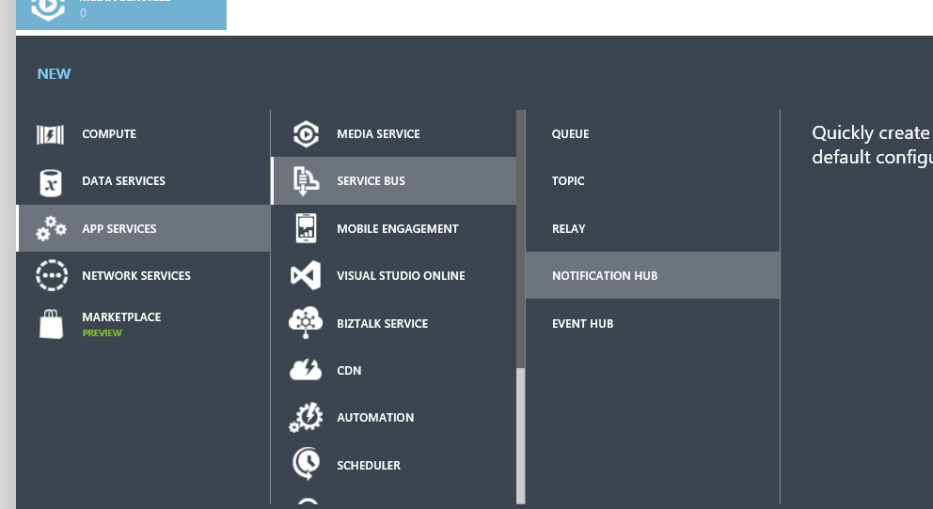
Microsoft Azure -> My Account -> Management portal

Creation of a new Azure Notification Hub (1)

Creation of a new Azure <em>namespace</em> for containing one Notification Hub or more

Note that the Namespace is the container for one hub or more and the billing will be tight to that namespace and not to each single hub.
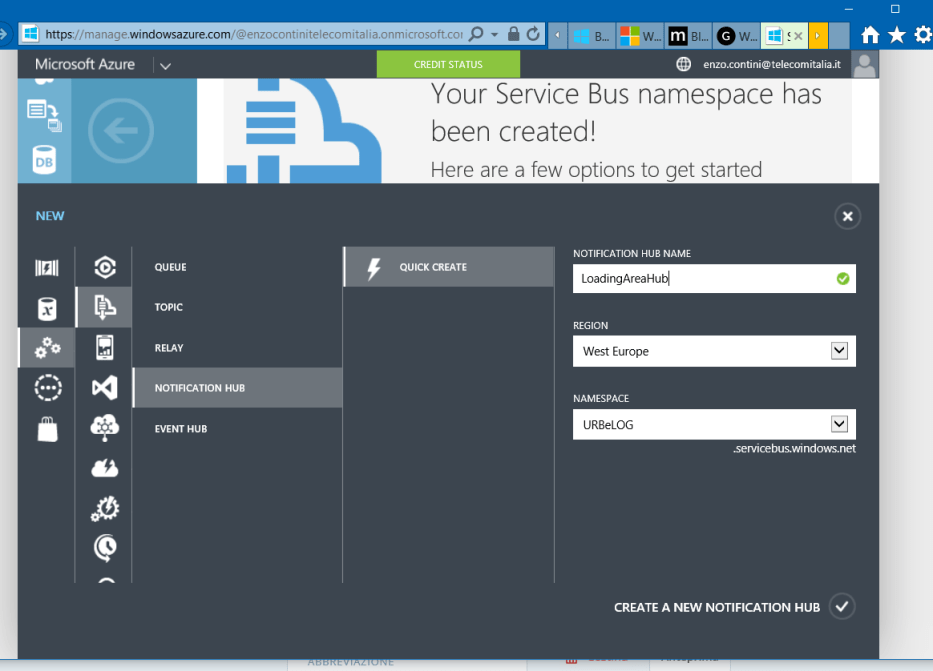
Notification Hub creation in that namespace

For each namespace you can see the list of hubs created.
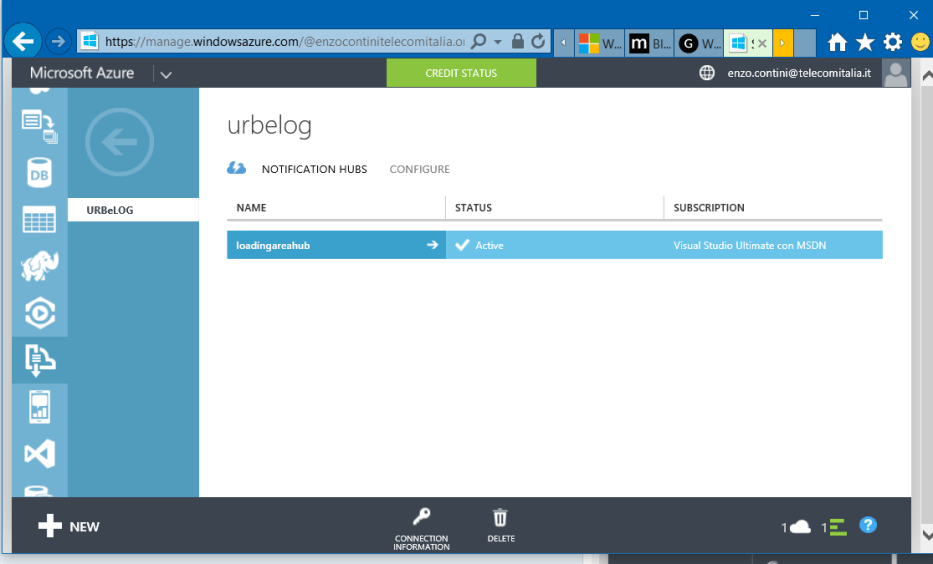
List of Notification Hubs in that namespace

Double clicking on one hub name (e.g. loadingareahub) you can see that hub’s dashboard with all the pushes done, the active devices and registrations, that is  you an overview of the usage (e.g. how many notifications, how many clients, … how many successful notifications or not). Every platform (iOS, MS, Google) has its own notification service which is used by that Notification Hub: each one has its own info detail that can be seen on the Monitor tab: the Notification Server to be used (e.g. WNS, GCM, APNS) is specified .
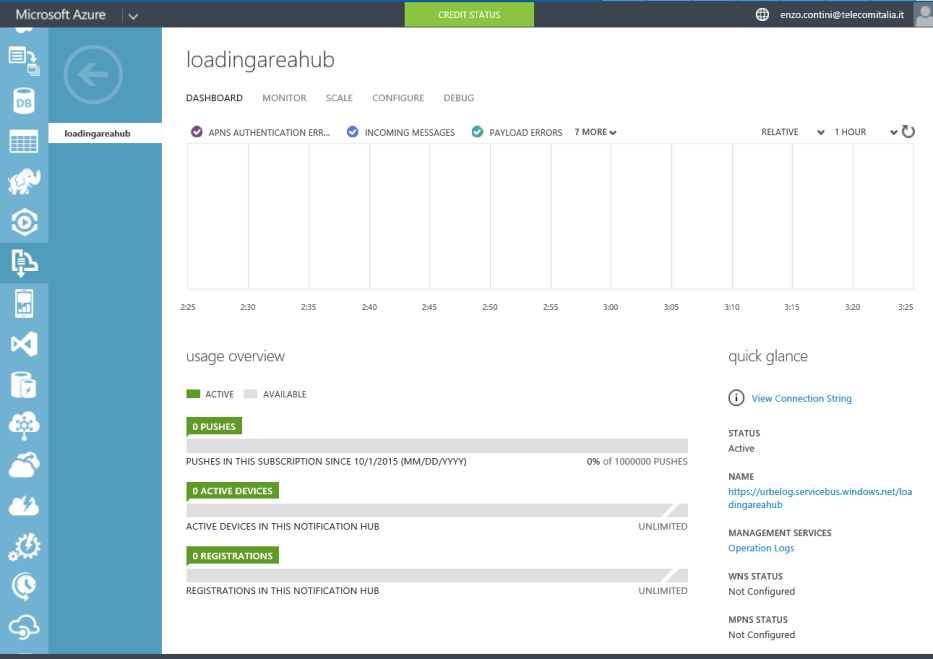
Dashboard of a Notification Hub

Then, going in the configure tab you have to enter the credentials (Package SID and Client secret) of the client where there is the need to direct the push: both these information can be found on the Microsoft account Developer Center (My applications > YourAppName > App Settings). Note that we do not create a specific channel to your device (as it is done using directly the WNS).
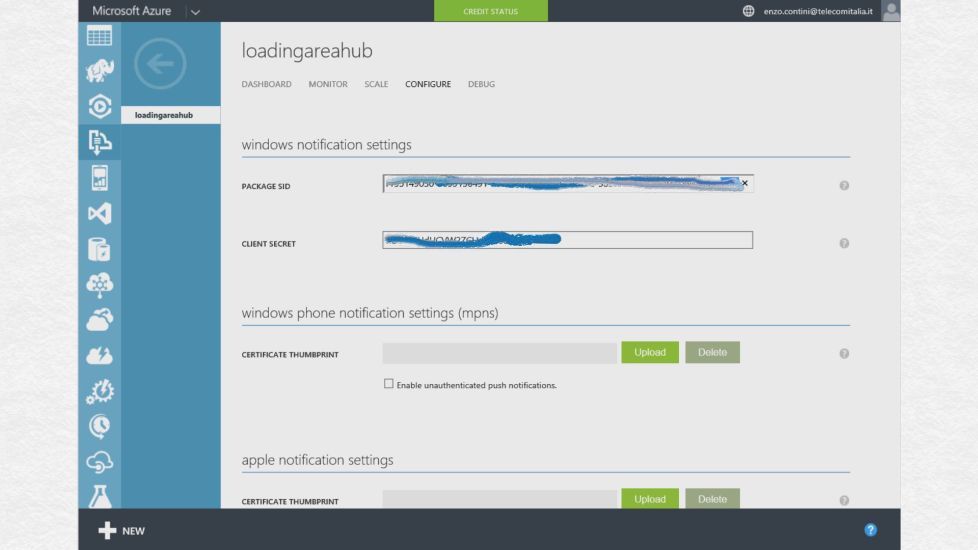
Notification Hub configuration - client info

The client app must include, from NuGet (Tools -> NuGet Package Manager -> Manage NuGet Packages for Solution…), the package WindowsAzure.Messaging.Managed that contains the proxy to call the Notification Hub service on Azure.

You have to register the client every time that app starts (because the “channel” it get from WNS can change at any time, and so it needs to be updated
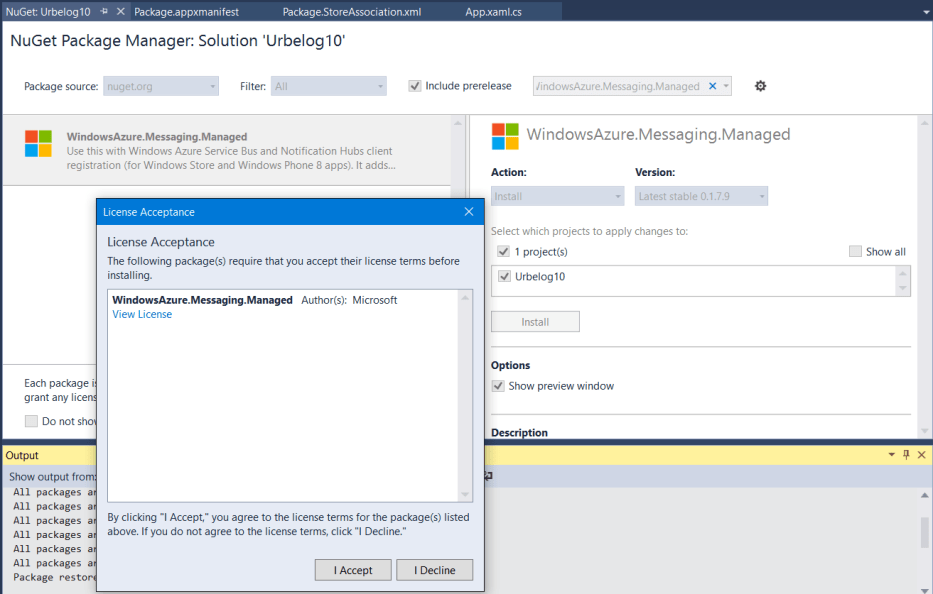
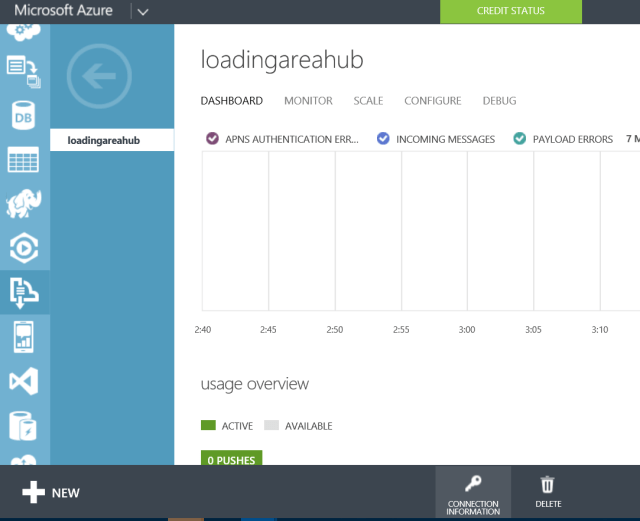
Add WindowsAzure.Messaging.Managed from NuGet

Hub connection information

Hub connection information

Access Connection Information

Access Connection Information: copy DefaultListen connection string

Client app side, you have to include in your project from GitHub the WindowsAzure.Messaging.Managed package that allows a client to be registered in that Azure service. To do so, add the following code (e.g. in the OnStartAsync of App.xaml.cs):

const string ConnectionString = "Endpoint=sb://urbelog.servicebus.windows.net/;SharedAccessKeyName=DefaultListenSharedAccessSignature;SharedAccessKey=ABcdefGEjeSXqXXXXPKoI54+XpShSw=";
//ask to WNS for a notification channel
PushNotificationChannel channel = await PushNotificationChannelManager.CreatePushNotificationChannelForApplicationAsync();
if (channel != null) {
Debug.WriteLine($"Debug :Registration successfull: the channel url is {channel.Uri}");
//say to the Notification Hub that now this client, handled by a specific Azure hub and identified by a connectionString, has a channel set from WNS
NotificationHub hub = new NotificationHub("loadingareahub", ConnectionString);
await hub.RegisterNativeAsync(channel.Uri);
}

where:

  • the first parameter is the the notificatioHubPath that is the name I assigned to my hub in Azure (inside the namespace URBeLOG that is the charged one),
  • the second is the connectionString that can be taken in Azure from the Dashboard of that hub (click on the bottom key icon called “CONNECTION INFORMATION” and then copy the DefaultListenSharedAccessSignature connection string [only listen right is needed for the app, the other string will be used by the backend side that sends notifications]: note that to copy all the string you have to click on the copy icon that appears when your mouse is over that string (see screenshot).
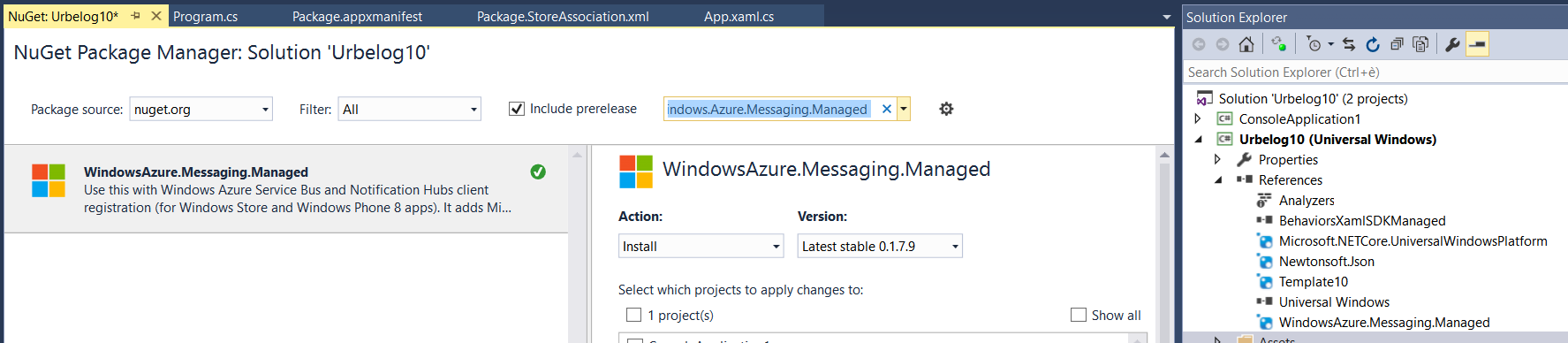
Client app: add in the reference WindowsAzure.Messaging.Manager

Client app: add in the reference WindowsAzure.Messaging.Manager

Backend side, that sends notifications (and other management thinks, the reference to be added is different and it iwas WindowsAzure.ServiceBus: now the Microsoft.ServiceBus.Notifications namespace is moved to Microsoft.Azure.NotificationHubs, that is the package to be included now in the server side project.

Note that the connection string to be copied from the Access connection information Azure page, is now DefaultFullSharedAccessSignature because the backend has to have a full access to specifica features that allows it to send notifications.

The code to send a notification is (e.g. for a toast notification):

private const string ConnectionString = "Endpoint=sb://urbelog.servicebus.windows.net/;SharedAccessKeyName=DefaultFullSharedAccessSignature;SharedAccessKey=ABDCEFGA70oC23456o/Pytg/Mw=";
static void Main(string[] args) {
NotificationHubClient hubClient = NotificationHubClient.CreateClientFromConnectionString(ConnectionString, "loadingareahub");
//the payload can be whatever: the Azure Notification Hub pass through everything to WNS and possible errore could be returned froew that is not well formed.
var toast = @"From any .NET App!";
hubClient.SendWindowsNativeNotificationAsync(toast).Wait();
}
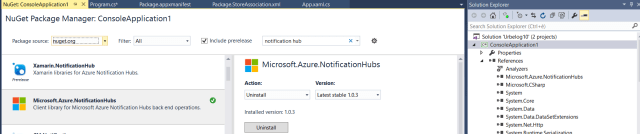
Backend: add in the reference <em>Microsoft.Azure.NotificationHubs</em>

Backend: add in the reference Microsoft.Azure.NotificationHubs

Backend: add in the reference WIndowsAzure.ServiceBus

Backend: add in the reference WindowsAzure.ServiceBus (in the past version)
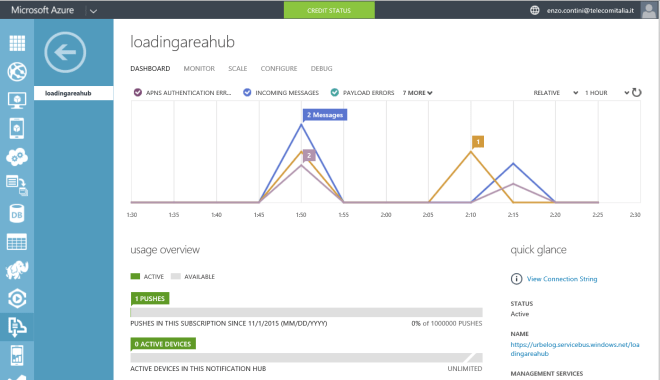
Dashboard: sent notifications

Dashboard: sent notifications

For debugging you can always use the Service Bus Explorer tool or see in the Dashboard of the Hub: in this last case take in mind that the telemetry takes some time to shows notifications (e.g. many minutes: Elio Damaggio said 5 min, … but it seems to me much more).

After downloading the Service Bus Explorer tool solution, you have to compile it and run. Then you have to select File -> Connect and choose as shown in the following screenshots (note: the connectionString to consider must be the one defined in the Access connection information page related to the namespace where you created the hub you want to debug.
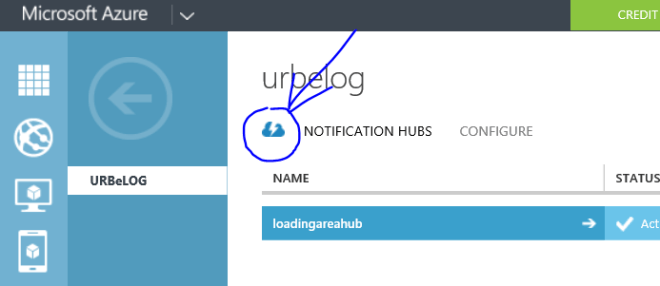
1) Go to the namespace page
1) Go to the namespace page

2) Get Connection Information
2) Get Connection Information

3) Copy the Connection String
3) Copy the Connection String

4) ServiceBusExplorer => File->Connection
4) ServiceBusExplorer => File->Connection

5) ServiceBusExplorer - View Notification Hub info

5) ServiceBusExplorer – View Notification Hub info

If you want to have notifications only for some targeted things, you have to subscribe to specific tags, that is strings that identify each interest group (e.g.  topic, userId like a GUID that identify a single user, date string). Having tags (few or many) do not imply an additional charge


==================

More documentation related to the Push Notifications can be found in the official Azure site, for example for using tags . In fact, if no specific tags are used, every notification will be forwarded in broadcast to all the actually registered clients: this is not nice if you want to filter messages in some way, in order than each client receives notification only for topics of its interest (e.g. only for a city or some news types). There you can find also a detailed documentation on how to use the Azure Notification Hubs from any platform (e.g. iOS, Android, Windows, Windows Phone), with any language (Java, .NET, PHP, Pyton …) and for every Notification Server (e.g. WNS, GCM, APNS).

In particular see these videos on the Microsoft Azure page site related to Notification Hubs:

Azure Notification Hubs Notify Users

In the project that implement the client, you have to include from NuGet the package WindowsAzure.Messaging.Managed as shown in the following screenshot. After its installation, you will find it among the project References: note that, because the client registration should be done at every new launch of the app (therefore in the OnLaunched in App.xaml), this reference must be inserted in the main UI project where that file is available.
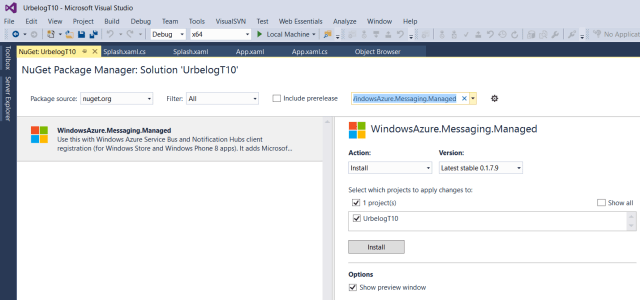
NuGet package WindowsAzure.Messaging.Managed

      NuGet package


==================

EXAMPLE

Server side (C#):

using Microsoft.Azure.NotificationHubs;
using System;
using System.Collections.Generic;
using System.Linq;
using System.Text;
using System.Threading.Tasks;
//using Microsoft.ServiceBus.Notifications;

namespace ConsoleApplication1 {
class Program {
//DefaultFullSharedAccessSignature
private const string ConnectionString = "Endpoint=sb://urbelog.servicebus.windows.net/;SharedAccessKeyName=DefaultFullSharedAccessSignature;SharedAccessKey=ABDCEFGA70oC23456o/Pytg/Mw=";
private static async void SendNotificationAsync() {
NotificationHubClient hubClient = NotificationHubClient.CreateClientFromConnectionString(ConnectionString, "loadingareahub");
// Microsoft.WindowsAzure.Messaging.NotificationHub hubClient = NotificationHub.CreateClientFromConnectionString(ConnectionString, "loadingareahub");

var toast = @"&amp;lt;toast&amp;gt;&amp;lt;visual&amp;gt;&amp;lt;binding template=""ToastText01""&amp;gt;&amp;lt;text id=""1""&amp;gt;From any .NET App!&amp;lt;/text&amp;gt;&amp;lt;/binding&amp;gt;&amp;lt;/visual&amp;gt;&amp;lt;/toast&amp;gt;";
var rowPayload = "Notification at " + DateTime.Now.ToString(System.Globalization.CultureInfo.CreateSpecificCulture("it-IT"));

#region case 1: broadcasted
/*
//the payload can be whatever: the Azure Notification Hub pass through everything to WNS and possible errore could be returned froew that is not well formed.
await hubClient.SendWindowsNativeNotificationAsync(toast);
*/
#endregion case 1: broadcasted

#region case 2: client subscribed by SubscribeToCategories
/* */
//There is not the pain for a developer to mantain the registry of tags
//If we want a toast notification
// await hubClient.SendWindowsNativeNotificationAsync(toast, "Torino"); // hubClient.SendWindowsNativeNotificationAsync(toast, "Torino").Wait(); //notity to clients subcribed to "World" tag
// //or hubClient.SendWindowsNativeNotificationAsync(toast, "Torino &amp;amp;&amp;amp; !Politics").Wait(); //notify to clients subcribed to "World" tag but not subscribed to the Politics tag too. In expression like this (that can use also parenthesis) it can be used at maximun 6 tags in the expression

//If we want to have a row notification that can be handled by code in the running client app
Notification notification = new WindowsNotification(rowPayload);
notification.Headers = new Dictionary&amp;lt;string, string&amp;gt; {
// {"Content-Type", "application/octet-stream")},
{"X-WNS-TTL","300"}, // e.g. 300 seconds=&amp;gt; 5 minutes - Specifies the TTL (expiration time) for a notification.
{"X-WNS-Type", "wns/raw" },
{"ServiceBusNotification-Format", "windows"}
};
await hubClient.SendNotificationAsync(notification, "Torino");
/* */
#endregion case 2: client subscribed by SubscribeToCategories

#region case 3: client SubscribeToCategoriesWithCustomTemplate
/*
//the template and internalization is own by the client that registes to have notifications
//template back to the mobile app: it is the client that knows the format he will receive
//you can put any property and payload you whant; you can personalize the notification, depending to the registration
//we do not use anymore the var toast but a dictionary: the server code is agnostic of the type of client (IOS, Android, Windows) that has to define a similar template related to News_locale
var notification = new Dictionary&amp;lt;string, string&amp;gt;() {
{"News_English", "World news in English"},
{"News_Italian", "Notizie dal mondo in italiano"}
};
//send then a template notification not a Windows one
await hubClient.SendTemplateNotificationAsync(notification, "World");
*/
#endregion case 3: client SubscribeToCategoriesWithCustomTemplate
}
static void Main(string[] args) {

SendNotificationAsync();
Console.ReadLine();
NotificationHubClient hubClient = NotificationHubClient.CreateClientFromConnectionString(ConnectionString, "loadingareahub");

//await CollectionQueryResult&amp;lt;RegistrationDescription&amp;gt; results = hubClient.GetAllRegistrationsAsync(0);
//var devicesList = results.Select(x =&amp;gt; new DeviceRegistration {
// RegistrationId = x.RegistrationId,
// ExpirationTime = x.ExpirationTime.Value,
// Tags = RetrieveTags(x.Tags)
//});

//devices = new ObservableCollection&amp;lt;DeviceRegistration&amp;gt;(devicesList);
//Devices.ItemsSource = devices;
}
}
}

Client side (for example inserted in the OnInitializeAsync method of App.xaml.cs)

public override Task OnInitializeAsync(IActivatedEventArgs args) {

// setup hamburger shell
var nav = NavigationServiceFactory(BackButton.Attach, ExistingContent.Include);
Window.Current.Content = new Views.Shell(nav);
return Task.FromResult&amp;lt;object&amp;gt;(null);
}

#region Case 1 broadcast
public async Task SubscribeTo() {
const string ConnectionString = "Endpoint=sb://urbelog.servicebus.windows.net/;SharedAccessKeyName=DefaultListenSharedAccessSignature;SharedAccessKey=ABDCEFGA70oC23456o/Pytg/Mw=";
//ask to WNS for a notification channel
PushNotificationChannel channel = await PushNotificationChannelManager.CreatePushNotificationChannelForApplicationAsync();
if (channel != null) {
Debug.WriteLine($"Debug :Registration successfull: the channel url is {channel.Uri}");
//I register to the event in order to revover the content ot the push inside the app when running
channel.PushNotificationReceived += Channel_PushNotificationReceived;

//say to the Notification Hub that now this client, handled by a specific Azure hub and identified by a connectionString, has a channel set from WNS
NotificationHub hub = new NotificationHub("loadingareahub", ConnectionString);
await hub.RegisterNativeAsync(channel.Uri);
}
}
#endregion

#region Case 2
public async Task SubscribeToCategories(IEnumerable&amp;lt;string&amp;gt; categories) {
const string ConnectionString = "Endpoint=sb://urbelog.servicebus.windows.net/;SharedAccessKeyName=DefaultListenSharedAccessSignature;SharedAccessKey=ABDCEFGA70oC23456o/Pytg/Mw=";
PushNotificationChannel channel = await PushNotificationChannelManager.CreatePushNotificationChannelForApplicationAsync();
if (channel != null) {
Debug.WriteLine($"Debug :Registration successfull to categories {categories.ToString()}: the channel url is {channel.Uri}");
//I register to the event in order to revover the content ot the push inside the app when running
channel.PushNotificationReceived += Channel_PushNotificationReceived;

//say to the Notification Hub that now this client, handled by a specific Azure hub and identified by a connectionString, has a channel set from WNS
NotificationHub hub = new NotificationHub("loadingareahub", ConnectionString);
await hub.RegisterNativeAsync(channel.Uri, categories);
}
else {
Debug.WriteLine("Channel not created!!");
}
}

private void Channel_PushNotificationReceived(PushNotificationChannel sender, PushNotificationReceivedEventArgs args) {
string content;
switch (args.NotificationType) {
case PushNotificationType.Raw:
Debug.WriteLine(args.RawNotification.Content);
break;
case PushNotificationType.Toast:
break;
case PushNotificationType.Tile:
break;
case PushNotificationType.Badge:
break;
case PushNotificationType.TileFlyout:
break;
default:
break;
}
}
#endregion

#region Case 3
public async Task SubscribeToCategoriesWithCustomTemplate(String locale, IEnumerable&amp;lt;string&amp;gt; categories) {
ApplicationData.Current.LocalSettings.Values["categories"] = string.Join(",", categories);
ApplicationData.Current.LocalSettings.Values["locale"] = locale;

const string ConnectionString = "Endpoint=sb://urbelog.servicebus.windows.net/;SharedAccessKeyName=DefaultListenSharedAccessSignature;SharedAccessKey=ABDCEFGA70oC23456o/Pytg/Mw=";
PushNotificationChannel channel = await PushNotificationChannelManager.CreatePushNotificationChannelForApplicationAsync();
if (channel != null) {
Debug.WriteLine($"Debug :Registration successfull to categories {categories.ToString()}: the channel url is {channel.Uri}");
// the template is own by the mobile app
//when I send my notification in the back I don't have to know the specific of my xml, I just need to sent a property that is News_myLocale:
//I tokenize my notification template

//You provide the xml that you want to receive
var template = String.Format(@"&amp;lt;toast&amp;gt;&amp;lt;visual&amp;gt;&amp;lt;binding template=""ToastText01""&amp;gt;&amp;lt;text id=""1""&amp;gt;$(News_{0})&amp;lt;/text&amp;gt;&amp;lt;/binding&amp;gt;&amp;lt;/visual&amp;gt;&amp;lt;/toast&amp;gt;", locale);
//if the client would be an IOS one, it had have to define another template (a json one) calling in the same way the body "News_Italian" and the server code is agnostic of the type of client (IOS, Android, Windows)

//say to the Notification Hub that now this client, handled by a specific Azure hub and identified by a connectionString, has a channel set from WNS

NotificationHub hub = new NotificationHub("loadingareahub", ConnectionString);
//I provide the channnel URI, the format of the template (in Windows an XML), that template name (e.g. newsTemplate) [I might wont to have multiple template at presentation for multiple thinks],
//and the categories that is the tags (e.g. World, Politics, Sports, Science)
await hub.RegisterTemplateAsync(channel.Uri, template, "newsTemplate", categories);
}
}
#endregion

// runs only when not restored from state
public override async Task OnStartAsync(StartKind startKind, IActivatedEventArgs args) {
#region case 1
/*
await SubscribeTo();
*/
#endregion case 1

#region case 2
IEnumerable&amp;lt;string&amp;gt; categories = new List&amp;lt;string&amp;gt;() { "Torino", "Sport" };
await SubscribeToCategories(categories);
#endregion case 2

#region case 3
/*
//the template and internalization is own by the client that registers to have notifications
string locale = "Italian";
IEnumerable&amp;lt;string&amp;gt; categories = new List&amp;lt;string&amp;gt;() { "World" };
await SubscribeToCategoriesWithCustomTemplate(locale, categories);
//await SubscribeToLocalCategories(locale, categories);
*/
#endregion case 3

// const string ConnectionString = "Endpoint=sb://urbelog.servicebus.windows.net/;SharedAccessKeyName=DefaultListenSharedAccessSignature;SharedAccessKey=ABDCEFGA70oC23456o/Pytg/Mw=";
////ask to WNS for a notification channel
//PushNotificationChannel channel = await PushNotificationChannelManager.CreatePushNotificationChannelForApplicationAsync();
//if (channel != null) {
// Debug.WriteLine($"Debug :Registration successfull: the channel url is {channel.Uri}");
// //say to the Notification Hub that now this client, handled by a specific Azure hub and identified by a connectionString, has a channel set from WNS
// NotificationHub hub = new NotificationHub("loadingareahub", ConnectionString);
// await hub.RegisterNativeAsync(channel.Uri);
//}

//await Task.Delay(50);
//NavigationService.Navigate(typeof(Views.MainPage));
await Task.Delay(TimeSpan.FromSeconds(5));
//per gestire la attivazione di tile secondarie:
//abbiamo ipotizzato che la tile secondaria dia la possibilità di aprire l'applicazione direttamente sul
//dettaglio di un elemento: ci limitiamo, perciò, a recuperare gli argomenti della tile (contenuti nella proprietà Arguments dei parametri di attivazione)
//e a portare l'utente verso la pagina predisposta della nostra applicazione, chiamata DetailPage
AdditionalKinds cause = DetermineStartCause(args);
//per gestire tutti gli altri scenari di attivazione (da notifica toast, da Uri, da contratto di sharing, ecc.)
//il metodo DetermineStartCause() vi restituirà il valore Other dell'enumeratore AdditionalKinds:
//dovremo perciò sfruttare la proprietà Kind del parametro di attivazione di tipo IActivatedEventArgs per determinare lo scenario di utilizzo.
if (cause == AdditionalKinds.SecondaryTile) { //
LaunchActivatedEventArgs eventArgs = args as LaunchActivatedEventArgs;
NavigationService.Navigate(typeof(Views.DetailPage), eventArgs.Arguments);
}
else {
NavigationService.Navigate(typeof(Views.MainPage));
}
}

==============

Server side (Java): example of Client code for both toast and raw notifications from a java server [setting also the time to live” (TTL) parameter]


package pushNotification;

import java.sql.Timestamp;
import java.util.HashMap;
import java.util.Map;

import com.windowsazure.messaging.NamespaceManager;
import com.windowsazure.messaging.Notification;
import com.windowsazure.messaging.NotificationHub;
import com.windowsazure.messaging.NotificationHubDescription;

public class Test {
	public static void main(String a []){	
		String connectionString = "Endpoint=sb://urbelog.servicebus.windows.net/;SharedAccessKeyName=DefaultFullSharedAccessSignature;SharedAccessKey=ABDCEFGA70oC23456o/Pytg/Mw=";

// 1)Send of a Toast notification
		//NotificationHub hub = new NotificationHub(connectionString, "loadingareahub");
		//String toast = "<toast><visual><binding template=\"ToastText01\"><text id=\"1\">From any .NET App!</text></binding></visual></toast>";
		//Notification n = new Notification();
		//n.setBody(toast);
		//hub.sendNotification(n);        

		
// 2) Send of a raw notification with a specific tag (e.g. "Torino") and a body with 
        NotificationHub hub = new NotificationHub(connectionString, "loadingareahub");
   	 	java.util.Date date= new java.util.Date();
   	 	Notification n = new Notification();
   	 	Map<String, String> headers = new HashMap<String, String>();
   	 	headers.put("X-WNS-TTL","120");
   	 	headers.put("X-WNS-Type", "wns/raw");
   	 	headers.put("Content-Type", "application/octet-stream");
   	 	headers.put("ServiceBusNotification-Format","windows");
   	 	n.setHeaders(headers);
   	 	n.setBody("Notifica: "+(new Timestamp(date.getTime())));
   	 	hub.sendNotification(n, "Torino");

//   	 Notification notification = Notification.createWindowsRawNotification("ciao");
//   	 System.out.println(notofication.getHeaders());
//   	 	
	}
}

===================================================

More useful links

=============

Pubblicato in Review e test, Smartphone OS, Windows | 1 commento

How to change the default search engine in Microsoft Edge

The procedure to add (and possibly set as default) a  search engine other than Bing is, till now, not very friendly in Microsoft Edge. It is true that now Bing search engine is comparable with Google one (or may be others), but this is a preference that should be left to the final user.

Even if in the following I will explain how to change the default search engine, I suggest you to leave Bing as the default one for at least for some days, just to try out yourself if it is comparable or not with the most famous Google one. I did that test and my personal feeling is that there is no difference … and – always personally – I think that it is better a world with more big search engines available and used than a world having only one: the search engine more and more is the main way used to find sites and notices, so it is a possible way to filter as the owner want the information on Internet … So I decided to leave Bing as the default browser, possibly sometime changing it, just in case: but it happens very few times!! Anyway it is your choice …

If you go to Settings -> View advanced settings -> Search in the address barChange button, at the beginning you could not find a long list of possible search engines, possibly no one other than Bing. In fact, before you can find a specific one in that list, you should have visited that site (e.g. Google, Wikipedia (it), Wikipedia (en), Youtube) at least once from Edge, in order they can be “discovered(as said, between brackets, when they will be listed in the available search engines).

I know it is quite strange and I hope it will change in future releases … but for now that is, but it is also stated in the step-by-step Edge instructions (“Enter the search engine’s website and browse to it.“)!

Change the default search engine in Microsoft Edge

Change the default search engine in Microsoft Edge

An unanswered question is how to easily select a not default search engine to use for a specific search (so, after adding in the previous list more search engines and selected a default one): it seems to me that, till now, you have to change the default one every time (while in Internet Explorer it is possible to do that change simply clicking near the address field) …
… but we should remember that Edge browser is still improving its features (only with the last 10565 build it has introduced the drag & drop feature!), so we will see much more in the near future!!

Pubblicato in Tecnologia, Windows | 1 commento

Nice tools/services (for free) … and other useful links – Programmi utili :-)

In the following, I will put some links to free tools that I found useful …

… it is a growing list!

Please, do suggest even more in your comments!

============================================================
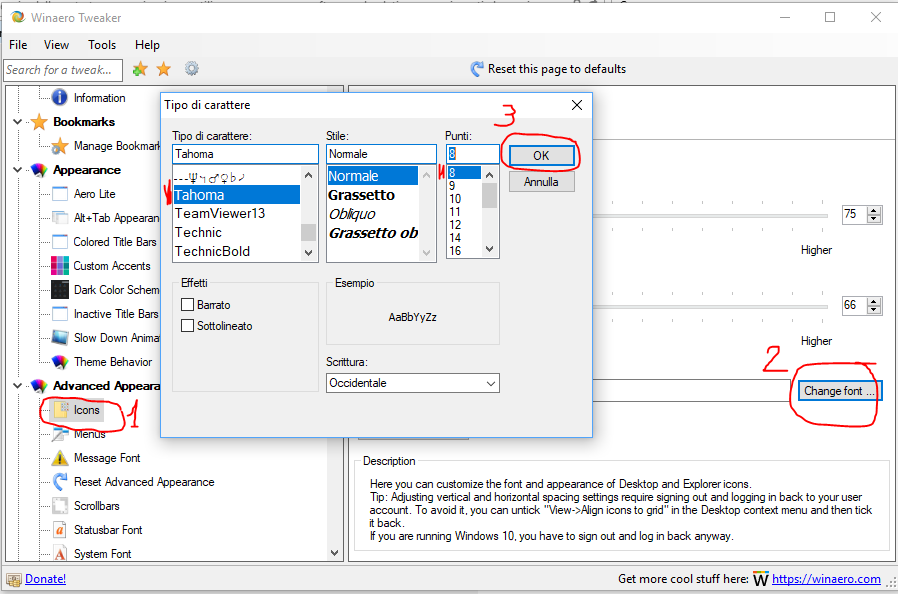
Nice tools/services (for free)

  • 7zip: to save the zipped file in a different folder and/or create multiple compressed folders in one go (see how to).
  • Airbnb: American company which operates an online marketplace and hospitality service for people to lease or rent short-term lodging including holiday cottages, apartments, homestays, hostel beds, or hotel rooms, to participate in or facilitate experiences related to tourism such as walking tours, and to make reservations at restaurants.
  • AOMEI Partition Assistant: disk manager useful whenever the embedded Windows tool can’t do what you need (e.g. merging not contiguous volumes)
  • Audacity: a free multi-track audio editor and recorder (for Windows; LADSPA plug-ins 0.4.15 installer – Contains over 90 plug-ins.; Plug-Ins – Download additional effects and filters; LAME MP3 encoder – Allows Audacity to export MP3 files). As a payment alternative (limited free use): GoldWave or Sound Forge Audio Studio.
  • Avidemux: video editor designed for simple cutting, filtering and encoding tasks. It supports many file types, including AVI, DVD compatible MPEG files, MP4 and ASF, using a variety of codecs.
  • BlaBlaCar:  online marketplace for carpools. Its website and mobile apps connect drivers and passengers willing to travel together between cities and share the cost of the journey. The company does not own any vehicles; it is a broker which receives a 12% commission from every booking.
  • CamStudio: streaming video software (tutorial video): be careful to click the proper button that download that SW, that is nearly at the end of the page; moreover, during the installation, do not agree to the installation of all the other companion useless sw!!!

    Be careful to decline the installation of all the suggested useless programs

    See How to record the screen in Windows 10 for free … with the Xbox app

  • Easy Thumbnails: to produce thumbnails the easy way, quickly and for free!
  • ExifTool: platform-independent Perl library plus a command-line application for reading, writing and editing meta information in a wide variety of files (e.g. pictures, in order to set copyright metadata); it is also available as a stand-alone Windows executable and a Macintosh OS X package.
  • FastStone Image Viewer 5.5 / FastStone Photo Resizer 3.5: 1) image viewing, management, comparison, red-eye removal, emailing, resizing, cropping, color adjustments, musical slideshow and much more; 2) An image converter and renaming tool that intends to enable users to convert, rename, resize, crop, rotate, change color depth, add text and watermarks to images in a quick and easy batch mode.
  • FileZilla: FTP client/server.
  • FFDShow MPEG-4 Video Decoder – Video converter (see this video)
  • HandBrake:  convert video from nearly any format
  • Flickr uploader: client to easily upload photos in Flickr.
  • Freepik: graphic resources (also vectorial ones) for everyone
  • GIMP: graphic editor (like Photoshop)
  • Greenshot: to do screenshot
  • Image Tuner: a free batch image resizing, renaming, conversion and watermarking software.
  • InkSkape: vectorial editor (like Illustrator)
  • Microsoft Expression Encoder 4 Screen Capture (SP2): audio/video coding application (see, for example, ScreenCapture_07-05-2012 17.42.12.wmv) (see also: How to Record Your PC Screen for Free in HD
  • Malwarebytes: Anti-Malware scanner, it detects and removes worms, Trojans, rootkits, rogues, spyware and other dangerous malware from your home PC. (how to use)
  • Microsoft Remote Desktop assistant: on the Windows PC you want to connect to remotely, download the Microsoft Remote Desktop assistant to configure your PC for remote access.
  • Motionbox: video design platform with both an easy to use drag-and-drop interface and an arsenal of tools that cuts down the effort of creating any visual content. A library of templates can be used as is, or may serve as the foundation of your design. It also has a collection of fonts and multimedia files that include audio, images, and videos, most of which you may freely use for your project. It includes features such as music visualizationGIF resizervideo trimmer, and video calendar.
  • Noip.com: the freedom to connect to your devices from anywhere.
  • Notepad++: improved editor (a possible alternative to the not free ultraedit).
  • OBS Studio7: free and open-source software for video recording and live streaming.
  • Open Live Writer: new open source version of Microsoft Windows Live Writer, which has now become a community driven project. It is the best tool to write blog posts: it can also compose blogs posts offline and then publish on your return. It works with many popular blog service providers such as WordPress, Blogger, TypePad, Moveable Type, DasBlog and many more.
  • Paint.net: image and photo editing application for Windows
  • PDFsam: to split and merge pdf files (to compress PDF: https://compress-pdf.pyok.info, to convert in Powerpoint, to convert in Word)
  • PhotoMove: automatically find the original date taken of photos and then move and sort the photos into folders based on that date. (Output Folder Structure Options)
  • Pinterest:  web and mobile application company that operates a software system designed to discover information on the World Wide Web, mainly using images and on a shorter scale, GIFs and videos.
  • Postman:  complete API development environment for API developers.
  • Putty: Telnet and SSH client.
  • Real VNC: remote access software for desktop and mobile platforms.
  • Sequence Diagram: WebSequenceDiagramdraw.io
  • Smallpdf: to compress pdf files.
  • Speccy: to find out the OS Windows’ serial number of your PC.
  • SUPER: video converter. It allows also to extract audio from a video (be careful to click on the proper download  *link* that is not on the first page and it is not very highlighted!): be careful that there is a pay version without additional 3rd party Bundle Offers, Toolbars or Addons (recommended), and a free one that asks during installation possibly to install other SW (if you decide to choose the free one BE CAREFUL => you have to choose Advanced Install – and not the recommended one – and uncheck ALL the proposed 3rd party installations and then choose Decline when you are offered to install any other additional SW like One System Care !!! In any case possibly some malware could be installed, so be careful to have your Defender antivirus well updated … in my case Defender found – and suddenly deleted – 3 malware during the installation). Finally, you will have the real Super SW installation.

Decline to install all that proposed add-on SW

Decline to install all that proposed add-on SW

Real Super SW installation wizard

Real Super SW installation wizard

How to Set Up BitLocker Encryption on Windows

  • Eventbrite:  event creation; it can be an alternative to Facebook ones … and then you can publish it also on social networks!
  • Doodle: simplifies the process of scheduling events, meetings, appointments
  • SurveyMonkey: online polls; easy way to ask your audience for instant feedback on just about anything. The free plan allows to make survey with up to 10 questions or elements (including question types, descriptive text, or images) within a matter of minutes and view up to 100 responses per survey.

Anti-maleware:

===================================================================
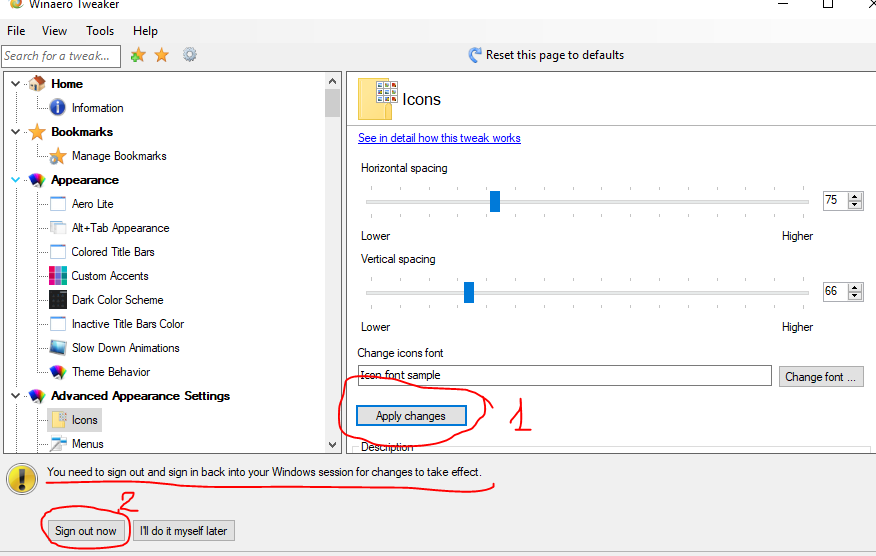
Useful links

Pubblicato in Aziendali, Review e test, Smartphone OS, Tecnologia, Windows | 3 commenti

Some considerations about the new Microsoft Edge browser

With Windows 10 Microsoft introduced a new browser with a lot of new features never seen before in any existing browser (at least without possible plug-ins): for example, you can draw over the browsed page and possibly share it, you can save  a browsed page in the reading list without the need to add it in the favorites,  you can choose the reading view for better read (and  possibly print) the content of a web page. …

However I think that there are still something missing to make it the preferred browser and it will take some time to wait, … but the way is the right one 😉

For example it is not always easy to import favorites from other browsers and no synchronization (with the cloud) is maintained among different computers for the same (Microsoft) user [as it works for Internet Explorer].
P.S. (12/10/2015): the Inside Prerelease Build 10565, just released, should have introduced that syncing feature for both Favorites and Reading lists.

It is not easy to select another search engine (and possibly consider as the default one): only after visited at least once from Edgea a site with search engine (e.g. wikipedia, google), you will find it in the list of the available search engines!! It is quite strange … I hope it will change in future releases …
Moreover it is not clear how one can easely select the proper search engine to be used for a particular search (afterwards, after having added it in the previous list but not selected as the default one), without having the need to change every time the default one: for examp0le, in Internet Explorer this feature is available simply clicking near the address field).

Gooogle searcher is not listed because I never browsed it in Edge

Google searcher is not listed because I never browsed it in Edge

Google searcher is now listed after having visited www.google.com

Google searcher is now listed after having visited http://www.google.com

It is not a case, in my understanding, that the Windows 10 Enterprise 2015 LTSB (for enterprise) do not (still?) have Edge as a browser and that, by design, the default administrator of a PC cannot run it (if you try, you’ll receive the error “Microsoft Edge can’t be opened using the Built-in Administrator account.  Sign in with a different account and try again”): if you really want it, you must do some changing in registry settings.

Edge not available for built-in administrator

Edge not available for built-in administrator

Anyway note that the built in administrator does not even have the searcher be able to find out the IE browser and, if you want to launch it, you have to create a link (e.g. on the desktop or as a tile) directly to the program file (C:\Program Files\Internet Explorer\iexplore for 64bit or C:\Program Files(x86)\Internet Explorer\iexplore for 32bit).


In order to better manage the favorites in Edge, you can have a look at this tool: Manage Edge Favorites

Pubblicato in Smartphone OS, Windows | Lascia un commento

How to do a slide show of your photos in Windows 10

At least with the insider preview build 10547,  the embedded Photos app has now also a Slide Show (F5 – second icon in the top right menu) feature: so no need anymore to necessarily use other ways … that any way remain available. The only limitation I found in this app is that you are not able to easily import files from your phone to the PC, because it sees that pictures already on the Cloud (saved directly by the phone) and so it shows them but it does not save on the PC: I think that it should provide an easy way to do that because, very often, someone wants also to save locally his photos.

Anyway, if you still want to use the Windows Photo Viewer desktop application and you want to have your portrait photos be displayed properly (and not zoomed) remind to set to 100% (and not at 125% or 150%, as suggested and set as default) the Settings -> SystemChange the size of text … : you will be asked for a reboot and then the slide show in Windows Photo Viewer will work properly also for portrait photos! So, waiting for a new release from Microsoft, the previous trick can solve the problem of showing portrait photos.

Set to 100% the Size of text ...

Set to 100% (and not 125%) the size of text, apps and other items

Another way to make a slide show is to directly use the File explorer feature: on the top menu, choose Manage (available only if you are in a picture’s folder) and then  Slide Show: the problem with doing it this way is that you can’t begin the slide show on a specific photo (even if you click on a specific photo and choose “Slide show“, it starts from the first one – e.g.  in alphabetic order, if so displayed).

Slide show from FIle Explorer

Slide show from File Explorer


Pubblicato in Smartphone OS, Windows | Lascia un commento

State or status?

Too often, in programming, the two terms status or state are used indifferently.
I did some search on Internet and I found this answer that I consider reasonable … anyway you can comment on it   😉

status == how are you? [es. good/bad]

state == what are you doing? [es. resting/working]

Examples:

  • cpu state
  • thread state
  • state machine
  • return status
  • raid volume status
  • application status
  • account status

In some other places I found also this futher consideration, that can be useful: State is one of the conditions that an entity can have, Status is the actual condition assumed by an entity at the request time.

Pubblicato in Just for fun!, Smartphone OS, Windows | Lascia un commento

Surface Pro 3 useful links

In the following some useful links and sreenshots for Surface 3 Pro.

New device registration

New device registration

Check manufacturer warranty end

Check manufacturer warranty end

Step 1: Select the search box in the lower left corner of the screen, enter sound, and in the search results, select Change system sounds.
Step 2: Select the Recording tab, select the mic you want, and select Properties.
Be sure to select a mic that’s enabled and connected to Surface.
Step 3: Select the Levels tab. You’ll see two sliders:

  • Microphone: Controls the mic’s volume
  • Microphone Boost: Controls the strength of the mic’s signal
Step 4: Adjust the sliders until your mic is recording at the levels you want.
The levels you’ll use will vary depending on the amount of background noise and on whether you’re using the mic that’s built into Surface or an external mic. A good starting point is to set Microphone to 50 and Microphone Boost to +24.0 dB.

Speakers settings

Speakers settings

Microphone settings

Microphone settings

Se, dopo qualche mese che non aggiornate un PC (e.g. Surface 3) con una Windows preview da insider, non riuscite più ad effettuare il boot (schermata nera che notifica che qualche componente di Windows è scaduto, e solo dopo qualche tentativo di soft reset (volume + premuto insieme a tasto di power) riuscite finalmente ad entrare nel sistema operativo (disabilitando magari qualche opzione di verifica al boot), vi consiglio di lanciare l’Assistente aggiornamento Windows 10 che riporterà il PC alla più recente versione rilasciata (se questa è superiore a quella in preview attualmente installata. Io, con un Surface 3 con una preview da Insider e tenuto spento per alcuni mesi [nonostante abbia effettuato tutti gli update con il  Impostazioni -> Aggiornamento e sicurezza -> Windows Update e cercato (inutilmente) di lasciare il programma Insider dalla apposita sezione Impostazioni -> Aggiornamento e sicurezza -> Programma Windows Insider] continuava a darmi errori al reboot ed ho risolto facendo effettuare l’update dall’Assistente aggiornamento Windows. In alternativa, se non fossi riuscito con quel metodo, mi ero anche scaricato l’immagine dal Download a recovery image for your Surface (vedi anche Windows doesn’t start on Surface).

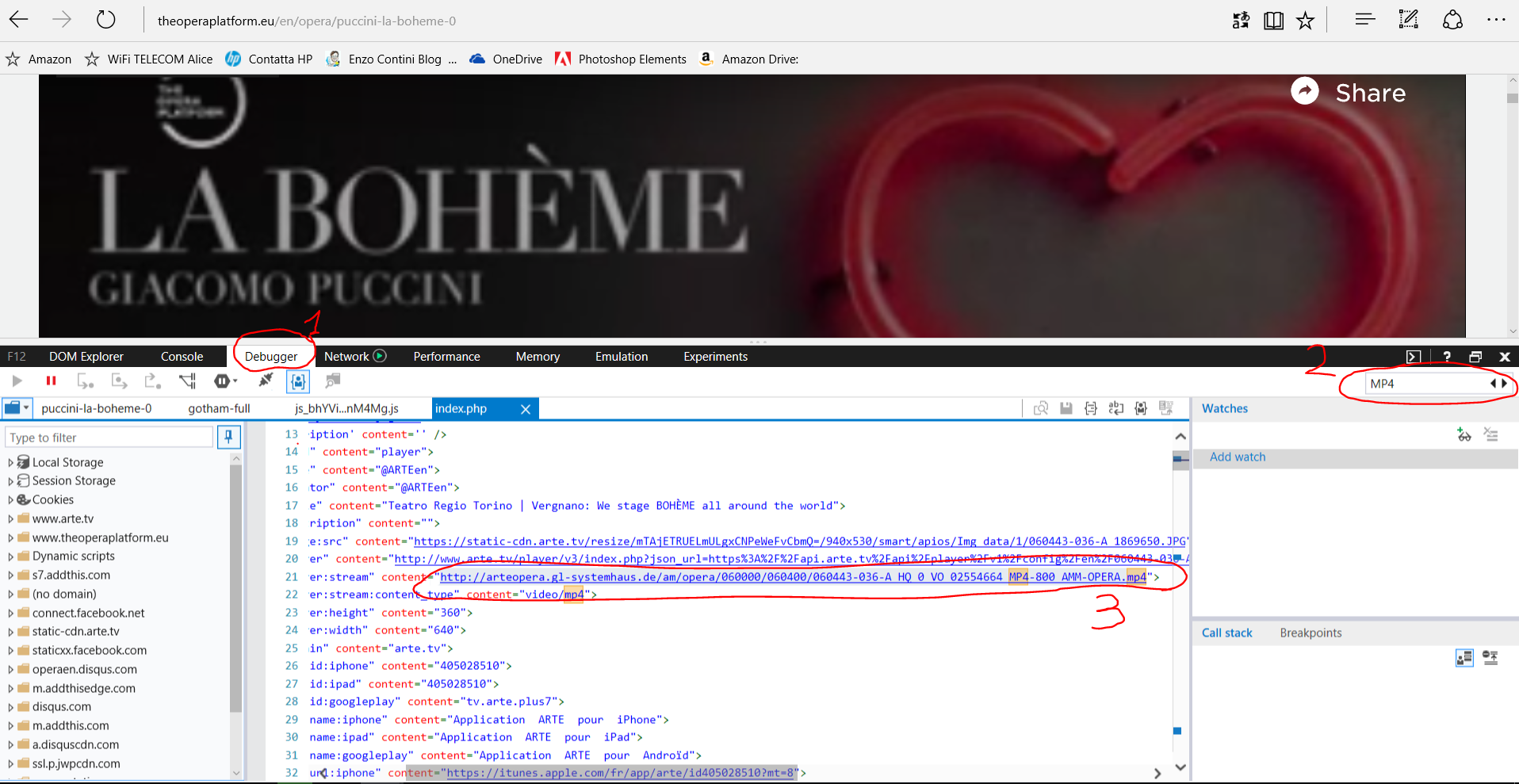
Download Windows 10

Pubblicato in Review e test, Windows | 1 commento