Usually to be connected to a Wi-Fi network it is sufficient to put the Wi-Fi on, click on the Wi-Fi icon (on the taskbar at right), select the right name from the available Wi-Fi list and (if protected) insert the proper secure key.

However sometimes, there are Wi-Fi network (e.g. in a firm, in an university) that requires specific security parameters settings to enable the connection of a client. Therefore, in the following I display how to manually configure a Wi-Fi network connection, whenever it is needed. The procedure is very similar for Windows 10 and Windows 8.1: however I will show the step-by-step procedure for both, just in case 🙂
… and what if do you still have Windows 7 on your PC?? In that case … please upgrade to Windows 10 then, it is free till 29/7/2016 (in this previous post you can find some info how to)!!
Anyway in Windows 7 too the procedure is very closed to the one I am going to describe in the following … 😉

P.S. If your company have a issued a CA Certificate, it could be sufficient to install it to make the Internal WiFi work. To install the firmNameCa.cer you should probably run the Command Prompt as an Admin and then, going in the folder were you have the certificate and run a command file (e.g. import_ca.cmd) to add it on the PC Trusted Root Certification Authorities.

certutil -addstore Root firmNameCa.cer

====================================

Step-to-step procedure for Windows 10

If you have already tried to connect to a Wi-Fi network without success, first of all it is convenient to let the PC forget the existing configuration for that network.

Cannot connect to a Wi-Fi network that requires special protection settings (1)

Cannot connect to a Wi-Fi network that requires special protection settings (1)

Cannot connect to a Wi-Fi network that requires special protection settings (2)

Cannot connect to a Wi-Fi network that requires special protection settings (2)

To let the PC forget this Wi-Fi network, go the Settings -> Network & Internet, select the Manage WiFi settings link (at the end of the list at the available Wi-Fi network): alternatively, you can go to the Network & Internet setting page also clicking on the Wi-Fi icon [toolbar on the right] and clicking on the Network settings link.

Network settings

Network settings

Manage WiFI settings

Manage WiFI settings

In that MANAGE WI-FI SETTINGS page, select the Wi-Fi network to forget and click on the Forget button.
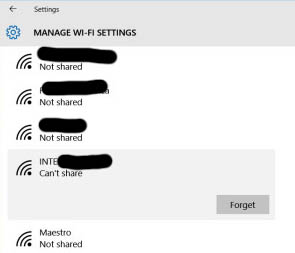
Let the PC forget the Wi-Fi network if already not properly configured

Let the PC forget the Wi-Fi network if already not properly configured

PS (1/8/2016) – In the last release of the operating system, the previous screenshots related to Network settings changed a bit as follows, even though the procedure did not change: Settings -> Network & Internet -> WiFi -> Manage known networks

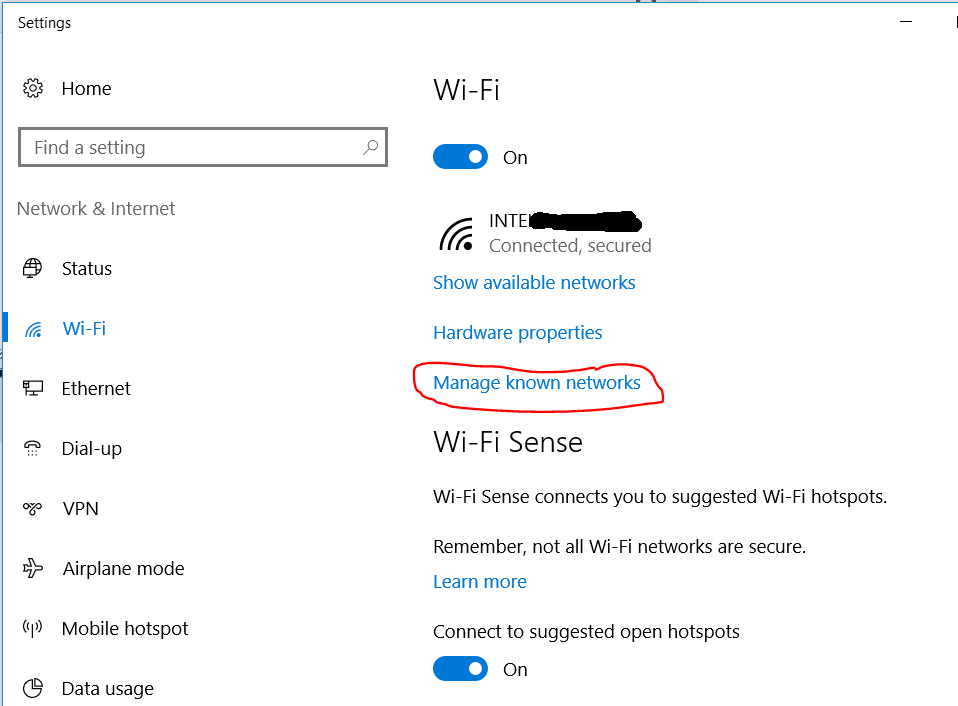
 

Then, let you manually configure that network, choosing the proper parameters settings. Obviously, those settings should be provided by that network provider: in the following I will show you only an example on how to set the available parameters.

Go [right click on Start] to Control Panel -> Network & Internet -> Network and Sharing Center and click on the Set up a new connection or network link. Alternatively, may be better, right click on the Wi-Fi icon [on the taskbar, at right] and choose Open Network and Sharing Center.
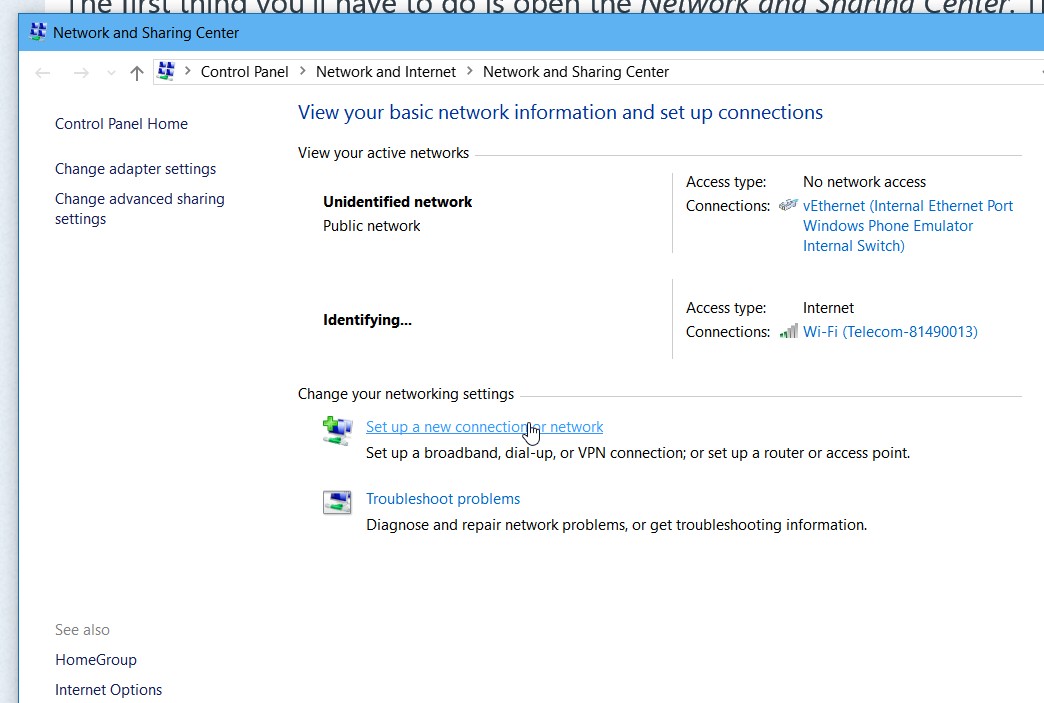
Set up a new connection or network (1)

Set up a new connection or network (1)

Select the Manually connect to a wireless network section.

Set up a new connection or network (2)

Set up a new connection or network (2)

Insert the Network name (be careful that it must be exactly the name of the network, as it is defined by that network provider, e.g. INTEXXXXX),  the proper Security type (e.g. WPA2-Enterprise).

Manually connect to a wireless network (1)

Manually connect to a wireless network (1)

After that step, click on Change connection settings to better define the parameters associated to that connection.
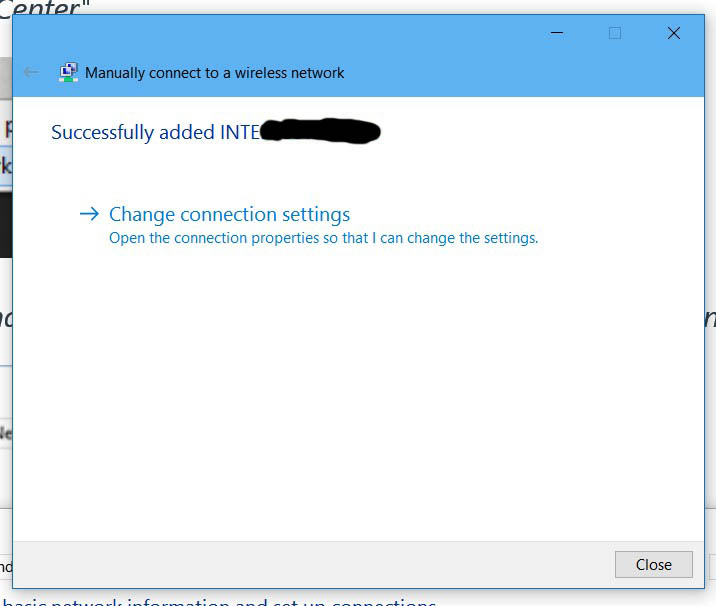
Manually connect to a wireless network (2)

Manually connect to a wireless network (2)


Go to the Security tab and click on the Setting button.
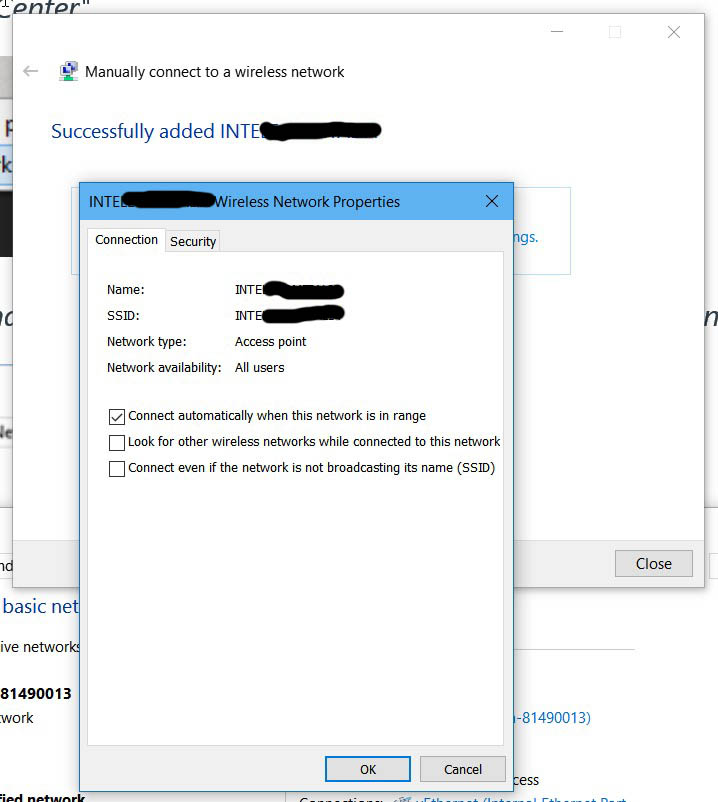
Manually connect to a wireless network (3)

Manually connect to a wireless network (3)

Manually connect to a wireless network (4)

Manually connect to a wireless network (4)

Be careful to possibly uncheck the Verify the server’s identity by validating the certificate option (e.g. the connection to the firm INTEXXXXX Wi-Fi network does not work if this parameter remains checked, as it is by default).
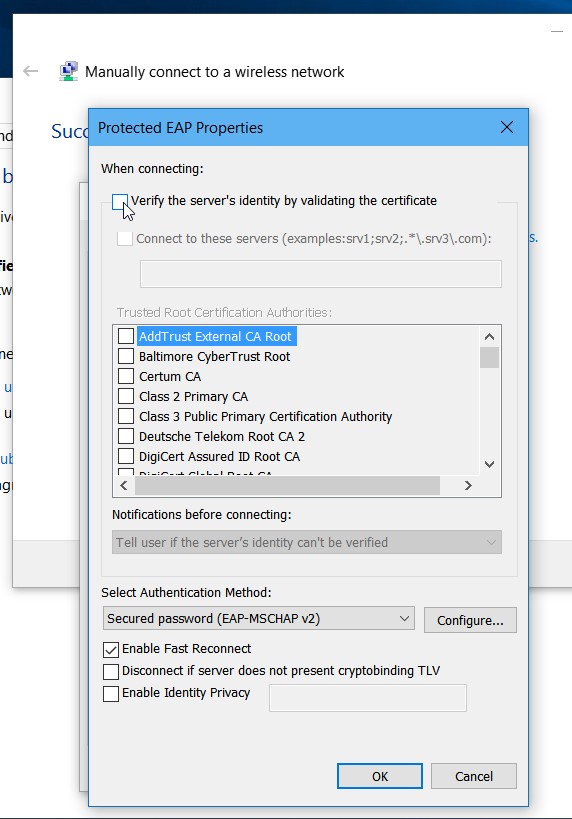
Manually connect to a wireless network (5)

Manually connect to a wireless network – uncheck Verify the server’s identity by validating the certificate (5)

After confirmed the changes done in that Settings section, click to the Advanced setting button,  always available in the Security tab. Here specify the needed authentication mode (e.g. Specify authentication mode -> User authentication) and, if you like, click on Save credentials and store your current credentials reminding to specify the domain in the username (e. g. companyname\usercode): in this case, remind that every time the password changed (may be periodically as defined by your firm security policy), you have to delete the previous WiFi configuration (e.g. the INTEXXXXX one) and configure it again, providing the new password in the credential settings.

Otherwise, if you do not set your credential in that configuration form, you’ll have to insert your credential each time you want to use that configured Wi-Fi (as shown in the screenshot “Sign in into the new configured Wi-Fi network with your credentials“) : personally, I prefer the first option 🙂
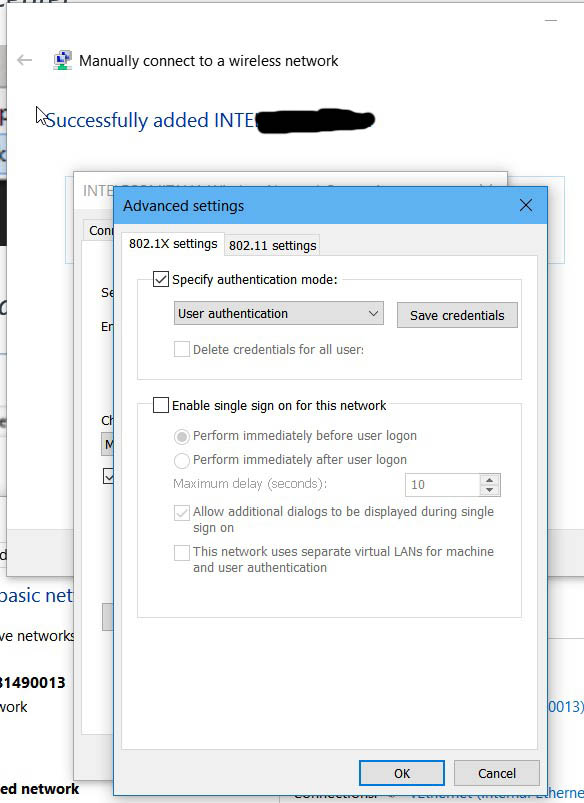
Manually connect to a wireless network (6)

Manually connect to a wireless network (6)

Click on all the OK button to confirm all the changes you did.

After all those settings [that must be done only ones 🙂 ], you can go to the list of available Wi-Fi networks [e.g. click on the Wi-Fi icon on the taskbar, right side], click the Connect button and insert your credentials (if you saved your credentials in the configuration, you do not need to insert them any more). Be careful to insert also the domain before your username in the credential input field (e.g. yourcompany\usercode).
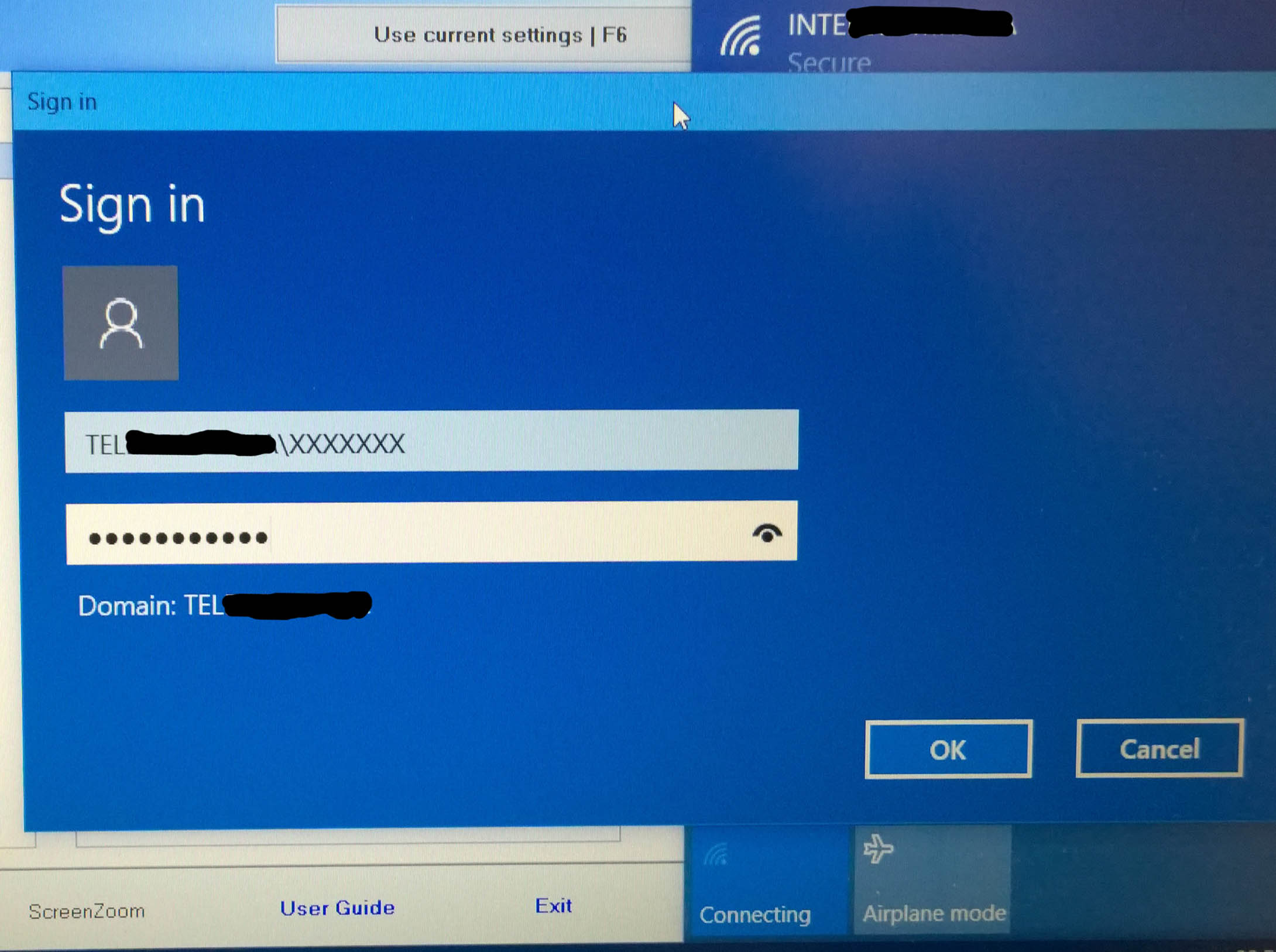
Sign in into the new configured Wi-Fi network with your credentials
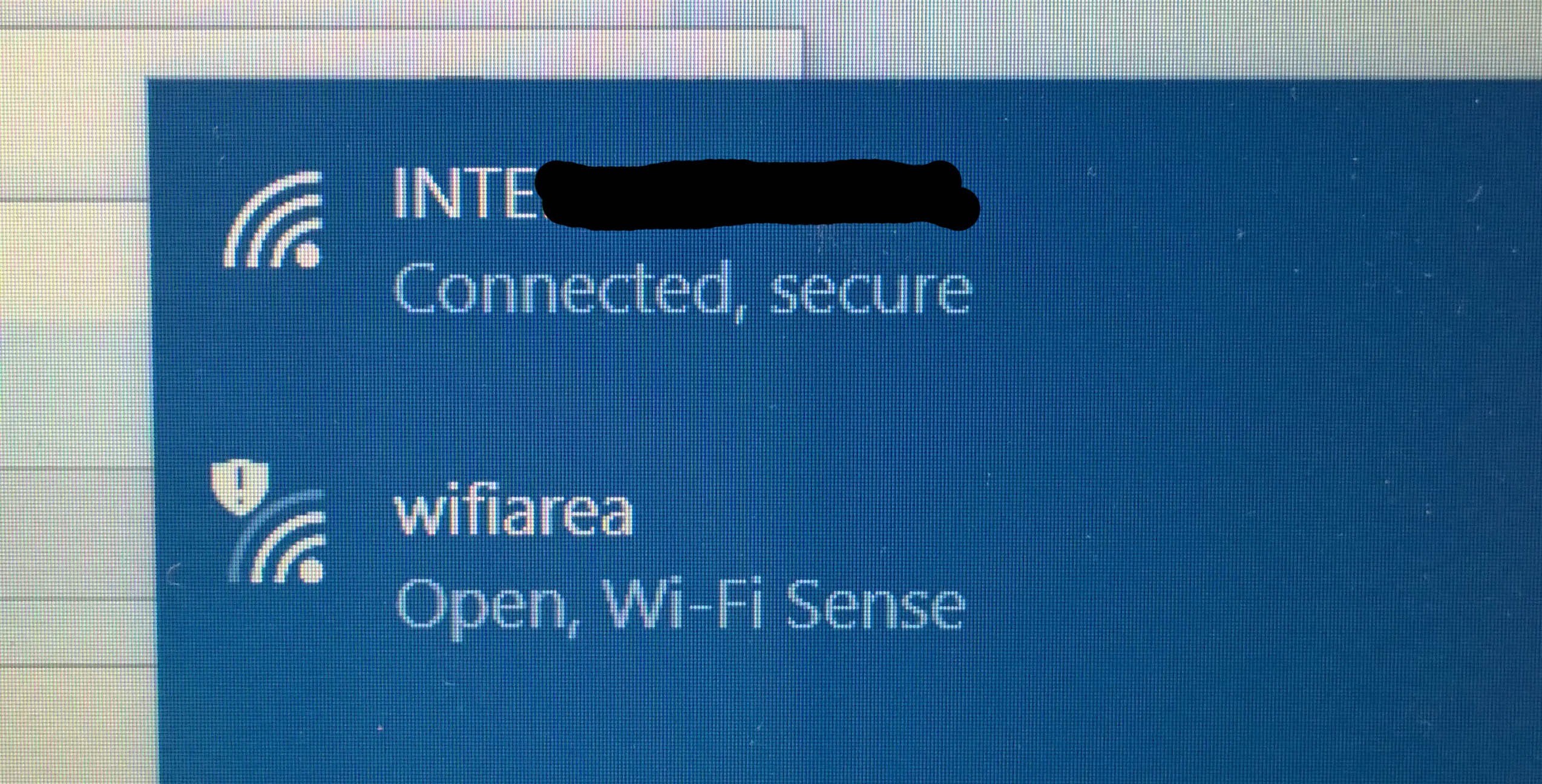
Sign in into the new configured Wi-Fi network with your credentials

Connected, secure

Connected, secure

See also this link for more information.

If you want to arrange the list of Wi-Fi connections to order a priority (in previous windows version, you could simply do a drag&drop of the names of the various Wi-Fi connections) you can have a look at the following link: How to change priority of wireless networks in Windows 10?

========================================

Step-to-step procedure for Windows 8.1

If you have already tried to connect to a Wi-Fi network without success, first of all it is convenient to let the PC forget the existing configuration for that network: right click on the Wi-Fi network name in the list of available networks [available clicking on the Wi-Fi icon on the taskbar, right side] and choose Forget this network.

Forget this network

Forget this network

In Control Panel -> Network and Internet -> Network and sharing center, click on Configure new connection or network.

From now on, the procedure is the same previously described for Windows 10: anyway in the following there are some related screenshots for a Windows configured with the Italian language, whenever it could be useful for someone 😉

Configure new connection or network

Configure new connection or network

Manually connect to a wireless network (1)

Manually connect to a wireless network (1)

Manually connect to a wireless network (2)

Manually connect to a wireless network (2)
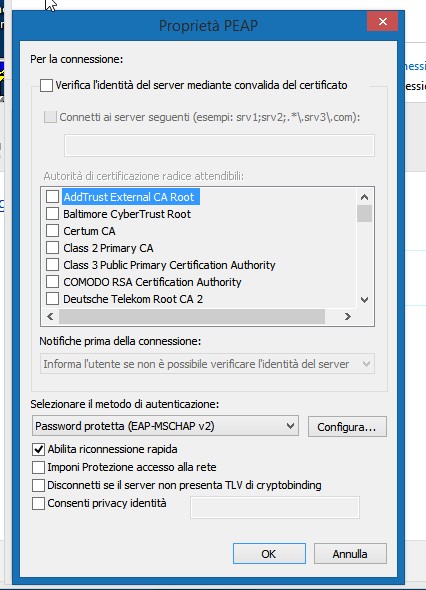
Manually connect to a wireless network (4)

Manually connect to a wireless network (4)

Manually connect to a wireless network (5)

Manually connect to a wireless network (5)

Manually connect to a wireless network (6)

Manually connect to a wireless network (6)

============================================================

In a following post you can find some further information (in Italian and password protected) specific to my firm Wi-Fi.

======================

Questo post si aggiunge ad altri che sono specificatamente indirizzati a colleghi di TILAB e talvolta anche a tutta TIM in generale. 🙂

PS: puoi trovare gli altri post filtrando, nella combobox a destra, sulla categoria “Aziendali”. Alcuni sono protetti da password per cui se ti interessano puoi contattarmi tramite l’email aziendale o telefonicamente.
Pubblicato il da Enzo Contini | Lascia un commento

Template 10: useful information and links

In this post I will put information and useful links related to the Template 10 and possibly I’ll add also some considerations using it: therefore it is an ongoing post that will contain more and more contents … whenever I’ll find something interesting to point out on this topic! You can find more useful information about Windows 10 programming in the post Programming for Windows 10: useful links.

Template 10 is a Windows app project templates available now also in the Visual Studio gallery and you can use it for your project as follows:

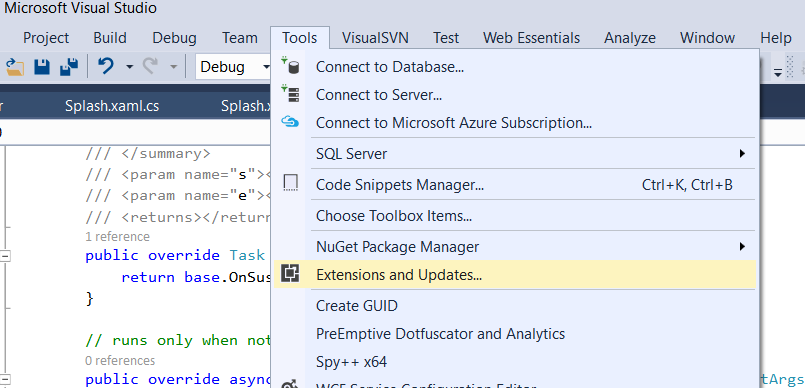
Go to Tools -> Extensions & Updates

Go to Tools -> Extensions & Updates

Find and select Template10

Find and select Template10

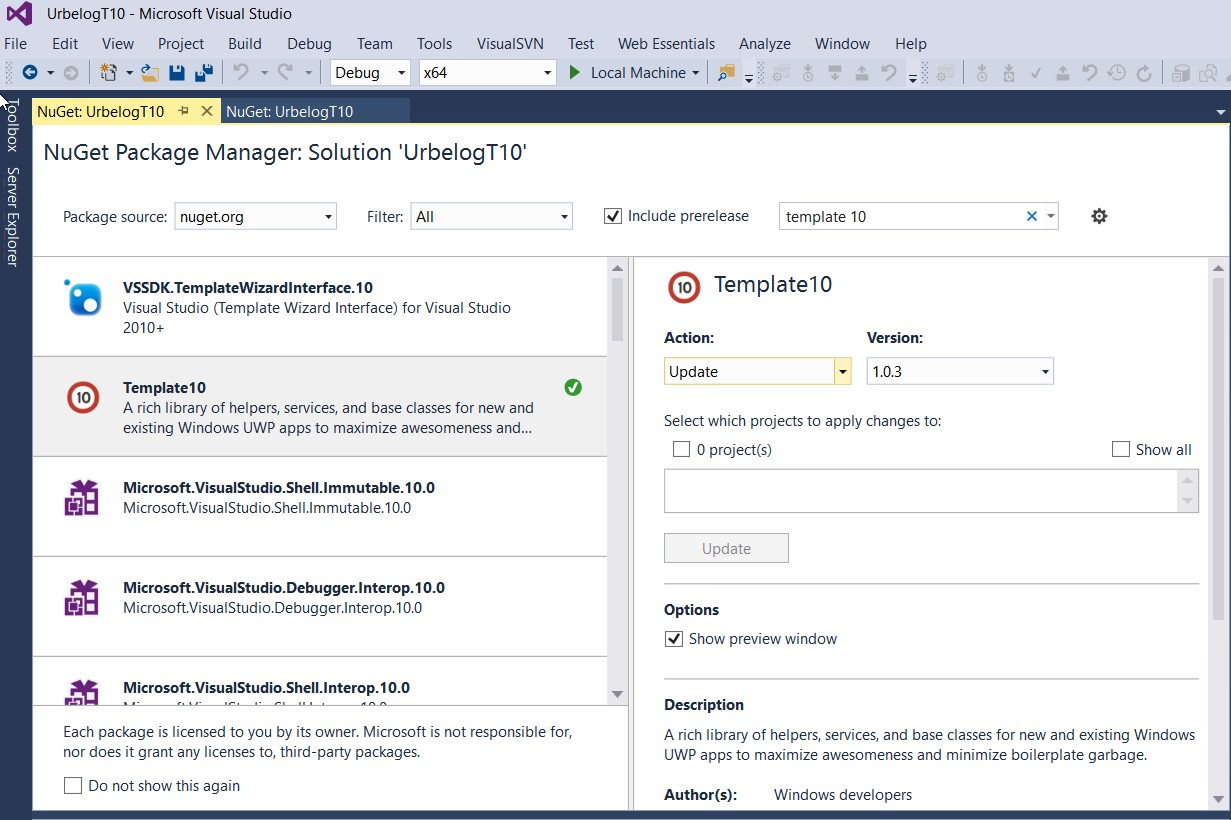
Template 10 available on NuGet (include prerelease)

Template 10 available on NuGet (note: Include prerelease checked)

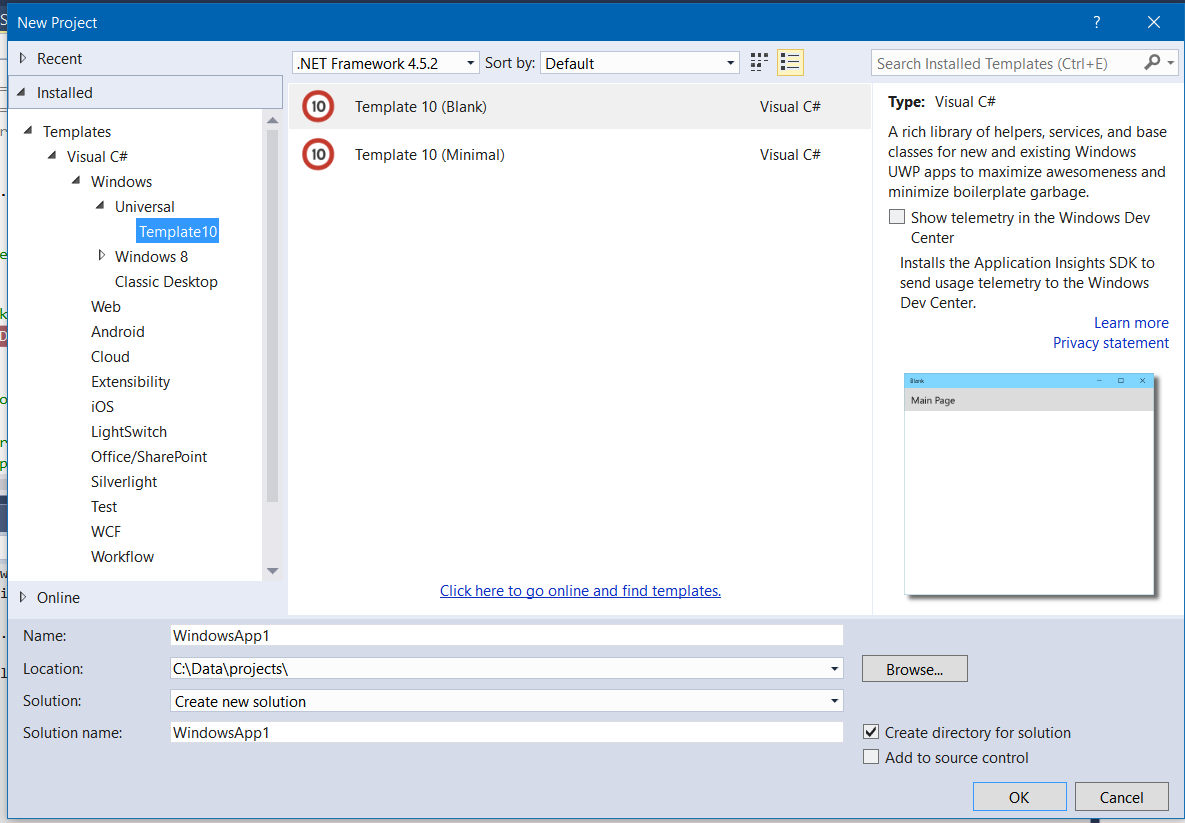
Template10 is then available as one of the possible templates for Universal apps (after added it from the VS gallery)

Template 10 is then available as one of the possible templates for Universal apps (after added it from the VS gallery)

==============

You can find more info in Template 10 (Visual Studio 2015 extension, Documentation, Issues).

Please read, from the Template10’s wiki, the advice First things first, getting the T10 templates to build: because the Visual Studio tooling for NuGet 3 in UWP apps is quite new, you must restore the packages from NuGet before they will build. There are three steps to get it to work, and this is a one-time process.

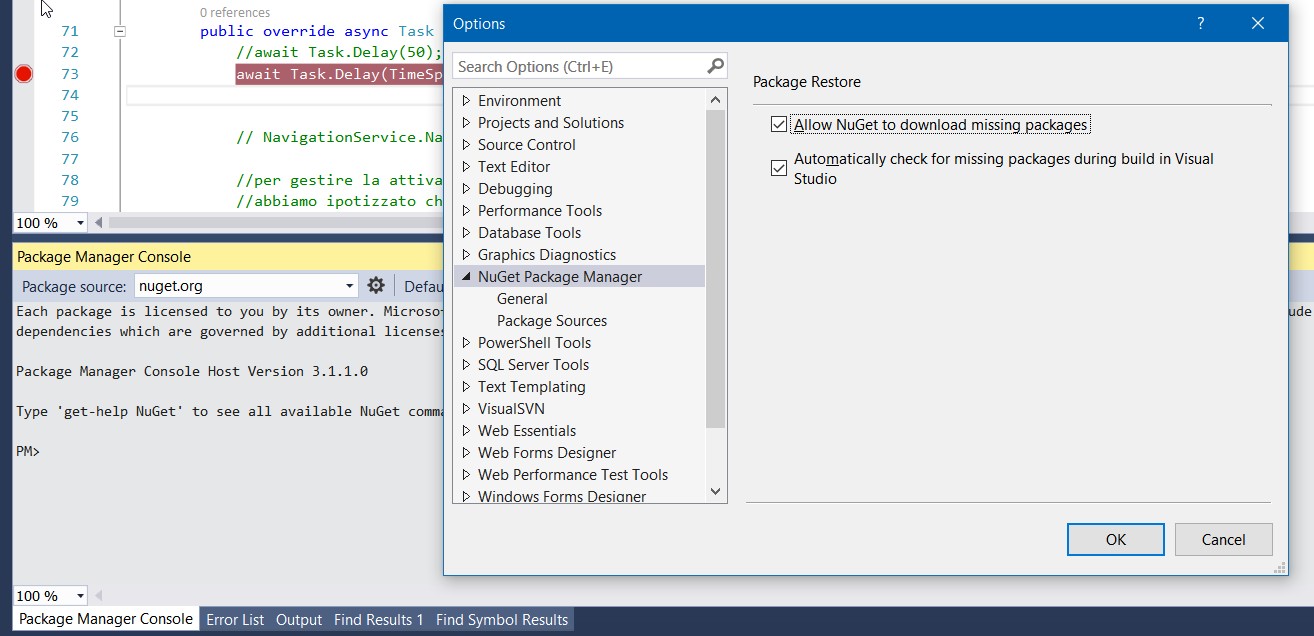
  1. Open the Package Manager Console (from Tools or press Ctrl+Q, type “pac man” and ensure “Allow NuGet to download missing packages” and “Automatically check for missing packages during build in Visual Studio” are both checked (true) in the Options dialog.
    Launch Package Manager Console

    Launch Package Manager Console

    Click the Option icon and verify that both the Package Restore checkboxes are checked

    Click the Option icon and verify that both the Package Restore checkboxes are checked

  2. Right-click your Solution, and select Clean.
  3. Right-click your Solution, and select Rebuild.
  4. Select your project, and click the “Refresh” button at the top of Solution Explorer.

===========

Useful links:

===========

Be careful – The NuGet dependences are not included in the template, but they are downloaded at the first compilation of the project. Even compiling my solution I experimented some errors (yellow triangle on the Tempalte10 reference): I tried also to redo the reference of NuGet but without success.; then I deleted it and downloaded again with the NuGet Package Manager. The problem I had was probably related to the proxy of my firm that may be blocked some connection with NuGet: once connected directly to Internet and reloaded that template with the NuGet Package Manager, everything was OK. Anyway now that Template10 is also in the Visual Studio gallery, that is the easiest way to use it (include in your Visual Studio 2015 and than see it as one of the available templates!

Template 10 Template Pack (Visual Studio Market place)

Pubblicato in Smartphone OS, Windows | 1 commento

Torino Photo Marathon: una bella esperienza da ripetere!

Ho partecipato per la prima volta alla Torino Photo Marathon e penso proprio che aderirò anche alle prossime edizioni, sempre tempo permettendo 😉

Ho letto commenti di persone che anche stimo che lo criticano, definendolo più un “fast food organizzato“, vicino alla “bulimia fotografica“, da un lato, o al bisogno di “esistere” (scatto ergo sum) dall’altro, esaltando invece come alternativa il concetto “puro” di fotografia propria dei circoli fotografici.
Secondo me c’è più pericolo che non sia Fotografia (con la F maiuscola) quella dei cosiddetti “circoli fotografici” che non quella di manifestazioni come questa: troppo spesso ho visto gruppi fotografici, con cavalletto e quant’altro, tutti in uno stesso luogo alla ricerca di chissà che cosa. Questa maratona fotografica (di “maratona” infatti si tratta) lascia invece spazio alla fantasia, non necessariamente alla tecnica, proponendo temi più o meno semplici come spunto per pensare e cercare dentro e fuori di te un qualche cosa di particolare che richiami quel tema, cercandolo ovunque tu creda opportuno … e come avviene anche per i temi letterari, anche questi li puoi svolgere liberamente, senza regole specifiche.
Ecco, secondo me forse è questo il bello della fotografia e della pittura … il non avere regole da rispettare a priori legate magari alla tecnica, il poter seguire il proprio istinto e la propria immaginazione senza vincoli.

Nove temi sono troppi? Forse, ma anche questo è un qualcosa di strettamente personale: non era comunque obbligatorio “svolgerli” tutti, tutto era ovviamente lasciato a discrezione del partecipante. I temi proposti, più o meno facili, erano comunque tutti stimolanti … e in una città come Torino non era poi così difficile svolgerli degnamente!

Insomma, a me quella giornata ha lasciato dei bei momenti in cui poter pensare e riflettere, percorrendo in bici per ore la città in lungo ed in largo, incontrando (principalmente durante il pranzo e la distribuzione dei temi) non solo amici, ma anche persone prima di allora sconosciute, ma tutte con la medesima passione per la fotografia.

Torino Photo Marathon 2015

Torino Photo Marathon 2015

Perciò, se non hai partecipato mai ad una edizione della TPM, ti consiglio di iscriverti anche tu ad una sua prossima edizione … e se ancora hai riserve, sono convinto che, partecipandovi, cambierai sicuramente idea!

==============================================================

==============================================================

Ecco le foto che ho fatto, associate ciascuna ad uno dei temi proposti 🙂 … le trovi anche nel sito di TPM dove eventualmente puoi anche inserire commenti

==============================================================

TEMA 1 – In movimenTO

… in bici è ancora più bello fotografare!!!

In movimenTO

In movimenTO

==============================================================

TEMA 2 – Cemento armato

… al di fuori il nulla.

Cemento armato

Cemento armato

==============================================================

TEMA 3 – City life

Una città è viva solo se c’è partecipazione e volontariato.

City life

City life

==============================================================

TEMA 4 – Musica dentro

… solo un vetro ci separa!

Musica dentro

Musica dentro

==============================================================

TEMA 5 – Avei na fumna

Las’ me ‘n cicinin …

Avei na fumna

Avei na fumna

==============================================================

TEMA 6 – Sotto pressione

Alle spalle c’è chi ti controlla dall’alto, giorno e notte, a destra e a sinistra!

PS: partecipa anche alla sezione “Toret

Sotto pressione

Sotto pressione

==============================================================

TEMA  7 – Occhio!

Leggi bene il cartello e fai bene attenzione a capirne il significato!!

Occhio!

Occhio!

==============================================================

TEMA 8 – Infinito

Verso l’infinito ed oltre …

Infinito

Infinito

==============================================================

TEMA 9 – Riflessi metropolitani

Finestre sul cielo di Torino

Riflessi metropolitani

Riflessi metropolitani

Pubblicato in Arte e Bellezza, Bicicletta, Fotografie, Just for fun!, Pensieri&Parole | 1 commento

Problems in downloading your photos from your Fuji X-T1 to a Windows 10 PC? Please, update the camera firmware to be Windows 10 supported … and use a proper USB cable connection! Useful FujiX T1 links.

Yesterday I took some photos with my Fuji X-T1 and when I tried to download them to my upgraded Windows 10 PC I had a bad surprise: no way to see anymore the photos connecting via USB the camera to my PC, neither with File Explorer nor with the Fuji MyFinePix Studio desktop application. Connecting the camera to the PC, let a new camera device (X-T1 folder) appear in This PC, but inside only an empty folder! Using the MyFinePix Studio application, clicking on the Import Images button it gives no effect! The “strange” was that everything worked properly with Windows 8.1, that is before the update to Windows 10.

The simple solution I first used was to take the SD memory card out from the camera and put it in my HP PC SD slot … and at least this method still worked (even though I had to update the SD reader driver from the HP site). Anyway the real solution was to update the camera firmware from the Fuji site, even though the last version was dated June 29 and no mention is written about Windows 10 support (while for other models, with a more recent firmware update, this is clearly said among the other improvements).

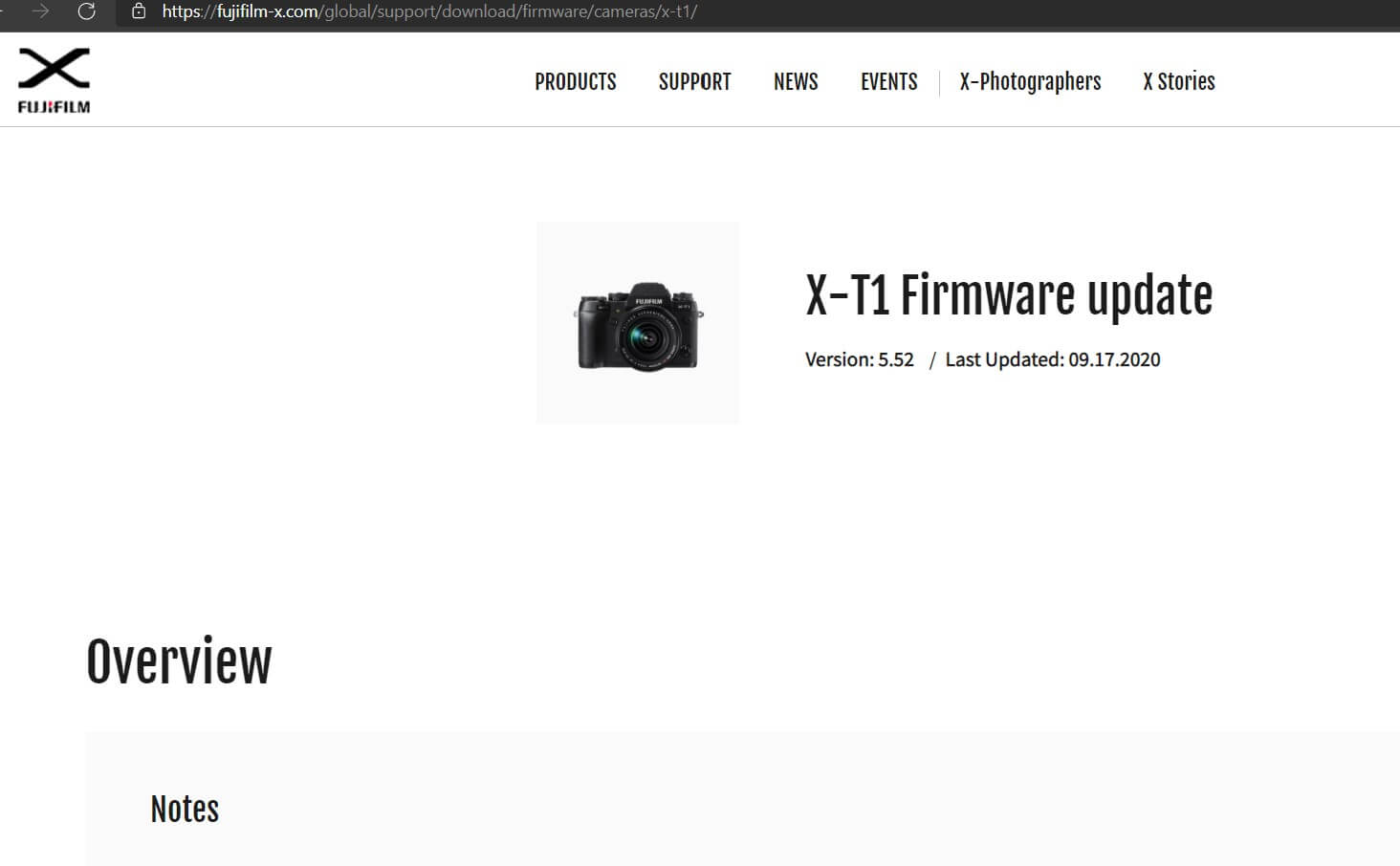
So if you are facing the same problem, go to the Fuji support page for the X-T1 camera and download the new firmware (version greater than 4.0.0): X-T1 | Firmware | FUJIFILM X Series & GFX – Global (fujifilm-x.com): at the bottom of the page of each camera/lent, you need to agree to conditions and then press Download.
The procedure to do the update is clearly explained in a pdf file: briefly, you have to format (better with the camera itself) an SD card, copy in there the downloaded update binary file (.dat extension), insert again that SD in the camera and switch it on while holding the DISP BACK button (on the right bottom of the camera back): a wizard will be shown on the camera display and you have only to choose the camera update option and click OK. Very easy: be only careful to have the battery full charged and do nothing on the camera while it is updating …

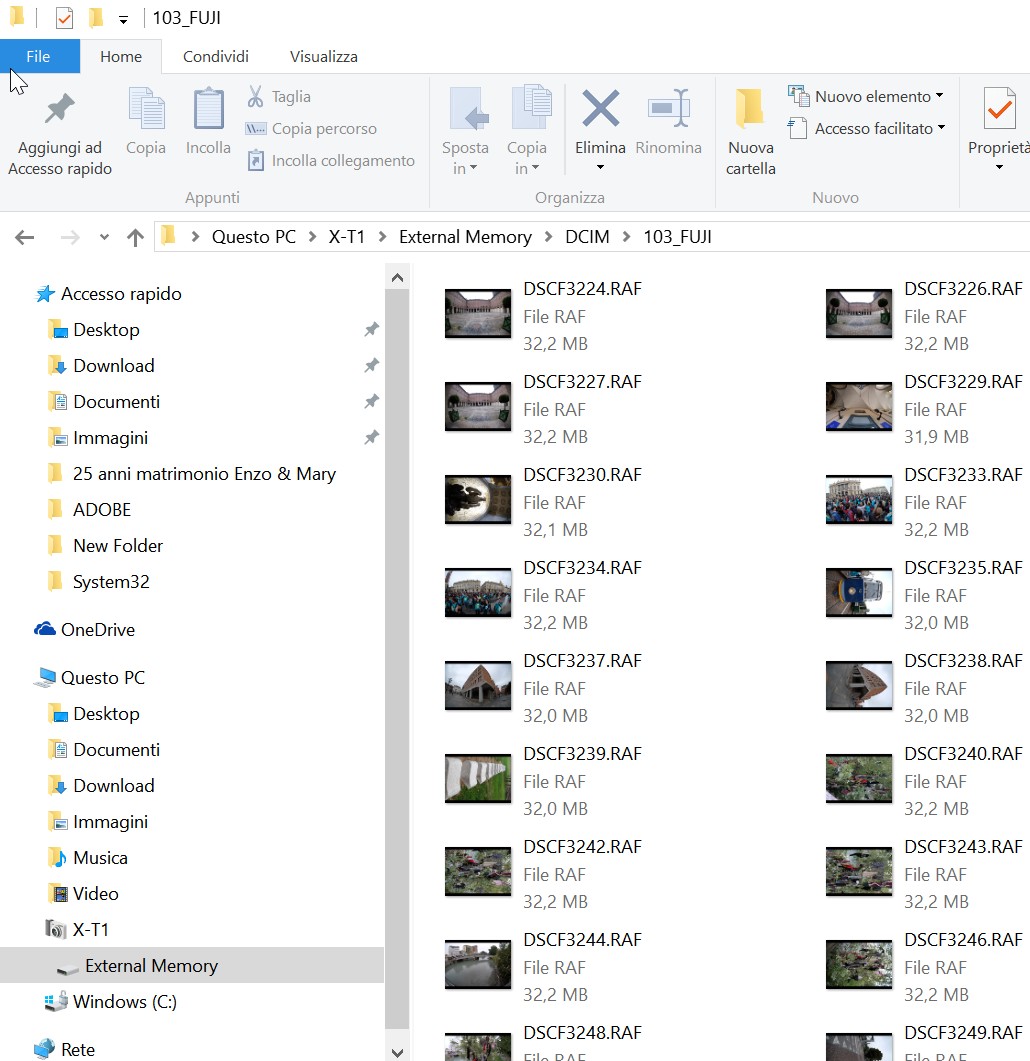
Photos visible in File Explore, after the X-T1 fuji camera firmware update

NOTE: as it is said also in the camera instructions booklet, the connection between the PC and the camera should be done using a USB cable shorter than 1,5 m and that allows data transfer: note that not all the USB cables allows that! Moreover it is also specified that the connection must be direct and not through an USB hub or a keyboard.
I put this note because it happens to me to have problems when using a USB cable that I use for charging my phone and that it does not work for data transfer of my Fuji T1 … so, if you still have problems after updating the camera firmware, let you try with some different USB cable using a direct connection with the PC!

That’s all folks!


PS – Before I tested the previous solution, I asked help in the Microsoft Community forum and someone gives me the following suggestion that could be useful in other context so I copy in the following:

This issue might occur if your device is not Compatible with Windows 10. I suggest you to install the drivers in Compatibility mode and then try to download the photos.
Please try to reinstall the drivers in Compatibility mode and check if it works.

  1. Right-click on the driver setup file and click on ‘properties’.
  2. Click on the‘compatibility’tab and check the box “Run this program in compatibility mode for” and select Windows 10 operating system from the drop down.
  3. Click on ‘Apply’and click ‘OK’ and run the file to install it.

=============================

Fuji useful links

Pubblicato in Review e test, Smartphone OS, Windows | Lascia un commento

How manage (and possibly turn off) Windows Update in Windows 10

I really do not know why, but there is someone that do not want to have the latest update of Windows 10 to be installed, at least automatically, even leaving you to choose the time when you prefer to start the update procedure. I think however that it is reasonable that an administrator of a platform can have the right to decide if, when and how to make an update on his device … but only for updates that are not related to security or bug fix, in my opinion.

… may be this could be for him a reason why someone is hesitant to update to Windows 10.

Personally I do not recommend to use any method to disable updates of the SO unless you have very special needs (e.g. server alone that must do only do few specific thinks): possibly you may only need to postpone the installation of new features after some months when they are completely tested all over the world, and the user interface already allows it with the defer option. It is mandatory to make security updates …

Anyway,  I list in the following some suggestions and some useful link for whom want to have more control or even stops updates.

First of all, in Windows 10 Home edition (the consumer version equivalent to basic Windows 8 / 8.1, Windows 7 Home Basic and Home Premium) it is not possible to make changes to how the Windows Update works – it is automatic and you cannot choose which updates will be downloaded and installed: however it is possible to postpone the restart of the system, but after some time the system will restart on its own.

Defer upgrades

Business Windows 10 editions (e.g. Professional, Enterprise, Education) let you defer upgrades to your PC: only security updates will be installed. When you defer upgrades, new Windows features won’t be downloaded or installed for several months. Deferring upgrades doesn’t affect security updates. Note that deferring upgrades will prevent you from getting the latest Windows features as soon as they’re available. You can set this option going to Settings -> Update & Security – Advanced options

Defer upgrades

Defer upgrades

Let me choose if update drivers software

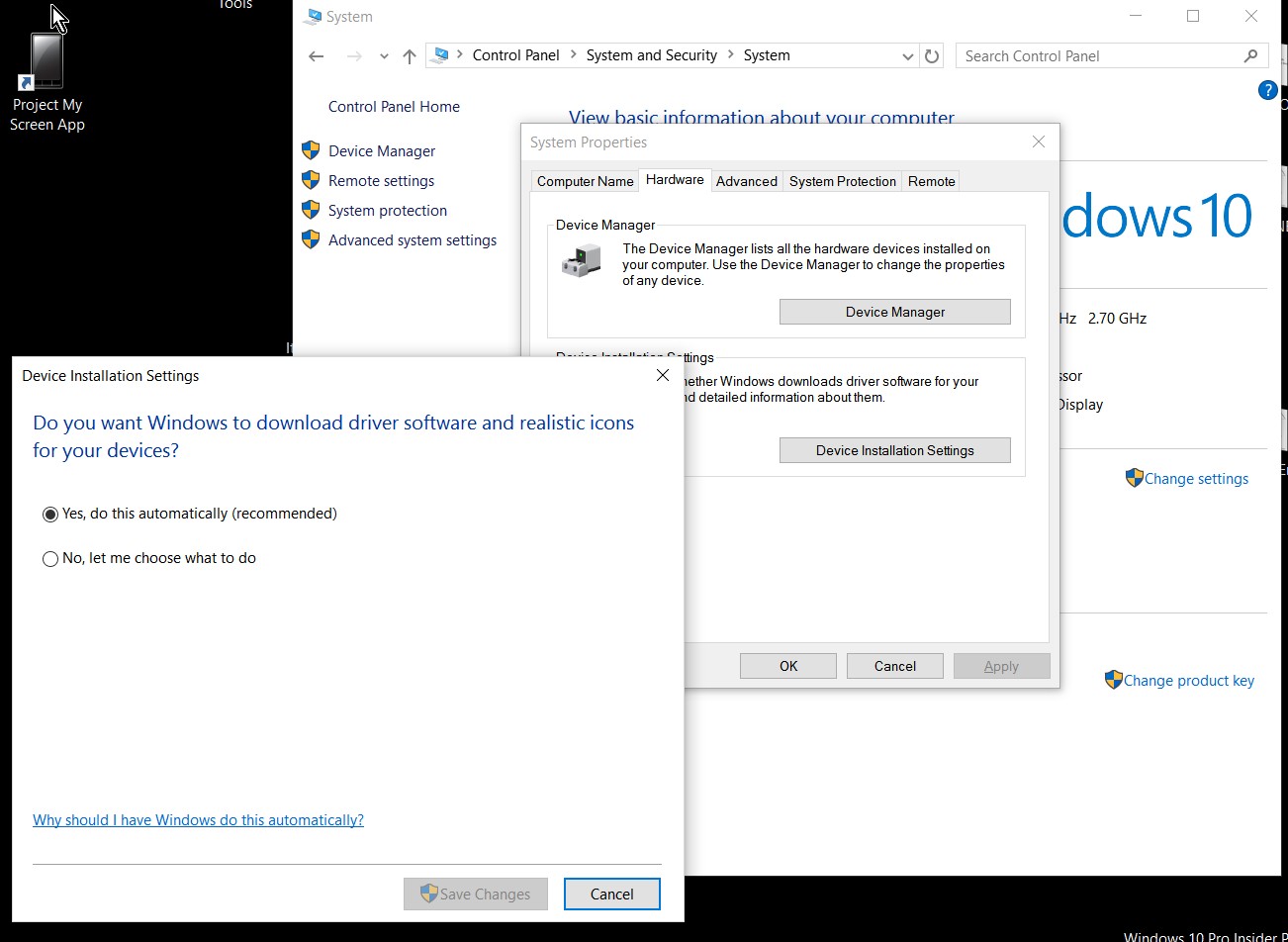
In the Device Installation Setting section of the Advanced system settings, you can decide to make automatic or not that kind of update.

Device Installation Settings

Device Installation Settings

Stop Windows Update service

Go to Control Panel -> System & Security – Administrative Tools -> Services (or right click on Windows Start icon, select Computer Management and then Services and Applications -> Services): stop the Windows Update service.

Stop Windows Update service

Stop Windows Update service

Modify the Group Policy

If your version of Windows 10 has Group Policy, you can also change some settings using the Group Policy Editor. Run (Windows button + r) gpedit.exe and navigate to the following policy setting: Computer Configuration -> Administrative Templates ->Windows Components -> Windows Update

On the right-side, double-click on Configure Automatic Updates (and may be some other attributes) and change its settings to suit your requirements. You can, for example, make Windows 10 notify you before downloading Updates (double-click on Configure Automatic Updates to open its configuration box; select Enabled and then, from the available Options, from the drop-down menu, select Notify for download and notify for install; click on Apply and exit; restart the PC): for more details see here.

Local Group Policy

Local Group Policy

Metered connection option

Settings app, select Network & Internet, scroll down, and select “Advanced options” below the list of Wi-Fi networks. Enable the “Set as metered connection” option. This option only affects the Wi-Fi network you’re currently connected to, but Windows will remember this setting for each individual Wi-Fi network. You can see here and here for more details.

Metered connection

Metered connection

Modify registry keys for Automatic Update configuration options

The registry entries for Automatic Update configuration options are located in the following subkey: HKEY_LOCAL_MACHINE\Software\Policies\Microsoft\Windows\WindowsUpdate\AU and the Registry Keys can be modified as you like (e.g. NoAutoUpdate
NoAutoRebootWithLoggedOnUsers).

Use Update Freezer

First of all I did not try it … I only read about it: it can be downloaded here and you can find a nice post that describe it here.

Update Freezer

Update Freezer

“Show or hide updates” troubleshooter

I did not use this tool too but you can find some info here

Show or Hide Updates tools

Show or Hide Updates tools

=============

In the Microsoft Community forum, you can find also the post “Disable Windows 10 upgrade prompt” that suggests the following possible procedures if you want to stop this kind of notification.

Method 1 – Uninstall the Windows Update as follow:

Uninstall KB 3035583 as documented here and reboot.

Then run Windows Update, Check for updates immediately after rebooting. It will find KB 3035583 and want to re-install it.

Uncheck it and then right click, Hide it. That will prevent it from being re-installed the next time Windows Update runs.

If the issue persists, follow method 2.

Method 2 – Rename the GWXUXWorker.exe

Terminate the GWX.exe process using Task Manager. Moreover rename the GWXUXWorker.exe and GWX.exe to .old as suffix from directory location:-

Windows\System32\GWX, if getting any issues while renaming then give the system permission’s to respective files and then try to rename it again. OR you can delete the entire directory folder.

Image

If the issue persists, follow method 3.

Method 3 – Registry key to stop the notification :-

  1. Press Windows key + R on your keyboard to open the run dialog box.
  2. In the Open field, type regedit.
  3. Click OK.
  4. Click Yes on the User Account Control (if prompted).
  5. Navigate to HKEY_LOCAL_MACHINE\SOFTWARE\Policies\Microsoft\Windows\CurrentVersion\Gwx
  6. Right click.
  7. Click Modify.
  8. In the Value data: field, dword:00000001.
  9. Click OK.
  10. Exit Registry Editor.

Important this method contains steps that tell you how to modify the registry. However, serious problems might occur if you modify the registry incorrectly. Therefore, make sure that you follow these steps carefully. For added protection, back up the registry before you modify it. Then, you can restore the registry if a problem occurs. For more information about how to back up and restore the registry, click the following article number to view the article in the Microsoft Knowledge Base:  How to back up and restore the registry in Windows

=====================================

Finally, you can find in the following some useful link you could want to navigate to 🙂

================

Finally if you really do not want to have your PC upgraded to Windows 10 you can follows the instructions available in Upgrade to Windows 10: FAQ

Can I go back to my old operating system?

How do I turn off notifications to upgrade to Windows 10?

To hide the Get Windows 10 app and notifications about the upgrade:

  1. Right-click (or press and hold) the Taskbar, and then select Properties.

  2. On the Taskbar tab, select Customize… for the Notification area.

  3. In the Notification Area Icons window, for the GWX (Get Windows 10) icon, select Hide icon and notifications.

=================================================

P.S. How to stop Windows 10 from performing automatic restarts after installing updates

Pubblicato in Windows | Lascia un commento

Programming for Windows 10: useful links

In  the following there is a list of useful links for Windows 10 programming. You can have a look also to Windows Phone 8.1 – Some useful links for developing Windows “Universal Apps” and/or other posts related to Windows and/or to the post Template 10: useful information and links.

Tutorial Web

Tools

  • WireframeSketcher: mockup tool (stencil for different platform)
  • Fiddler: analyze and debug web traffic, compose HTTP requests.
  • Postman (Chrome add-on)
  • Wireshark: packet analyser
  • JSON Viewer: a standalone viewer (JsonView.exe), a plugin for Fiddler (FiddlerJsonViewer.dll)
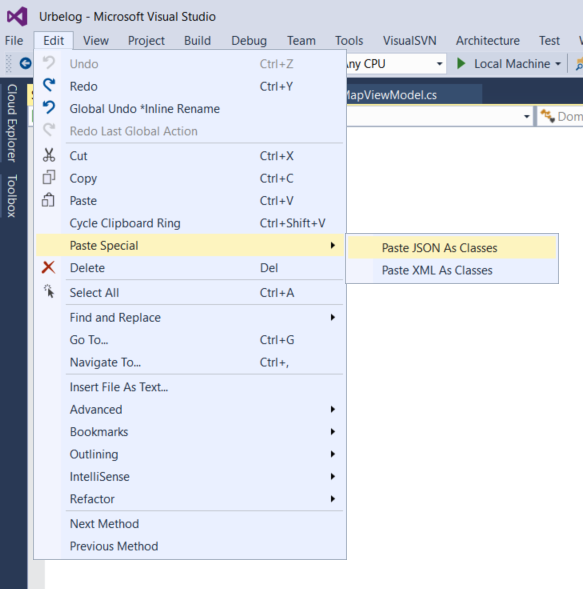
  • JSON C# Class Generator: alternative to the embedded VS tool; it allows better control on generated code.
  • Syncfusion Metro Studio: collection of over 1700 FREE Metro-style icon templates that can be exported as vector or jpg (see also this video).
  • PerfecTile: Create Tiles, SplashScreen, Store, LockScreen Images for Windows Store Apps & Windows Phone Apps
  • MakeAppIcon: web edition of PerfectTile for iOS and Android. However it only allows you to create favicons from pictures that are up to 2 MB in size. After some exploring I found the other tool favicon-generator that seems able to create favicons from pictures that are up to 5 MB from either JPG, PNG or GIF or even from a gallery!

======================

Forums:

======================

Blogs:

MSDN Magazine: Special Windows 10 Issue

======================

Design & globalization/localization:

======================

Programming:

======================

Libraries:

======================

Samples:

======================

On-line courses (free):

======================

Conferences video:

======================

Magazines

======================

Books:

======================

Others:

======================

Others related:


Pubblicato in Smartphone OS, Windows | 4 commenti

Windows 10: how to map your OneDrive cloud storage as a drive in File Explorer

P.S. Since 2018 Windows 10 update, OneDrive management became better and now it allows to set files on-demand (so free space on your PC) and to have different sharing options to files/folders. See, for example,  https://www.windowscentral.com/how-get-started-onedrive-windows-10

_______________________

Some time ago, in a post, I talked about the synchronization of the OneDrive predefined directory in Windows 8.1.
Now in Windows 10 the “on-line only” option doesn’t exist anymore: Microsoft removed the placeholder functionality from its OneDrive sync client. Things keeps moving very fast in OneDrive management … and this won’t be the end of the story!

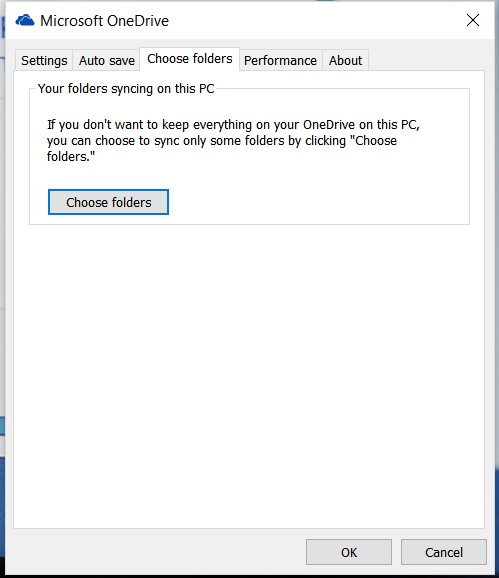
I appreciated the fact that now you can decide to sync [see the following screenshots] only some directories (even though they should be the ones in the predefined OneDrive directory and not whatever, as  it was in Windows 8 if I remember well), so there is not the need to waste storage space by  smartfiles or place holders with the “on-line only” option.

OneDrive Settings

OneDrive Settings

OneDrive - choose folders

OneDrive – choose folders

OneDrive - Folders to sync

OneDrive – Folders to sync

OneDrive - Get Help

OneDrive – Get Help

So  I think that the actual solution is one side better than before (no deletion on the cloud of the directories that you do not want on your PC, so you had to have the place holder of all the dirs. if you wanted to synchronize the OneDrive dir).

However  there are unfortunately the following lacks:

  • No more the possibly have an “on-line only” option as it was in Windows 8.1 (sometimes useful).
  • No more the possibility to sync a generic directory of my PC (other than one available in OneDrive) [as it was, if I remember well, in Win7/8].
  • No more the possibility to change the location of the local OneDrive folder … (I think there was in an initial release in Windows 10, because on one PC I have it in c:/Data but now, when I tried to do the same with an other Windows 10 PC, I cannot find anymore the way to change the default c:/Users/myAccountName folder location of the OneDrive directory).

So it would be sometime nice to have a reference to all your OneDrive files from the File Explorer (even if you don’t want to waste local disk space on your PC) in order to access OneDrive directly from apps like Word and do any other file operation you normally use.
I found in some blogs (*; **) an easy method to map your OneDrive storage as a drive and so reach that goal. You may follow the detailed instructions you can found there or simply consider the following steps that take care also of my experience and some little changes (as how to actually find out your CID):

  1. Find out your OneDrive CID. To do so, ou have to go with a browser to your OneDrive site and then access whatever of your folders: in the URL you will see, as a query parameter, your cid (e.g. https://onedrive.live.com/?id=123456asdfghj&cid=1A90RA8F00049FB6&group=0) the CID in the address bar.
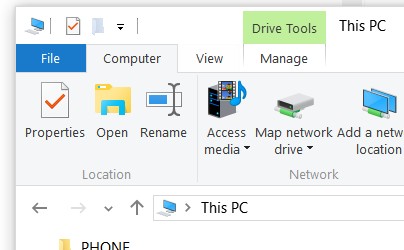
  2. Open up Windows Explorer, select “This PC” in the left pane, click on “Map Network Drive”  in the ribbon under the “Computer” tab. In the “Map Network Drive” dialog box that pops up, select the drive letter you wish (e.g. Z:) to use for OneDrive and in the “Folder” text box, enter “https://d.docs.live.net/” followed by the CID number you retrieved in step 1 (e.g. https://d.docs.live.net/1A90RA8F00049FB6).

    Map Network Drive

    Map Network Drive

  3. If you wish the drive to be available every time you log into Windows 10, select “Reconnect at sign-in“.
  4. Check “Connect using different credentials” so that you can confirm your OneDrive sign-in information, entering when requested your Microsoft credentials (be careful about possible proxy problems if you are on a local network, so better to test all connecting directly to Internet. Moreover the username should be your yourMicrosoftUsername, that is the email you used to register in Microsoft, one and not Microsoft Account\yourMicrosoftUsername, as sometimes it will be suggested if you do not save your credentials).
  5. Once you’ve entered your credentials, it may take some time for your computer to fully connect and the speed of displaying the remote files on your File Explorer will obviously depend on the kind of connection you have …
  6. The folder you will have in File Explore will be like
    1A90RA8F00049FB6 (\\d.docs.live.net@SSL\DavWWWRoot) (Z:)
    that it is not very nice to see!! So, you can possibly rename it right clicking on it (e.g. you can rename to OneDrive so it will be displayed as OneDrive (Z:)

After having renamed the mapped network drive Z:

After having renamed the mapped network drive Z:

As it is rightly said in one of the mentioned posts, it may be not a perfect solution and can result in some performance issues … but if your goal is to be able to access all of the files in your OneDrive cloud storage from File Explorer in Windows 10 without having downloaded in your local HD, this may be your best option! They are not anymore local thumbnail as it was in Windows 8.1, so you can see them only if you are connect to Internet … but in this way your local HD  haven’t to store nothing … so neither the space needed for storing thumbnails is lost and, if you have many photos, this could be relevant.

Therefore, I do not think this is a FULL solution because of performance problems on slow networks and because it does not allow to see your files when the PC is disconnected from Internet (while the on-line only option available in Windows 8.1 allowed that [e.g. see a picture’s thumbnail], even though if you wanted to download the file/picture you had to be connected).

I think that MS has to find out a better solution, may be adding some more options, … may be taking something from the past!

PS: see this video too!

Pubblicato in Smartphone OS, Windows | 3 commenti

Programming maps in Windows 10 Universal app

In the following you can find some useful links related to programming maps in Windows Universal app.


Developer's Guide to Windows 10 Preview: (06) Maps  Developer’s Guide to Windows 10 Preview: (06) Maps (slide) [31 minuti, 23 secondi]


Bing Map V8 Control:  this library is only related to web development. The Map control for apps is, on the other hand, integrated into the Universal Windows Platform and it is not a further component: this implies that, it it will be updated, the new features will be directly included inside the new version of Windows 10 (like the Anniversary Update).

Related to the Joost’s library, even in the case of future upgrades, there should not be particular problems in continuing to use it, if the team doesn’t introduce unexpected breaking changes on that control: possibly it could be updated to support the new introduced features …


=======================================

NOTES

With the new MapControl available in UWP app it is possible to add a userControl as a Pin on the map with map.Children.Add : to attach it in a specific position (and not be shown on the top left corner) you have to set the following two attached properties: MapControl.SetLocation and MapControl.SetNormalizedAnchorPoint.


================

from  Joost van Schaik <joostvanschaik@outlook.com>

1 “If you know, is there a way to have that branch linked in the GitHub client in order to make the synchronization simpler?”

I am not a Git hero either. I always use something called TortoiseGit for initially cloning a repo. Then I right-click the future parent directory of the repo

And get this popup. I check “Branch” and then the name

And I get the UWP branch on my disk. Visual studio will honor this further on.


2 “Nl.MapBindingDemo from the downloaded WpWinNl-uwp.zip file.

I compiled all the projects available in the uap 10.0 directory (and then also the others, just in case), the references were solved … so Rebuild all 5 succeeded as you can see:”

Dear Enzo, I really wonder why the hell Visual Studio does this, I run in it all the time as well and it makes finding actual compile errors really hard. It helps a little to set the dropdown that I’ve marked with an error to “Build Only”

3 “Moreover, if I try to show pushpin, clicking on the Points menu item, they are shown like the following:

sampleJoost0

Nothing happens clicking on the other items menu (Lines, polygons, polygons [again??]) …. Any suggestions???”

R: Yeah, this is actually pretty easy. Whatever you do, after starting the app, FIRST hit the 3 dots all the way to the right. That will show a “show area” menu. Click this, and the app will zoom on an area near my home. And then the points, lines and polygons will show as they should.

sampleJoost

Thank you for making me aware that I should  have explained this this in my blog in the first place.

Pubblicato in Smartphone OS, Windows | 1 commento

What to do if, compiling in release mode a Universal Windows app, this error is displayed: “LOGGERBASEDEXECTASK : ILC error ILC1004”

It happened to me to have my prototype Universal Windows app compile and run in debug mode, but when I switched in release mode a strange “LOGGERBASEDEXECTASK : ILC error ILC1004” was trown.

Searching in the MSDN forum I found this thread (RTM Known Issue: Release configuration fails to build on using Desktop and Mobile Extension SDKs in a Universal Windows app) related to the RTM version, but the problem was the same with my final release and the solution suggested worked for me too.

The problem is related to the Microsoft.NetNative.targets not properly updated, so that error occurs if both the Desktop and Mobile Extensions for the UWP are referenced.
Therefore, if you added both (as I did) only for future possible use of specific platform Api, just remove the Mobile one. However a more definitive solution is to follow the suggested work around to this issue, that is updating the targets file:

  1. Close all instances of Visual Studio.
  2. Copy the file from https://gist.github.com/MattWhilden/7579984e0d8e6541716a
  3. Replace the Microsoft.NetNative.targets under C:\Program Files (x86)\MSBuild\Microsoft\.NetNative with the new targets file.
  4. Relaunch Visual Studio and rebuild your solution.
Pubblicato in Smartphone OS, Windows | Lascia un commento

How to locally install an Universal Windows 10 app on a Windows 10 device and possibly debug it remotely

Very often it is useful to install your app on a device different from the one used for development, where probably Visual Studio is installed so the deploy on it can be simply done running the app in that IDE.

I found the following different way to do that:

  • Publish in the Store, setting Distribution and visibility to “Hide this app in the Store. Only customers with the email addresses you enter below can download it, via a direct link”. Then install that app downloading from the Store from the target device as an authorized user.
  • Side-loaded via PowerShell onto your test device: see Sebastian Brandes’ post: this was the way that worked also in Windows 8.1. Remind that sideloading is installing and then running or testing an app that has not been certified by the Windows store. (e.g. an app that is internal to your company only).
  • Use the WinAppDeployCmd that is a new stand-alone tool available for Windows 10 that is available on your PC in C:\Program Files (x86)\Windows Kits\10\bin\x86 if you installed Visual Studio 2015 or also only Windows 10 SDK (see Install Universal Windows Apps with the WinAppDeployCmd tool). It is like the old 8.1 Application Deployment tool, but this new Windows 10 one is (till now) only a command line tool.
  • Use the Remote Tools per Visual Studio 2015 that allows you to do also a remote debugging of your application, further that let you install it on a remote device (e.g. with both PC connected to the same WIFI). See also Set Up the Remote Tools on the Device
    In the following I will give some advices to use the last choice that I think it is very often the  easiest to follow for a developer and also the more useful because allows also a remote debug

First of all if you want to have a package with the appx file created, you have to right click on the Startup project and select Store -> Create App Packages:

Create App Packages

Create App Packages

You can also select to build packages not to upload in the Store, in order not to have to sign in with the Microsoft Account and choose one or more platform types you want it runs to: however, in this case, to install and run that app, you have to set Sideload apps or Developer mode in the Settings -> For developer section of your target device.

Side Loading WIndows Store app

Side Loading Windows Store app

Platform type choose

Platform types choose

Sideload apps or Developer mode in the Settings -> For developer section

Sideload apps or Developer mode in Settings -> For developer section

To do a remote debugging, you have to install in the remote target device the  Remote Tools per Visual Studio 2015 and launch the Remote Debugger app desktop:

Remote Tools for VS2015

Remote Tools for VS2015

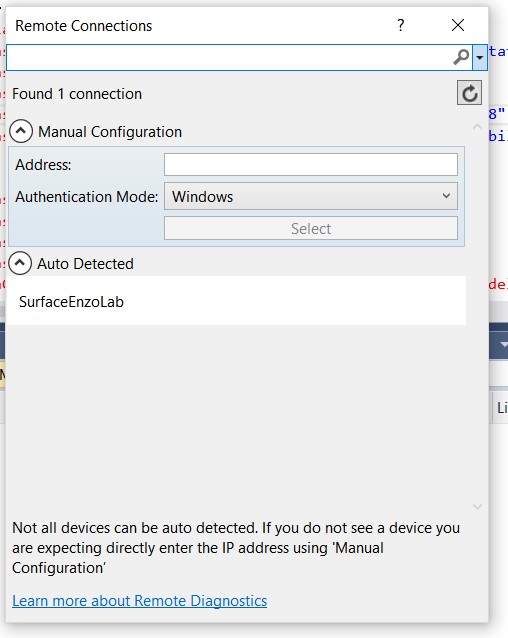
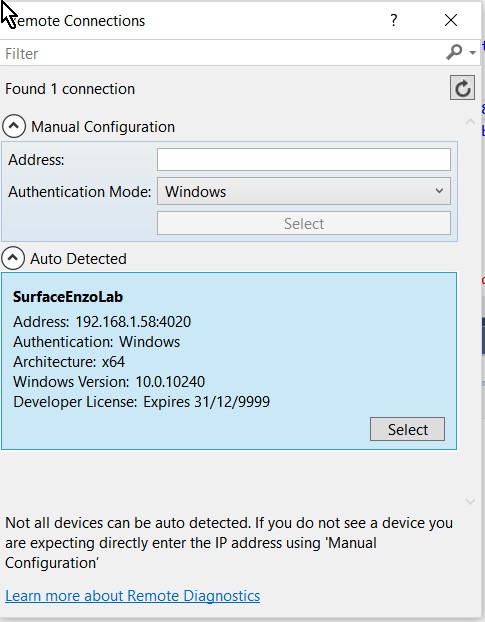
Then, on the developer PC, in VS2015 run the app choosing Remote Machine: if both devices are on the same WIFI, an automatic discovery is done, so you only have to select the remote device where you want to launch your app.

Remote Machine Debugging

Remote Machine Debugging

Auto Detected devices where Remote Tools for VS2015 is running

Auto Detected devices where Remote Tools for VS2015 is running

Select the proper remote auto detected device

Select the proper remote auto detected device

Then, when you run (in release or debug mode) your app in VS2015, the app is deployed and launched in the remote device and, as it happens when you run it on the Local Machine, your app will be available, on that remote device in the All apps list, even afterwards, till you explicitly uninstall it.

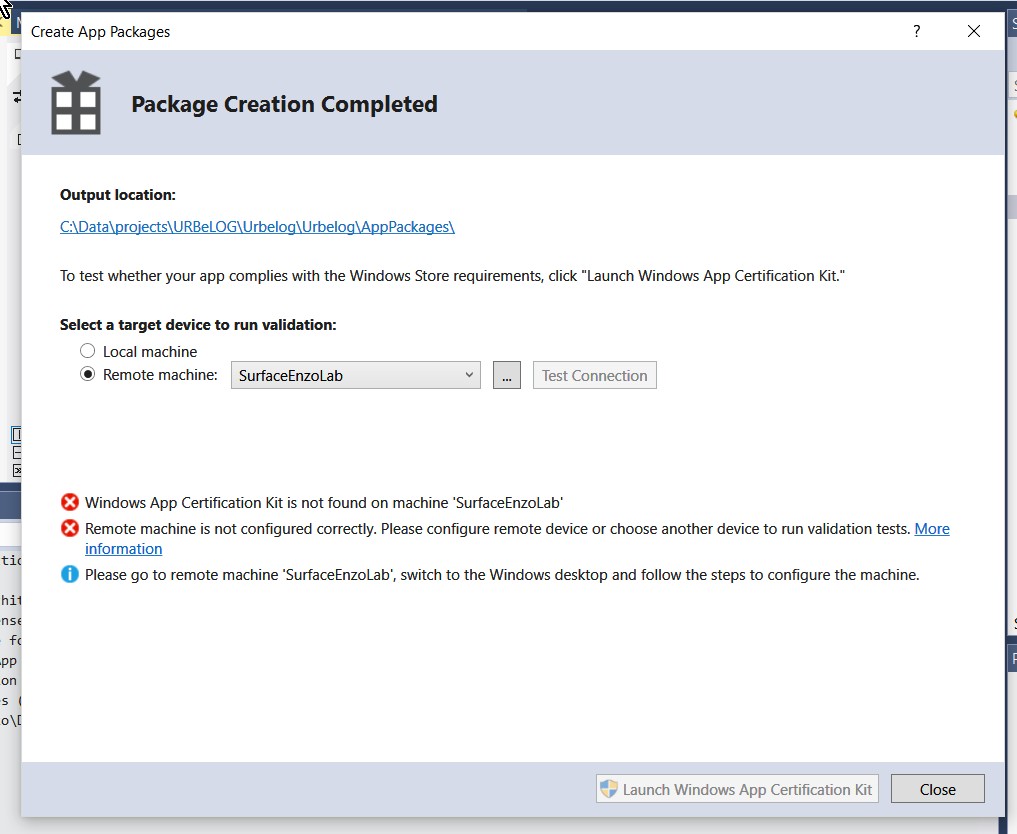
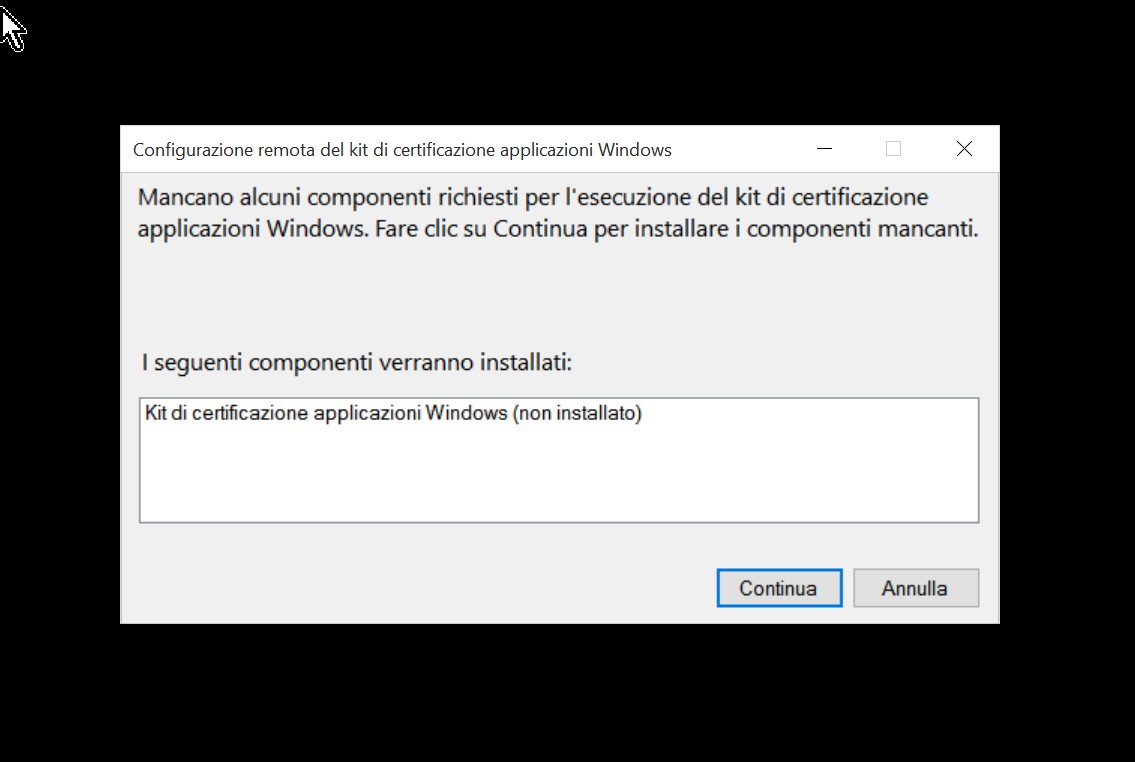
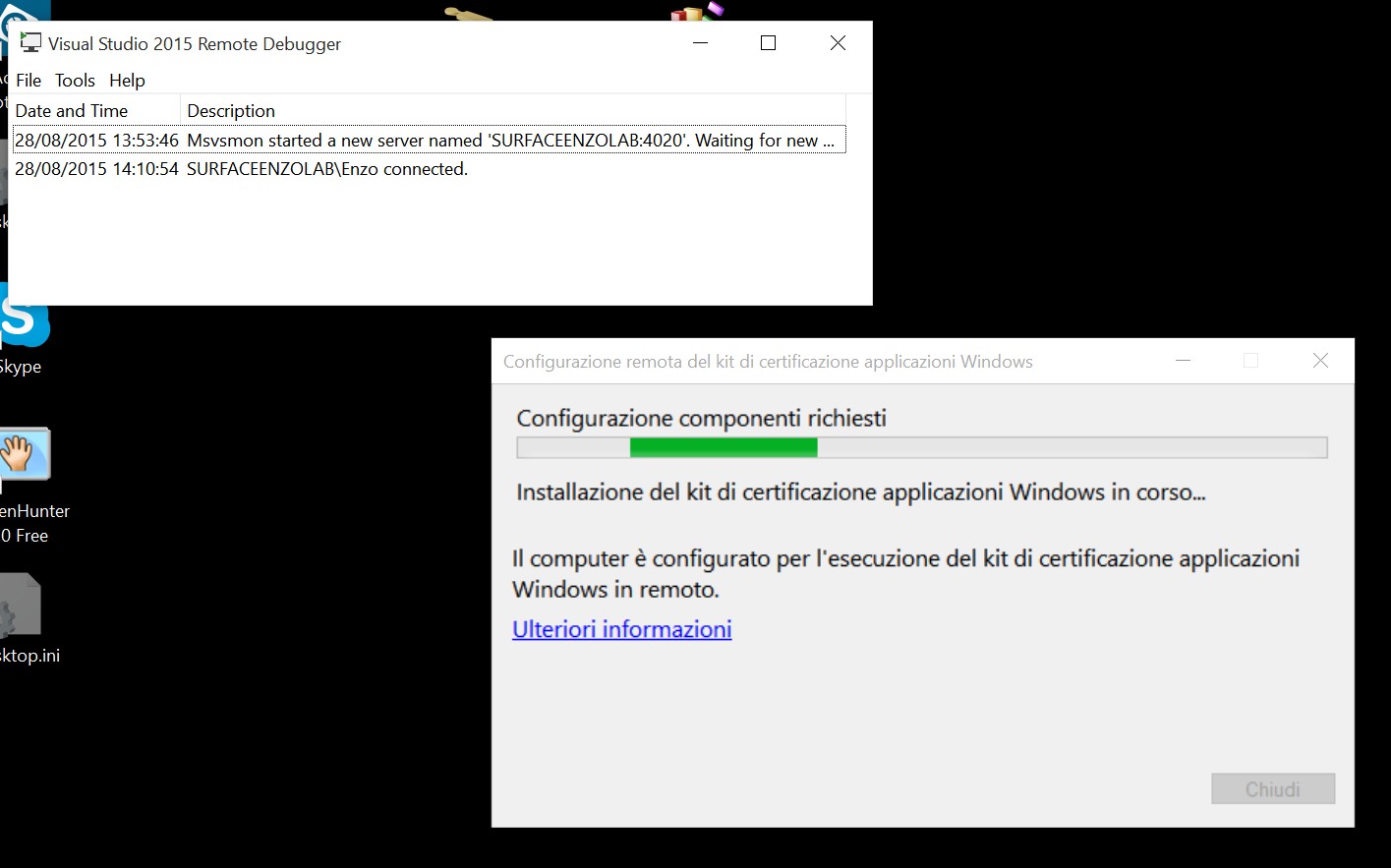
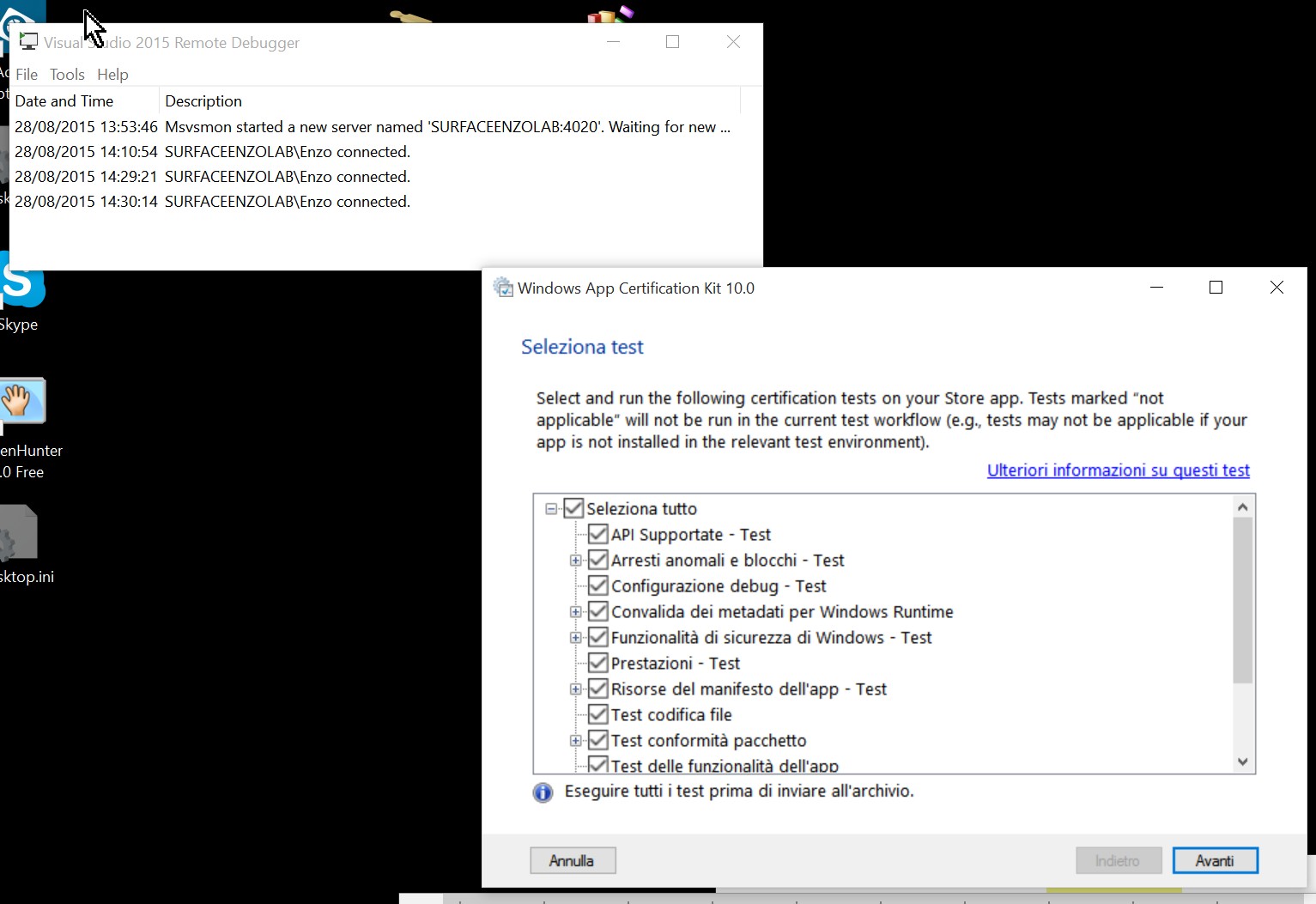
Note that, after created the Package, you can even launch the validation tests on the remote device and if the Windows App Certification Kit is not found there, you can configure it correctly following the wizard displayed on the target device and then the Launch WindowsApp Certificate Kit button became enabled and you can run the certification test on the remote device where you agreed to install the Windows App Certification Kit:

Validation tests on the remote device

Validation tests on the remote device

Run validation on remote device

Run validation on remote device

After accepted on the target remote device the installation of the Kit, the button becomes enabled

After accepted on the target remote device the installation of the Kit, the button becomes enabled

Installation on the remote PC

Installation on the remote PC

Installation on the remote PC (2)

Installation on the remote PC (2)

Runiing the certification toolkit on the remote PC

Running the certification toolkit on the remote PC

See also: Enable your device for development, Downloads and tools for Windows 10, Creare un pacchetto di app and Publish Windows apps

Pubblicato in Smartphone OS, Windows | 2 commenti

Chiesa di S. Caterina (1309): affreschi del ‘400 bellissimi … e opere di recupero inutili, esteticamente inopportune!

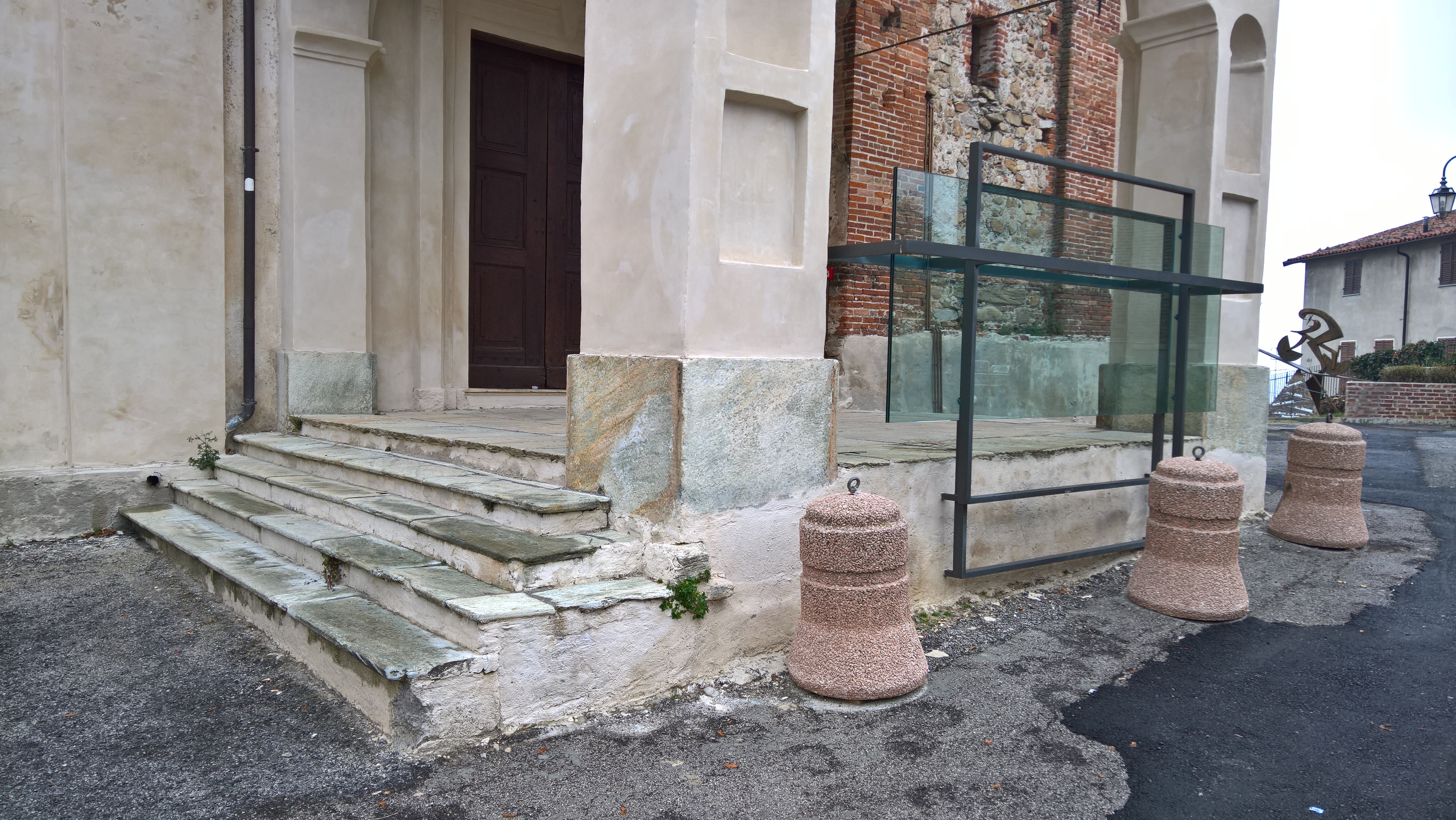
Ecco com’era qualche tempo fa il portico d’ingresso della bellissima antica chiesa di Santa Caterina a Villavecchia (la parte alta del paese Villanova Mondovì [CN]). Quasi sempre chiusa e tenuta aperta durante particolari eventi principalmente grazie a volontari del Paese, ha subito ultimamente una “ristrutturazione” esterna secondo me alquanto discutibile. Ecco com’era e come si presenta ora ai nostri occhi perplessi:

Foto che avevo fatto qualche tempo fa

IERI: com’era

OGGI: com'è ora

OGGI: com’è ora

Nulla da ridire ovviamente sulla imbiancatura di parte della facciata e sui due lampioni rimossi, entrambe opere sicuramente opportune seppur non indispensabili.

Ma che dire del “pannello” di vetro e ferro di fronte alla chiesa medioevale, costruito (mi dicono) per motivi di sicurezza?
Non posso non fare alcune considerazioni …
Che un qualche architetto, con bizzarre intuizioni, abbia potuto proporre un progetto simile per rendere ipoteticamente più sicuro l’ingresso di una chiesa medioevale (per secoli utilizzata senza problemi) personalmente posso ancora accettarlo: il buon gusto non è di tutti ….
Ma che poi tale progetto sia stato approvato dalle Belle Arti, che oggigiorno sicuramente hanno dovuto dare il benestare, questo lo trovo veramente inammissibile! Sono infatti persone pagate dalla collettività per salvaguardare i beni culturali del nostro bel Paese, preservandone non solo la loro durata nel tempo e sicurezza, ma anche e soprattutto la loro estetica.

Da notare anche i  molto estetici tre blocchi di cemento, prontamente collocati per impedire che qualcuna delle macchine (che usualmente posteggiano un po’ ovunque nella piazza soprattutto durante le funzioni religiose della adiacente chiesa barocca) possano inavvertitamente toccare e magari rompere quel prezioso vetro! Che dire: dei veri esperti di estetica e geni sulla sicurezza!!! Le foto successive penso rendano ben l’idea!

WP_20151231_11_54_15_Pro_LI WP_20151231_11_53_43_Pro_LI (2) WP_20151231_11_54_00_Pro_LI

2015

2015

P.S. Ho aggiunto anche una ulteriore foto che mostra la situazione a settembre 2016: sostituiti, con vasi di fiori, 2 dei 3 blocchi di cemento  … ma l’obbrobrio della struttura in vetro rimane!!

2016

9/2016

PS: Ho aggiunto una nuova ulteriore foto che mostra la situazione a ottobre 2016: scomparsi finalmente sia i vasi di fiori sia il blocco di cemento residuo  … ma l’obbrobrio della struttura in vetro purtroppo rimane!

10/2016

10/2016

PS: come non detto! Nel 2017 sono tornati ben due dei blocchi di cemento!! NO COMMENT.

8/2017

8/2017

Forse ho usato espressioni un po’ troppo forti e magari sconvenienti in un contesto politico locale, ma per fortuna posso permettermelo vivendo solo per poche settimane all’anno in questo bel Paese del monregalese. Forse diverso è l’atteggiamento di chi è qui residente e si deve probabilmente barcamenare con una realtà locale non sempre edificante: diversamente non riesco a comprendere come la cittadinanza abbia potuto consentire un tale obbrobrio. Comunque nessuno, a cui abbia chiesto il parere personale, mi ha dato un parere positivo su tali opere; taluni mi ha fatto “spalluccia” a indicare rassegnazione, qualcuno ha persino osato dire che probabilmente i soldi spesi in quel “coso” sarebbero potuti essere più utilmente impiegati in opere di recupero dei straordinari affreschi interni!

Mi piacerebbe proprio sentire le motivazioni di chi ha acconsentito che tale lavoro venisse effettuato (che ovviamente invito a commentare questo post semmai avesse modo di leggerlo), quando – al limite – tre gradini, magari dello stesso stile di quelli laterali preesistenti, avrebbero degnamente adempiuto al medesimo compito di supposta messa in sicurezza di tale ingresso (sebbene per secoli esista e, a memoria d’uomo, nessuno si sia mai fatto male!) … senza così deturpare la facciata di questa bellissima chiesa dai molteplici dipinti medioevali che da decenni invece attendono restauri e maggiori attenzioni. …  tenendo conto dello spazio attualmente occupato dai blocchi di cemento, quegli ulteriori gradini non avrebbero rubato sicuramente più spazio!!
Chi d’ora in poi fotograferà la facciata della chiesa, dovrà successivamente operare di fotoritocco per recuperarne la sua bellezza così malamente offesa. 😒

==============================================

Ecco alcune foto anche dell’interno della chiesa che si può visitare solo raramente d’estate durante alcune manifestazioni (e.g. ad agosto, in corrispondenza della mostra di antiquariato di Mondovì).

Seguendo questo link potete trovare molte altre mie foto relative alla chiesa di S. Caterina. In quest’altro link invece potete trovare foto relative a Villanova Mondovì.

WP_20151101_14_05_42_Pro__highresWP_20150815_19_19_15_ProWP_20150815_19_24_24_ProWP_20150815_19_36_55_Pro

 WP_20150822_19_12_57_Pro (1)WP_20150822_19_20_53_Pro__highresWP_20150822_19_22_23_Pro__highres (1)WP_20150822_19_27_14_Pro__highres (1)WP_20150822_19_03_34_Pro (1)WP_20150822_19_03_20_Pro (1)

_________________________

Pubblicato in Arte e Bellezza, Giustizia, burocrazia e malcostume | 8 commenti

Campagna per l’accettazione sociale dei vestiti stropicciati

Condivido l’immagine pubblicitaria relativa alla campagna per l’accettazione sociale degli abiti stropicciati.

Per la giornata mondiale dell’ambiente, vale la pena ricordare alcune cose:

  • Tra i vari elettrodomestici che abbiamo in casa, il ferro da stiro è tra quelli che consumano di più perché richiede in genere molto tempo e il quantitativo di energia sprecata è notevole. Se ipoteticamente abbiamo un ferro da stiro con caldaia della potenza di 2000 Watt e lo usiamo per un tempo totale di 12 ore al mese, consumeremo 24 kWh/mese. Teniamo presente che una lampadina a led che illumina bene una stanza richiede una potenza di 10Watt, perciò con il consumo di un ferro da stiro possiamo illuminare 200 stanze.
  • Molte volte gli abiti stirati si stropicciano dopo pochi minuti (pensiamo ai pigiami o agli indumenti di lino).
  • Molto spesso stirare è perciò uno spreco di tempo e di pregiate risorse di energia … e tutto questo fondamentalmente solo per una convenzione sociale che vede come disprezzabile colui che veste indumenti stropicciati. Così come oggi si parla di evitare l’uso delle cravatte nei mesi caldi per risparmi sul condizionamento, è giusto mettere anche in discussione la necessità di avere sempre gli indumenti stirati e quindi fare in modo che risulti socialmente accettabile anche chi ha abiti stropicciati.

In questo link si possono comunque trovare alcuni semplici accorgimenti che riducono di molto la stropicciatura degli indumenti lavati, rendendo anche non indispensabile una loro successiva stiratura.

______________________________________

Vedi anche Indossare gli abiti senza averli stirati, la nuova campagna contro il surriscaldamento globale


Pubblicato in Arte e Bellezza, Just for fun!, Pensieri&Parole | 1 commento

Poco usabile la sezione di registrazione del sito GTT di Torino (e … troppi problemi di accesso al suo sito di e-commerce?)

In previsione della prossima apertura delle scuole ho pensato di provvedere fin da ora a rinnovare a mia figlia studente l’abbonamento annuale per l’utilizzo dei mezzi pubblici.

_______________________________

P.S. 8/2019 – Vedi anche:

Come agevolmente (senza fare code) rinnovare/attivare online un abbonamento tramite il sito del Gruppo Torinese Trasporti (GTT)

______

P.S. 8/2018 – Vedi anche:

_______________________________

Nel sito GTT di Torino viene suggerita come migliore lo possibilità di acquistarlo direttamente online tramite il sito stesso, … anche se poi si resta poi un po’ sul vago sulla procedura che si dovrà comunque effettuare per convalidare la carta elettronica. Viene detto infatti:

Gli studenti già abbonati nell’anno 2014/2015 riceveranno la documentazione per il rinnovo dell’abbonamento direttamente a domicilio a partire dal mese di luglio. Dopodiché potranno pagare l’abbonamento:

  • online
  • presso le emettitrici delle stazioni della metro con Bancomat e carta di credito dei circuiti Visa, MasterCard ed American Express
  • presso gli sportelli bancomat Intesa Sanpaolo e Unicredit di tutta Italia mediante tessera bancomat di qualsiasi circuito
  • con l’apposito bollettino di conto corrente postale che sarà recapitato a domicilio
  • presso tutte le rivendite GTT autorizzate abilitate BIP riconoscibili da un’apposita vetrofania (pdf)

La ricarica della carta elettronica va effettuata a partire dal 24 agosto 2015: dal giorno successivo a quello del pagamento quando effettuato on line con l’ecommerce GTT o presso gli sportelli bancomat, oppure trascorsi almeno 7 giorni dall’avvenuto pagamento tramite bollettino di conto corrente postale; l’attivazione è invece contestuale al pagamento in caso di rinnovo presso le emettitrici delle stazioni metro o presso le rivendite GTT abilitate.”

Sembrerebbe perciò che, dal momento che uno deve comunque poi andare a validare la carta elettronica presso le emettitrici delle stazioni del metro o presso le rivendite GTT abilitate, tanto varrebbe non fare il pagamento online ma farlo direttamente presso queste ultime, dove comunque si può pagare con carte di credito/bancomat. Perché allora indicare la procedura di pagamento online come prima scelta e quindi implicitamente la consigliata?

Ho comunque proceduto a registrare mia figlia nel sito e purtroppo ho dovuto constatare come tutta la procedura non sia così agevole come dovrebbe essere l’accesso ad un servizio online rivolto alla popolazione! Nel seguito il perché …

Ho effettuato la registrazione fornendo i dati di mia figlia e la sua email; una volta ricevuta la email con cui confermare l’identità, riaccedendo al portale mi è stato richiesto di completare altri dati anagrafici: il problema qui riscontrato è relativo all’inserimento della provincia di nascita per i nati all’estero: avendo acceduto da smartphone, come spesso avviene oggigiorno, mi veniva visualizzato solo il testo iniziale del testo (“Provincia di nascit…”) ed essendo mia figlia nata all’estero non sapevo che fare.

Visualizzazione da smartphone

Visualizzazione da smartphone

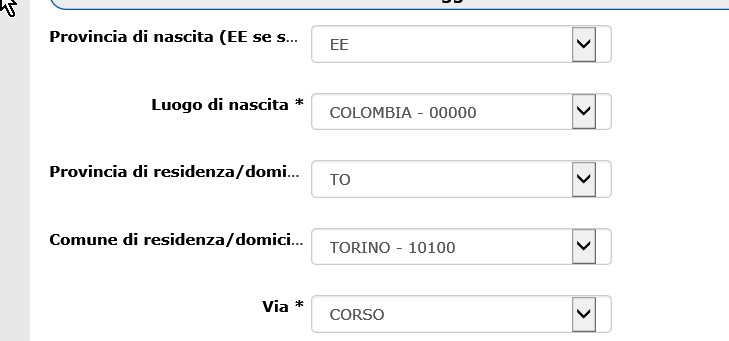
Solo accedendo poi con un PC, mi sono accorto che il testo relativo a quel campo di input era assai più lungo (così lungo che neppure su un PC viene visualizzato interamente , sebbene impostato con il display ad alta definizione) ed indicava “Provincia di nascita (EE se stato est…)”: tra l’altro, troncando la scritta, anche in questo caso viene mai visualizzato l’ * finale, ad indicare obbligatorietà di tale campo, inducendo inevitabilmente l’utente in una successiva segnalazione di errore di inserimento dati.

Visualizzazione da PC

Visualizzazione da PC

Trattandosi di un portale utilizzabile da una popolazione torinese alquanto multietnica e di provenienza estera, sarebbe assai conveniente che l’indicazione di selezionare EE come provincia di nascita (qualora il richiedente sia nato all’estero) fosse meglio evidenziata in una nota collocata opportunamente e sempre visibile interamente e su qualsiasi dispositivo utilizzato per la navigazione, … o, come alternativa ancor più opportuna e facilmente implementabile, sostituire l’attuale scelta “EE” con quella più esplicita “Stato Estero”, collocata opportunamente per renderla subito visibile (es. come prima opzione selezionabile).

Faccio inoltre notare che, visualizzando quella pagina su uno smartphone, sembrano non obbligatori (viene troncato l’ * ) numerosi campi, sempre dovuto al fatto che le dimensioni dello schermo troncano le scritte troppo lunghe, relative al significato dei campi di input (es. “Documento d’identità *” , “Numero Documento * ”, “Data rilascio documento * ”, “Ente rilascio documento * ”). Basterebbe accorciare opportunamente la scritta (es. “Documento id. * ”) per evitare segnalazioni di mancata compilazione di campi obbligatori (ma non visivamente evidenziati come tali) e rendere quindi più usabile il tutto.

Insomma, non senza fatica sono riuscito infine a creare l’utente, a ricevere la email con le credenziali, a cambiare al primo accesso la password fornita.
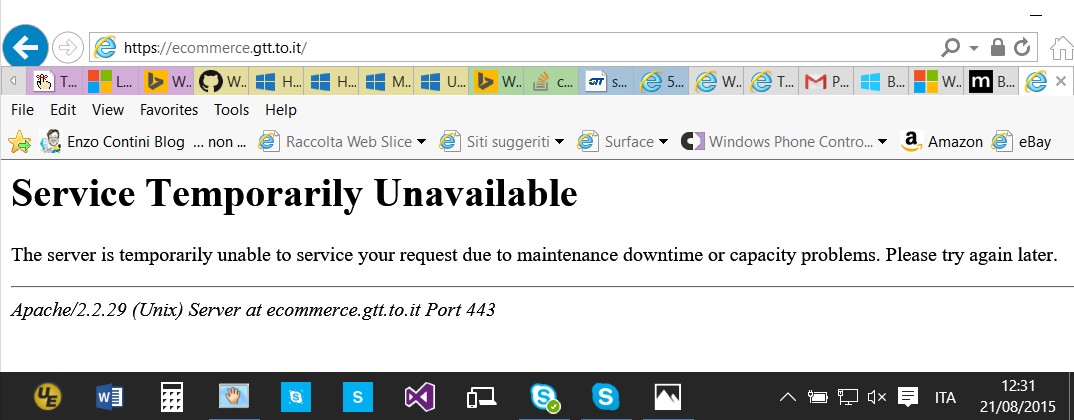
… nell’intervallo mensa, alle 12:31 del 21/08/2015, provo quindi ad effettuare il pagamento online ma … il server di ecommerce risulta non raggiungibile per problemi di “maintenance or capacity“!!

Server di ecommerce giù per problemi di

Server di ecommerce giù per problemi di “maintenance or capacity

Non ho parole! … penso che opterò per la seconda soluzione suggerita (tra l’altro sicuramente la più conveniente in termini di tempo!!), vale a dire andare direttamente a pagare ed attivare la carta presso un’emettitrice della metro!

🙂

PS – Ho scritto alla GTT, vediamo se rispondono: spero che segnalazioni come questa possano risultare loro utili per fornire un migliore servizio anche online.

Pubblicato in Giustizia, burocrazia e malcostume, Just for fun!, Review e test | 6 commenti

Windows Authenticator: two step verification

As Google has the app Google Authenticator, also Microsoft has an app called Authenticator (Autenticatore in Italian) that provide a 30 secs validity token for a two step authentication.

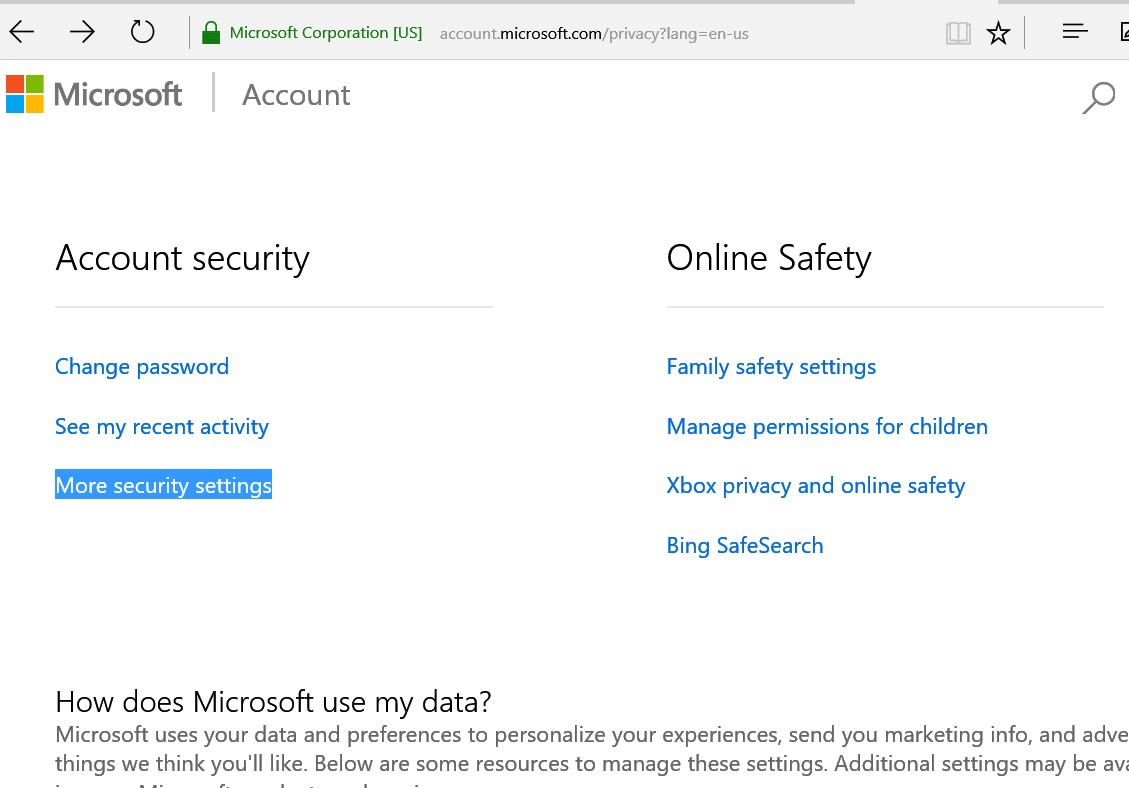
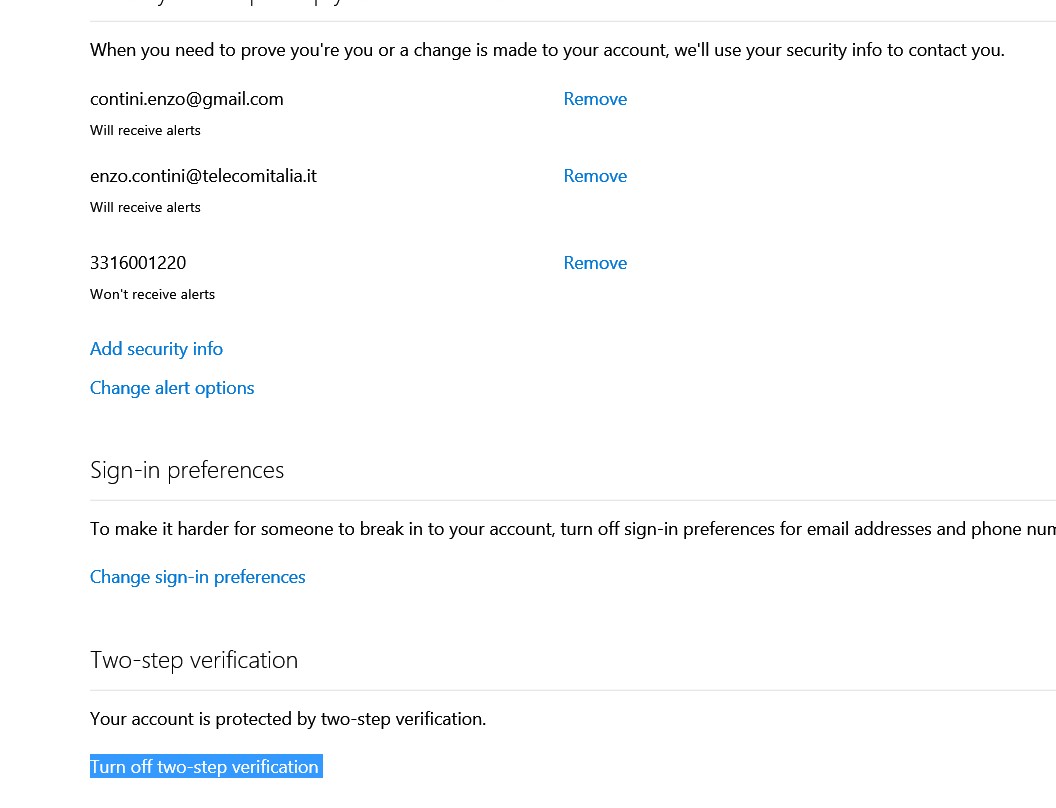
To configure this secure procedure you must go on your Microsoft Account in the Security & privacy section and then to the More security settings section: here you can find a section related to the two-step verification and you must click on Set up two-step verification. After an explanation page, there is a further page where a app password is provided. You must launch the Authenticator app, click on + to add a new account, write your Microsoft account name and then copy in the private key the password provided before.

microsoft account -> Security settings

microsoft account -> Security settings

Two step authentication

Two step authentication

You could find also useful the following links:

Be careful that, till now, some instructions that are provided in the MS site are not correct: you actually do not have to change the MS account password on your smartphone. Anyway, if the phone needs to update the password, it’ll prompt you when needed …

================================

BE CAREFUL: if you still have a Windows Phone 7 device (as I have for debug) you won’t be able to log in anymore in the Microsoft account where you set the two step authentication, because this feature was not supported by that old OS version … and if you are not authenticated with your MS account, you cannot download nothing from the Store (new app or update of already installed ones)!

Pubblicato in Smartphone OS, Windows | Lascia un commento

How to set themes/styles in a Windows Universal App

All the styles which used to be present there have been moved to a platform-level file ‘generic.xaml’. This means that a basic resource file would always be present as a part of your platform and you do not need to add it to every individual project! Of course, it does bring up the question of how to customize the styles, which styles are already present and which styles need to be created and so on. As expected, for modifying existing styles and adding new styles, a new resource file needs to be created which can override the existing styles. There are three sets of brushes, thicknesses etc. for the three different themes (Default, Light, High Contrast). So when we set the theme for an application, we immediately know which colors would be applied throughout the app.
(Starting with styling a Windows 8.1 application, applicable to Windows 10 too).

Application.RequestedTheme property – There are two built in themes: “Light” and “Dark“. By default your app runs using the “Dark” theme (in the themeresources.xaml file, the key name for the “Dark” resources is “Default“). … There is also a “HighContrast” theme that uses system values, but apps and app code use a different technique for switching the app to high contrast. The RequestedTheme property is ignored if the user is running in high contrast mode. See Supporting high contrast themes and XAML high contrast style sample.

Therefore, if you want to follow the “Light“/”Dark” style you have to put in the App.xaml:

<Application
    x:Class="MyProject.App"
    xmlns="http://schemas.microsoft.com/winfx/2006/xaml/presentation"
    xmlns:x="http://schemas.microsoft.com/winfx/2006/xaml"
    xmlns:local="using:MyProject.Styles"
    RequestedTheme="Light"> 

... or "Dark"
Pubblicato in Smartphone OS, Windows | Lascia un commento

Problems running Cortana on your Windows 10 PC?

I had some problems in running Cortana on my PC/tablet updated to Windows 10 (even updating my Surface 3 pro that was in Italian!).

I found the following solution, that worked for me, in a thread of  Microsoft Community forum:

It is used UK as example.

1. Click SETTING and then get into TIME&LANGUAGE

2. Click COUNTRY OR REGION

3. Change place to United Kingdom and add  English(United Kingdom)  as your default language.

4. Change you speech language to English(United Kingdom) 

5. Click ‘Additional date, time & regional settings’

6. Change location to UK

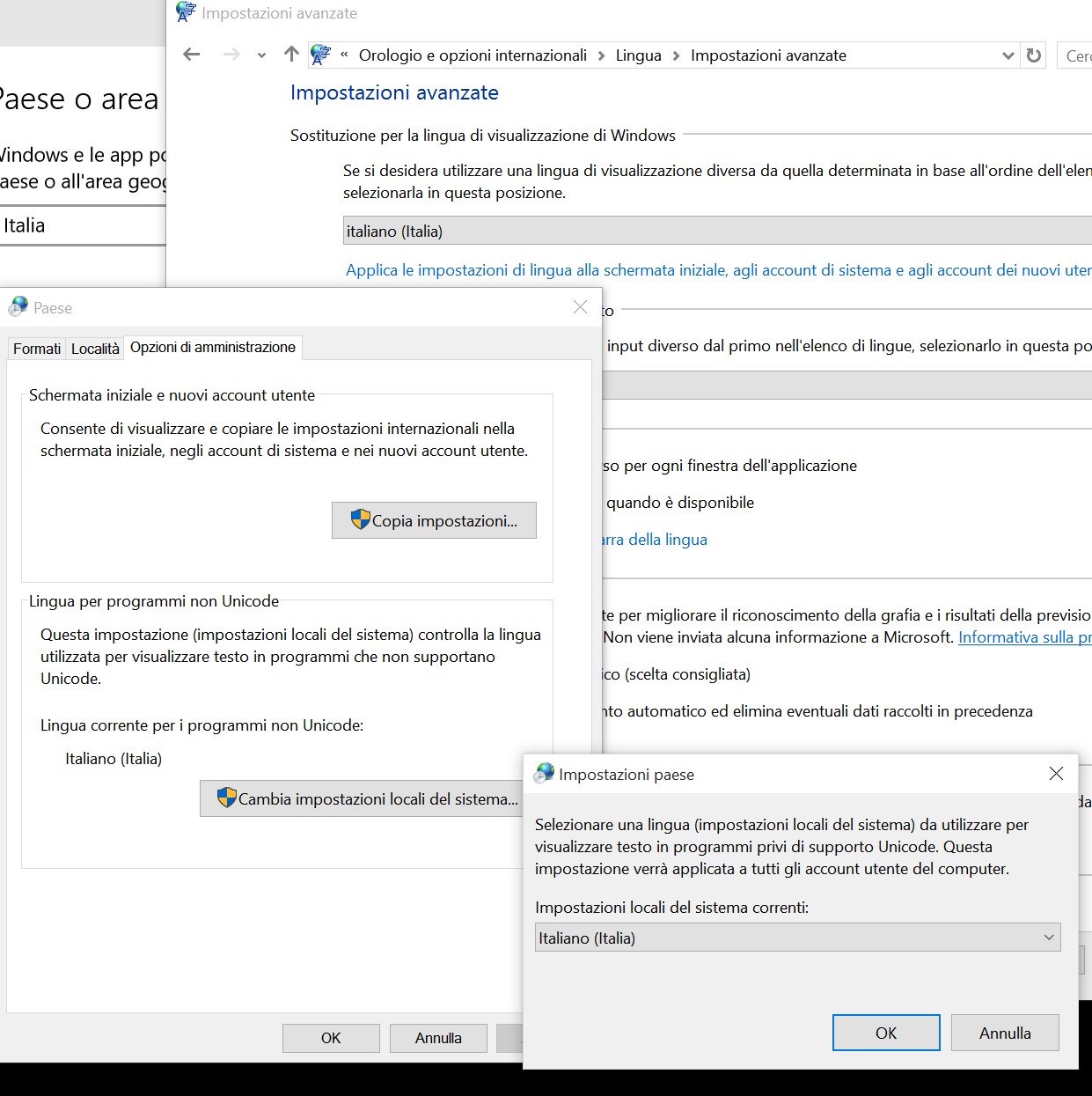
7. (important step) After change location, do not close your page, just click Administrative and click Copy settings.

8. Tick all you can see and click OK

(VERY IMPORTANT)

If you see the language of Current user, Welcome screen and New user accounts are all English(United Kingdom), you will find Cortana work after you restart computer.

=====================

However I did not succeed to have Cortana works choosing Display/Input/Format language => English (US) and maintaining my real Location => another supported Country (e.g. Italy).

In fact I would like to maintain the UI of Windows to English (being a developer) but my location is Italy (not United States as I set the Display/Input/Format settings).

Therefore, for the time being, while if I put all setting to Italian/Italy Cortana works, if I try to set the UI to English and I leave my location to the real one (Italy), Cortana stops working (“Cortana is not supported in the region and language you’ve selected”). Waiting an answer from the community

NOTE: you can use Cortana also if you are not logged with your Microsoft user (e.g. a local account). However be careful if you are using your Microsoft account and you use it on more PCs: in fact in that case it is better to disable the Language preferences synchronization. If you do not do so, if you put a different Windows display language in your PCs, possibly at the next reboot something wrong could happen on some of your PCs because of that synch with the setting of your account saved and synchronized with the cloud. You could have the Windows language changed or only some other language setting … and possibly have Cortana not work anymore on a PC where it worked (i.e. the one you put region and language compliant, like Italy and Italian). In that case even the voice recognition can fail as it is shown in the following screenshots.

Voice recognition failed

Voice recognition fails

Setting to OFF the synch of the Language preferences

Set to OFF the synch of the Language preferences

Clock, Language and region -> Language -> advanced settings

Clock, Language and region -> Language -> advanced settings

Clock, Language and region -> Language -> advanced settings - Apply language settings to the welcome screen and new user accounts

Clock, Language and region -> Language -> advanced settings – Apply language settings to the welcome screen and new user accounts

Clock, Language and region -> Language -> advanced settings - Apply language settings to the welcome screen and new user accounts -> Welcome screen and new user accounts settings

Clock, Language and region -> Language -> advanced settings – Apply language settings to the welcome screen and new user accounts -> Welcome screen and new user accounts settings

Clock, Language and region -> Language -> advanced settings - Apply language settings to the welcome screen and new user accounts -> Welcome screen and new user accounts settings

Clock, Language and region -> Language -> advanced settings – Apply language settings to the welcome screen and new user accounts -> Welcome screen and new user accounts settings

Clock, Language and region -> Language -> advanced settings - Region settings

Clock, Language and region -> Language -> advanced settings – Region settings

From that forum:

Please make sure your Country or Region, Language and Speech Language settings are all aligned with one of Cortana’s supported locale configurations. If these OS settings are not aligned, Cortana will not be available. For example, Cortana will not be available if your country is set to United States, but the Windows display language is set to English (United Kingdom).

Locale configuration Country or region Windows display language Speech language
en-US United States English (United States) English (United States)
en-GB United Kingdom English (United Kingdom) English (United Kingdom)
zh-CN China 中文(中华人民共和国) 中文(中华人民共和国)
de-DE Germany Deutsch (Deutschland) Deutsch (Deutschland)
fr-FR France Français (France) Français (France)
it-IT Italy Italiano (Italia) Italiano (Italia)
es-ES Spain Español (España) Español (España)
  1. Open Settings. Select Time& language, and then Region & Language.
  2. Check the Language (set as default) setting for your Windows display language.  If your desired language is not available, add your desired language:
      • Click Add Language.
      • Select your desired language from the list.
      • Select the desired locale, which is the language/country combination.
      • Click on the newly selected locale and select Options.
      • Under Download language pack, click Download.
      • Under Speech, click Download.
  • After the downloads are complete (this could take several minutes), return to the Time & Language settings
  • Click on your new language and select Set as Default.
  • NOTE: If you changed languages, you must sign out of your account and back in for the new setting to take effect.
  1. Check the Country or region setting. Make sure the country selected corresponds with the Windows display language set in the Language setting.
  2. Return to Settings and Time& language, and then select Speech. Check the Speech language setting, and make sure it’s aligned with the previous settings.

==========================

P.S.
4 Sept 2015 – In the following the Microsoft instructions sent today through the Insider Hub:

Setup Instructions

Cortana is available to Windows Insiders in the following configurations. In order for Cortana to be show up on your system, please ensure you system has the appropriate Country or Region, Language, and Speech Language select for your configuration.

1.  Open Settings. Select Time & language, and then Region & language.

2.  Check the Language (set as default) setting for your Windows display language.  If your desired language is not available, add your desired language:

  • Click Add a Language.
  • Select your desired language from the list.
  • Select the desired locale, which is the language/country combination.
  • Click on the newly selected locale and select Options.
  • Under Download language pack, click Download.
  • Under Speech, click Download.
  • After the downloads are complete (this could take several minutes), return to the Time & Language settings.
  • Click on your new language and select Set as Default.

NOTE:  IF you changed languages, you must sign out of your account and back in for the new setting to take effect.

3. Check the Country or region setting.  Make sure the country selected corresponds with the Windows display language set in the Language setting.

4. Return to Settings and Time & language, and then select Speech.  Check the Speech language setting, and make sure it’s aligned with the previous settings.

If you are still having issues; you can further verify your settings:

  • From Region & Language, under languages is a Related settings section, click on Additional date, time & regional settings, then in the control panel widow that opens:
  • Under Language, click Add a language.
  • A table of installed languages will display, click Options for the language you are using.
  • At the top of the page under Windows display language, click Make default display language (or something like that).
  • You will need to sign out for changes to take effect.

Note: If it says Enabled under Windows display language, then this is already done.

Pubblicato in Tecnologia, Windows | 2 commenti

What to do if only one drive is seen when connecting two external Hard Disk of the same size to a Windows PC

It happened to me to connect two identical HD (same brand/model and size) to my Windows PC in order to make a copy of files from one to the other. However only the first connected to an USB port was always seen!!

After a some research on Internet I realize that this was caused by a Signature Collision of the two drives having identical signatures. In general every Hard Drive is given a unique signature in the partition sector of the drive: however, in rare cases, two HDs can have the same signature (e.g. one is cloned using a third-party backup SW).

So the procedure to make both be accessed from Windows is the following:

  1. Right click the Start Screen icon in the lower-left corner of the screen and click Disk Management.
  2. On the lower part of the Disk Management window, look for a disk which is listed as Offline.
  3. Verify that you have a Signature Collision by holding your mouse over the drive. You will receive a pop-up explaining why the drive is offline
  4. Right click on the disk in the area that says Offline, and select Online
  5. The drive will be given a new signature. A new Drive Letter should appear and you should now be able to access the drive.

Image

Pubblicato in Tecnologia, Windows | Lascia un commento

How to know the build number and if now you have the final release of Win 10 and not a preview version?

I was a Windows 10 insider previewer and, since some build ago, it is not displayed any more, on the right down side of the desktop, the build number.

How can I see now the version number and understand if I have been already updated to the final release? This is also important if you are a developer because particularly interested because the final release of Visual Studio 2015 needs to be installed after the final release of Windows 10 if you are going to develop Universal Apps.

I asked to the MSDN support and I received a quick answer to my questions 😉

First of all to see the running build it is sufficient to right click on the menu icon and choose “run” (or Windows + R keys), type msinfo32.exe (press enter): the following windows will open where you can see the “Version” and the “Hardware Abstraction Layer” (e.g. 10.0.102040.16392). You can see the version also from a command prompt where at the top it should be found “Microsoft Windows [Version 10.0.10240]

ScreenHunter_23 Jul. 29 14.43
The final windows 10 build is 10240 version: the Hardware Abstraction Layer – version represents the HAL to certain kinds of hardware (it can be, for example,  10.0.102040.16392 or 10.0.10240.16405): therefore both windows preview build 10240 and the final windows 10240 build are the same. The numbers vary depending on the type of hardware you have: some people will have windows version 10.0.10240.16392, version 10.0.10240.16393, version 10.0.10240.16397 and others version 10.0.10240.16405.

Note, if you are a developer, that after having installed Visual Studio 2015, including the optional component to develop Universal Apps, you’ll fine in C:\Program Files (x86)\Windows Kits\10\Platforms\UAP a directory 10.0.1.10240.0 that is related to the SDK for that specific version.

Use the download tool to create ISO media to update your windows.
http://www.microsoft.com/en-us/software-download/windows10

Use Download Tool Now (32bit version)
http://go.microsoft.com/fwlink/?LinkId=616935

Use Download Tool Now (64bit version)
http://go.microsoft.com/fwlink/?LinkId=616936

_________________

Moreover, if something wrong happens in Edge (while you have no problem with when you are behind a proxy, who can try this procedure that worked for me:

reset proxy settings following these steps:

a. Press Windows + X keys and click command prompt(admin).

b. Type the following command in command prompt and press Enter.

Netsh winhttp reset proxy

Pubblicato in Smartphone OS, Windows | Lascia un commento

Windows 10 & Windows 10 Mobile: useful links to do the update, throubleshooting … and to know it better :-)

PS: if you want to update your Window 7/8/8.1 PC to Windows 10, you can still do it (legally) following the instructions available in this post of WindowsBlogItalia:

WindowsBlogItalia

———————

In the following you will find some useful link to download and install Windows 10. Then you can find also blogs and more tips & tricks.


Windows 7 Starter, Windows 7 Home Basic, Windows 7 Home Premium and Windows 8.1 can be updated  free to Windows 10 Home;

Windows 7 Professional, Windows 7 Ultimate and Windows 8.1 Pro can be updated  free to Windows 10 Pro;

Are excluded from a free update only di Windows 7 Enterprise and Windows 8.x Enterprise (typically for a corporate use)

No update for Windows RT [tablet like Surface 1/2, because of their ARM architecture of the processor]: may be a UI update will be available (as it happened for Windows Phone 7), but there will be no way to run the new Universal Apps because they use the new Windows 10 API.

See also Windows 10 editions.

After updating to Windows 10, after you verify that every thing is OK (so, possibly after some days …) remember to run the Disk Cleanup -> Clean up System Files – Previous Windows Installations,  in order to delete the old Windows version that was saved during the installation process: a detailed explanation can be found in this previous post I wrote times ago about the update to Windows 8 from Windows 7 … but it still valid now for upgrading to Windows 10. Anyway be careful that the previous operation could be dangerous if then problems occurs, and it is not reversible: even if you have some SO upgrade ongoing (waiting to be done, scheduled), I suggest you to wait, otherwise you could to have to setup the PC at the initial state.
Moreover, always have a look to the C:\ProgramData\Microsoft\ClickToRun directory and possibly delete some files as shown in the following figure (taken after the installation of Office 2016): that folder contains files downloaded in the last months, so you have to mantain only the folders UserData, MachineData and the configuration file DeploymentConfig … and delete all the rest (see this link for more info in italian)!
NOTE that even after a major update of Windows 10 (at least if you are a Windows Insider so you install a pre-release), the old version of the SO is always saved in C:\Windows.old , so if you need space and after verifying that everything is fine, you can do that same procedure (you cannot delete it from the File Explorer).

Windows.old -> only for backup

Windows.old -> only for backup

Downloaded files that can be deleted

Downloaded files (after Office 2016 installation) that can be deleted

======================

Troubleshooters

Method 1:
Let’s run the app troubleshooter and check if it helps.
App Troubleshooter

Method 2:
If the issue persists, I would suggest you to try the steps in the article and check if it helps.

Troubleshoot problems with an app

=====================

Ten reasons to upgrade to Windows 10:

  1. Familiarity in Windows 10
  2. Do personal things with Cortana on Windows 10
  3. Do unexpected things with Microsoft Edge
  4. Game Epically on Windows 10
  5. Do multiple things at once with Windows 10
  6. Security in Windows 10
  7. Say “Hello” to Windows Hello on Windows 10
  8. A look at the great built-in apps in Windows 10
  9. Continuum on Windows 10
  10. Do one-stop shopping with the new Windows Store
  11. WindowsBlogItalia: Guide, trucchi, modding, download, app e tutti i migliori articoli su Windows 10 Mobile

To be a Windows Insider and receive previews of new features: Windows Insider – Official Site (note that you have to agree to be Insider form that site and then you have to set appropriately the Settings/Windows Update- Advanced Options – be careful that to do so you must be logged with your Microsoft account user having administrator rights otherwise the Build Insider section is not available).

Build Insider section in the Advanced Options of Settings/Windows Update

Build Insider section in the Advanced Options of Settings/Windows Update

======================

Windows 10 Tips:


As usual after a SO update, after having verified that everything is all right (so you do not need to do a rollback of your new installation), it is convenient to launch the Disk Cleanup [Control Panel\System and Security\Administrative Tools], clicking on the Cleanup system files button (admin authentication is needed) and then checking

Search for drivers on your PC manufacturer site because sometimes it could happen that the automatic search of Windows fails for some device: for example, I had to download and install the updated driver for the SD reader device from the HP site for my HP Elitebook 8570w (drivers; MyPC serialNumber) because after the updating to Windows 10 it did not work anymore.
Very useful was also the HP SoftPaq Download Manager that provides an easy way to update that PC SW/drivers. Some times some drivers could not be available in the Windows 10 section (e.g. finger recognition): if so, you can try to install the one provided for the nearest previous version of SO (i.e. Windows 8.1, 8, 7).
======================

Blogs:


======================

Forums:

======================

Feedback and suggestions:

See How to give a feedback and suggestions and/or report a bug in Windows 10 and in Windows 10 Mobile

======================

Windows 10 Mobile specific:

Guida facile per sbrandizzare, resuscitare e fare downgrade di Lumia 950, 950 XL e 550


Comparison: http://www.gsmarena.com/iphone_6s_plus_vs_lumia_950_xl_vs_galaxy_note5-review-1365.php


Pubblicato in Smartphone OS, Windows | 2 commenti

Microsoft Azure IoT services (useful links)

From dotnetbyexample Joost van Schaik‘s blog:


Blog Dario Benevento: Windows IoT Core

Pubblicato in Smartphone OS, Windows | Lascia un commento

Windows 10 UWP programming utilities and tips

In the following I put some programming utilities and tips I used: it was a private post but I decided to makes it public so, may be,  it could be useful to someone else (even though it is not a well structured post 😦 … sorry for that!)

=============================================

Two hidden gems in the Universal Windows Platform (from Minerva’s blog):

  • No more need of a BooleanToVisibilityConverter class: if we use the {x:Bind} markup extension (that was first introduced in the initial release of Windows 10), we can cast a Boolean property to a Visibility value directly in the XAML definition:
<Image Source="Assets/Favorite.png"        Visibility="{<strong>x:Bind (Visibility)</strong>ViewModel.IsFavorited}" />
<ListView ItemsSource="{x:Bind ViewModel.Samples}">
    ...
    <ListView.ItemsPanel>
        <ItemsPanelTemplate>
            <ItemsStackPanel <strong>ItemsUpdatingScrollMode="KeepLastItemInView"</strong> />
        </ItemsPanelTemplate>
    </ListView.ItemsPanel>
</ListView> 

==========================================

How to generate C# classes form JSON (or XML)

Download Web Essentials from the Visual Studio Gallery

To inspect JSON: Fiddler with JSONViewer plugin.

Quickly generate C# classes from JSON response (Download Web Essentials from the Visual Studio Gallery)

WebEssentials

Past Special Past JSON Classes


If you have Web Essentials in Visual Studio, go to Edit => Paste special => paste JSON as class.

Other options are:


Pubblicato in Smartphone OS, Windows | Lascia un commento

How to restore an Asus EeePC to its factory settings

Some time you need to restore a PC to its factory setting, expecially if it is a low cost PC like the Asus EeePC and, after some years, it is starting to become too slow!

Sure you could reinstall the Starter Windows 7 if you have the appropriate iso file (en_windows_7_starter_with_sp1_x86_dvd_u_678562.iso) extracting it on a USB pen, using for example the Windows USB/DVD Download Tool from codeplex … and you can then insert your product key you can find on the label in the back of the PC.

However there is an easier way to restore that PC to its factory settings, that is reinstalling the OS and have the PC in the same conditions you get when you bought it: at the start up you have to press the F9 key (quickly and several time, till it is taken and the page requesting the restore of the PC is shows). I read that sometime, if you don’t succeed to get that key accepted, it could help to disable the BootBoost going into the BIOS (F2): however I succeeded to let F9 key work at my first attempt, so I suppose you will succeed too if you press that key frequently and continuously as soon the PC start 😉

You will be asked if you want a restore of the PC, loosing all you data (you need to backup on an external storage if you still need them). You have to insert the credentials for the administrator user and then all the procedure run as a wizard so you cannot be missed!

After several reboots, the PC will be like new and I suggest to launch the Windows Update in order you suddenly get at least all the critical security updates (there will be more than 175 updates, more that 638MB to be downloaded!!!).
Then, as usual, I suggest you to create a stand user and always use that user to log in the PC and use the administrator account ONLY when you need to do something that have impact on your PC configuration (like installing a new program or changing some settings): in this way any virus/spyware will find much more difficult to do something wrong on you PC: because you are not using the PC as an administrator, if virus try to install something on your PC, a prompt for the administration credentials will appear and so you can stop that execution if it is not what you want 😉

Create a Standard user

Create a Standard user

Moreover I suggest you to activate Defender that is the built in Microsoft antivirus, and disinstall the Asus predefined one that is not much secure and it slows down your PC much more.

Activation of Defender antivirus

Activation of Defender antivirus

Update Defender

Update Defender

Disinstall other antivirus preinstalled in the system

Disinstall other antivirus preinstalled in the system

Finally, after all the updates are done and you have checked that everything works properly, I suggest you to launch, as an administrator user, the Free up disk space tool (Control Panel  -> Administrative Tools -> Free up disk space) clicking on the Clean  up system file button, in order to free all the files backup for so many updates (ex. Service Pack backup file).

Every now and then, remember to run also the Defragmentation tool (Control Panel  -> Administrative Tools -> Defragment and optimize your drive).

That’s all folks!!

😉

Pubblicato in Tecnologia, Windows | Lascia un commento

How to install and try Windows 10 preview … and start developing with Visual Studio 2015 CTP!

Enable dual boot in Control Panel\System and Security\ System\Advanced system settings

The ISO of the Windows 10 preview can be downloaded from the link provided in the proper page of the Windows Insider Program.

ScreenHunter_400 Apr. 15 09.08

You can use the Windows USB/DVD Download Tool from codeplex to extract the ISO  on a USB pen (must be 4GB+), avoiding to waste a DVD.  After the USB Tool finished creating the boot drive, restart your computer: note that it is VERY IMPORTANT. DO NOT SIMPLY RUN SETUP SINCE IT WILL OVERWRITE YOUR CURRENT OS but to restart and boot into the USB drive. Then you will be given the regular Windows installer window. (see also here for more details)

Note that sometime a new release could introduce some undesired problem, especially if you are a programmer: for example it seems that the March pre-release 10044 introduced some problems in debugging with Visual Studio (and perhaps that it is why in the MSDN there is still the 9926 pre-release). Then you can possibly configure your PC to have a dual boot. To properly install that preview on a new partition in the HD of your Windows 8.1 PC you can follow one or more of the following links: link1,  link2, link3, link4

Enable dual boot in Control Panel\System and Security\System\Advanced system settings

Enable dual boot in Control Panel\System and Security\System\Advanced system settings

The OS preview Build 9926 takes about 23 GB of disk space, so you need to install it in a partition of at least 30GB … even thought I suggest to have a bigger one (let’s say more than 100GB if you have enough space on your disk) if you think to make some development: you can always easily shrink that volume in a second phase if you want, while extending it could be more complex and time consuming if there is not contiguous unallocated space (in that case, the Extend volume… right mouse option is disabled and you need to use some external tool like AOMEI Partition Assistant [even the free Standard Edition].

As Gabe Aul wrote, based on Windows Insider feedback, Microsoft is going to send out builds more frequently to Windows Insiders that have selected “Fast” preview builds. That means you can getting fresher code with all of the features and fixes, more often – but builds may include more bugs. Read his blog for more details. To switch to slow or fast builds on your PC, go to Settings>Update & recovery>Advanced options. On your phone, go instead to the Windows Insider app.

Slow or Fast build selection

Slow or Fast build selection

Other good suggestions from Gave are:

  1. Go to the Insider Hub in the Start menu on your PC for the latest updates, including new features (like the new Office preview apps) and simple workarounds to issues you may encounter with the new builds. (A Hub for phones is coming soon.)
  2. Check out the new Get Started app (also in the Start menu) that guides you through the latest features.
  3. Go to the Windows Insider Community forum to connect with other Insiders, get tips and advice, and help solve problems.

For developers: the Windows 10 developer tools are now available and provide an early look at the tools and features that are coming with the Windows universal app platform. See how your apps can take advantage of new Windows capabilities and social integration to create experiences that delight your customers, whether they’re running on a phone, tablet, or PC. Application developers can get Insider access to Visual Studio 2015 CTP6 and the tools, including SDK, here. Hardware developers can get access to tools here. (English-language availability only). See also:
Windows 10 Technical Preview universal app samples.
Steps to install Windows 10 development tools for Visual Studio 2015 RC

For IT pros: Have questions about drivers, virtualization, and multi-boot scenarios? Ready to try the in-place upgrade process? Need help with a specific setup or installation problem? Check out these TechNet resources:

Especially if you are using a CPT like Visual Studio 2015 CTP6, it is convenient for you to enable the dynamic content that is displayed on the Start Page:

  1. Tools -> Options
  2. Under the Environment node, select “Startup”
  3. Check the box to “Download content every:” and select your interval.
  4. Click OK: your content should immediately start to populate in the VS startup page.

=====================================

In the following there are some useful links if you want to study and start developing for the new Windows 10 platform (and the related Windows Phone 10 one!):

Samples

You can also have a look to my previous posts on Universal App development:

============================================================

NOTES

Enable your device for development

With Windows 10 Insider Preview Build 10074, developers cannot enable Developer Mode in the Settings app for installing and testing apps on this build. We’ll enable this in an upcoming build. In the meantime, you will need enable your device for development using the Group Policy Editor (use of gpedit to enable your device):

  1. Open a cmd prompt with administrator privileges.
  2. Run Gpedit.msc.
  3. Go to Local Computer Policy > Computer Configuration > Administrative Templates > Windows Components > App Package Deployment
  4. Edit the policies to enable the following:
    • Allow all trusted apps to install (Enables your device for sideloading apps)
    • Allows development of Windows Store apps and installing them from an integrated development environment (IDE) (Enables your device for development from Visual Studio)
  5. Reboot your machine.

In next releases, the “For developers” section will be used for setting that features …

"Settings

Local Group Policy Editor

Local Group Policy Editor

============

Update for Windows preview build 10074 and VS 2015 RC

As stated here, if you are using a different development environment than Visual Studio 2015, you can download a standalone Windows 10 SDK installer BUT you don’t need to do it if you’re using Visual Studio 2015 – it already includes the SDK. However, if the emulators are not working properly, an alternative solution suggested in the MS Developer forum, is to install the Windows Emulators separately (https://dev.windows.com/downloads/windows-10-developer-tools ): scroll to the bottom of the page and install the and Windows 10 emulators outside of Visual Studio setup). BECAREFUL: I tried to install also the  Windows 10 SDK but, after doing that all the Visual Studio environment broke (even a new blank solution didn’t compile anymore because something was missing) … so I had to reinstall all the Visual Studio environment!!


The xml file defining the UAP of our platform is in C:\Program Files (x86)\Windows Kits\10\Platforms\UAP and the available extension that can be referenced in our project are in C:\Program Files (x86)\Windows Kits\10\Extension SDKs .

Pubblicato in Smartphone OS, Windows | 2 commenti

How you can enable VT-x (Virtualization Technology) in an HP EliteBook for having Hyper-V work on your Windows PC

As you probably know, if you want to use the Windows Phone emulator in Visual Studio, because it runs on a Hyper-V virtual machine, you need to turn on all the Hyper-V features in Windows, from the control panel->Turn Windows features on or off.

Turn on Hyper-V features

Turn on Hyper-V features

If you have the Hyper-V Platform item greyed, to enable it you have to enable Virtualization on BIOS. To do that your PC, first of all, must have a microprocessor that support the virtualization technology and then enable it in the BIOS.

Unfortunately I found in my new HP EliteBook (identify it), some of the BIOS features disabled (greyed) and in particular that related to System Configuration->Virtualization Technology. I don’t know why but to have all the features enabled (not greyed) you HAVE to set the set the bios administrator password in the Security tab after having accessed in the BIOS pages (F10) as a guest user!! (see this link for more details) NOTE: if do not remember the BIOS password the only way seems to erase it, as explained here:

  • Turn OFF the computer and unplug the power cord.
  • Locate the jumper labeled CLEAR P.W.
  • Move the jumper on jumper PSWD to pins 3-1.
  • Wait approximately 10 seconds and then return the jumper to pins 5-3.
  • Plug in the power cord and turn ON the computer.
  • Hold down the F10 key during the startup process to enter BIOS setup. You will not be asked for a password.
  • Diagrams can be found on the “motherboard specs” page for your computer.

To update BIOS see here.

For further details on how to set Virtualization on that PC, you can see alo this link.
This link can be useful too.

Pubblicato in Smartphone OS, Windows | 1 commento

“Qua la zampa!” – seminari gratuiti utili a chi possiede un cane …

Pubblicizzo con piacere una serie di conferenze gratuite che si tengono a Torino presso la biblioteca Levi in via Leoncavallo 17.

ScreenHunter_397 Apr. 01 10.20

Pubblicato in Pensieri&Parole | Lascia un commento

Useful links about Xamarin

In the following there are some useful links about Xamarin, the framework that allows to develop native cross-platform app and now integrated for free in Visual Studio.

These links will be updated during the time … 😉

Xamarin.com site

Xamarin.com site

Xamarin Test Cloud

Xamarin Test Cloud

Xamarin.Insights

Xamarin.Insights

Free e-books


Web Tutorial

Benefit from Visual Studio Subscriptions (ex MSDN Subscription): Xamarin University Training (exclusive on-demand access)

Visual Studio Subscriptions benefit: Xamarin University Training (exclusive on-demand access)

Visual Studio Subscriptions benefit: Xamarin University Training (exclusive on-demand access)

Visual Studio add-on:

Materiale Utile:
o
Installazione Online
o Installazione Offline
o Troubleshooting
o Xamarin in VS2017
o Creare la prima App: File -> New App


====================

I put further useful documents and slide (e.g from Dev Days Torino 8-6-2017) in my OneDrive at this link


Pubblicato in Aziendali, Java, Smartphone OS, Windows | 1 commento

“OneDrive” and “OneDrive for business” issues – Is it possible to sync a generic directory (other than the OneDrive one)? Is it possible not to sync some file/subdir of OneDrive dir?

P.S. If you are working on Windows 10, may be could be of interest this more recent post of mine.

I was testing how the last version of public OneDrive works in Windows 8.1 and I noticed that there is (no more) the feature to synchronize a generic folder other than the OneDrive one. Moreover it is not possible to not synchronize a subdirectory or a file in OneDrive directory, but only that directory as a whole.

So, if I you have the OneDrive folder synchronized, if you delete some file or directory in in, this change will apply also on the remote cloud (so you loose all that locally deleted files). No way to delete some local OneDrive file/subdir (to free HD space, even the one that it is taken with “on-line only” option) and make them remain only in the cloud (and maybe in an external local backup HD)!!
I asked also in the Microsoft forum and their answer confirmed that.

So:

  • Only files and folders that are inside the OneDrive folder will be synced to the cloud.
  • All the files and folders inside the OneDrive folder will be synced to the cloud (unlike the previous Operating System where you can choose files to sync locally on the computer).
  • Files removed or deleted from OneDrive folder will be removed from the cloud. The only option is to set it online-only (smart files), which will not take up space on your computer (e.g. a photo of 6MB, locally will take only 28KB of your local HD space)

    Make online-only files (1)

    Make online-only files (1)

Make online-only files (2)

Make online-only files (2)

I hope that in future releases there won’t be these limitations anymore …
It’s really a pity that it is not possible to synchronize also a generic folder and let one OneDrive subfolder not to be synchronized. So, no way to put files only remotely and not have any reference anymore in your local PC (unless you do not synchronize all the OneDrive content).

However you can always change the place where the local OneDrive directory is set, going in the properties of that folder and possibly change it (e.g. to be set in the more convenient partition of your PC or possibly on an external one_).

Locate the local OneDrive dir where you like

Locate the local OneDrive dir where you like

See also the following link: Troubleshoot Sync Problems in OneDrive.

If you want to have that feature become available, you can send Microsoft your feedback or feature request through this link: Talk to us about OneDrive (formerly SkyDrive)

PS: I copied a lot of files from my PC (Windows 8.1) to OneDrive (selecting all files in a local directory and then drag&drop in a OneDrive directory in a browser) but at the end (many hours later) I realized that some files weren’t transferred for some reason.
Because it was hard to identify all the files not already transferred, I repeated the copy&past operation sure that there was an option allowing to copy only the not already existing files on OneDrive directory (as it usually happens when you copy some files in windows with file explorer).
However it was asked me only the option to Replace or Keep All pre-existing files: because I hoped that the other choice could avoid the transfer again of all the files I chose that …. however I had all the already previously transferred files duplicated.

If, as in my case, you have to put in OneDrive many photos and for whatever reason something go wrong for the transfer of some of them, it is difficult to find out what are the ones not transferred yet. So, it should be very very useful to have and additional choice to the exiting ones (Replace, Keep all) that allows to copy only the files not already available in the OneDrive directory where you do the drag&drop (Skip the tranfer of all the already present files): therefore, if the file was already available it should not be transferred (saving time and a bandwidth usage). In OneDrive it seems to me that the only way to not transfer anymore already present ones is to click the x icon in every listed file, notified as already present …

This additional option is available for example in windows Explorer, when you copy&past from one directory to another, so I think people expect this useful feature to be also available in OneDrive.
Note that I used the OneDrive Web (OneDrive.live.com) and not the the OneDrive local directory, actually not synchronized in order to avoid wasting of local memory space on my PC.

what it happens with a drag&drop in Windows Explorer is that if some of the files are already present on the dragging directory, you can choose to skip the tranfer of all of them at once.

In the drag%drop in OneDrive I think that this is not possible and whatever you choose Replace or Keep All the transfer of that already present file is done (in one case it is replaced and in the other case you will have two copy of each file).

If you want not to transfer only the already present files you are not asked (as it happens in Windows Explorer) if you want to skip one file transfer of all of them if they are already available in the dropping directory. You have to click the x icon in every listed file, notified as already present, to have it not tranferred …

===========================

I also tried OneDrive for business and in the following I put some considerations.

Also for this version there is both a web client, with drag&drop function, and a app client. It is strange that in Windows 8.1 there are two different apps, one for OneDrive and the other for OneDrive for business, while in Windows Phone there is only one app that works for both environments (from a upper left menu, you can simply switch from one to the other).

Moreover in OneDrive for business the maximum number of files you can drag&drop is only 100 instead of the 1000 of the public OneDrive.

An other (great) limitation I experimented in OneDrive for Business is that it doesn’t allow to have an thumbnail preview of some type of files like .jpg ones … and this is very bad for pictures!!

I also wrote a post in the Microsoft community forum asking for clarifications and they confirm my feeling: I want to stress the efficiency of that forum … I received an answer after few hours on Saturday!

A colleague of mine also point out other limitations: one related to the transfer of files with some extensions (e.g. json) and an other related to the length of the file name (even if are names chosen by the Windows OS).

Pubblicato in Smartphone OS, Windows | Lascia un commento

How to get 100GB free space (for 2 years) in your OneDrive cloud

Join the “Bing Rewards” initiative: it is like a frequent flyer initiative, but now to get points you have to navigate with the Bing search engine, not with a plane!


Bing Awards

Last week it was an initiative only for United States users: I read that now it is extended to other countries (Italy included) so the procedure should be much easier. However I didn’t succede without  installing, for example, the Hola browser extension (e.g. in Chrome), and choose United States from the upper right icon, to let my browser be seen as it was working in that other Country. Therefore, if you have still problems “because your Country is not yet included in the Bing Rewards“, do the same I did 😉

So, (maybe after have set the United States in your Hola browser extension) you only have to go to this page an accept the conditions related to the “preview.onedrive.com”:

Bing Awards

Then you have to select the “Free storage” section to claim the free 100GB of OneDrive for 2 years:

select "Free Storage"

Note that after the two years of free subscription, if you have stored your data in some of that free space, the size will be set to the maximum used space (no data will be deleted) but you will not be able to store any more data in OneDrive still you have decreased the used space to the one you have without that promotion (or buyed with some subscription).

PS – Remember to have also a look to the access rights you gave to some apps, related to the access of you personal data included the one you put in OneDrive: https://account.live.com/consent/Manage


Pubblicato in Smartphone OS, Windows | 1 commento

How you can better personalize the start screen of your Windows Phone 8.1 smartphone

One of the nice features of Windows Phone is the capability that leave you to personalize the Start screen as you like. There are several sites that explains how to easily do it (e.g. www.windowsphone.com) and there is no limitation to your fantasy.

I general, there is no better way to design your Start screen: however, in this post I will try to explain how I decided to have it drawn and why. May be, my start page it is too long for you, because usually I temporary put (at the bottom) tiles of new apps I have just installed and I want to try, … anyway the upper tiles are the relevant ones for me.

May be some considerations of mine can help you to decide to create a better Start screen for you too! The general rules I followed are:

  • At the top I want to have both telephone specific features (it is a phone first of all, don’t it?) and the most relevant information I usually need to see frequently, without the need of any scroll.
  • There is no need to have large/wide tiles, unless they shows – only with that size – some useful information I would like to see at a first look of the screen.
  • I choose the black background to save the battery life and … I like it much more than the white one!

So, lets start from the first line:

  • Phone, Contacts, SMS, Internet.
  • Alarm always visible, displaying the first alarm hour, if set: this information is visible only with a medium tile, and I put the tile right in the middle for esthetical reasons ;-), surrounded by the most used Contacts.
  • Calendar as a wide tile, in order to have always visible the summary of the nearest commitment.
  • Here Navigator, Messenger, Emails and, in the next line, the navigator set to go to home, Here transit, Maps … so everything I need for localization, just not to loose myself 🙂

All the tiles mentioned till now, are always visible without the need to scroll the screen … and for me are the more relevant one, in order to see missed calls, new emails notifications, appointments, alarm set …

  • Photos, that scroll in a random way in order to have the screen updated from time to time, all photographic app I usually need (I have a Lumia 1020 and I like to take picture with it).
  • Store, just to see if there are some upgrades to accept, Setting (even thought now it is easily reachable also from the events bar) and an app where I store my passwords 😉
  • Apps to be updated to the Windows Phone news (Plaffo, #wpdev, WindowsBlogItalia) and facebook.
  • Bing News as a wide tile to have scrolled the main news of the day.
  • Weather forecast, as a medium tile in order to have always visible the situation in the live tile.
  • Cortana … may be in the future I will move it upper ward, but for now I located it here because the provided information are still not so relevant, by now.

I also used both the embedded way of grouping apps in WP 8.1 (e.g. grouping journals apps) and the Cartelle app (e.g. to have in one folder some apps related to some specific topic, like audiobooks or apps for my daughter).

wp_ss_20141222_0001   wp_ss_20141222_0002   wp_ss_20141222_0003

wp_ss_20141222_0004   wp_ss_20141222_0005

Last but not least, it is the use of a photo as a background: you must choose a photo with not many things inside, otherwise the front tile text won’t be visible in a proper way. Here you can download some of the last backgrounds I used recently (note: you need to select a part of the picture and size it appropriately): in the following screenshots you can see the results.

wp_ss_20140903_0001   wp_ss_20141014_0001   wp_ss_20141014_0002
wp_ss_20141014_0003   wp_ss_20141014_0004   wp_ss_20141014_0005 wp_ss_20141014_0006   wp_ss_20141014_0007   wp_ss_20141014_0008  wp_ss_20141014_0011   wp_ss_20141222_0001


See also the following links:

Pubblicato in Smartphone OS | Lascia un commento

MVVM frameworks for Windows RealTime (Universal Apps): which one to choose?

Windows Runtime Templates for Windows 8.1

I am looking for the most appropriate architecture for a new project that has the following requirements:

  •  The app will include more and more new features in the future and it should be maintained also with next releases of Microsoft operating systems (on smartphone, tablet, PC): therefore, all the used components must assure to be able to evolve also with future versions of the underlying O.S. and guarantee a support in the future.
  • The developer team could change during the long life time of the app, so new developers, expert in Microsoft technologies, should be able to become productive in a short time, being the structure of the solution flexible and possibly easy to be understood and used for further development and bug fixing.
  • The platform target is now only Windows Phone 8.1 but, in the near future, there will be the need to consider also a tablet/desktop version for Windows 8/10.

I was already oriented to use Windows RT (not the agonized Silverlight), the Visual Studio template related to Universal Apps (to leave the solution open for the future development of a version for the Windows platform), a multi-tier architecture and the MVVM pattern (to have a separation between views and code, in order to possibly reuse the same logic in the shared project, not having it embedded in the code behind).

If you are interested in developing Universal Apps, may be you can also have a look to the following  post I wrote some weeks ago: Windows Phone 8.1 – Some useful links for developing Windows “Universal Apps”.

=============================================================

The first question is: why using the MVVM pattern in developing a Universal App?

First of all we should say that MVVM is a convenient design pattern for implementing the data driven views inside a xaml application. The use of the MVVM pattern it not even to be discussed because nowadays every complex app (that it is not an Hello World one, I should say) use it.
Moreover, the use of this pattern is even more relevant in Universal Apps (so having the app available for both smartphone and tablet/PC), where there is the need to share as much code as possible between the Windows Phone and Windows projects and not always it is possible, convenient or easy to have a single xaml in the shared project so only the ViewModel, containing the page logic, can be shared: that is why the first suggested step to make a porting of an existing app as a Universal App is to possibly move to the MVVM pattern if the pre-existing project was not so structured.
However let’s try, in the following, to give a more formal answer to the initial question …

In general patterns and best practices will actually slow down initial development and that’s often a hard sell to management and engineering alike. The payback (ROI in biz terms) comes from having well-structured code that is actually maintainable, scalable and extensible. Moreover they give a way of work that all the developers of a team must follow, in order to have a common structure in the whole solution, helping  to have the development of a single component (and related testing) independent from the others: this can help also if the developers will change during the evolution of the app, requiring that also the new ones must follow the same developing approach, even thought the needed skill should be higher. I think that also this last benefit is relevant to avoid that every new consultant possibly adopts his own personal way of programming and structuring a project, may be criticizing the architecture chosen by previous developers …  :-/

In traditional UI development, a View written in XAML have all the logical code (e.g. event handling, initialization and data model) in the code behind and hence the code is a part of view definition class itself. This approach increased the size of the View class and created a very strong dependency between my UI and data binding logic and business operations. The event handlers are tightly coupled to the controls, and typically contain code that manipulates the UI directly. This makes it difficult or impossible to replace a control without having to update the event handling code. So everything is in one place and this is always a bad idea for maintainability, extendibility and testability prospective. So if you look at the big picture, you can feel that all these problems exist because there is a very tight coupling between View (UI), Model (Data displayed in UI) and “glue” code (Event handling, binding, business logic): in MVVM the “glue” code is View Model. So MVVM pattern basically focuses on separation of concerns to make the implementation of an application structure simpler to create as well as to be maintained. It organizes your code so that you can change individual parts without affecting other parts. The ViewModel code can be written without having a reference to graphic and UI controls. The primary purpose of MVVM is that the code is broken up into classes with a small number of well defined responsibilities. One of several benefits of having code consisting of classes with a small number of well defined responsibilities is that it is easier to be implemented in a team and to put the code under Unit Test. A much larger benefit is that the code is easier to understand, maintain, and modify, … obviously once you known the used framework! So:

  • Would you like more flexibility to change your user interface without having to refactor other logic in the code base?
  • Do you require thorough unit testing for your solutions?
  • Is it important for you to have reusable components, both within and across projects in your organization?
  • Do you need to share a project with a designer, and have the flexibility for design work and development work to happen near-simultaneously?

If you answered “yes” to any of these questions, these are just a few of the benefits that using the MVVM model can bring for your project.

For more detailed reasons you can find more and more resources in Internet that better than me can explain everything (e.g. the following posts: MVVM) Explained; MVVM e Windows Phone; or, even better, the video MVVM Best Practices that clearly explain what MVVM is and what it isn’t).

Surely following the MVVM pattern is not enough for having a well structured solution: we should also need to take into account a multi-tier architecture and a clear separation of the logic (business, data access and services) in classes with a small number of well defined responsibilities, wrapping the complexity of some work into well defined objects: … and probably this is even more relevant than having only a MVVM framework! For example (see chapter 23 of Daniele Bochicchio ‘s book and related samples), it is visible to have one proxy object class for handling each remote service [e.g. public async Task Login(Credential userCredential)] but also having the real call to the remote service done by an other object [e.g. HttpChannel : IChannel] in charge to implement all the details of the network usage (e.g. timeout, connectivity problems, error handling) and that exposes methods that will be used by all Service classes. This way of programming the network infrastructure layer, let you wrap in one object all the complexity of a network call so that other objects/methods can call the network stack (may be different endpoints) and have centralized the call logic, errors and possibly caches; moreover it allows to possibly inject the call logic (e.g. have a specific Channel able to read the same json/xml from file system, in order to take advantage of data caching).

=============================================================

Then, let’s go to the next question: what MVVM pattern implementation should I use?

Before choosing the final architecture I considered the main MVVM frameworks available for Universal Apps (MVVM Light, Caliburn Micro, Prism) and I tried to use some of them: I also considered the possibility to implement a custom MVVM framework from scratch to have, maybe, more control on the code.

In the following I’ll try to summarize my feeling, also taking into account the answers I received from some Windows Phone MVPs I contacted. The content of this page will be updated whenever I have some new input (e.g. testing whenever architectural solution): please feel free to add comments to this post if you disagree/agree with some of my statements and possibly propose alternative point of view!!   😉

================

First of all we should say that Visual Studio 2013 and the Windows Runtime do not offer tools for implementing the MVVM (that it is only a pattern architecture) but simply the XAML and C# only provide some functionalities that are the basis of every MVVM pattern implementation (e.g. binding, DataContext concept, INotifyPropertyChanged interface).
Note that the two classes that Visual Studio automatically create in the common directory, using an Universal App template, are only two helper class to support binding and suspension management … but this is nothing to deal with the MVVM pattern because they cannot avoid to leave at least some code in the code behind: these classes supports the MVVM pattern only for simple use cases . We can say the same for all the samples that comes with the SDK itself, that have only the goal to let the developer understand, in one o very few xaml View pages, the capabilities of a specific control/feature of the platform and nothing more: so, they do not have a structure visible for a real world complex app.
On the contrary, all the toolkits/framework (e.g. MVVM Light, Caliburn Micro, Prism) use functionalities to offer some helpers that simplify the adoption of the MVVM pattern. All these frameworks do not have a direct support from Microsoft (even though Prism is realized by the Pattern & Practice Microsoft division) and so there is not from Microsoft any official guarantee of their future: however they are all open sourcevery well documented and supported by a wide community. All of them has been evolved following the changes of the underlying Microsoft technologies: in fact, all of them already support Windows RT and the Universal App development, that is the most recent “vision” of Microsoft. Because they are based on the basis of Microsoft technologies, the possibility that they will stop to work properly in the future could be only if Microsoft will completely change the fundamentals of his XAML technology … and this eventuality is very very low.

The disadvantage not to use an already existing framework is that you must “reinvent the wheel“, because there are a lot of common scenarios (e.g. navigation, parameter exchange, suspension/resuming recovery) that cannot be simply managed with the basic tools provided by C# and Visual Studio: therefore, especially for a complex app, you would need to implement anyway your “handmade” MVVM framework to handle all that scenarios. This can give you the advantage that you have the full control on that framework BUT, in case of problems, you would have to solve them yourself, being a proprietary solution. On the contrary, existing frameworks are widespread used, there are forum where you can ask a support and there are documents to learn how to use them: moreover they are all open source projects, so if you need to add/change some functionalities, you can do and possibly contribute to the evolution of that framework itself.

Then, let’s consider the relevant MVVM existing frameworks (MVVM Light, Caliburn Micro, Prism), reminding that they are only libraries that give us a layer over the basic framework functionalities, that is the needed layer without whom it not visible to have a complete MVVM pattern support. As I have already said, they are all very well supported and maintained frameworks, they reacted at every changes of the platform and now they all completely support Universal App developments:  but obviously there are different …

MVVM Light provides very basic tools, nothing more than some classes to make the INotifyPropertyChanged easier. It is the simplest one and easily to learn and use: this is also the reason why it is the most spread framework. It is not really a “framework” but a “toolkit” (and so it is called!), that  is a set of components helping people to get started in the MVVM pattern. It is a light and pragmatic and contains only essential components. It is maintained by Laurent Bugnion who is a Microsoft MVP and works for one of the leading companies (and Gold Partner) for Microsoft technologies.
However very often MVVM Light is considered to be too “light” to handle complex apps:  it is surely something more than the simple few classes automatically provided by Visual Studio in the common directory, but it is not a really framework. We can say that it is versatile and standard, but it requests more work to handle all the scenarios typical of the WP platform (e.g. navigation, life cycle).

On the contrary, both Caliburn Micro and Prism are more advanced and provide helpers for handling all common scenarios, like navigation, status handling etc … Therefore they have much more relevant helping tools for implementing even very complex apps: Inversion of Control (IoC)/Dependency Injection (DI) – see this link if these terms are new for you – ,  View/ViewModel binding, Messaging (event aggregation), Application Lifetime Management (ALM).

In particular, Caliburn Micro is developed and supported by Rob Eisenberg, Thomas Ibel and Nigel Sampson among others. It was a CodePlex hosted project till April 2014 when it moved to  GitHub since v2.0 (it is available also from NuGet):  here you can find all the needed information about the framework, the sources, the documentation and the project site. For support, there is a specific caliburn.micro tag in the StackOverflow forum (moreover, there is still a discussion tab in Codeplex that could be eventually also used: even though it is not supported any more from the project authors – they answer only questions posted in StackOverflow – there is still a community behind …). It uses a conventional approach: therefore it is more difficult to understand at first in respect to MVVM Light, but it offers al lot of services already available to handle more commons use cases. Biggest difference is that Caliburn uses naming convention while MVVM Light doesn’t. Using naming conventions makes you fast but it also raises the barrier if someone, not familiar with the pattern, is looking at your code.
Many complex business app are developed with this framework (e.g. Sky app, finance app with very complex UI and navigation).

Prism is a CodePlex project developed by the Patterns & Practices Microsoft division (Microsoft is in fact a project member) and it is very well documented and there are several video tutorials on Channel 9 and in the Microsoft Virtual Academy. At a first look (I am still studying it) it seems to me even more complete than Caliburn Micro but even more complex too, even thought it less uses conventions and so may be some code can be more understandable for beginners of the framework.
Prism.StoreApp (the basic framework namespace) can optionally be complemented by both Prism.PubSubEvents for handling Messaging and by Unity for handling Dependency Injection a lightweight, extensible dependency injection container with optional support for instance and type interception.
It provides really good modern development practices. You will get suitable navigation service, app lifecycle management, great MVVM support and very flexible view and ViewModels resolution mechanism. You can easily add it to your project via NuGet. It has pretty good documentation, so if you have any questions you can find an answer on MSDN or even download free book Prism for the Windows Runtime.

An other possible option could be to use the classes that AppStudio create in order to implement the Model-View-ViewModel pattern: in fact, all the projects visually created with AppStudio (and then downloaded, in order to possibly modify the generated code) implement the MVVM pattern without using a specific toolkit or framework, but with custom classes that are built in the project itself. However, any AppStudio project makes use of Unity (which is an open source project by Microsoft) to support dependency injection … and then it is not clear to me why they do not use also Prism, that is the open source project by Microsoft implementing a framework to support the MVVM pattern (note that, very often, project using Prism also use Unity to support dependency injection!). A useful analysis of the AppStudio generated code can be found in the following Matteo Pagani‘s blog post.

======================

Generic link about MVVM pattern

======================

Useful links for MVVM Light:

=====================

Useful links for Caliburn:

Examples:

Forum: Caliburn Micro StackOverflow

======================

Useful links for Prism

Patterns & Practices: Prism for the Windows Runtime (The Prism library and AdventureWorks Shopper RI demonstrate how to create Windows Store apps using C# and XAML for Windows 8.1 and Windows Phone 8.1)


The following book is a PDF version of the on-line guidance “Developing a Windows Store business app using C#, XAML, and Prism for the Windows Runtime [Note – there are two PDF files associated with this download (one version supports Windows 8.1 and the other supports Windows 8)]:

Download book (PDF)


=======================

BLOGS

Pubblicato in Smartphone OS, Windows | 1 commento

What to do if your Philips GoGEAR MP4 player SA2VBE16K ViBE stops working

After more than 4 years, my Philips GoGEAR MP4 player SA2VBE16K ViBE stopped working: at the start up it remained in the splashscreen and I wasn’t able even to switch it off!! I tried to reset it using the little reset hole, but that allows me only to succeed to switch it off, nothing more … at the next switch on nothing changed!

SA2VBE16K_02-IMS-global

Therefore I started to search for a solution on Intenet, as usual 😉 … and it was not so easy because it is an “old” product: the solution that worked was the one explained in a document I found in the Philips site, where I registered my MP4 player: All products -> Portable entertainment -> Portable MP3 players -> Flash audio/video players -> Philips GoGEAR MP4 player SA2VBE16K ViBE 16GB* with FullSound™

ScreenHunter_310 Nov. 23 10.05

Before I entered in the client site with my credentials, I didn’t succeded to find my “old” MP4 player model in the Philips site, … so I suggest you to enter as an authenticated user.

In the page of the product there is a link (sa2vbe16k_02_psb_aen.exe) to install the Philips SongBirds program that, at the end, was the one that allowed me to reset the player to factory settings with a procedure I found in the Troubleshooting section of the FAQs: What can I do if the display freezes, or the player does not respond?“: in particular I succeeded with the method 3 they described (I already tried the previous ones …).

In the following I reported all the 3 methods they suggest:

Method 1: Reset the player

  1. Insert a pen tip or other small object (such as a pin) gently into the reset hole. (You can feel a “click” once you successfully press on it).
  2. Switch on the player.

If the display still freezes, or the player still does not respond, proceed to the following.

Method 2: Format the player
Important note: Files stored in the device would be deleted after formatting.

  1. Start Philips Songbird in the computer.
  2. Connect the player to your computer.
  3. On the left side of the Philips Songbird window, click on the device.
  4. Click on the Tools tab.
  5. Inside the Tools tab, click on Format to format the internal storage.

If the display still freezes, or the player still does not respond, proceed to the following.

Method 3: Repair the player 
Repairing erases all the files in the player and restores the player to factory settings. 

  1. Make sure your computer is connected to the Internet.
  2. Start Philips Songbird in the computer.
  3. Connect the player to your computer.
    Note: Make sure you start Philips Songbird before connecting the player to your computer.
  4. Under the Tools menu, select “Repair my Philips Device”.
  5. Choose your device on the pop-up box.
    Important note:
    Make sure you chose the CORRECT device on the pop-up box. Choosing an incorrect device would cause permanent damage on the device. The model number of your device is printed on the side or on the back of the device.
  6. Follow the instructions on the screen to perform the repair process.

The procedure described choosing the “Repair my Philips Device” is to switch off the MP4 player, run the Tools -> Repair my Philips Device, connect the PM4 player to the PC maintaining the “volume +” pressed on the player (at the top of it) till a reset progress bar  appears in that tool window … then the update waiting roll started to appear on the MP3 player screen and after that everything started to work again!!!

I loose all my files in the player but I have always a backup 😉

Pubblicato in Review e test | 2 commenti

How to find nearby open Wi-Fi with Windows Phone 8.1

Sometime it is useful to find a nearby free Wi-Fi to connect your smartphone: maybe you do not want to use your data traffic or, even if you have a flat contract, may be you need a Wi-Fi because the app you want to install is a big size one and requires a Wi-Fi connection; the add/update of Here’s maps is an other use case.

Luckily Windows Phone 8.1 has a very useful embedded feature that allows you to see on a map all the available open Wi-Fi: it is a feature inside the Data Sense. However it is a new feature that I found recently and it is included only in the newest release of the S.O.: in the following my smartphone SW/firmware releases (the relevant one should be only related to the S.O. version).

wp_ss_20141109_0015   wp_ss_20141109_0016

Moreover, the new features is not integrated, at least in my phone, with the main setting page: if I go to settings -> data sense, I go directly to a specific page that allow me only to set a limit cellular data and display my usage, as you can see in the following figure:

wp_ss_20141109_0005   wp_ss_20141109_0006

However, if I run the Data Sense app directly from the app list, I have an updated version of the Data Sense with much more features.

wp_ss_20141109_0007   wp_ss_20141109_0008   wp_ss_20141109_0009

In particular, in the secondary CommandBar at the bottom of the page there is “map nearby Wi-Fi” voice, that gives a map of the available free Wi-Fi nearest to you. If you click on pushpin, the name appear on the map and a further click let you navigate on an about page with more details on that selected Wi-Fi.

wp_ss_20141109_0013   wp_ss_20141109_0014

You can find more information of this and others new features introduced in WP 8.1 in the following link.

PS: I have to better understand why the data sense app it is different from the homonymous voice in the setting.

Update (December 2014): the map of the nearby open wifi, is now also available from the Setting->Wi-Fi, clicking the “map nearby wifi” link, available when the Wi-Fi switch in ON.

Pubblicato in Smartphone OS | 1 commento

How to delete an accidentally forked GitHub project and … clone it in a proper way! … moreover some tips on how to clone a project ;-)

I was looking to a GitHub project that I wanted to clone in my desktop to try some samples: first of all I updated the GitHub Windows client that I suggest you to install if you want to follows some GitHub projects!
However,  didn’t remember how to do it and I unintentionally clicked the fork it button: from then, it appears as a new project for my account (as it is clearly explained in this  help page). Even thought editing my local copy and even make a sync will only edit my fork on my repo page, I won’t be able to update my local copy with future master project changes: so I wanted to delete, in my GitHub account, that accidentally forked project.

I found the deletion procedure of my fork not so easy to be found so in the following I’ll give you some advices how to do it: then, in a second section of this post, I’ll show you how to clone a project without forking it!! 😉

=====================================

1) Delete a forked project. 

First of all, go to your administration page clicking on your account name (e.g. continienzo) at the top right menu, then go to the Repositories tab to see all your projects in GitHub, like the forked one too.

ScreenHunter_286 Oct. 26 10.22


ScreenHunter_287 Oct. 26 10.23

If you want to delete one of them (e.g. SignaturePad), click on its name to go to its repository page: please notice that, on the bottom of the right side menu of this page, you can see that the HTTPS clone URL is the one related to my fork (e.g. https://github.com/continienzo/SignaturePad.git) and not to the master project.

ScreenHunter_289 Oct. 26 10.24

To delete this forked project you must go to a not easy to find section, clicking the Settings link (always in the right side menu): at the bottom of that Settings page there is a red Danger Zone, that is the relevant one for deleting that repository.

ScreenHunter_290 Oct. 26 10.24 ScreenHunter_291 Oct. 26 10.25

After clicking the Delete this repository button, you will be asked to type the name of the repository you want to delete, that is your loginName/projectName (e.g. continienzo/SignaturePad), and click on the I understand the consequences, delete this repository button.

ScreenHunter_292 Oct. 26 10.25

ScreenHunter_293 Oct. 26 10.25

=====================================

2) How to correctly clone a project on our desktop

First go to the project’s GitHub repository you want to clone. Then, if not already done, login into GitHub site. Click the Clone in Desktop button, under HTTPS clone URL at the bottom of the right side menu.

IMPORTANT
BECAREFUL that, if you are not logged in the GitHub site when you click the Clone in Desktop button, it is always asked to you to install the “GitHub for Windows” application, even thought it is already installed!! So, please remember to log in before clicking that button

ScreenHunter_294 Oct. 26 10.26

ScreenHunter_09 May. 05 15.52

Request to install GitHub for Windows (it happens also if you are not logged!!)

Request to install GitHub for Windows (it happens also if you have already installed it BUT you are not logged!!)

If you have the GitHub Windows client installed on your desktop, the following popup will be prompted to allow the site to open that program: that client will be launched and ask you for the directory where to clone that project.


ScreenHunter_298 Oct. 26 10.28

ScreenHunter_299 Oct. 26 10.28

At the end, on the left side of the GitHub Windows client, also that new project will be listed among the previous ones and you can go to the directory of the cloned code, right clicking on the project name and choosing the Open in explorer overlay menu.

ScreenHunter_300 Oct. 26 10.28

Untitled-1

An alternative way to clone in desktop is to drag the URL of the repository from your browser onto the desktop GitHub client: therefore resize your browser window so you can drag the repository onto the GitHub windows application. It will immediately clone that repository to your local GitHub repository even if you are not signed in.

ScreenHunter_16 Jun. 05 15.11

ScreenHunter_17 Jun. 05 15.12 ScreenHunter_18 Jun. 05 15.12

 ================
Another way that works even if you are not logged in GitHub, is to drag the URL of the repository from your browser onto the desktop GitHub application, possibly resizing the browser window so you can drag the repository onto the GitHub windows application: with Internet Explorer this is very easy!
GitHub URL to be dragged.PNG
On the contrary, I did not find any way to do the same with Microsoft Edge browser …
Pubblicato in Smartphone OS, Windows | 6 commenti

Windows Phone 8.1 – Some useful links for developing Windows “Universal Apps”

P.S. 24/09/2015 – There is a newer port specific to Programming for Windows 10: useful links .


See first what’s new in Windows Phone 8.1 for end-users and for developers [What’s next for Windows Phone 8 developers: what are my options; Windows Phone 8.1: le novità per gli sviluppatori (M. Pagani)].

To install the latest Windows 8.1 Update see here. To install the latest Windows Phone 8.1 Update see here and here.

imagesEM0PXPDE


images22VJQCGQ


Windows Phone 8 apps use XAML to define their UI, but in their XAML they use UI types from a different namespace than those used in the XAML of Windows Store apps. On the contrary, Windows Phone 8.1 adopts the same XAML UI framework as Windows Store apps.

Windows Runtime (WinRT) support on Windows Phone 8.1 converges with Windows 8.1. The release brings a complete Windows Runtime API to the platform, including Windows Runtime XAML support.

In the following there are some useful link to develop new apps for the (unified) Windows Store.

======================================================

Design

======================================================

Forum

====================================================

SDK & Training Kits

====================================================

Tools

====================================================

Samples

======================================================

Books:

Other free ebooks could be found here:

====================================================

Relevant Microsoft Virtual Accademy courses (pre-requisite): C# and XAML

============================

C#

===========================

XAML (Extensible Application Markup Language) 

======================================================

Universal App

As it is said in Dev Center site relating to new features in WP 8.1, Windows Phone 8.1 introduce un importante cambiamento nell’ecosistema degli sviluppatori per Windows Phone. In questa versione si realizza la convergenza di Windows Phone con la piattaforma per app di Windows Store in una singola piattaforma per sviluppatori che esegue gli stessi tipi di app, ovvero le app di Windows Runtime.

Windows Phone 8.1 is built on the Windows Runtime (WinRT) rather than Silverlight.

Siete pronti a Windows 10? Sì, se sviluppate Universal App!

http://media.aspitalia.com/events/WPDay2014-Universal-App.media

Have a look to trends (Windows and Windows Phone Store Trends – September 2014 Update) and to new WP 8.1 features (What’s New in Windows Phone 8.1).
See also:  What’s next for Windows Phone 8 developers (July 21, 2014) (what the Windows Phone 8.1 release means for you: simple Q&A that can help you decide what you want to do next).

======

Official documentation:

=======

Online training:

======================================================

 Model View View Model

See specific post in the next days …

======================================================

Blogs:

======================================================

Apps and sites:

======================================================

See also:

======================================================

Xamarine (cross platform framework)

======================================================

Cordova (cross platform  using HTML, CSS and JavaScript)

======================================================

More useful links

Pubblicato in Smartphone OS, Windows | 4 commenti

How to change the product ID of an app in order to not replace, when deployed on our developer phone, an already installed previous version of the same app (or one derived from a copy of it)

Some time it may happen that you want to start a new app starting from the code of an other app that possibly already realize some functionalities (… or to have installed, on the same developer phone, more versions of the same app). However if you try to deploy the new app, the original is replaced by this second one, even thought it is changed the app Display Name in WMAppManifest.xml file: you need in fact to change at least the product ID.

Note that when you submit your app to the marketplace, product ID and publisher ID are automatically replaced by the appropriate values. However, when installed on your developing phone, if you don’t want to replace the old app with the new one, you must change at least the product ID with whatever new GUID value you want: that IDs values are located in the application manifest (WMAppManifest.xml under the Properties directory of the Startup Project of your Solution).

The easiest way to create a new GUID, is to use a specific Visual Studio feature: by going in the “Tools” menu, click on “Create GUID” to obtain a new GUID valid value. Then you have to substitute the pre-existing value of the ProductID (in the Packaging section of the WMAppManifest.xml) with that new GUI value.

pre-existing Product ID

pre-existing Product ID


new GUID creation

new GUID creation

substitute this new GUID value to Product ID

substitute this new GUID value to Product ID

Pubblicato in Smartphone OS | Lascia un commento

How to set a Windows Phone 8.1 device to store new apps/music/photo into the external SD card

The new 8.1 version of the Windows Phone OS introduced several functionalities:  the personal voice-assistant Cortana, the notification center, a new calendar, a word flow keyboard, the complete phone backup, the projection of the smartphone screen on a PC (using a wireless or an USB connection) and, last but not least, the capability to decide where to install new apps/music/photos/downloads … and possibly change your mind even later.

New Lumia models very often have the capability to extend the smartphone memory with an external SD card and so it is very useful to decide where to store new apps or data (i.e. in the internal phone memory or in the external SD) in order to not completely fill the phone internal storage: moreover, it is now very easy also to move each app from one storage to the other one.

As you can see from the following screenshots, all these features can be reached going to Settings->Storage sense (Impostazioni->Sensore memoria): then you can set the default storage for each kind of data/app.
If you want to move some already installed apps from the phone memory to the SD, after clicking on the phone (telefono) text, you go to a detail page where you can see the list of all the installed apps: here, clicking on one app, you can go to a page where you can choose to move it on the SD card. Note that not all the apps can be moved to the external SD (e.g. Whatsapp) because this is not allowed by the publisher: for some intensive apps, like graphics intensive games, the performance may decrease a bit when they’re put in SD (e.g.  you could hear small cuttings and lagging in background music), but this depends a lot also on  your phone’s processor and your SD Card’s class.

wp_ss_20140910_0001 wp_ss_20140916_0001 wp_ss_20140916_0002 wp_ss_20140916_0003 wp_ss_20140916_0004

PS: in the previous screenshot, the option move to SD is disabled only because the Lumia 920 have not an SD slot!

If the language is italian, here you can find the relevant pages:

Impostazioni -> Sensore Memoria

Impostazioni -> Sensore Memoria

Click su "telefono"

Click su “telefono”

Click su "App e giochi"

Click su “App e giochi”

possibilità di spostare l'app nella SD

possibilità di spostare l’app nella SD


Pubblicato in Smartphone OS | Lascia un commento

Restore a backup of a WP8 device to a new one: what do do if the name of your phone doesn’t change in My Windows Phone page.


I bought a new Lumia, so I did a backup of my old smartphone (Lumia 920) going to Settings->Backup->App and settings and press the button Run backup now in order to recover all my configuration in the new smartphone (Lumia 1020) just at the first start: in fact, the first time you start a Windows Phone 8 device, you are asked if you want to recover a saved backup.

All the procedure succeeded, even though the start page couldn’t be created correctly because my old Lumia 920 had the last developer release with some features (e.g. folders) that were not included yet in the 8.0 OS version installed in my new device Lumia 1020 (with the SO not updated yet).

However, even though I named my new phone “Lumia 1020 Enzo“, connecting my new device to my PC, in My Windows Phone page its name remained the one I used for my old phone, that is “Lumia 920 Enzo“.
I realized that was in some way related to the recovery procedure: so I deleted from the phone the old backup (in the cloud) I did with my old phone and then I did a new backup with the new one.

At this point also the name displayed in My Windows Phone page was the correct one, as you can see from the following screenshots!! 😉

Before deleting the old backup and doing a new one from my new phone

Before deleting the old backup and doing a new one from my new phone

After deleting the old backup and doing a new one from my new phone

After deleting the old backup and doing a new one from my new phone


Pubblicato in Smartphone OS | Lascia un commento

Are you looking for a free photo’s manager and editor with also batch functions?

I  needed a photo’s manager application mainly in order to modify the size of a lot of pictures to be shown in a site. In fact, as you probably know, it is convenient to resize high definition pictures before uploading in a site, if you only want to see them on a PC screen: less uploading time, less storage needed, quicker view for the end-user visiting your site!

There are many possible applications doing photo management features for free (e.g. Image Tuner, ACDSee Free  from ACDSee site). I choose XnView (XnView site) or better XnViewMP (actually ver. 0.69) because it allows lossless transformations (so without loosing in resolution, as very often it happens with other tools only after a landscape to portrait rotation!).


Here you can see the easy procedure to resize all or some photos in a directory with a bach process using XnView:

1) Select the folder (or all the photo if you want to apply the requested transformations to only some of them)
ScreenHunter_267 Oct. 10 09.47

2) Select, from the menu, Tools -> Batch convert.ScreenHunter_268 Oct. 10 09.49

Choose, in the Output tab, the directory where the modified photo will be stored (e.g. C:\Temp).ScreenHunter_270 Oct. 10 09.52

Verify in Input tab the photos that will be processed and select,  in the Actions tab, one or more actions to be applied to all the selected photos. In our case, if we want to resize them, so we can select Add action -> Image -> Resize and, for having a good resolution for web, choose the Preset 1024×768, leaving checked the Keep ratio checkbox. On your right you can see a Preview of the first photo Before and After the transformation. You could add, if needed, more than that one action, obviously …

ScreenHunter_271 Oct. 10 10.03

3) Click the Convert button at the bottom right of that window and, after a while, you will find all the transformed photos in the output directory you selected (in the example: C:/Temp)


PS: you can see also the following tutorial or this video if you have some doubt how to proceed!

😉

Pubblicato in Just for fun!, Review e test | Lascia un commento

Dove far riparare i telefoni Lumia – Problemi con il tuo Lumia? Ecco come trovare il centro assistenza più vicino te …

Hai dei problemi con il tuo Lumia? Dal sito Microsoft  si può trovare il seguente link al sito che consente di ricercare, filtrando sulla città, il centro assistenza più vicino a te.

PS: vedi anche la sezione Nokia – Microsoft del successivo post: Useful links (Fuji, Olympus and more)

images5YYLA7BD

Comunque, prima di preoccuparsi troppo se per caso si blocca, prova ad effettuare un soft reset del cellulare tenendo premuto contemporaneamente sia il tasto di accensione sia quello per diminuire il volume, finché non lo senti vibrare (occorre tenerli premuti per diversi secondi, non stancarti di aspettare … ci vuole magari anche 15-30 secondi!). Dopo averlo effettuato è opportuno verificare l’impostazione di data/ora e correggerla, in quanto quell’informazione viene persa … Nota, la procedura descritta vale per un Lumia con WP8: se è un modello con WP7.8 vedi l’apposito video su youtube, in quanto la procedura è un po’ più complicata.

Per casi più gravi, che per fortuna non ho mai sperimentato, esiste una procedura più complicata (e radicale) di hard reset che riporta tuttavia il cellulare alle condizioni iniziali in cui l’hai acquistato: questa procedura dell’ultima spiaggia la puoi trovare qui, qui e qui.

Per reinstallare una versione del Sistema Operativo, si può anche utilizzare il Recovery Tool scaricabile da PC qui.

Ho trovato qui poi anche un numero verde di assistenza Nokia (Nokia Care, tel. 848.390.073 – Fax: 02/45279083  – attivo dal lunedì al venerdì dalle ore 09.00 alle ore 18.00) … ma visto il cambio di marchio, non so se è ancora attivo o lo sarà per molto!

Ti consiglio poi di vedere il seguente video di Mr. Care che fornisce in modo molto chiaro ed esaustivo come fare se “Il tuo Lumia non si accende o non funziona correttamente? (WP 8)” o “Il tuo Lumia non si accende o è bloccato? (WP 7.5 o 7.8)“, a seconda della versione del sistema operativo (se ha meno di 2 anni è sicuramente un WP8 … comunque puoi tu stesso verificarlo andando in Impostazioni-> Sistema->Informazioni su -> Software.

Un altro link utile è questo di Microsoft, relativo appunto al supporto per i Lumia.

PS: 2/11/2015 – Se il tuo smartphone Lumia ogni tanto si pianta , ti consiglio di:

1) verificare che non ci siano app in background che facciano casini (disabilitale tutte a lavorare in background, soprattutto quelle eventuali BETA che hai installato [es. Whatsup BETA, facebook BETA ….]

2) resettarlo da zero (se non hai urgenza ed il malfunzionamento è raro, magari a questo punto aspetterei di installarci la orami imminente versione finale di Windows 10 Mobile che potrebbe risolvere il problema).

Ti devo confessare che anch’io, sul mio Lumia 1020, un 4 mesi fa, dopo qualche aggiornamento avevo avuto lo stesso tuo problema di crash random. Poi ad agosto avevo installato la preview di Windows 10 Mobile che però allora era troppo instabile per cui ho quasi subito usato il Windows Device Recovery Tool per ritornare alla versione 8.1: ho dovuto riconfigurare mail e reinstallare le app (solo quelle che veramente mi servivano) … un lavoretto non da poco, MA da quel momento non ho avuto più problemi di crash … 🙂

P.S. Se si è rotto solo il display cadendo malamente, se hai un minimo di manualità puoi effettuare tu stesso la sostituzione, acquistando online (con circa 30€) un nuovo LCD per il modello specifico: su youtube puoi trovare diversi video che mostrano passo-passo come effettuare la sostituzione (ad esempio per mia figlia, che ha il Lumia 635, ho seguito questo ottimo video con le istruzioni). Devi solo avere un cacciavitino Torx T5 (di buona fattura per non rovinare le vitine): la buona fattura del dispositovo si vede subito … tutto si apre svitando, nessuna chiusura a pressione con delicati gancetti di plastica!! Avevo tempo fa aggiustato un Samsung (di fascia bassa) e non posso dire altrettanto! 😉

==========================================================

Dove far riparare i telefoni Lumia

Contatti in caso di problemi con i prodotti Microsoft

Contatti in caso di problemi con i prodotti Microsoft

Ricerca del negozio di riparazione più vicino a te

Ricerca del negozio di riparazione più vicino a te


Pubblicato in Review e test, Smartphone OS | Lascia un commento

How to use a WP8 device to make a remote demo of an app or to use your smartphone as a remote controller to drive your power point presentation

Sometime simple solutions gets great results! 😉

I was in a conference and I a colleague of mine asked me  if I could make a demo (from remote) of an app I developed and that I have locally on my smartphone. The solution I adopted was simple but effective and I want now to explain you, just in case you need in  the future!

First, I started a simple phone call to allow me to explain the demo in real-time (I preferred not to use a skype videoconference to leave bandwidth).

Second, I started on my WP8 Lumia smartphone the Nokia Beamer app. This app allows you to send by email, SMS or a social network, the link of a web page where it will be shared the screen of your WP8 smartphone: it is possible then to choose to have an update every shake of the smartphone or (better) to make an automatic update that allows a real-time transmission of every change it happens on the phone screen. When that email arrive, the remote user has only to click the provided link (e.g. https://sb.beam.nokia.com/sb/session/BEnsXaTxhG) and on his browser he will see a copy of the screen of the remote WP8 smartphone.

Third, obviously leaving both the phone call and the Nokia Beamer app running in background, I had only to launch my app and make the demo making a real-time explanation of each phase through the normal phone call I started at the beginning.

PS (11/9/2015): unfortunately Lumia Beamer, the new name that was given to Nokia Beamer won’t be suppoted nay morte after 10/10/2015 (see Microsoft to end support for several Lumia Windows Phone apps on October 30)

—————————————-

But I want to tell you another tip that may be you don’t know: the use of the Office Remote app to use your smartphone as a remote controller to drive an office application on your PC (e.g. a Power Point presentation). And also this nice feature can be used easely by everyone!

On your WP8 smartphone, you activate the Bluetooth and launch the Office Remote app. On the other hand, desktop side, the add-in for Office Remote must be installed on the PC if not already There.
Then enable the Bluetooth also on the PC (possibly connected to a projector) where there are your slides/documents you want to show; make the Bluetooth pairing between the PC and the smartphone.
On your smartphone the  Office Remote app shows you (as shown in figure) all the opened Office documents on the paired PC so you can select the one you want to control remotely.

In the following figures you can see some screeshot of this app’s user interface, in particular the ones to control the progression of a power point presentation and the moving inside a word document.

wp_ss_20140531_0001  wp_ss_20140531_0002  wp_ss_20140531_0003

Last but not least, remember that now with WP8.1 there is the ability to project your phone screen onto a PC, TV or a projector. In particular in Windows Phone 8.1, there are two ways to project your screen:
Wireless: projecting your screen wirelessly uses Miracast technology. This requires a compatible receiver (e.g. a Smart TV, or something like the Netgear PTV3000), and will only be supported on newer WP 8.1 handsets.
USB: to project your screen via USB, you need a PC running the Project My Screen app. Simply install the app on your PC and launch it, then connect your phone and it should pop up a prompt asking you if you want to allow screen projection.

For more details see, for example, the following links: WMPoweruser, windowsphone.stackexchange.com,

Pubblicato in Smartphone OS, Windows | Lascia un commento