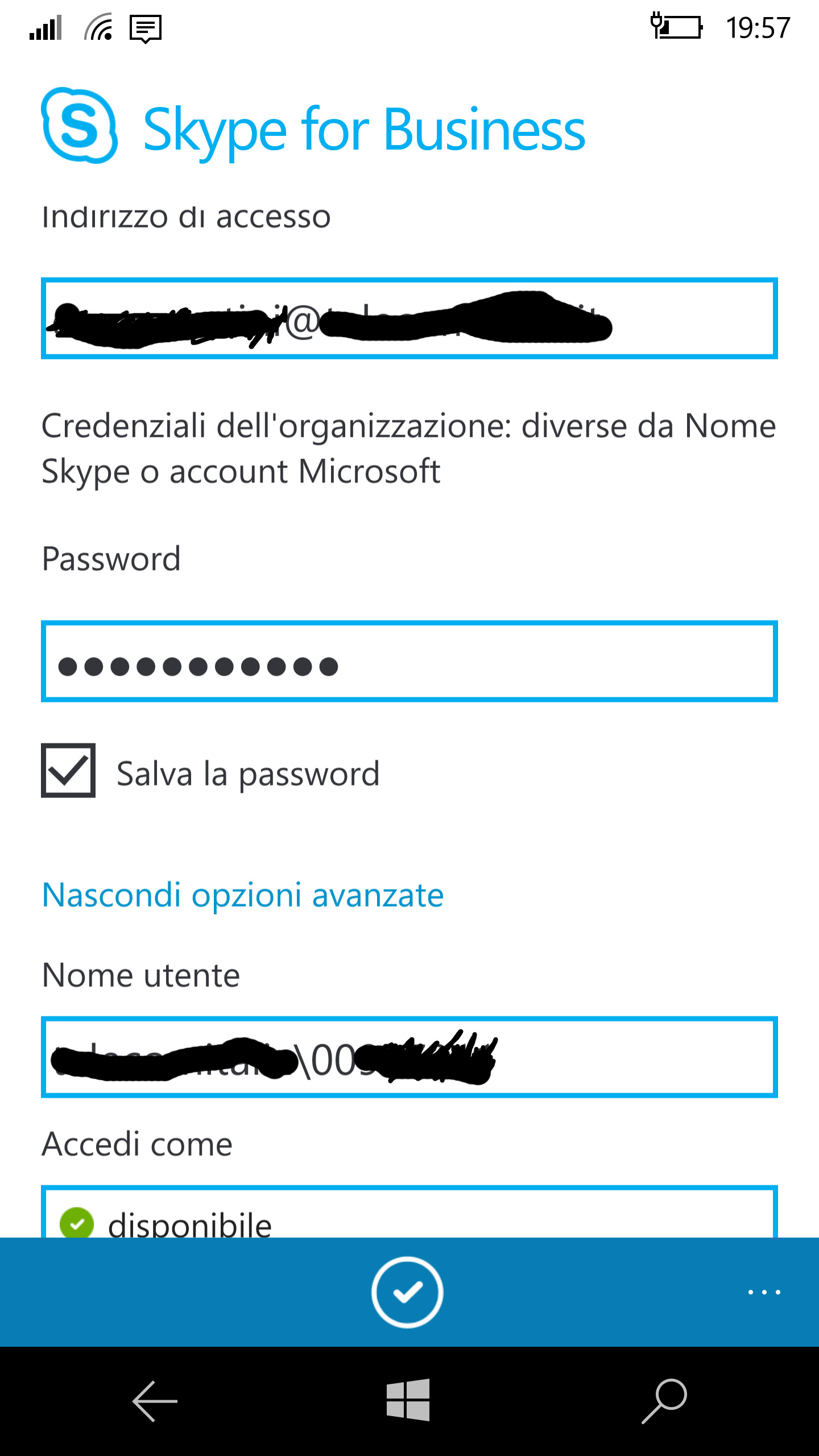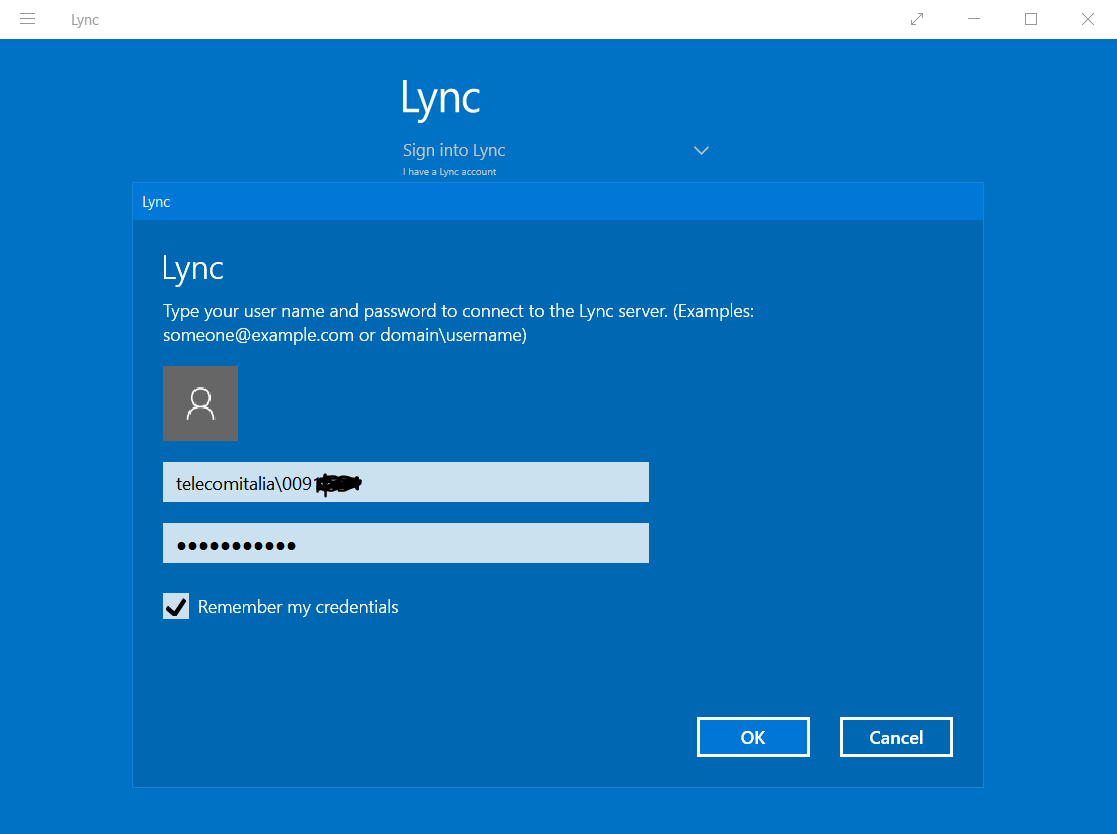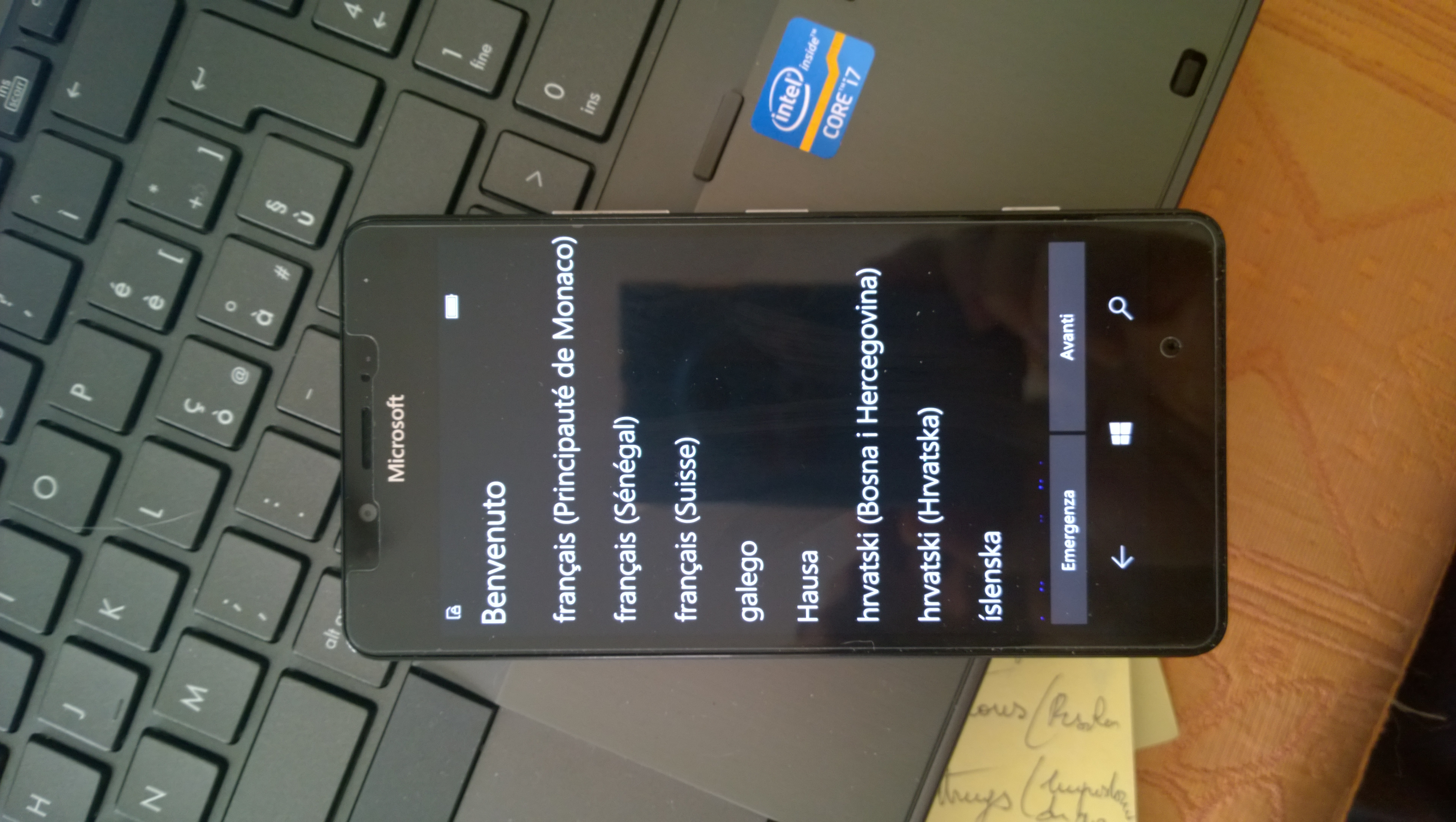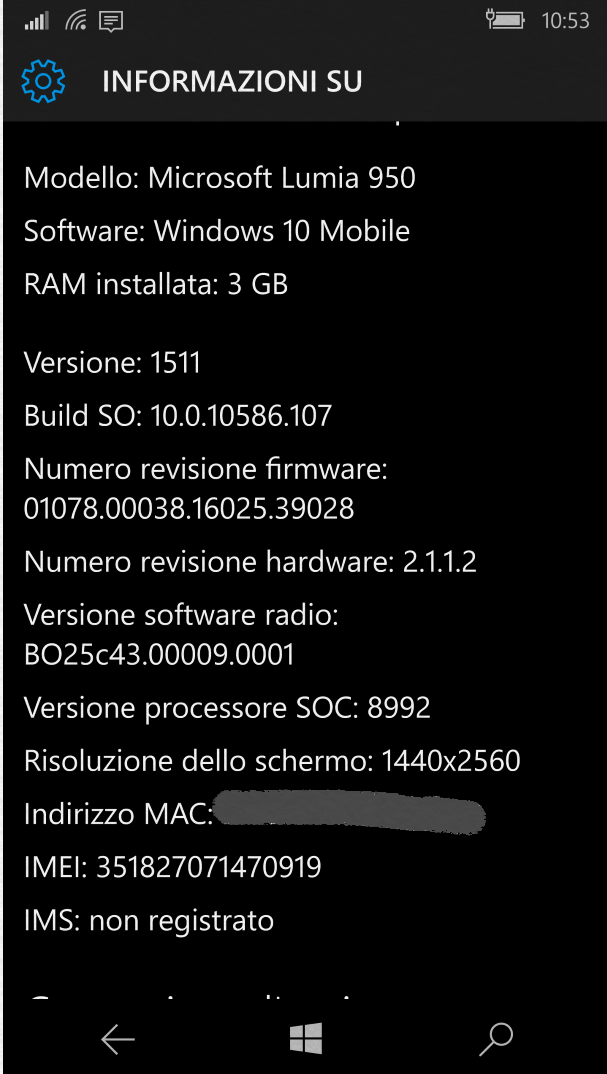
Still problems in doing tethering with a manually configured APN (e.g. an employee one) using a Windows 10 Mobile device

There are still problems in doing tethering on a manually set APN using a Windows smartphone (both Windows 10 Mobile and Windows Phone).

Personally I think that it is a missing feature in the configuration code in handling the hotspot Wi-Fi in this O.S. Therefore I think it must be solved as soon as possible, especially if (as I understood) the main target for Windows 10 Mobile devices will be the business area and not so much the consumer one.

I already explained in a previous post how to set a new APN (for example a firm one) on a Windows 10 Mobile device, for both a new one (e.g. Lumia 950) and an “old” one (Lumia 920) updated as an insider [in this last one the user interface still remains like it was in Windows Phone 8.1 devices] .

While I haven’t never had problems in doing tethering, using my firm employee APN, with both Android and iOS devices (since version 9, September 2016), I had problems in doing that with my Windows 10 Mobile and Windows Phone. With that devices, while I was able to set the Hotspot mobile feature (and so do tethering) using a public APN (both TIM WAP and TIM WEB public ones) I couldn’t start it if the my firm employee APN is set: at first, whenever I tried to set the Hotspot mobile, the following error page appeared, saying that “I had no data connection to be shared“.
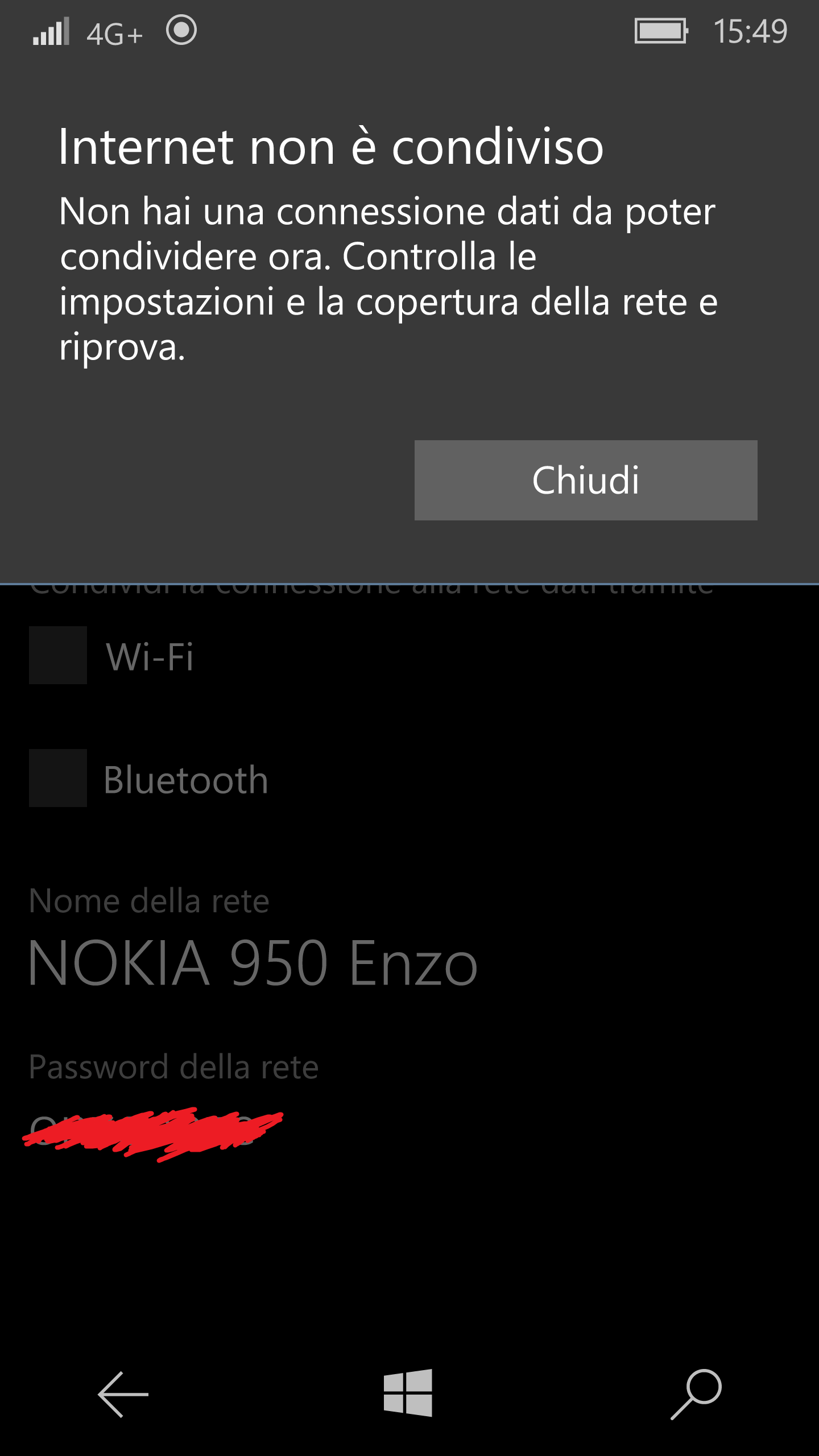
Error trying to set the hotspot mobile having the Telecomitalia employee APN

Error trying to set the hotspot mobile having the Telecomitalia employee APN

Obviously when my firm APN is activated (no mobile hotspot enabled) the Internet connection was fine and I could access also to my firm intranet … but no hotspot was settable!

In my old Lumia 1020 Windows Phone device I set the new APN from Settings -> access point (and the setting page it looks the same on the Lumia 920 one, updated to Windows 10 Mobile as insider)  while in the new Lumia 950 I had to go to the Settings > Network & Wireless > Cellular&SIM > SIM Settings > Add an Internet APN [where there is also, configuring a new APN, the new option “Use this APN for LTE and substitute it from the one of the mobile phone operator” (not available in Windows 8.1 settings) that I set to ON]. No way to understand why the hotspot mobile could be set on my Lumia 950 only with both the public APNs (TIM WAP and TIM WEB) and not the private one (e.g. a firm employee one)!

I supposed that it was a problem of the Lumia 950 firmware that was not properly updated because of the delay of this kind of updates for branded devices, so I even tried to made it not branded anymore … but also after that updates nothing changed.

I tried to set max 3G and, disabling LTE, and have current connection H+ in order to check if the problem should be at network layer … but nether that could help: no shared Wi-Fi hotspot possible and the same warning displayed.

Therefore I contacted the Lumia Support for business service, by filling out the proper form: I was suddenly contacted by technical people (Steff and Niko) and together we tried to find out where the problem was.

They asked me to download the Field Medic app from the Store to provide my logs with “Include Netlogs” enabled: after downloaded the app and opened it, I pressed Start Logging, I reproduced the issue, I went back to the app and pressed Stop Logging. I saved the Field Medic report that is then made available in Files: I select that report and shared it through OneDrive since it was too big for an attachment. But even the log analysis helped!

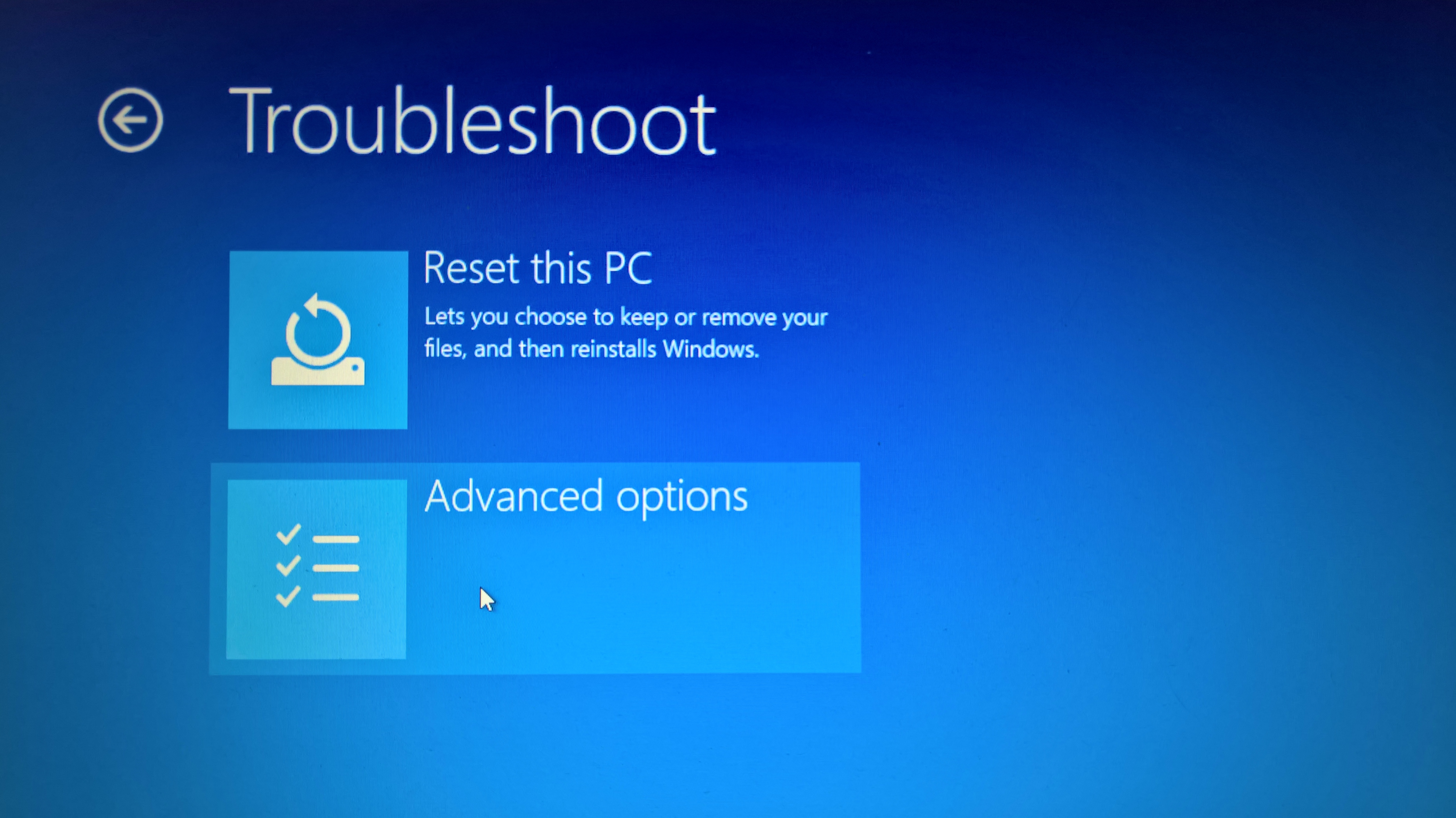
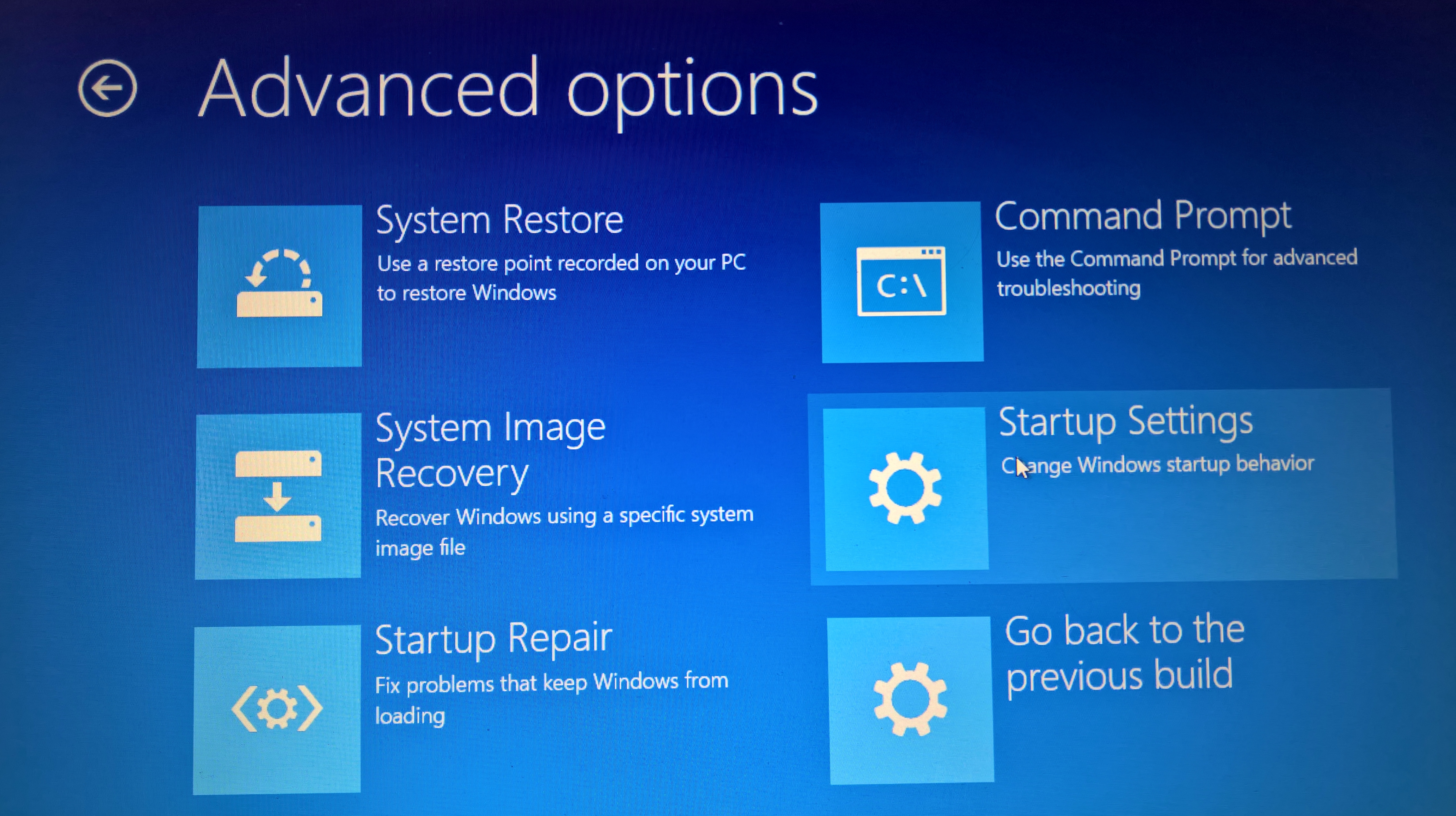
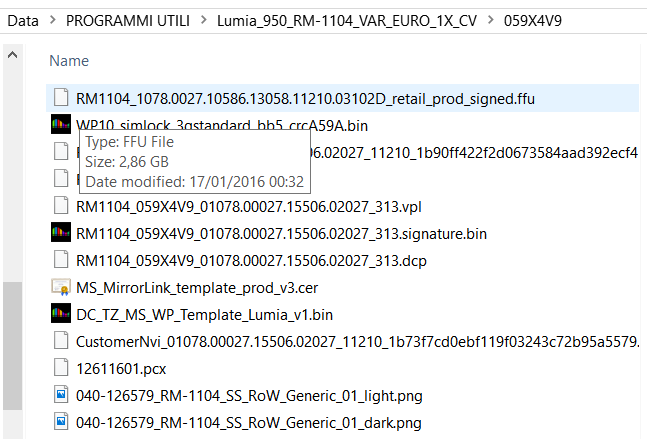
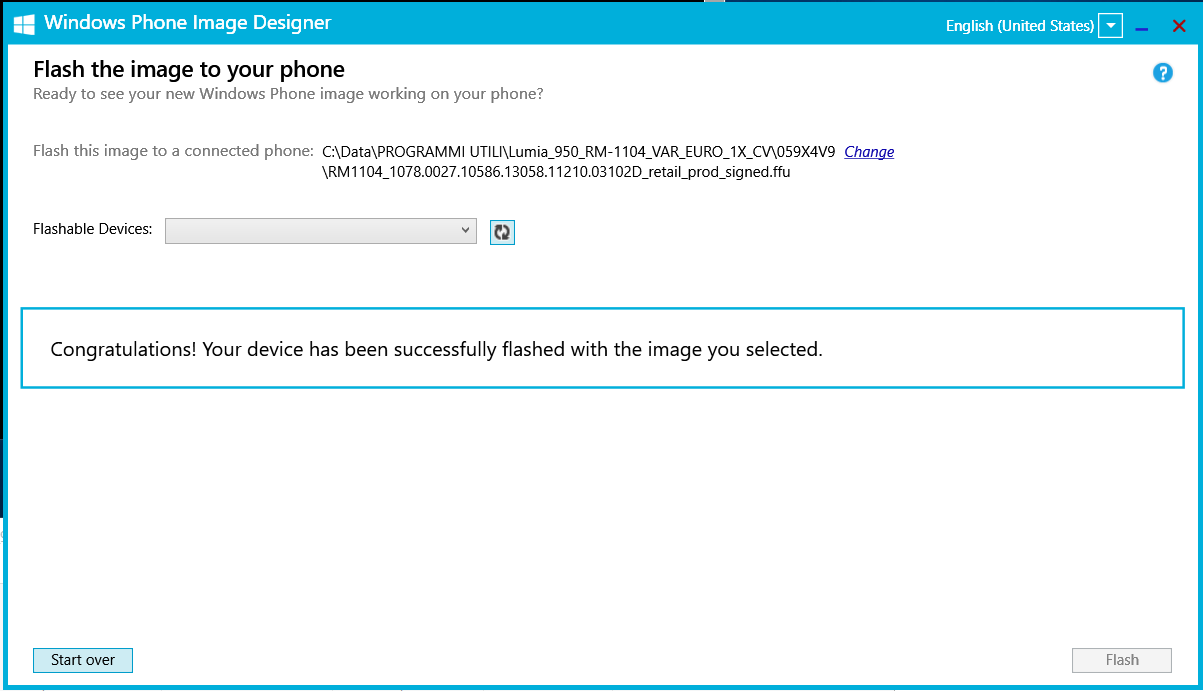
At the end it was suggested to reset the device using the Windows Device Recovery Tool on a PC  in order than that application should download and install the latest available software version for my Lumia 950: however because this action had been deleted all my personal data I preferred not to do it! I Know that it is possible to restore from a cloud backup all the personal , but it takes time to reinstall everything (even the apps) and have the smartphone as it was.

I knew that it was neither a matter of the APN configuration and nothing should be fixed on network side: tethering works even on private APNs for every other platforms, Android and iOS.

============

At a first glance, the problem seemed to be (strangely) solved setting the “Profile mobile network” to TIM WAP and NOT to TIM Web (these are the two available public APNs in TIM, that can be used both), even though the set APN is the private employee one! In my understanding the setting of the default APN to TIM WAP or to TIM Web shouldn’t matter because another Internet APN is selected (that is the firm employee one) and not the default one … but it seems that for some unknown reasons it is relevant also in that case!!

NOTE – Till Windows Phone 8.1, the list of APNs where alternatives and only one can be chosen among the following list:

  1. TIM WAP,
  2. TIM Web
  3. … possibly more
  4. APN telecom (my new configured private employee APN)
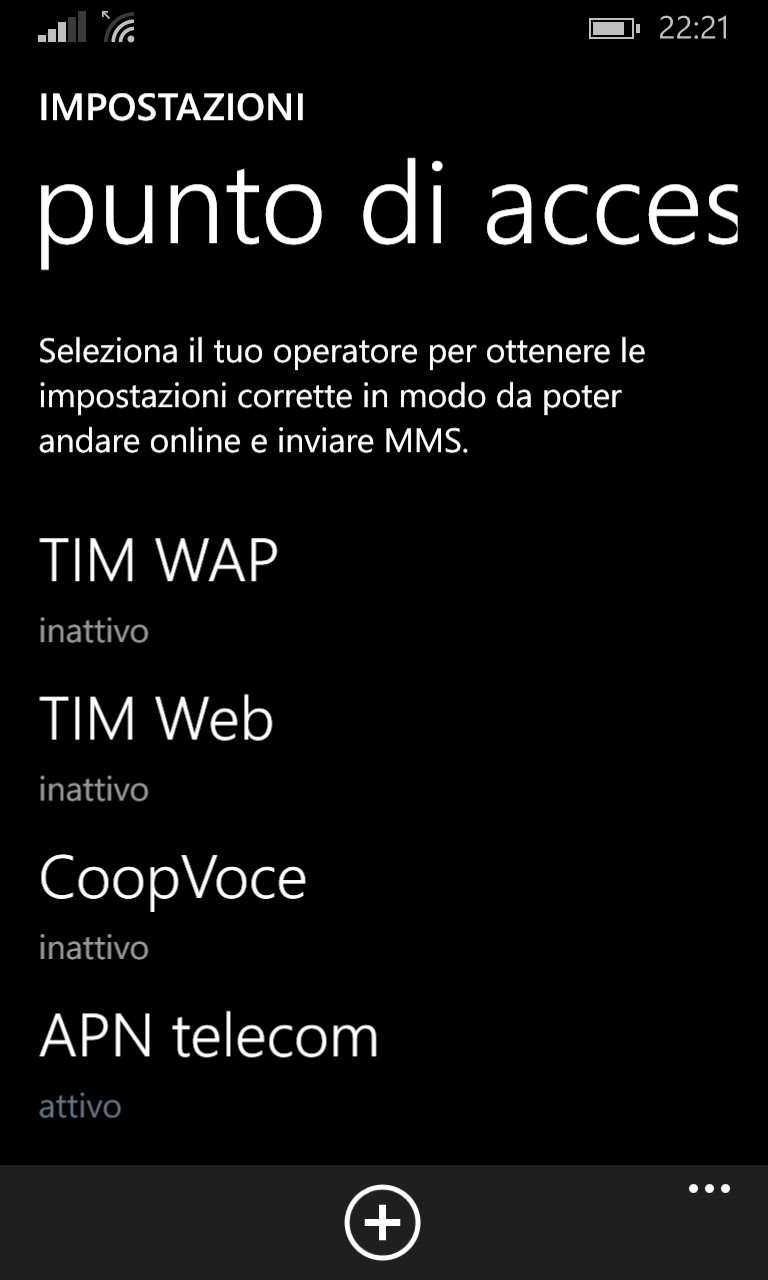
APN selection on an <em>Windows Phone 8.1</em> device

APN selection on an Windows Phone 8.1 device

The selection available on an Android device is the following:
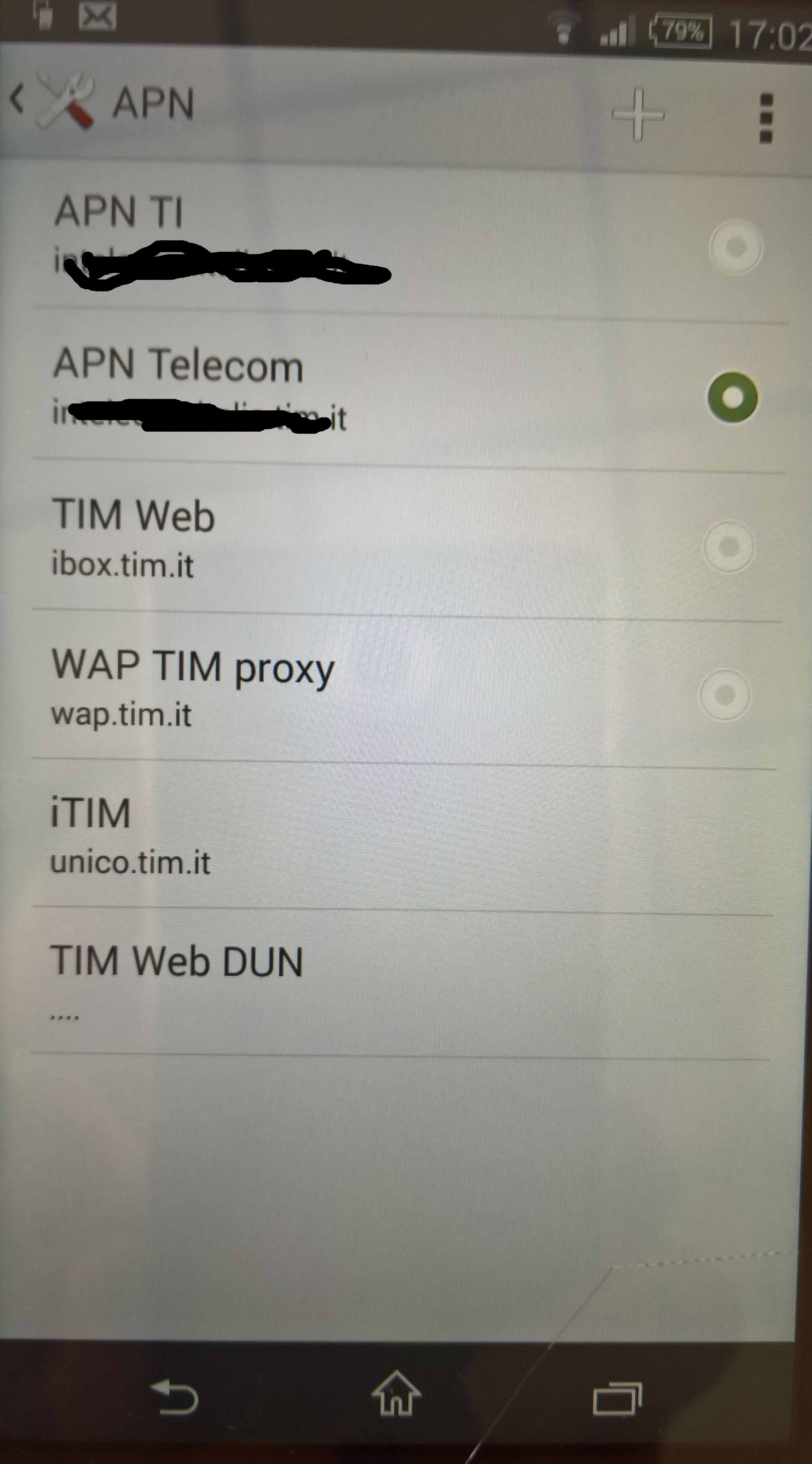
APN configuration in an Android device

APN configuration in an Android device

In Windows 10 Mobile there are two sections, one defining the “Mobile network profile” and another related to the “APN Internet” where the default APN changes depending to the settings ot the previous “Mobile network profile”.
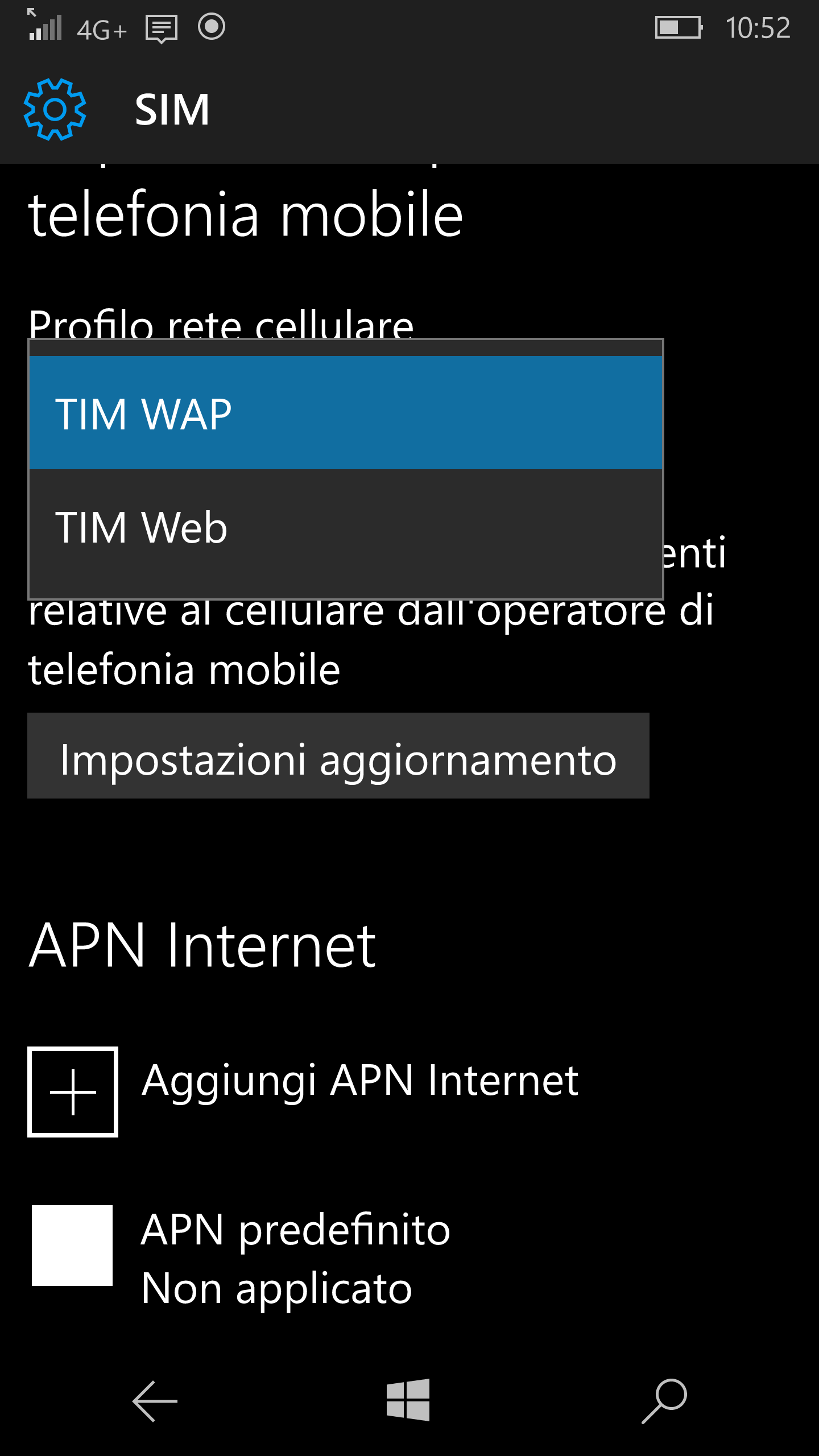
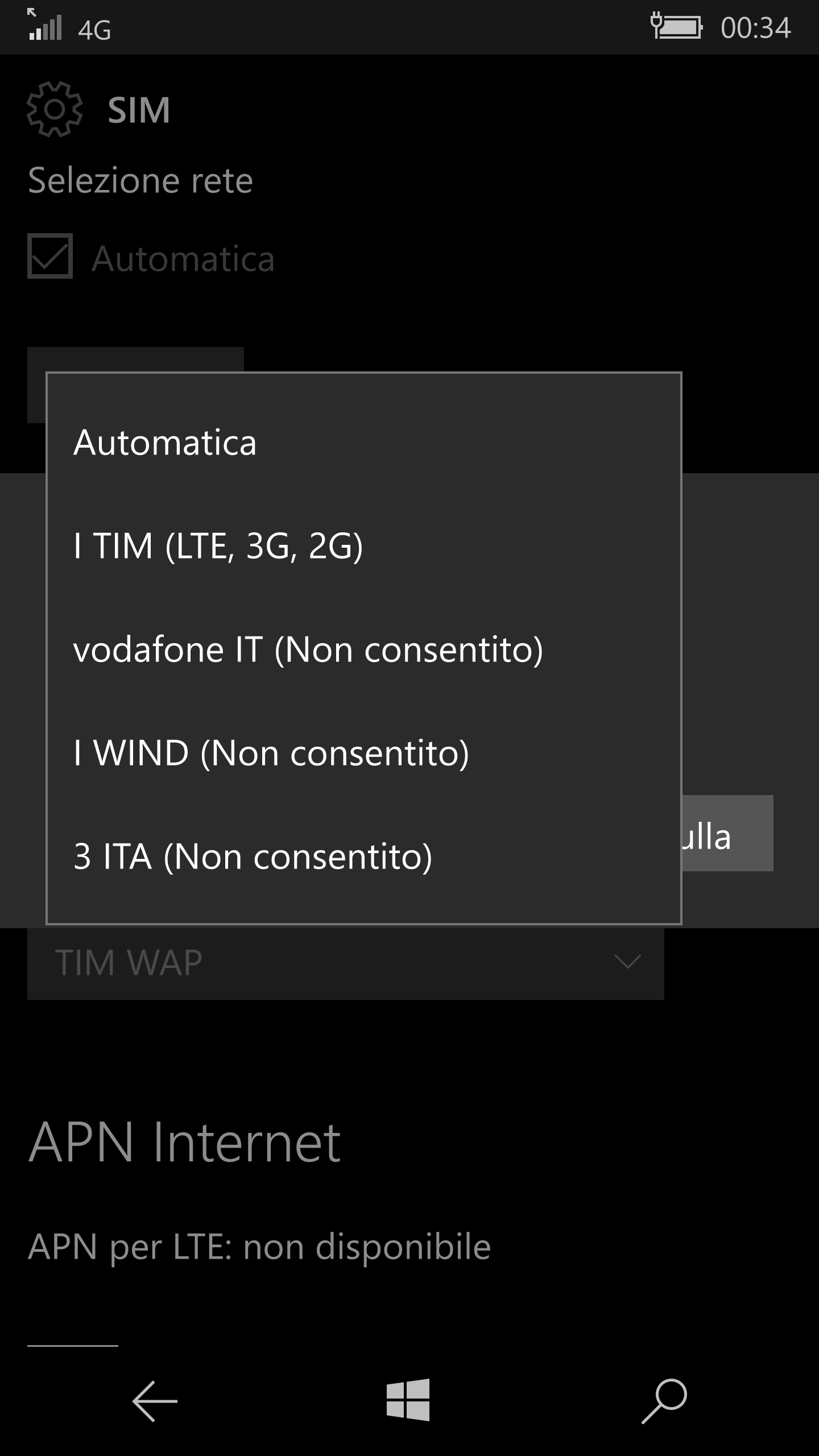
Two possible TIM mobile network profiles available

Two possible TIM mobile network profiles available


Correct settings to have also Hotspot mobile works using a private APN

Correct settings to have also Hotspot mobile works using a private APN

If the new private APN is set in the “APN Internet” section, the “Hotspot mobile” can be set ONLY if the “Mobile network profile” is set to TIM WAP while it cannot be (“I had no data connection to be shared“. popup message) if is set to TIM Web (possibly the only enabled to do tethering) … even though the navigation and connection is fine in the smartphone with both settings of the “Mobile network profile” while the “APN Internet” section is set to the private APN.

P.S. (30/6/2016) 
I thought that the problem I had was solved but unfortunately, I realize that all the traffic that is done through it as an hotspot, when (in the Network Settings) the firm employee APN is set goes NOT through that APN but through the public APN … so no access to the intranet from any hotspot Wi-Fi connected device!
This does not happen with an Android or iOS smartphone.

Summarizing:

  • The current setting of the private VPN is manually configured correctly, already using the information provided by the IT specialist of my company: in fact it works when I use the phone so I can access with the its browser the intranet. The same configuration work for Android, IOS (since version 9) devices.
  • If I try to set on the Hotspot Wi-Fi, when the private VPN is set in the APN Internet section of the same SIM setting page, I cannot succeed if the Profilo rete cellulare (Mobile network profile) is set to TIM Web (that is one of the public VPN of my company TIM) because a popup is displayed saying that there is not Internet shared (“Internet non è condiviso: non hai una connessione dati da poter condividere ora. Controlla le impostazioni e la copertura della rete e riprova”). On the contrary, if I set the Profilo rete cellulare (Mobile network profile) to TIM WAP (that is the other public VPN of my firm TIM) I succeed this time to set on the Hotspot Wi-Fi, but the traffic of this tethering connection go through the public TIM WAP and not through the private VPN, even if set active in the APN Internet section: so from a PC connected to that mobile Wi-Fi, I am not able to go to the intranet with its browser (while I am continuing to navigate in the intranet when using the browser on the phone) and that Wi-Fi traffic of the PC is charged to us employee because it is not done on the private VPN for workers but on the public TIM WAP one. In Windows Phone 8.1 the selection of TIM WAP, TIM Web and the private employee VPN (manually defined in the same way) were alternative and with Windows Phone 8/8.1 … however there was same problem in activating the Hotspot Wi-Fi with that private VPN set. Now in Windows 10 Mobile there are two sections, one for selecting a Mobile network profile (where two items are available in the combo: Tim Web and TIM WAP) and then an APN Internet section where it is listed the APN predefinito (Predefined APN) and possibly others manually defined APNs like my company employee APN. So even if selected this last one, and not the APN predefinito (that I suppose it should refer to the previous selected APN available in the combo (TIM WAP or TIM Web) I have (a) TIM Web selected => no Hotspot can be activated and popup error displayed; (b) TIM WAP selected => Hotspot can be activated BUT Wi-Fi traffic does not go through the selected private APN but through the public TIM Wap (while smartphone traffic – apps or phone edge browser – continue to go through the private APN, so intranet is available).
  • This issue happens to all the colleagues that have a Windows 10 Mobile device.
  • Setting the APN Type to “default,supl,dun” is the way used in all Android device to let do the tethering traffic goes on the same APN used for the smartphone traffic. In iOS, from the vertion 9 (September 2015) the same resolute is obtained using a new introduced section in the APN definition, that is the PERSONAL HOTSPOT section where you can specify what APN the tethering traffic must use (and you can set the same you set for the smartphone traffic).
    Furthermore I received a response in a post of mine in the Italian Microsoft Community forum, where it seems clear that the tethering traffic is always done on the APN selected in the combobox “Phone network profile” (IT: Profilo rete cellulare) even though a new manually defined one is set to active (used only for smartphone created traffic): in that case he changed the network operator and so the SIM (from Vodaphone to ERG), he manually added and defined that new provider APN and set it to active, now the smartphone traffic works properly but he cannot succeed anymore to do tethering (while it was able with the previous SIM, using the predefined APN available in the combobox). Therefore while the smartphone works well using that new defined APN (set to active), the tethering traffic very probably is trying to use the old predefined Vodaphone one, selected in the combobox, even though not selected as active. (Note in that case, being changed the SIM and operator, a reset of the APNs should solve the issue as I suggested in that post (see the following), but if the added APN is a private one … no way!!). In the following, I copied some of the information exchanged in that post in Italian:

Io avendo un telefonino TIM ho nella combo due APN di quell’operatore come scelta (Tim web, Tim wap). Il fatto che tu abbia altre tre APN mostrate è probabilmente dovuto al fatto che hai un telefono brandizzato Vodaphone o, se era senza brand, si è configurato cosi quando hai inserito per la prima volta una sim vodaphone. Non mi sembra che esista in Windows 10 Mobile la possibilità di reset delle APN. In Android esiste e se la resetti senza sim inserita, quando inserisci la nuova sim, si imposta con le APN proprie dell’operatore di quella. Guarda se togliendo la sim compare una qualche possibilità di reset delle APN: se sì, effettua tale reset quindi spegni il telefono e poi inserisci la nuova sim. Se non esiste tale possibilità puoi, se credi, provare a sbrandizzare il cellulare (in un post di WindowsBlogItalia viene descritto come fare): ovviamente perdi la garanzia a meno di non effettuare poi il reset con il Windows Device Recovery Tool di Microsoft e riportare lo Smartphone alle condizioni di fabbrica.

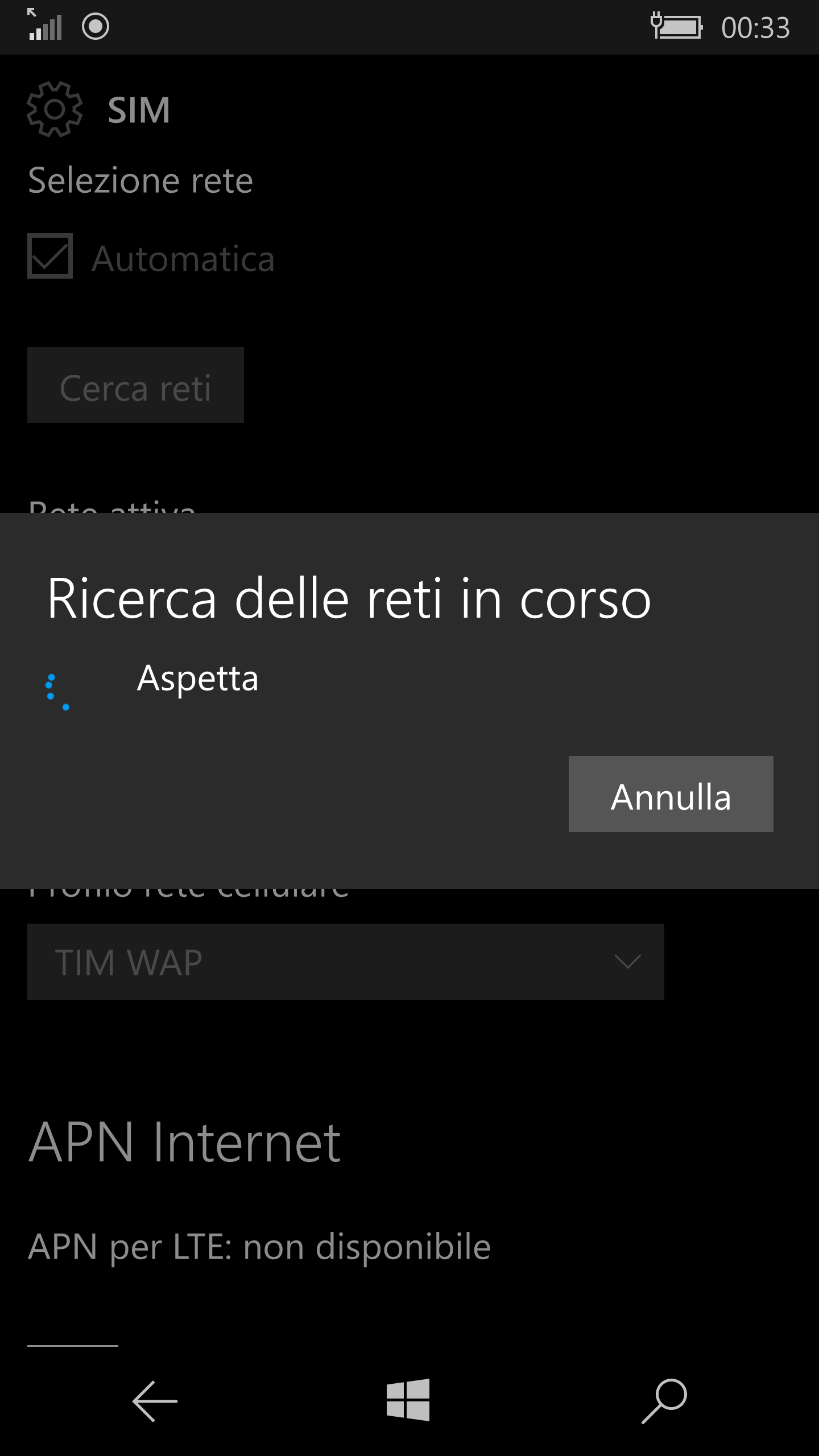
Puoi anche provare a premere il pulsante “Ricerca rete” poi selezionare quel tuo operatore se compare: anche così dovrebbero comparire nella combo le APN pubbliche di quell’operatore.

Magari quando fai quella procedura prova anche a togliere la SIM in modo tale che non condizioni la possibilità di scelta dell’operatore. Se non compare il tuo operatore, metti la selezione ad “Automatica“, poi spegni e inserisci la SIM. Dovrebbe prendersi le APN proprie di quell’operatore e memorizzate nella SIM stessa.
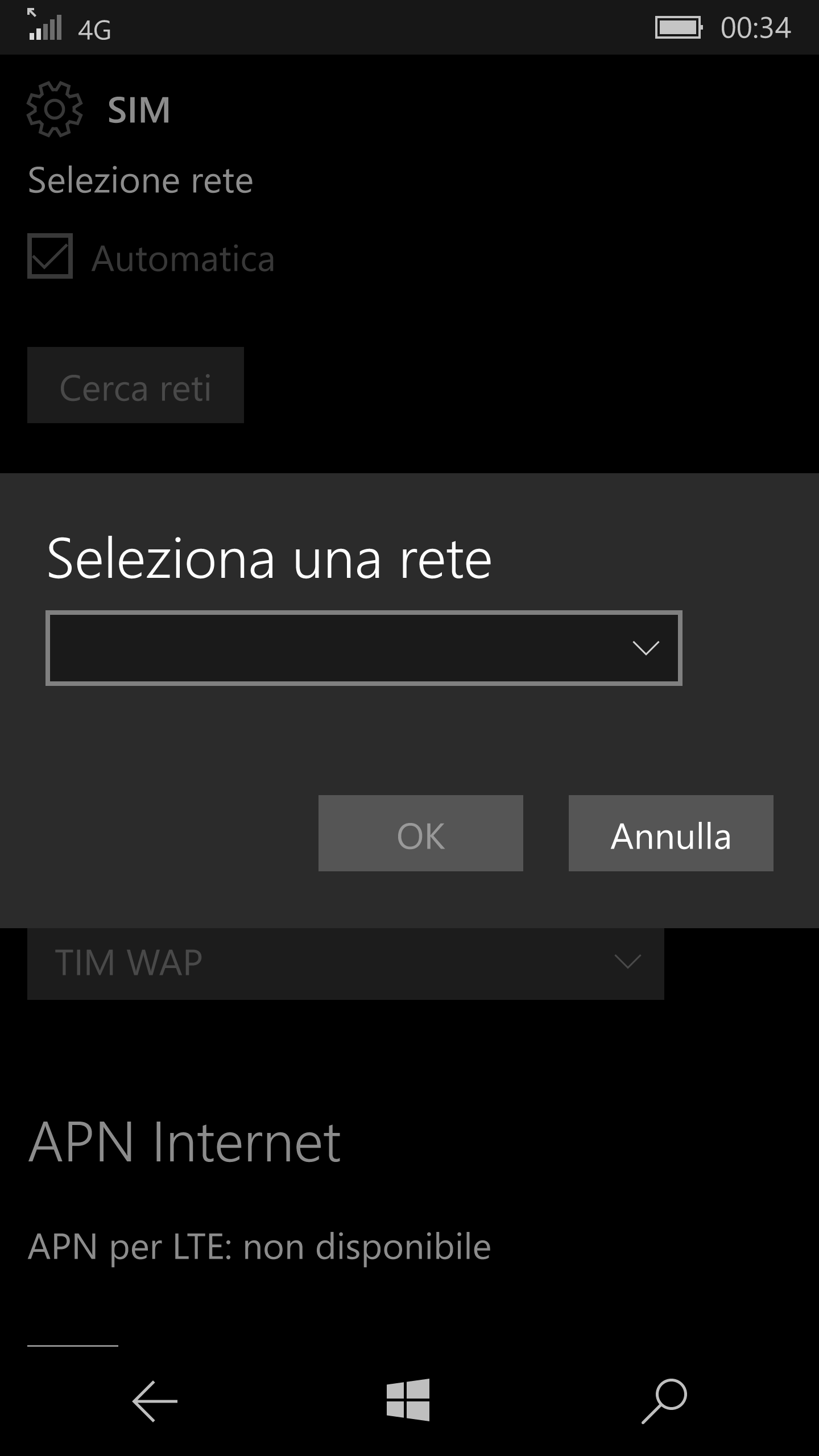
wp_ss_20160904_0001

wp_ss_20160904_0002wp_ss_20160904_0003

Tuttavia, se si tratta di un operatore virtuale (e.g. ERG che si appoggia su rete Vodafone),  il telefono/SIM, non avendo in memoria le APN corrette, propone quelle dell’operatore su sui si poggia (e.g. Vodafone) o degli operatori virtuali che hanno inserito in Microsoft nella combobox: gli altri devono essere necessariamente inseriti manualmente. Peccato che poi la trasmissione dati funzioni solo per i dati generati dallo smartphone e non quelli provenienti dall’Hotspot Wi-Fi, per cui il tethering non risulta possibile. Da quando poi quando hanno aggiornato Skype con Anteprima Skype sembrerebbe che anche quella app non punti più correttamente (funziona solo se si usa la SIM dell’operatore principale, (e.g. Vodafone) oppure con il Wi-Fi, ma non con la SIM dell’operatore virtuale (e.g. ERG). Sembra inoltre che l’unico marchio che riconosce ERG con tutte le sue APN, compresa quella degli mms, è Wiko, mentre tutti gli altri va impostato manualmente.


==================

Questo post si aggiunge ad altri che sono specificatamente indirizzati a colleghi.🙂

PS: puoi trovare gli altri post filtrando, nella combobox a desta, sulla categoria “Aziendali”. Alcuni sono protetti da password per cui se ti interessano puoi contattarmi tramite l’email aziendale o telefonicamente.
Pubblicato in Aziendali, Review e test, Smartphone OS | 2 commenti

Developing apps for IoT: Microsoft Azure IoT … first impressions

Yesterday I followed an interesting session about Azure IoT and I was impressed. In the following you can find some notes that I took …

The speaker was Daniele Colonna, one of the Microsoft guy of the team that in Monaco is working on this topic: in particular, if I took it right, now he is involved in the developing of a specific connector following the standard protocol (possibly OPCUA??) in order it can be used whenever a gateway or device is using it.

After the presentation I asked for his slides and he kindly shared them: you can download from this link on my OneDrive or from the Milan CloudRoadShow site at this link. The slides he presented I found are the same of a nice (less than one hour long) lesson available in the Microsoft Virtual Accademy site (Developing Apps for the Internet of Things) … so, if you are interested, you can follow that lesson: even though the speaker is another, the content should not be so different 😉

Moreover you can download from here the SW device example he did, even thought he said that on the Azure IoT site there are links to much more complex examples!

I saw that Daniele is also the owner of some GitHub projects related to IoT … and it could be useful to get an eye on them 😉

The full Azure IoT system allows to connect and scale with efficiency the data coming from – for example – little sensors, analyzes and acts on new data, integrates them and transform business processes.

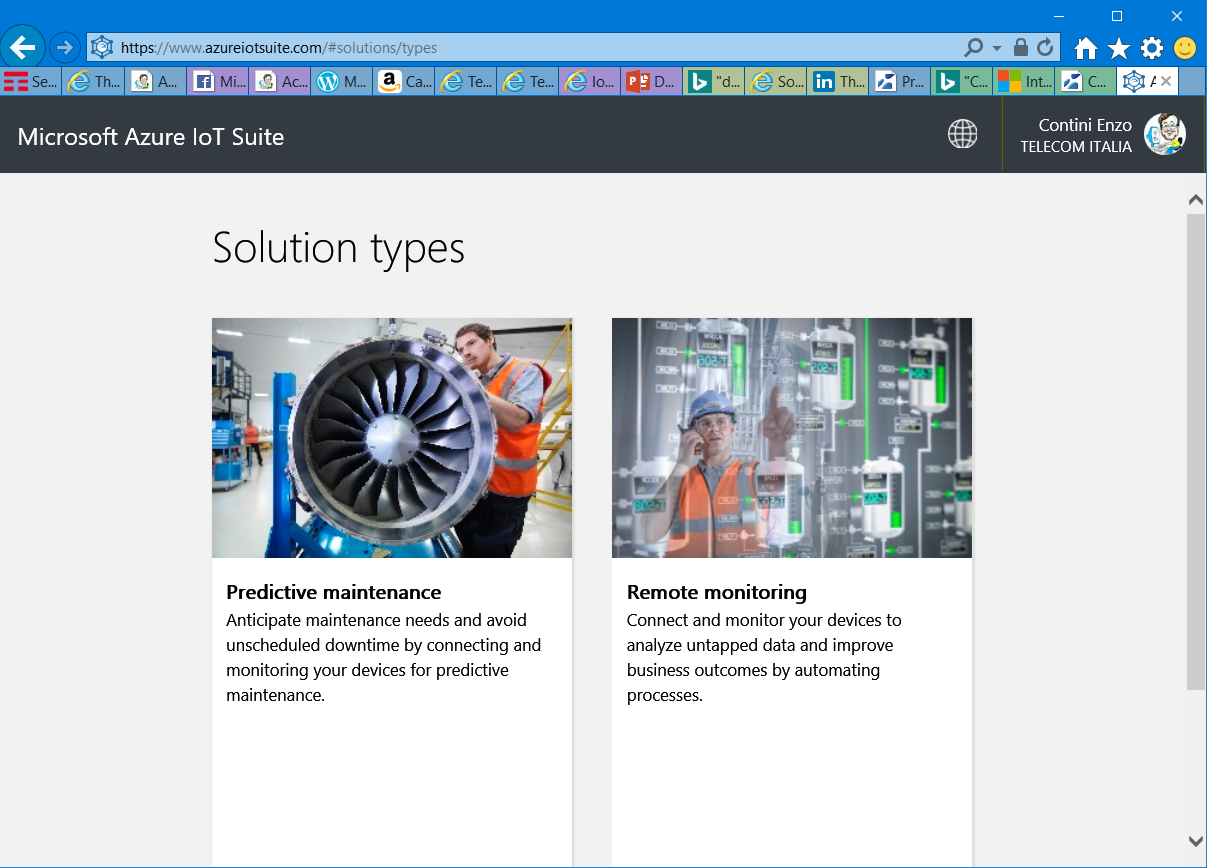
He showed the Azure IoT Suite that is a set of tools and services that easily can help you to provide an even custom solution. Going to https://www.azureiotsuite.com you can, in a few steps, create a real working solution on your own Azure account space. Obviously the data coming from the devices are simulated, but you can even run some code that send and receive messages, creating the SW that should run on a real device.
There are in particular two solution types you can choose: a predictive maintenance one and a remote monitoring one. After running the creation of one of that solutions on your Azure account, going into your dashboard you will see that an IoT HUB has been created, some storage and three stream analytics jobs (Device Info to extract date, Rules to handle thresholds, Telemetry to get max, min media) too.

There are already 3 protocols native handled (e.g. http).

The IoT HUB works as a cloud gateway or you can have one nearby devices.

All the security topic is taken into account by the system solution (each device can have its own access key using tokens): in fact there is a forecast of 10% of hacker attacks on IoT systems in the near future .

In the Azure cloud there can be used several services like analytics, rules and actions and a proper dashboard and visualization.

All the code of both solutions are on GitHub and they can be personalized for your needs: as they are, they use a simulator of devices that connect directly to the IoT HUB. There are several streams: analytics, jobs to extrapolate data (e.g. thresholds, minimum, maximum and media), …

IoT1

We can not only receive data but also send commands: I can send a command to put in standby a device and then send another to start it sending, … so setting a time to live for devices that need to save power and that connect only periodically. When someone creates the SW for a new device (using the device SDK) he has to use a DeviceKey (obtained registering the device in the cloud), that has to be used by the device to connect and communicate in a secure way.

Moreover, APIs, SDKs and open source projects from Microsoft Azure on the GitHub Azure path (filtered with iot) are available for IoT too:

A useful tool, expecially during development, is the Device Explorer that allows to interact  with all devices and see the exchanged data: it is a GitHub project and also for it all the source is available.

The home page for all the information related Microsoft IoT systems is http://www.internetofyourthings.com.

Introducing the Visual Studio Connected Service for Azure IoT Hub

You can see also the page related to Windows IoT from developer.microsoft.com.
Connected Service for Azure IoT Hub allows developers to create and connect to Azure IoT Hub easily and with step-by-step guidance.
PS: another interesting session was Build and Deploy Applications with the Microsoft App Platform and here I found, always in the MVA site, the presentation. To find other Cloud Roadshow courses on MVA, search Cloud Roadshow.


Pubblicato in Windows | Lascia un commento

How to share Internet Explorer favorites list among some user names on the same PC

Sometime it is useful to work with more than one user on a PC, possibly because you what to have different rights (e.g. one member of administrators and one of users) and may be it is nice to get for all of them the same IE favorites. Placing favorites under the default profile doesn’t help because it only copies them to the users profile when a new profile is created but new added favorites will not be added to the all users favorites. The solution is to set all the users favorites to a specific folder changing the default setting of a regirtry key.

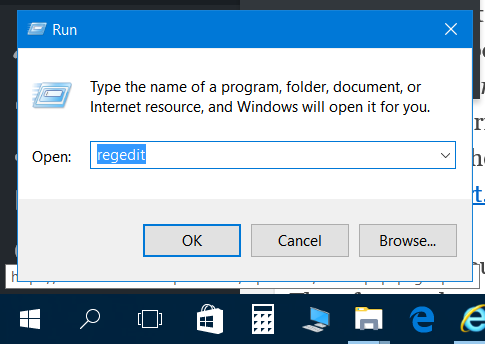
  • Run regedit (right click on Start or search it with Cortana)

Favorite2 Favorite3

  • On the Registry Editor window, navigate to the key below: HKEY_CURRENT_USER\Software\Microsoft\Windows\CurrentVersion\Explorer\User Shell Folders\Favorites
    By default, its value should be %userprofile%\Favorites.
  • Modify its value to point to a common folder (e.g. C:\Data\Favorites). Make sure that the accounts you want to share favorite have the full control permission on that folder.
  • Copy on that folder (e.g. C:\Data\Favorites) all the favorite folder content [of the user that have the ones you want to share (e.g. C:\Users\myname)]: after having copied its content in the new shared folder, you can possibly delete the content of that folder if you like.

Also refer to the below link:
http://support.microsoft.com/kb/158787

The default value is %userprofile%\Favorites

The default value is %userprofile%\Favorites

Change the value to a specific folder

Change the value to a specific folder

Note: Some serious problems might occur if you modify the registry incorrectly. Therefore, make sure that you follow these steps carefully. For added protection, back up the registry before you modify it. Then, you can restore the registry if a problem occurs. For more information about how to back up and restore the registry, click the following article number to view the article in the Microsoft Knowledge Base:
How to back up and restore the registry in Windows?
http://support.microsoft.com/kb/322756

Pubblicato in Windows | Lascia un commento

Useful links (Fuji, Olympus, Epson, Samsung and more)

In this ongoing post, I put some useful links to some products’ update/download page and/or assistance centers (… that I need, but maybe you too!)

==================================================

INDEX

==================================================

EPSON

==================================================

FUJI

___________
Forum, news

==================================================
SAMYANG

==================================================

OLYMPUS

==================================================

SENNHEISER

  • Centri assistenza (a Torino è Tecnisuono in Via Campiglia, 7/a Torino,TO 10147 Tel. 011/210550 – Fax 011/210550)

==================================================

NOKIA – MICROSOFT

==================================================

HP

==================================================

SAMSUNG

In this ongoing post, I put some useful links to some products’ update/download page and/or assistance centers (… that I need, but maybe you too!)

==================================================

INDEX

==================================================

BROTHER

==================================================

EPSON

==================================================

FUJI

___________
Forum, news

==================================================

ISEO

x1R Smart – Manuale Utente

==================================================

NOKIA – MICROSOFT

==================================================

OLYMPUS

==================================================

SENNHEISER

  • Centri assistenza (a Torino è Tecnisuono in Via Campiglia, 7/a Torino,TO 10147 Tel. 011/210550 – Fax 011/210550)

==================================================

HP

==================================================

SAMSUNG

==================================================

SAMYANG

Pubblicato in Review e test | 2 commenti

Come ritornare al precedente sistema operativo dopo avere aggiornato il proprio PC a Windows 10

Aggiornare il proprio PC a Windows 10 è gratuito fino al 29 luglio 2016 … e vi consiglio di farlo per tempo se avete un PC idoneo cioè da Windows 7 in poi.

Potete sempre comunque tornare sui propri passi se proprio non lo trovate migliore ( e sinceramente lo dubito!) in quanto è prevista una facile procedura di rollback in grado di riportare il PC alle condizioni iniziali. Se poi decidete di non tonare indietro ricordatevi di cancellare la vecchia versione di Windows (Windows.old) che viene salvata di default durante il processo di installazione (Disk Cleanup -> Clean up System Files – Previous Windows Installations) -> vedi slide 9 di questo mio post precedente.

Tuttavia talvolta, anche se a malincuore, siamo obbligati a tornare al sistema Windows 7 se, per motivi lavorativi, dobbiamo utilizzare programmi obsoleti quali purtroppo troppo spesso sono quelli istituzionali (es. per connettersi a sistemi della motorizzazione). Si tratta ovviamente di programmi che utilizzano tecnologie obsolete, che probabilmente utilizzano metodi proprietari per connettersi ai server remoti e che non vengono aggiornati da almeno un quinquennio … insomma, una vera disgrazia per la modernizzazione degli uffici e del lavoro!!

In questo caso, sperando che prima o poi qualcuno si rimbocchi le maniche e li aggiorni, dopo avere riscontrato dei problemi ed avere verificato l’effettiva incompatibilità con i sistemi operativi più moderni, non ci resta che fare la procedura di ripristino che troviamo ben descritta nella pagina relativa alle Domande più frequenti (Upgrade to Windows 10: FAQ):

Posso tornare al mio vecchio sistema operativo?

Sì, esistono alcune soluzioni diverse per passare da Windows 10 a una versione precedente di Windows:

Se è trascorso meno di un mese dall’aggiornamento a Windows 10, è possibile tornare alla versione precedente di Windows da Impostazioni > Aggiornamento e sicurezza > Ripristino.

Premere il pulsante si Cerca e scrivere impostazioni o Settings

Premere il pulsante di Cerca (o icona lente) e scrivere Impostazioni oppure Settings.

In particolare tale procedura prevede (come indicato da questo sito) i seguenti passaggi

  • Premere il pulsante di Cerca (o icona lente) e scrivere Impostazioni oppure Settings.
  • Quindi premere l’icona a forma di ruota in alto, risultato della ricerca aprire appunto la pagina delle impostazioni.
  • Seleziona la voce Aggiornamento e sicurezza
  • Clicca su Ripristino e poi sul pulsante Per iniziare che trovi sotto alla voce Torna a Windows 7Tornare da Windows 10 a Windows 7
    Dopo qualche istante il sistema ti chiederà il motivo per cui hai deciso di tornare indietro. Seleziona quindi la risposta che ritieni più corretta e clicca su AvantiTornare da Windows 10 a Windows 7
  • Verrai quindi avvisato che l’operazione richiederà del tempo e che durante la sua esecuzione non potrai utilizzare il PC. Nonostante i dati non dovrebbero essere intaccati dal ripristino, è comunque consigliato effettuare un backup di sicurezza. Se hai fatto tutto puoi cliccare su Avanti.Tornare da Windows 10 a Windows 7
  • Un ultimo avvertimento inerente la password dell’account utente, e pate il ripristino.Tornare da Windows 10 a Windows 7
  • Il sistema si riavvia per il ripristino e in meno di un’ora (a parte l’eventuale tempo per effettuare il backup) viene ripristinato Windows 7 ed il PC torna come era prima dell’aggiornamento.

================

Metodi alternativi (più invasivi) indicati sempre nelle FAQ:

  • Se il produttore del PC ha fornito un’opzione specifica, potresti essere in grado di ripristinare le impostazioni del produttore del dispositivo.

  • Se non sono disponibili opzioni per tornare alle impostazioni del produttore, puoi usare il supporto di installazione e il codice Product Key per installare una versione precedente di Windows.

Per altre info e i requisiti, vedi la sezione dedicata a come tornare a una versione precedente di Windows di Opzioni di ripristino in Windows 10.

===========

Se non si vuole poi che quel PC cerchi di aggiornarsi nuovamente a Windows 10, conviene seguire anche la seguente procedura, sempre indicata nel la pagina delle FAQ:

Come si disattivano le notifiche per l’aggiornamento a Windows 10?

Per nascondere l’app Aggiornamento a Windows 10 e le notifiche per l’aggiornamento:

  1. Fai clic con il pulsante destro del mouse (o tieni premuto) sulla barra delle applicazioni e quindi scegli Proprietà.

  2. Nella scheda Barra delle applicazioni seleziona Personalizza per l’area di notifica.

  3. Nella finestra Icone area di notifica Area di notifica seleziona Nascondi icone e notifiche per l’icona di Aggiornamento a Windows 10.

Pubblicato in Review e test, Windows | Lascia un commento

Come veder tradotta una pagina di un sito nella propria lingua madre / How to have a browsed page translated in your native language

________________________________________________

Versione in italiano

Talvolta può essere indispensabile, per comprendere un testo di un sito scritto in una lingua che non conosciamo, vederlo tradotto anche se non perfettamente, ma almeno in un modo sufficiente per capirne grossomodo il significato: personalmente ho avuto questa necessità quando mi è capitato di essere interessato a siti tedeschi o cinesi!
Inoltre, anche qualora uno conosca la lingua in cui è scritto il sito, può comunque tornare utile avere una traduzione approssimativa, pur avendo comunque la possibilità di vederla in originale per migliorarne la comprensione.
Spesso i blogger scrivono in inglese in quanto così danno una maggiore visibilità a un loro post … e così faccio anch’io, anche se poi qualcuno talvolta mi chiede: come faccio a tradurlo in italiano?
Questo post è pensato appositamente per queste persone!   🙂

______________________

Diciamo innanzitutto che quasi tutti i browser hanno integrata (o integrabile) una funzionalità di traduzione da qualsiasi lingua in qualsiasi altra e nel seguito dettaglierò come impostare tale funzionalità sia in Edge sia in Chrome sia anche nell’ormai vecchio (ma ancora spesso utilizzato) Internet Explorer.

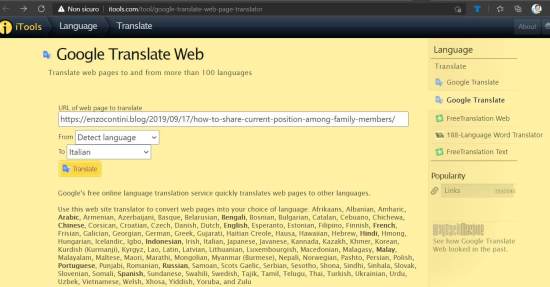
Comunque se si tratta di una esigenza saltuaria, è sufficiente andare su Google Translate Web – iTools, inserire l’URL della pagina che uno desidera avere tradotta nella lingua che si specifica e premere il pulsante Translate: nel caso l’URL inserita sia, ad esempio il  mio post scritto in inglese https://enzocontini.blog/2019/09/17/how-to-share-current-position-among-family-members/ , quello si visualizzerà tradotto in italiano su “Google Translate” (i.e. https://translate.google.com/translate?hl=en&sl=auto&tl=it&u=https%3A%2F%2Fenzocontini.blog%2F2019%2F09%2F17%2Fhow-to-share-current-position-among-family-members%2F)

Sia in Chrome sia nel nuovo browser Edge basato su chromium, esistono analoghe sezioni del menù di configurazione che consentono di attivare o meno la funzionalità di traduzione nella visualizzazione di siti in cui uno naviga con quei browser. (Se d’interesse, puoi vedere anche vedere un successivo post “Estensioni per Microsoft Edge: come veder tradotta una pagina di un sito nella propria lingua madre” in cui si vede come in Edge questa funzionalità di traduzione fosse originariamente stata realizzata tramite un plug-in, seppure oramai superato con la sua versione chromium che ha integrato questa funzionalità nel browser stesso)

Su Edge si deve andare in Impostazioni -> Lingue mentre su Chrome su Impostazioni -> Avanzate -> Lingua nella sezione “Lingue”.
In entrambi i casi si può selezionare  l’opzione “Consenti di tradurre pagine in lingue che non conosci” e anche per quelle elencate come conosciute, si può comunque impostare la possibilità di poter avere proposta la traduzione proposta nella propria lingua madre.
Con queste impostazioni, tutte le volte che si accederà a un sito in una lingua differente da quella madre, ci sarà un’apposita icona a destra della URL che consentirà di effettuare una sua visualizzazione tradotta nella propria lingua madre.

Su Edge:

Su Chrome:

Nel seguito mostrerò anche come questo sia pure possibile con Internet Explorer.
Su qualsiasi browser poi si potrebbe sempre usare il programma qtranslate, grazie al quale basta selezionare il testo che si desidera tradurre e premere Ctrl + q per averlo tradotto.

============

Vediamo quindi nel seguito come effettuare la traduzione con Internet Explorer. Innanzitutto è necessario installare la Bing Toolbar dal questo link.

Installare la Bing Toolbar

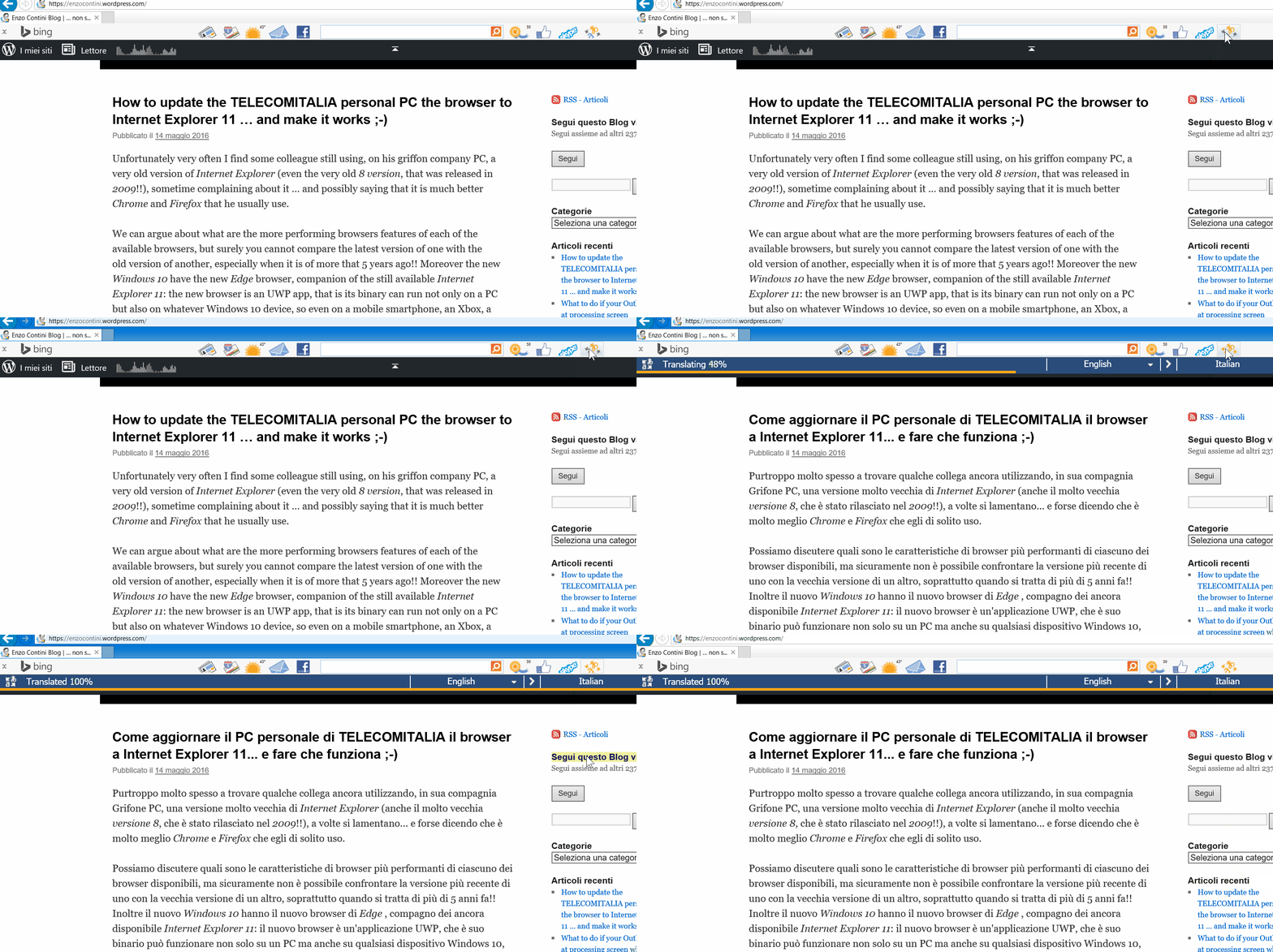
Una volta installata, comparirà in alto una barra Bing dove è possibile abilitare/disabilitare la presenza di icone a cui è associata una specifica funzionalità: in particolare una delle funzionalità disponibili è quella appunto di traduzione del testo della pagina del sito attualmente visualizzato nel browser. Premendo tale pulsante, in pochi secondi avviene la traduzione:

Traduzione automatica del testo

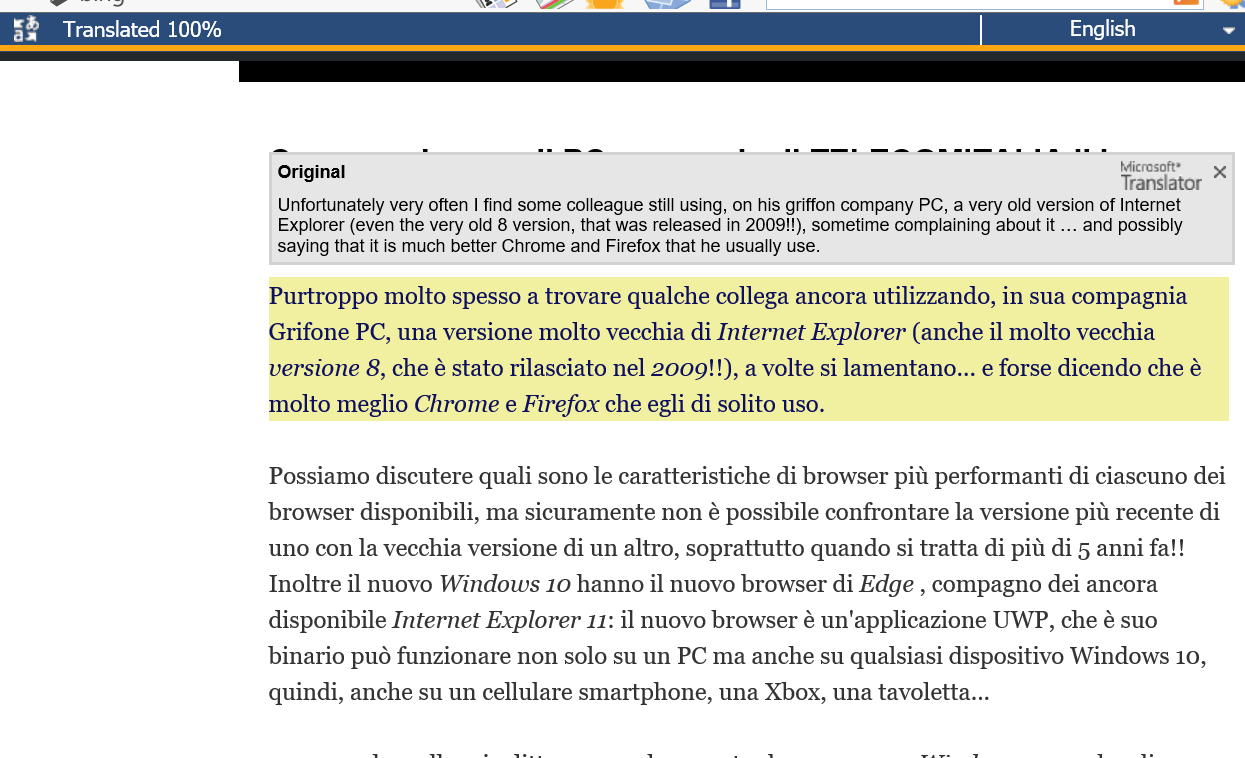
Non sempre la traduzione automatica risulta perfetta, per cui può convenire, se uno conosce comunque almeno un po’ la lingua originale, avere anche visualizzato il testo iniziale: basta quindi selezionare un paragrafo e una finestra popup comparirà a tale scopo!

Possibilità di avere anche il testo originario

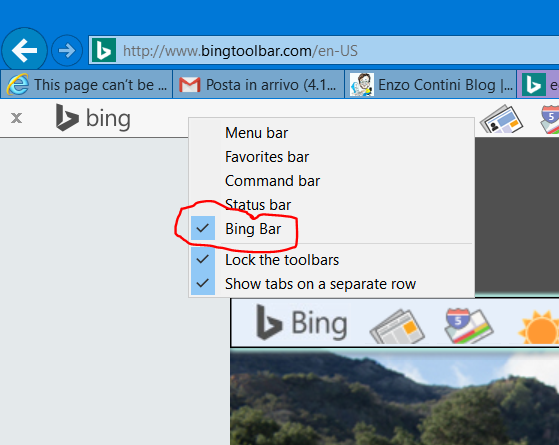
La Bing Toolbar, sebbene talvolta utile, ruba comunque un po’ di spazio, per cui può risultare utile talvolta poterla nascondere, facendo click con il tasto destro sulla barra in alto della finestra del browser e deselezionando la voce Bing Bar (o selezionandola poi, se si desidera invece farla in seguito ricomparire). Per farla scomparire si può anche effettuare la medesima procedura cliccando, sempre con il tasto destro, anche direttamente sulla striscia relativa alla toolbar stessa.

Nascondere/visualizzare la Bing Toolbar
Nascondere la Bing Toolbar (soluzione alternativa)

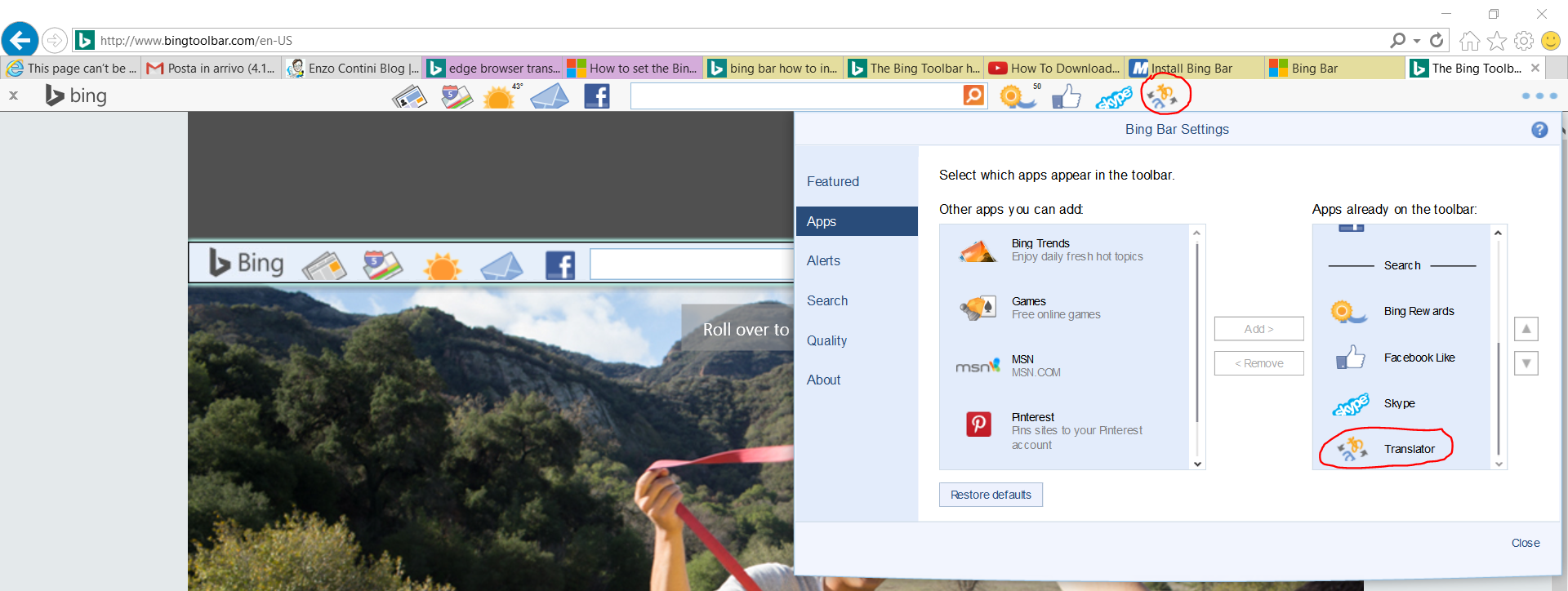
Per selezionare le funzionalità d’interesse da vedere inserite come icone nella Bing Toolbar, basta fare click sui tre puntini a destra della toolbar stessa e poi selezionare quelle utili e togliere eventualmente altre presenti non d’interesse. In particolare, oltre al traduttore, segnalo la funzionalità di mappe e di meteo, secondo me particolarmente interessanti oltre a possibili link a social network quali Facebook.

Selezione delle funzionalità di interesse

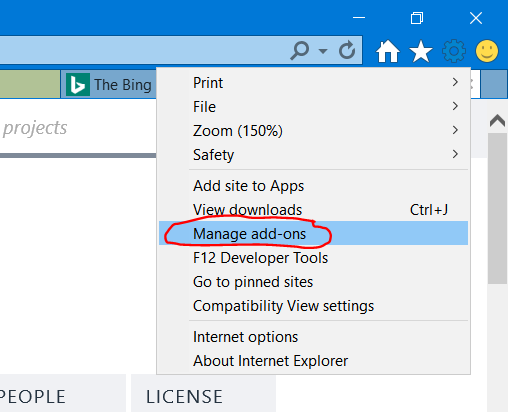
Essendo poi la Bing Toolbar un plug-in di Internet Explorer, si può poi gestire semplicemente andando nella apposita voce di menù di gestione di tutti gli add-on:

translate6

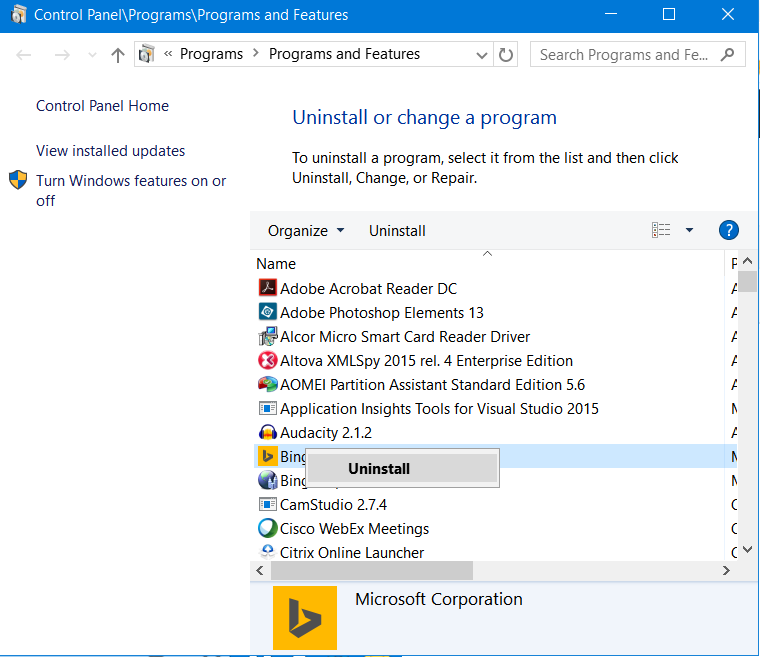
Per poi eventualmente disinstallarla, basta andare dal Pannello di controllo nella gestione dei programmi e, come qualsiasi altro, premere con il tasto destro sopra l’icona Bing e selezionare Disinstalla.

translate7

Ulteriori informazioni sul Bing Bar Translator possono essere trovate alle seguenti pagine (in inglese!):

_____________
Inoltre nella maggior parte delle piattaforme per creare blog, e in particolare anche in WordPress, viene consentito al blogger d’inserire in ciascun post la possibilità di selezionare una differente lingua in cui il navigatore può desiderare vedere tradotta quella pagina
: WordPress utilizza in realtà una funzionalità di traduzione online, la stessa usata anche da qualche browser (i.e. viene indicato infatti che la traduzione è powered by Google Translate), ma questo metodo può comunque risultare più agevole per un navigatore.
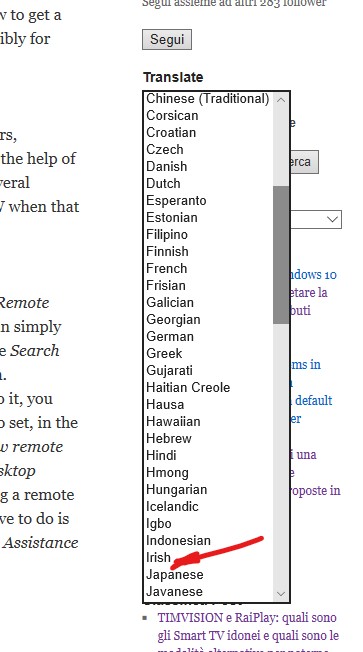
Sfortunatamente, avendo il blogger indicato una lingua specifica del suo blog, se scrive un post in una differente lingua, tra le scelte possibili non compare di default la scelta dell’italiano tra le possibili traduzioni!! Secondo me questa è una impostazione assurda che non tiene conto che un blog generalmente può contenere anche post in lingue differenti da quella di default (e.g. in inglese, risultando il post così rivolto a più persone a livello mondiale). Una agevole soluzione al problema consiste nel richiedere prima di tradurre ad esempio il post in inglese in una qualsiasi altra lingua (non l’italiano in quanto non disponibile nell’elenco, ma anche in inglese stesso!!) e successivamente in italiano: infatti dopo la prima traduzione, magari nella stessa lingua in cui il post è stato scritto, inspiegabilmente compare anche la possibilità di traduzione nella lingua di default del blog (e.g. italiano).

Poiché la lingua di default del blog è l’italiano, non compare nell’elenco questa lingua anche qualora quello specifico post sia scritto in una lingua differente!!
Devi richiedere di tradurre il post in qualsiasi lingua, anche la medesima del pot (e.g. inglese) per vedere poi comparire tra le traduzioni possibili anche l’italiano!

NOTA: la indicazione d’Italiano nella lista può apparire sia in ordine alfabetico sia talvolta in cima alla lista.

Ora anche la traduzione in italiano risulta impostabile…

E questo è tutto!! 😉

________________________________________________________________

English version

Sometimes you need to understand a post (or whatever text of a site) written in a language that is not your native one: it will not be a perfect translation but it should be sufficient to understand its meaning. Personally, I had that need when it happened to find a site German or even Chinese site that could solve a problem I have!

I am Italian so most of my posts are written in my native language. However, you can use several ways to have them translated in your native language (e.g. English), using a browser embedded feature or even other ways! 🙂

Let’s say first of all that almost all browsers have integrated (or integrable) a translation feature from any language into any other language and in the following I will detail how to set up such functionality both in Edge and Chrome and also in the now old (but still often used) Internet Explorer.

However, if it is an occasional need, simply go to Google Translate Web – iTools, enter the URL of the page that one wants to have translated into the language you specify and press the Translate button: in case the URL inserted is, for example my post written in English https://enzocontini.blog/2019/09/17/how-to-share-current-position-among-family-members/ , that will be translated into Italian on “Google Translate” (i.e. https://translate.google.com/translate?hl=en&sl=auto&tl=it&u=https%3A%2F%2Fenzocontini.blog%2F2019%2F09%2F17%2Fhow-to-share-current-position-among-family-members%2F)

Both in Chrome and in the new Chromium-based Edge browser, there are similar sections of the setup menu that allow you to turn on translation functionality in viewing sites where one navigates with those browsers. (If of interest, you can also see the next post “Estensioni per Microsoft Edge: come veder tradotta una pagina di un sito nella propria lingua madre” in which you can see how in Edge this translation feature was originally made through a plug-in, although now surpassed with its chromium version)

On Edge you have to go to Settings -> Languages while on Chrome on Settings -> Advanced -> Language  section.
In both cases you can select the option “Allow you to translate pages into languages you do not know” and even for those listed as known, you can still set the possibility of having proposed a translation in your native language.
With these settings, every time you access a site in a language other than the mother language, there will be a special icon to the right of the URL that will allow you to view it translated into your native language.

On Edge:

On Chrome:

Internet Explorer requires to install the Bing Toolbar available from this link.

Finally, on any browser you could always use the qtranslate program, thanks to which you just select the text you want to translate and press Ctrl-q to have it translated.

____________

In addition, in most platforms to create blogs (and, in particular, in WordPress), the blogger can insert the possibility to select a different language to show current post translated in the browser itself: WordPress actually uses an online translation feature, the same one also used by some browsers (i.e. the translation is powered by Google Translate) and this method could still be easier than using a browser option.

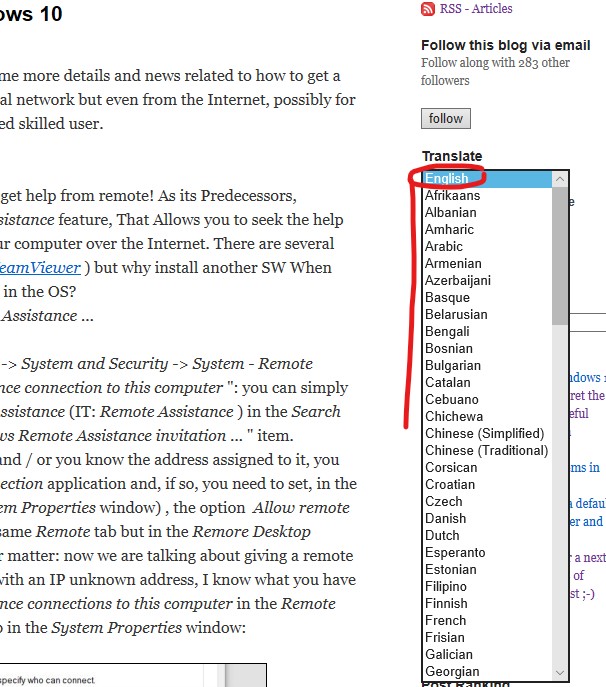
WordPress feature that allows a translation of current post in whatever other language
Pubblicato in Review e test, Tecnologia, Windows | 13 commenti

How to update the browser to Internet Explorer 11 … and make it works even in an old PC ;-)

Unfortunately very often I find some guy still using, on his company employee PC, a very old version of Internet Explorer (even the very old 8 version, that was released in 2009!! … and you know that every accessed site can easily detect the browser type/version used by the user and its capabilities/vulnerabilities), sometime complaining about it … and possibly saying that it is much better Chrome or Firefox that he usually uses.

We can argue about what are the more performing browser’s features of each of the available browsers, but surely you cannot compare the latest version of one with the old version of another, especially when it is of more that 5 years ago!! Moreover the new Windows 10 have the new Edge browser, companion of the still available Internet Explorer 11: the new browser is an UWP app, that is its binary can run not only on a PC but also on whatever Windows 10 device, so even on a mobile smartphone, an Xbox, a tablet 

… but I know that in some firm personal computers have still Windows 7  and that the updates are automatically handled from remote … but at least the browser can be updated to IE 11 going in the official SW catalog page where you can find and download it for doing that update. You could also go to the Microsoft provided page to download it but it could be better to use your firm provided version.

However, some days ago a colleague that did that update had a problem: every time he used the browser search function, an alert popup appeared and a recovery function of that browser raised. The PC was old (let say at least a 5 years one) and possibly some drivers were not properly updated, but on a griffon PC the possibility to make any kind of update is made impossible!!! … even the needed ones :-/

Therefore I solved that problem changing an advanced setting of the new installed Internet Explore 11: in particular I set the following option related to  accelerated graphic in order not to use the GPU rendering …

IE
Therefore, if you run into the same problem, you can try to make the same change I did going in the Internet Options page 😉


======================

Questo post si aggiunge ad altri che sono specificatamente indirizzati a colleghi di TILAB e talvolta anche a tutta TIM in generale. 🙂

PS: puoi trovare gli altri post filtrando, nella combobox a desta, sulla categoria “Aziendali”. Alcuni sono protetti da password per cui se ti interessano puoi contattarmi tramite l’email aziendale o telefonicamente.

Pubblicato in Aziendali | 2 commenti

What to do if your Outlook hangs at processing screen when launched

After the last Windows 10 preview update as insider, I fallen into a problem: my Outlook 2016, when launched, froze into the initial process screen … no way to make it work even after a PC reboot or whatever! It looks like outlook data file get corrupted.

Outlook 2016 hangs at the starting screen, continuing processing ...

Outlook 2016 hangs at the starting screen, continuing Processing …

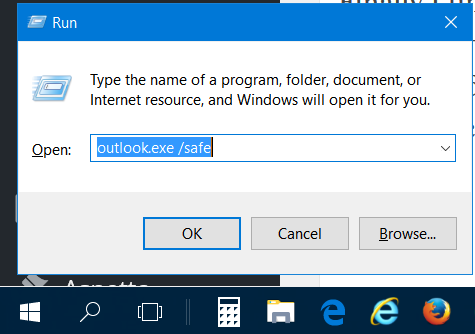
Finally I find the following “simple” solution that let Outlook start properly again as usual without fiddling around with profiles, that is manually running outlook in safe mode. To do so, you must open the Run windows (right click on start windows icon and select Run) and then execute outlook.exe /safe (remenber to let a space before the /safe option). When prompted to ‘Choose a Profile’, click OK choosing the default one and then Outlook will open and it appears to repair by its own and your account will be accessed again.  Even after a restart it worked normally showing that the problem was fixed 😉

outlook5 outlook4

You could try also to manually browse the location of Data File (e.g. C:\Users\yourname\AppData\Local\Microsoft\Outlook and rename the outlook data file: no need to delete the profile because only data file needs to be recreated. After that you can restart Outlook 2016 and , it should set up the profile automatically again.

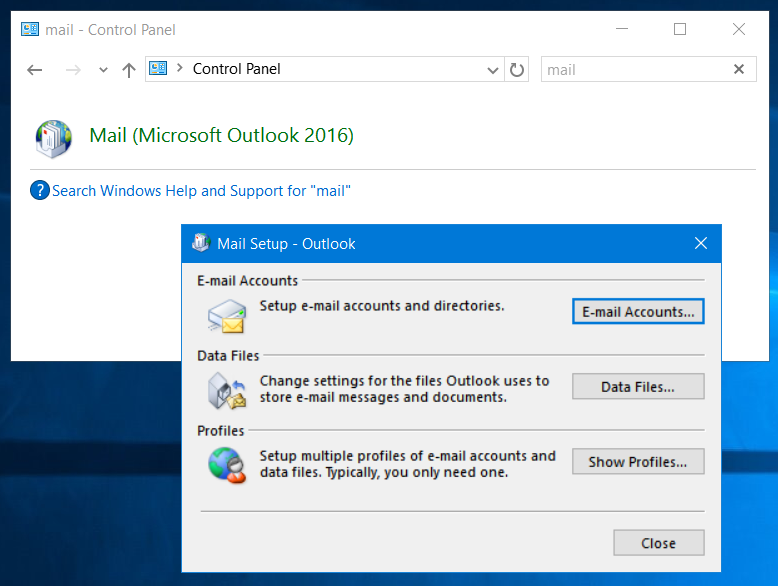
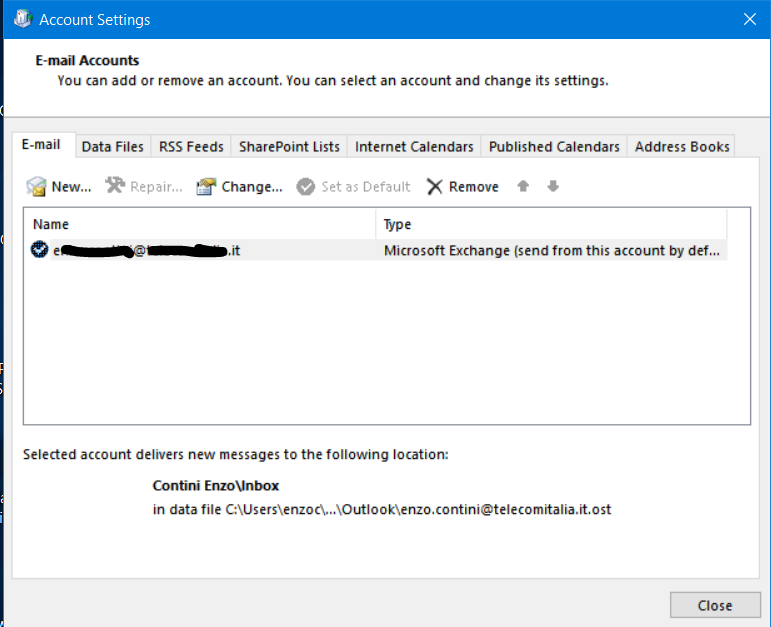
You can eve have a look to your emails accounts settings going into the proper section in the Control Panel:

outlook2 outlook3

… anyway the first solution I suggested is the simpler one.

Pubblicato in Windows | Lascia un commento

Microsoft Bot Framework: what you need to build and connect intelligent bots that interact naturally wherever your users are talking

The Microsoft Bot Framework is now in preview and it seems very interesting: it is what you need to build and connect intelligent bots that interact naturally wherever your users are talking, from text/sms to Skype, Slack, Office 365 mail, Facebook Messenger and other popular services. It enables organizations to build intelligent agents, known as Bots, that can interact with a requesting user. The primary interface for these experiences is email, text or voice. Conversation-driven UI can help to handle a conversation for grabbing a taxi, paying the electric bill, sending money to a friend, choose the sandwich you want or whatever.

BotFramework

If you want to know more about it you can follows the following links:

Programmatically you can also send a message to a user, knowing his  conversation id and to send “not explicitly requested” messages you must go through the Bot Connector: http://docs.botframework.com/connector/replying; http://docs.botframework.com/connector/new-conversations/#navtitle


Pubblicato in Smartphone OS, Windows | Lascia un commento

How to copy in a new Windows 10 mobile device the same configuration/files you have in your “old” smartphone

Moving to a new Windows smartphone maintaining the same settings/configurations/files you have in your “old” phone, is now very easy and only few steps are needed even though your old phone is not a Windows smartphone (only a Bluetooth connection capability is required):

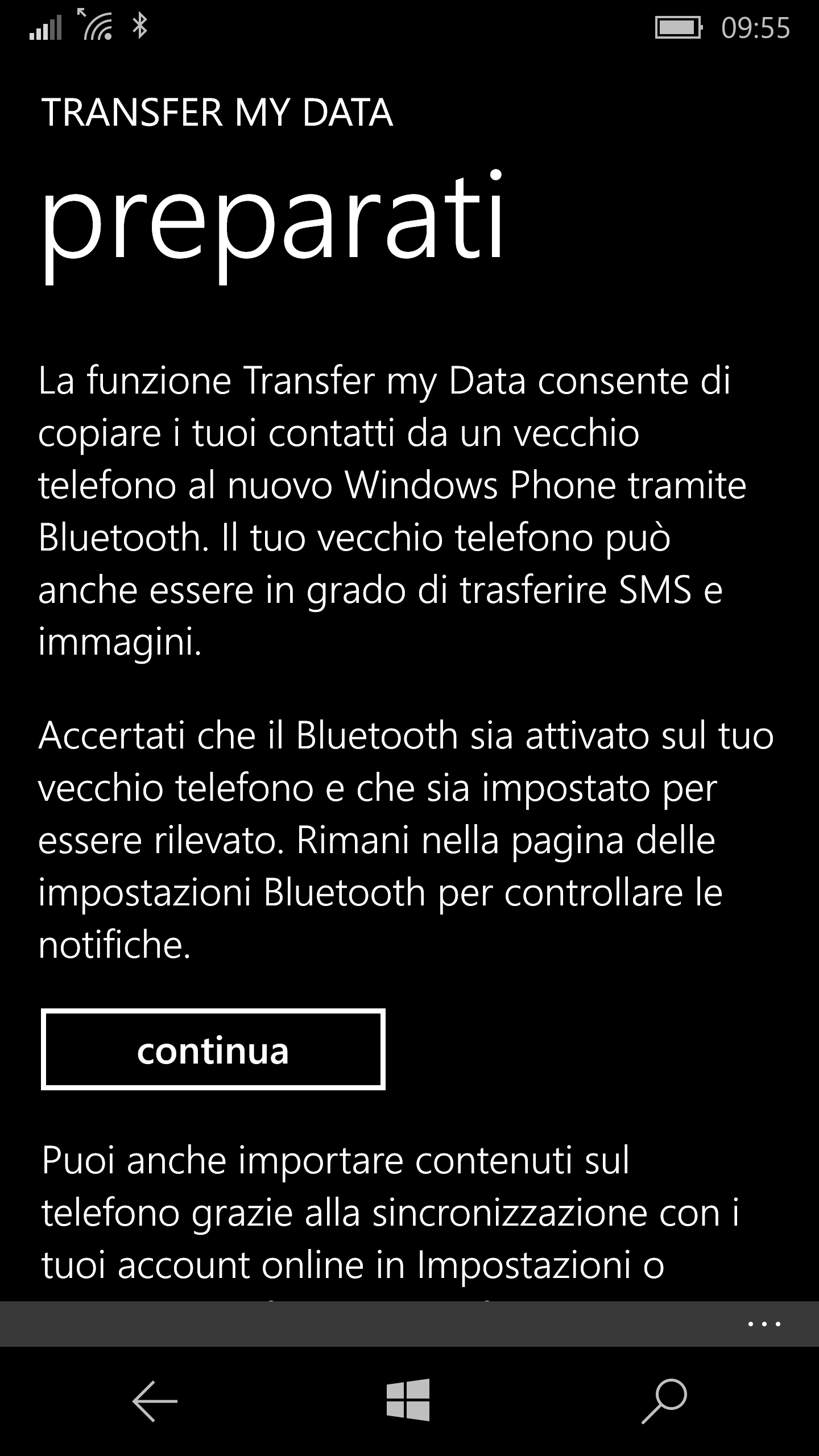
  1. Use the Transfer my data app that allows to copy your contacts from an old phone (even an Android or iOS one) to your new Windows 10 mobile / Windows Phone via bluetooth. Your old phone may also be capable of transferring text messages and pictures.

    Transfer my data via bluetooth

    Transfer my data via Bluetooth

  2. If your “old” phone was already a Windows one, force its Backup (Windows Phone 8: Settings -> System -> BackupApp list + settingsBackup now button ; Windows 10 Mobile: Settings -> Update & securityBackupOther optionsBackup now button) in order to have updated the backup you have in the cloud. Obviously you should have already left checked all the default backup options related to the Start screen layout , accounts and others. You may want also to backup the SMS going to Settings -> System -> MessagesBackup SMS). See also Backup my stuff. During the setup of the new Windows 10 mobile smartphone you will be requested if you want to recover one of the backups your user have on the cloud: if you choose the last one just done, the same configuration (even the same Start page setting) will be recovered and you will only need to possibly re-enter some passwords for some email  accounts (at least the ones that requires a 3rd party authorization like Gmail).
  3. Possibly use the Windows Device Recovery Tool (download) to update both the S.O. and the firmware at the latest release and possibly to fix software problems on your phone (be careful that this tool may reset your phone): it works on Lumia, LG, HTC One, and HTC 8X phones running Windows Phone 8 or later versions. For non-Lumia Nokia phones, use the Nokia Software Recovery Tool instead.


Pubblicato in Smartphone OS | Lascia un commento

Template10: how to install the available snippets in Visual Studio 2015

Snippets are very useful to speed up the code writing. Template10 have defined a lot of them specific for writing code using that template. In the following there are the simple steps you have to do to install them in your Visual Studio.

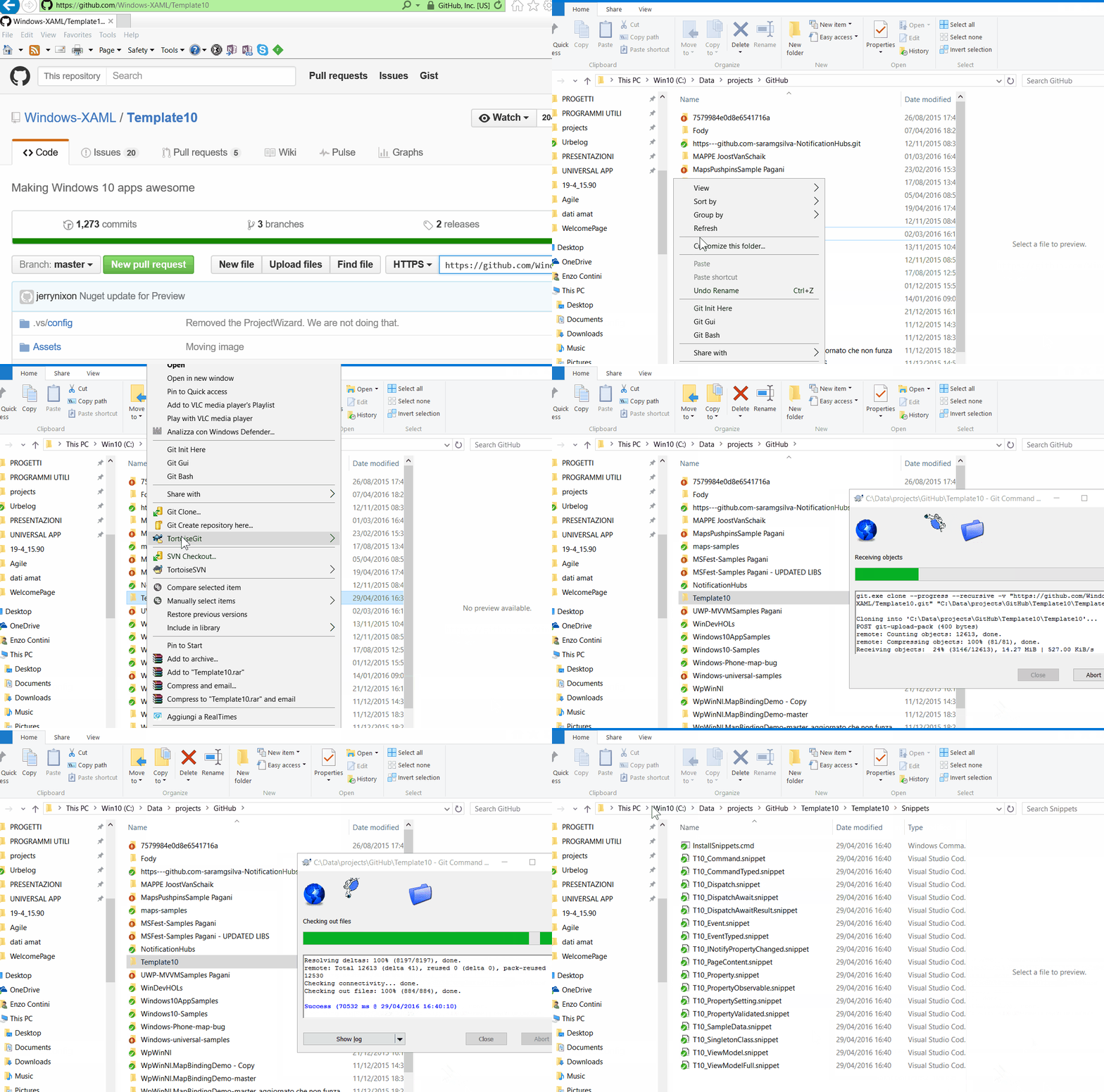
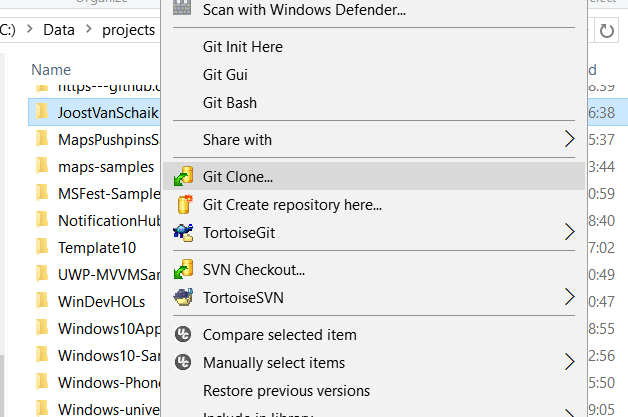
  1. Download Template10 code from the GitHub repository of the Template10 project. I suggest you to use TortoiseGit client (that can be easily be used also if you have to possibly synchronize branches, even though this is not our case now, because we are going to clone the trunk).

    Clone the Template10 solution

    Clone Template10 solution

  2. Import the snippets available in the Snippets directory of the Template10 solution using the Tools -> Code Snippet Manager. For your convenience, you can first create a specific T10 Snippets folders in both C:\Users\YourName\Documents\Visual Studio 2015\Code Snippets\Visual C#\My Code Snippets\T10 Snippets and C:\Users\YourName\Documents\Visual Studio 2015\Code Snippets\XAML\My XAML Snippets so you can import the snippets, the C# and XAML ones, in that specific directories. All the T10 snippets start with T10, so you can conveniently type that string to let them all be listed: then you can select the desired one and, as usually for snippets, press tab button to make the code be inserted and then possibly be modified.

    Import T10 snippets into Visual Studio 2015

    Import T10 snippets into Visual Studio 2015


If you want to create your own snippets you can have a look to Code Snippets and Adding Snippets to Visual Studio Code.

Pubblicato in Smartphone OS, Windows | Lascia un commento

C# Concepts: Asynchronous Programming with Async and Await, Casting, … and more

In this ongoing post, I will add more and more tips and useful links to better understand some topics related to C#

  • Value Types vs Reference Types
  • Casting: “as ClassName” vs (ClassName)
  • Enum
  • Asynchronous Programming with Async and Await
  • Navigation in an XML to get the attribute value of a node
  • Lambda expressions/statement
  • Visual Studio snippets
  • Size of both references and data types


===================================================

Value Types vs Reference Types

Both primitive types (such as int, float, bool and char) and Structs are value types, while classes are reference types.

When a value-type instance is created, a single space in memory is allocated to store the value. When the runtime deals with a value type, it’s dealing directly with its underlying data and this can be very efficient, particularly with primitive types.

With reference types, on the contrary, an object is created in memory, and then handled through a separate reference—rather like a pointer.

This is of particular interest when passing parameters to methods. In C#, parameters are (by default) passed by value, meaning that they are implicitly copied when passed to the method. For value-type parameters, this means physically copying the instance, while for reference-types it means copying a reference.

See this link for examples and more details.


===================================================

Casting: “as ClassName” vs (ClassName)

With the “classic” method, if the cast fails, an exception is thrown. With the as method, it results in null, which can be checked for, and avoid an exception being thrown.

Because the as method can only be used for types that can be assigned a null value, usually, you can only use “as” with reference types while, if you are typecasting to a value type, you must still use only the “classic” method, unless it is a nullable value type: infact when .NET 2.0 came out, it introduced the concept of a nullable value type and since these types can be assigned a null value, they are valid to use with the as operator.

SomeClass someObject = (ClassName) obj; //it throws a class cast exception if obj isn't that ClassName

one can use this syntax:

ClassName someObject = obj as ClassName; //it returns null if obj isn't that ClassName


===================================================

Enum

Enums are strongly typed constants. They are essentially unique types that allow you to assign symbolic names to integral values. In the C# tradition, they are strongly typed, meaning that an enum of one type may not be implicitly assigned to an enum of another type even though the underlying value of their members are the same. Along the same lines, integral types and enums are not implicitly interchangable. All assignments between different enum types and integral types require an explicit cast.

You can find a good tutorial here.

public enum TipoTimbratura {Uscita = 0, Entrata = 1}

//poi nella classe che la usa:
TipoTimbratura tipo = TipoTimbratura.Entrata;

String tipoString = tipo.ToString(); //assegna la stringa "Entrata"

if (tipo ==TipoTimbratura.Entrata){...}

//per creare l'enum a partire da una stringa che ne è il valore:
TipoTimbratura tipo = (TipoTimbratura)Enum.Parse(typeof(TipoTimbratura), Uscita");

//per creare l'enum a partire dall'int
TipoTimbratura tipo = (TipoTimbratura)tipoInt;

//per avere la stringa a partire da un enum:
Enum.GetName(typeof(TipoTimbratura), tipo);//restituisce la stringa "Uscita"

//se si vuole ciclare su tutti i valori numerici:
foreach (byte val in Enum.GetValues(typeof(TipoTimbratura))) {...}

//se si vuole ciclare su tutti i valori stringa:
foreach (string tipo in Enum.GetNames(typeof(TipoTimbratura))) {...}

//inoltre per prendere il valore numerico sapendo la stringa:
int value = (int)TipoTimbratura.Uscita; //restituisce l'intero 0
int tipoInt = Int32.Parse("Entrata"); //restituisce l'intero 1
enum Direction {
	North,
	East,
	South,
	West
}

foreach (string direction in Enum.GetNames(typeof(Direction))) {
	Console.WriteLine("Direction Member: {0}\n Value: {1}",
	direction, (int)Enum.Parse(typeof(Direction), direction));
}
value = Convert.ToInt64(WrState.Dispatched)


===================================================

Asynchronous Programming with Async and Await

One of the more powerful (and not so easy to be understood) approach for the async programming in C# (.NET Framework  and the Windows Runtime) is the use of the async and await keywords.

This article (C#) from the MSDN site can be very useful to a first understanding what happens in an async method.

async (C# Reference) / await (C# Reference)

Video:

Six Essential Tips For Async – Introduction

  1. Async void is for top-level event-handlers only, and event-like things. Don’t use it elsewhere in your code.
  2. It’s crucial to distinguish CPU-bound work (should be done on threadpool) from IO-bound work (which needn’t).
  3. Async library methods should have chunky async APIs not chatty. But if chatty is unavoidable, know about these micro-optimizations to reduce heap allocation overheads.
  4. Async library methods should consider task.ConfigureAwait(false) to reduce their impact on the UI message queue.

Tip 3: Wrap events up in Task-returning APIs and await them

Async Programming Improvements for C++ and UWP

===================================================

Example: resolve all GeoCoordinates that are missing in a list of objects that contains also the address of the location and return the list with all the GeoCoodinates possibly valorized

 private async Task SetExchangeStopGeoCoordinate() {
            int found = 0;
            try {
                ExchangeStopList exchangeStopList = ((MissionDataSource)DataContext).Mission.ExchangeStops;
                List&lt;Task&gt; tasks = new List&lt;Task&gt;();
                int i = 0;
                foreach(var exchangeStop in exchangeStopList) {
                    if(exchangeStop.GeoLocation.GeoCoordinate == null) {
                        //GeoCoordinates are not valorized so they should be deduced from the address field
                        try {
                            Task task = exchangeStop.GeoLocation.ResolveCoordinates(((MissionDataSource)DataContext).MyGeoCoordinate);
                            tasks.Add(task);
                        } catch(Exception ex) {
                            MessageBox.Show(LocalizedStrings.GetString(ex.Message), LocalizedStrings.GetString("ExceptionCaption"), MessageBoxButton.OK);
                        }
                    }
                    if(exchangeStop.Description == null) {
                        exchangeStop.Description = i++.ToString(CultureInfo.InvariantCulture);
                    }
                }
                if(tasks.Count &gt; 0) {
                    App.RunProgressBar(this, true, String.Format(LocalizedStrings.GetString("ResolveCoordinates"), tasks.Count));
                    await Task.WhenAll(tasks);
                    foreach(var task in tasks) {
                        bool resultFound = await task;//exchangeStopList[i].GeoLocation.GeoCoordinate = await task;
                        if(resultFound) {
                            found++;
                        }
                    }
                }
                App.RunProgressBar(this, false); //coordinate risolte
            } catch(UnauthorizedAccessException) {
                MessageBox.Show(LocalizedStrings.GetString("LocationDisabled"));
            } catch(Exception ex) {
                // Something else happened while acquiring the location.
                MessageBox.Show(ex.Message);
            }
            return found;
        }
 public  async Task ResolveCoordinates(GeoCoordinate myGeoCoordinate ) {
            StringBuilder sbSearchTerm = new StringBuilder();
            sbSearchTerm.Append(((this.Street != null) ? (this.Street) : ""))
              .Append(((this.Number != null) ? (" " + this.Number) : ""))
              .Append(((this.City != null) ? ("," + this.City) : ""))
              .Append(((this.Zip != null) ? ("," + this.Zip) : ""))
              .Append(((this.Country != null) ? ("," + this.Country) : ""));
            string searchTerm = sbSearchTerm.ToString();
            var geocodeQuery = new GeocodeQuery {
                SearchTerm = searchTerm,//"Ferry Building, San-Francisco"//"46 Anglesea St, Auckland"
                GeoCoordinate = myGeoCoordinate == null ? new GeoCoordinate(0, 0) : myGeoCoordinate //GeoCoordinate = _myGeoCoordinate == null ? new GeoCoordinate(0, 0) : _myGeoCoordinate
            };
            int retry = 2;
            IList mapLocations = null;
            while(retry &gt; 0 &amp;&amp; (mapLocations == null || mapLocations.Count == 0)) {
                try {
                    mapLocations = await geocodeQuery.ExecuteAsync(); //var locations = await geocodeQuery.ExecuteAsync();
                } catch(Exception ex) {
                    MessageBox.Show("Exception: " + ex.Message);
                }
                retry--;
            }

            if(mapLocations != null &amp;&amp; mapLocations.Count &gt; 0) {
                if(mapLocations.Count == 1) {
                    this.GeoCoordinate = mapLocations.First().GeoCoordinate;
                    if(this.GeoCoordinate == null) {
                        //anche se è strato trovato, le GeoCoordinate non sono fornite
                        return false;
                    }
                    return true;
                } else {
                    //sono state trovate più corrispondenze: chiedere all'utente quale scegliere (per default la prima)

                    //http://stackoverflow.com/questions/12858501/is-it-possible-to-await-an-event-instead-of-another-async-method
                    TaskCompletionSource continueClicked = null;
                    DataTemplate dataTemplate = CreateDataTemplate();
                    List locationList = new List();
                    for(int i = 0; i  {
                        if(streetListPicker.ListPickerMode == ListPickerMode.Expanded) {
                            e1.Cancel = true;
                        } else if(streetListPicker.ListPickerMode == ListPickerMode.Full) {
                            e1.Cancel = true;
                            messageBox.Visibility = Visibility.Collapsed;
                            //????? TODO non funziona https://phone.codeplex.com/workitem/11357
                            streetListPicker.IsEnabled = true;
                            streetListPicker.Visibility = Visibility.Visible;
                            streetListPicker.Focus();
                            streetListPicker.UpdateLayout();
                        }
                    };
                    messageBox.Dismissed += (s2, e2) =&gt; {
                        switch(e2.Result) {
                            case CustomMessageBoxResult.LeftButton: {
                                    // save the choosen MapLocation
                                    int selectedIndex = streetListPicker.SelectedIndex;
                                    this.GeoCoordinate =
                                        mapLocations.ElementAt(selectedIndex).GeoCoordinate;
                                    if(this.GeoCoordinate == null) {
                                        //anche se è stato trovato, le GeoCOordinate non sono fornite
                                        if(continueClicked != null)
                                            continueClicked.TrySetResult(false);
                                    } else {
                                        if(continueClicked != null)
                                            continueClicked.TrySetResult(true);
                                    }

                                    break;
                                }
                            case CustomMessageBoxResult.RightButton:
                            case CustomMessageBoxResult.None: {
                                    // scelgo di default il primo (dovrebbe essere il più probabile, vicino alla mia posizione
                                this.GeoCoordinate = mapLocations.First().GeoCoordinate;
                                if(this.GeoCoordinate == null) {
                                        //anche se è strato trovato, le GeoCoordinate non sono fornite
                                        if(continueClicked != null) {
                                            continueClicked.TrySetResult(false);
                                        }
                                    }
                                    if(continueClicked != null) {
                                        continueClicked.TrySetResult(true);
                                    }
                                    break;
                                }
                            default:
                                break;
                        }
                    };
                    streetListPicker.SelectionChanged += (s3, e3) =&gt; {
                        if((streetListPicker.ListPickerMode == ListPickerMode.Full)) {
                            messageBox.Visibility = Visibility.Visible;
                        }
                    };
                    messageBox.Show();
                    continueClicked = new TaskCompletionSource();
                    bool b = await continueClicked.Task;
                    return b;
                }
            } else {
                return false;
            }
        }


===================================================

Navigation in an XML to get the attribute value of a node:

Solution 1: using XElement from System.Xml.Linq namespace

XElement sheet = XElement.Parse(MyXml);
var temp = sheet.Descendants(sheet.Name.Namespace + "<searched node>");
XElement x = temp.FirstOrDefault();

where x is a node element and then , through methods and properties, all the attributes can be accessed.

==================================

Solution 2: using XmlDocument

XmlDocument xdoc = new XmlDocument();
xdoc.LoadXml(xmlString);
var nodo = xdoc.GetElementsByTagName("myNodeName");
for (int i = 0; i &lt; nodo.Count; i++) {
  var myChild= nodo.Item(i);
  for (int j = 0; j &lt; myChild.ChildNodes.Count; j++) {
    var attributo = myChild["myAttributeName"];
  }
}


===================================================

Lambda expressions: [see Lambda Expressions (C# Programming Guide)]

A lambda expression is an anonymous function and it is mostly used to create delegates in LINQ. Simply put, it’s a method without a declaration, i.e., access modifier, return value declaration, and name.

Lambda basic definition: Parameters (if any) => Executed code

E.g.

(x, y) => x == y

Sometimes it is difficult or impossible for the compiler to infer the input types. When this occurs, you can specify the types explicitly as shown in the following example:

(int x, string s) => s.Length > x

Specify zero input parameters with empty parentheses:

() => SomeMethod()

Advantages:

  1. Reduced typing. No need to specify the name of the function, its return type, and its access modifier.
  2. When reading the code, you don’t need to look elsewhere for the method’s definition.
  3. Run time advantages.
  4. Allows to create  delegates or expression tree types

Statement Lambdas

(input-parameters) => { statement; }+

The body of a statement lambda can consist of any number of statements; however, in practice there are typically no more than two or three.

Async Lambdas

Lambda expressions and statements can incorporate asynchronous processing by using the async and await keywords.

public partial class Form1 : Form
{
    public Form1()
    {
        InitializeComponent();
        button1.Click += async (sender, e) =>
        {
            // ExampleMethodAsync returns a Task.
            await ExampleMethodAsync();
            textBox1.Text += "\nControl returned to Click event handler.\n";
        };
    }  

    async Task ExampleMethodAsync()
    {
        // The following line simulates a task-returning asynchronous process.
        await Task.Delay(1000);
    }
}

instead of

public partial class Form1 : Form
{
    public Form1()
    {
        InitializeComponent();
    }  

    private async void button1_Click(object sender, EventArgs e)
    {
        // ExampleMethodAsync returns a Task.
        await ExampleMethodAsync();
        textBox1.Text += "\r\nControl returned to Click event handler.\n";
    }  

    async Task ExampleMethodAsync()
    {
        // The following line simulates a task-returning asynchronous process.
        await Task.Delay(1000);
    }
} 

===================================================

Visual Studio snippet

By default the following code snippets are included in Visual Studio: after  writing shortcut, press twice tab hardware button.

Name (or shortcut) Description Valid locations to insert snippet
#if Creates a #if directive and a #endif directive. Anywhere.
#region Creates a #region directive and a #endregion directive. Anywhere.
~ Creates a destructor for the containing class. Inside a class.
attribute Creates a declaration for a class that derives from Attribute. Inside a namespace (including the global namespace), a class, or a struct.
checked Creates a checked block. Inside a method, an indexer, a property accessor, or an event accessor.
class Creates a class declaration. Inside a namespace (including the global namespace), a class, or a struct.
ctor Creates a constructor for the containing class. Inside a class.
cw Creates a call to WriteLine. Inside a method, an indexer, a property accessor, or an event accessor.
do Creates a dowhile loop. Inside a method, an indexer, a property accessor, or an event accessor.
else Creates an else block. Inside a method, an indexer, a property accessor, or an event accessor.
enum Creates an enum declaration. Inside a namespace (including the global namespace), a class, or a struct.
equals Creates a method declaration that overrides the Equals method defined in the Object class. Inside a class or a struct.
exception Creates a declaration for a class that derives from an exception (Exception by default). Inside a namespace (including the global namespace), a class, or a struct.
for Creates a for loop. Inside a method, an indexer, a property accessor, or an event accessor.
foreach Creates a foreach loop. Inside a method, an indexer, a property accessor, or an event accessor.
forr Creates a for loop that decrements the loop variable after each iteration. Inside a method, an indexer, a property accessor, or an event accessor.
if Creates an if block. Inside a method, an indexer, a property accessor, or an event accessor.
indexer Creates an indexer declaration. Inside a class or a struct.
interface Creates an interface declaration. Inside a namespace (including the global namespace), a class, or a struct.
invoke Creates a block that safely invokes an event. Inside a method, an indexer, a property accessor, or an event accessor.
iterator Creates an iterator. Inside a class or a struct.
iterindex Creates a “named” iterator and indexer pair by using a nested class. Inside a class or a struct.
lock Creates a lock block. Inside a method, an indexer, a property accessor, or an event accessor.
mbox Creates a call to MessageBox.Show. You may have to add a reference to System.Windows.Forms.dll. Inside a method, an indexer, a property accessor, or an event accessor.
namespace Creates a namespace declaration. Inside a namespace (including the global namespace).
prop Creates an auto-implemented property declaration. Inside a class or a struct.
propfull Creates a property declaration with get and set accessors. Inside a class or a struct.
propg Creates a read-only auto-implemented property with a private “set” accessor. Inside a class or a struct.
sim Creates a staticint Main method declaration. Inside a class or a struct.
struct Creates a struct declaration. Inside a namespace (including the global namespace), a class, or a struct.
svm Creates a staticvoid Main method declaration. Inside a class or a struct.
switch Creates a switch block. Inside a method, an indexer, a property accessor, or an event accessor.
try Creates a try-catch block. Inside a method, an indexer, a property accessor, or an event accessor.
tryf Creates a try-finally block. Inside a method, an indexer, a property accessor, or an event accessor.
unchecked Creates an unchecked block. Inside a method, an indexer, a property accessor, or an event accessor.
unsafe Creates an unsafe block. Inside a method, an indexer, a property accessor, or an event accessor.
using Creates a using directive. Inside a namespace (including the global namespace).
while Creates a while loop. Inside a method, an indexer, a property accessor, or an event accessor.

===================================================

Size of both references and data types

The reference types (object references and pointers) are the size of a memory address, which would be 32 bits (4 bytes) on a 32-bit platform, and 64-bits (8 bytes) on a 64-bit platform.

All the other data types are defined by the language, not the CPU or OS.  See the reference chart below.


Short Name .NET Class Type Width Range (bits)
byte Byte Unsigned integer 8 0 to 255
sbyte SByte Signed integer 8 -128 to 127
int Int32 Signed integer 32 -2,147,483,648 to 2,147,483,647
uint UInt32 Unsigned integer 32 0 to 4294967295
short Int16 Signed integer 16 -32,768 to 32,767
ushort UInt16 Unsigned integer 16 0 to 65535
long Int64 Signed integer 64 -9223372036854775808 to 9223372036854775807
ulong UInt64 Unsigned integer 64 0 to 18446744073709551615
float Single Single-precision floating point type 32 -3.402823e38 to 3.402823e38
double Double Double-precision floating point type 64 -1.79769313486232e308 to 1.79769313486232e308
char Char A single Unicode character 16 Unicode symbols used in text
bool Boolean Logical Boolean type 8 True or false
object Object Base type of all other types
string String A sequence of characters
decimal Decimal Precise fractional or integral type that can represent decimal numbers with 29 significant digits 128 ±1.0 × 10e−28 to ±7.9 × 10e28

See http://msdn.microsoft.com/en-us/library/ms228360.aspx


Pubblicato in Smartphone OS, Windows | Lascia un commento

What to do if the Wi-Fi doesn’t work (and even displayed) anymore in Windows 10 (insider preview)

It happened this morning that the Wi-Fi didn’t work anymore on my PC with the latest release of Windows 10 insider preview. The very strange think was that even in the Settings page, the Wi-Fi item was not listed anymore as the first item of the Network & Internet settings page, as you can see from the following screenshot:

No Wi-Fi item available

No Wi-Fi item available

Even going to Control Panel > Network and Internet -> Network Connections, a red X was shown for both Wi-Fi and Bluetooth!! I started to think it was an hardware problem, often being the same component the one that handle both the Wi-Fi and the Bluetooth connections … but , on the contrary, it was “only” a SW problem … 😉

Problems with Wi-Fi and Bluetooth connections

Problems with Wi-Fi and Bluetooth connections

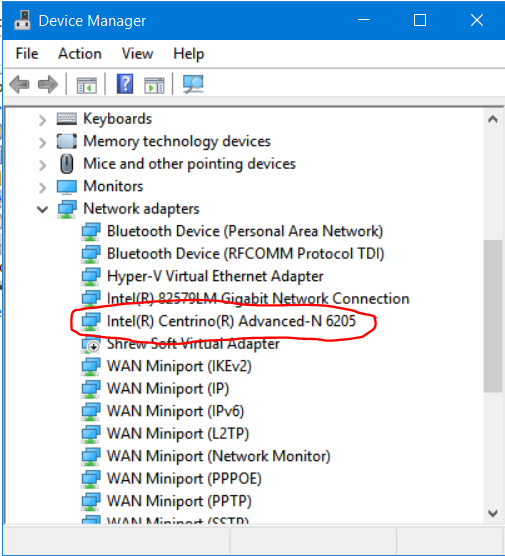
I tries to force the connection and disabling/re-enabling the Wi-Fi connection using the right click menu, as suggested in some video I found in youtube … but nothing. the solution in my case was to uninstall the network Wi-Fi drivers from the Device Manager and let Windows re-install them forcing to Scan for hardware changes (right click on the Network adapter item on that window).

Uninstall and re-install the Wi-Fi network card driver

Uninstall and re-install the Wi-Fi network card driver

The Wi-Fi item was again available and the connections too (even thought I had to insert again all the security keys /PINs).

Wi-Fi item available again

Wi-Fi item available again

Pubblicato in Windows | Lascia un commento

Vogliamo proprio contribuire personalmente a mantenere il monopolio di Google come motore di ricerca?

Un qualsiasi monopolio non fa bene al progresso, … e questo penso sia un dato di fatto.
Se date un’occhiata ai dati riportati in questo documento ufficiale, c’è da preoccuparsi, sia a livello mondiale sia anche solo in Italia: ” The top search engine used by Italians is Google, with a 96.96% market share. • The local search engine Arianna, enhanced by Google, had a reach of about 17% in 2005, but in 2010 that sank to only 0.15%. • Italy has around 6.3% of total Internet users in Europe.

Siete proprio sicuri che utilizzare il motore di ricerca di Google sia l’unico modo per ricercare in modo efficace su Internet? Non perso sia più così ed esistono ora diverse alternative altrettanto valide …
Io da più di un anno uso Bing (https://www.bing.com) e sinceramente non sento la nostalgia e la necessità di ritornare a usare il motore di ricerca di Google!! Sicuramente in più, ogni giorno mi allieta con una bellissima nuova immagine di sfondo … e posso rivedere anche quelle dei giorni precedenti agendo sull’apposito controllo in basso a destra.

BING: controllo per navigare nelle immagini dei giorni precedenti

BING: controllo per navigare nelle immagini dei giorni precedenti

Bing e poi è il motore di ricerca impostato di default in Edge, il nuovo browser UWP presente in tutti i dispositivi Windows 10 (mobile incluso): anche se ho spiegato in un post precedente come sia comunque possibile cambiare tale impostazione … non penso proprio ce ne sia la necessità!!   😉

Sebbene non sia ancora attivo in Italia, esiste poi anche un programma Bing Reward  che consente di accumulare punti utilizzando tale motore di ricerca … e ottenere quindi sconti e servizi: io ho già usufruito gratis di 1 Tera di spazio su OneDrive per un anno … iscrivendomi al programma USA in modo opportuno 😉

PROVATELO DUNQUE!!!

bing

Pubblicato in Giustizia, burocrazia e malcostume, Review e test, Smartphone OS, Windows | Lascia un commento

How how to add (for free) the Anti-Adware feature of Windows Defender (in all Windows 10 editions)

In the great WindowsBlogItalia blog some time ago was posted a tweak (Come attivare la funzionalità Anti-Adware di Windows Defender su Windows 10) that can be useful if you do not have a Windows 10 Enterprise: in fact only on that version the Anti-Adware feature is enabled by default that can be anyway used on all Windows 10 versions  (even the Windows 10 Home edition) using the following procedure  dove si legge:

An Anti-Adware feature allows to detect possibly not desired SW and it is a feature that should be of interest for many of us!! So, here there are the simple instructions:

  1. On the search box write regedit.
  2. Allow the User Account Control [IT: Controllo dell’account utente].
  3. Navigate into HKEY_LOCAL_MACHINE\Software\Policies\Microsoft\Windows Defender\MpEngine.
    Note: if the MpEngine is not available, click on the right mouse on the Windows Defender folder and select New -> Key [Nuovo > Chiave].
  4. Create a new DWORD 32-bit and call it MpEnablePlus.
    Note: also in 64-Bit systems you should create a DWORD 32-bit (not a QWORD 64-bit).
  5. Assign to it an hexadecimal value of to activate the detect of possible undesired.
  6. Save and close RegEdit.
  7. Restart the PC to make that function run: from now on all the downloaded applications that have some “strange” features will be blocked!

Set of the HKEY_LOCAL_MACHINE\Software\Policies\Microsoft\Windows Defender\MpEngine\MpEnablePlus key

Set of the HKEY_LOCAL_MACHINE\Software\Policies\Microsoft\Windows Defender\MpEngine\MpEnablePlus key


Pubblicato in Review e test, Tecnologia, Windows | Lascia un commento

Twin Card aziendale: qualche dettaglio in più rispetto alle istruzioni fornite

Esiste da anni nella intranet un documento specifico relativamente all’uso delle SIM aziendali che ne specifica le funzionalità ed i limiti di utilizzo, … anche se non viene evidenziato proprio tutto 😉
Il questo post riassumerò alcune delle informazioni essenziali presenti in quel documento, sostanzialmente quelle che può convenire avere sempre a disposizione, ed in più aggiungerò alcuni dettagli che non sono stati esplicitamente evidenziati ma che può servire esserne a conoscenza!

Nel documento si legge che la Twin Card è un servizio che permette di avere a disposizione una seconda SIM Card gemella (Carta Slave) di quella già in uso sul telefono aziendale (Carta Master) che potrà essere utilizzata contemporaneamente solo per il traffico dati ad esempio per connettersi ad Internet con il proprio tablet o PC.

Le due carte  sono associate al medesimo numero telefonico aziendale e vengono così descritte:

  • SIM Base, preimpostata come Master: può effettuare/inviare e ricevere chiamate/sms/traffico dati.
  • SIM Twin, preimpostata come Slave: può effettuare solo traffico dati e consente di connettere ad Internet un proprio PC, tablet o altro smartphone senza interferire con le funzionalità dello smartphone aziendale in cui generalmente è presente la carta Base (per default impostata come Master) da cui è quindi possibile continuare a ricevere ed effettuare chiamate/SMS.

Qualora la carta Master venga spenta, automaticamente quella Slave diventa Master, per cui a quella verranno indirizzate le chiamate entranti del proprio numero aziendale. Qualora anche la carta Slave risultasse o venga spenta, entra in azione la segreteria telefonica.

Risulta possibile trasformare la carta Master in Slave digitando sulla tastiera telefonica (del telefono in cui la Master è inserita) la stringa *133# (e dare invio): al termine dell’operazione, viene visualizzato un testo che informa sull’avvenuto cambiamento.  In tal modo quella che era la carta Slave diventa carta Master.

Dal momento che la carta Base (per default quella inizialmente configurata come Master) può essere trasformata in Slave, può essere utile digitare sulla tastiera telefonica la stringa *122# (e dare invio) per riconoscere lo stato di configurazione di ciascuna carta che verrà visualizzato in risposta come mostrato nel seguente screenshot.

Stato di configurazione della SIM presente nello smartphone: *122#

Stato di configurazione della SIM presente nello smartphone: *122#

Nel documento viene inoltre specificato che “La Card Slave è attiva per il solo traffico dati e dovrà essere utilizzata esclusivamente dal lavoratore assegnatario, essendo fatto al dipendente espresso divieto di cedere la Twin Card a terzi, anche in via temporanea, in quanto essa è destinata prioritariamente a rispondere ad esigenze aziendali“.

===========================

Due sono i dettagli non evidenziati nel documento, ma che si possono sperimentare agevolmente:

  1. Se la SIM impostata come Slave viene inserita in uno dispositivo in grado di effettuare chiamate su rete GSM (e.g. smartphone), oltre al traffico dati, si possono effettuare anche chiamate/SMS … addirittura verso il proprio numero telefonico, nel qual caso suonerà lo smartphone in cui è inserita la SIM impostata come Master. Ovviamente le chiamate entranti, come già evidenziato, vengono inoltrate SOLO allo smartphone con la SIM impostata come Master, … e questo spiega anche come mai, chiamando il proprio numero con la SIM Slave, non si riceva il segnale di occupato, bensì suoni il proprio smartphone con la SIM Master, qualora sia acceso!
  2. La possibilità di connettersi alla rete 4G/LTE è legata alla tipologia di SIM (quella Base) e non alla condizione di Master/Slave. Perciò, se si rende Master la SIM Twin, la connessione dati 4G/LTE rimarrà alla carta Base e la Twin (seppure ora Master) rimarrà limitata al 3G (almeno questo è quello che si può provare agevolmente con le SIM che ci sono state distribuite  – penso dipenda da impostazioni di rete relativamente alle singole SIM). Il cambio di impostazione Master/Slave può quindi risultare conveniente qualora si preveda di dover utilizzare per un traffico dati più intenso la carta Slave (da impostare in questo caso sulla la SIM Base, cioè l’unica in grado di connettersi in 4G/LTE)

==========================

NOTA: sostanzialmente l’uso della Twin Card mi sembra assai simile a quello presente nell’offerta commerciale TIM MultiSIM.

Puoi vedere anche l’articolo “Traffico dati condiviso su più SIM: chi lo offre e quanto costa” ed il forum SIM “duali” dei gestori mobili.


======================

Questo post si aggiunge ad altri che sono specificatamente indirizzati a colleghi di TILAB e talvolta anche a tutta TIM in generale, come quest’ultimo😉

PS: vedi anche altri post filtrando, nella combobox a desta, sulla categoria “Aziendali”.

Pubblicato in Aziendali, Review e test | Lascia un commento

How to locally download mp4 video and mp3 audio (from YouTube or other sites)

Some time ago I posted “How to locally download a streaming video with Edge browser (e.g. the Verdi’s grandest opera AIDA)” showing how can be downloaded an mp4 video, even a very long one, finding the video URL in the Developing Tools section available in the Edge browser.
However, very often we would like to download locally on our PC a video or an mp3 from YouTube, Vimeo or other sites that use specific ways to let more difficult to identify the direct URL of the media, in order to avoid people can easily download them and do not need to see them only through their site  (and see advertising, that is the main profit for them!). … but this let the download more difficult but not impossible! 😉
In fact, there are a lot of ways, for example the use of a specific browser plug-in (e.g. DownloadHelper Extension) or the installation of a specific program/app … even though you must be careful not to install also some spyware together!  BUT there are also simpler ways that do not need to install anything more, as using the two following methods I describe in the following.

You can see also PC magazine suggestions on this topic!

___________

INDEX

______________________

ByClick

After a while of installs / uninstalls of programs, I finally came to a program that met my expectations, having no limitation on the number of files in the playlist and with a more than acceptable cost if one wants to download the Full HD version of the videos: the program is ByClick and below I briefly describe the very intuitive interface. Probably it is not the only program available on the Internet that provides these features for free: having in fact achieved my goal, I have not continued in my research.

It also allows downloading a playlist (see my post: Come scaricare gratuitamente da YouTube, sul proprio PC, tutti i video/audio presenti in una playlist) and this is very useful in several cases!

If ByClick is running, if you go to a YouTube video, a popup windows will appear asking if you want to download that video (MP4) or only its audio (MP3): any way you can always copy the video URL (right click and select Copy URL video [IT: Copia URL video]) and past it in the proper field (2) in ByClick and then press the Download [IT: Scarica] button:

_________________________

Use of the free VLC Media Player desktop application and a browser (e.g. Edge).

___

P.S. (27/10/2018)
Unfortunately, this method seems to not work anymore for downloading from YouTube because it introduced some kind of protection in order to avoid this, but it works in other cases!
So please for YouTube video try the other method I will describe that still works. 😉

VLC
This method seems to not work anymore for downloading from YouTube

If the right click menu has the Save as... option disabled, it means that that video can be seen on the browser, but it cannot be downloaded as a file. In that case you have to use ffmpeg program: see my post Come scaricare un video in streaming con il programma opensource ffmpeg.

_____

You probably have already installed this popular and useful player, so you can use it also to identify the URL that will allow you to access the actual video file on YouTube’s servers – the one YouTube tries to hide – allowing you to download it to your computer. Note that VLC by default downloads the video in the highest possible quality. So, you can follow the steps below and possibly see the step-by-step video, clicking on the following figure:

a) Copy the complete address of the YouTube video you want to download (e.g. https://www.youtube.com/watch?v=CTofEF-_Cnk);

b) Launch VLC Media Player and, from the menu Media, select “Open Network Stream” (IT: “Apri periferica di acquisizione“) and then, go to the “Network” tab (IT: “Rete“), insert into the input fields the previously copied video URL. Finally, press “Play” (IT: “Riproduci“);

c) While the video is playing, from the menu “Tools” (“IT: “Strumenti“) select “Codec Information” (IT: “Informazioni codificatore“) and at the bottom of the popup page you can find, in the “Location” field (IT: “Posizione“), the searched URL.

d) Copy that URL (e.g. right-click -> Select all) and then paste it into a new browser tab: this will load the video directly in your browser;

e) Right-click on the played video and select “Save video as” to save locally the file.

If the right click menu has the Save as... option disabled, it means that that video can be seen on the browser, but it cannot be downloaded as a file. In that case you have to use ffmpeg program: see my post Come scaricare un video in streaming con il programma opensource ffmpeg.

______________________________

4K Video Downloader

A further option is to install on your PC a proper application.
One of the best is 4K Video Downloader which has a free version that allows downloading even at high resolution till 30 videos per day … that is enough in many cases!

It also allows extracting only audio tracks from a video.

Current prices for 4K Video Downloader

_______________________________

Use of the yout.com site (free only for low-quality audio [128kb/s] or video [720p HD]).
NO MORE AVAILABLE

Another even easiest way (that it also allows deciding if downloading the video or only the mp3 audio) is to use the free online service offered by the yout.com site: you only have to paste the YouTube video URL into the input field available on the homepage of that site to see that video and press the Record MP4 button to start the download (or the Record MP3 button, if you only want the audio). Before copying the URL, be careful to select, on the YouTube page, the video/audio quality you want, possibly the highest one, in order to get the URL specific for that quality type file.

Download video/mp3 with the help of Yout

=========

Be careful, that in the case of a YouTube play list, the URL to be copied is not the one of the lists but of every single video, so you need to right-click on each video displayed on the right list:

How to get single video URL in a play list
How to get a single video URL in a playlist

____________________________________

Use of the notube.net site

Another online downloader that can be used is notube.net.

As usual, to get a YouTube video URL, right-click on the video and select Copy video URL from the popup menu.

When you insert the URL of a YouTube video in the input field, select from the selection box the best available resolution for video (MP4 HD) or for audio (MP3 HD).

Then, after pressing the OK button, be careful to close every new tab page that automatically will be opened with some advertisement: the real page that allows you to download the video/audio is the one on the original tab!! On that page, after a download line, you have to click on the green download [IT: Scaricare] button to have the file downloaded locally on your PC (by default, in the PC download folder). Make sure you do not accept any file download from the alert popup windows the browser may ask you: only the mp3 file have to be downloaded… no others!!

As usual, to get a YouTube video URL, right-click on the video and select Copy video URL from the popup menu
notube.net: insert the URL of a YouTube video and select the best resolution for video (MP4 HD) or for audio (MP3 HD)
Then, after pressing the OK button, be careful to close the new tab page that automatically will be opened with some advertisements: the real page that allows you to download the video/audio is the previous one!!
After a download line, you have to click on the green download [IT: Scaricare] button to have the file downloaded locally on your PC (by default, in the PC download folder).
DO NOT DOWNLOAD possible other files popup windows should prompt!!

______________

See also other posts of mine:

______________

Useful links

Pubblicato in Just for fun!, Musica, Review e test, Windows | 8 commenti

How can you easily convert a file (e.g. a jpg picture) to a pdf file with Windows 10

P.S. 2022
See also the following newest post: Convertire delle immagini jpg in un file pdf; comprimere un file pdf perché risulti di dimensioni minori

Sometime you should like to have some information in a pdf format, may be because this format is mandatory requested in a load form like the one I have found to delegate a CAF for my 730 model compilation: they require that a copy of an identification document to be uploaded in the pdf format.

The easiest way to provide a copy of my identity card is to take a picture of if with my smartphone … but how to easily convert then in a pdf file? I know that there are a lot of SW –  even free – that can be downloaded ed installed for this purpose BUT now with Windows 10 (or Windows 8.1) there is no need of something more, no doPdf or whatever anymore: you can use the Microsoft Print to PDF function already embedded in the Operating System!!

Therefore, you can open the file (e.g. a .jpg one) with whatever program can do it (e.g. Photos app, if the file is a picture) and select the print function: in the list of printers, select Microsoft Print to PDF … and this will create a pdf file for you.

And if it is an Office document (e.g. Word or Power Point one) it is even easier: you can choose the Save As option and then Save as type PDF (*.pdf).

Simple, isn’t it?

Animation

PS: because Microsoft Print to PDF is a Windows feature (usually set as default), if you do not find it among printer options, you have to enable it in Programs -> Programs and Features:

Microsoft Print to PDF feature enabled

Microsoft Print to PDF feature enabled

Unfortunately the quality of the pdf is very high (600DPI) at least when you convert a jpg image: so the file size is not so low as expected by a “normal” pdf file … and I couldn’t find any way to decrease the quality even going into the printer properties.

Only 600 DPI quality available

Only a 600 DPI quality available

No options available to decrease the printer quality

No options available to decrease the printer quality

Possible alternatives to Microsoft PDF, solutions for having a pdf printer are, for example:

  • Foxit Reader
  • PDF-XChange Viewer
  • Adobe Reader
  • Bullzip PDF
  • PDF architect
  • NITRO PDF
  • PDF Creator

=========================

Finally, sometimes the maximum size allowed for an attachment is too low to send all documents or to upload them, so if you want to split a pdf file in two smaller ones, you can use, for example, the Chrome print feature (e.g. see  How to Split a PDF Document by Page Without Adobe Acrobat, Using Google Chrome).

Split a pdf file, considering only few pages (1)

Split a pdf file, considering only few pages (1)

Split a pdf file, considering only few pages (2)

Split a pdf file, considering only few pages (2)

On the contrary, if you need to merge more pdf files you can see, for example, this link: How to Merge PDF Files

Vedi anche The best ways to print-to-PDF in Windows 10, Windows 8, and Windows 7 .

======================

Questo post si aggiunge ad altri che sono specificatamente indirizzati a colleghi di TILAB e talvolta anche a tutta TIM in generale. 🙂

PS: puoi trovare gli altri post filtrando, nella combobox a desta, sulla categoria “Aziendali”. Alcuni sono protetti da password per cui se ti interessano puoi contattarmi tramite l’email aziendale o telefonicamente.
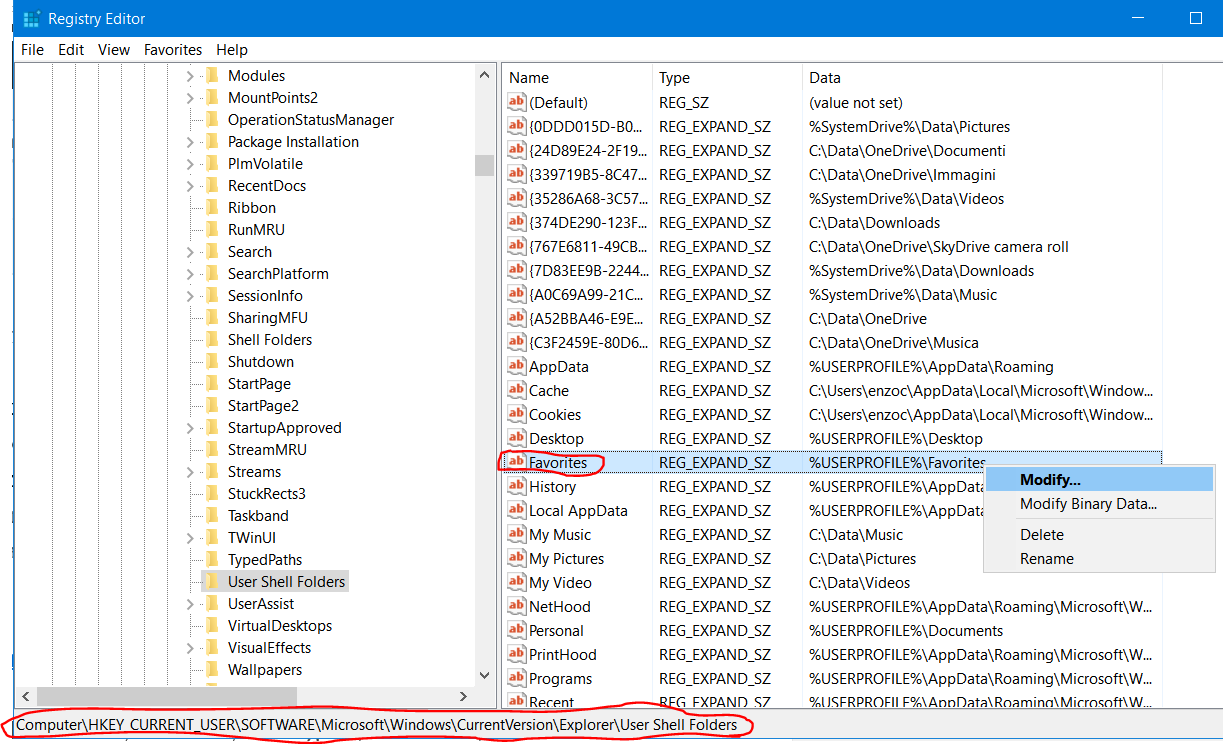
Pubblicato in Aziendali, Windows | 1 commento

Consigli per configurare al meglio ed ottimizzare Windows

Pensato inizialmente per una sessione di Learn&Teach in TILAB (attualmente purtroppo sospeso), la presentazione seguente riassume decine di consigli per configurare al meglio ed ottimizzare Windows: tenete conto che i consigli sono ordinati non per importanza (semmai si potesse fare!) ma per come mi sono venuti in mente … per cui sfogliateli tutti … sono convinto che almeno qualcuno vi potrà tornare utile!   😉

Sebbene gli screenshot siano relativi all’ultima versione del sistema operativo, vale a dire a Windows 10, molti dei consigli valgono comunque anche per le sue precedenti versioni …

Buona visione … e  se avete ulteriori consigli che possono tornare utili, commentate pure e magari li aggiungerò!!  😉

ottimizzareWIndows


Consigli per configurare al meglio ed ottimizzare Windows


… e se poi vuoi scaricare la presentazione puoi farlo da qui.

If needed :
1. Open an Elevated Command Prompt

Start – type in Search box -> CMD     find at top – Right Click on – RUN AS ADMIN
How to Open a Elevated Command Prompt in Windows 7
http://www.sevenforums.com/tutorials/783-elevated-command-prompt.html
2. The Prompt probably looks like C:\Windows\System32>
Type this at the prompt and then hit ENTER
CD\
Now the prompt should look like C:\>
3: Type this at the prompt and then hit ENTER
DIR Windows.old
Should look like C:\>DIR Windows.old
It should return
Directory of C:\Windows.old
and show the contents of Windows.old
That is just to make sure the Windows.old  folder is under C: (the C Drive) – if not STOP
4.
 Type this at the prompt and then hit ENTER
Attrib -r -a -s -h C:\Windows.old /S /D
Should look like C:\>Attrib -r -a -s -h C:\Windows.old /S /D
(there are SPACES between Attrib and -r and -a and -s and -h and C:\Windows.old and /S
and /D). The C:\ is the drive Windows.old is located on.
It should return you to the prompt C:\   if it shows and ERROR then STOP – check the command
and if it was typed correctly you are not in the correct spot. You may need to run the TAKEOWN
command :
TAKEOWN /f Windows.old /a /r

and repeat Step 4 – were you using an Elevated Command Prompt? Are you logged to an
ADMIN account?
5.
Type this at the prompt and then hit ENTER
RD /s Windows.old
Should look like C:\>RD /s Windows.old
(there are SPACES between RD and /s and Windows.old )
Will return   Windows.old, are your sure Y/N   type Y
(If you get a message that you do not have Ownership Rights then issue this command
and hit ENTER
TAKEOWN /f Windows.old /a /r

and repeat Step 5 – were you using an Elevated Command Prompt? Are you logged to an
ADMIN account?
6: Type this at the prompt and then hit ENTER
DIR Windows.old
Should look like C:\>DIR Windows.old    –    and hit ENTER
It should return
Directory of C:\
File Not Found
Which confirms it is gone.
7.
Close the COMMAND window
Hope this helps.

======================

Questo post si aggiunge ad altri che sono specificatamente indirizzati a colleghi di TILAB e talvolta anche a tutta TIM in generale. 🙂

PS: puoi trovare gli altri post filtrando, nella combobox a desta, sulla categoria “Aziendali”. Alcuni sono protetti da password per cui se ti interessano puoi contattarmi tramite l’email aziendale o telefonicamente.

Pubblicato in Aziendali, Windows | 1 commento

Microsoft regala Office 365 Personal e 1TB di OneDrive per 1 anno

Il titolo è lo stesso di un post apparso ieri sera su WindowsBlogItalia … ma l’informazione contenuta ma merita di essere pubblicizzato a dovere!!
L’offerta comprende le versioni 2016 di Word, Excel, PowerPoint, OneNote, Outlook, Publisher e Access, 1 TB di spazio su OneDrive, 60 minuti al mese di chiamate Skype per chiamare fissi e mobili.

Direi che è un’ottima occasione per chi non ha mai provato ad usare Office 365 (vale a dire la versione di Office che garantisce di avere per un anno le versioni più recenti della suite con servizi anche online) ed anche per che non ha ancora considerato OneDrive come una possibile opzione di archiviazione dei propri dati su un cloud.

Sembra incredibile, ma è una notizia vera: per un anno chiunque sia un utente Microsoft con il piano gratuito (quello che si ha per default all’attivazione di un utente Microsoft) di OneDrive [senza perciò un abbonamento attivo a OneDrive, Office 365 o Groove Music a pagamento] ed abbia più di 5 GB di contenuti archiviati in OneDrive e al 15 gennaio 2016 non usano già una quota di archiviazione superiore a quella allocata. Non può essere riscattata o trasferita a un altro cliente e non è cumulabile con altre offerte.

L’offerta è da riscattare entro il 15 agosto 2016. Dopo un anno, a meno che l’abbonamento non venga annullato alla pagina www.office.com/myaccount, sullo strumento di pagamento richiesto verrà automaticamente addebitato il prezzo in vigore al momento.

La procedura è semplice:

  1. Accedi a OneDrive con il tuo account Microsoft.
  2. In basso a sinistra, clicca su Aggiorna [ENG: Upgrade].
  3. Visualizzerete la schermata presente ad inizio articolo.
  4. Clicca su Gratis per un anno!  [ENG: Free for one year!].
  5. Continua la procedura guidata di acquisto a 0 €.

oneDrive GRATIS 1

oneDrive GRATIS 2 oneDrive GRATIS 3


Nel caso in cui appaia il messaggio “Non sei idoneo all’acquisto di Office a questo prezzo. Puoi acquistare Office al prezzo standard.“, allora non puoi usufruire dell’offerta per uno dei motivi indicati nelle condizioni dell’offerta che precedentemente ho sintetizzato ma che puoi leggere per intero qui.

====================================

Se poi non intendi rinnovare in automatico l’abbonamento per il prossimo anno, è sufficiente disabilitare tale opzione (disattiva il rinnovo automatico / turn off auto-renew) accedendo al tuo account Microsoft nella sezione Services & Subscriptions


Pubblicato in Review e test, Smartphone OS, Windows | 2 commenti

Protetto: Come stampare con il CloudPrinting da una postazione non griffon

Il contenuto è protetto da password. Per visualizzarlo inserisci la password qui sotto.

Pubblicato in Aziendali, Review e test, Windows | Inserisci la tua password per visualizzare i commenti.

What to do if you fall in problems upgrading your PC to Windows 10

Usually the upgrade to Windows 10 from a Windows 7/8/8.1 PC is very easy, especially if this update is done because suggested by the Windows update feature.

Different is the case you have to update it from a Windows enterprise edition, maybe using an MSDN downloaded installer.
First of all, you must download the Windows 10 installer of the same version and language (as already posted here), then I suggest to disconnect – during the installation – all USB devices and possibly the network too. Migrating some labs PC we got the 0xC1900101-0x2000C error just for this reason!!!

error1

May be you could have to update the BIOS of your PC before doing the installation, so please check in the page realted to your PC model if some updates are available …

You can have a look also to this post in the Windows Community forum where you can find several possible solutions to this error.


Pubblicato in Windows | Lascia un commento

HERE decided to remove their apps from the Microsoft Windows 10 Store … with the excuse that it is only for technical reasons!!

If you navigate in the HERE site, you can read:

If you have a smartphone with Windows 10:
In the last few months, we made the HERE apps compatible with Windows 10 by using a workaround that will no longer be effective after June 30, 2016. To continue offering the HERE apps for Windows 10 would require us to redevelop the apps from the ground up, a scenario that led to the business decision to remove our apps from the Windows 10 store.
This means the HERE apps will no longer work on devices running Windows 10 mobile after June 30, 2016. To prepare for this change, we have also decided to remove the HERE apps from the Windows 10 store on March 29, 2016.”

PLEASE LEAVE A COMMENT ON THAT POST … HERE executives must change their mind … I cannot believe that their employees like that stupid decision too and I hope they strongly react …

They say that they “made the HERE apps compatible with Windows 10 by using a workaround that will no longer be effective“… sorry, but – as a programmer – I know that every app that runs on Windows Phone 8 can run on Windows 10 Mobile too (not as a Universal Windows app, but anyway it is compatible). So please HERE,  be honest and at least … and do not say that you remove your apps from the Windows Store only because “you are now using a workaround to make them work that could not be effettive from now on” … You could decide not to do new releases, but removing now your apps from the Windows Store is ridiculous !!!
What is your business? Isn’t it related to have more clients installed everywhere to give and get information?
It may be true that, even though Windows Phone 8 apps are – in general – compatible with Windows 10 Mobile, HERE apps are not “normal” apps because they are very integrated with the operating system and should make use of internal API not available to “normal” developers. May be, that functionality set have been radically be modified in Windows 10 and the better way to improve those apps should be to rewrite them as Universal Windows app: it seems that they are not working with the latest build of Redstone, actually available only to the fast ring Insiders for the latest device models (Lumia 950 / Lumia 950 XL) …
BUT … if something will change in the future Redstone version of Windows 10 and so the HERE apps could not really work anymore …  WHY retire, till then, their now well running apps from the Windows 10 Store, do not giving to Microsoft at least more time to improve its Maps app that already does also navigation??

I still hope HERE executives change their mind … I cannot stand people that hope to make business trying to destroy the one of other companies!! I always was a supporter of HERE apps … please do not make me change my mind!!! This decision is really a hit below the belt and their executives that made that decision will be pointed out by every good guy, developers first of all, that have in mind the progress ot technology. HERE people, BE AWARE and change your mind! I think that NOKIA workers should react in some strong way to this position of their executives: with decision like this one, the fate of their company is clear…

Someone commented on that post “Ironically it is Microsoft that bought and then destroyed Nokia (from where HERE originated). Personally i hope this is a vindictive move“. But please … the fate of NOKIA, unfortunately, was already written at least two years before … may be Microsoft allowed that agony to continue for a while: but everyone have to admit that the real cause of the fate of NOKIA was, as it often occurs, of the narrow sight of the executives of that company that didn’t realize the big technical changes in the phone market. … and, believe me, I am very sorry for that, … I always bought NOKIA devices since the beginning and I always appreciate the design and solutions they found!

BUT, as the guy that did that comment supposes and as I personally think too, this is only one more vindictive move in the technology market … please God let those executives, that wants to make money on the dashes of other companies, get out of this world as soon as possible: the path towards the human progress do not need them at all!!


Anyway, we know that in Windows 10 there is already the Maps app that can substitute HERE apps in all Windows 10 devices, included the mobile one: it is a good Universal Windows app that included a lot of feature, included the navigation one … may be, in my opinion, it includes too many features in a single app, but it is a very good starting point as a navigator too. However, for the time being, the differences with HERE Drive (especially from the UI point of view) are still evident: sometimes ago I wrote a post comparing HERE Drive and Maps apps and the actual app release is not so different from the one I tested that time …

Maps: starting navigation

Maps: starting navigation

Maps: navigation

Maps: navigation

… the actual UI of Maps app is not so good, related to the navigation feature, I know  … but, I already said, it is a good starting point and you knows that apps can be update more and more and improve themselves … independently from the operating system updates.
Someone (always in a comment in the HERE site) complained about driving directions suggested by Maps app: at least for my experiences here in Italy, I did not find so much differences compared to HERE suggested ones. Sometimes in the past HERE Maps too let me go in very strange and unfair roads, as it may happen with every navigator, and I am really surprised that even hat guy in the past did not experiment that …

Yesterday there was a post in Windows Central talking about a new release of Maps app that will be distributed in a little time at least for Insiders. You can read there:

Speaking of built-in maps Microsoft is giving a bit of a tease about what is coming next to Insider builds for Windows 10 Mobile. In a commend on reddit, a Microsoft employee on the Maps team named Dave_MSFT gave a glimpse of what Insiders can expect in the near future:

“We have an exciting update coming soon to insider builds, including an improved drive mode. We will also be addressing other top feedback I have been collecting from you guys as well as the Windows Feedback app in this update and in updates to come. Stay tuned “

In a follow up comment, Dave expanded upon the news:

“Better drive UI is part of this initial update…We are exploring options around the arrow on the location marker (compass). Being able to search along the route is a great suggestion that I will bring back to the team. I will take your other feedback to the team as well!”

Microsoft’s native Maps app has made significant progress over the last few months in adding new features and many improvements. However, building an app from scratch that should have parity with the competition is no simple task and the company clearly has a lot of work left to do.

On their hand there is the fact that Microsoft included in Windows 10 everywhere  a way to get feedbacks from users … and also internally the Maps app have this feature and not only there is the Feedback app / Insider Hub app: HERE apps do not allows, as I know, this feature that can be very useful to improve the features that really are required by the end users …


Pubblicato in Smartphone OS, Windows | Lascia un commento

Invito a vedere dal vivo e provare personalmente la tecnologia Continuum di Microsoft (… post per colleghi ed amici ;-)


Provarlo personalmente vale più di tante parole!!!

😉


======================

Questo post si aggiunge ad altri che sono specificatamente indirizzati a colleghi di TILAB e talvolta anche a tutta TIM in generale. 🙂

PS: puoi trovare gli altri post filtrando, nella combobox a desta, sulla categoria “Aziendali”. Alcuni sono protetti da password per cui se ti interessano puoi contattarmi tramite l’email aziendale o telefonicamente.

=======================================

Link utili per approfondire:

Pubblicato in Aziendali, Smartphone OS, Windows | 2 commenti

How to update a PC, as an MSDN subscriber, to Windows 10 Enterprise from a Windows 8.1 Enterprise one (regional installer, e.g. Italian)

Sometime I feel so stupid!! … but may be some other guy may have the same problem I had 😉

As you probably know, since Windows 8, every user can decide the language of the Operating System where he is logged on a Windows PC: anyway, I suppose for commercial reasons, there are always, for every version, several installation programs, one for each language. Furthermore note that the Enterprise edition  is the only one that cannot be upgraded for free from a previous release … but if you have an MSDN subscription, you can do it for free anyway 😉

Note that, if you are upgrade from one Windows version to a further one, you HAVE TO use the installation program of the new release with the SAME VERSION (e.g. Enterprise) AND LANGUAGE (e.g. Italian) if you don’t want to loose all the installed programs and settings … and possibly have only your personal data preserved. I had already notice that when I upgraded from Windows 7 to Windows 8 and now, upgrading a PC (as MSDN subscriber) to Windows 10 Enterprise from Windows 8.1 Enterprise (PC upgraded from Windows 7 Italian version), I searched in the MSDN repository the Italian setup version … but only the ENG and ENG -UK versions were listed. I thought: may be, from Windows 8 on – because one can change the S.O. language even at user level – there should be no more the need to upgrade with the same regional language! … and I was wrong!!

What happened, trying to upgrade with the ENG setup, is that the option to “Keep personal files and app” was disabled because “You can’t keep Windows settings, personal files, and apps because you’ve chosen to install Windows 10 using a different language than you’re currently using“.

Keep personal files and apps option disabled

Keep personal files and apps option disabled

The problem was that I did not realize that only the English version checkbox is checked by default in the left pane!! So only the English versions (ENG and ENG -UK) are listed by default!

Therefore, if you have the same problem, please do the following 😉

Step 1: Log into MSDN Subscriber Downloads. Under Windows, click Windows 10 Enterprise, Version 1511 (Updated Feb 2016) … or anyway the latest version you find!

1

Step 2: In the language pane, uncheck English:

2

Step 3: Scroll down, then check Italian:

3

Step 4: You should see only Italian language versions of Windows 10 Enterprise listed. Click Download.

4

With that setup file, the upgrade completely maintained on my PC not only the personal data but also the installed programs and configurations!!

setup

Pubblicato in Windows | 1 commento

Quando giocare è una cosa molto seria – Un workshop dedicato alla teoria dei giochi, organizzato da JOL Swarm e Politecnico di Torino

Il 10 febbraio 2016 presso il Joint Open Lab SWARM al Politecnico di Torino si è tenuto il “Workshop sulla teoria dei giochi, ovvero quando giocare è una cosa molto seria”.

Se ve lo siete perso, potete vedere le registrazioni di questo interessante workshop sul sito di TELECOMITALIA | TIM dedicato all’innovazione.

0836e728-36be-47bc-9f56-14f4ccf2788d_3750

  • Introduzione alla teoria dei giochi Fabio Fagnani che era stato trasmesso in live streaming realizzato con la soluzione sperimentale bLIVE di TIM)
    • Introduzione: che cosa è la teoria dei giochi
    • Dai giochi di carte ai conflitti nucleari
    • Strategie, equilibri, cooperazione
    • Giochi come modelli di sistemi complessi
  • L’ingegneria dei giochiDomenica Borra (Post Doc)
    • Strategie per giochi semplici e ripetuti
    • Dinamiche sui giochi
    • Giochi su reti complesse
  • Games in action: l’esempio di B.O.B.Ennio Grasso (JOL SWARM)
    • Strategie applicate a casi reali
    • Applicazione al bandwidth sharing cooperativo
    • Progettare sistemi distribuiti robusti con la teoria dei giochi
  • Il caso BEEKUP: teoria dei giochi per applicazioni ICTBarbara Franci (PhD Student)
    • Introduzione al problema del cloud decentralizzato
    • Giochi di popolazione potenziali e dinamiche best response
    • Giochi potenziali per applicazioni cloud e algoritmi best response

======================

Questo post si aggiunge ad altri che sono specificatamente indirizzati a colleghi di TILAB e talvolta anche a tutta TIM in generale. 🙂

PS: puoi trovare gli altri post filtrando, nella combobox a desta, sulla categoria “Aziendali”. Alcuni sono protetti da password per cui se ti interessano puoi contattarmi tramite l’email aziendale o telefonicamente.
Pubblicato in Aziendali, Review e test | Lascia un commento

Protetto: Attivazione di una VPN aziendale per un accesso alla intranet anche da PC non aziendale

Il contenuto è protetto da password. Per visualizzarlo inserisci la password qui sotto.

Pubblicato in Aziendali, Review e test | Inserisci la tua password per visualizzare i commenti.

SMART SUPERFIBRA e TIM SMART – TELECOMITALIA

Ho da poco attivato a casa la nuova offerta SMART SUPERFIBRA TELECOMITALIA (con associata l’opzione TIM SMART).

La sim deve essere associata allo stesso utente della linea telefonica, nel mio caso un dipendente TELECOMITALIA. Ecco l’esito dello SpeedTest effettuato con il mio PC collegandolo via cavo ethernet al modem di casa:
118,30 Mbps in download e 20,51 Mbps in upload!!! Tenendo conto che l’offerta commerciale recita “100 Mbps in download per la ricezione dei dati e di 20 Mbps in upload per la trasmissione dei dati se raggiunti dalla tecnologia Fiber to the Cabinet o Fiber to the Exchange” … direi che le aspettative sono più che rispettate …. anzi superate!!!

Esito di speedtest su linea SMART SUPERFIBRA Telecomitalia

Esito di speedtest su linea SMART SUPERFIBRA Telecomitalia

Inoltre, tra le opzioni comprese attivate, oltre all’affitto del  Modem ADSL/Fibra WiFi, ci sono i seguenti servizi interessanti:

  • Servizio Chi è: per vedere chi ti chiama sul display del tuo telefono
  • Trasferimento di chiamata: per trasferire le chiamate in arrivo sulla tua linea di casa su un altro numero telefonico fisso o mobile.

Il primo è utile soprattutto se uno ha dei telefoni cordless che sulla base del numero del chiamante mostrino il suo nome, ovviamente se presente nella rubrica: oramai è una funzionalità così ovvia in ambito cellulare, che sul fisso non ci accorgiamo più che sia una funzionalità supplementare!!

Relativamente poi al trasferimento di chiamata, penso sia molto utile: nel seguito riporto le istruzioni per attivarlo/disattivarlo da una linea FIBRA, presenti nel sito TIM: nota che ovviamente, qualora non si sia scelta l’opzione con chiamate sul fisso incluse, il costo della chiamata per il suo trasferimento ad un altro numero (e.g. il tuo cellulare) risulta a tuo carico.

Su linea FIBRA
Puoi impostrare il servizio di trasferimento di chiamata su uno o più dei seguenti casi: “linea libera non risponde“, “linea occupata” o “non raggiungibile” (nel caso di modem spento).

Trasferimento di chiamata incondizionato Permette di trasferire le telefonate in arrivo al telefono di casa verso un altro telefono di rete fissa o mobile incondizionatamente e cioè sia se la linea telefonica risulta occupata, libera “non risponde”, non raggiungibile con modem spento. Per programmare il servizio
digitare :
* 2 1 * + numero telefonico destinazione + #

Per disattivare il servizio: digitare # 2 1 #
Per verificare se il trasferimento è attivo/disattivo: digitare
* # 2 1 #
Trasferimento di chiamata su occupato Permette di trasferire le telefonate in arrivo al telefono di casa verso un altro telefono di rete fissa o mobile solo quando il telefono risulta occupato. Per programmare il servizio digita:
* 2 2 * + numero telefonico destinazione + #
Per disattivare il servizio digita:
# 2 2 #
Per verificare se il trasferimento è attivo/disattivo digita:
* # 2 2 #
Trasferimento di chiamata su «libero non risponde» Permette di trasferire le telefonate in arrivo al telefono di casa verso un altro telefono di rete fissa o mobile solo quando il telefono risulta libero ma ” non risponde”. Per programmare il servizio digita:
* 2 3 * + numero telefonico destinazione + #
Per disattivare il servizio digita:
# 2 3 #
Per verificare se il trasferimento è attivo/disattivo digita:
* # 2 3 #
Trasferimento di chiamata su non raggiungibile (modem spento) Permette di trasferire le telefonate in arrivo al telefono di casa verso un altro telefono di rete fissa o mobile solo quando il modem è spento e quindi la linea risulta non raggiungibile . Per programmare il servizio digita:
* 2 4 * + numero telefonico destinazione + #Per disattivare il servizio digita:
# 2 4 #
Per verificare se il trasferimento è attivo/disattivo digita:
* # 2 4 #

======================

Questo post si aggiunge ad altri che sono specificatamente indirizzati a colleghi di TILAB e talvolta anche a tutta TIM in generale. 🙂

PS: puoi trovare gli altri post filtrando, nella combobox a desta, sulla categoria “Aziendali”. Alcuni sono protetti da password per cui se ti interessano puoi contattarmi tramite l’email aziendale o telefonicamente.
Pubblicato in Aziendali, Review e test | 1 commento

Troubleshooters for Windows and possible solution for problems with the proxy

In the following you can find some troubleshooters that you can download from Microsoft sites and you can run on a PC when you experiment problems:

Troubleshooting

Troubleshooting

================

After setting the reference to a proxy (referring to a script address or directly using the manual proxy setup and specifying its address/port), it could happen that, while IE11 works properly (i.e. the login popup from the proxy credentials appears and, after authentication, you can browse on Internet), with Edge a popup asking for my credentials appears too, but even proving the same credentials, that popup appears again and again. If it happens you can try to reset proxy settings: it worked for me!

    1. Press Windows + X keys and click command prompt(admin).
    2. Type the following command in command prompt and press Enter:
      Netsh winhttp reset proxy


Pubblicato in Windows | Lascia un commento

How to install (well known) programs that have the signature corrupted or invalid (e.g. TortoiseGit) … and how to easily use TortoiseGit!

Sometime it may happen that some well known application, like TortoiseGit, have their signature not in line with the security verification of Windows.

IF YOU ARE SURE THAT THE EXE FILE COMES FROM A SECURE SOURCE you can unblock it from the its properties window (right click on the filename from the File Explorer), checking the unblock checkbox in the available in General tab, as shown in the following:

Signature corrupted1 Signature corrupted2 Signature corrupted3

====================

I had to clone a branch in a GitHub project (its uwp branch) and I couldn’t find a way to do that with the GitHub Desktop client I always used and so I used TortoiseGit that it is very similar to TortoiseSVN I  am using to access to SVN repositories …

I found it very nice and easy to be used and I suggest you: once installed just create a directory where you want to clone the GitHub project you are interested to, right click and select Git Clone… , insert the URL of the repository and possibly define the Branch you want and specify the Recursive checkbox in order to have all folders downloaded.

TortoiseGit1

TortoiseGit2

All the repository will be cloned locally in your directory:

TortoiseGit3

Every time you will want to have it synchronized, you can right click on that folder and select Git Sync…

TortoiseGit4

Then, if you only want to download possible new changes/upgrade available in the remote repository, you have to click on the Pull button. That’s all!!

TortoiseGit5

TortoiseGit6_pull

An easy & quick guide how to use GIT cn be found in GIT – la guida tascabile and My Git Workflow  where I found this useful picture:

commit: adding changes to the local repository

push: to transfer the last commit(s) to a remote server

pull: to get the last commit(s) from a remote server


==============

NOTE

Inside an intranet,  the connection to a GitHub repository and its pull/push features could not done because of some  possible firewall configurations (e.g. as in my firm intranet): so if you experiment problems in the synchronization, please try a direct Internet connection! 😉

Pubblicato in Aziendali, Smartphone OS, Windows | Lascia un commento

How to possibly solve errors in the Windows 10 release updating procedure

Being an Windows Insider, I got my Windows 10 updated very often – let’s say – once a month … and sometime it happens that the updating procedure stops with an error! Looking into the Microsoft Community forum you can see that you are not alone … and possibly you can find there a solution: most of the times it is sufficient to repeat the installation to get it properly work.
However yesterday I got the strange 0x80240031 error during the update to the newest preview release: it is an error related to INVALID_FILE (File is not of the right format). I tried, however without success, several suggestions – like the following – that could be useful in similar situations :

The simpler solution that fixed my problem was to change an advanced option in the Update section, so forcing a new download of the update setup file. Therefore you can try this easy procedure too:

Go to  Settings -> Update & Security -> Windows update, click on Advanced Options and then on Choose how updates are delivered. Then turn the Update from more than one place switch to OFF and, going back to the Windows Update page, try a new check again.

Settings -> Update & Security -> Windows update - Advanced Options - Choose how updates are delivered

Settings -> Update & Security -> Windows update – Advanced Options – Choose how updates are delivered


Pubblicato in Windows | Lascia un commento

Utilizzo di Lync/Skype for Business (e.g. durante lo Smart Working dei dipendenti di una ditta)

Lo smart working richiede spesso la necessità di effettuare videoconferenze che consentano anche di condividere presentazioni e documenti. In Impresa Semplice esiste la possibilità di utilizzare WebEx, sistema di videoconferenza Cisco che consente di programmare videoconferenze business con invio ai partecipanti di apposita mail con il link per accedervi e la possibilità di salvarlo nel proprio calendario outlook: come dipendenti abbiamo la possibilità di utilizzare, ovviamente per motivi di lavoro, questo sistema sicuramente completo registrandosi opportunamente nel servizio inserendo la propria email aziendale ed una password (specifica per Impresa Semplice e quindi non quella aziendale).

WebEx

Tuttavia purtroppo non sempre questo sistema sembra funzionare qualora il PC sia collegato alla rete aziendale (direttamente in sede o tramite la VPN) e questo avviene purtroppo in modo non a me chiaro … penso dipenda dalle continue variazioni nella configurazione dei firewall che vanno talvolta ad interferire con i protocolli utilizzati da questo prodotto. Diversamente, se tutti i partecipanti sono collegati direttamente ad Internet (e.g. tramite adsl pubblico o wifiarea) non ho riscontrato particolari anomalie nel suo utilizzo.

Come valida alternativa all’utilizzo di WebEx, almeno per un uso tra colleghi magari alcuni in smart working, esiste il sistema di messaggistica istantanea e di comunicazione Microsoft utilizzato aziendalmente, vale a dire Lync (un tempo chiamato Communicator ed attualmente Skype for Business, nella versione più recente rilasciata nel 2015 e attualmente non ancora recepita aziendalmente). E’ vero che mi sembra non consenta di programmare le riunioni automaticamente (ma il Calendar di Outlook può comunque venire di aiuto) ma in un contesto di smart working non sono indispensabili tali formalismi ed importano maggiormente altre funzionalità sicuramente presenti in Skype for Business, quali la condivisione del desktop, la possibilità di effettuare presentazioni ed addirittura di poter operare sul PC remoto di uno dei partecipanti ovviamente previa sua autorizzazione (funzionalità che, tra l’altro, non mi sembra nemmeno presente in WebEx).

Può essere inoltre utile ricordare che noi dipendenti abbiamo accesso (in via credo sperimentale, ma comunque utilizzabile) a Office 365 for Business accedendo attraverso le proprie credenziali aziendali: oltre a consentire di aver un’area personale di 1 Tera su OneDrive, con cui poter condividere documenti con colleghi, fornisce  la suite di Office 365 online che consente, tra l’altro, anche l’editing condiviso (in real time) di documenti (e.g. più persone possono agire, in real time, su una stessa slide PowerPoint utilizzabile magari come fosse una “lavagna”; analogamente per qualsiasi file office – e.g. è possibile rivedere a più mani un medesimo documento word, con possibilità, da parte di più attori, di apportare modifiche in real time): questa risulta installabile su PC Windows e Mac.

office365_1 office365_3 office365_2

Anche questo ambiente può quindi essere preso in considerazione per migliorare l’interazione per riunioni o discussioni tra personale in sede ed in smart working.

Office 365 for business - portal.office.com (1)

Office 365 for business – portal.office.com (1)

Office 365 for business - portal.office.com (2)

Office 365 for business – portal.office.com (2)

Office 365 for business - portal.office.com (3)

Office 365 for businessportal.office.com (3)

Torniamo ora al sistema di videoconferenza e instant messaging Lync: il client può essere disponibile da qualsiasi PC (griffon, di laboratorio, personale) e smartphone, accedendo al proprio account (email telecom personale), username (proprio codice XXXXXXXXX) e password griffon: non è quindi indispensabile operare da un PC Griffon ed essere sulla VPN della ditta se è stata attivata l’abilitazione Accesso Intranet da Rete Pubblica, richiedibile dalla sezione Intranet Utility Aziendali -> Servizi per il PC (ora SERVIZI PC -> Portale dei Servizi per la Postazione di Lavoro – tab Servizi ed in fondo il link Per richiedere i servizi accedi all’area richiesta servizi).

Se si installa Office 2016, risulta presente Skype for Business che è, come già evidenziato, la versione più recente di Lync opportunamente rinominata essendo di fatto una variazione dello Skype consumer.

Skype for Business è presente quindi installando Office 2016 oppure scaricando la versione Basic da questo sito: purtroppo dall’account aziendale di Office 365 risulta disattivata la possibilità di scaricare la versione completa (vedi quali sarebbero le istruzioni su Installare Skype for Business):

Dall’account aziendale di Office 365 risulta disattivata la possibilità di scaricare la versione completa

Accesso a Skype for Business

Accesso a Skype for Business

Se per caso avere scritto erroneamente inizialmente la vostra email nel campo Sign-in address, dovete premere il link Change per modificarla in quanto non risulta più (inspiegabilmente)  modificabile nella input box una volta richiesto lo username.

Se si è scritto erroneamente la email, premere Change

Se si è scritto erroneamente la email, premere Change

Accesso a Lync

Accesso Intranet da Rete Pubblica (Utility Aziendali -> Servizi per il PC)

Generalmente sul proprio PC aziendale griffon è installato il client Lync 2010 [eventualmente scaricabile dall’application catalogue griffon dove sono presenti tutti i SW aziendali installabili sul proprio PC, ad esempio anche Internet Explorer 11] … che essendo del 2010 è un po’ datato 😉 .  Perciò, se si intende installare un client su un PC non griffon (e.g. di laboratorio, personale) , è conveniente considerare una versione più recente di tale client, ad esempio Lync 2013 o ancora meglio l’ultima del 2015, rinominata come Skype for Business: nota bene che non si tratta dello stesso client per lo Skype pubblico (il cui utilizzo è ufficialmente osteggiato aziendalmente, sebbene ora faccia parte integrante del sistema operativo Windows 10), bensì appunto della versione più aggiornata del client per il Lync Server (la versione server più recente si chiama infatti Skype for Business Server 2015) che è comunque retro-compatibile e funzionante anche con la versione del server attualmente utilizzato in Telecom. Si noti che anche sugli smartphone (Android, Windows 10 Mobile, iOS) esiste l’app Skype for Business utilizzabile al medesimo scopo (per utilizzare tale app non è nemmeno indispensabile avere richiesto l’abilitazione all’Accesso Intranet da Rete Pubblica – come evidenziato precedentemente – qualora si sia agganciati all’APN aziendale).

Nel seguito ci sono alcuni link relativi all’installazione di Microsoft Lync 2013 che fa parte del pacchetto Office 2013 e che è aggiornabile, tramite updates, al successivo Skype for Business:

Se uno ha poi installato sul PC la suite Office 2016 [ad esempio perché lo ha acquistato a 12,95€ con l’offerta presente nella intranet (Shop -> Informatica -> Microsoft)] si ritrova già Skype for Business installabile [nota: anche se, nell’offerta indicata sulla intranet, si parla di Office 2010, in realtà quello che viene acquistato è l’ultima versione di Office, attualmente la 2016].

Diversamente da Lync, l’interfaccia utente di Skype for Business è assai simile a quella dello Skype pubblico, con la possibilità di integrarsi strettamente nelle varie applicazioni di Office.

Altri link utili:

PS: se dovete dialogare con persone con le quali non esiste un conveniente linguaggio di comunicazione comune (e.g. hanno difficoltà a parlare in italiano o in inglese o comunque in una lingua a voi congegnale) potete provare ad utilizzare Skype Translator Preview : consente di chiamare quasi tutti quelli che hanno Skype, traduce la tua conversazione in un’altra lingua quasi in tempo reale e ciò che il tuo interlocutore dice viene tradotto nella tua lingua (la traduzione è attualmente disponibile in inglese, spagnolo, francese, tedesco, italiano e mandarino: altre lingue saranno disponibili a breve).

___________

Nel seguito alcuni screenshot relativi all’installazione dell’app del client Skype for Business su uno smartphone con Windows 10 Mobile: una procedura analoga esiste per l’analoga app presente negli altri Store (i.e. Android e iOS): ricerco l’app nello Store, inserisco la mia email aziendale come indirizzo di accesso, mostro le opzioni avanzate per poter inserire il nome utente, oltre che la password, inserisco opzionalmente il mio numero di telefono, inserisco eventualmente la tile dell’app sulla schermata principale del telefono.

wp_ss_20160224_0002 wp_ss_20160224_0003  wp_ss_20160224_0009 wp_ss_20160224_0001

Skype for Business su smartphone

Skype for Business su smartphone

_____________

Se poi uno ha un PC/tablet con Windows 10 (o con Windows 8.1), può anche installare l’app Lync come mostrato negli screenshot seguenti, che offre tuttavia un’interfaccia ancora un po’ vecchia rispetto all’app Skype for Business già presente su Windows 10 Mobile. Da questo si deduce che quell’app Skype for Business non è ancora una universal app essendo resa disponibile solo sul lo smartphone … ma è solo questione di tempo 😉

App Lync nello Store di Windows (PC)

App Lync nello Store di Windows (PC)

LyncApp1 LyncApp2LyncApp4

App Lync con windows grande

Lync app (con finestra dimensionata grande)

App Lync con windows ridimensionata piccola

Lync app (con finestra ridimensionata piccola)

Volendo, si può poi effettuare il pin di quell’app sulla pagina di Start e/o sulla taskbar:

LyncApp6

Pin dell'app Lync nella taskbar

Pin dell’app Lync nella taskbar

Pin dell'app Lync nella pagina di Start

Pin dell’app Lync nella pagina di Start

======================

Si noti che è possibile utilizzare anche il semplice Skype pubblico che ora consente le videochiamate di gruppo gratuite su cellulari o tablet. Come pubblicizzato, consente:

  • Qualità HD perfetta, in grado di donare un tocco più naturale alle chiamate
  • Possibilità di riunire fino a 25 persone, indipendentemente dal dispositivo utilizzato
  • Possibilità di riunire fino a 25 persone, indipendentemente dal dispositivo utilizzato
  • Invita chi vuoi anche se non ha Skype
  • Scarica l’ultima versione di Skype sul cellulare o sul tablet, poi avvia una chiamata utilizzando questa icona da una chat di gruppo.

======================

Se riscontrate problemi con l’audio o con il video, probabilmente non li avete configurati correttamente. Potete allora andare nella sezione delle impostazioni di Skype for business (Lync) raggiungibile tramite l’icona a ruota presente in alto a destra, e vedere di cambiare opportunamente le impostazioni e/o andare in Control Panel -> Sound -> Manage audio devices: può essere che sia impostata come default un dispositivo non funzionante o non esistente (e.g. un monitor esterno collegato in HDMI ma che non risulta avere delle casse integrate, come nel caso del mio monitor Philips 223VS-C), nel qual caso basta disabilitarlo ed impostarne come default un altro, ad esempio quello integrato nel portatile stesso, con la possibilità di effettuare un test per verificarne il funzionamento.

manage audio4 manage audio1manage audio3 manage audio2

======================

Questo post si aggiunge ad altri che sono specificatamente indirizzati a colleghi. 🙂

PS: puoi trovare gli altri post filtrando, nella combobox a desta, sulla categoria “Aziendali”. Alcuni sono protetti da password per cui se ti interessano puoi contattarmi tramite l’email aziendale o telefonicamente.
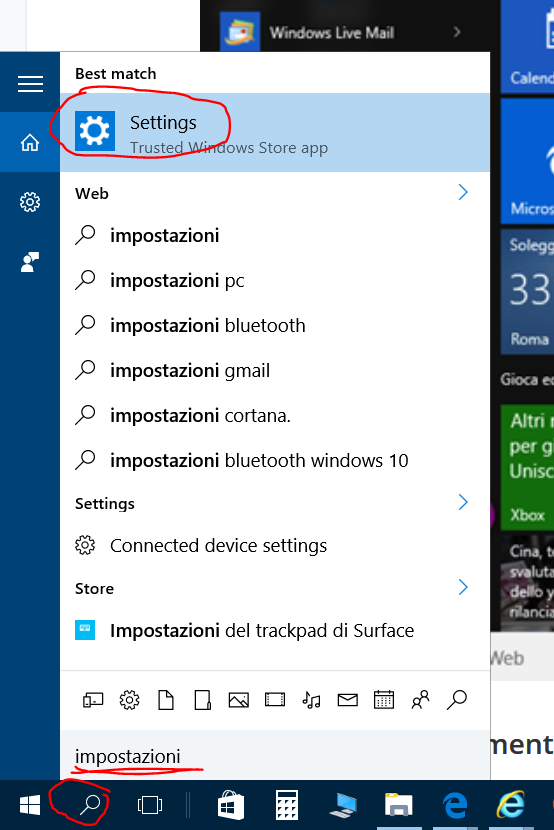
 

Pubblicato in Aziendali, Review e test, Smartphone OS, Windows | 2 commenti

How to force an apps update check in Windows 10

The Store app is an Universal App … but it has a quite strange interface behavior!

You surely know that Universal Apps can change completely the user interface according mainly to the dimension of the screen but even possibly to the type of device (e.g. mobile, desktop) … and this is what happens in the Store app and may be, in this case, it can make you be confused and you can wonder how to force an app update check when it is running on a Windows 10 desktop device!!!

If you are used to Windows 10 Mobile, you know that there is a hamburger menu on the top left that shows a list with the specific item “Downloads and updates” for forcing that check: on the contrary, if you see that app on a PC (at least if it is in full screen mode or in a big windows!) you can’t see the hamburger icon on the upper left … and you may wonder how to do that!

Then, if you click on your user icon (on the top right) you can have the wanted menù appear … and possibly you may doubt that this app is really an Universal App being this behavior so different from the one you have on Windows 10 Mobile!

force app update check in windows 10
force app update check in windows 10 2

But if you dimension the window smaller enough, you can have your user icon disappear and the hamburger menu be shown … like it is in Windows 10 Mobile!!!

force app update check in windows 10 5

force app update check in windows 10 6

The same happens for Settings and others voice menu:

force app update check in windows 10 3

force app update check in windows 10 4

Pubblicato in Smartphone OS, Windows | Lascia un commento

How to make Microsoft webcam LiveCam HD-5000 works in Windows 10

I have a nice Microsoft LiveCam HD-5000 webcam “only” 3 years old and … incredible! … it is not supported anymore by Microsoft: in fact the last driver available from its support page is for Windows 7!! But it is also written that “For Windows 8 and later, additional software is not required“.

However, as expected, I got some problems in make it work in a Windows 10 device …After having verified that the firmware is the last one,  I installed the webcam drivers in compatibility mode, as suggested here:

  1. Right-click on the driver setup file and click on ‘Properties’.
  2. Click on the ‘Compatibility’ tab and check the box ‘Run this program in compatibility mode for’ and select Windows 8 operating system from the drop down.
  3. Click on ‘OK’ and then run that exe file to install it.

Compatibility mode

Compatibility mode

Doing so, the webcam started to work … but unfortunately ONLY with some apps (e.g. Camera app, Skype Translator 10 Beta app) and not with desktop application like the current Skype one or conference web application like web-ex (that anyway it is not yet compatible neither with Edge browser and so it works only with Internet Explorer or other not Microsoft browsers …).

Skype Translator 10 Beta with Microsoft LiveCam HD-5000

Skype Translator 10 Beta with Microsoft LiveCam HD-5000

Camera app with Microsoft LiveCam HD-5000

Camera app with Microsoft LiveCam HD-5000

Therefore now I do not know if it is only a matter of time in order to have new versions of that desktop applications or … without a new driver, there will be no way to make that webcam work whatever!!


P.S. 16/4/2020 – Now it works with my Surface. I do not know if it is because the driver is now updated. Anyway, if the video or audio does not work, please check Windows 10 settings related to Security & Privacy because both for microphone and for camera Skype app end desktop application must have permission set to ON:

See this help page for more details:
from Start menu, select the Settings gear > Privacy > then select either Camera or Microphone. Under both, make sure that Skype is toggled On. Restart Skype and go to your Skype Audio & Video Settings to verify the correct device is selected within Skype. Go here for more help managing permissions to use my camera in Skype for Windows 10 (Version 14).

Pubblicato in Giustizia, burocrazia e malcostume, Tecnologia, Windows | 1 commento

Useful links for problems


Pubblicato in Review e test, Smartphone OS, Windows | Lascia un commento

How to possibly fix high CPU usage in Windows 10

In-order to fix the High CPU usage issue, you can refer the following methods suggested in the Microsoft Community forum.

As suggested here, if you have as I did  the Antimalware Service Executable constantly taking 10%+ of CPU usage it seems to be fixed after added C:\Program Files\Windows Defender\MsMpEng.exe to the list of excluded files in the Windows Defender (please see detailed instructions here).

In the following other suggestions …

Method 1:

Check if you can experience the issue in ‘Safe mode with networking’; if safe mode with networking works fine then set the computer to ‘Clean boot’ state to check for software conflicts.

Step 1: Windows Start-up Settings (including safe mode). http://windows.microsoft.com/en-gb/windows-8/windows-startup-settings-including-safe-mode

Step 2: Keep the computer in clean boot and check the issue status. How to perform a clean boot to troubleshoot a problem in Windows Vista, Windows 7, or Windows 8. http://support.microsoft.com/kb/929135

Note: Please go through the section: How to reset the computer to start as usual after troubleshooting with clean boot of the Kb article to boot the computer in normal startup after fixing the issue.

Method 2:

I would also suggest you to run “System Maintenance” to diagnose and fix the issue. It finds and cleans up unused files and shortcuts, and performs maintenance tasks.

Follow these steps:
◾Press “Windows key + S” from keyboard.
◾Type “Troubleshooting” without quotes in the search box and hit enter
◾From “Troubleshooting” windows click “View all” option from the left panel.
◾In the list of options, click on “System maintenance”.
◾Click “Next” and follow the on-screen instructions.


troubleshooting0

troubleshooting3 troubleshooting2 troubleshooting1  troubleshooting4

Useful links for possible virus, malware check/removal:


Pubblicato in Windows | 2 commenti

Windows 10 Mobile – How to install app and save files (e.g. photos, video) in the SD and not in the device storage

The functions that was of the Storage sensor in Windows Phone 8.1 are now (at least for the time being) in an app called Storage (IT: Memoria). From that app you can set to have new app, pictures, video to be stored in the SD: from then on new pictures and music will be stored on microSD, automatically.

If you want to move on microSD an app installed in the device you can do (even though now this must be done for every app one by one  and it is not possible to select more and move all the selected!!) … but, for the time being, there is not a way, from that app, to move pictures and music you have on the device to the microSD. Therefore to transfer your existing files from the phone memory to the microSD, I am not aware of any other solution than using a File Manager app within your phone (e.g. I use File Explorer app) or using the File Manager of your PC once the smartphone is connected via USB.

Anyway I hope that there should be introduced an easier way inside that Storage app … and moreover in my opinion the storage functionalities should be included in Settings as it was in Windows 8.1!

Pubblicato in Smartphone OS | Lascia un commento

How to make your Windows Phone / Windows 10 Mobile device no more branded

Unfortunately too often an update of the firmware of branded devices happens many month after it is released by Microsoft … and this it is not nice, especially if the new version solves some known bugs and/or improve the device performance! Is it true that now Microsoft decided to directly distribute its operating system just to avoid that known problem, but a firmware update is still dependent on the provider …

So may be you may want to make your device not branded anymore … as I did after waiting for more than two month for an update.
The procedure is not difficult for a technician but may be it could be for a generic customer: take care that you can loose the warranty (unless you rollback to the original version) and all the actual device configuration may be lost.

In the following I will provide a step-by-step procedure using most of the instructions you can also find in a WindowsBlogItalia post: Guida facile per sbrandizzare, resuscitare e fare downgrade di Lumia 950, 950 XL e 550. There again, it is clearly stated that you must be aware that you can loose your warranty … even though you can always recover your original firmware using the Windows Device Recovery tool.

=============================================

STEP 1

First of all force a backup of your data using the proper function available in the Setting -> System section: in this way you’ll be able to use that last backup when you ‘ll have to configure the device (with the same wizard procedure that you followed when you bought it.

STEP 2

Just in case, you better install in your PC the last version of the Windows Device Recovery tool: if you find problems in that installation due to some Microsoft Visual C++ 2012 Redistributable problems (as it happened to me), please uninstall that package from Programs & Features and reinstall it downloading from the proper MS page. If you will need, see also this page for more information on how to use that tool.
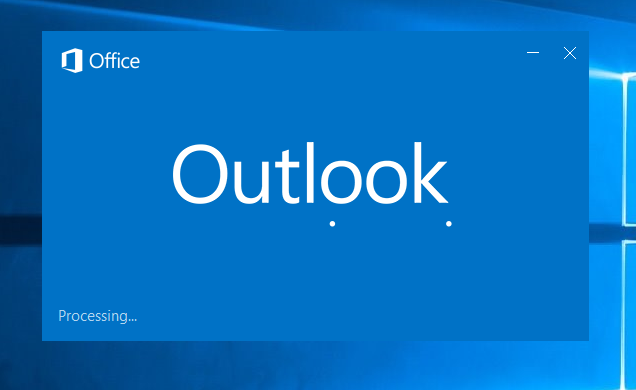
STEP 3

Then you have to download the Windows Phone Image Designer (LumiaFlashTools.rar) from here that, once unzipped, contains also some drivers that needs to be installed manually.

STEP 4

However to make that drivers installation, you need to disable the driver signature and, to do that, you have to restart your PC after having set an Advanced Startup: in Windows 10 this can be done going to All Settings -> Update & Security -> Recovery and press the Restart now button available in the Advanced startup (IT: Avvio avanzato) section.

Settings-Recovery-AdvancedBackup

Once rebooted in Advanced mode, please click on Troubleshoot (IT: Risoluzione dei problemi) and then on Advanced options (IT: Opzioni avanzate) and finally to Startup settings (IT: Impostazioni di avvio). Next screen will show you the list of all the available options that you will have after the restart of the PC. Then, click on Restart and, at the next start, you can disable the signature for that driver clicking the number 7 on the keyboard (that is, the option related to “Disable driver signature enforcement“).

Troubleshoot

Troubleshoot

Advanced options

Advanced options

Startup settings

Startup Settings

Startup Settings

Startup Settings

Press 7 to Disable driver signature enforcement

Press 7 to “Disable driver signature enforcement

Once disabled and restarted, you can install those drivers clicking on the Install.bat file, available in the LumiaFlashTools\Driver directory.

Install.bat

Install.bat

STEP 5

Then you have to download the firmware ROM specific for the model of your device. For some devices it is available in Navifirm, for some others it can be downloaded from the following link made available by WindowsBlogItalia (note – all that rar files need the following psw to be uncompressed:  windowsblogitalia-nprtcvmb):
For older devices you can read this other post.

PS: See also the post Come sbrandizzare o riparare il proprio Lumia where it written how to download the firmware from the Cholens’ portal (for free): http://www.lumiafirmware.com
Details at the end of this post …


Once you downloaded it, unraring it, you can find the proper .ffu file that will be needed next during the device flash procedure.

ffu file

ffu file

STEP 6

Now you need to restart your Lumia in Download mode to flash its firmware: to do so,

  1.  Switch the device off;
  2. Maintain pressed both Volume up and Power hardware buttons;
  3. As soon as the device start up, release the Power button while maintaining pressed the Volume up one.
  4. After some seconds it will be displayed an lightning icon: at this point you can release the Volume up button too.

STEP 7

Now that the device is in Microsoft FFU mode, connect via USB the device to your Windows PC and click on the Start.bat file available in the LumiaFlashTools/WPID directory.

LumiaFlashTools: Start.bat

LumiaFlashTools: Start.bat

The Windows Phone Image Designer program will run: you have to select the option Flash a Windows Phone image onto your phone and press Next button (on the bottom right).

Flash-Lumia-2

Your device should appear in the combobox Flashable Devices (otherwise press the refresh icon on the right).

Flash-Lumia-3

Click on the Change link (just above the combobox) and select, from the file selection dialogue that will be displayed, the .ffu file (related to your device model) you downloaded in the previous step.
Finally press the Flash button.
The process will take some minutes … and finally you’ll receive a Congratulations page!!

WP_20160221_08_26_06_Pro

end flash
STEP 8

Wait that the all the process ends and, when the device will restart, disconnect it from the PC.
Your Lumia will show the startup configuration wizard stating from the language selection: remind to use your previously backup when asked in order to have recovered your previous device configuration…

WP_20160221_08_35_47_Pro__highres

Now I have the last version released by Microsoft of both firmware and operating system  😉


That’s all folks!!!

=============================================

PS: from the post Come sbrandizzare o riparare il proprio Lumia (where it written how to download the firmware from the Cholens’ portal  – for free: http://www.lumiafirmware.com

NOTA – Selezionate la versione più recente del vostro modello che indichi IT (se desiderate la versione italiana): ad esempio per il Lumia 1020 l’ultima versione IT è la 875, anche se per altre nazioni ne esistono di più recenti (i.e. 876, 877).

Scaricare il firmware per il vostro modello:

Microsoft Lumia 435 (RM-1071 VAR EURO IT CV)

Nokia Lumia 520 (RM-914 VAR EU IT CV)
Nokia Lumia 530 (RM-1017 VAR EURO IT CV)
Microsoft Lumia 532 (RM-1031 VAR EURO IT CV)
Microsoft Lumia 535 (RM-1089 VAR EURO IT CV)
Microsoft Lumia 540 (RM-1141 VAR EURO IT CV)
Microsoft Lumia 550 (RM-1127 VAR EURO 1X CV)

Nokia Lumia 620 (RM-846 VAR EU ITALY IT CV)
Nokia Lumia 625 (RM-941 VAR EURO IT CV)
Nokia Lumia 630 (RM-976 VAR EURO IT CV)
Nokia Lumia 635 (RM-974 VAR EURO IT CV)
Microsoft Lumia 640 (RM-1075 VAR EURO IT CV)
Microsoft Lumia 640 LTE (RM-1072 VAR EURO IT CV)
Microsoft Lumia 640 XL (RM-1066 VAR EURO IT CV)
Microsoft Lumia 640 XL LTE (RM-1062 VAR EURO IT CV)
Microsoft Lumia 640 XL Dual SIM (RM-1067 VAR EURO IT CV)
Microsoft Lumia 650 Nero (VAR EURO 1X CV BLK_DR)
Microsoft Lumia 650 Bianco (VAR EURO 1X CV WHT_LG)
Microsoft Lumia 650 Dual SIM Nero (VAR EURO 1X CV BLK_DR)
Microsoft Lumia 650 Dual SIM Nero (VAR EURO 1X CV WHT_LG)

Nokia Lumia 720 Ciano (RM-885 VAR IT CV CYAN)
Nokia Lumia 720 Giallo (RM-885 VAR IT CV YELLOW)
Nokia Lumia 720 Rosso (RM-885 VAR IT CV RED)
Nokia Lumia 720 Nero (RM-885 VAR IT CV BLACK)
Nokia Lumia 720 Bianco (RM-885 VAR IT CV WHITE)
Nokia Lumia 730 (RM-1038 VAR EURO IT CV)

Nokia Lumia 820 (RM-825 VAR EU IT CV)
Nokia Lumia 830 Bianco (RM-984 VAR EURO IT CV SLV)
Nokia Lumia 830 Verde (RM-984 VAR EURO IT CV SLV)
Nokia Lumia 830 Arancio (RM-984 VAR EURO IT CV SLV)
Nokia Lumia 830 Nero (RM-984 VAR EURO IT CV D GREY)

Nokia Lumia 920 Giallo (RM-821 VAR EU IT CV YELLOW)
Nokia Lumia 920 Rosso (RM-821 VAR EU IT CV RED)
Nokia Lumia 920 Bianco (RM-821 VAR EU IT CV WHITE)
Nokia Lumia 920 Nero (RM-821 VAR EU IT CV BLACK)
Nokia Lumia 925 Grigio (RM-892 VAR IT CV GREY)
Nokia Lumia 925 Bianco (RM-892 VAR IT CV WHITE)
Nokia Lumia 925 Nero (RM-892 VAR IT CV BLACK)
Nokia Lumia 930 Nero (RM-1045 VAR EURO IT CV BLACK)
Nokia Lumia 930 Verde (RM-1045 VAR EURO IT CV BR_GRE)
Nokia Lumia 930 Arancio (RM-1045 VAR EURO IT CV BR_ORA)
Nokia Lumia 930 Bianco (RM-1045 VAR EURO IT CV WHITE)
Microsoft Lumia 950 (RM-1104 VAR EURO 1X CV)
Microsoft Lumia 950 Dual SIM (RM-1118 VAR EURO 1X CV)
Microsoft Lumia 950 XL Nero (RM-1085 VAR EURO 1X CV BLACK)
Microsoft Lumia 950 XL Bianco (RM-1085 VAR EURO 1X CV WHITE)
Microsoft Lumia 950 XL Dual SIM (non disponibile)

Nokia Lumia 1020 Giallo (RM-875 VAR EURO IT CV YELLOW)
Nokia Lumia 1020 Bianco (RM-875 VAR EURO IT CV WHITE)
Nokia Lumia 1020 Nero (RM-875 VAR EURO IT CV BLACK)

Nokia Lumia 1320 (RM-994 VAR EURO IT CV)

Nokia Lumia 1520 Nero (RM-937 VAR EURO IT CV BLACK)
Nokia Lumia 1520 Bianco (RM-937 VAR EURO IT CV WHITE)
Nokia Lumia 1520 Giallo (RM-937 VAR EURO IT CV YELLOW)

    1. Trovate il vostro smartphone nell’elenco qui sopra e cliccate il relativo link.
    2. Si aprirà una nuova pagina, nella quale potrete accedere ai file necessari cliccando sulla versione del firmware (scegliete sempre la più recente)

Click on the link

Click on the link

Verranno generati i link (validi per un ora). Dovrete scaricare soltanto il file .ffu

Download only the ffu file

Download only the ffu file

Avete scaricato il firmware? Avete installato Windows Device Recovery Tool? Se sì, possiamo continuare.

  1. Aprite un Prompt dei comandi come amministratore: per farlo digitate cmd in Cortana, clic col destro sul primo risultato e poi su “Esegui come amministratore”
  2. Digitate cd “C:\Program Files (x86)\Microsoft Care Suite\Windows Device Recovery Tool” e premete INVIO
  3. Se vi da errore, provate con cd “C:\Program Files\Microsoft Care Suite\Windows Device Recovery Tool”
  4. Connettete lo smartphone al PC con l’apposito cavo e attendete qualche secondo
  5. Ora andate in Download (o nella cartella dove avete scaricato il firmware) e prendete nota del nome del file .ffu e del suo percorso
  6. Se il nome del file è complicato da ricordare o da scrivere, potete anche rinominarlo e la procedura dovrebbe funzionare ugualmente
  7. Ora tornate al Prompt dei comandi e digitate thor2 -mode uefiflash -ffufile “[INSERITE IL PERCORSO DEL FILE FFU]” -do_full_nvi_update -do_factory_reset
  8. Al posto di [INSERITE IL PERCORSO DEL FILE FFU] dovrete scrivere l’intero percorso. Ad es C:\Users\Franc\Download\RM-1172_Firmware.ffu
  9. Se avete scritto tutto correttamente, alla pressione di INVIO dovrebbero apparire tante scritte poco comprensibili ed il telefono entrerà in modalità Flashing

Durante questa fase è IMPORTANTISSIMO che non disconnettiate il telefono, che non si spenga il PC o vada in standby e che non scoppi una bomba elettromagnetica nelle vicinanze (ok questa è rara). Altrimenti il telefono non funzionerà più.

Termine della procedura

La schermata rossa con una barra di completamento, sarà sostituita da una verde al termine della procedura. A questo punto:

  • Tornate al Prompt dei comandi e digitate thor2 -mode rnd -bootnormalmode
  • Il telefono dovrebbe riavviarsi in una decina di secondi e al termine dell’avvio potrete staccarlo dalla USB
  • La procedura è terminata

Avrete di nuovo il vostro telefono funzionante, oppure senza brand dell’operatore e potrete cominciare la configurazione iniziale!

Pubblicato in Review e test, Smartphone OS | 1 commento

How to stop NuGet check for new missing packages during a build (… or what to do if the the missing packages are not downloaded during the build!)

Every time you do a build, by default NuGet check and possibly download missing packages.

As stated in the output windows when making a build, if you want “To prevent NuGet from restoring packages during build, open the Visual Studio Options dialog, click on the Package Manager node and uncheck ‘Allow NuGet to download missing packages during build.’ “.

Because this check takes some time, during normal coding and rebuilding, you don’t need necessarily to have that default option set … and may be you want to disable it: obviously, the first time you build a project downloaded from a repository, you need to have that option enabled to make it compile correctly!

You can modify that option going to Tools -> NuGet Package Manager and then unchecking “Automatically check for missing packages during build in Visual Studio” (alternatively, you can go to Tools -> Options and then select the NuGet Package Manager section).

GitHubrebuild

On the contrary, if your missing packages are not downloaded during a build, may be you have that option unchecked (by default it is checked  but you could have unchecked it and  you don’t remember …. 😉


Pubblicato in Smartphone OS, Windows | Lascia un commento

Guitar, ukulele, guitalele, flute … useful links

INDEX

Click here to download most of this content in Word.

==============================================

CDEFGAB
DOREMIFASOLLASI
Notazione anglosassone
Chiave di SOL

Chiave di basso (o di FA)

========================================================

GUITAR

Same notes are repeated on different strings: for example, there are 5 Middle C‘s on a standard tuned guitar:

GTR-Staff-Piano-Cs

However, for the guitar, the notation on a SOL key (violin key) is one octave higher in order to write all notes without using also the FA key (bass key). Sometimes (although rarely) under the violin icon there is an 8 in order to underline that. So, the height of every note on a guitar is one octave higher than in a piano. Therefore, in the following, there are empty guitar strings related notes:

Empty guitar string (MI, LA, RE, SOL, SI, MI)

========================================================

UKULELE

======================================================

GUITALELE

========================================================

TIN WHISTLE

rosso viola | grigio | | blu | |
  • Rosso: “Chiave” del Whistle che si sta suonando (e.g. la prima riga mostra la scala D Maggiore su un Whistle in D
  • Blu: nota che non è in realtà parte della scala Maggiore per quel Whistle, ma viene usato molto spesso
  • Grigio: “Chiave secondaria” (e.g., il Whistle D suonerà facilmente anche nella scala di G Maggiore)
  • Viola: “Chiave mista” (e.g. il Whistle D suonerà facilmente anche nella scala di SOL minore)

From: www.thewhistleshop.com/misc/fingeringchart.jpg

Nel seguito riporto, per convenienza, le posizioni per i Whistle di alcune specifiche tonalità (RE, FA, SOL, DO).
_______________

Tin Whistle in RE (D)

Il RE (D) alto può essere fatto nello stesso modo di quello basso. Il DO (C) naturale può essere suonato chiudendo per metà il primo foro – può essere più semplice, specialmente quando si suona l’ottava

  • Cerchio scuro: buco chiuso dal dito
  • Cerchio chiaro: buco aperto
  • Cerchio mezzo scuro: buco parzialmente chiuso
  • I cerchi grandi mostrano le più importanti ed usate note del Whistle in quella tonalità, quelli più piccoli le meno usate
  • Nota che alcune note hanno più possibili posizioni delle dita

_______________

Tin Whistle in FA (F)


_______________

Tin Whistle in SOL (G)

_______________

Tin Whistle in DO (C)

________

Click here to download all this content in Word.

_____

========================================================

BAROQUE FLUTE

Tavole delle diteggiature flauti Moech: Flauti dolci con diteggiatura barocca (Sopranino, Soprano, Contralto, Tenore, Basso in fa, Grande basso in do): scaricale tutte in pdf .

Flauto dolce
Flauto dolce barocco 2

tedesco - barocco

========================================================

GERMAN FLUTE

schemanotetuttoschemanotetutto2

========================================================

TRANSVERSE FLUTE

C__Data_Users_DefApps_AppData_INTERNETEXPLORER_Temp_Saved Images_288877_image0

C__Data_Users_DefApps_AppData_INTERNETEXPLORER_Temp_Saved Images_288879_image0C__Data_Users_DefApps_AppData_INTERNETEXPLORER_Temp_Saved Images_288880_image1Flute fingering chart
C__Data_Users_DefApps_AppData_INTERNETEXPLORER_Temp_Saved Images_fl17_1
C__Data_Users_DefApps_AppData_INTERNETEXPLORER_Temp_Saved Images_fl17_2C__Data_Users_DefApps_AppData_INTERNETEXPLORER_Temp_Saved Images_fl17_3

Useful links

========================================================

CLARINET SIb

========================================================

CLARINET SIb

========================================================

SAXONETT

Scarica file word

  •  

======================================================

TRUMPET

Pubblicato in Arte e Bellezza, Just for fun!, Musica | 1 commento