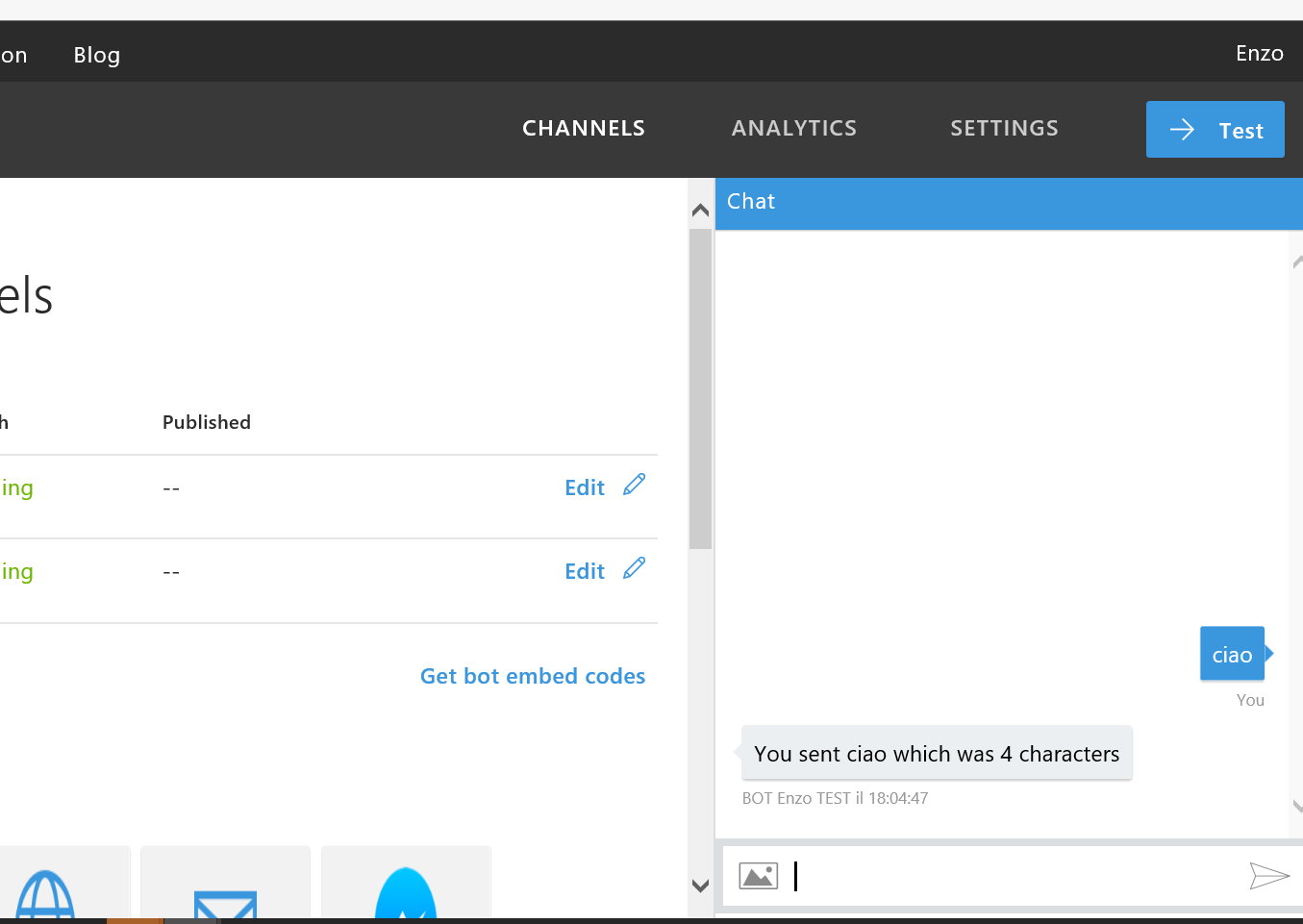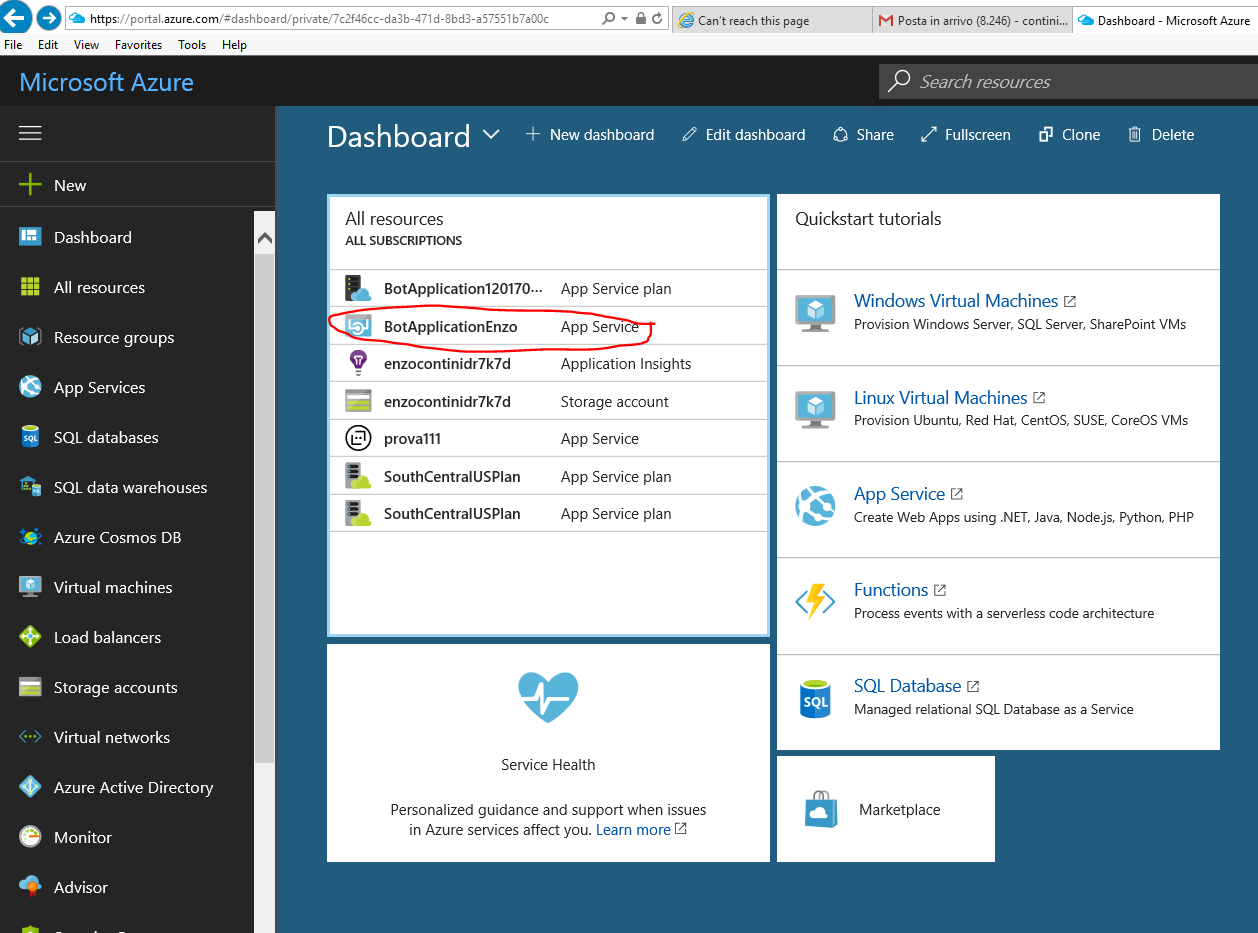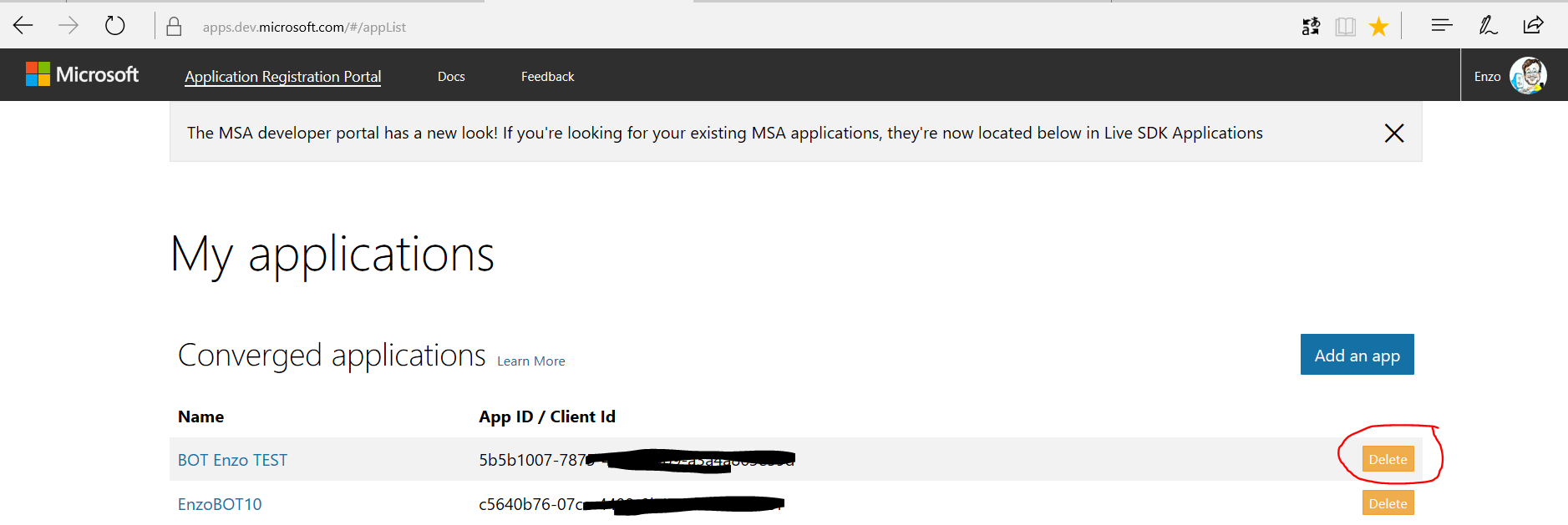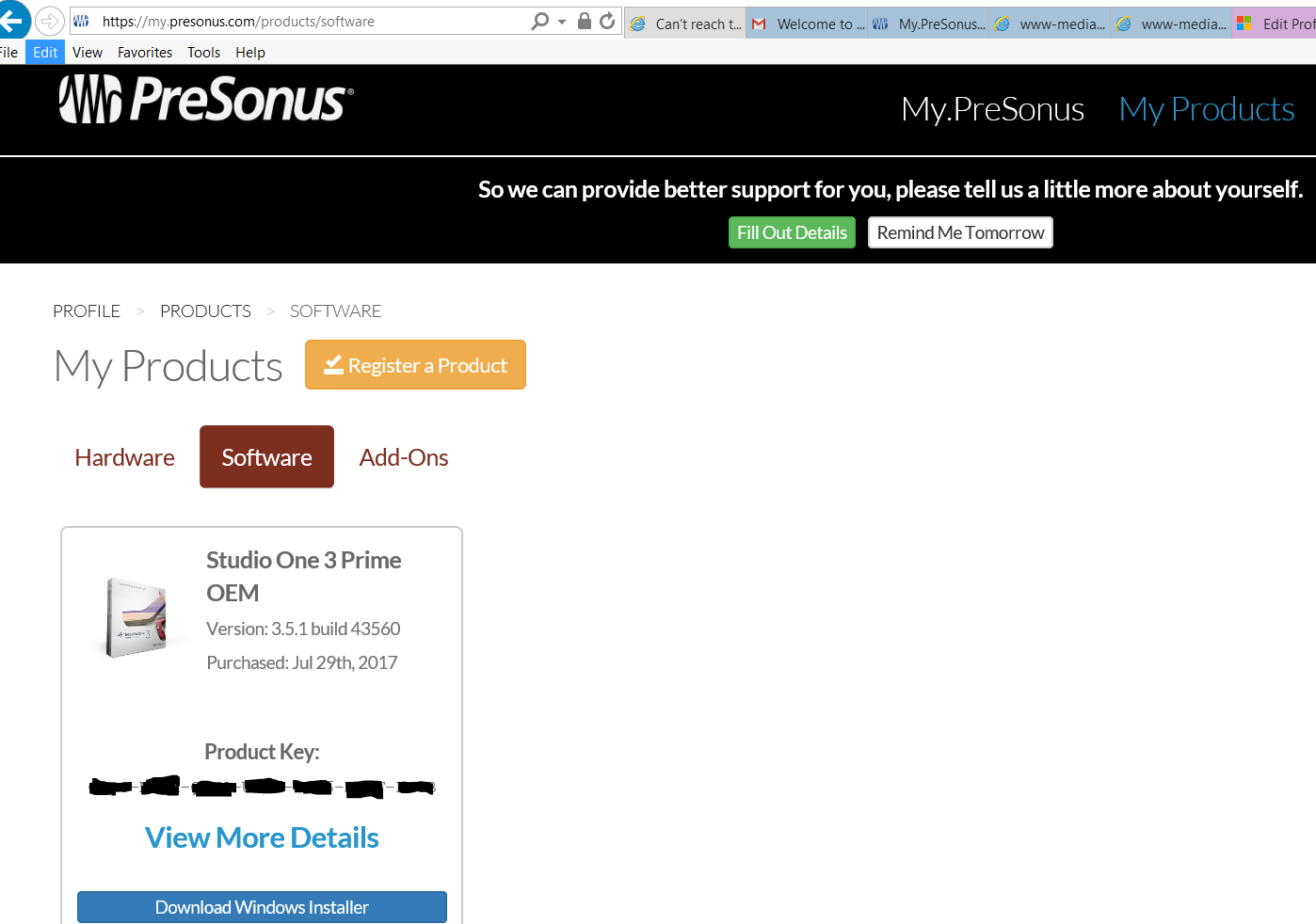
“Come disdire il canone RAI (e.g. per decesso dell’intestatario)” alias “come complicare la vita dei cittadini e rendere le procedure informatiche inutilmente complesse e utilizzabili solo da pochi”

Diversi sono i casi in cui è necessario attivarsi per non avere impropriamente addebitate le rate del canone RAI … automaticamente, per default: una di queste è in caso di decesso dell’intestatario del canone, magari un genitore che viveva per conto suo, come è stato nel mio caso.

Mi sono quindi attivato mesi fa, ricercando online la modalità per effettuare tale procedura di cessazione: come spesso avviene, avevo proceduto da un motore di ricerca con un search generico tipo “come cessare il canone RAI“. Probabilmente non avevo neppure provato a ricercare la risposta nel sito che teoricamente avrebbe dovuto fornire tale indicazione, vale a dire quello della RAI, … presupponendo già che molto probabilmente tale informazione, (seppur necessariamente presente) non sarebbe stata particolarmente evidenziata e quindi sarebbe stata difficilmente reperibile.

Avevo quindi trovato, non so dove,  il seguente modulo di autodichiarazione, con le indicazioni che doveva essere spedito per raccomandata, allegando copia sia del certificato di morte sia della carta di identità del dichiarante: ho quindi stampato, compilato e spedito il tutto alle poste.
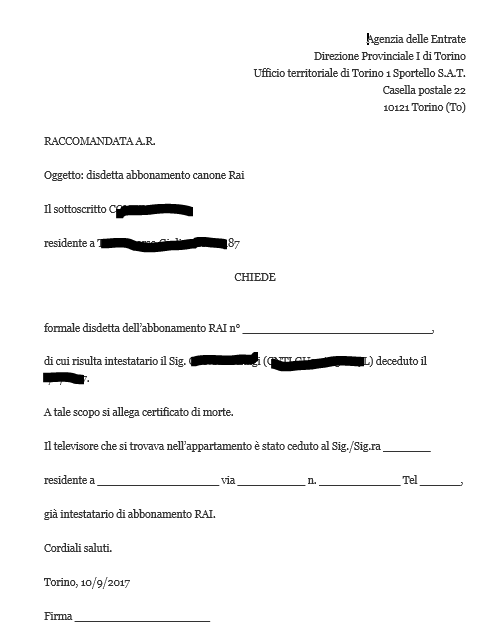
Modulo di richiesta cessazione canone RAI (NON PIU' VALIDO)

Modulo di richiesta cessazione canone RAI (NON PIU’ VALIDO)

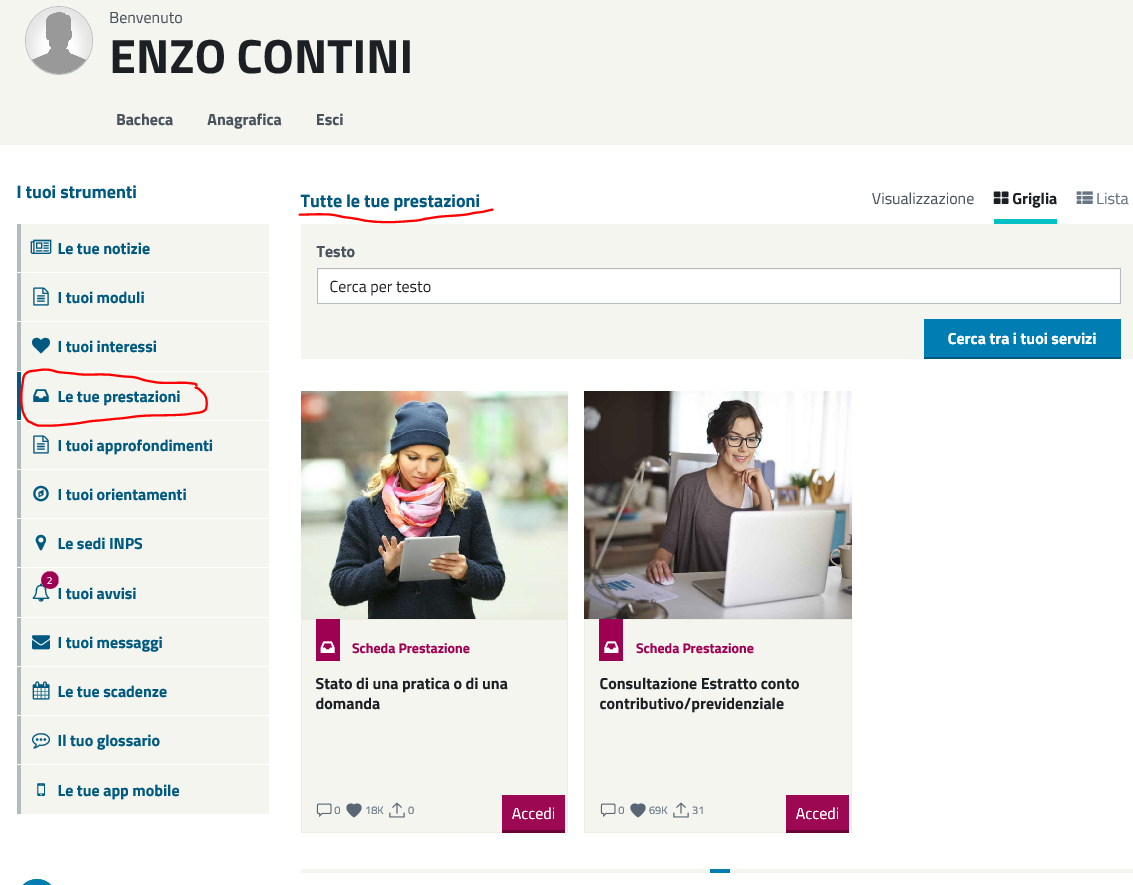
A distanza di un mese e mezzo, per posta ordinaria ricevo dall’Agenzia delle entrate la comunicazione seguente, alquanto criptica, da cui difficilmente si comprende a cosa si riferisca e soprattutto cosa si richieda: anche solo per il fatto che viene indicato solo un numero di canone televisivo (e non anche l’intestatario) non aiuta nella comprensione!
Suppongo comunque che sia un qualcosa relativo alla mia precedente richiesta di cessazione del canone di mio padre defunto … sebbene non sia del tutto sicuro della tipologia di quella notifica (forse per mie deficienze, ma provate anche voi a leggere il testo della comunicazione, che personalmente trovo troppo generica e poco chiara …): quel canone era il mio o quello di mio padre? Se era quello di mio padre, non era stato disdetto come richiesto? Perché?

Comunicazione dell'Agenzia delle entrate ... assai criptica!! :-(

Comunicazione dell’Agenzia delle entrate … assai generica e criptica!! 😦

Per fortuna viene indicato un numero verde a cui chiedere possibili chiarimenti: 800938362.
Così telefono e, dopo neppure tanta attesa, mi risponde un operatore che, fornendo il numero di contratto RAI indicato nel foglio, mi conferma che si tratta di una comunicazione relativa al canone di mio padre deceduto: la procedura di cessazione da me precedentemente effettuata non era più valida dal 2016, vale a dire da quando l’importo del canone viene effettuato tramite la bolletta telefonica.
Mi dice pure che la nuova procedura da effettuare è descritta nel sito www.abbonamenti.rai.it: sotto mia esplicita richiesta di dove esattamente trovare tale procedura in quel sito, mi dice che il link (Il modulo è scaricabile qui) si trova nell’ultimo riquadro in basso della homepage … non proprio nascosto ma neppure in primissimo piano, come supponevo! Aggiunge anche di eventualmente poi ritelefonare qualora avessi necessità di chiarimenti sulla sua compilazione, facendomi intendere che non sarebbe stata una banalità completare quella procedura!

Già che ci sono chiedo anche delucidazioni sui documenti da allegare con quella nuova procedura e mi viene detto che NON richiede più l’invio del certificato di morte, qualora la disdetta sia fatta per quel motivo, bensì solo l’invio della copia della carta d’identità del dichiarante: scoprirò poi, leggendo nel dettaglio le istruzioni, che l’invio della copia della carta di identità è necessario unicamente qualora la disdetta avvenga per via cartacea e non informatica.
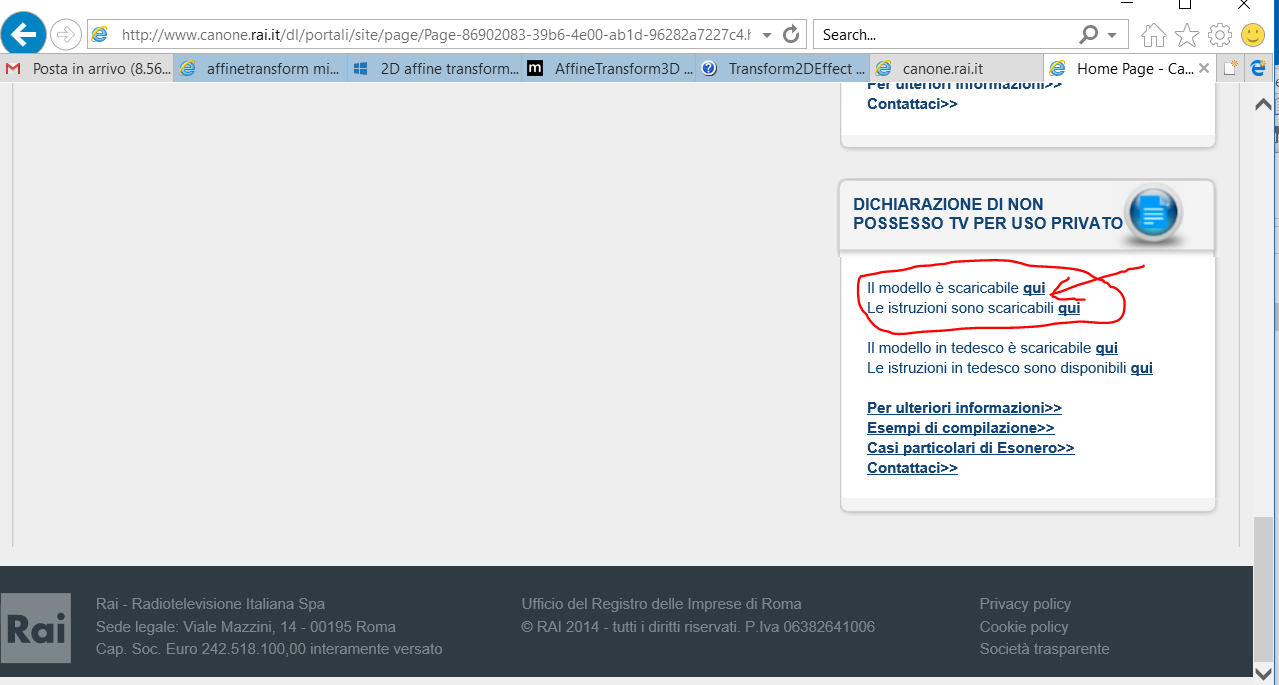
Sezione di accesso alla Dichiarazione (nella homepage del VECCHIO portale)

Sezione di accesso alla Dichiarazione  presente in basso nella homepage del VECCHIO sito RAI (1)

Nel pannello scorrevole presente in alto, sempre nel sito RAI, veniva periodicamente comunque fornita la informazione seguente, che chiaramente indica come la procedura possa avvenire anche per via telematica tramite il sito dell’Agenzia delle entrate.
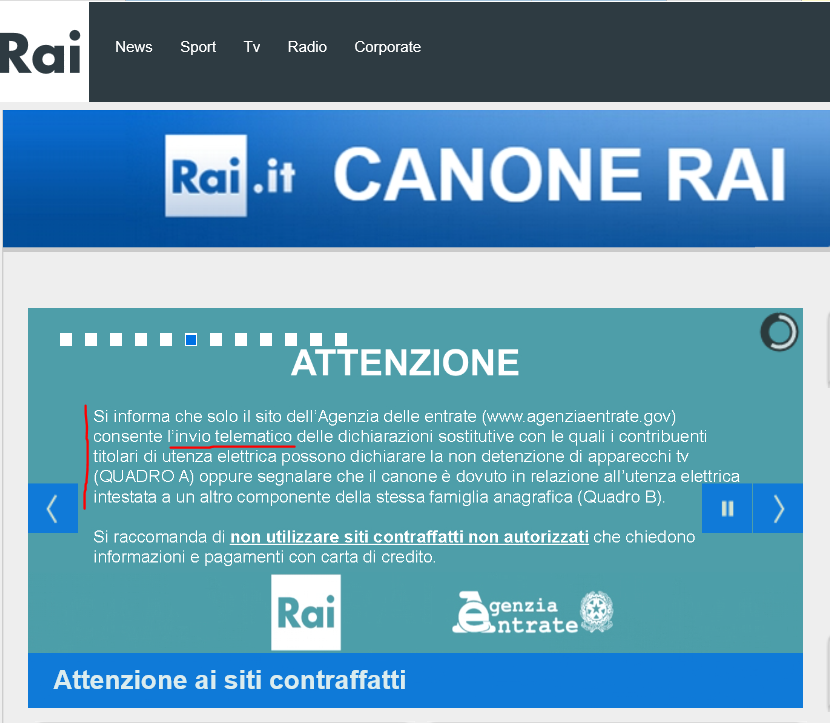
Sezione di accesso alla Dichiarazione (nella homepage del VECCHIO portale) (2)

Sezione della homepage del VECCHIO sito RAI (2)

Noto oggi che il portale è cambiato … e non necessariamente in meglio, almeno relativamente alla visibilità di quella informazione. Ora si deve infatti andare nella sezione Canone TV Ordinario RAI, andare quindi nel riquadro  Il Canone e premere link Dichiarazione sostitutiva relativa al canone di abbonamento alla televisione per uso privato. Scorrendo la pagina per visualizzare la sezione Dichiarazione sostitutiva, si arriva finalmente al link Clicca per la Dichiarazione sostitutiva relativa al canone di abbonamento alla televisione per uso privato:. Attualmente scarica il file relativo a giugno2017 (dich_sost_mod_giugno2017.pdf), ma potrebbe variare nel corso dei prossimi mesi visto il susseguirsi di modifiche nel sito!

Insomma ce la si può fare anche ora a trovare quella informazione … tuttavia, trattandosi di un qualcosa di utile a molti, probabilmente un link diretto e ben evidente nella homepage non farebbe sicuramente male: anziché migliorarne l’accessibilità, ora la si è oggettivamente peggiorata, anche solo rispetto a qualche giorno fa!!

Scaricare la dichiarazione sostitutiva per cessare canone RAI (1) (NUOVO portale)
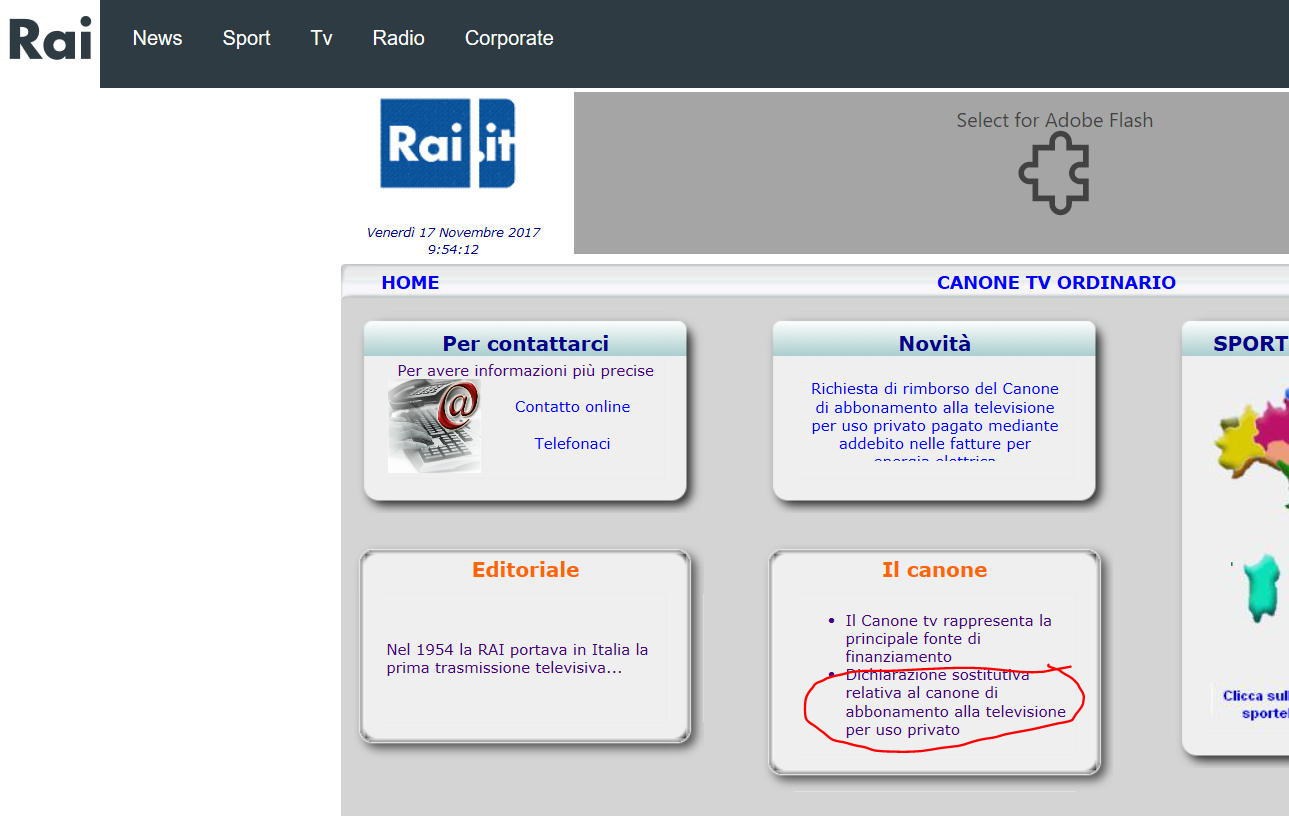
Scaricare la dichiarazione sostitutiva per cessare canone RAI (1) (NUOVO portale)

Scaricare la dichiarazione sostitutiva per cessare canone RAI (2)
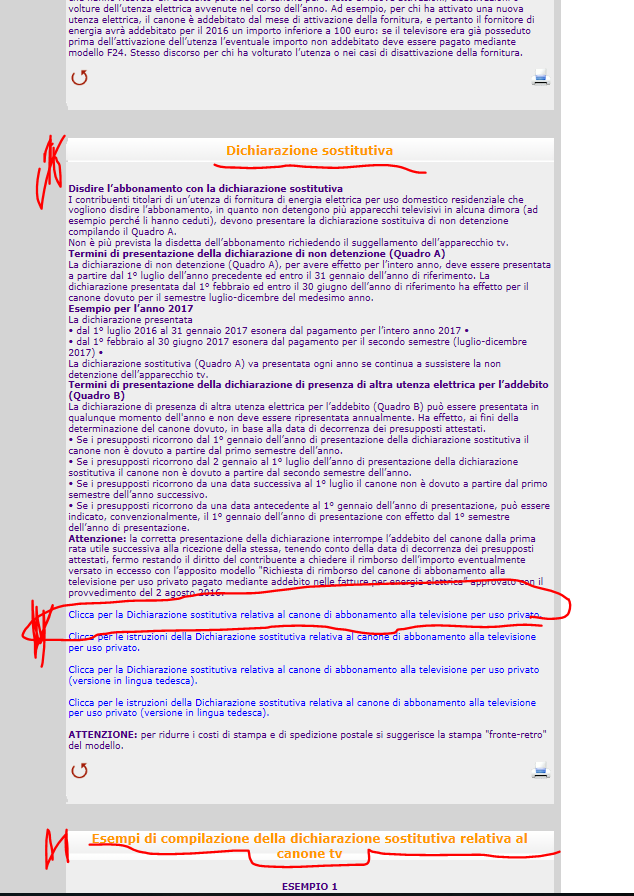
Scaricare la dichiarazione sostitutiva per cessare canone RAI (2)

Scaricare la dichiarazione sostitutiva per cessare canone RAI (3)

Scaricare la dichiarazione sostitutiva per cessare canone RAI (3)

La sezione seguente fornice poi esempi di compilazione di tale dichiarazione per i molteplici casi che si possono avere: sono ben 19 esempi di diversa possibilità di compilazione e questo già implicitamente, secondo me, dimostra il livello di burocrazia che il meccanismo attualmente adottato richiede!  (NOTA: sicuramente per un bug, attualmente questi 19 esempi sono presentati in due omonime sezioni adiacenti, chiamate entrambi “Esempi di compilazione della dichiarazione sostitutiva relativa al canone tv“, la prima contenente gli esempi dall’1 al 14, la seconda contenente quelli dal 15 al 19)
Consiglio vivamente di ricercare tra quegli esempi, il caso specifico che rientra nella propria situazione: in particolare, qualora si desideri la cessazione per decesso dell’intestatario, gli esempi 9 e 18 sono quelli che contemplano le due specifiche modalità di compilazione. Sottolineo che, se non avessi visto l’esempio che faceva il caso mio e non avessi poi interpretato poi di conseguenza i passi richiesti dalla procedura informatizzata, personalmente dubito che sarei riuscito a compilarla correttamente, anche richiedendo l’aiuto al numero verde (quando mi sono imbattuto in un problema nell’inserimento informatizzato della richiesta, non mi è stato assolutamente di aiuto!!).

La procedura che prevede l’invio cartaceo della autodichiarazione risulta comunque più dispendiosa sia in termini di tempo sia di denaro (contemplando un invio del tutto per raccomandata, e richiede anche di allegare la fotocopia della carta di identità del dichiarante. Perciò ho optato per la modalità telematica tramite il sito dell’Agenzia delle entrate: attualmente questo è il link diretto. per accedere alla pagina per inoltrare tale dichiarazione, dopo essersi autenticato.

Purtroppo penso che non molti cittadini hanno effettuato la procedura per poter avere accesso ai servizi presenti nel sito dell’Agenzia delle entrate, e quindi devono necessariamente scaricare il modulo dal link presente sul sito della RAI: per fortuna io avevo da tempo già effettuato tale registrazione e ero in possesso di password ed apposito PIN dispositivo 😉
Se ancora non l’hai fatto, ti consiglio comunque di registrarti al portale dell’Agenzia delle entrate (seppur non si tratti di una procedura indolore) in quanto risulta sicuramente utile in molteplici occasioni .. ed anche solo per la disdetta del canone RAI, qualora tu rientri nei casi di esonero indicati dai 19 esempi: infatti tale procedura deve essere effettuata per tempo tutti gli anni (eccetto nel caso di cessazione per decesso), … con relativa spesa di raccomandata qualora non si adotti la modalità informatizzata!

Dal sito dell’Agenzia delle entrate si legge anche “La dichiarazione sostitutiva presentata dal 1° luglio 2016 al 31 gennaio 2017 esonera dal pagamento dell’intero canone dovuto per l’anno 2017. La presentazione dal 1° febbraio al 30 giugno 2017 esonera, invece, dal pagamento del canone dovuto per il secondo semestre 2017.
Per gli anni successivi i termini di efficacia delle dichiarazioni di non detenzione sono i seguenti:

  • dichiarazione presentata dal 1° febbraio al 30 giugno: esonera dall’obbligo di pagamento per il secondo semestre dello stesso anno
  • dichiarazione presentata dal 1° luglio al 31 gennaio dell’anno successivo: esonera dall’obbligo del pagamento per l’intero anno successivo (per esempio, una dichiarazione presentata nel novembre del 2017 avrà effetto per il canone del 2018)“.

Si noti poi che, come specificato nel modulo della dichiarazione, che l’invio via posta deve essere fatto tramite raccomandata senza busta, una modalità alquanto “strana” che non sapevo neppure esistesse: il foglio della dichiarazione e quello della carta di identità del dichiarante (con entrambe le facciate della carta di identità su un medesimo lato del foglio – altrimenti dovrai rifare la fotocopia –, in modo da lasciare in bianco uno dei lati, che deve poi essere utilizzato per scrivere l’indirizzo, una volta piegato  il tutto e pinzato!!) vengono piegati e poi pinzati, scrivendo l’indirizzo di destinazione sul lato esterno di uno dei fogli (che DEVE risultare in bianco) … il tutto alla modica cifra di più di 8€!!!

Ad esempio da questo sito si leggono le istruzioni precise di come effettuare il tutto: Bisogna prendere i fogli da spedire spillati tra loro, avendo cura di mantenere l’ultima facciata, quella posteriore, completamente bianca. Il plico di figli va piegato in tre parti a soffietto in 3 sezioni di uguale dimensione avendo cura che la parte scritta rimanga all’interno e la parte bianca esterna. Il soffietto creato dal plico può essere chiuso da un punto di spillatrice sui lati più corti, per fare in modo che non venga aperto e letto.   Sulla parte bianca scrivere l’indirizzo del destinatario, in questo caso Agenzia delle Entrate Ufficio di Torino 1 S.A.T. – Sportello abbonamento tv – casella postale 22 – 10121 Torino, e andare all’ufficio postale a spedire la raccomanda con ricevuta di ritorno. La ricevuta che vi rilascerà l’ufficio postale andrà conservata insieme alla ricevuta di ritorno che riceverete dall’Agenzia delle Entrate.”

Perché poi richiedere una raccomandata senza busta che costa di più, … qui puoi leggere (se credi, io non l’ho fatto!) ipotetiche motivazioni :-/

Dichiarazione sostitutiva relativa al canone di abbonamento alla televisione per uso privato dove viene specificato che, in caso di invio per servizio postale, deve avvenire con RACCOMANDATA SENZA BUSTA

Insomma, se volevano rendere le cose complicate e costose, ci sono riusciti alla perfezione!!

===========================================================

Gli screenshot mostrati nel seguito mostrano, step by step, come inoltrare telematicamente tale dichiarazione, una volta autenticatisi nel portale dell’Agenzia delle entrate con il proprio account.

Segui i passi che ti indico, perché anche qui, almeno nel caso di dichiarazione per decesso, ci si può imbattere negli immancabili ostacoli che potrebbero indurti a buttare la spugna ed optare per la modalità cartacea: telefonare al numero verde indicato (800938362) potrebbe poi non risultare di particolare aiuto se, come è successo a me, l’operatore (una volta presentatogli il problema riscontrato) ti consiglia lui stesso di optare per la classica modalità cartacea, dal momento che riceve un gran numero di telefonate di persone che hanno problemi con l’inoltro per via informatica!!

… e viene da chiederti: ma l’informatica non dovrebbe facilitare la burocrazia e rendere più agevole le procedure che il cittadino deve rispettare? Non è che, forse, l’implementazione non è stata adeguata al target degli utilizzatori e/o la logica pensata per quella procedura sia troppo complessa per risolvere la “semplice” richiesta che il cittadino deve inoltrare?

Per giungere alla pagina relativa all’inserimento informatico della dichiarazione, conviene ricercare nel menù, la sezione Cosa devi fare, procedere quindi in Richieste, istanze e interpelli ed infine selezionare Canone TV:
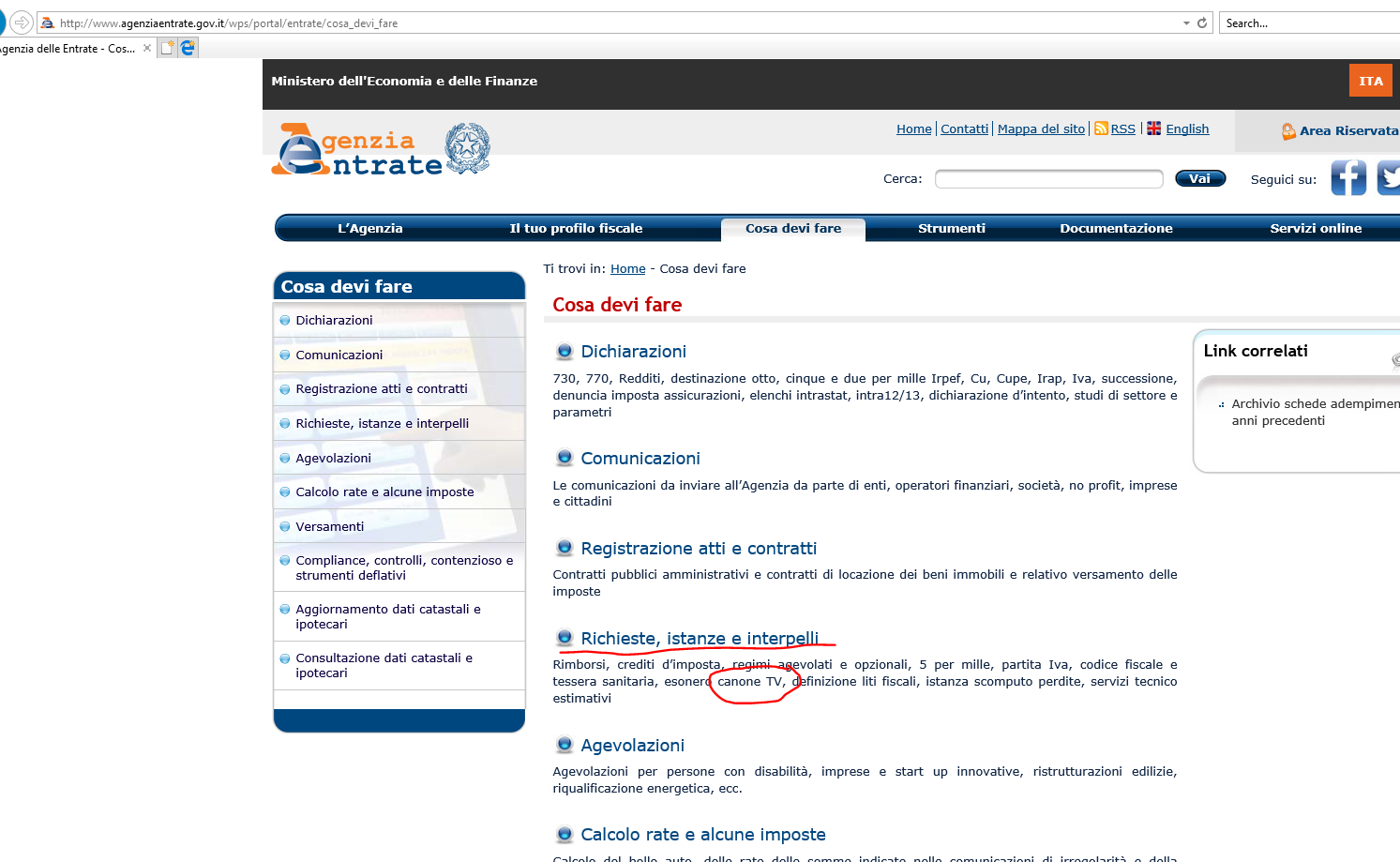
Come inoltrare la dichiarazione con la procedura informatica (1)

Come inoltrare la dichiarazione con la procedura informatica (1)

Come inoltrare la dichiarazione con la procedura informatica (2)

Come inoltrare la dichiarazione con la procedura informatica (2)

Come inoltrare la dichiarazione con la procedura informatica (3)

Come inoltrare la dichiarazione con la procedura informatica (3)

Si noti che, anche nel sito dell’Agenzia delle entrate, esiste un’apposita sezione che descrive gli Esempi di compilazione, i medesimi 19 presenti nel sito della RAI: come già evidenziato, è assai opportuno visionarli per comprendere come compilare correttamente tale dichiarazione nel caso specifico di interesse.

In particolare, nel seguito, mostro gli esempi 9 e 18 relativi al caso di decesso, in quanto nel seguito andrò a dettagliare la procedura in quel caso specifico che era quello di mio interesse e che quindi ho sperimentato direttamante, anche se la procedura non penso differisca molto negli altri casi.

Come inoltrare la dichiarazione con la procedura informatica (4)

Come inoltrare la dichiarazione con la procedura informatica (4)

Esempi per dichiarazione in caso di decesso (1)

Esempi per dichiarazione in caso di decesso (1)

Esempi per dichiarazione in caso di decesso (2)

Esempi per dichiarazione in caso di decesso (2)

Una volta autenticati nel portale, e selezionata la voce del menù a destra Dichiarazione sostitutiva (invio online), si può accedere a tale servizio selezionando l’apposito bottone Accedi al servizio:

Accesso alla sezione di inoltro della dichiarazione sostitutiva (invio online)

Accesso alla sezione di inoltro della dichiarazione sostitutiva (invio online) (1)

… oppure ci puoi arrivare anche per altra strada, ma forse in modo più complicato  ;-(

Accesso alla sezione di inoltro della dichiarazione sostitutiva (invio online) (2)

Accesso alla sezione di inoltro della dichiarazione sostitutiva (invio online) (2)

Vediamo ora il wizard per l’inserimento dei dati e quindi l’inoltro informatizzato di quella autodichiarazione:
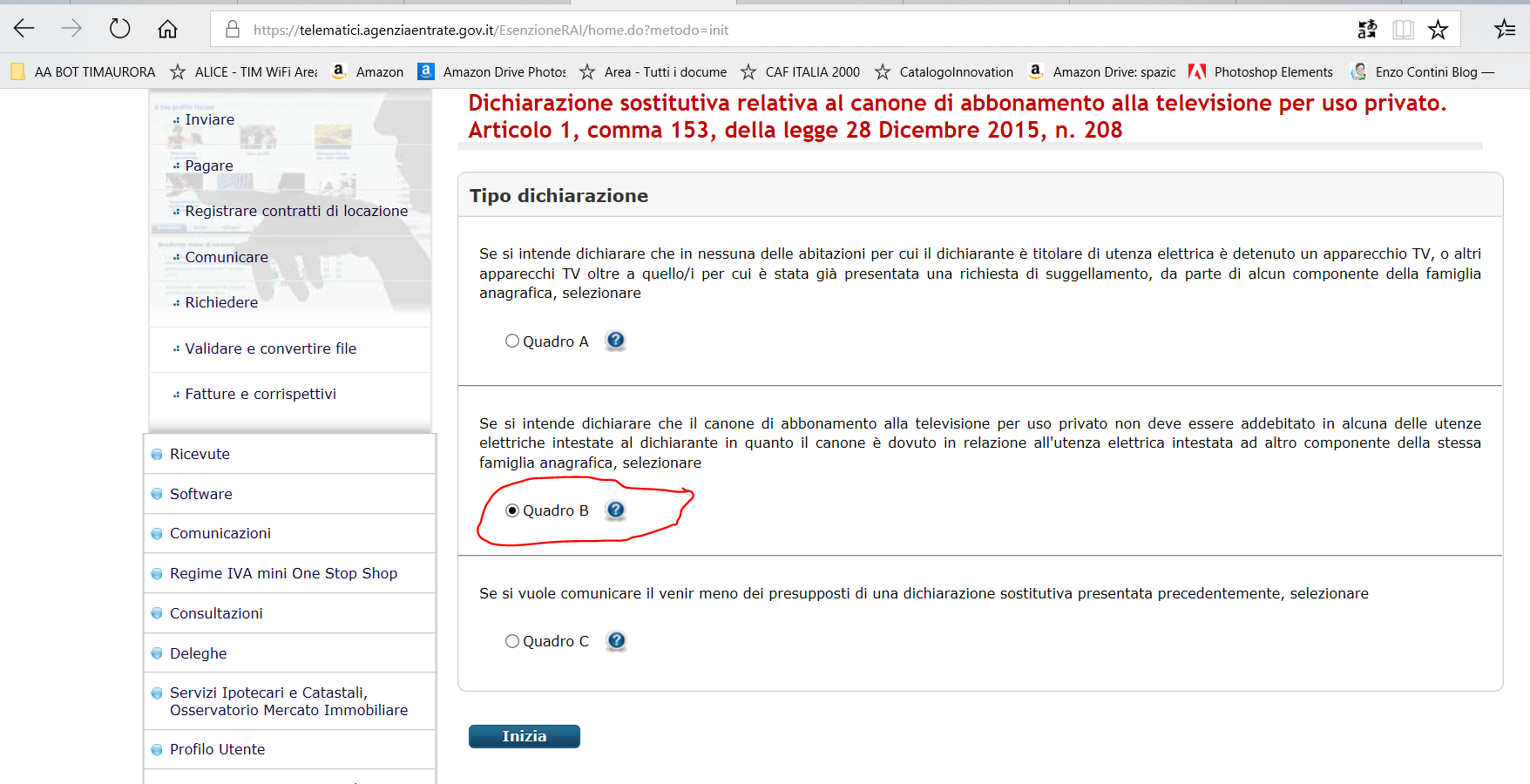
Wizard per l'inoltro dei dati della dichiarazione (passo 1)

Wizard per l’inoltro dei dati della dichiarazione (passo 1)

Nel caso si debba compilare la dichiarazione in caso di decesso (in cui si deve compilare solo il Quadro B, come mostrato negli esempi relativi a quel caso), risulta  essenziale selezionare Quadro B al passo 1 (e non procedere lasciando la selezione di default relativa al Quadro A)!! Diversamente si giunge, al passo successivo, comunque al form dei dati del dichiarante, ma quindi, anche indicando il codice fiscale del defunto, al passo successivo, relativo al Quadro A, viene richiesto necessariamente, per proseguire al passo successivo, di selezionare una delle due opzioni: diversamente salta fuori una finestra di popup bloccante. … ma nel caso di recessione in caso di decesso, nell’esempio di compilazione viene indicato chiaramente che non deve essere selezionato nulla in quel Quadro A!! Inutile, come già detto, chiedere delucidazioni al numero verde che si è nel mio caso limitato a consigliarti di usare la modalità cartacea, ricevendo lui stesso diverse telefonate di persone che non riescono ad operare e completare la procedura per via informatica ed quindi ipotizzando un malfunzionamento di quel sistema!

Basterebbe invece veramente poco inserire un check sul fatto che uno ha inserito o meno il codice fiscale del defunto ,per evitare questa problematica bloccante. Si noti che, nel secondo passaggio della procedura, il campo di inserimento del codice fiscale del defunto viene comunque,  presentato come compilabile … e questo anche scegliendo il Quadro A (selezionato di default) … sebbene, nel caso in cui il Quadro A deve essere compilato, non rientri nella richiesta di cessazione per decesso!!

Comunque se si sceglie fin dall’inizio, nel passo 1,  la compilazione del Quadro B, si riesce a completare la procedura, … ma viene proprio da chiedersi perché un modulo elettronico, che deve essere compilato da un cittadino generico, debba essere così mal congeniato!!

Wizard per l'inoltro dei dati della dichiarazione ( passo 2)

Wizard per l’inoltro dei dati della dichiarazione (passo 2)

Nel seguito viene appunto mostrato la popup bloccante che compare se, avendo iniziato il wizard lasciando al passo 1 impostata la scelta del Quadro A (come da default), non si è poi selezionata nel passo 3 nessuna delle checkbox presenti nel Quadro A (come da procedura di esempio nel caso di decesso).
(NOTA: anche se sono disegnate come checkbox, risultano funzionalmente implementate come radiobutton, non prevedendo la possibilità di scelta multipla)

Wizard per l'inoltro dei dati della dichiarazione (passo 3): se si è selezionato al passo 1 Quadro A, risulta obbligatorio selezionare almeno una delle checkbox per procedere, anche se uno al passo 2 ha indicato il codice fiscale del decaduto

Wizard per l’inoltro dei dati della dichiarazione (passo 3): se al passo 1 si è selezionato  Quadro A, risulta obbligatorio selezionare almeno una delle checkbox per procedere, anche se uno al passo 2 si è indicato il codice fiscale del decaduto
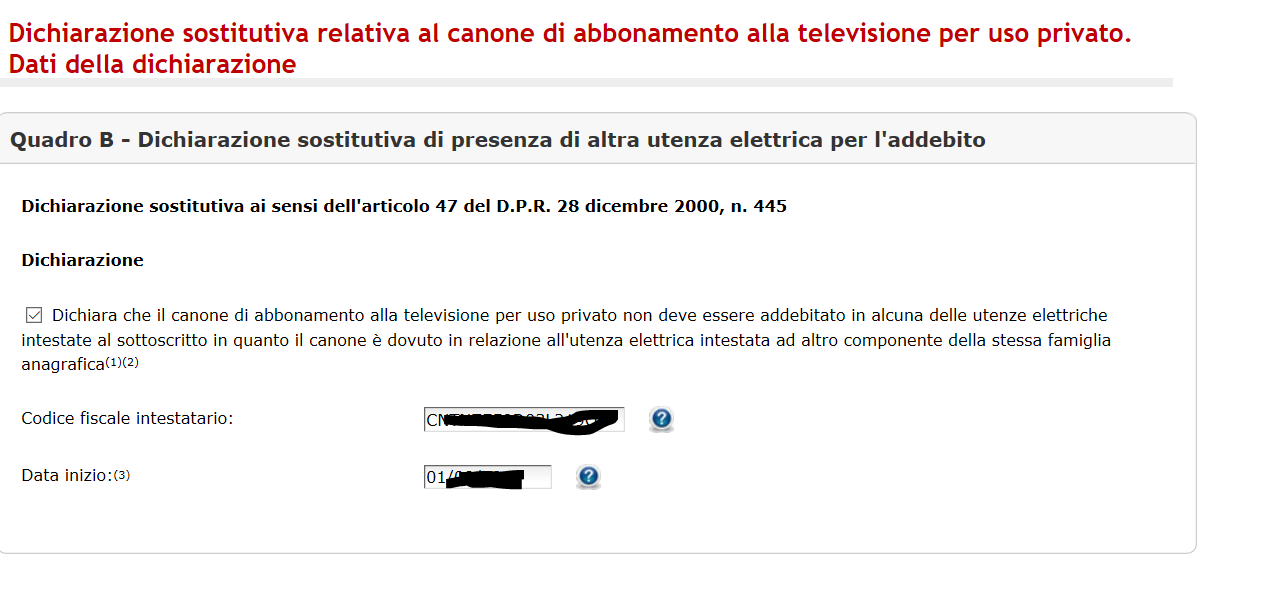
Wizard per l'inoltro dei dati della dichiarazione (passo 3)
Wizard per l’inoltro dei dati della dichiarazione (passo 3)

Wizard per l'inoltro dei dati della dichiarazione (passo 4)
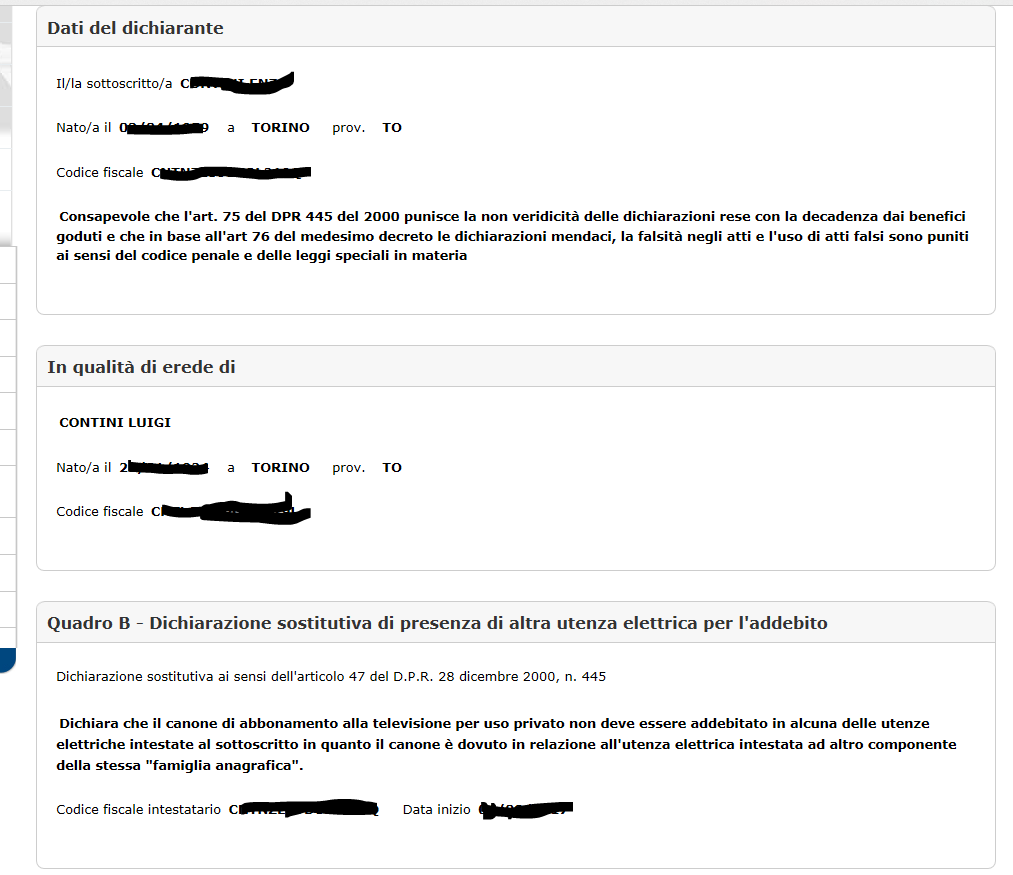
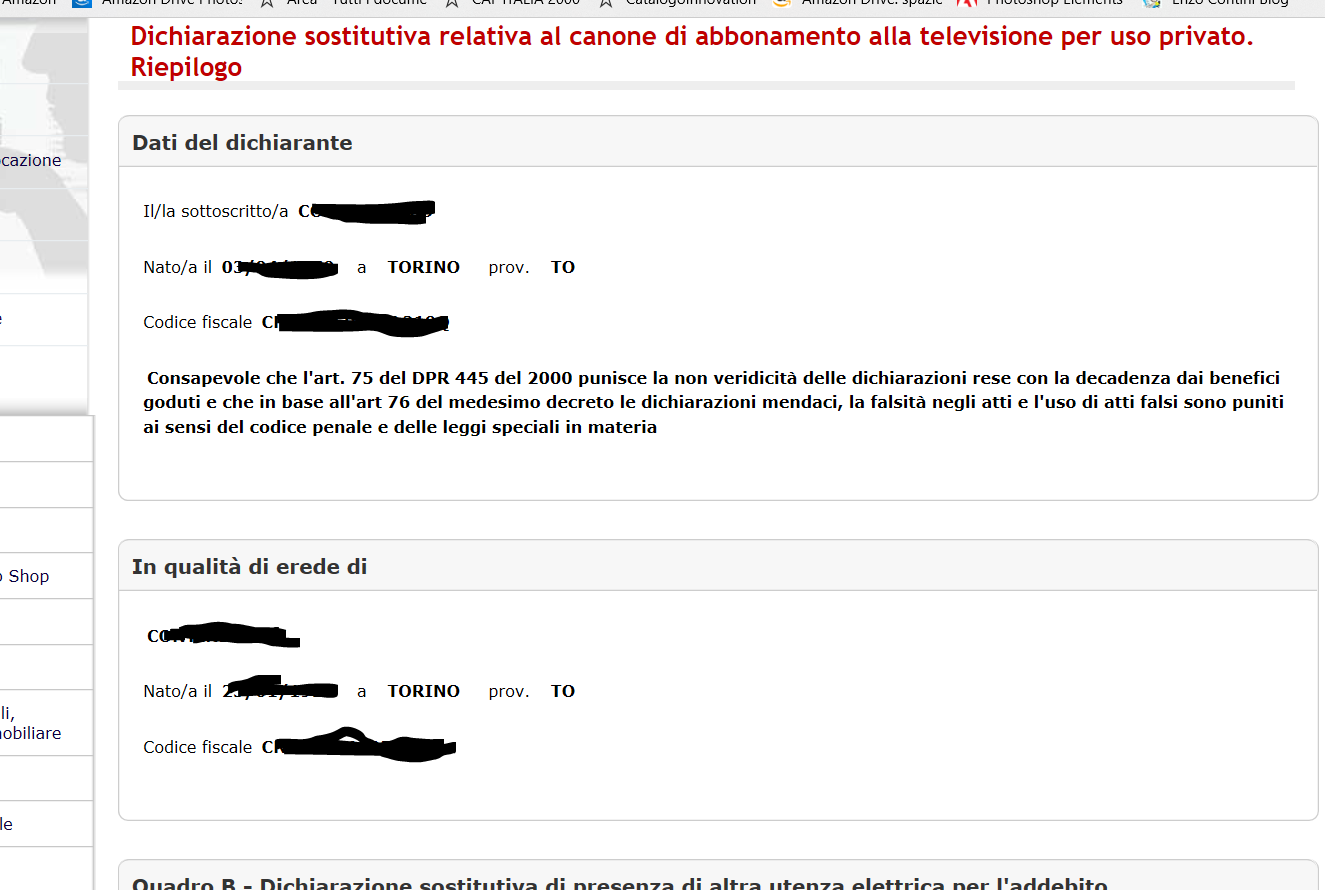
Wizard per l’inoltro dei dati della dichiarazione (passo 4)

Wizard per l'inoltro dei dati della dichiarazione (passo 5)

Wizard per l’inoltro dei dati della dichiarazione (passo 5)

Wizard per l'inoltro dei dati della dichiarazione (passo 6)

Wizard per l’inoltro dei dati della dichiarazione (passo 6)

Concludo, infine, constatando che purtroppo le procedure per agevolare le incombenze del cittadino non siano ancora del tutto adeguate: speriamo migliorino nel tempo!

😦

Pubblicato in Giustizia, burocrazia e malcostume, Review e test | 8 commenti

Protetto: Come estendere la pagina delle Timbrature Online in modo che mostri il monte-ore settimanale

Il contenuto è protetto da password. Per visualizzarlo inserisci la password qui sotto.

Pubblicato in Aziendali, Review e test, Windows | Inserisci la tua password per visualizzare i commenti.

Antifurti … alternativi!

Talvolta capita di vedere soluzioni originali in tutti i settori, … e l’ambito della sicurezza e degli antifurti non è da meno!!

Non sto parlando di innovazioni tecnologiche o di nuovi ritrovati delle scienze … bensì di inventiva umana, probabilmente la più fantasiosa e simpatica. Eccovi alcune mie foto che non hanno necessità di alcun commento …

😉

Pubblicato in Just for fun!, Pensieri&Parole | Lascia un commento

L’emozione dei colori

Ispirandomi nel titolo del post alla bella mostra della GAM di Torino di qualche mese fa, creo questo post in cui andrò a inserire immagini che palesemente, secondo me, mostrano l’importanza dei colori nel creare emozioni, … e come questi possano talvolta  essere utilizzati per abbellire una struttura/edificio/strada, … o come siano anche meno utilmente sfruttati in altri settori quali la pubblicità!

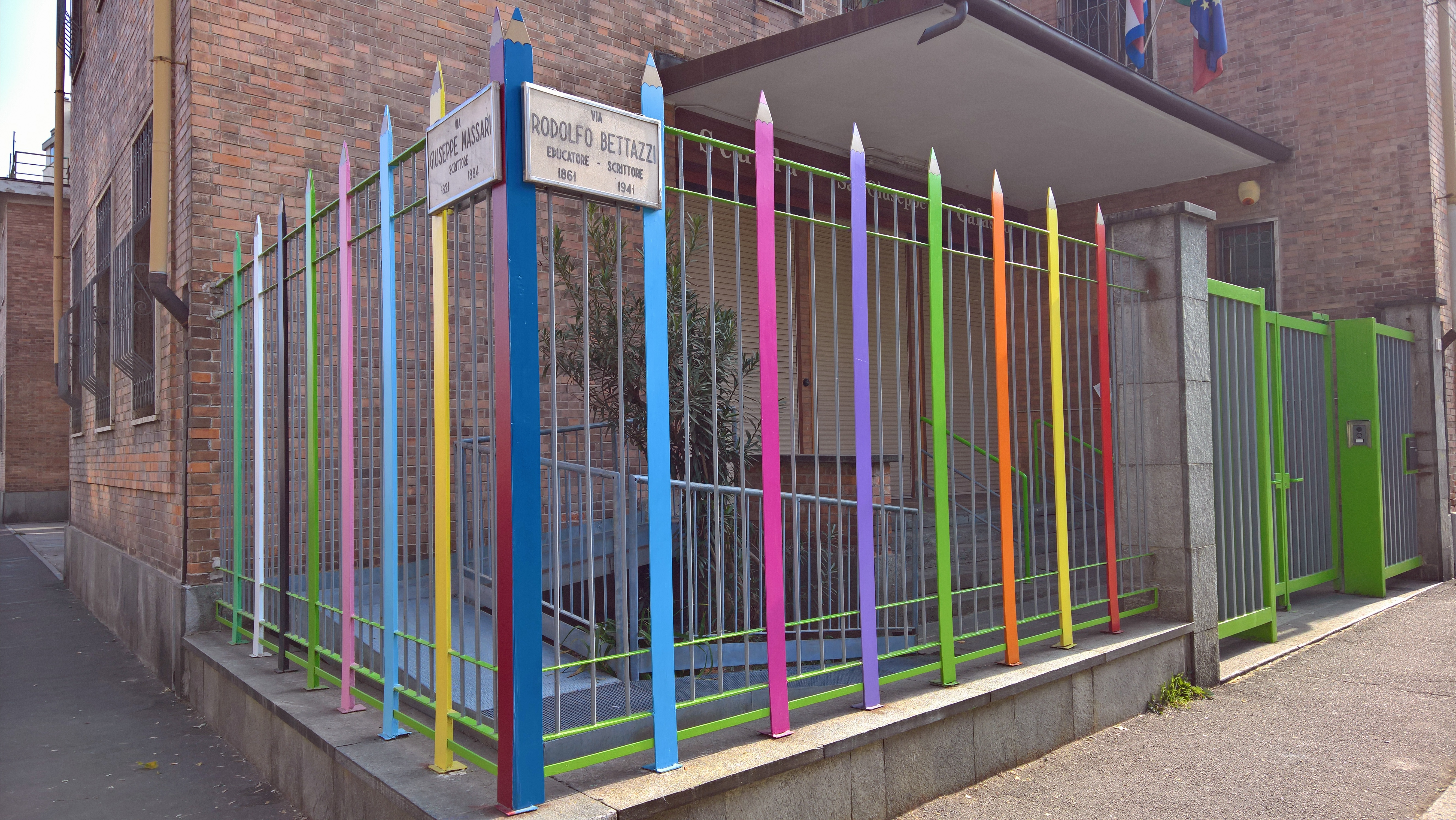
Ecco due scuole elementari abbellite con molti colori … e pochi sforzi:

20221018_120846 (1)

_________________________________________________________

Nel sito youreduaction.it ho visto questo bell’esempio di trasformare alcune strisce pedonali di Madrid tramite il progetto “Funnycross” di riqualificazione urbana per trasformare le strade in opere d’arte a cielo aperto: al momento ha interessato ben 13 attraversamenti pedonali di Madrid: resta da capire se la burocrazia legislativa italiana possa consentire agevolmente operazioni analoghe facendo rientrare queste iniziative nel codice della strada che definisce in modo alquanto preciso cosa si intende per strisce pedonali (per cui si rischierebbero controversie in caso d’incidente).

Anche a Taranto …

_________________________________________________________

Fotografia presa da Internet che mostra come anche un albero può essere talvolta ancora più abbellito con l’uso temporaneo dei colori: … i suoi fiori e foglie sanno comunque già renderlo comunque speciale!!

_________________________________________________________

Pubblicità:

_________________________________________________________

Torino:


_________________________________________________________

Le seguenti rielaborazioni di una mia foto mostrano come, semplicemente cambiando il colore, si possano modificare radicalmente le sensazioni percepite:

_________________________________________________________

Questa foto è relativa alla scala della GAM quando esponeva la mostra sui colori:

_________________________________________________________

Ecco alcuni tramonti sul Po di Torino:

Pubblicato in Arte e Bellezza, Dipinti, Fotografie, Pensieri&Parole | Lascia un commento

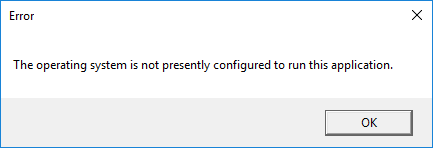
Possible solution for error: “The operation system is not presently configured to run this application”

It happened to me that error when I tried to run Skype for Business possibly after some Windows update.
I see that there is also a Microsoft support page on that issue and it is said that this error is typically caused by a mismatch between the accounts that are used in Outlook and Lync/Skype for Business.

Useless for me was any PC restart  or other suggested solutions I found on some forums!


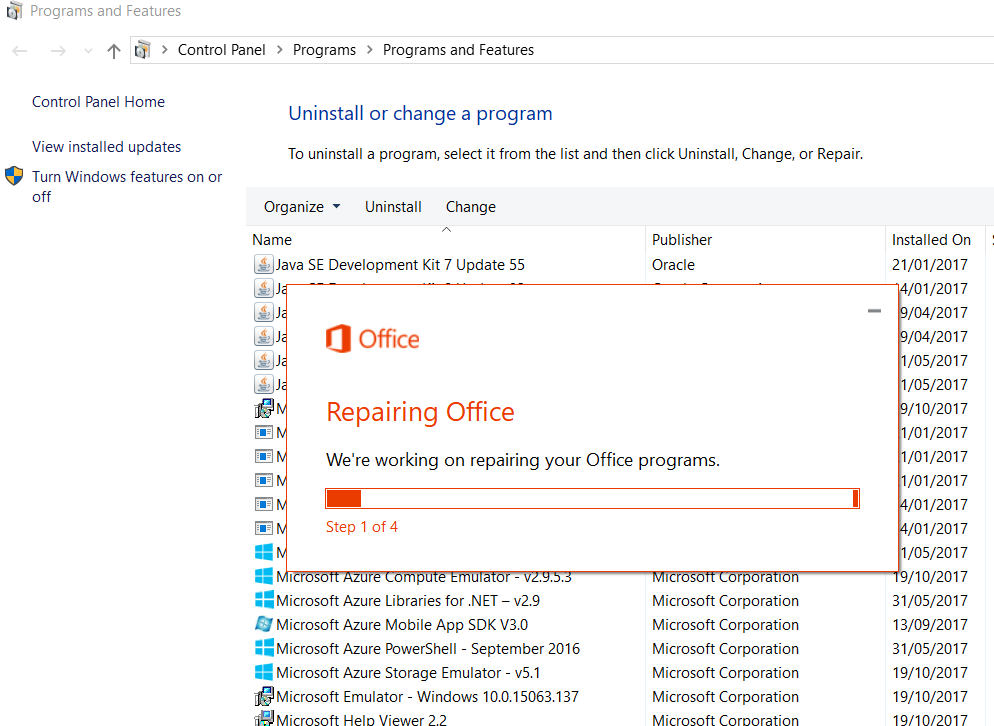
Personally I solved the issue going to Control Panel -> Programs -> Programs and Features (Win + R) and then right clicking on the Microsoft Office program, then choosing Change and finally the Online Repair option.

Control Panel -> Programs -> Programs and Features; right clicking on the Microsoft Office program; choose Change; select the Online Repair option.

Control Panel -> Programs -> Programs and Features; right clicking on the Microsoft Office program; choose Change; select the Online Repair option.

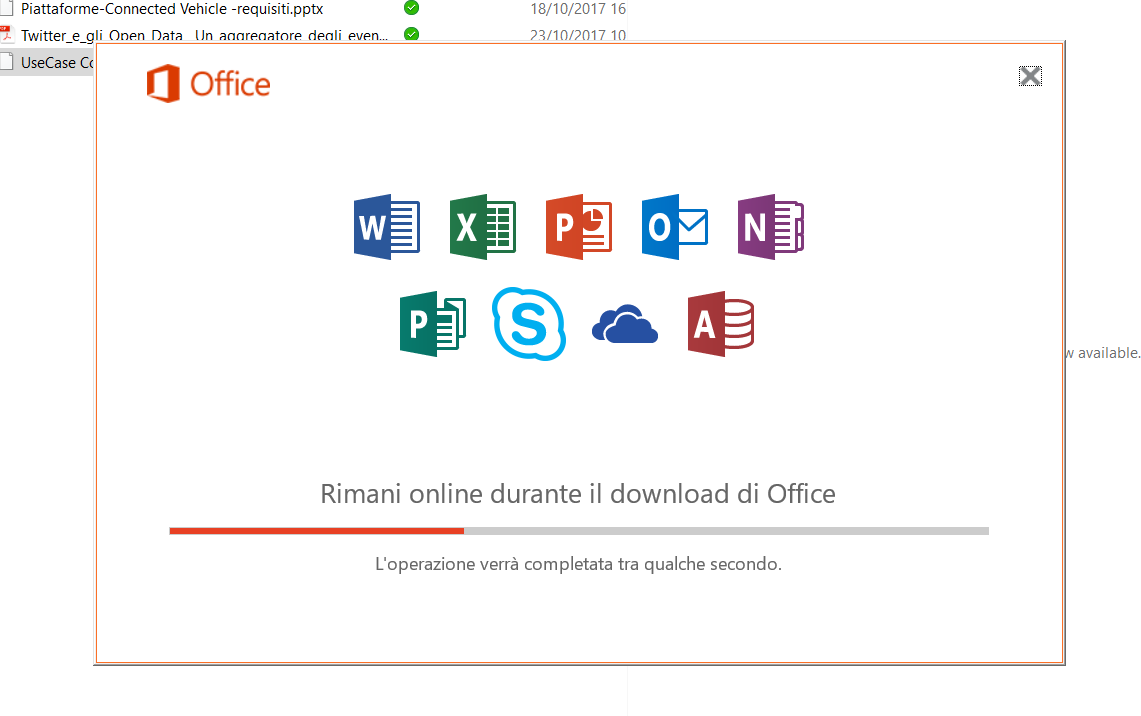
The Office is downloaded from a remote server and reinstalled without loosing the preexisting settings you had on your PC 😉

P.S.
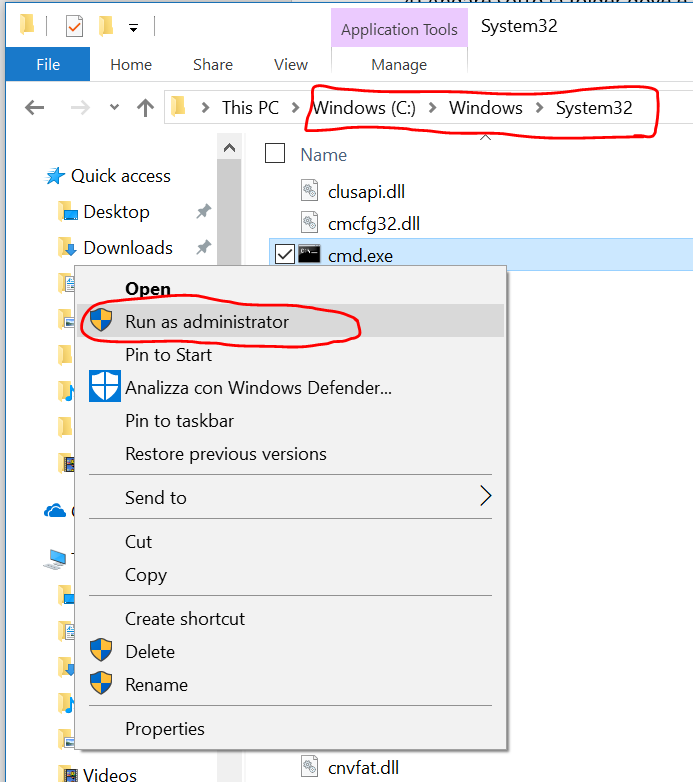
Someone else, in this a post of the social.technet.microsoft.com forum, said that solved the problem running cmd as administrator and then typing:

for /f “tokens=2 skip=6” %G in (‘whoami /user’) do reg delete hku\%G_Classes\VirtualStore\MACHINE /f

I did not try that possible solution but you could try even that!

Pubblicato in Tecnologia, Windows | Lascia un commento

Windows 10 Fall Creator: nuova funzionalità di Files on-demand (ex placeholder) in OneDrive [anche per OneDrive for Business e documenti su SharePoint]

Tra tutte le novità  introdotte dalla nuova versione autunnale di Windows 10 (Fall Creator Update) sicuramente una di quelle di maggior rilievo, a mio parere, è la ricomparsa della possibilità di avere file su richiesta (Files on-Demand) in OneDrive (anche in Skype for Business avendo penso uniformato lo sviluppo del codice!!) che consente di poter eventualmente mantenere un placeholder al posto del file scaricato: in tal modo si riescono con il File Explorer a vedere tutti i file (delle directory che si è deciso a livello di Settings di voler vedere localmente) senza doverli necessariamente avere scaricati, evitando così di occupare inutilmente memoria locale.

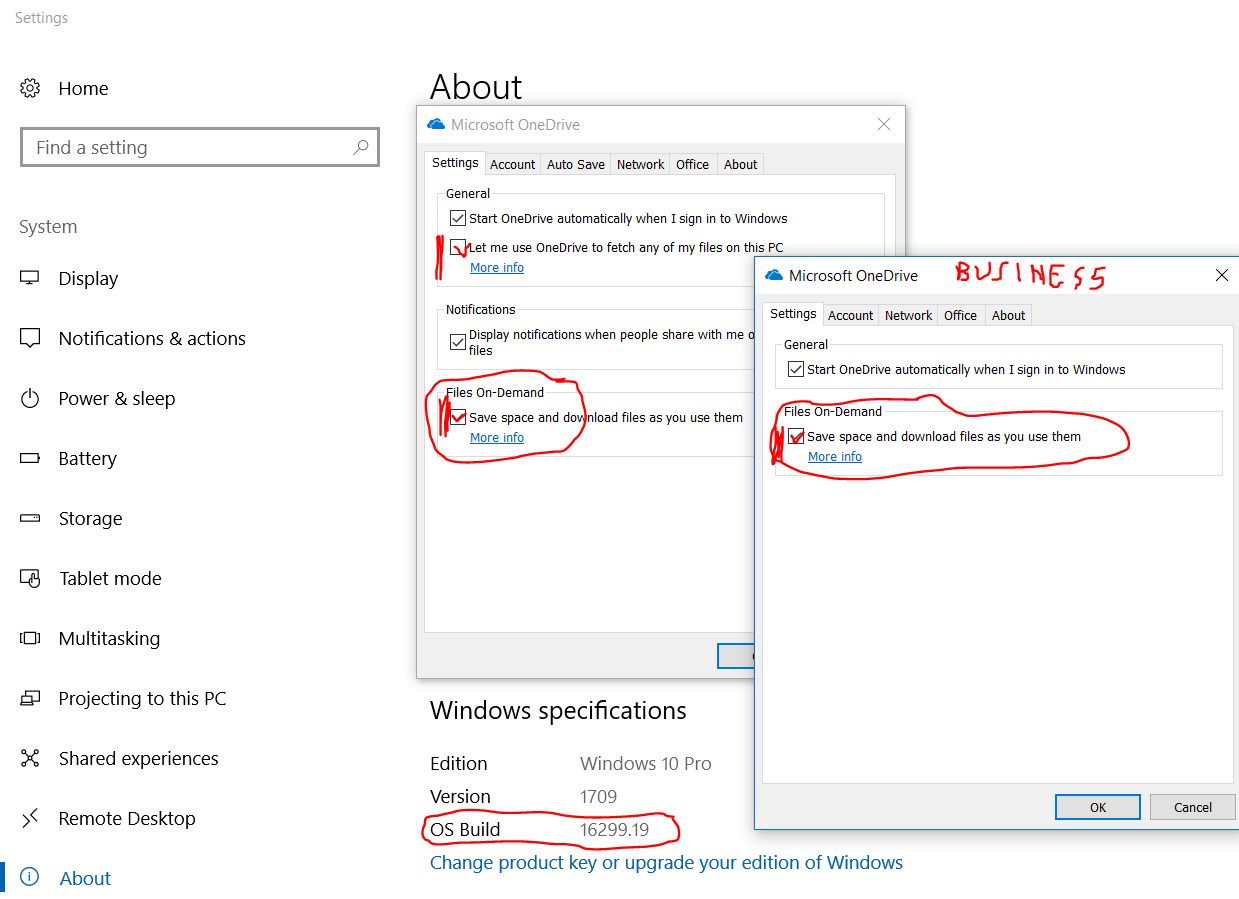
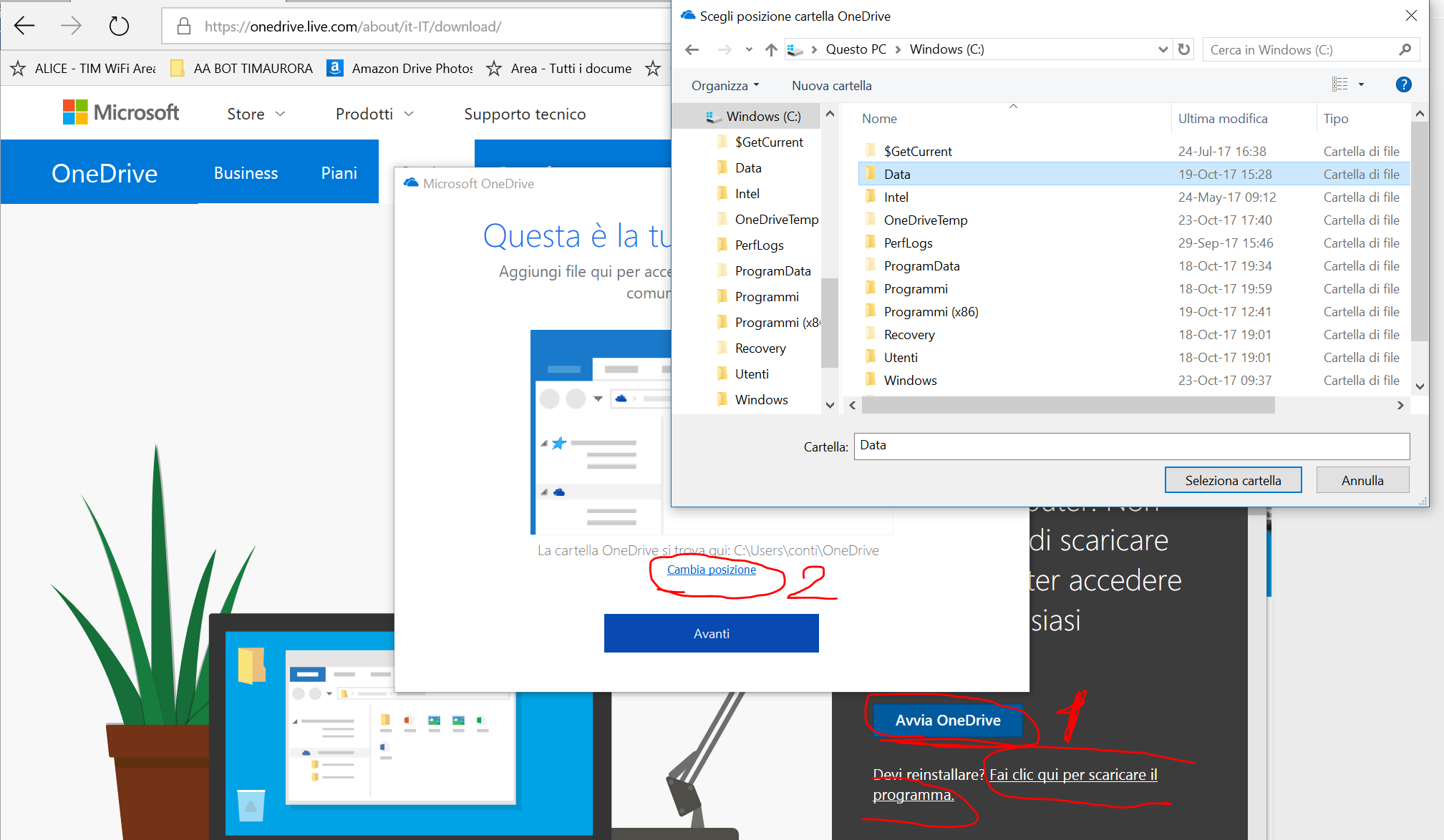
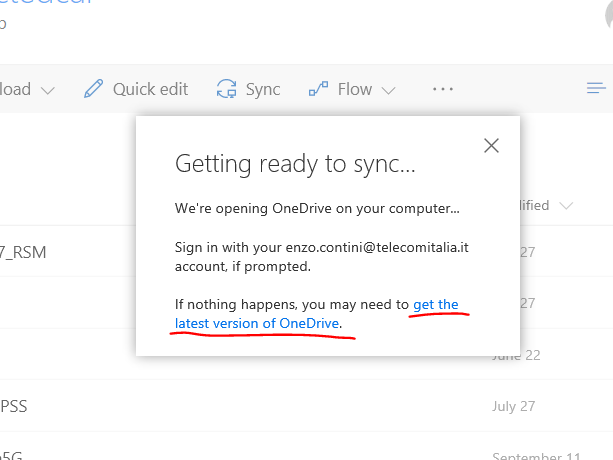
Per attivare la nuova funzionalità è necessario aver installato il Fall Creator Update di Windows 10 (version 1709 – OS Build 16299.19 o superiore) l’ultima versione di Windows 10 (Fall Creator Update – OS version 1709 che può essere agevolmente vista andando su System dal right click menu dello Start) e l’ultima versione del client di OneDrive. Se il client non è l’ultimo per cui non ti compaiono le opzioni mostrater nel seguito, conviene forzare l’installazione dal seguente link, presente anche nella sezione Scarica del sito di OneDrive (Devi reinstallare? Fai clic qui per scaricare il programma).

Deve quindi essere spuntata la checkbox relativa al Files on-Demand, per default disabilitata, affinché tale funzionalità risulti attiva:

Opzioni presenti nei Setting di OneDrive-Personal e OneDrive for Business che consentono di attivare la funzionalità di Files On-Demand

Dal precedente screenshot, si può notare che nei Settings sia di OneDrive-Personal sia di OneDrive-for-Business (click con il tasto destro sulle corrispondenti icone di cloud presenti nella toolbar in basso), esiste una checkbox che consente di abilitare questa funzionalità di File On-Demand.

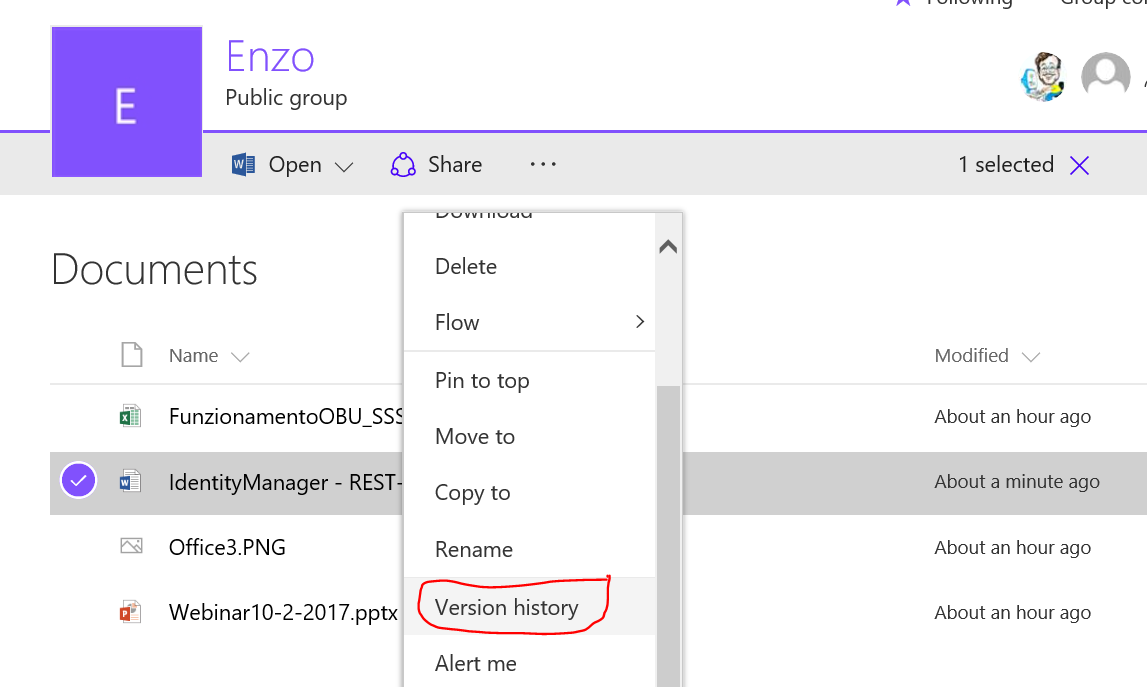
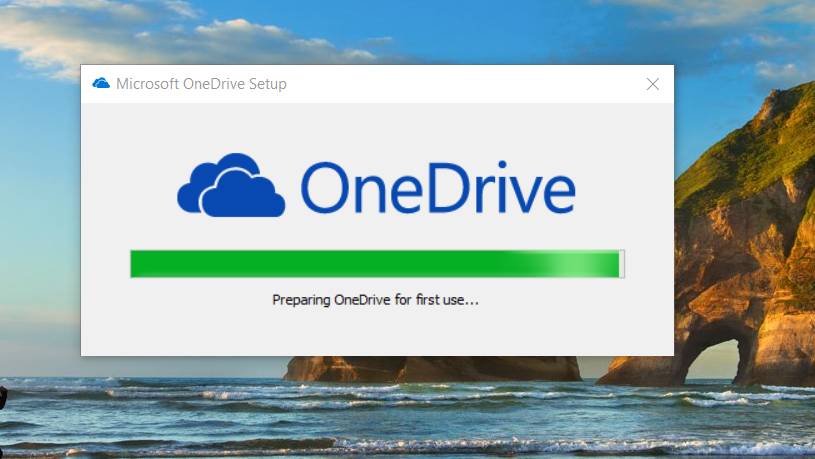
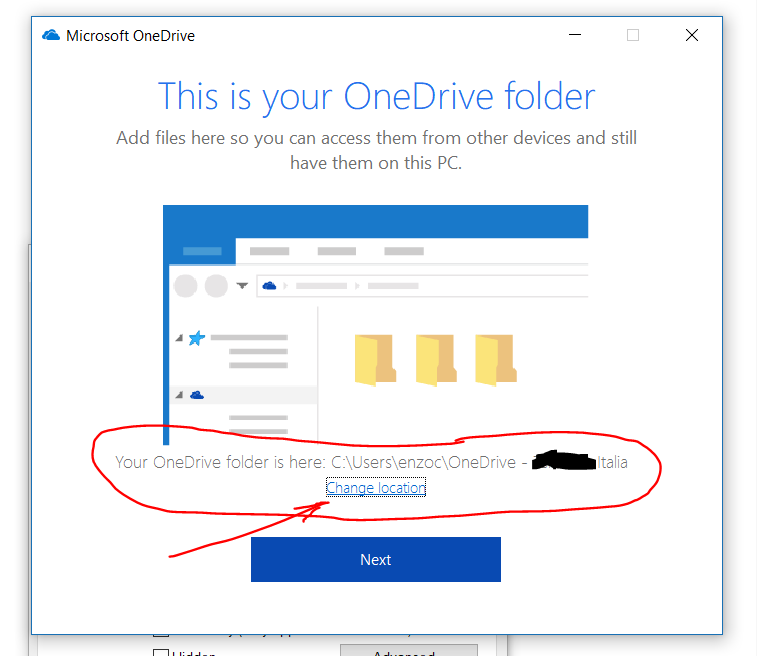
Scaricare eventualmente l’ultima versione del client di OneDrive

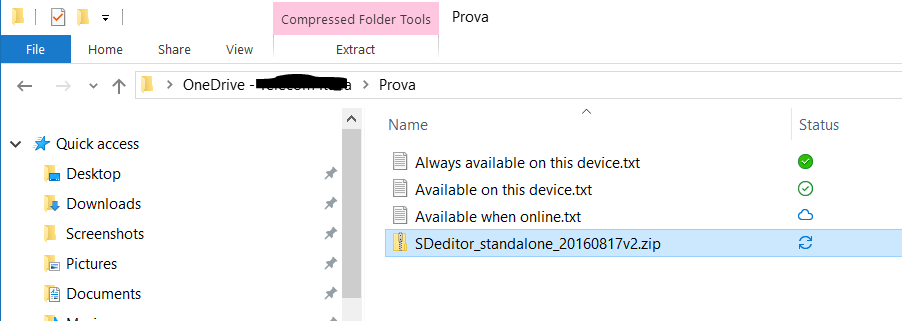
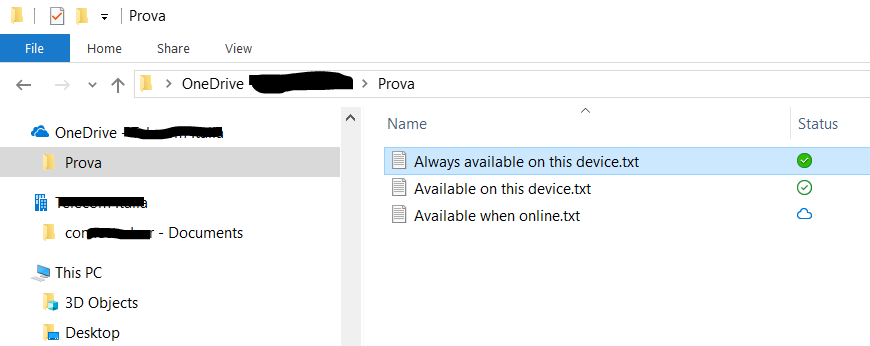
Una volta abilitata questa funzionalità, sono previsti i  seguenti tre possibili stati, per sia un file sia una directory sincronizzato nel cloud (sia questo su un OneDrive o su un sito SharePoint): in particolare, lo stato di una directory è sempre relativo alla condizione più critica propria dei file in essa contenuti (vedi dettagli nel seguito).

  1. Available when online: disponibile solo sul cloud per cui non occupano memoria ma richiedono una connessione ad Internet per poter essere visualizzati. Il file viene scaricato solo se lo si apre (e si ha ovviamente la connessione ad Internet) e passa automaticamente nello stato Available on this device.
  2. Available on this device: stato automaticamente impostato qualora si apra un file che non era in locale che quindi viene scaricato ed aperto dall’app associata alla sua estensione. Risulta disponibile localmente, per cui occupa spazio e risulta localmente disponibile anche senza connessione ad internet. Non è garantita la permanenza in locale qualora il file non sia utilizzato da tempo e sia richiesto spazio per scaricare altri file in locale.
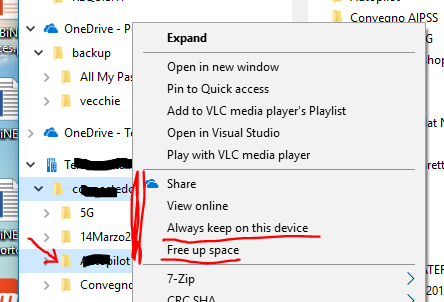
  3. Always available on this device: analogo al precedente ma impostato esplicitamente dall’utente operando sul menù a tendina associato al file/directory (right click), per cui risulta SEMPRE presente in locale e la sua presenza non può essere gestita dinamicamente dal sistema.

Esiste poi un’ulteriore condizione non stabile in cui si può trovare un file/directory, quella di Sync pending rappresentata da un’icona con doppia freccia circolare: indica che la versione locale non è attualmente ancora sincronizzata con quella in cloud e lo sarà non appena il processo di sincronizzazione termina (e.g. può tardare in quanto manca la connessione Internet). Si noti che attualmente tale icona non risulta mai animata anche se, secondo me, potrebbe servire per evidenziare meglio quando il processo di sincronizzazione è correntemente in corso o è fermo per mancanza di connessione di rete: non appena la sincronizzazione è avvenuta,  il File/Directory si porterà in uno degli altri stati stabili ed avrà una differente icona associata.

Se si desidera poi esplicitamente liberare memoria e non avere più in locale un File/Directory specifica, è sufficiente agire sempre sul menù a tendina associato al file/directory (right click),  e selezionare Free up space.

Esempio di file con tutti i 3 stati previsti: Available when online, Available on this device, Always available on this device – Evidenziata anche la condizione transitoria di Sync pending


Riporto le indicazioni formalmente fornite dal sito Microsoft relativamente al significato degli stati precedentemente elencati … spiegazione non particolarmente convincente, a mio parere e che mi hanno richiesto alcune prove di funzionamento per essere meglio interpretate correttamente 😉

Conceptual image of an online only file

Online-only files
Online-only files don’t take up space on your computer. You see a cloud icon for each online-only file in File Explorer, but the file doesn’t download to your device until you open it. You can’t open online-only files when your device isn’t connected to the Internet.
Conceptual image of a locally available file

Locally available files
When you open an online-only file, it downloads to your device and becomes a locally available file. You can open a locally available file anytime, even without Internet access. If you need more space, you can change the file back to online only. Just right-click the file and select “Free up space.”
Conceptual image of an always available file

Always available files
Only files that you mark as “Always keep on this device” have the green circle with the white check mark. These files download to your device and take up space, but they’re always there for you even when you’re offline.

Infatti da quanto indicato, non è del tutto chiara la distinzione tra i due stati “Locally available files” e “Always available files” in quanto in entrambi i casi il file risulta presente in locale e quindi utilizzabile anche in assenza di collegamento ad Internet (modalità offline) ed anche la sincronizzazione con il cloud avviene per entrambi non appena possibile, vale a dire non appena si ha una connessione Internet. Non si tratta neppure di una differenziazione legata al fatto che, qualora a livello di directory contenente dei file si impostasse “Free up space“, questo comportasse un diverso comportamento dei file in essa presenti, a seconda se erano “Locally available files” oppure “Always available files” (e.g. venisse liberato spazio solo per i primi, mantenendo comunque tutti i secondi): infatti facendo semplici prove, si vede che comunque vengono in quel caso resi tutti quanti “Available only online”.

Facendo ulteriori prove, si nota anche che lo stato mostrato per una directory è sempre relativo alla condizione più critica propria dei file in essa contenuti (e.g. basta che ci sia anche solo un file “Online-only” affinché quello stato sia anche quello della cartella che lo contiene; analogamente se tutti i file sono “Always available files” eccetto anche solo uno “Locally available files“, la cartella risulterà nello stato “Locally available files“). La differenza sembrerebbe essere molto sottile (come suggerito in Tech community: Files on demand – difference in ‘locally available’ and ‘always available’ files) e non di particolare interesse nella maggior parte dei casi in cui si è agevolmente connessi a Internet: sembrerebbe infatti che “Locally available files” sono quelli che uno ha aperto quando online ed erano precedentemente “Online-only” oppure creati recentemente da un dispositivo differente mentre si era online: questi file vengono scaricati sul PC in locale nell’immediato MA non si è garantiti che rimangano in locale. Infatti se uno non utilizza da tempo quel file e risulta necessario liberare spazio per poter scaricare altri file che si desidera avere in locale, quelli precedenti nello stato “Locally available files” possono passare nello stato “Online-only” (tale processo sembra basato su euristica e necessità di spazio libero). Se invece si vuole essere sicuri che un file sia sempre presente localmente offline, è conveniente portarlo esplicitamente nello stato “Always available files“, operando sul menù a tendina relativo al click con il tasto destro, nella sezione relativa a OneDrive associata a quel file.

In particolare per un file/directory che si trovi nello stato Available on this device (e.g. file presente nel Cloud che è stato aperto localmente per cui è stato implicitamente automaticamente scaricato) risulta sempre possibile, dal menu disponibile al right click, portarlo negli altri due stati:

  • Always keep on this device => stato Always available on this device;
  • Free up space => stato Available when online.

Analogamente qualora il file si trovi inizialmente in un differente stato.

Risulta sempre possibile, dal menu disponibile al right click, portare un file in uno stato negli altri due stati (e.g. dallo stato Always available on this device allo stato Available when online

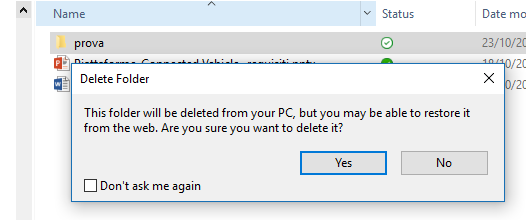
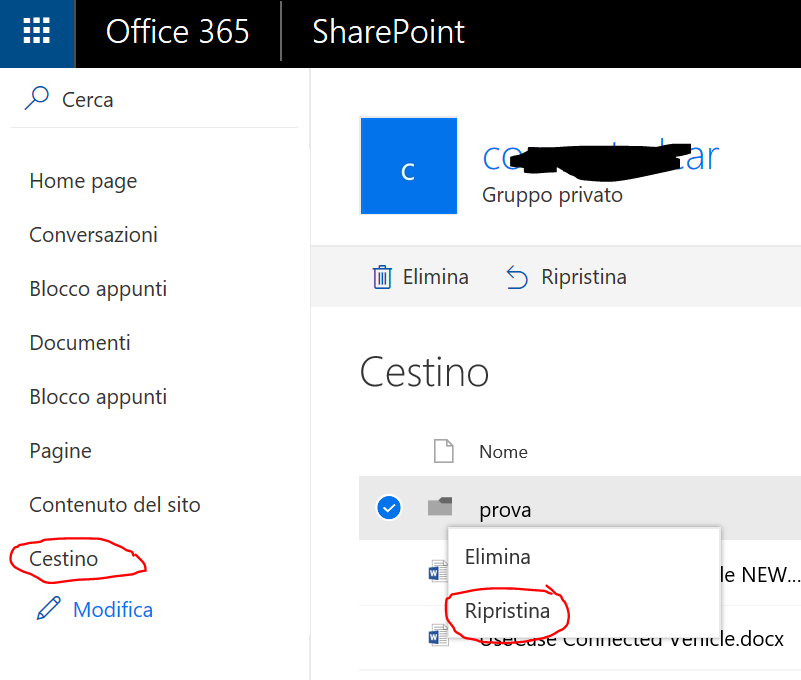
Qualora infine si cancelli un file/directory sincronizzato sul Cloud, questo si ripercuote anche remotamente, così come qualsiasi modifica che uno effettua al file/directory: tuttavia non solo si è avvertiti, ma risulta comunque possibile recuperarlo (qualora uno l’abbia cancellato per errore) andando con il browser su sito SharePoint o su OneDrive (a seconda di dove si trovava quel file, sulla cartella Documenti di un sito SharePoint o su una cartella di OneDrive) agendo sul cestino.

Quando si cancella un file/directory, si è avvertiti che questo si ripercuote anche sul Cloud

E’ sempre possibile recuperare un file cancellato per errore, riprendendolo dal Cestino presente sia su OneDrive sia su ciascun sito SharePoint

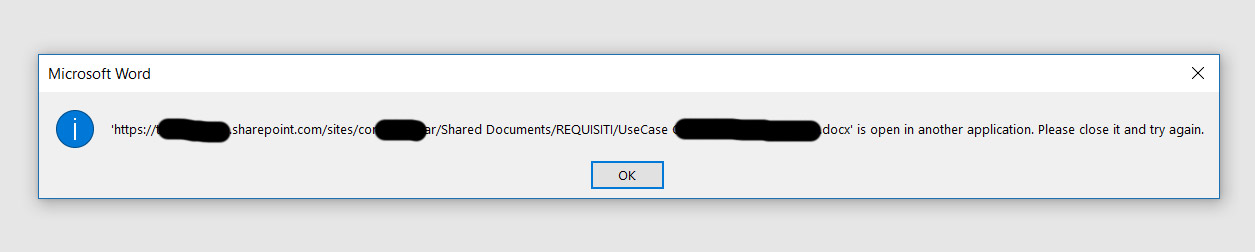
Si noti infine che qualora due utenti autorizzati cerchino di accedere contemporaneamente al medesimo file presente sul cloud per apportarne modifiche, questo viene impedito a meno che non ci sia una accettazione ad un editing condiviso da chi per primo aperto tale file, eventualmente operando con l’editor Office online.

Viene impedito un editing da un secondo utente, a meno che non ci sia una accettazione ad un editing condiviso da chi per primo aperto tale file

Vedere anche i seguenti post precedenti:

===============================================

Puoi trovare  ulteriori guide su come funziona questa nuova funzionalità nei seguenti siti:

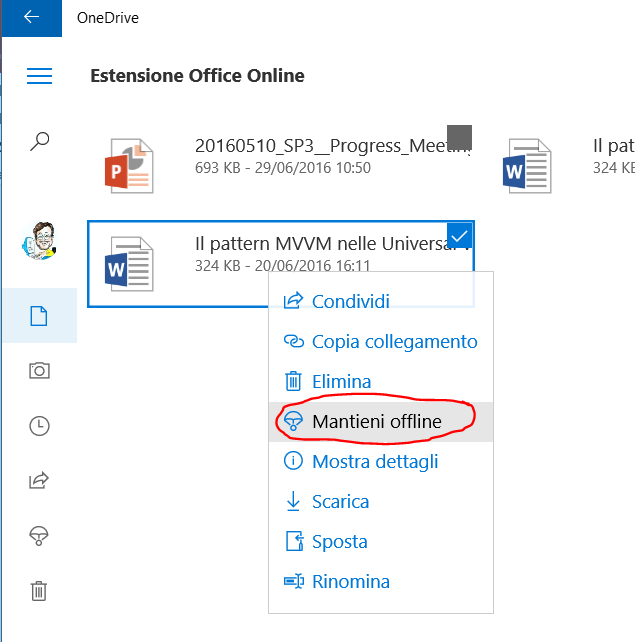
Dall’app OneDrive si può unicamente indicare se un file (non una cartella) lo si vuole anche offline [in alternativa al semplice download], come mostrato nei seguenti screenshot: in questo caso l’icona con il paracadute viene utilizzata per indicare la presenza del file anche in locale.

Accesso a OneDrive tramite l’app OneDrive

Il file contrassegnato dall’icona “paracadute” viene mantenuto offline

Per avere nuovamente il file solo online, risparmiando spazio sul disco locale

Infine dal sito web OneDrive risulta per ora solo effettuare il download di un file.


Un ulteriore link utile è Come eseguire una installazione pulita di Windows 10 Fall Creator

Pubblicato in Tecnologia, Windows | 4 commenti

How to format an HD not visible in Windows 10’s File Explorer

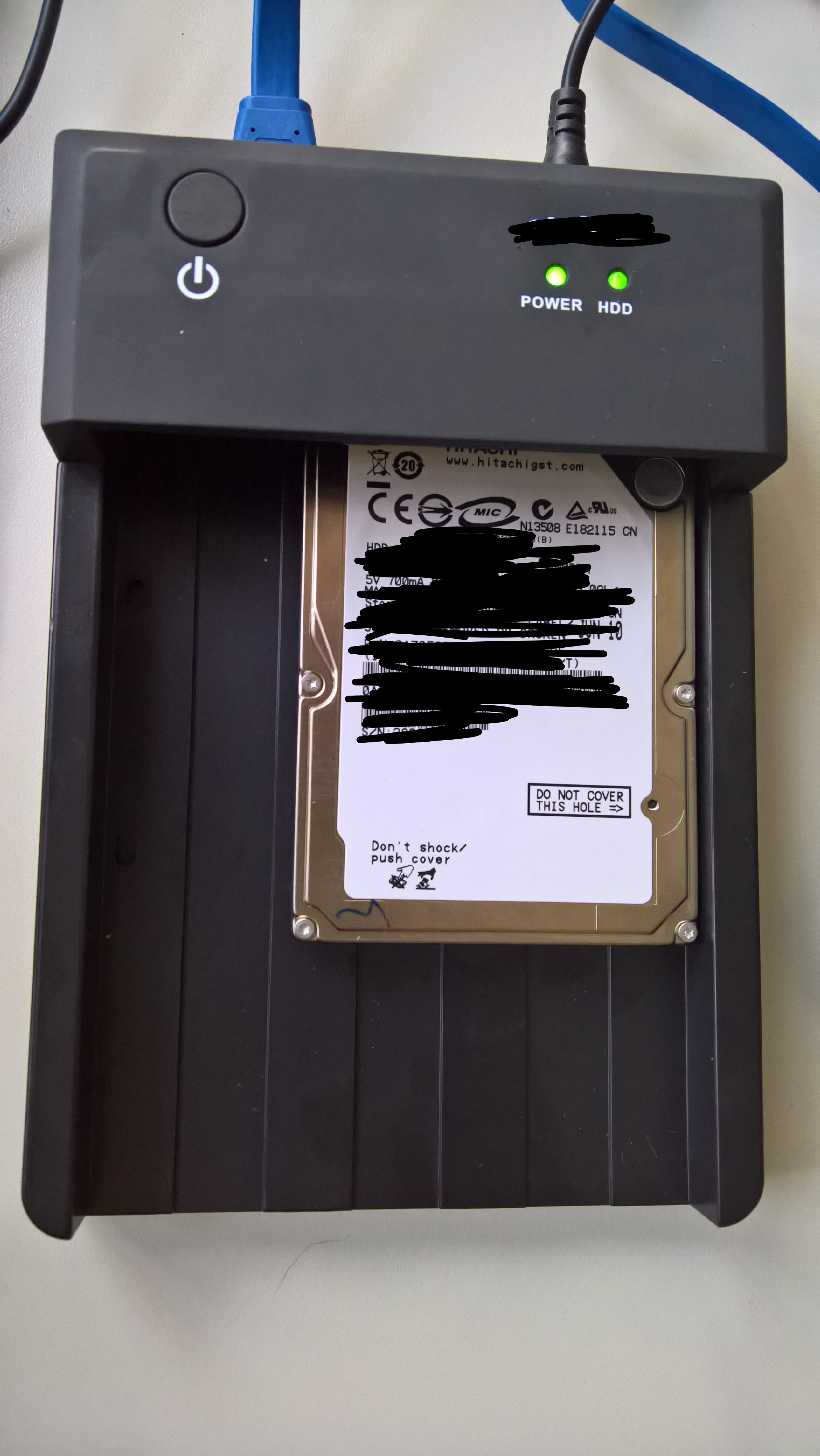
Sometime it may happens that you want to use an HD recovered from some other PC, possibly a not Windows one (e.g. Linux). When you connect it via USB port using a Hard Disk Docking Station, it may happens that that HD is not visible in the file Explorer of Windows 10 because corrupted or because the existing partitions are not the ones expected by Windows 10 and therefore you need to delete them all and then recreate a new NTFS volume.

Hard Disk connected to a PC, via USB port, using an Hard Disk Docking Station

This video tutorial is very esaustive, even thought it is an old one (2012) and it refers to a previous Windows O.S. version: in fact the procedure to follow is still nearly the same!

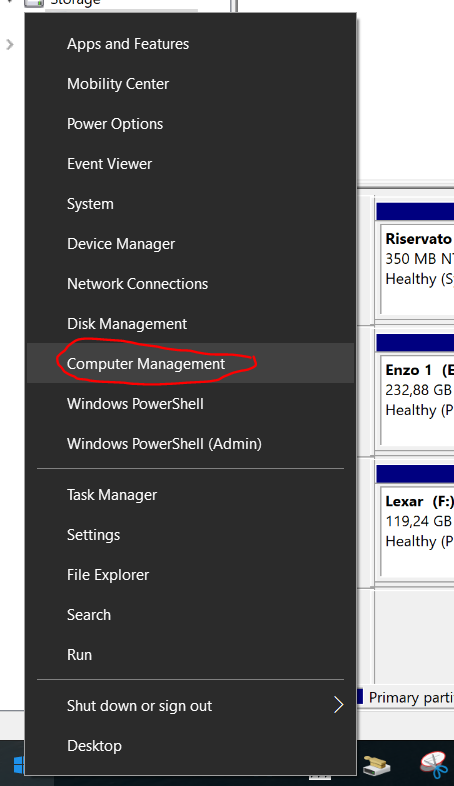
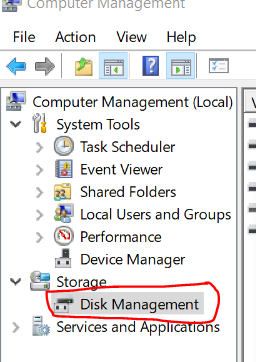
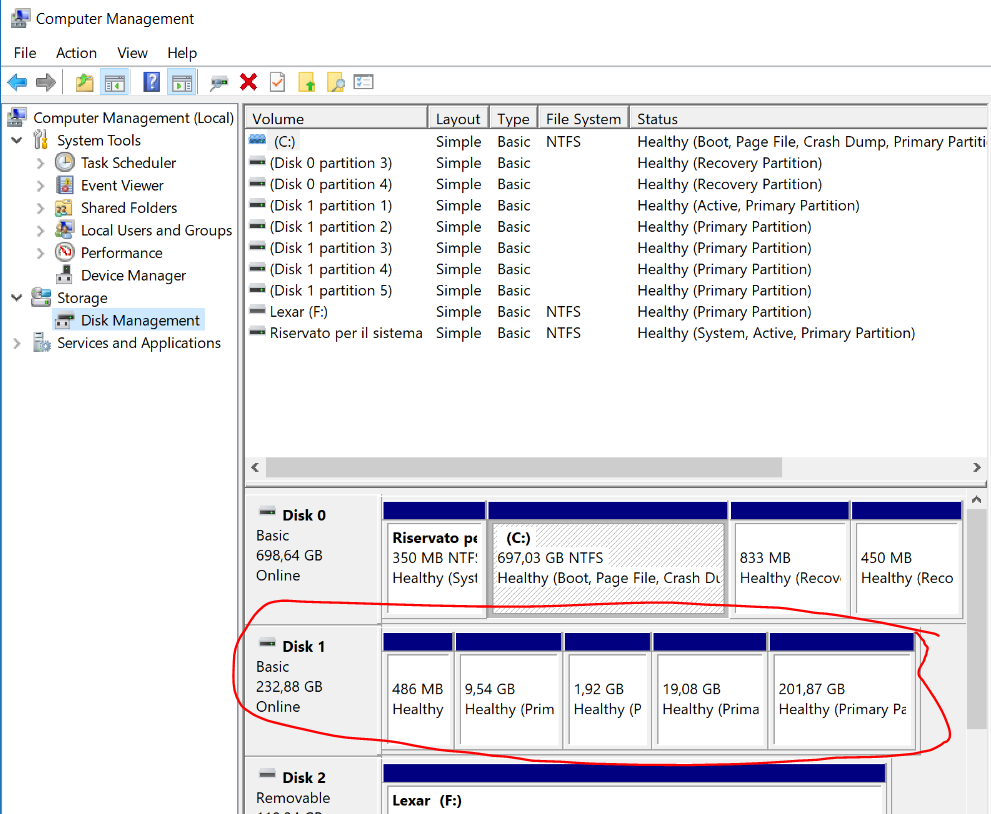
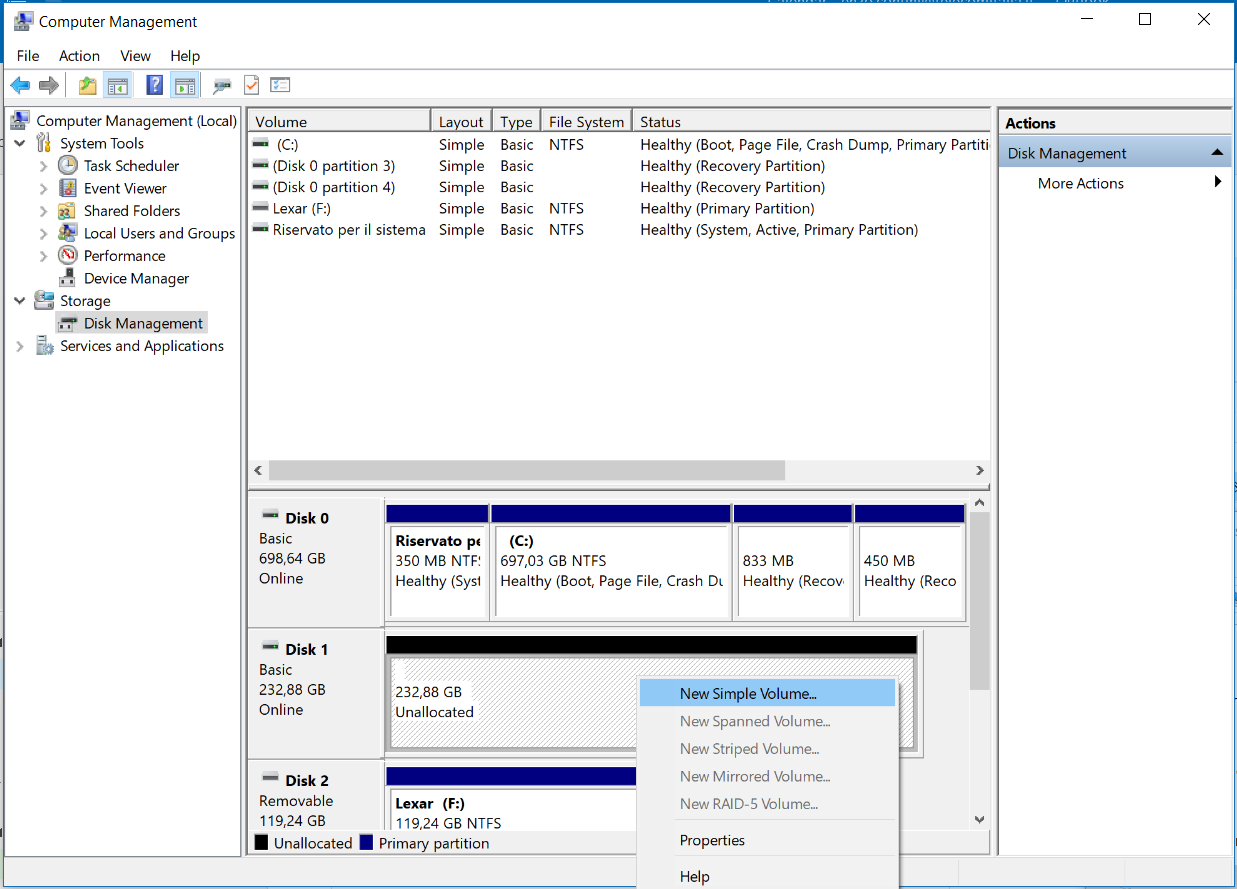
You need to right click on the Start menu and choose the Computer Management menu item. Going to the Computer Management (Local) -> Storage -> Disk Management section, you will be able to see from here the attached new HD, even if it is not visible from the File Explorer.
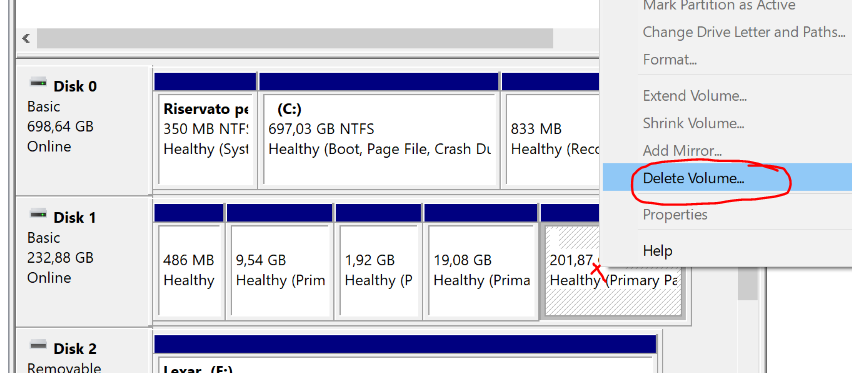
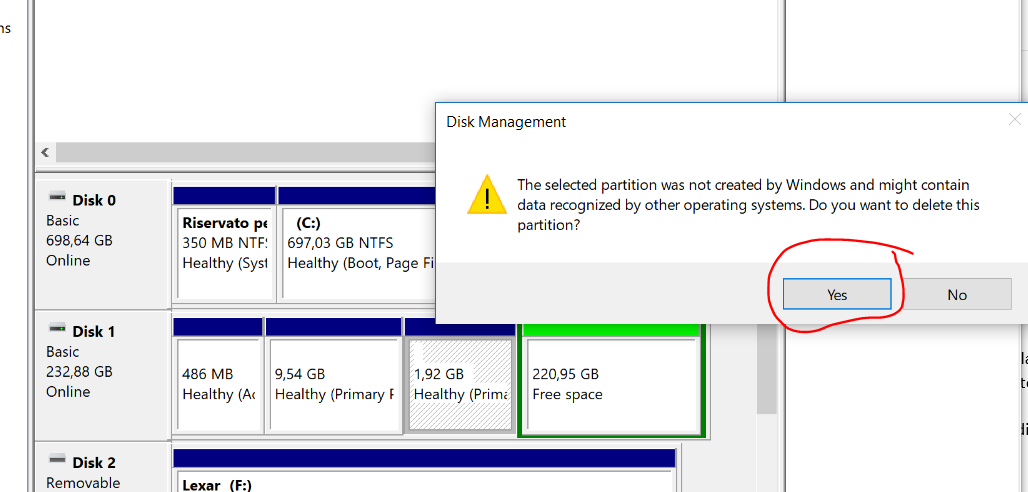
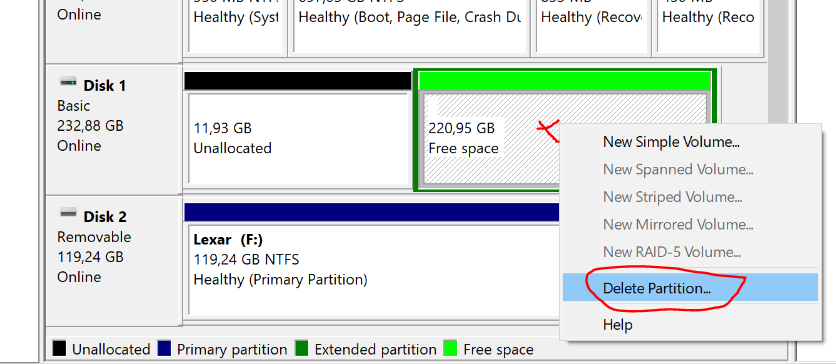
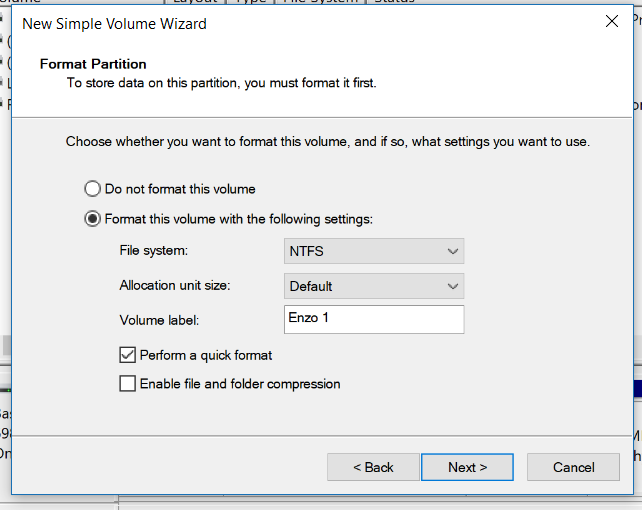
You have to delete all its partitions (be careful to be sure it is the new attached HD, possibly disconnecting and then reconnecting it from the PC USB port in order to identifying it for sure 😉 and then create a new volume: choose NTFS in the option related to the file system setting and possibly give a label to that new volume.

Computer Management

Storage -> Disk Management

The HD is visible from the Disk Management section

Delete all Volumes (1)

Delete all Volumes (2)

Delete all available Partitions

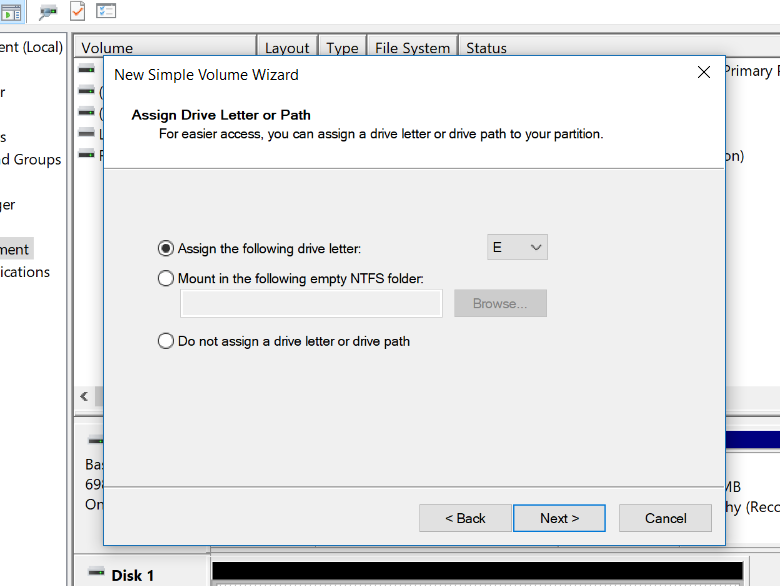
After deleting all available volumes and partitions and then having only a single unallocated one, create a new Simple Volume

New Simple Volume allocation (1)

New Simple Volume allocation (2)

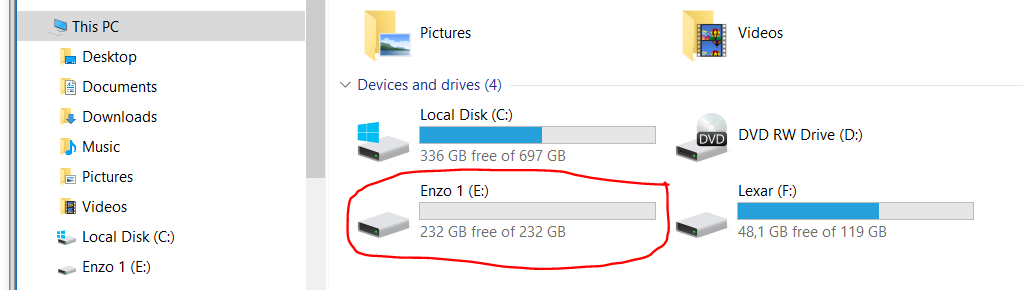
The new Volume is now available in the File Explorer and it can be used to save your data!

Pubblicato in Review e test, Windows | Lascia un commento

Come assistere gratuitamente ad una seduta della Camera dei Deputati: istruzioni per l’uso

P.S. Pubblico un vecchio post che fino ad oggi avevo tenuto privato.

Oggi (13/6/2016) ho assistito ad una parte di una seduta della Camera dei Deputati. Se visitate Roma, anche solo come turista, vi consiglio di farlo anche voi … almeno una volta nella vita è dovuto! Sicuramente vale la pena vedere, dall’alto delle sue tribune, la bella sala dove si svolgono le discussioni … tante volte la si è vista in televisione, ma vederla dal vivo è tutt’altra cosa, con la sua vetrata al soffitto, le pareti di legno scuro ed i numerosi banchi disposti a raggiera: purtroppo non si può portare con sé né una macchina fotografica né un cellulare, per cui non potrai immortalare il tutto con una fotografia! Comunque, anche per un non addetto ai lavori come me, è interessante (direi addirittura istruttivo) vedere di persona come si svolgono le discussioni e toccare con mano ciò che c’è intorno.

Io ci sono andato con moglie, figlia ed una amica avvocato: grazie a lei, che ci era andata in passato più volte, non ho dovuto interessarmi su quale fosse la procedura riservata al pubblico, ma ora ho visto che, sebbene molto sinteticamente, questa è descritta anche su una pagina del sito di una precedente legislatura mentre, stranamente, non l’ho trovata nel sito dell’attuale legislatura, … ma forse è solo più difficoltoso trovare il percorso per arrivare a tale informazione! Ho scoperto così che ciascuna legislatura ha un suo sito, con una sua grafica e suoi menù di accesso ai contenuti … e questi siti risultano assai differenti tra loro: comunque anche quelli delle legislature precedenti vengano mantenuti, forse a memoria storica. Da un punto di vista tecnico mi ha comunque stupito tutto ciò: è come se, cambiando il direttore, il sito di un giornale dovesse cambiare aspetto ed impaginazione, pur mantenendosi i contenuti analoghi così come la tipologia dei contenuti dinamici (es. l’ordine del giorno), al posto di invece riproporre con nuova grafica e con nuove tecnologie, tutti i contenuti (anche quelli vecchi) che in teoria, se il tutto è stato progettato bene, dovrebbero essere memorizzati su un data layer, quindi differente dal presentation layer relativo appunto alla loro presentazione.

Nel seguito cercherò comunque di dettagliare maggiormente le informazioni che ho trovato nei siti istituzionali relativamente al tema in oggetto, raccontandovi poi la mia esperienza personale e descrivendovi anche le mie sensazioni, sempre come cittadino non addetto ai lavori e quindi con studi tecnici che esulano dal mondo della giurisprudenza (e quindi ignorante in materia).

Da qui si legge: “I cittadini che desiderano assistere ad una seduta della Camera dei deputati devono recarsi, a partire da mezz’ora prima dell’inizio della seduta, in Piazza del Parlamento 24, presso la Sala del pubblico. Qui viene compilato un modulo di richiesta che deve essere accompagnato da un documento di identità valido.
L’autorizzazione è rilasciata, compatibilmente con la disponibilità dei posti nelle tribune per il pubblico, entro 45 minuti circa. Ricevuta la comunicazione, chi vuole assistere alla seduta si reca in piazza del Parlamento 25 dove gli addetti, verificata l’identità, rilasciano il biglietto di accesso. E’ necessario, prima di accedere alle tribune, depositare soprabiti, borse, telefoni cellulari e apparecchiature elettroniche che saranno custodite in apposite buste di sicurezza numerate.  Agli uomini è inoltre richiesto di indossare giacca e cravatta.
Durante le sedute, il pubblico che siede nelle tribune deve stare a capo scoperto ed in silenzio, astenendosi da ogni segno di approvazione o disapprovazione e deve seguire le indicazioni dei commessi parlamentari. Il pubblico deve uscire dalle tribune in tutti i casi di sospensione della seduta. Le persone ammesse alle tribune riservate al pubblico sono invitate a prendere formale visione delle norme comportamentali recate dall’art. 64 del regolamento della Camera dei deputati e dalle disposizioni integrative ed attuative“.

In verità conviene, una volta verificata l’ora di inizio di una seduta (visibile da questa pagina del sito istituzionale), arrivare molto prima, diciamo almeno un’ora prima, in quanto le procedure di ammissione, come andrò a descrivere, sono tutt’altro che rapide ed il protocollo utilizzato non è dei più “lean“. Generalmente mi sembra di avere capito che il lunedì iniziano generalmente sul tardi (es. 11:30) mentre il venerdì finiscono presto (es. anche prima delle 11:00) … almeno questo è quello che ci è successo arrivando il venerdì 10 giugno! Per cui, essendo gli orari così variabili, conviene (come ho già evidenziato) sicuramente prima visitare questa pagina del sito istituzionale.

Per quanto riguarda l’obbligo di giacca e cravatta, l’importante è avere camicia e cravatta, in quanto la giacca, se non ce l’hai, te la imprestano (ne hanno alcune a disposizione a tale scopo e, se non ci sono troppi visitatori senza giacca, non ci dovrebbero essere problemi …).

L’ingresso indicato (Piazza del Parlamento 24) è una porticina a sinistra sul retro del palazzo del Parlamento, quindi sulla facciata che, seppur bella, non è certo paragonabile con quella principale utilizzata come ingresso dei parlamentari e quindi ancor più presidiata. Comunque anche in quell’accesso secondario al Palazzo erano presenti (a presidiare fuori) due persone, una in divisa ed una in borghese. Subito entrati, passiamo attraverso un metal-detector e quindi un tappeto mobile analizza tutte le borse. Dietro una vetrata sono presenti tre persone che gentilmente, dopo avere appurato il motivo della nostra presenza, ci indicano di proseguire in una stanza adiacente dove si effettua la compilazione dell’apposito modulo di richiesta. Dopo aver superato un ulteriore gabbiotto con un altro dipendente, giungiamo quindi, a pochi metri di distanza, in una stanza dove è presente un tavolo con apposite biro e dove sono presenti tre altre persone, una delle quali ci fornisce i moduli e ci invita a compilarli inserendo i nostri dati anagrafici e relativi identificativi del documento di identità. Fatto ciò consegnamo i moduli compilati insieme ai documenti di identità ed il tutto viene inviato via fax da qualche parte dove deve essere effettuata una verifica di ammissibilità, penso in base agli eventuali precedenti penali: l’idea che mi sono fatto è che vengono inviati ad un diverso ufficio del medesimo palazzo, e viene da chiedersi perche tale verifica non possa essere effettuata dai medesimi addetti che hanno ricevuto i moduli ed ora sono solo lì che attendono …
Tutto questo processo generalmente dura, ci dicono, almeno mezz’ora, per cui ci consigliano di uscire e ritornare più tardi. In realtà abbiamo aspettato circa un’ora, per motivi non precisati, imputabili forse anche al ritardo nell’inizio della seduta [doveva iniziare alle 11:30 mentre è iniziata almeno un quarto d’ora (accademico?) dopo]. Ho anche nell’attesa chiesto se era possibile andare in bagno e gentilmente mi hanno detto di sì ma solo se accompagnati da un inserviente … e solo se ero in giacca e cravatta: la cravatta l’avevo portata (grazie alle indicazioni della mia amica avvocato) ma la giacca in valigia proprio mi ero rifiutato di metterla con caldo che faceva … tanto sapevo che c’era la possibilità di prenderne una in prestito una per entrare in aula (sempre se risultava ancora disponibile, non essendoci troppe persone ad averne l’esigenza) … ma non pensavo di doverla mettere anche per andare in un brutto gabinetto di servizio presente in uno scantinato!!  😉 Nel medesimo stretto corridoio vedo passare persone in camice bianco (come quello dei medici/infermieri, solo un po’ più stropicciato) e, chiedendo il motivo, mi viene detto dalla gentile inserviente che nel palazzo erano ammesse solo persone in giacca e cravatta o con un camice bianco: nemmeno quando ero andato ad assistere, come pubblico, nel Parlamento inglese avevo visto certe stranezze: sebbene là i deputati fossero con la parrucca bianca e vestiti con la toga, nessun requisito particolare era stato richiesto alle persone del pubblico, anche se straniere! In un mondo che evolve, in cui anche gli amministratori delegati delle grandi ditte oramai non indossano più necessariamente la giacca e la cravatta, sicuramente è bizzarro che un pubblico debba farlo, in assenza tra l’altro di indicazioni relative a come debbano essere i calzoni e le scarpe (io ero in jeans e scarpe da ginnastica!!): insomma, pura formalità anche priva di un qualsivoglia senso estetico, quindi semplicemente retaggio di un passato e di procedure che non avrebbero più senso di esistere.

Dopo l’ora di attesa, arriva una telefonata che attesta la nostra idoneità ad accedere alla tribuna del pubblico. Ci viene quindi richiesto di uscire nuovamente nella piazza e di entrare in un altro ingresso analogo, presente questa volta alla destra della medesima facciata (piazza del Parlamento 25). Nuovo passaggio attraverso metal-detector e tappeto a raggi X per borse e quant’altro. Altra vetrata con altri tre addetti che ci chiedono i documenti di identità e li confrontano con quelli presenti su fax in bianco e nero relativi ai dati da noi precedentemente compilati dall’altra parte. Siamo quindi invitati a leggere il regolamento di comportamento e a firmare un foglio che ci viene lasciato insieme ad una targhetta da pinzare rigorosamente a destra sulla giacca (anche questa volta imprestatami nuovamente, in quanto dall’altro lato la giacca l’avevo dovuta restituire dopo essere stato accompagnato in bagno). Dopo aver lasciato loro tutte le borse, cellulari inclusi, un addetto munito di metal-detector manuale ci invita quindi a passare attraverso un’ulteriore metal-detector che ci conduce in una scala da cui possiamo raggiungere una rampa di scale ed al secondo piano ci permette di entrare in una anticamera dove due nuovi assistenti ci accolgono, ci richiedono il foglio consegnatoci all’ingresso, lo dividono a metà restituendocene una delle due parti. Finalmente entriamo nelle gradinate del pubblico dove sono presenti diversi settori (tipo le tribune di un teatro) comunicanti tra loro tramite una bassa anta separatrice. In tutto siamo una decina di persone come pubblico. Io vengo cortesemente invitato a sedermi subito (non è possibile stare in piedi, anche se si vedrebbe meglio interamente la sala) mentre un altro visitatore viene ripreso perché aveva appoggiato i gomiti sulla ringhiera …

La discussione in corso verteva sulle linee generali del testo unificato delle proposte di legge relative all’Assistenza in favore delle persone con disabilità grave prive del sostegno familiare, discussione generale  [Disposizioni in materia di assistenza in favore delle persone con disabilità grave prive del sostegno familiare (Approvate, in un testo unificato, dalla Camera e modificate dal Senato)].

Fascicolo cartaceo relativo alla seduta corrente, fornito a tutti gli uditori su richiesta.

La deputata che presenta tale proposta di legge (già da tempo approvata da questa Camera e successivamente anche dal Senato che ne ha apportato minime modifiche) fa un bel discorso di circa 20 minuti, molto ad alto livello ed assolutamente non tecnico, delineando l’utilità sociale ed i principi di solidarietà su cui tale proposta di legge si fonda. Sinceramente mi aspettavo una discussione più tecnica sui contenuti e meno frasi generali sui principi seppur sacrosanti e direi persino ovvi per uno Stato che si voglia definire democratico e solidale. Poi, finito il suo discorso, viene invitato a parlare un altro deputato che subito precisa che anche l’opposizione, di cui fa parte, appoggerà tale proposta di legge … e poi prosegue per altri 20 minuti circa con precisazioni sui parti della legge che, nuovamente, anche a me sembra ovvio condividere  … e che quindi a me, non addetto ai lavori, mi sembrano a questo punto di poca utilità! Insomma … c’è una proposta di legge che è già stata approvata dalla Camera, è passata anche al Senato che ne ha migliorato ancor più il testo, ora viene ripresentata alla Camera e anche la persona dell’opposizione, che ha evidentemente avuto il mandato di rileggerla, concorda che verrà approvata anche dalla controparte … mi viene da dire: perchè “sprecare” tempo in inutili frasi fatte e non andare subito a renderla attiva? Scopro che il giorno seguente, alle ore 10 nuovamente si discuterà sul medesimo argomente, che a mio vedere era già stato ampliamente discusso ed accettato da tutti i presenti, opposizione compresa!! Ok, prima si parlava di “discussione sulle linee generali del testo” mentre ora si parlerà di “svolgimento di interpellanza e di interrogazioni” … ma, mi chiedo, anche per una proposta di legge condivisa da tutti è proprio necessaria tutta questa burocrazia e, a mio vedere, perdita di tempo per vederla finalmente approvarla? Magari se ci fossero stati già da subito in aula tutti gli attori interessati, non si sarebebbe potuti procedere ad una sua immediata approvazione? Perchè invece ora in aula ci sono solo una decina di deputati, di cui solo i due che hanno parlato sembrano interessati all’argomento? Addirittura chi ha preserntato la proposta di legge, dopo pochi secondi dall’inizio del discorso da parte del deputato dell’opposizione che sta lodando tale proposta di legge, si alza e lascia l’aula!!! … mi viene da dire: almeno rimani a sentirlo per educazione, anche se potrei concordare che è solo una manfrina!

Sicuramente un corso anche breve sulle metodologie lean sarebbe sicuramente utile per migliorare i processi e renderli più agile: d’altra parte ho visto che i principi su cui si basa quella metodologia, in quanto generali, oramai hanno varcato il mondo delle industrie e dello sviluppo di prodotti e del software, per giungere anche al government.

Pubblicato in Giustizia, burocrazia e malcostume, Pensieri&Parole | 3 commenti

Street philosophy/psychology … (Filosofia/psicologia di strada)

Sometimes you can read on walls phrases that make you think.
Some of them can be considered, in my opinion, related to some kind of “street” philosophy and/or psychology … some others let you simply smile, but they are anyway so special!

Some come from a street art painting, and sometimes they are only phrases: both of them will be deleted by time or by other paintings, so only photography can make them live forever!

In this ongoing post, I will add more and more pictures on this subject, taken by myself or found in the Internet …
… even you can suggest me some more with your comments and possibly email its picture!

😉

=================================

Chi siamo quando nessuno ci guarda?
(Who are we when nobody looks at us?)

===========================================

Perché cercare la dolcezza nelle persone se esistono le caramelle
(Why look for sweetness in people if there are candies)

========================================

La tua vita è una merda/gioia(??) e tu lo sai
(your life is a shit/joy(??) and you know it)

==========================================

What do you see when you close your eyes?
(Cosa vedi quando chiudi i tuoi occhi?)

==========================================

Il S. Gesù sta arrivando … BUTTA LA PASTA [probabilmente scritto da qualcun altro]
(The S. Jesus is coming … THROW THE PASTA [possibly written by someone else])

* Foto presa da un post del blog spoonriverblog.wordpress.com

=================================

Il tempo è la cosa che non ti rimane
(Time is the thing that doesn’t stay)

=================================

Vivi e lascia vivere
(Live and let live)

=================================

Mai giudicare un libro dalla copertina
(Never judge a book from the cover)

=================================

Se non c’è la strada … CREALA!
(If there is no road… create it!)

=================================

Prima di morire io voglio …
(Before I die, I want to …)

=================================

Sicurezza è un mondo senza frontiere
(Security is a world without frontiers)

=================================

Io ho le ali … voi??
(I have wings… you??)

=================================

Oggi è già domani
(Today is already tomorrow)

=================================

Senza frontiere nessuno è clandestino
(Without frontiers, no one is clandestine)

=================================

Dormire pittare scopare
(Sleeping painting getting laid)

=================================

Sta senza pensieri
(Don’t worry)

=================================

La lontananza può salvare
(Distance can save)

=================================

Bisogna usarle per lavorare, disegnare … No alla Violenza!
(You have to use them to work, to draw… Not to violence!)

=================================

L’amicizia trova un sorriso dove l’amore lascia una lacrima
(Friendship finds a smile where love leaves a tear)

=================================

Fortuna / Rovina
(Fortune / Ruin)

=================================

L’emotività ai tempi di Facebook
(Emotion in the days of Facebook)

=================================

No human is illegal
(Nessun umano è illegale)

=================================

La fantasia è un posto dove ci piove dentro
 (Fantasy is a place where it rains inside)

=================================

L’amore è la capacità di vedere il simile nel dissimile
 (Love is the ability to see the similitude in the dissimilar)

=================================

È necessario cogliere negli altri solo quello che di positivo sanno darci e non combattere ciò che è diverso, che è “altro” da noi. (Nilde Iotti)
 (It is necessary to seize in others only what positive they know to give us and not to fight what is different, which is “other” from us)

=================================

Non esiste chi picchia per amore
 (There is no one who beats for love)

=================================

Non permettere alla violenza di porre limiti alla tua libertà
 (Do not allow violence to impose limits on your freedom)

=================================

Soprattutto siate capaci di sentire, nel profondo di voi stessi, ogni ingiustizia commessa contro chiunque in qualsiasi parte del mondo (Che)
 (Above all, let you be able to feel, in the depths of yourselves, every injustice committed against anyone in any part of the world)

=================================

Cose che smetti di fare quando incominci a pensare
 (Things you stop doing when you start thinking)

=================================

E’ davvero necessario sacrificare l’equità all’efficacia?
 (Is it really necessary to sacrifice fairness for effectiveness?)

=================================

Se tu non puoi fare grandi cose, tu puoi fare piccole cose però alla grande
 (If you can’t do great things, you can do little things, but in a big way)

=================================

Non abbiamo tempo di vivere il presente perché ci è rubato dal futuro
 (We have no time to live the present because it is stolen from the future)

=================================

Speak the truth, even if your voice shakes
(Dì la verità anche se la tua voce scuote)

=================================

Ho ancora voglia di te…  …tte


=================================

More life
(Più vita)


=================================

What do you see when you close your eyes?
(Cosa vedi quando chiudi i tuoi occhi?)

=================================

Tanto niente dura in eterno
(In any case, nothing lasts forever)

=================================

Affrettati lentamente
(Hurry slowly)

=================================

Ogni cosa avviene conforme a natura
(Everything is in conformity with nature)

=================================

Lorgoglio non serve … (MA L’APOSTROFO SI’)
(Pride is not needed [written wrong without apostrophe] … (BUT THE APOSTROPHE DOES)

=================================

Non accettate sogni dagli sconosciuti
(Do not accept dreams from strangers)

=================================

Take what you need
(Prendi ciò di cui hai bisogno)

=================================

Praticate gentilezza a casaccio e atti di bellezza privi di senso
(Practice random kindness and meaningless acts of beauty)

Pubblicato in Arte e Bellezza, Fotografie, Just for fun!, Pensieri&Parole | 10 commenti

How to make your tripod head Manfrotto mod. 222 work again

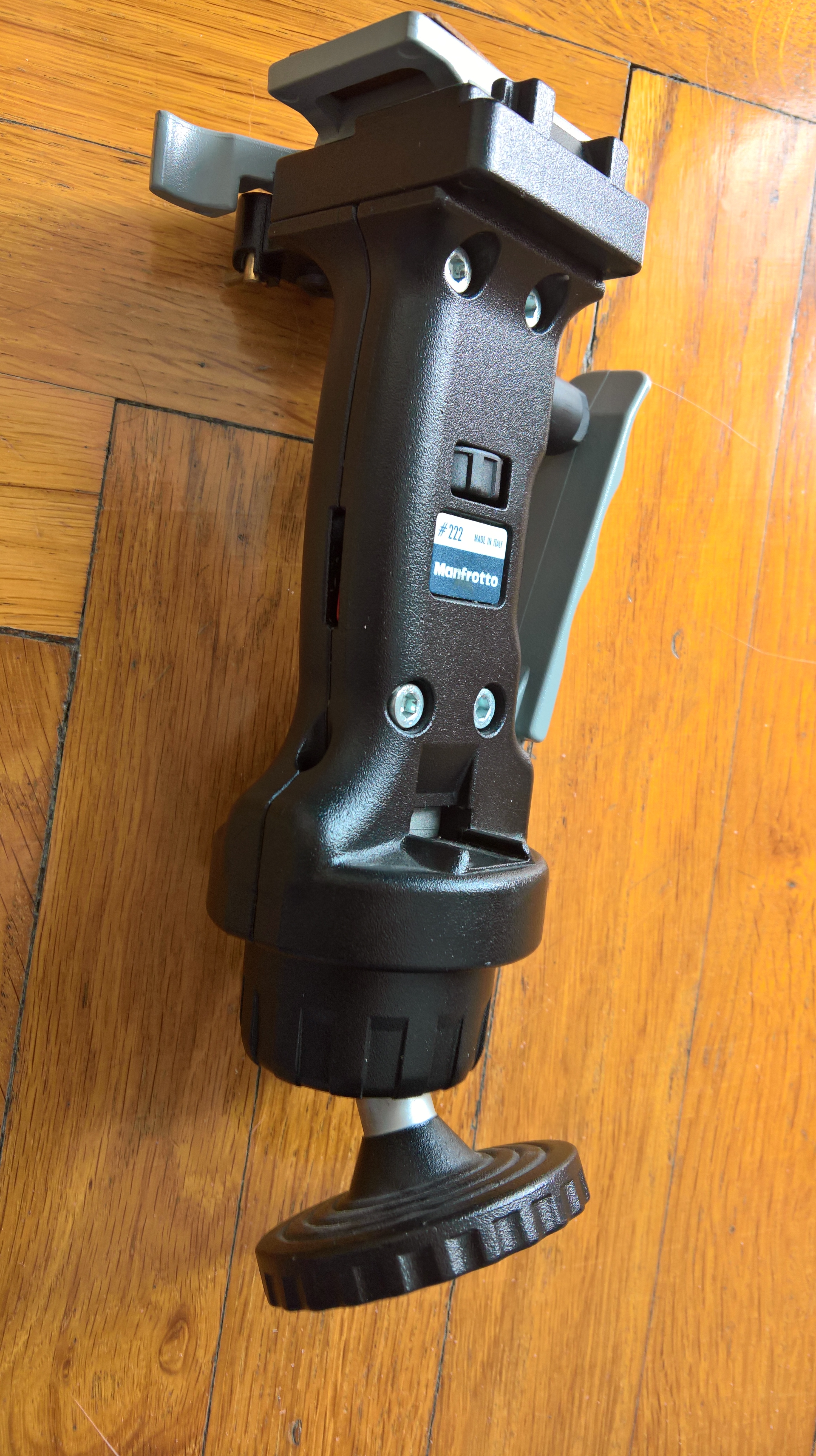
I have the great tripod head Manfrotto mod. 222 since the 90s … it’s an ergonomic dream: it has rock-solid quick release plate and when you pull the trigger it frees the head for movement in any direction.

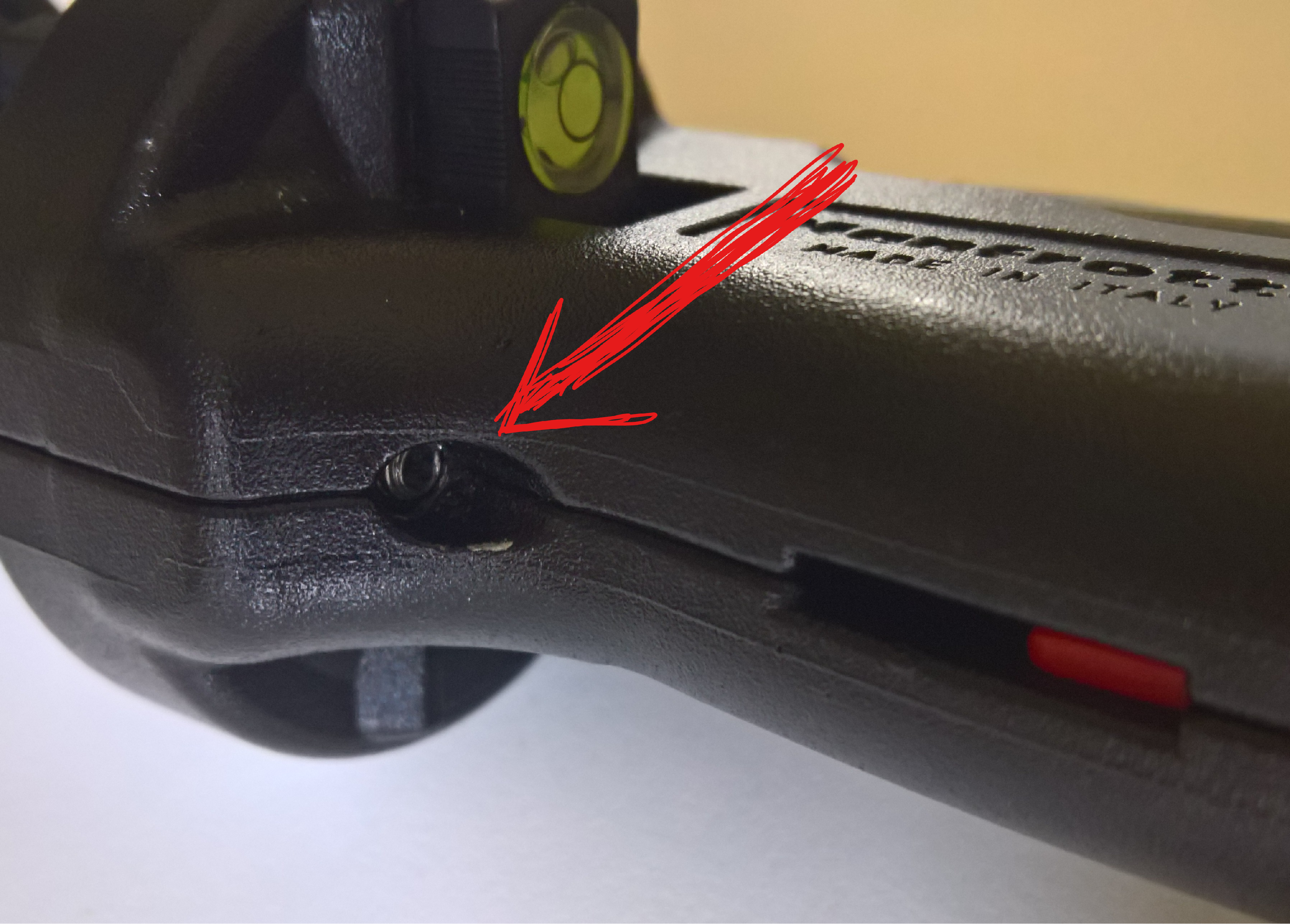
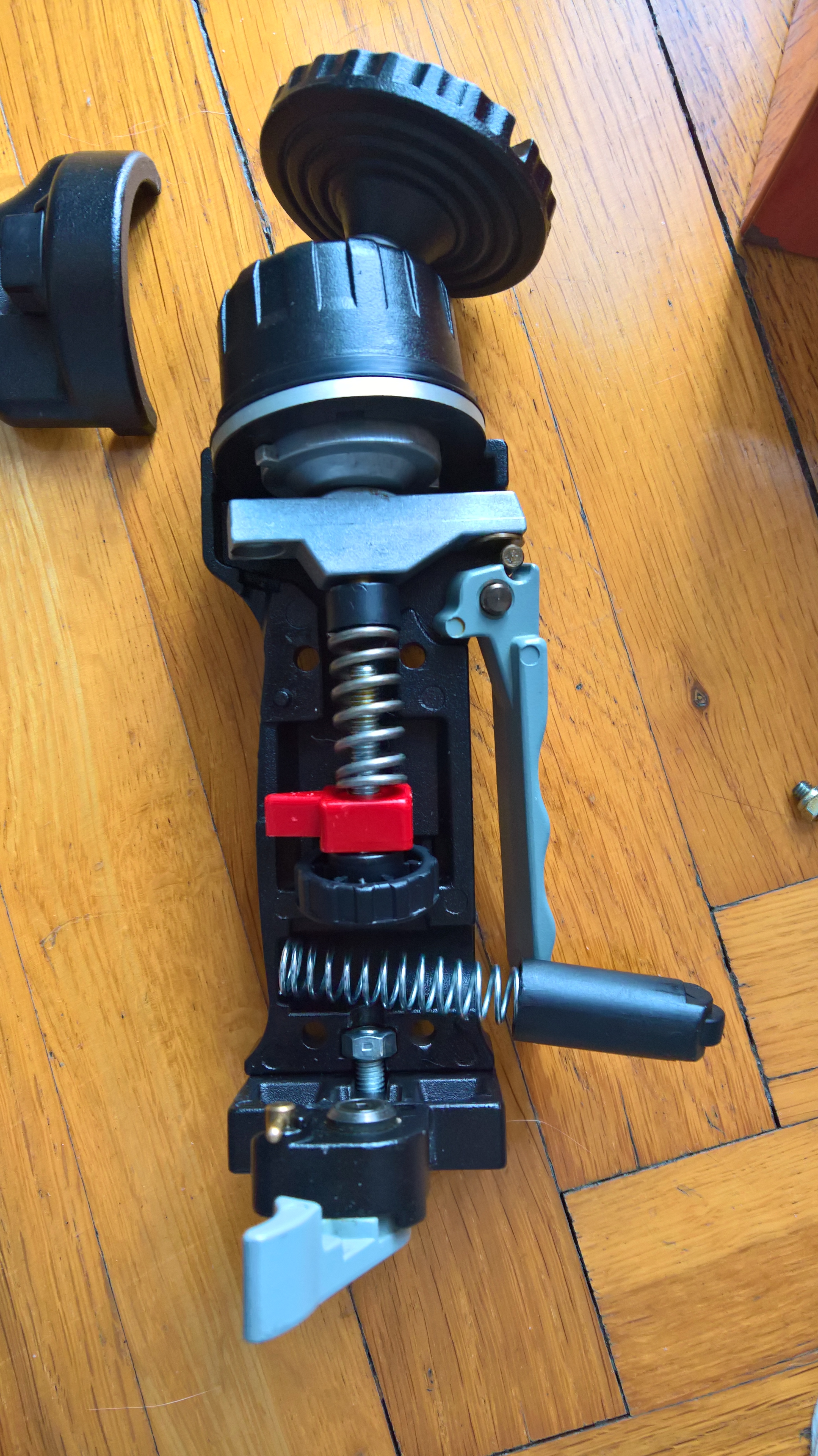
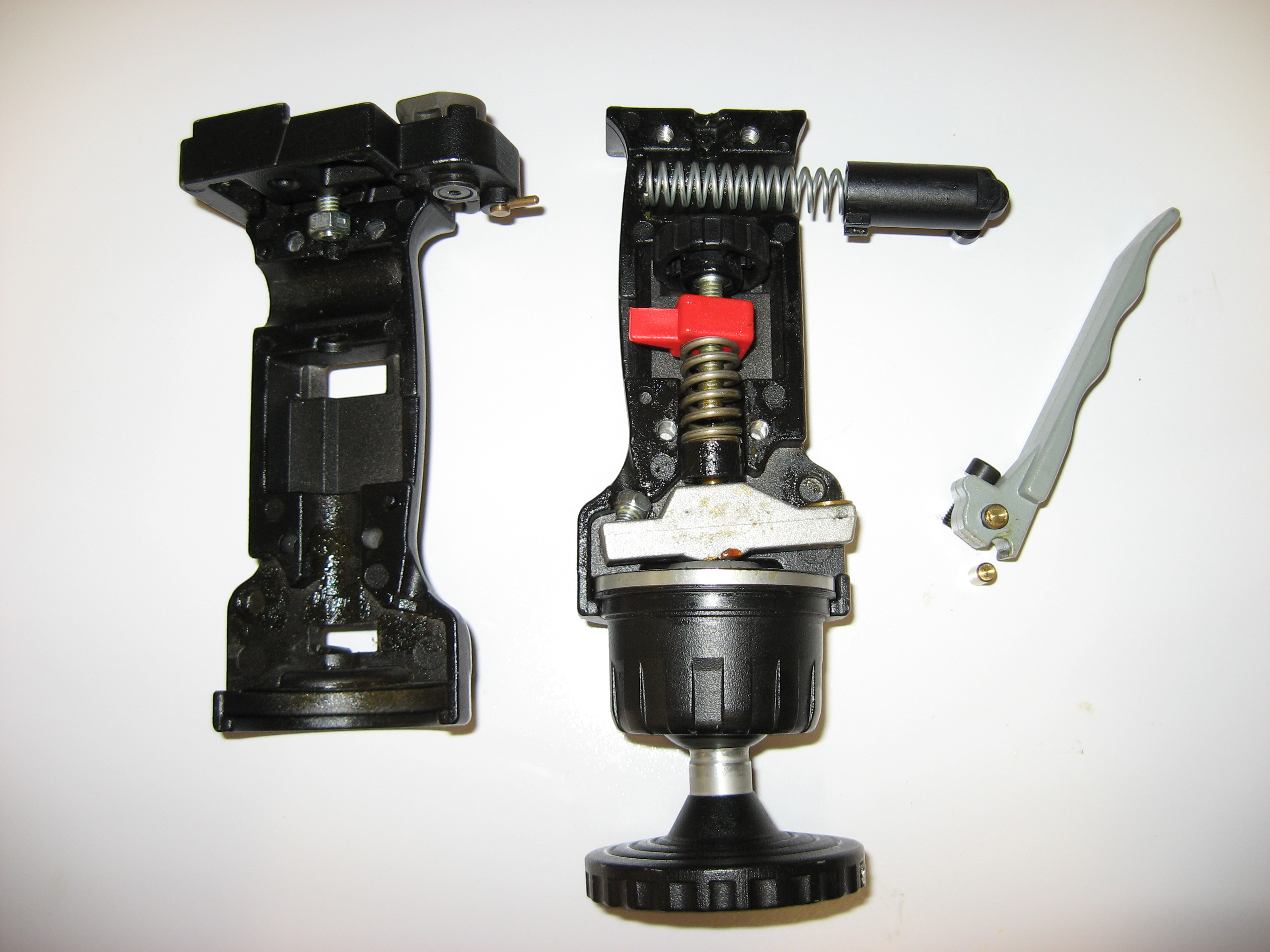
However, some days ago I tried to use it after many years and I realize that it seem not to well support anymore a camera because the grip does not lock sufficiently the head, neither having set the maximum strength with the wheel (red cursor at the bottom). I read that the new model  322 is a little lighter and rated for twice the load, but I could not understand why my 222 did not work anymore appropriately … while still predecessor 3265 head works! I supposed that some plastic part was broken, so I opened it unscrewing all screws … and then I realize that everything is well-made of metal parts, so it was only a matter of regulation and tighten of the ‘tension screw’ available on the opposite side of the grip (see next screenshot).

It was then hard to reassemble the whole, because there are many little things and two springs (4 hands are needed!!) so I suggest you to simply screw/unscrew that screw 😉 … in order to make the head work again properly: in fact the lock of the head is done simply applying the same strength on both sides (the screw one and the grip one).

This is the screw you need to adjust properly if the grip does not lock completely even setting the maximum strength with the wheel (red cursor at the bottom).

============================================

Very useful are the following links I found:

 STEP 1 This is the Bogen 3265/ Manfrotto 222
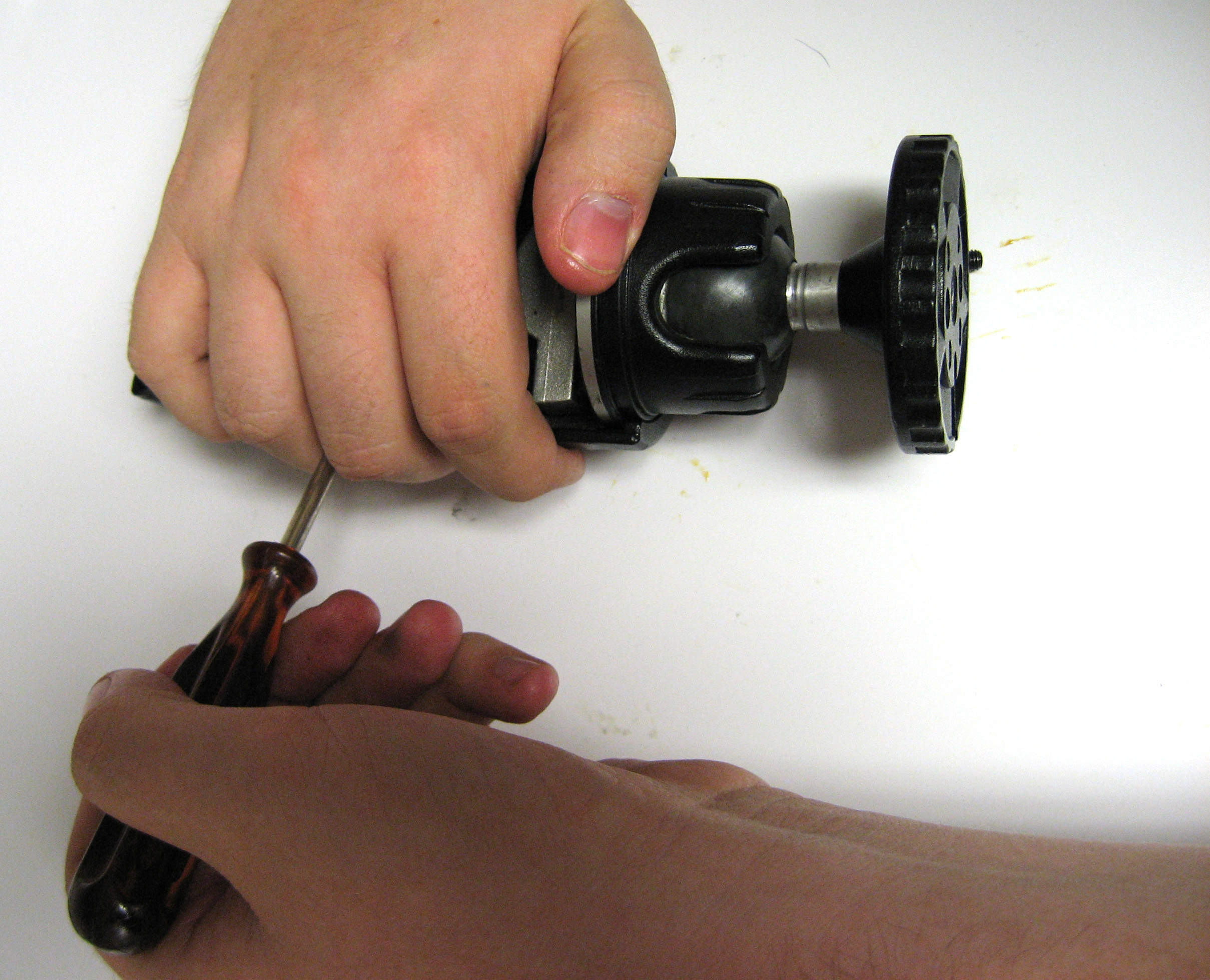
 STEP 2You start off by removing the 4 screws that hold the two halves together with an Alan wrench.
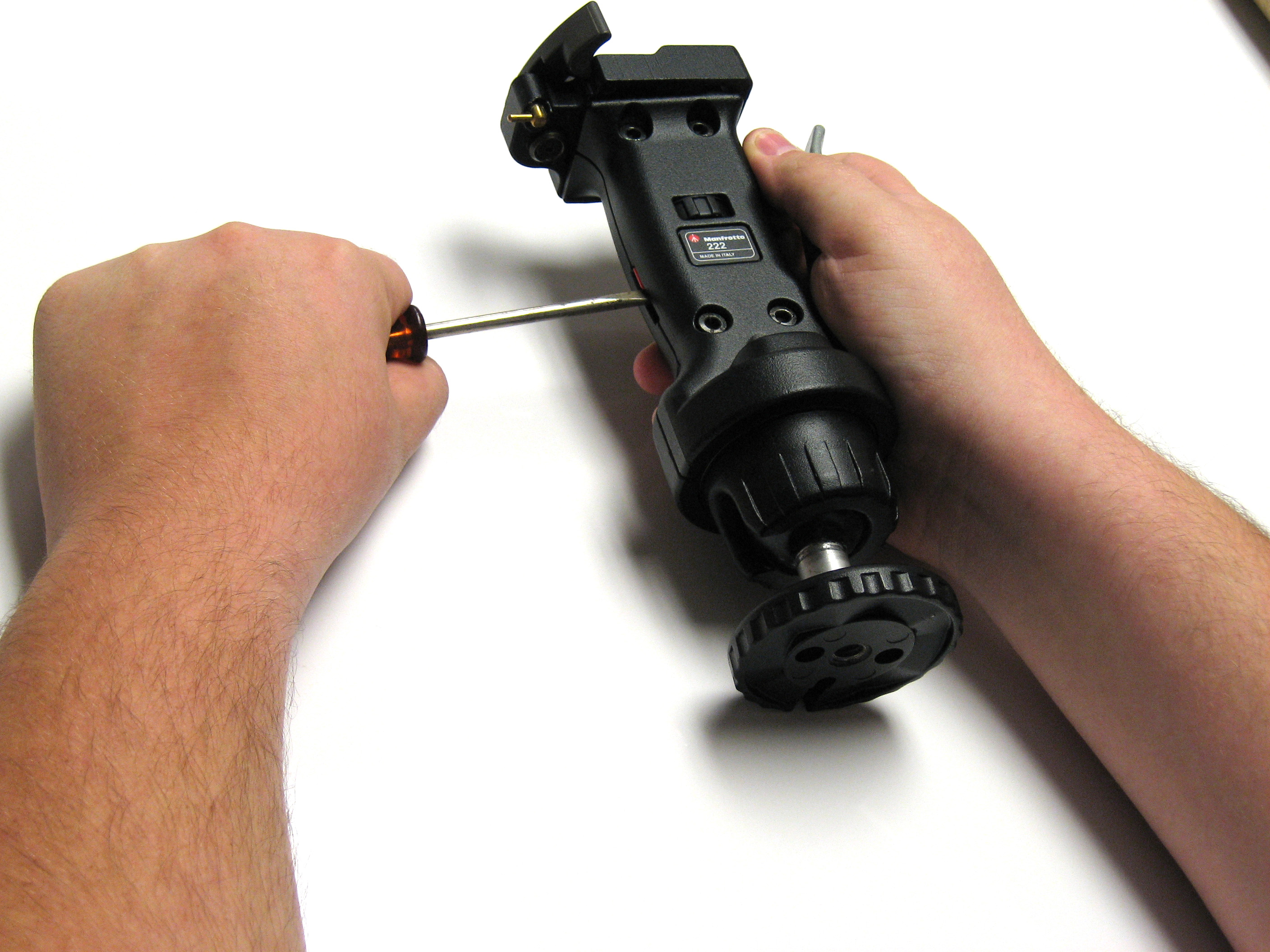
 STEP 3After you have removed the screws you will need to pry the 2 casings  apart with a flat head screwdriver anything flat that will not damage your head will work. NOTE Be sure to hold onto the plunger (See photo right hand holding on to plunger) If not held onto the plunger spring will shoot out very fast.
 STEP 4Here is what it should look after you have removed the casings.

The plunger and spring will come out easily the other pieces could give you a little trouble. (See next step)

The handle will more then likely fall out when you start to pry apart be careful not to lose the little golden stopper.

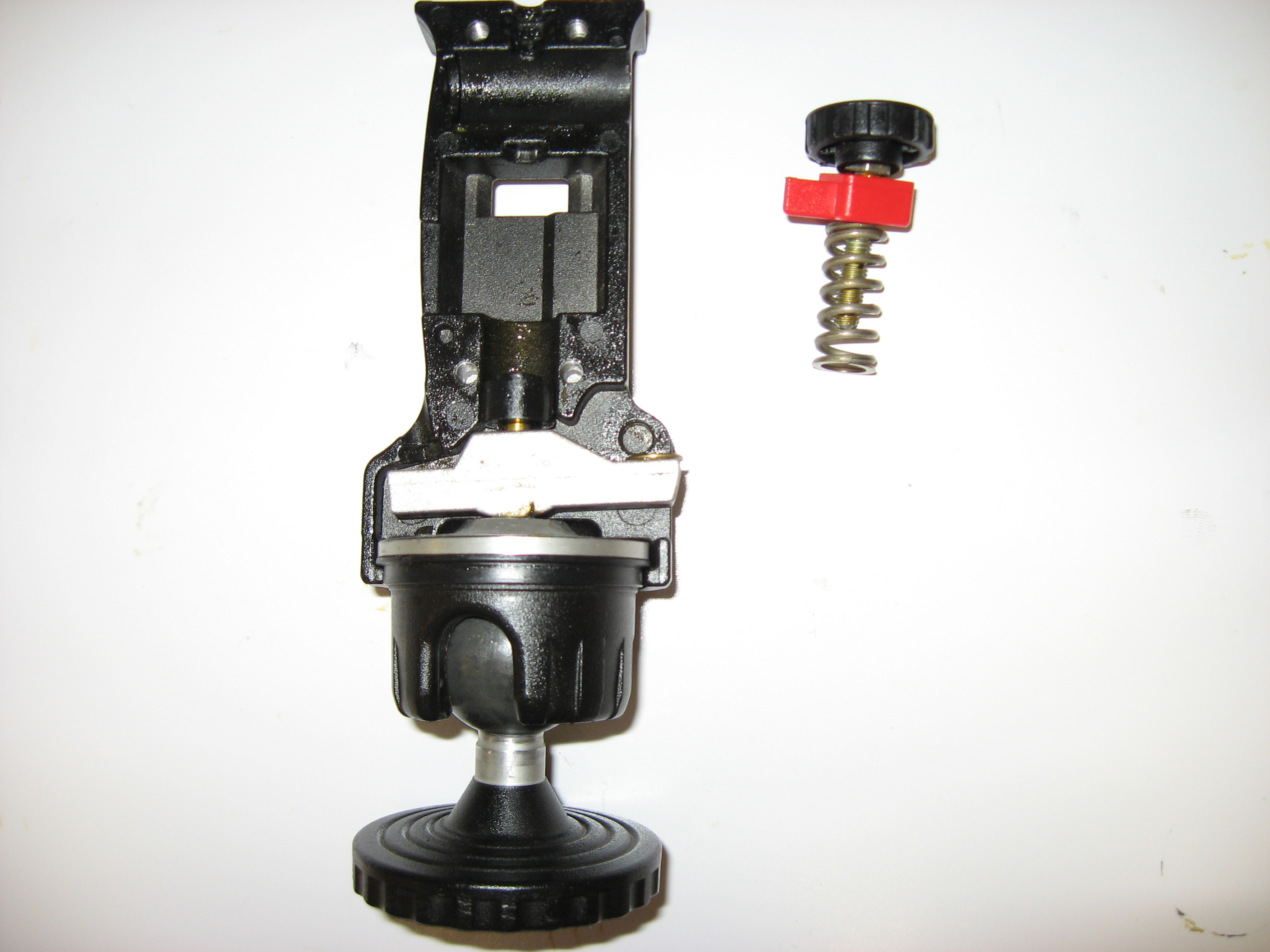
 STEP 5-1To Remove the tension wheel and spring place hand over spring if it has tension on the spring it will shoot out.  Get flat head screwdriver and slow pry off shouldn’t be that difficult. (See next step) 
STEP 5-2After we have removed the tension wheel and spring the other parts should lift out with ease.
 STEP 5-3Here we have all the parts of one the one side laid out.
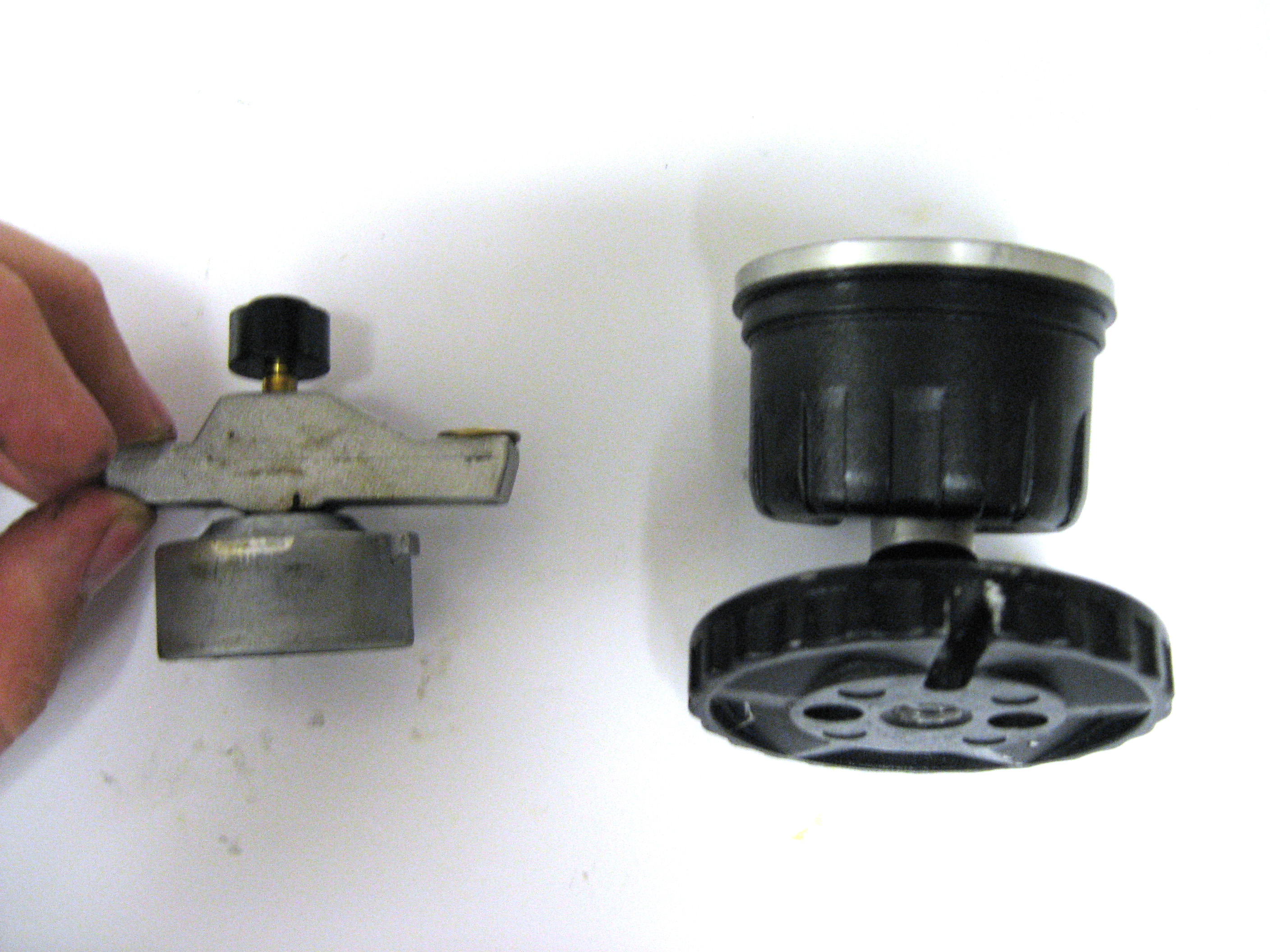
 STEP 5-4When cleaning the ball DO NOT clean the silver piece on the right, only clean the ball and its casing only


 STEP 6-1When cleaning be sure to get into casing with wipe clean thoroughly.
 STEP 6-2 Do the same with ball
 STEP 7Notice how this nut is positioned when reassembled it will need to look just like this if not the head will not work right.

After it is positioned correctly test head by pulling on bottom if it moves you will need to tighten this nut slightly with a small Alan wrench.

For reassembly just follow the steps back being careful to make sure you have every piece back in place and the tension screw is facing the right way. I have found if when you need something to hold the Plunger and spring in the casing a non-elastic cloth wrapped around the casing to keep the plunger form shooting across the room is very helpful.


Pubblicato in Fotografie, Review e test | 10 commenti

Family useful features available for Microsoft accounts: for children, weekly activities report, limit screen time, sites/apps/games block and smartphone localization

I already wrote a post related to the Family Calendar, that is a calendar shared among family members.

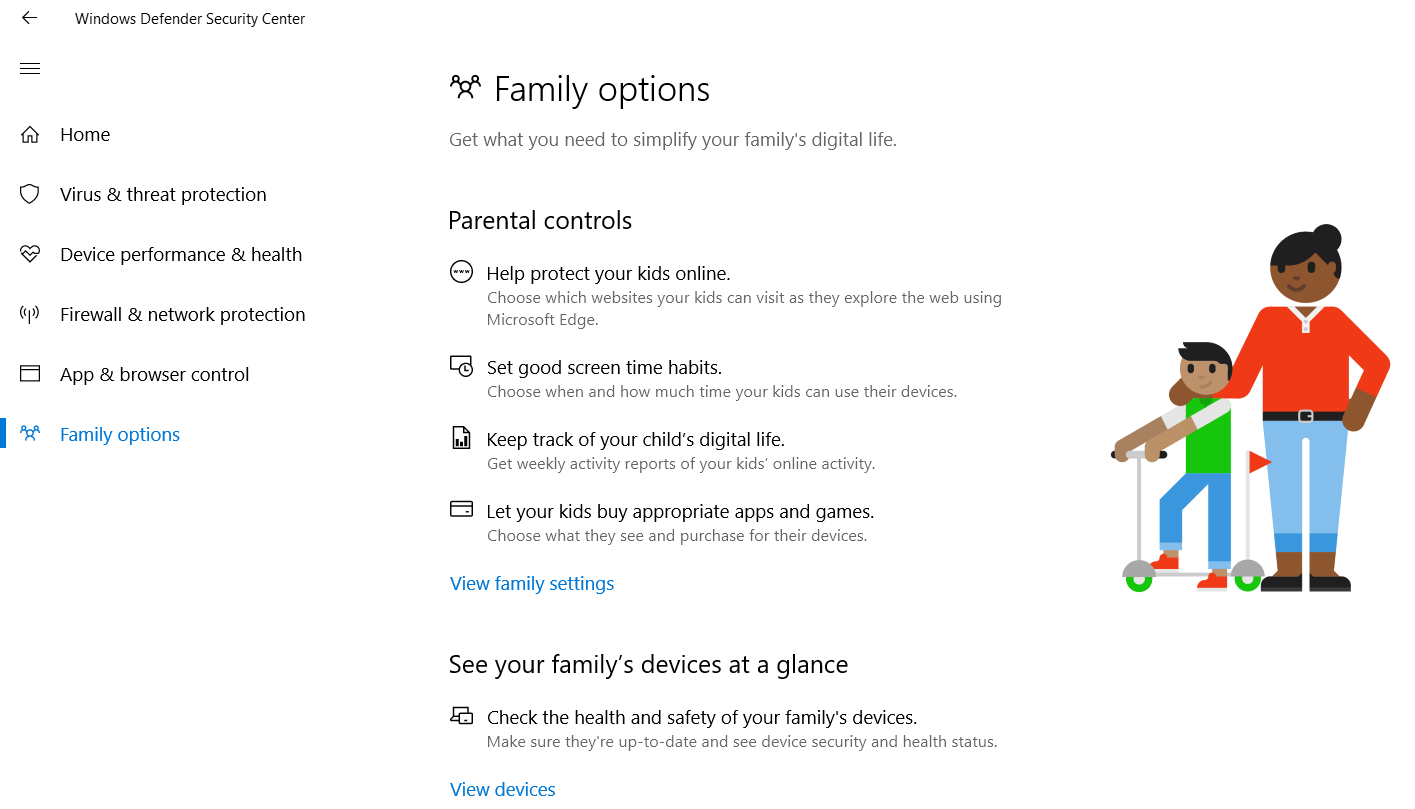
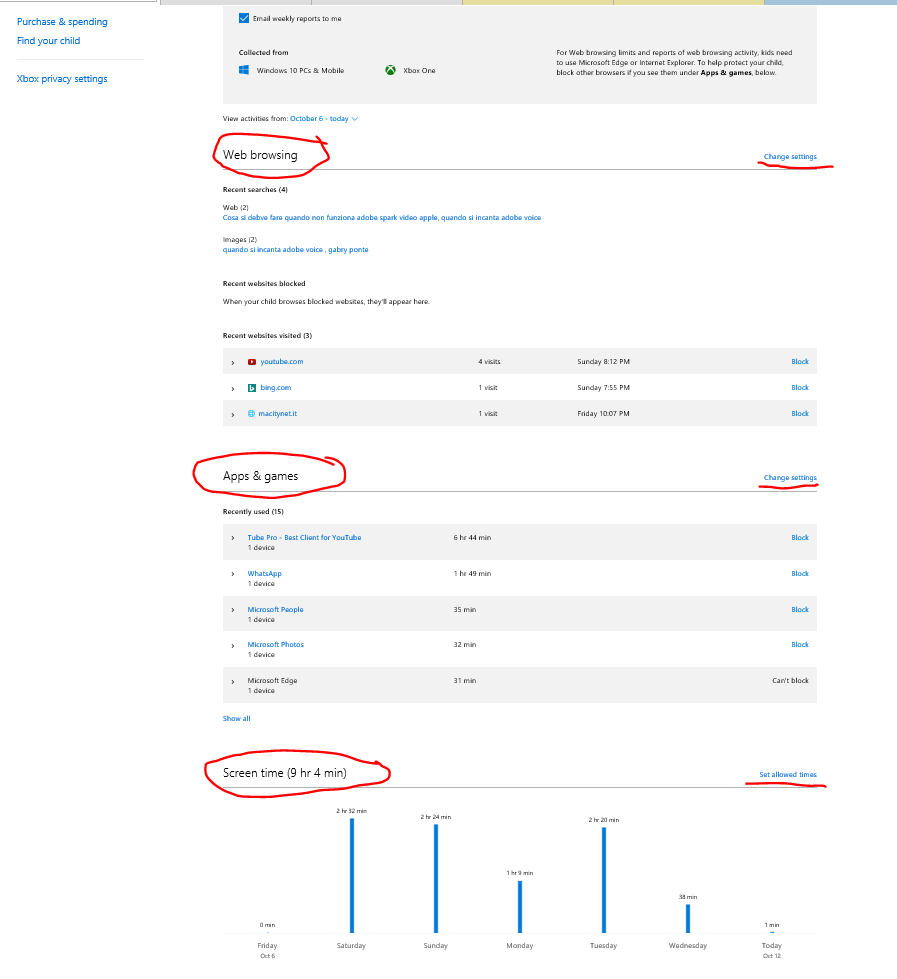
Another interesting feature available in the Family section of a Microsoft account, are related to activity of children, such as limiting screen time, viewing activity reports (possibly receiving also a weekly email) or finding their device locations on a map. From any activity report parent can limit screen time, block some sites, apps and/or games.

Manage of activity of children, such as limiting screen time, viewing activity reports or finding their device locations on a map

Weekly mail report of a child activity

Online weekly report of a child activity

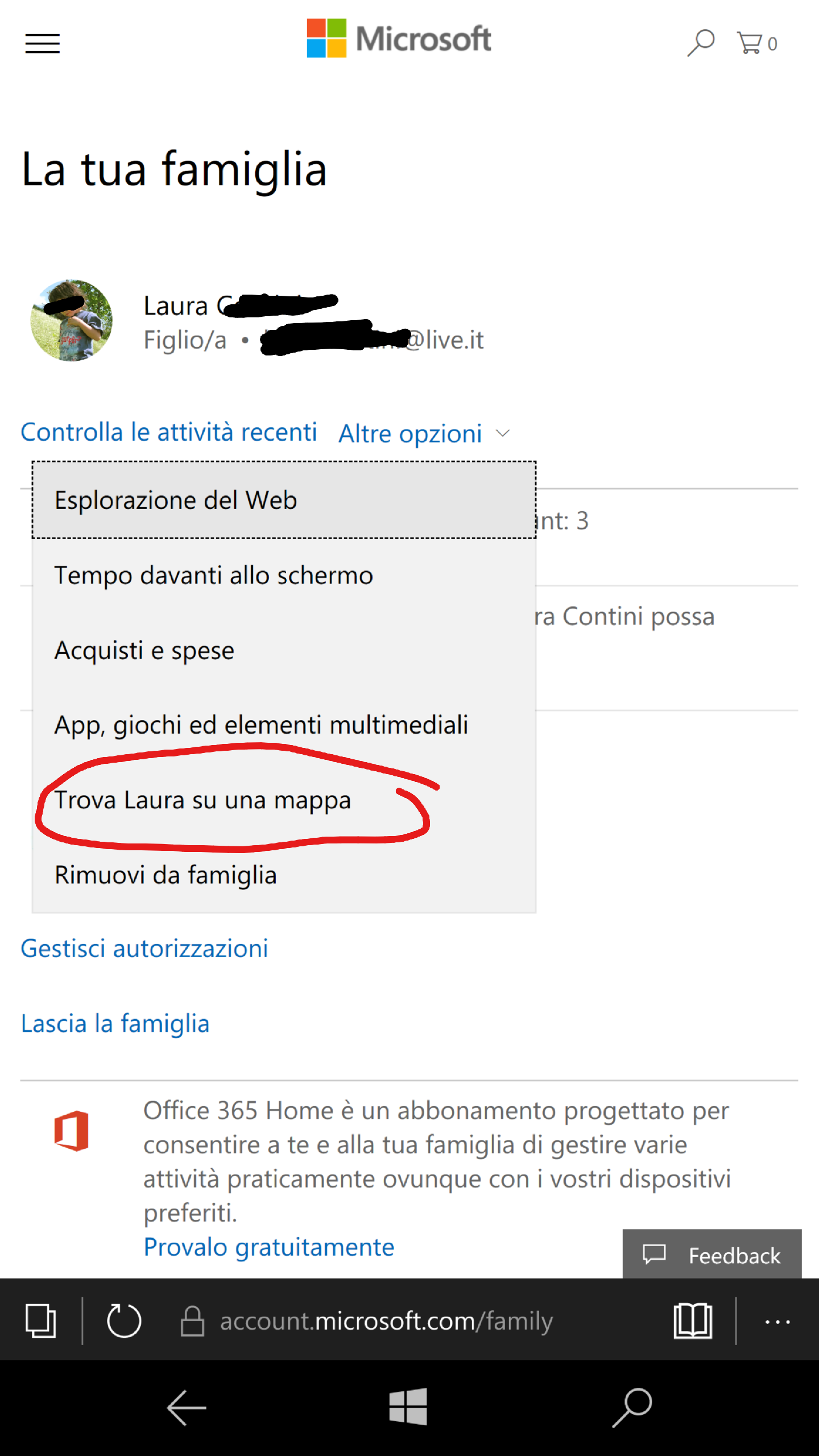
The last feature allows a parent to have the localization, in real time, of each family member added with the child role

Child real time localization from a PC/tablet

Child real time localization from a smartphone (1)

Child real time localization from a smartphone  (2)

================================

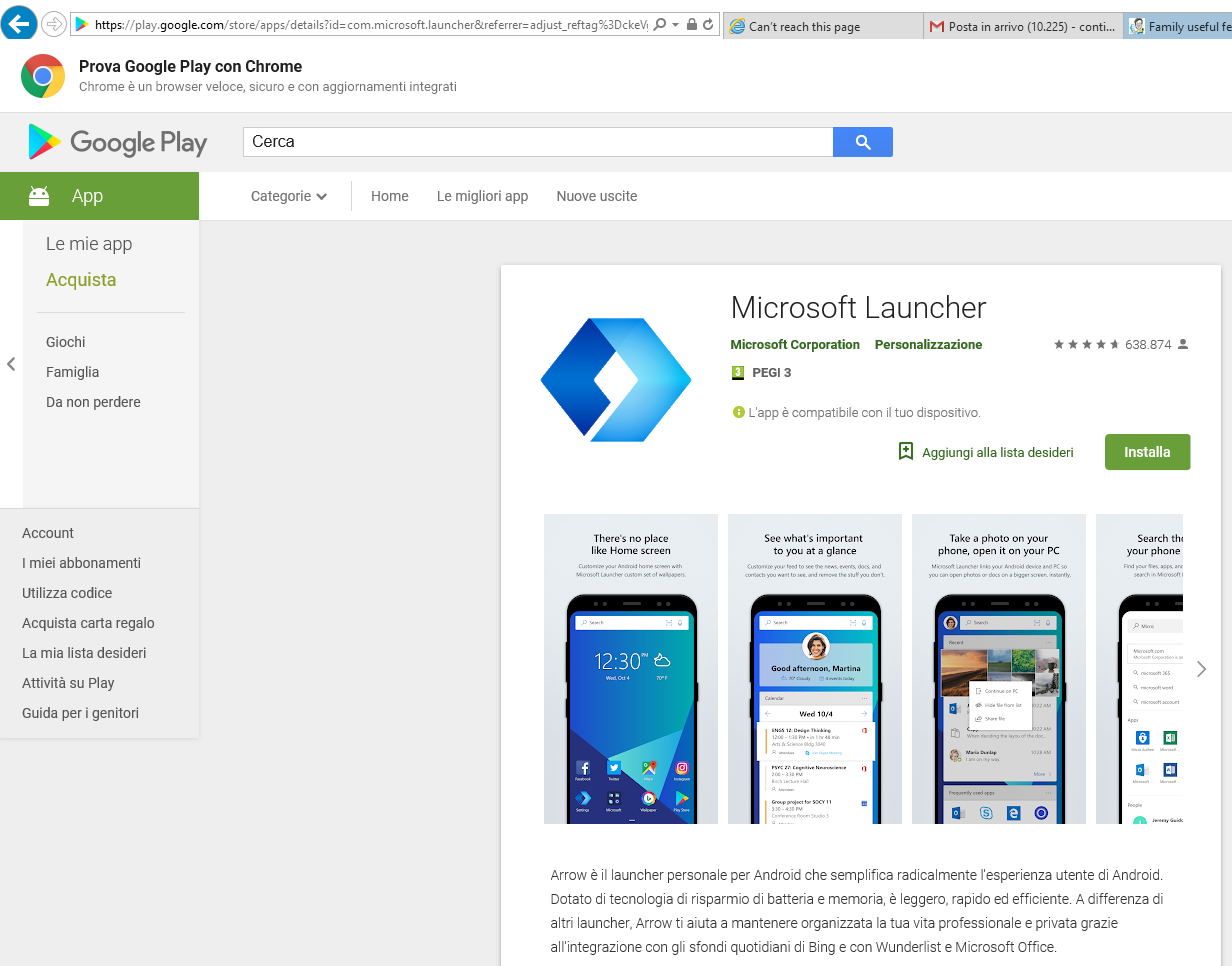
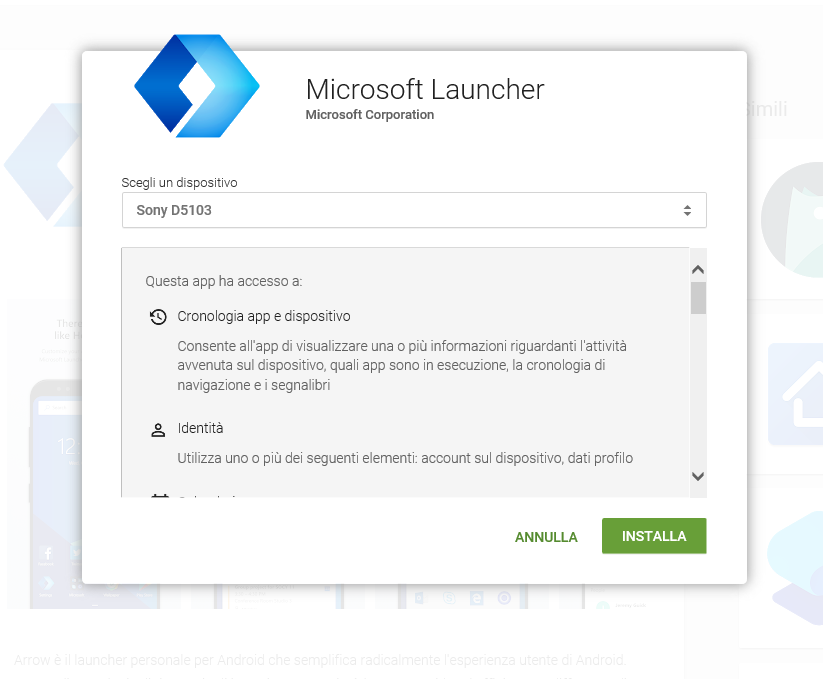
If you go now in the Your Family section of your Microsoft account, you will find  this suggestion related to download the Microsoft Launcher app from the Google Play Store to check in with your kids anywhere:

Link to download Microsoft Launcher on an Android smartphone

Youi have to login into the Google Play Store with the Google account of the family member, select one of his/her registered Android phones, and then confirm the installation of that app:

Login into the Google Play Store with the Google account of the family member

Select one of his/her registered Android phones where you want ro install that Microsoft Launcher app

Once installed you will find the location of that phone from your  Microsoft account site.

============================

========================================

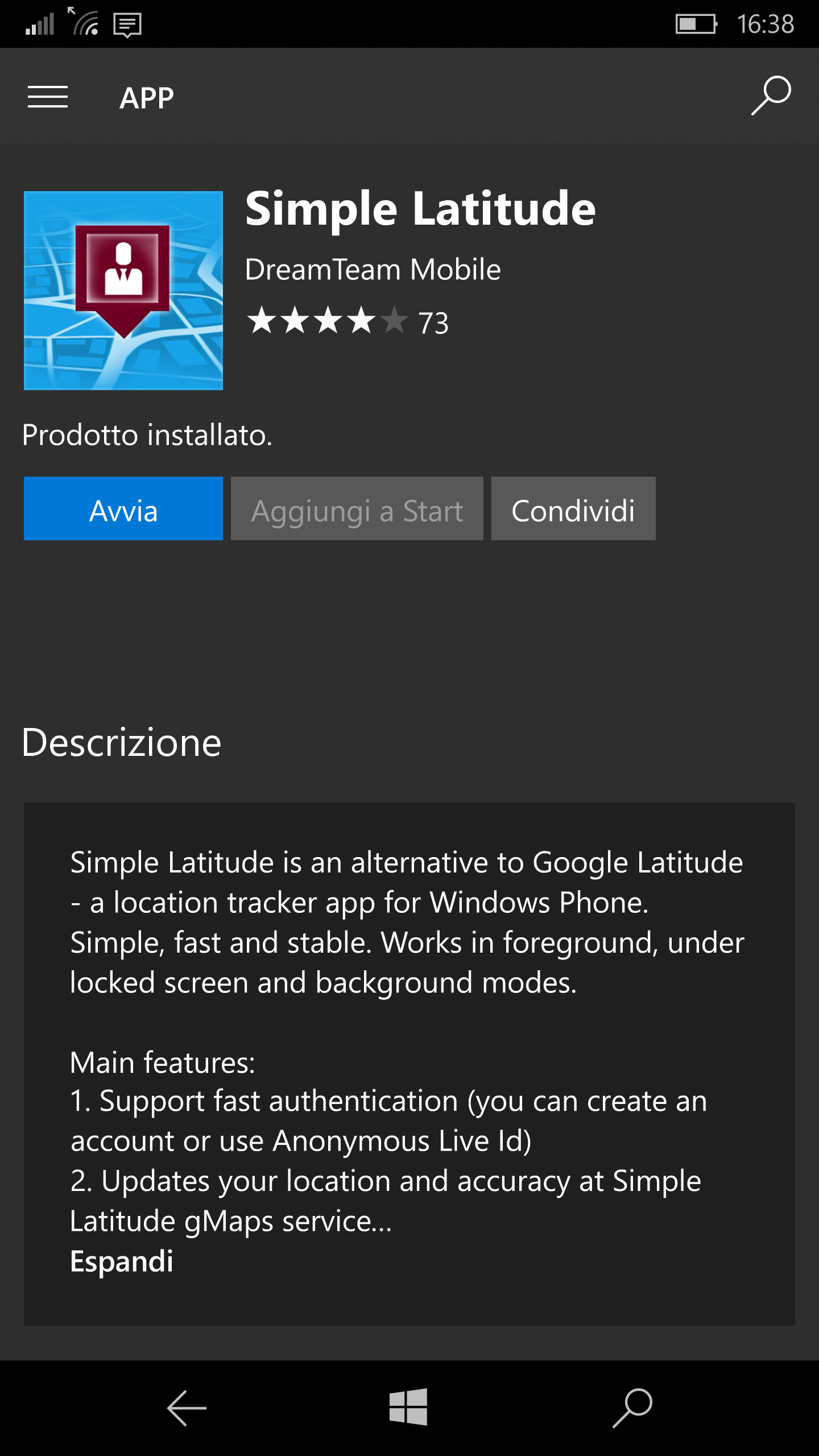
There are several apps (e.g. Simple Latitude  [*], Glimpse [*], SquadWatch) that allows to mutually get the position on a map with friends (that must obviously accept that!), but it requires that the app is launched at every restart of the smartphone (and possibly at any update of the app), so that a background task is running . Instead, the family localization feature embedded in any Windows 10 Mobile device does not need anything installed.


Pubblicato in Tecnologia, Windows | 1 commento

How to insert lines of example code into a WordPress post

Whenever it is a long time I inserted some code in a post in this WordPress blog, when I have to do it again I do the same mistake … so it is worth to write a post for me and may be for you too!! 😉

The possible language (or lang) parameter controls are supported, as stated in this WordPress post:

  • actionscript3
  • bash
  • clojure
  • coldfusion
  • cpp
  • csharp
  • css
  • delphi
  • diff
  • erlang
  • fsharp
  • go
  • groovy
  • html
  • java
  • javafx
  • javascript
  • latex (you can also render LaTeX)
  • matlab (keywords only)
  • objc
  • perl
  • php
  • powershell
  • python
  • r
  • ruby
  • scala
  • sql
  • text
  • vb
  • xml

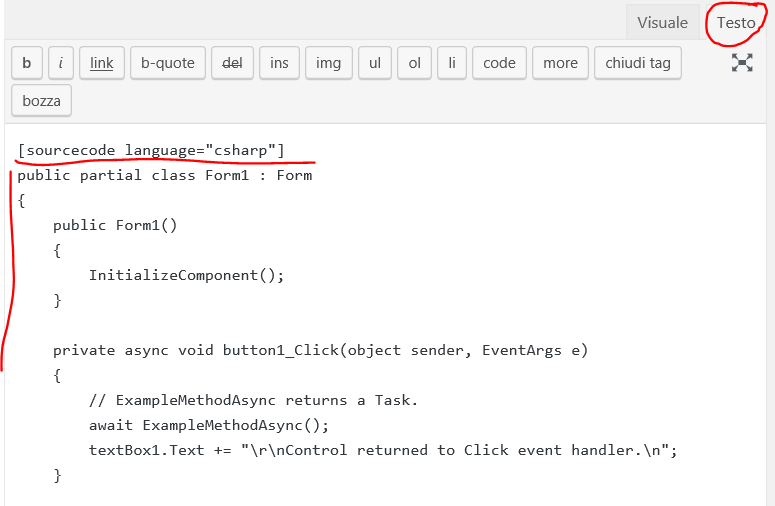
We both know that there are some strings (e.g. [sourcecode language=”csharp”] Here your C# code [/sourcecode]) you have to add before and after the lines of code you want to add in your page in order to have it well indented properly … BUT, if it does not work properly when you see the page, what we have to remember too is to check in the Text tab if some <span> were automatically added by the editor and, in that case, correct command strings (and possibly also the code!) being in the Text tab (and not in the Visual one) … otherwise that escaped command strings will be shown as a simple lines of text in the page, as it is in the following:

[sourcecode language=”csharp”] Here your C# code [/sourcecode]

instead of what you would like, that is:

 Here your C# code 

Even adding some formatting feature like, for example, Italicizing some text (as in the following), can break the command feature you added and the related tag will be shown (e.g. the <em></em> in the case of Italicization):

 <em>int Here your code</em> 

WRONG WAY: better to write the commands and the code when you are in the Text tab

WRONG WAY: if you go to the Text tab you could see that commands were possibly escaped and the code (you possibly paste) contains a lot of not useful <span> tags.

RIGHT WAY: commands and code are written when you are in the Text tab!

If you write the code correctly from the Text tab, even simply going to the Visual tab you can already see the code inside a grayed box (saying that you did the insertion in the right way!!), even thought the commands line are still visible and only seeing the page will give you the final view formatting.

RIGHT WAY: going to the Visual tab you can already see the code inside a grayed box

RIGHT WAY: in the Visual tab, if you see the code inside a grayed box, it means that is well formed

RIGHT WAY: when you see the page, the code is properly indented and the commands string are hidden

RIGHT WAY: when you finally see the page, the code is properly indented and the commands strings are not shown anymore

Pubblicato in Just for fun!, Review e test | Lascia un commento

Family useful features available for Microsoft/Google accounts: “Family Calendar” and more

There are several interesting features in any Microsoft account, that you can use whenever you use any Windows 10 device (PC/tablet/smartphone) or even other platforms, for example if you use some Microsoft apps (e.g. Outlook as a client for your email/calendar). They are all features available to everyone for free, someone since many years ago … but not so many users possibly knows their existence!

Once family settings were mostly for managing the activity of children, such as limiting screen time, viewing activity reports or finding their device locations on a map while adults in the family were merely administrators of their children’s computer access. In the Family section FAQ you can always see every new changes to family features: Microsoft updates this page regularly to keep users informed about new things they can currently use and what’s coming up next.

In the last few months (even though it was already a feature of Outlook 2013) it was added a Family Calendar, that I am using and I consider very useful. It is a calendar that everyone of the family can use to share events that can be of interest for all the family: in fact, very often there are some events that a parent or a child would like to share with all the family … and this is a very easy way to do that, much better than post it on a paper! Like any other event, you can set a reminder and you can have it shown (e.g. in the tile on the Start page) in whatever device you have Outlook (as an app or a desktop program), either PC/tablet or a smartphone.

Microsoft is not the only one who provide a Family Calendar.
Google has few services for the family too: Google Family Calendar, shared family calendar and a Google Keep, to capture and share ideas with features like reminders, shared lists and notes to help the whole family stay in the loop. To get started with the Family management you can go to Family Link or use the Play Store app (see How to handle Family Group on Google): however you can notice that it MUST be handled only using an Android/iOS smartphone … I could not find a page where I can manage a Family from a Web browser and therefore whatever device I use. It seems that, at least currently, you can create/manage a Family Calendar in Google only with an Android or iPhone app while, from a PC, you can ONLY see/add events of a Family calendar: personally, I think that this is an incomprehensible limitation …
Then there are also several Apps that handle similar tasks (e.g. FamCal (Android), Cozi Family Organizer (Android, iOS), Hub Family Organizer  (Android, iOS), Family Wall  (Android, iOS), FamJama, Chore Monster  (Android, iOS), Any.do (Android, iOS), Kidganizer (iOS) ), and may be in that specific task they do a better work than the one available from main players, …. BUT they are “stand alone” and require the installation of a new app … when very probably the user already use the Microsoft or Google Mail/Calendar!! Therefore, in my feeling, their probability of diffusion is very low: personally I will never install a new app if I have one (already installed and tested) that already can do quite the same job and moreover you expect it will evolve more and more in the future … even because available for all the platforms (PC/tablet/smartphones of any kind, at least Windows, Android, Apple O.S.) and from a browser too.

============================================================

Anyway in the following I will take a review only of the Family features implemented by Microsoft.  Let see how it works!  😉

First of all, as you can imagine, to have access to all the services available for a family, there is the need to identify who are the family members and this can be done in two ways:

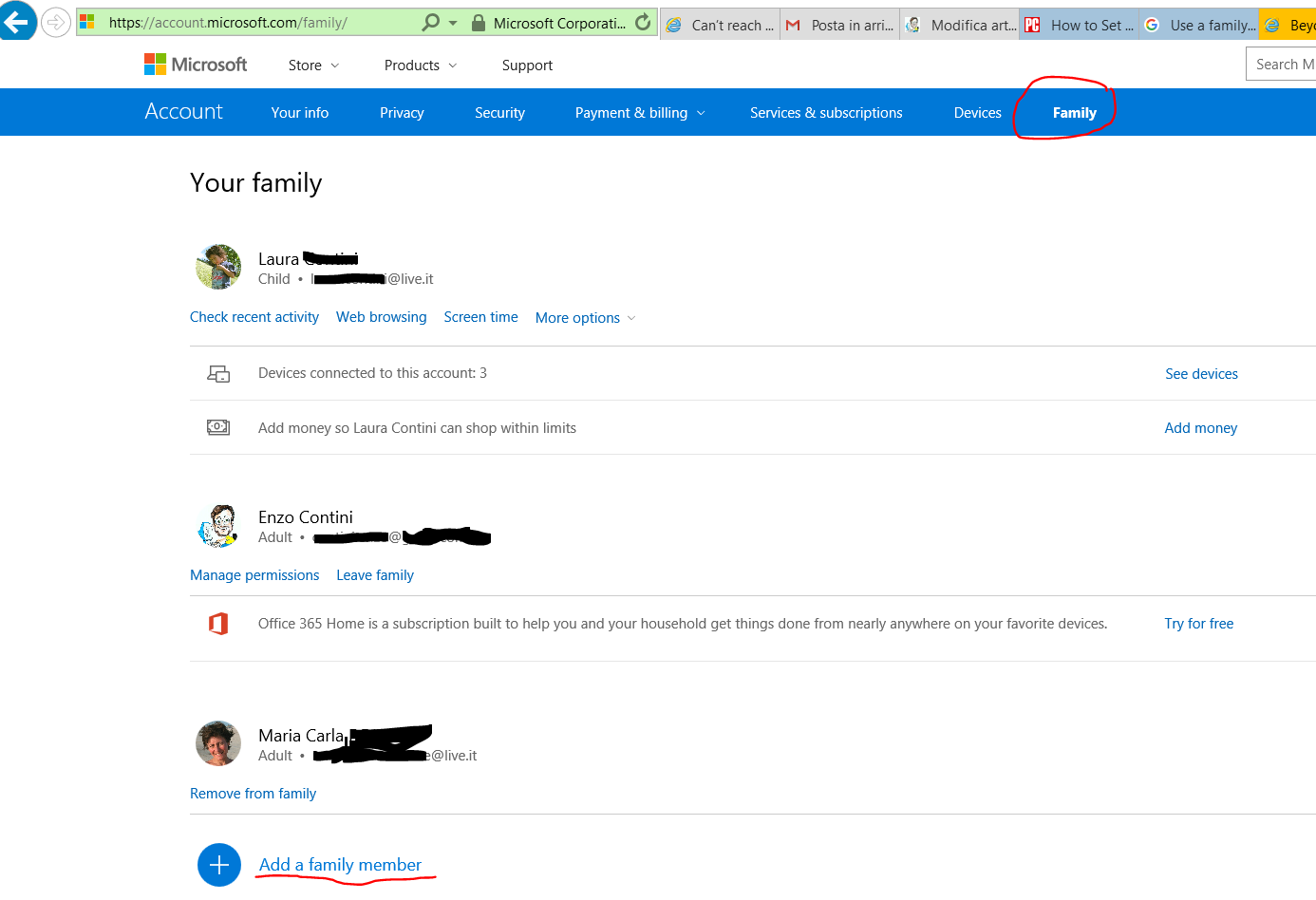
  • accessing to the Microsoft Account management site : going to  https://account.microsoft.com and then to the tab Family, you can manage all the family features.

    Family section of the Microsoft Account management portal

  • from the Settings of a Windows 10 PC where you are logged with your Microsoft Account: from Settings -> Accounts, you can see that there is also a Family & other people section where you can manage your family definition,  directly from your PC Settings:

    Managing your Family from Settings -> Accounts -> Family & other people

Therefore, to manage your family features you MUST have a Microsoft account, that anyway is useful to have access to many features of Windows 10 devices (e.g. install app from the Microsoft Store, even the free ones; use the OneDrive cloud storage to possibly automatically synchronize a folder on your PCs – even though currently it is only a 5GB  free storage … but if you but Office 365 you get 1TB or more).
If you do not have a Microsoft account you can create one for free from Microsoft account sign-up page, selecting Sign in with Microsoft and then (in the popup window) choosing No account? Create one! . You can choose as username whatever email, phone or skype.
Take in mind that, whenever you have a Windows 10 PC, you possibly have already defined a Microsoft Account, as you can see also going to Settings -> Accounts -> Your info:

Manage the Microsoft Account of the logged user of Windows 10 PC/tablet from Settings -> Accounts -> Your info

The shared calendar is created automatically as part of connecting a family to your Microsoft Account.
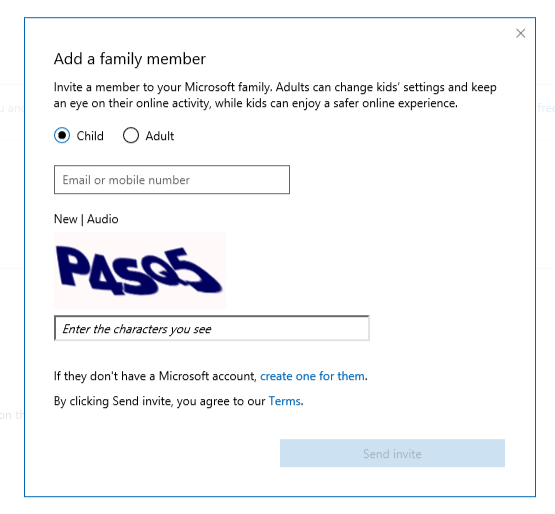
To get started from the web site, go to the tab Family: to add each family member click on the Add a family member link and provide his/her email or mobile number, selecting if it is a child or a adult.

Popup window to add a new family member

Specifying he/she is a child you will have more control features, e.g. localization, weekly activity report, restrictions in Web browsing. Obviously every member have to accept to be part of the family with tat specific profile/role and every child is also notified of every notification sent to his/her parent (e.g. weekly activity report, sent to the email of the master member of the family, is also sent in CC to the specific child): the only missing notification is related to each localization done, service that anyway must be previously accepted by the child.

Note that Outlook mail and calendar app is available in all Stores: Google Store; Apple Store; Microsoft Store . It must be emphasized that usually the same app manage both the mail and the calendar [even though it possibly create two different icons, one called Mail (IT: Posta di Outlook) and another Calendar (IT: Calendario di Outlook)] and this happens most of the other email servers (e.g. Gmail, Yahoo, Live … the only email I have that does not have a associated calendar seems to be Alice.it).

Take in mind that the synchronization of each new event is not done immediately and its depends also on the current synchronization configuration of the client used by each family member. In fact every email configuration page has a specific section where you can specify how you want the synchronization to be done: at least the first time you want to try this feature, possibly configure it with the shortest delay  … then, you could even relax the constraints and have the update happens every hour for example!

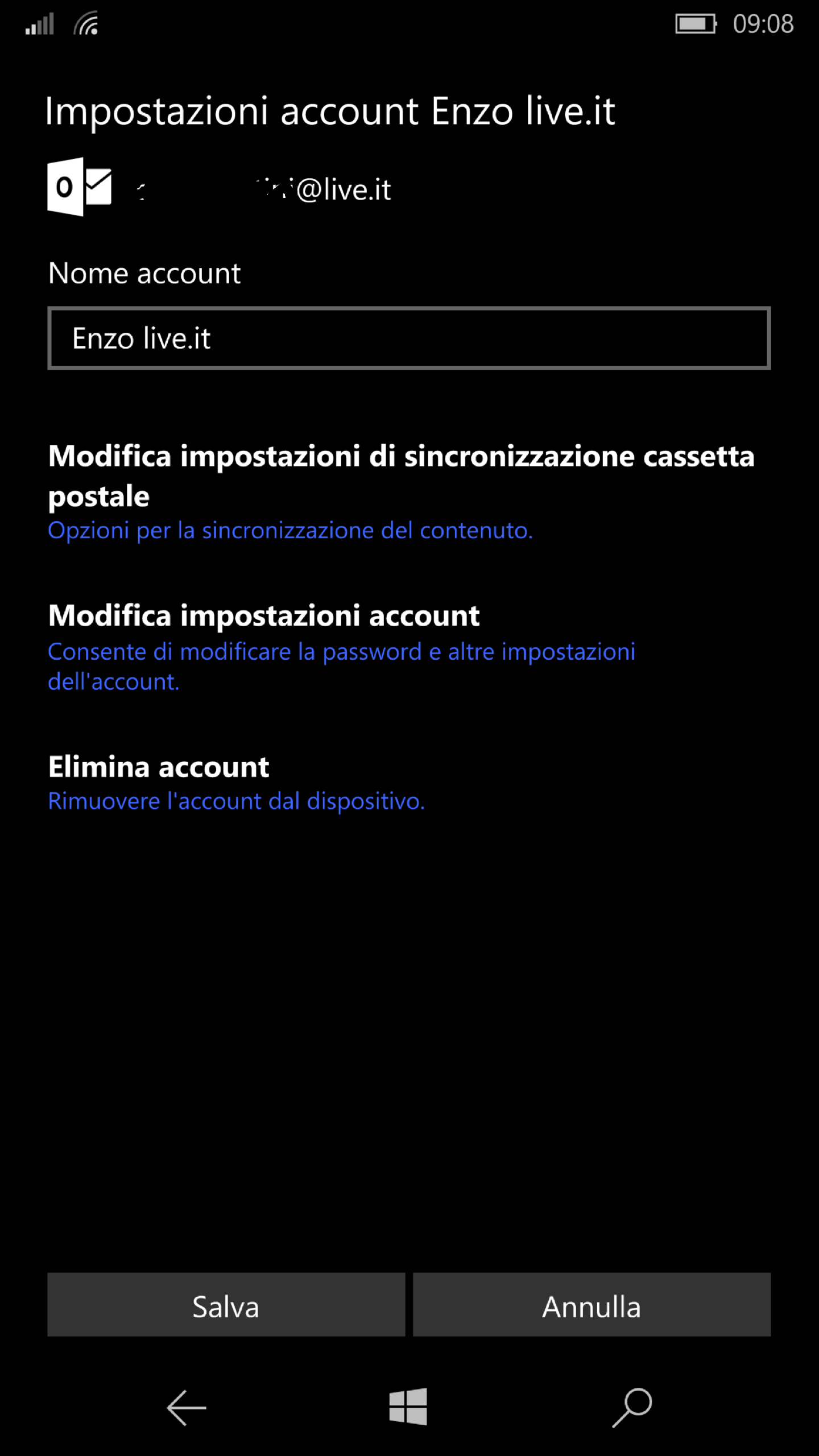
Let the synchronization happens appropriately

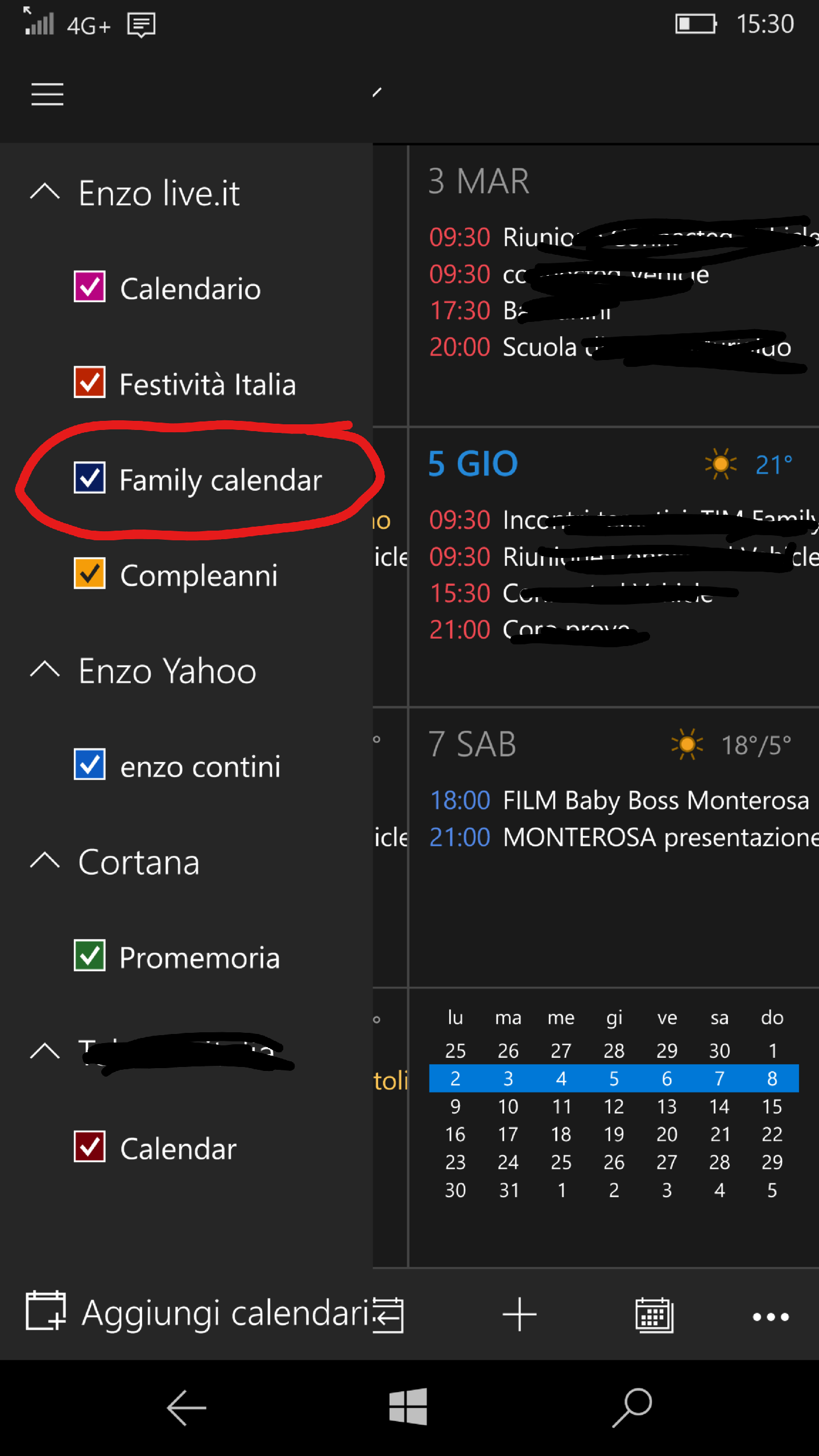
To have the Family Calendar shown on the app/site, you must select it among the calendars you want to take into account:

Select Family Calendar, available in your Outlook/live mail account, among the other Calendar you want to consider

Calendar app: Select Family Calendar, available in your Outlook/Live mail account, among the other calendars you want to consider

Select the Family calendar to have it included as one of the calendars to be used by the app (e.g. Calendar app in Windows 10)

Now that you have select the Family calendar too, you can choose it (among several calendars you can have associated to all the configured emails and available from the proper combobox) to add a new event in that specific calendar, so it will be available to all your family members.
I think it is important that a Family Calendar is integrated with other calendars the user could use
and with integration I mean not only to have a view of the events from all but also the ability to create and manage everyone events: Outlook clients have a specific combo in order to add a new event in the proper calendar (possibly the Family one) and whatever is the configured server, the every kind of management is allowed.

However, once an event is inserted in the Family Calendar, there is currently no way to know who inserted it (at least as I could see) and every member can manage the event (modify or even delete): I think that this could be some of the aspects that could be improved  …

Select the Family calendar to store the new event you want to share with your family (e.g. Calendar app in Windows 10 Mobile)

Family Calendar on Outlook.com site

Family Calendar from the Outlook.com site

Family Calendar from the Outlook.com site (2019)

The presentation of the events coming from each selected calendar (possibly also the Family one) is very well identified using a different color for the background and/or the text, and it is available for every selected view (Day, Week, Month).
Among all the views I think the weekly one is the more useful: I use it much more than the daily one. Having a quick easy way to see the weekly events is for me important and therefore I think that a calendar should always include at least this possible weekly view as well as the daily one!
… even better if it has also a monthly view, even though I quite never use it. Note that in the weekly view, if you click on the box related to one specific day, it will be expanded to better show all the events for that day (it shows for each both also the end time and the location) and possibly drill down inside each one to get all the available information.

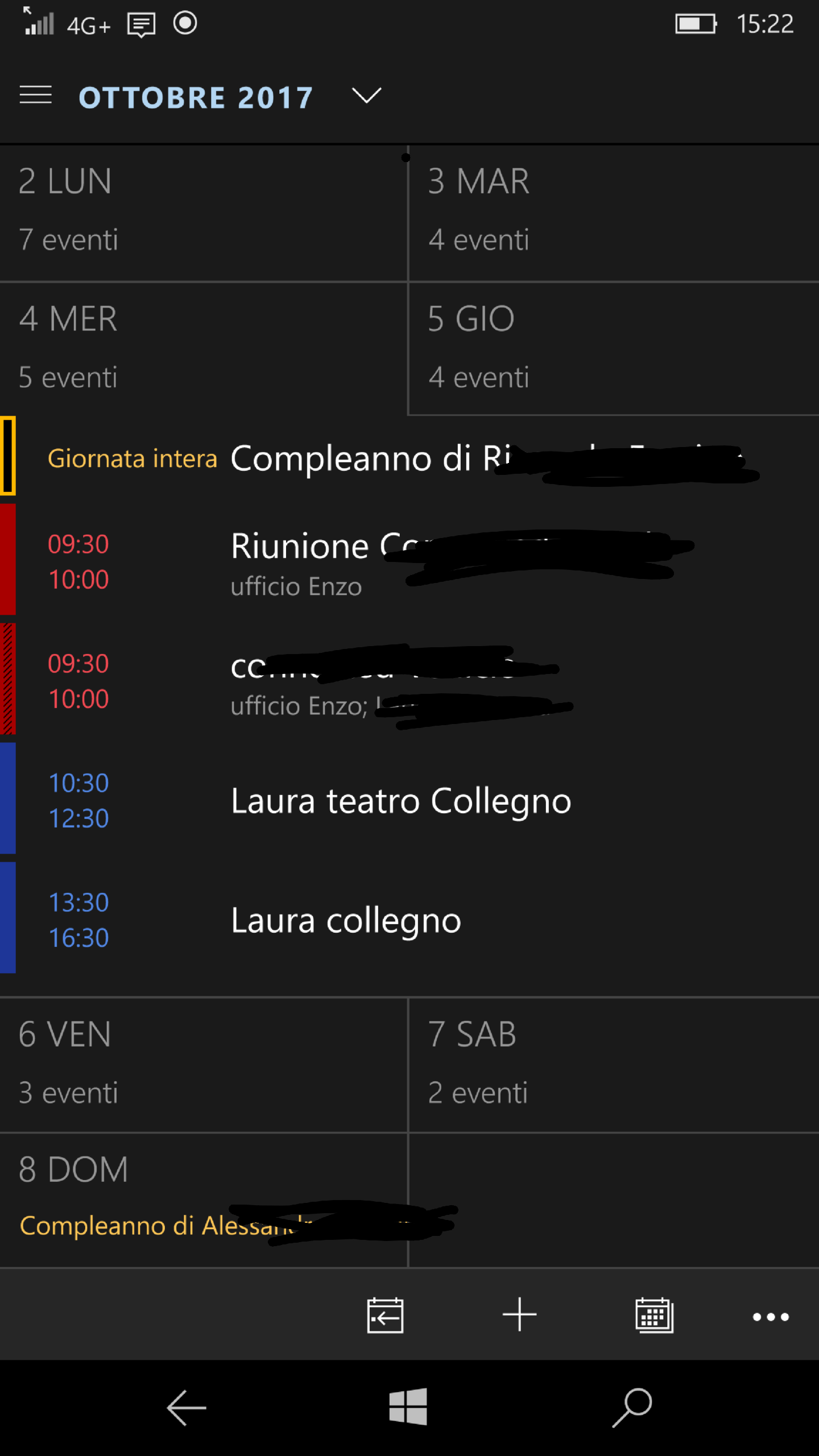
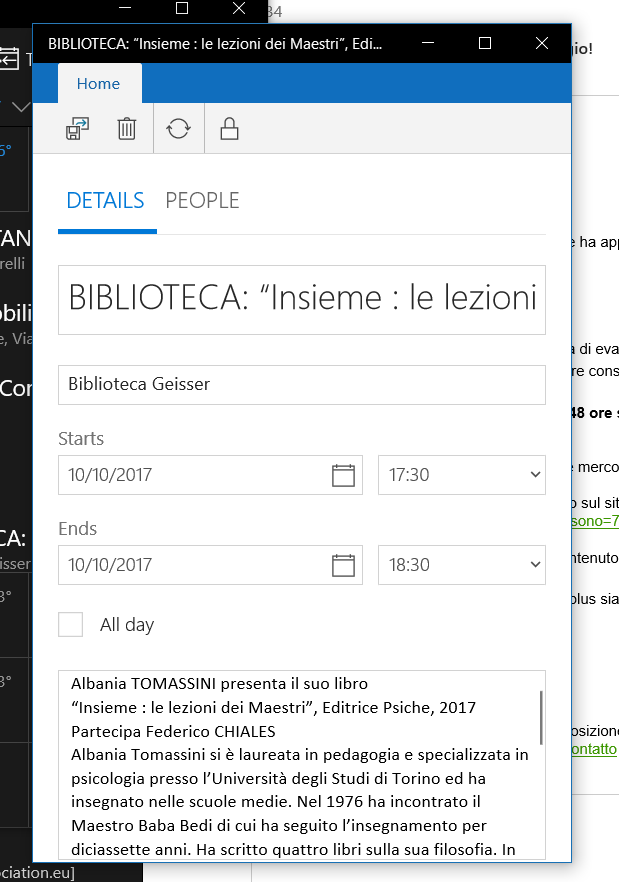
Note that the UI change a lot depending the size of the window, so if the UWP app is running on a PC/tablet full screen or on a smartphone (and this it not only a matter of a personalization done in the Settings section of the app!): the usability of a calendar app must be very well defined and it should take into account also the available screen dimension. If you resize a UWP app on a PC, (both in height and in width) you will see that the UI will change completely, till to be similar (but not the same!!) to the one available on a smartphone: therefore the same app adapt its UI appropriately to get always the user experience as better as possible!

Calendar (Mail) UWP app - full screen on a PC/Tablet

Calendar (Mail) UWP app – full screen on a PC/Tablet

Calendar (Mail) UWP app – reducing width and height on a PC/Tablet

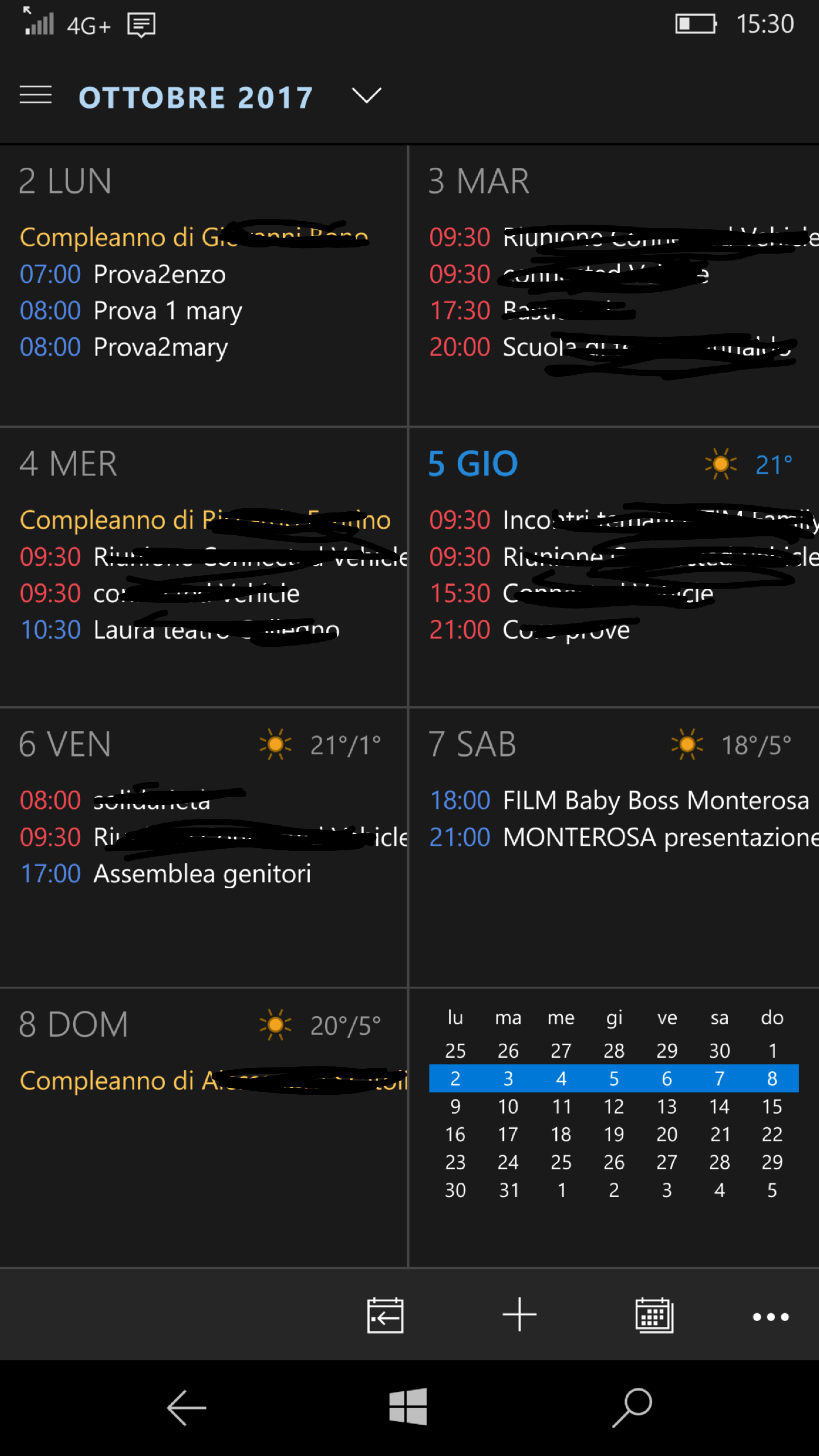
Calendar UWP app on a smartphone

In the weekly view, if you click on the box related to one specific day, it will be expanded to better show all the events for that day and possibly drill down inside each one to get all the available information.

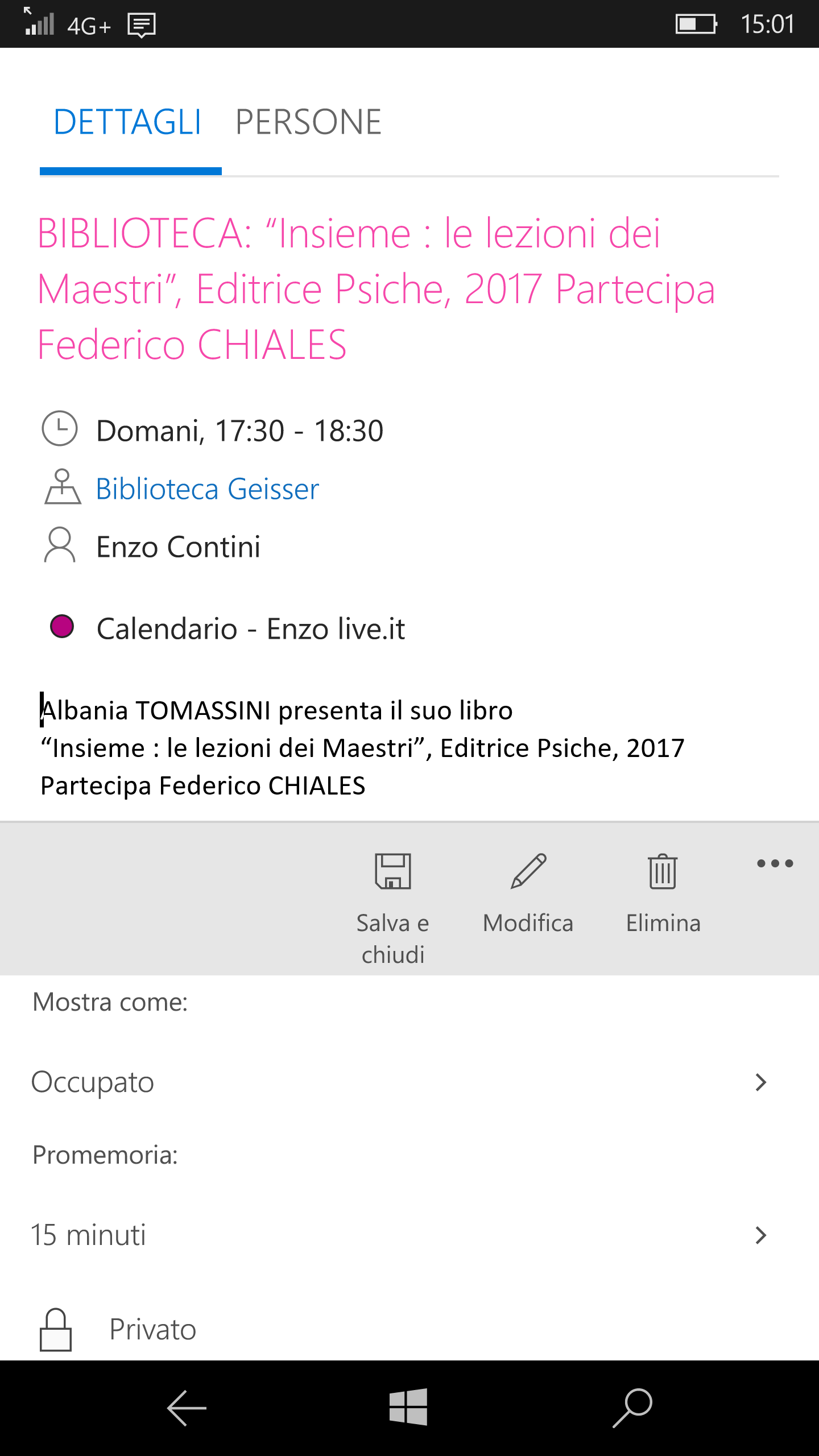
Even the UI of a single event change a lot depending not only to the dimension of the window where the app is running (possibly limited by the screen dimension of the device) but also to the device where it is running.

Single event as shown in big window on a PC/tablet

Single event as shown in little window on a PC/tablet


Single event as shown on a smartphone (1) - Bottom menu available for setting specific options

Single event as shown on a smartphone (1) – Bottom menu available for setting specific options

Single event as shown on a smartphone (2) - Bottom menu available for setting specific options

Single event as shown on a smartphone (2) – Bottom menu available for setting specific options

There is a further note to be highlighted: there is already a way to enhance the capabilities of the Calendar app linking an external app: in fact, in the bottom menu there is a To-Do voice that allows to add this feature to that app, linking to whatever app that implement it and that the user chooses (see  registered to a URI schema, Association launching sample to get more information on how to link apps features).
As you can see from the following screenshots, the first time the user click on that bottom menu To-Do item, he is asked if he wants to choose in the Store an app that implements that activity. Currently there is only one app in the Store that implement that URI schema (Microsoft To-Do, available also in the Apple Store and in the Google Store)  but whatever app that implement that custom URI Scheme could be attached to improve the Calendar app features.

To-Do external app feature (1)

To-Do external app feature (2)

To-Do external app feature (3) – There is only one app in the Store that implements the requested URI scheme for that feature

To-Do external app feature (4) – Install the external app

To-Do external app feature (4) – once installed, clicking to the To-Do menu item of the Calendar app, suddenly open the feature implemented by the external app (the one the user chose)

What I wanted to highlight with previous screenshots is that the UI of a Calendar app must be very friendly and to be so, it changes depending of the available space; moreover it started to be open to further features providing specific URI schemes that can be used by external apps. Therefore I personally think that the current Outlook UI is very well designed (it changed several times, even only the last two years, following both designers testing and users suggestions coming from the communities) and the mechanism used to add the To-Do feature from an external app is a nice method to get more and more features from the same app.

=================================

P.S. I tried the Family Calendar properly configuring my Microsoft Account and it works fine using both the Outlook mail and calendar app (on tablet/PC and smartphones of my family members) and the Outlook.com site from a browser.

Then I tried to use it from the desktop version of Outlook 2016 (where I have my business email), adding my Microsoft account email (on live.it), but I had some problem in adding/modifying appointments: however I can see all the ones inserted with my smartphone or using Outlook.com with the browse. In fact the Family Calendar is a feature of the live.it/outlook.com email so you need to add that account of yours in Outlook 2016 too.

Add your live/outlook.com email account in Outlook 2016 (1)

Add your live/outlook.com email account in Outlook 2016 (2)

Now you can see in Other Calendars the Family one.

Each Calendar is displayed alone on the right pane, but you can join all the views clicking on the arrows, as shown in the following:

Family Calendar and Live/Outlook.com Calendar are now both available

Collapse all calendars in one view, clicking on arrows

Note that there is also one new Calendar (the green one) associated to your personal Live/Outlook.com email: if you do not use it, you can click on X and it will not be displayed anymore!

Hide the Live/Outlook Calendar if not needed and leaving only the Family one

Now in the Calendar tab there is, among Shared Calendars, also the Family Calendar but I have only read-only rights so, if I try to modify some event on it, a popup says: “You cannot make changes to contents of this read-only folder“. I cannot neither add a new event on that Family Calendar (nor the Live/Outlook.com one) from Outlook 2016 desktop program (the New Appointment is  disabled in the menu).

From Outlook 2016 I cannot insert/modify a appointment in the Family Calendar (1)

From Outlook 2016 I cannot insert/modify a appointment in the Family Calendar (2)

I tried to see the Properties of the Family calendar, especially the Permission tab, adding my Microsoft Account email as Owned and even the Default as Owner, so with every right … but nothing changed and I am still not enabled to manage events on that Family Calendar and I can only view those inserted with the phones or with Outlook.com site from the browser: it seems to be a known missing feature that it is still not solved! Therefore till noe you can only see family calendar appointments (not add or modify) while you can completely manage them from the web site and an app client on a smartphone.
I added a post in Microsoft forum on this topic and it seems that even other guys have currently the some problem … Then someone suggested me to have a look to the section “Known issues with shared calendars in Outlook” available in Outlook/Calendar/Share calendar of the support Office site. Here I saw that there is a topic => “I can’t edit a shared Outlook.com in Outlook 2016 (Last updated: May 2, 2017): “Currently, you can’t use Outlook on Windows to edit calendars that are shared with your Outlook.com account, even if you’ve reconnected your Outlook.com account to Outlook. We’re working to make it possible to edit shared calendars in Outlook 2016 for Windows. To edit a shared calendar, go online to your own Outlook.com calendar, open Calendar for Windows 10, or use a mobile device. Read how to Add your Outlook.com account to another mail app“.

I found there also an other current issue that I did not check yet, but that I think even more relevant => “When I edit a shared calendar in Mail for Windows 10, the edits don’t appear on other people’s calendars“: “Mail for Windows 10 does not prevent you from editing a calendar to which you only have read-access. However, any edits you make will only be local edits—other people who share the calendar will not see your edits“.

Therefore, lets wait that those known issues in shared calendars in Office Outlook 2016 will be solved 😉 …. and possibly some more features will be added, like the possibility to see (and filters) who added each event in the Family Calendar and possibly giving to him special rights (e.g. only he can delete events he inserted).

Moreover, after a while (the day after?) an event, inserted from Outlook Calendar from an Android smartphone, cannot be modified anymore neither by the same user and the same device!! This last “feature” (or better bug) is very annoying!!


================================

In the following I will provide further information related to Microsoft Account and email associated with it (and alias of emails).

Take care that there is always at least one Microsoft email associated with your Microsoft Account, even thought you possibly doesn’t use it as main email (or even know that it exists!!): usually it is a live.*, outlook.*, hotmail.* … possibly all of them if you have configured aliases managing your Microsoft account from the Manage how you sign in to Microsoft page.

 Manage how you sign in to Microsoft page

Manage how you sign in to Microsoft page

You can even add one or more alias to your account, creating a new email address (currently on outllok.com or outlook.it … for Italian 😉 clicking on the Add email link of the previous screenshot and navigating to Add an alias page (see also Add your other email accounts to Outlook.com):

Add an alias to your Microsoft account

Add an alias to your Microsoft account

=========================================


See also the following post that shows even more services provided for a family from your Microsoft account site: Family useful features available for Microsoft accounts: for children, weekly activities report, limit screen time, sites/apps/games block and smartphone localization


Pubblicato in Review e test, Smartphone OS, Windows | 5 commenti

How to connect a Microsoft Framework Bot to a Microsoft channel (e.g. Cortana, Skype)

In a previous post I spoke about connecting a Bot with a third party channel (i.e. Facebook Messenger).

Connecting a Bot to Microsoft’s specific channels is even easier because you do not need to create/add specific tokens. In his post I will take into account Cortana and Skype channels.

Cortana channel

To add the Cortana channel, you only need to configure a few things, among them the Invocation name you have to use when talking with Cortana.
Note that you must use your Microsoft personal Account (the one you use to login into your PC, and not a possible company Microsoft account using your firm LDAP for authentication … otherwise you cannot connect a bot to Cortana. Moreover you will be able to launch that bot with Cortana, from a device where you are logged with the same your Microsoft personal account. Moreover, as I will point out, it seems to work only with the English Cortana version (at least for my experience and possibly for the time being).

Add the Cortana Channel to a bot (e.g. testEnzoA)

Add the Cortana Channel to a bot (e.g. testEnzoA)

Settings required to add the Cortana Channel to a Bot

Settings required to add the Cortana Channel to a Bot

Ones the Cortana channel is running (green Running word on the Health column), you can ask Cortana on yout PC to run the bot (e.g. saying: “run ‘bot name’ ” … in my case ‘run test‘ having chosen the word ‘test’ as Invocation name for my bot.

Note that I succeeded to make it work on my PC with Windows 10 in English (even though the region is set to Italy), while on my Surface, with Windows 10 in Italian and being logged with the same my Microsoft personal account, it seems not recognize any command I do to run the bot: Saying, for example “Lancia ‘botname’ ” (e.g. “lancia test“) Cortana asks what local app I want to run or it launch one whenever there is an installed one with a name closed to that bot name. May be could be a current limitation of Cortana in languages other than English, but possibly I am using a wrong command …
I did not succeeded to fine that list for languages other than the one for en-us : that page is neither available in different languages, other than English. I tried to translate the same words from that English list in Italian … but I never will be sure that they are the expected translations … The only page related how to use Cortana in Italian seems to be this page , from the help support site, containing only a short video in English (being only a translation of an English original page)!!

In the following there are some screenshots I took launching my example ‘test’ bot with Cortana on my Windows 10  PC (set with English as Windows display language): I simply asked “Run test“. Only the first time she ask me the permission to connect with provaB2 bot. Then, every input I give to Cortana is processed by that bot (that simply reply “You said: ‘same phrase’

Cortana asks the user permission to connect with the requested bot (only the first time you call it).

Cortana asks the user permission to connect with the requested bot (only the first time you call it).

All the input from the user is processed by the remote bot and Cortana shows the bot response.

All the input from the user is processed by the remote bot and Cortana shows the bot response.

As for every bot, you can manage each connected channel using either the Bot Framework site (MyBots section) or the Azure portal (where you deployed your bot).

Management of the bot using the Bot Framework portal

Management of the bot using the Bot Framework portal

Azure Bot Service console where you can test your bot, edit or download it possibly enabling continuous deployment with a source control provider (e.g. Visual Studio Team Services or GitHub)

Azure Bot Service console where you can test your bot, edit or download it possibly enabling continuous deployment with a source control provider (e.g. Visual Studio Team Services or GitHub)

_____________________________________________

If don’t necessarily want to use Cortana as a possible channel for your Bot, but your intent is more to build a speech-enabled Bot with Cortana skills, whenever are the used connected channels, in the following there are some useful links:

____________________________________________________

Skype channel

PS: see also Skype Bots Succintly by Ed Freitas, free eBook from Syncfusion (eBook and source code).

The Skype channel is added by default as soon as you register a bot in the Bot Framework portal but to have it added as a contact in your Skype account, for testing purposes, you need to click on the Skype link and accept to have it: on the contrary, if you click on the Edit link on the right, you will be able to get some code (Web Control) to lets you embed the bot in your own website or to stat the publication process that requires a review of the bot. If approved it will be considered in Skype bot directory (unless you have selected the option to Hide from Directory). Bots in Preview are limited to 100 contacts. If you need more than 100 contacts, you need to Publish your bot and then distribute it to unlimited users via a URL or button.

To connect the bot as a contact to your Skype, click that Skype link

To connect the bot as a contact to your Skype, click that Skype link

Accept to add it to your Contacts

Accept to add it to your Contacts

The test bot is then added in my contacts

The test bot is then added in my contacts

To find the test bot, you can possibly click on the contacts icons on the right ot the Search box (just on the right of the magnifying glass) and then select the Bots tab.

The only way I found to let other contacts of mine try to use the test bot, is to share it from its profile page:

Share the Bot with some other contacts of you (1)

Share the Bot with some other contacts of you (1)

Share the Bot with some other contacts of you (2)

Share the Bot with some other contacts of you (2)

Share the Bot with some other contacts of you (3): this is what it is sent to the selected contact that have to click to that provided icon link to add the bot in his contacts too

Share the Bot with some other contacts of you (3): this is what it is sent to the selected contact that have to click to that provided icon link to add the bot in his contacts too

Note that to start the publication process you need to provide the URL of Privacy statement an Terms of use. Moreover, even though the publisher country can be set to Italy, there is not the support for the Italian language (only for English, Russian, Portuguese, Spanish seems to be supported for the time being).

You need to provide Privacy statement an Terms of use URLs

You need to provide Privacy statement an Terms of use URLs

I noticed that, after some hours nobody use a bot (e.g. my test bot provaB2) it answer to the first request after a lot of time (even 15 seconds or more) … as it was discarded and then recovered from the memory. Then, it started again to answer nearly in real time … I noticed this kind of delay only with the Skype channel and it should be investigated furthermore.


Pubblicato in Aziendali, Review e test, Windows | 2 commenti

Canestro nel campetto di basket del parco Dora a Torino finalmente ripristinato … ma in che modo???!!!!

Finalmente, dopo almeno 3 anni, hanno rimesso il secondo canestro nel campetto di basket del parco Dora a Torino.

Tuttavia il lavoro è stato fatto malamente da persone che non hanno attivato i principi fondamentali della logica.
Infatti l’asta obliqua l’hanno agganciata con dei morsetti al preesistente palo (anziché avvitarla alla sua estremità in alto come era originariamente e quindi com’era logico fare) e, per giustamente mantenere pressappoco uguale l’altezza dei due canestri, l’hanno dovuta fare più lunga: risultato, il canestro si trova dentro al campo da gioco molto più di quanto era originariamente (e quindi anche di più di quanto sia il canestro dall’altra parte del campo)!!! Inoltre non hanno messo le due aste di rinforzo dietro il pannello, che esistono nel preesistente canestro e che lo rendono sicuramente più robusto.

Esempio di piantina di campo regolamentare

Esempio di piantina di campo regolamentare

Se uno guarda le piantine di campi regolamentari, si nota che il palo che sostiene il canestro dovrebbe essere collocato a 2m dal campo, mentre attualmente si trova molto più vicino … quindi sarebbe stato originariamente più opportuno collocare il campo da basket non in corrispondenza di uno dei pilastri in metallo delle Ferriere della FIAT, bensì tra due di questi in modo da avere più spazio e potendo così piazzare più esternamente i due pali, che sorreggono i canestri …
… anche la posizione del canestro rispetto al campo forse è più regolamentare quella del nuovo canestro …

… ma comunque è pur vero che si tratta di un campo in un parco pubblico e non deve necessariamente essere regolamentare (anche se non sarebbe guastato!) ma la minima regola da rispettare in qualsiasi campo da gioco (regolamentare o meno che sia) è che il medesimo risulti simmetrico in modo che non sia favorita una delle due squadre.

SAREBBE COSTATO LO STESSO (forse anche meno essendo la sbarra più corta) fare il medesimo lavoro come uno si aspetterebbe, ripristinando il canestro così com’era originariamente (con un lavoro fatto un 5-6 anni fa e quindi si presuppone a norma)!!!  

Spero vivamente che qualche addetto a verificare le opere pubbliche imponga alla ditta che ha effettuato i lavori, di provvedere opportunamente, rendendo simmetrico il campo (modificando il nuovo lavoro o adeguando anche il vecchio canestro dall’altro lato)!!

Nuovo canestro ripristinato utilizzando impropriamente la preesistente asta verticale, e collocando il canestro assai all'interno del campo di gioco

Nuovo canestro ripristinato utilizzando impropriamente la preesistente asta verticale, in tal modo collocando il canestro assai più all’interno del campo di gioco rispetto al preesistente

Vecchio canestro in cui, oltre a collocarlo opportunamente rispetto al campo, presenta due aste di rinforzo che rendono il pannello più robusto e stabile.

Vecchio canestro che presenta due aste di rinforzo che rendono il pannello più robusto e stabile.

Dettaglio dei morsetti utilizzati per attaccare l'asta che regge il pannello, anziché utilizzare i preesistenti fori presenti all'estremità dell'asta

Dettaglio dei morsetti utilizzati per attaccare l’asta che regge il pannello del nuovo canestro (anziché utilizzare i fori presenti all’estremità dell’asta verticale preesistente, come era originariamente)


Pubblicato in Giustizia, burocrazia e malcostume | 1 commento

How to connect a Microsoft Framework Bot to a third party channel (i.e. Facebook Messenger)

In Bot Framework Portal left menu  (How-To guides -> Connect to channels), there is a specific section related to the connection of a bot to a channel and, after Microsoft ones (e.g. Bing, Cortana, Skype for Business, Direct Line, Microsoft Teams, Skype, We Chat, Email, GroupMe) there are even third party channels (e.g. Facebook, Kik, Slack, Telegram, Twilio).

In the following I will give some details on the my experience in connecting an example bot of mine (i.e. testEnzoA) to the Facebook Messenger channel. The Connect a bot to Facebook Messenger page, available in the Bot Framework portal, explains the main steps how to do most of the work but in the following I’ll add some screenshots and personal considerations that could be useful when following those instructions!

In particular, the example bot that I will connect to Facebook Messenger, is called testEnzoA and simply reply to any message with “Hai detto: the same phrase”:

Testing the example testEnzoA bot from the Bot Framework Portal: it simply replies “Hai detto: the same phrase”:

In the following there are the main steps to make the things work … 😉

Create a new Page in your Facebook and get that Page ID from its About section. Possibly it is the first time (as it was for me) that you create a new Page attached to your Facebook account, so in the following you can find some screenshots I took for your convenience 😉

New Facebook Page creation (1)

New Facebook Page creation (2) - Community one

New Facebook Page creation (2) – e.g. Cause or Community one

New Facebook Page creation (3)

New Facebook Page creation (3)

Copy  the Page ID of the new created Facebook Page, available in the About section of that Page

After you create your new Facebook Page, you can always easily navigate to it from the left menu that have a specific Pages section (e.g. where the new just created Test1 page can be found).

Pages section of your Facebook account

All the Pages created in your Facebook account

Create a new Facebook App on that Page and generate an App ID and App Secret for it. To create a Facebook App you must navigate into the Facebook developer site: you can click on the Skip and Create App ID button (in the upper right of that page) and set the proper Display Name and Contact Email.

New App ID creation

Snippet code provided with the appId: however this code is not relevant for us.

Snippet code provided with the appId: however this code is not relevant for us.

Also in the See your app page, it is shown the App ID, but only clicking on the proper app icon you can access the Dashboard, related to that app, where you can manage it and set further options.

See your app page

See your app page

Clicking on the newly created Facebook app (i.e. Test1App), you can get not only its App ID but also its App Secret (visible only clicking on the Show button and providing your Facebook password).

Copy the App ID and App Secret

Going into the Settings -> Advanced section, set the “Allow API Access to App Settings” to Yes.

set the "Allow API Access to App Settings" to Yes.

Set the “Allow API Access to App Settings” to Yes

Then enable Facebook Messenger in the new Facebook App going into the Products section and then clicking the Set Up button related to the Messenger product.

Enable Facebook Messenger in the new Facebook App going into the Products section and then clicking the Set Up button related to the Messenger product

Generate a Page Access Token for the Facebook Page previously generated (i.e. Test1 Page)

Page Access Token generation (1)

Page Access Token generation (1)

Page Access Token generation (2)

Page Access Token generation (3)

Page Access Token generation (3)

Copy the generated Page Access Token

Copy the generated Page Access Token

Note that, as written in the Token Generation box:”Page token is required to start using the APIs. This page token will have all messenger permissions even if your app is not approved to use them yet, though in this case you will be able to message only app admins. You can also generate page tokens for the pages you don’t own using Facebook Login“.

I found quite strange that after the token generation you have to suddenly copy it to paste in the bot framework page related to the bot you want to connect with Facebook Messenger, because this token value will then not be available any more once you exit that Facebook page … and if you select again the same page, a new token is generated with a different value (???) …

Click on the Setup Webhooks button to forward messaging events from Facebook Messenger to the bot. Note that after that setup , that  Setup Webhooks button (available in the Webhooks section) will change to Edit Event and it will allow you only to change the Page Subscription Fields.

Setup Webhooks button to forward messaging events from Facebook Messenger to the bot

Setup Webhooks to forward messaging events from Facebook Messenger to the bot

Going to the Bot Framework Portal, in the section related to the bot you want to connect (e.g. testEnzoA), click on the CHANNELS section (top right menu) to connect that bot  to the Facebook Messenger channel.

Connect the selected bot (e.g. testEnzoA) to the Facebook Messenger channel

Connect the selected bot (e.g. testEnzoA) to the Facebook Messenger channel

Copy the Callback URL and Verify Token values from the Bot Framework portal to set them in the Facebook Messenger

Copy the Callback URL and Verify Token values from the Bot Framework portal to set them into the Facebook Messenger

Now, going to the Facebook developer site, set those Callback URL and Verify Token values from the Bot Framework portal (always available in the CHANNELS section of that bot): note that after clicking the Verify and Save button you will be allowed only to change the Subscription Fields and it are not available anymore the Callback URL and Verify Token sections (???).

Set into the Facebook Messenger the Callback URL and Verify Token values taken from the Bot Framework portal

Set into the Facebook Messenger the Callback URL and Verify Token values taken from the Bot Framework portal

After the Save and Verify, the green Complete is displayed if everything is set properly.

After the Save and Verify, the green Complete icon is displayed if everything is set properly.

Get the Page ID, App ID / App Secret and Page Access Token values copied from Facebook sites previously and past them in the Bot Framework Portal page for configuring Facebook Messenger.

Recover that Page ID in Facebook (1)

Recover the Page ID of that page in your Facebook (1)

Recover the Page ID of that page in your Facebook (2)


Recover the App ID and App Secret from the Facebook site for developers

The Configure Facebook Messenger page can be reached from the CHANNELS section of the bot, clicking on the Edit link in the line related to the Facebook Messenger channel.

Configure the Facebook Messenger channel for the bot (1)

Configure the Facebook Messenger channel for the bot (2)

Configure the Facebook Messenger channel for the bot (2)

In the Facebook App you can also set the more appropriate category (i.e. App for Messenger).

Set of the more appropriate category (i.e. App for Messenger) for the Facebook App

Set of the more appropriate category (i.e. App for Messenger) for the Facebook App

Note that Facebook requires a Privacy Policy URL and Terms of Service URL on its basic app settings page: the Code of Conduct page contains third party resource links to help create a privacy policy. The Terms of Use page contains sample terms to help create an appropriate Terms of Service document. After the bot is finished, Facebook has its own review process for apps that are published to Messenger. The bot will be tested to ensure it is compliant with Facebook’s Platform Policies.

App submission for approval from Facebook.

App submission for approval from Facebook.

After the review is successful, in the App Dashboard under App Review, set the app to Public.

After the review is successful, in the App Dashboard under App Review, set the app to Public.

After the review is successful, in the App Dashboard under App Review, set the app to Public.

It is written that, until an app is published, it is in Development Mode and Plugin and API functionality will only work for admins, developers, and testers.

I did not start the review process, also because Facebook requires a Privacy Policy URL and Terms of Service URL on its basic Facebook App settings page, … However I succeeded to do the test because, from the Dashboard of each App, it is possible to add Administrators and Testers of each Facebook App in order to test it even before it becomes public: in particular the owner of the Page is automatically inserted with Administrator rights!! 😉

The owner of a Facebook App is automatically set with the <em>Administrator</em> rights so I he can try the App even though it is not reviewed

The owner of a Facebook App is automatically set with the Administrator rights so I he can try the App even though it is not reviewed

As you can see in the following screenshot, writing to Test1 (that is the name of the Facebook Page I created for the test) from the Messenger site, the bot testEnzoA automatically answers “Hai detto: same string” as expected 😉

Writing to Test1 from the Messenger site: the bot testEnzoA automatically answers ""Hai detto: same string"

Writing to Test1 from the Messenger site: the bot testEnzoA automatically answers “Hai detto: same string”

Obviously the bot works even using the Messenger app, even from your smartphone:

Messenger app on Windows 10 Mobile


Messenger app on Windows 10

Messenger app on Windows 10

Before doing this review, I supposed that when I should write a post in my Test1 Facebook Page I should have had an automatic answer from the bot … but it is not what it happens … Only writing with the Messenger chat to a virtual user called as that Facebook Page (i.e. Test1) you have the bot give the proper answer following it proper logic.
Therefore, the bot is attached only to Messenger and it answers only when someone writes to a virtual contact, that has the same name of the Facebook Page, using the Messenger chat available from the Messenger web site or an app on PC/smartphone (Microsoft Store; Google Store; Apple Store).

No answer from the bot when I write something (e.g. ciao) as a post in my Facebook Page

_______________________________________________

More or less the procedure is the same for the other third party possible Channels (e.g. Slack) even though you have to register a “page” in a different environment and set the proper tokens and URL on the appropriate site (i.e. third party developer site and Bot Framework site configure the proper channel for that bot).

Bot connected to the Slack channel

The same Bot connected to the Slack channel

For connecting your Bot to Microsoft’s specific channels is even easier because you do not need to create/add specific tokens. For example, to add the Cortana Channel see this following post.


Pubblicato in Review e test, Windows | 1 commento

Come aggiornare a Windows 10 Mobile terminali non ufficialmente supportati

P.S. 4/7/2019 Vedi anche il post seguente: How to make your Android smartphone looks like a Windows 10 Mobile device – Part 1: “metro” tiles style user interfaces possibly better than Windows phones one

____________

Se avete un Lumia non ufficialmente aggiornabile a Windows 10 Mobile,  soprattutto se era di fascia alta (e.g. Lumia 920, Lumia 1020) vi posso riportare la mia esperienza alquanto positiva di aggiornamento a Windows 10 Mobile, seguendo le istruzioni presenti in questo post di WindowsBlogItalia, … seppur sia un port datato è ancora valido!
Personalmente ho aggiornato sia un Lumia 920 (tempo fa) sia un Lumia 1020 (oggi) con successo e con ottimi risultati anche in termini di prestazioni e stabilità: non sarà l’ultima build di Windows 10 Mobile (trattandosi dell’ultima fornita agli Insider dei dispositivi supportati ufficialmente) ma è sicuramente meglio che Windows Phone, anche perché anche con quella versione girano già le nuove app UWP che risultano così scaricabili dal nuovo Store di Windows 10 (e.g. Maps, Office, Facebook).

=================

A supporto delle istruzioni già presenti nel post di WindowsBlogItalia, inserisco alcuni screenshot che potrebbero servire per comprendere meglio la procedura da effettuare, talvolta non particolarmente esplicite, aggiungendo alcune avvertenze.
In particolare si noti che conviene scaricare il file .hex, relativo all’emergency files, dal sito http://www.lumiafirmware.com e non dai link forniti dal post di WindowsBlogItalia in quanto fanno riferimento ad un sito di sharing di file poco affidabile (ha cercato di spillarmi soldi mostrandomi una videata – con sintesi audio inclusa –  che falsamente diceva di telefonare ad un numero di Microsoft +1 844 779 0444 perché il computer era infetto; ho dovuto uccidere il browser Edge con il Task Manager e cancellare i suoi dati di cache (vedi alcuni screenshots al riguardo) altrimenti mi riapriva un tab con quella pagina che lo bloccava!). La pagina fake, facsimile di un sito Microsoft, ha difatti una URL repostshub.today che ovviamente non ha niente a che vedere com MS!!

Altra nota importante è che nella impostazione del registro effettuato con regedit, è necessario impostare proprio esattamente quelle stringhe indicate in quel post che fanno riferimento a dati di un Lumia 635 (uno di quelli aggiornabili ufficialmente)… e questo anche se in realtà il tuo telefono che stai cercando di aggiornare è diverso: diversamente non comparirà nel Windows Update la presenza dell’aggiornamento a Windows 10 Mobile. Infatti la procedura modifica alcuni identificativi del dispositivo in modo che si presenti diversamente al sistema di update di Microsoft per il Fast Ring di Windows Insider … e consenta quindi di effettuare l’update anche se in realtà quel telefono non è uno di quelli ufficialmente supportati (chissà poi perché dal momento che, anche su quelli, Windows 10 Mobile va più che bene!! In questo sicuramente Microsoft ha toppato alla grande, a mio giudizio …).

______________________________________________________________

Fake virus alert when I tried to download the Firmware ROM from the link available in the post of WindowsBlogItalia

To solve the fake warning delete the browser cache end kill the browser with Task Manager

______________________________________________________________

Impostazioni ERRATE che inizialmente avevo fatto: si DEVONO invece inserire quelle indicate sul post di WindowsBlogItalia, che fanno riferimento ad un Lumia 635 anche se il tuo device è differente (vedi screenshot seguente)


Pubblicato in Review e test, Smartphone OS | 1 commento

How to delete a wrong word inserted by mistake in the custom dictionary in Windows 10 Mobile

It may happen that, for mistake, you add (using the suggestion bar available in Windows 10 Mobile while you are writing) a not correctly written word: how can you delete it from the custom dictionary in order it will not be considered as a possible correct word in the future?

In Windows 10 you can manage custom dictionaries directly accessing some files available in your Windows User folder (e.g. C:\Users\myUsername\AppData\Roaming\Microsoft\Spelling\it-IT ) as explained for example in this site .
As a may be better alternative, you can act from Outlook as shown in the following screenshot and as explained searching in the Outlook help “Add or edit words in a spell check dictionary“: after reached the list of the available custom dictionaries, you have to choose each one to manage its specific word list.

Add or edit words in a spell check dictionary in Windows 10 form Outlook

However in Windows 10 Mobile those capabilities are not available in Office apps and you cannot neither edit proper files: the only options can be reached from Settings > Time & language > Keyboard > Tap on a Keyboard language but they are not worth for our purposes.

As usual, I asked for help in the Microsoft Community forum and, after some time, a good guy told me the solution that he found from an old post (13/10/2016 – What’s new in Build 14946) in the Windows Blog site => “Option to remove a word from user dictionary (Mobile): We learn from your typing on the phone and build up a local user dictionary that adapts the keyboard prediction, autocorrection and shape writing experiences to your language style. Sometimes you may type a misspelled word and send it as is, sometimes you may tap on a red squiggled word and then tap the “+” sign by accident. Both save the unwanted word into your user dictionary, and it may appear when you type something similar in the future. Now you have a way to manually remove bad entries: tap on the word you don’t like in the text box, and you will see a candidate that is the word with a “-“ sign before it. Tapping on that candidate will remove the word completely from your user dictionary and no longer suggest it“.

Unfortunately it does not works from Word or WhatsApp app but only with other apps like Cortana, Messaging (SMS): from so0me app (e.g. Word, WhatsApp) it is possible only to add (+ option) a word in the custom dictionary but there is not the possibility to delete one misspelled word ( option) you may added for mistake! Anyway, after deleting a wrong spelling word (inserted from whatever app) from the custom dictionary from one app that allows it, that word will not be available as right written for all the environment (all the apps).

Add a wrong word using the popup menu available in Word (+Parolasbagliata)

Add a wrong word using the popup menu available in Word app (+Parolasbagliata)

Add a wrong word using the suggestion bar available in the Messaging app (+Provasbagliata)

Add a wrong word using the suggestion bar available in the Messaging app (+Provasbagliata)

Once inserted, from Word app it is not possible to delete a custom word

Once inserted, from Word app it is not possible to delete a custom word

From Messaging is available, in the suggestion bar, the option to delete a custom word from the dictionary (- Parolasbagliasta)

From Messaging is available, in the suggestion bar, the option to delete a custom word from the dictionary ( Parolasbagliasta)

Also in Cortana it is possible not only to add a word in the custom dictionary but also to possible delete it afterwards, as in Messaging app: therefore it is a feature available from the O.S. but, I do not know why, not used from all the apps …

Add a word in the custom diction from Cortana

Add a word in the custom diction from Cortana (+ Parolasbagliata)

Delete a word available in the custom dictionary from Cortana (-Parolasbagliata)

Delete a word available in the custom dictionary from Cortana (Parolasbagliata)

Pubblicato in Smartphone OS, Windows | Lascia un commento

How to add a certificate in Windows 10 possibly required to use Skype for Business

Sometime to use Skype for Business in an intranet there is the need to install a firm certificate: it may even happens that Skype for Business works when your PC is connected to Internet (if you have required the proper rights) even without installing the certificate but that is required if you are connected to the intranet!

Having the certificate file (.cer) and possibly a command file (.com) that simply install it (certutil -addstore Root NameCa.cer), the installation is very easy as shown in the following screenshots.

  1. First you have to run the command prompt (available in C:\Windows\System32) as an administrator and go to the directory where there is the certificate file and the command file
  2. Run the command file in order to install the certificate (e.g. NameCa.cer)
  3. Possibly you need to restart Skype for business app in order to let it properly connect now using the just installed certificate.

Run the command prompt as an administrato

Run the command prompt as an administrator

Run the command file in order to install the certificate (e.g. NameCa.cer)

Run the command file in order to install the certificate

A possible alternative way, could be possibly to right click on the certificate file and choose Install Certificate.

Alternative way:  right click on the certificate file and choose Install Certificate

Alternative way: right click on the certificate file and choose Install Certificate

Pubblicato in Aziendali, Windows | Lascia un commento

What to do if a the performance of a Windows app starts to decrease

Sometime it happens that the performance of an app decreases (or it starts to work not properly): this may happens with some resources consuming apps like the Facebook one. Every app has a reserved memory where it can store locally data and may be after some time the stored data became too big and/or may be those data are not handled in the better way.

A possible solution could be to uninstall that app and install it again … but there is another easier and quicker way in every Windows 10 device, so both on PC/tablet and on a smartphone 😉

You must go to Settings -> App & features, select the proper app, then click on its Advanced options link: in that page are shown all the details of that app and, among them, its storage usage. Clicking the Reset button all the local stored data of that app will be deleted and it is like it was just installed. Probably you will have to insert again your credential to access that app if this requires authentication, but then surely you may notice that its performances will return as they were at the beginning!! 😉

All Settings -> App & features (PC/tablet)

Reset for that app (PC/tablet)

The following screenshots were taken from my Windows 10 mobile device: you can notice that before the usage storage is 428 MB and after the reset it is 161 MB, mainly the size of the app (only 16KB of local data against the initial 266 MB!!)

App & functionalitiesAdvanced options of the selected app

Reset button

Popup alert that all the app local data will be deleted with the requested reset


Pubblicato in Tecnologia, Windows | Lascia un commento

Why your iCloud email, configured in your email client, do not work anymore since 15/6/2017

Some months ago (exactly since 15/6/2017) all my email clients I configured in my Windows PCs and smartphones started to have problems in accessing only an iCloud email … while the same account continued to work properly only on an Apple device I have (iPad 2).

Useless trying to recreate the email account with the email client (e.g. Microsoft Mail app or Outlook) even configuring that account not only automatically (choosing iCloud as account type) but also manually from the Advanced setup (last choice that becomes visible only scrolling down the list) and setting properly by hand the IMAP4 account (Incoming email server: imap.mail.me.com:993:1  ;   Outgoing (SMTP) email server: smtp.mail.me.com:587:1 )!!

Useless trying to recreate the account also with the Advanced setup

Useless trying to recreate the account also with the Advanced setup

Sometime happened that the client couldn’t find the new created account, even though the username and password were correct, some others the account was created successfully BUT, then, no synchronization succeeded!

The client couldn't find the new created account

The client couldn’t find the new created account

Account created successfully but ...

Account created successfully but …

 ... no synchronization succeeded

… no synchronization succeeded

Searching in some forums I found the reason: on 15/6/2017, Apple introduced new security measures for using 3rd party apps or devices that access an iCloud account, as explained in that Apple support page.
From this post in the Apple forum you can read the following further details: “In order to get those apps or devices signed back in so that they can access iCloud, you need to use an App-specific password to sign them in. The only way to get an App-specific password is to set up either Two-Factor Authentication or Two-Step Verification on your Apple account. If you have an iOS device running iOS 9 or later, or a Mac running Yosemite or later, you can set up Two-Factor Authentication. If you do not have either of those, then you can set up Two-Step Verification. Here is the Two-Factor Verification link, and within that link is a separate link if you need to set up Two-Step Verification: Two-factor authentication for Apple ID – Apple Support. Once you get either 2FA or Two-Step set up for your Apple account, you can then generate an App-specific password that you would then use to sign in with instead of your regular Apple ID password: Using app-specific passwords – Apple Support“.

Therefore, if you want to continue to use a third party email client, you have to set in your Apple account a two-factor authentication or a two-step verification and only after  that, you can request for a specific password for each specific third party client!!
… that procedure, I thing, it is really useless in most cases from the security point of view and it was probably introduced mainly to let the user chooses an Apple client instead of a third party one! In fact an Apple client does not necessarily require those security measures … I wonder why!

================================

P.S. From another post you can read another information that can be useful to you, related to the username you have to use accessing to your iCloud email: “You need to authenticate with your Apple ID email address and password (NOT necessarily your iCloud email address and password!  Many people’s APPLE IDs are NOT their iCloud email address because when someone got his new Apple device, he probably already had another email address that he wanted to use when Apple had you create an Apple ID.  So THAT is what you are going to use because iCloud uses your Apple ID (which is NOT necessarily your iCloud email address) as a centralized way of authenticating“.

Pubblicato in Review e test, Smartphone OS, Windows | Lascia un commento

Ibanez Custom Agent – model 2405 (sunburst)

I was 15 years old when I received, as a Christmas gift, this electrical guitar.

I liked it since the beginning and now, that I just cleaned it and revised a bit (in truth, I only screwed some screws and cleaned some contacts!), it looks like nearly new … against all its years!

😉

I searched in Internet for information about this particular model of that Ibanez guitar … and I realized that it is a rare model that was produced only for few years and today, in excellent original condition, this guitar is worth between $1,200 and $1,500!!

It was produced between circa 1974 and 1977, but serial numbers were not applied to Ibanez guitars until September 1975. Since my guitar does not have a serial number (I could want to check the potentiometers for date codes), it was most likely produced before September 1975: in fact, if I remember well, I got it as a Christmas gift in December 1974 when I was 15 years old!

These Ibanez “copy” guitars from the 1970s are so cool in the opinion of many, as I found in my Internet searches. In fact, while it’s obvious they are copies of popular models, Ibanez designers applied their own artistry and flair to them—something Gibson and Fender rarely dared to try. The Custom Agent model 2405 seems to be listed in the book Ibanez: The Untold Story (**) and older Ibanez catalogs.
Single cutaway mahogany body with a carved  maple top for good looks and tone. The mahogany neck features a 22 fret bound rosewood fingerboard with fancy banjo style inlays. Wild F style scrolled headstock. Dual Super 70 pickups deliver killer tone. A Tuneomatic style bridge and stop tailpiece keep everything solid. Deluxe sealed “star”  tuners too.  My example is finished in a nice violin sunburst.

The model 2405 as it appeared in mid-’70s Ibanez promo literature

The model 2405 as it appeared in mid-’70s Ibanez promo literature

Ibanez: the untold story

The development of this guitar is interesting, especially because the design is unique. But first, let me give some background on the “lawsuit era” of Ibanez guitars.

Hoshino Gakki started as a bookstore company in 1908 and began importing guitars under the Salvador Ibanez name in 1929. Hoshino bought the Ibanez company name and started making guitars themselves in 1935. In the 1970’s American guitar manufacturers were making poorer and poorer versions of their mainstay guitars, so Ibanez jumped in and started “copying” famous brand looks at a budget price. These copies were so good that Gibson sued the Hoshino company and now the Japanese guitars of this era are called the “lawsuit” guitars.

Up until the mid-1970s, Ibanez mainly offered Japanese-manufactured copies of popular American designs like the Stratocaster and Les Paul. The large American guitar manufacturers certainly didn’t appreciate the business they were losing as a result of Ibanez blatantly copying their instruments. And on June 28, 1977, Norlin (Gibson’s parent company) filed a lawsuit against Elger (Ibanez’s parent company) for trademark infringement, claiming Ibanez was copying Gibson’s headstocks too closely.

What many people don’t realize is that by 1975, Ibanez was already working on their “original designs.” By the time the lawsuit was filed, nearly all Ibanez guitars had a much different, non-Gibson-style headstock. That’s not to say the body shapes weren’t still being copied, but there wasn’t much Gibson or Fender could do about this since they didn’t have specific enough trademarks on their body shapes or styles. The lawsuit never went to trial, and Elger signed an agreement to stop marketing Gibson-copied designs and using model names suggestive of Gibson. Elger complied, but the lawsuit represented what was really more of a formality than a radical change in the way Ibanez built their guitars.

The Custom Agent model was one of the first Ibanez guitars to feature an original design: it was the Ibanez answer to the Gibson “lawsuit”. The body is obviously based on a Les Paul, but it has a mandolin-scroll-style headstock, banjo-style fretboard inlays, and a decorative pearl inlay below the stud tailpiece that gives the appearance of a trapeze tailpiece. Though it’s missing on my guitar, the stock pickguard for this model was also uniquely shaped with scrolls.

The Ibanez Custom Agent 2405 was only produced for a short time in the mid 70’s and was one of the top of the line guitars for the company. It featured the distinctive single cutaway, maple top and mahogany back and sides. The guitar also had some features that immediately set it apart from other LP copies. It had a mandolin scroll headstock, matching pickguard and a faux ivory inlay behind the bridge tailpiece.

So it has a mahogany body with a maple or birch top, a set maple neck, a 22-fret rosewood fretboard, two covered Ibanez Super 70 humbuckers and four knobs (two volume, two tone).

Nice medium sized neck, and set up really nice- plays great up and down it with no buzzes. Guitar is lively and resonant unplugged and the Ibanez Super 70 pickups Paf style vintage sound great plugged in with the High End touch with the classic F5 mandolin headstock scroll shape and F5 ornate fretboard inlays.

============================================

In the following some pictures I took of my “old” (but just cleaned 😉 ) Ibanez Custom Agent – model 2405 sunburst!

_____________________________________________________

And at the end … how it look like before I cleaned it:

How it looks like before I cleaned it!

How it looks like before I cleaned it!

===========================================================

On Internet I found the following picture of the same 2405 model of guitar but with a different color (however it is with a missing pickguard, likely non-original pickups, replacement knobs and tarnished hardware!):

Same model but with a different color

Same 2405 model but with a different color

Currently, the Ibanez model that seems to be the nephew ot the Custom 2405 is the IBANEZ AR725-VLS … but now it is made in China (as said in the product description in the Amazon site) …

Ibanez AR725_VLS

Ibanez AR725_VLS

============================================

Most of the information of this post comes from the following sites:

  1. Review
Pubblicato in Musica, Review e test | Lascia un commento

How to register a new Windows 10 PC/tablet and a Windows 10 Mobile smartphone for reading Kindle eBooks

Sometime it is useful to have access to your Kindle library also from a Windows 10 PC/tablet or a Windows 10 Mobile smartphone: this post give you the useful information how to register a new Windows device in order to use it for reading your eBooks 😉

Unfortunately Amazon have not developed a UWP app for Windows 10 so currently in the Microsoft Store there is only an app (an old one) that can be installed only on Windows Phone 8/8.1 and Windows 10 Mobile devices. It is really a pity! Moreover, as you may experimented, the login on the smartphone app is not so easy as it should be and at least a new release of the app should be provided by Amazon!

If you want to have access to your Kindle library and read some of your purchased eBooks from your Windows 10 tablet/PC, you will not find now any app in the Windows Store and you have to install a desktop application (that could be easily converted to an app, as already some others did – e.g. Adobe Photoshop – … note that some years ago there was an app, as you can see from this post dated 2012: I hope that Amazon will do the proper work!), currently with the installer KindleForPC-installer-1.20.47037.exe: you can download it from an Amazon site page. You can find detailed instructions for example here.

If you want instead to have access to your Kindle library and read some of your purchased eBooks from your Windows 10 Mobile device, you have to download the Amazon Kindle app (available only for mobile devices).

Windows 10 Mobile app

When you launch that app, you are requested to insert your Amazon credentials, but even if you insert the right ones, it is displayed “The email address or password you typed isn’t recognized. Try again“. If you try to insert again and again that credentials you will always receive the same error, even though you inserted the right credentials!! This is because Amazon have now a new procedure (for a smartphone … it seems not for a PC/tablet) to be sure that the user that is registering a new device is really the owner of the inserted email: therefore currently it sends a temporary code by email that must be inserted as password in that authentication form (instead of the permanent password of your Amazon account!).
It should be mainly a matter of changing the displayed error reason … but even this little update of the app is not done by the great Amazon (yet?)

😦
Login to Amazon

Login failed (a wrong reason is  displayed!)

Email from Amazon with the code to be inserted (instead of your Amazon password)


Pubblicato in Review e test | Lascia un commento

Come utilizzare gli Amazon locker

Soprattutto in questi periodi di chiusure estive, può risultare utile utilizzare il servizio di consegna presso un locker per i pacchi acquistati su Amazon: ho da poco utilizzato tale modalità di consegna e devo dire che è molto comoda, soprattutto se uno abita in una città dove spesso tali locker risultano collocati abbastanza capillarmente anche presso alcuni supermercati, spesso nel loro androne, e non solo utilizzando un ufficio postale.

Ho trovato sia la modalità di utilizzo assai semplice ed intuitiva sia la procedura molto ben studiata in modo da non lasciare dubbi al cliente. Quando l’oggetto risulta recapitato, viene spedita via email il codice necessario per il ritiro (con anche un codice a barre che evita addirittura di dover digitare i pochi caratteri che consentiranno l’apertura di uno sportello del locker. Una email successiva ringrazia per aver scelto e ritirato quell’ordine, chiedendo gentilmente di possibilmente compilare un breve questionario di gradimento del servizio.
Una procedura impeccabile che deve essere sicuramente presa di esempio …

Email con il codice per il ritiro del pacco dal locker

Email con il codice per il ritiro del pacco dal locker

Email di ringraziamento con la richiesta di compilare possibilmente un breve questionario di gradimento.

Tuttavia la possibilità di aggiungere ai propri indirizzi di spedizione anche alcuni di tipo locker e/o uffici postali, non è secondo me particolarmente agevole a trovarsi e non mi sembra anzi possibile utilizzando l’app Facebook (almeno quella per Windows 10), bensì risulta possibile attualmente solo accedendo al sito da browser.
In particolare si deve andare in Il mio account -> Indirizzi e quindi premere Aggiungi indirizzo: il link diretto è comunque questo.

Purtroppo, non tutti gli articoli, sebbene siano prime e quindi spediti da Amazon stessa, risultano idonei per il loro ritiro da un locker (o da un ufficio postale), forse per le loro dimensioni, anche se non si capisce a questo punto perché i medesimi non si possano recapitare neppure in uno degli uffici postali.

Non per tutti gli articoli si può scegliere come punto di ritiro un locker o un ufficio postale

Non per tutti gli articoli si può scegliere come punto di ritiro un locker o un ufficio postale

Pubblicato in Review e test | 1 commento

How to create a sample Bot application, test it with the bot emulator and then publish it in Azure

I am trying the Microsoft BOT Framework and here you can find my first experiences.

First I followed the instructions available in Create a bot with the Bot Builder SDK for .NET and in the following you can find some notes and screenshots that could help to understand, if needed, the steps explained in that quick start, and then make the sample bot run bot on the bot emulator and  then deployed in Azure.

First of all, to have your VS have the templates related to the Bot, copy the Bot Application, Bot Controller, and Bot Dialog .zip files to your Visual Studio 2017 project templates directory located in %USERPROFILE%\Documents\Visual Studio 2017\Templates\ProjectTemplates\Visual C#\

Insert the templates in the proper VS directory


You will then find a specific selectable Bot Application template when you will create a new project.

Boot Application template

Boot Application template

To test with the botframework-emulator, download it, install it and run it. Set the endpoint of the BOT (e.g. http://localhost:3979/api/messages ) where the base URL can be taken both from the URL of the browser page opened when you run the bot project with Visual Studio or in the project properties: remember to add to that string the /api/messages to let the endpoint be defined properly!

From VS, run the BOT in a browser (e.g. Edge)

From VS, run the BOT in a browser (e.g. Edge)

Page displayed when you run the BOT: it shows the port used and remember you that the endpoint to be set must be of a specific type (https and end with /api/messages)

Page displayed when you run the BOT: it shows the port number used and remember you that the endpoint to be set must be of a specific type (https and end with /api/messages)

Properties of the project that shows the URL with the used port number

Properties of the project that shows the URL with the used port number

For this time, because the bot is not registered yet, in the emulator you have to leave blank the Microsoft App ID and Microsoft App Password fields: you will have to set them only after you register your bot in the MyBot section of the Bot Framework portal.

Bot emulator with the endpoint properly set as previously described

Bot emulator with the endpoint properly set as previously described

Clicking on the CONNECT  button  (and having the bot project running in Visual Studio), you can send messages to that bot and have it answers to you, as designed in his code.

Dialogue with the bot, using the emulator

Dialogue with the bot, using the emulator

Now, if you want to register and run that sample BOT  in Azure, you have publish it: this will give you the site URL that you will have to change in https when you register this bot in the Bot Framework portal (as clearly stated in the suggestion of the Messaging endpoint input field when you register it).

Build -> Publish projectName

Build -> Publish projectName

Set API Name, Resource Group and App Service plan and click the Create button

Set API Name, Resource Group and App Service plan and click the Create button

In the Summary you can find the base URL to be used as endpoint

Register the new bot in the dev.botframework.com portal clicking the Create a bot button

Click the Register button

Click the Register button

Set the mandatory fields and note the suggestion about the Messaging endpoint (it must be https)

Specify the <em>Messaging endpoint</em> using the <em>https</em>, the <em>base URL</em> and then the path <em>/api/messages</em>

Specify the Messaging endpoint using the https, the base URL and then the path /api/messages

In the apps.dev.microsoft.com portal, generate the AppID and the app password (ion the bot registration form only APP ID is needed while both must be set in the code of the Bot)

Take note of the generated password

Set the App ID in the bot registration page

Register the bot

Register the bot

Bot created

Bot created

The bot is already associated to two channels but you can add more

The bot is already associated to two channels but you can add more

In the My bots page the new bot is listed

In the My bots page the new bot is listed

Open the Web.config file ot the bot project and search for the appSetting keys MicrosoftAppId and MicrosoftAppPassword

Set MicrosoftAppId and MicrosoftAppPassword keys with the proper values given when you generate an App ID and password associated to your Microsoft Account

Set MicrosoftAppId and MicrosoftAppPassword keys with the proper values given when you generate an App ID and password associated to your Microsoft Account

Update the code and re-publish it (1)

Update the code and re-publish it (1)

Update the code and re-publish it (2)

Update the code and re-publish it (2)

You can test the new bot directly from the Bot Framework portal

You can test the new bot directly from the Bot Framework portal

If you now want to test/debug that bot from the emulator, you have to define in it also the App ID and password

If you now want to test/debug that bot from the emulator, you have to define in it also the App ID and password

The dialogue with the bot works again even after the setting of App ID and password ...

The dialogue with the bot works again even after the setting of its App ID and password

In the Azure Dashboard you can see the new Bot

In the Azure Dashboard you can see the new Bot

Azure Dashboard – all resources


_____________________________________

Now, for sure you want to delete all the resources associated to that just created sample bot! You need  to manage in the following places:

You can select the bot and then delete it if you don't need anymore

You can select the bot and then delete it if you don’t need anymore

Copy&past the bot name in the proper input field to let the deletion be done

Copy & past the bot name in the proper input field to let the deletion be done

Also in apps.dev.microsoft.com you still have in your app list the just tested bot with the related App ID / Client Id association: you may want to dele also that

Also in apps.dev.microsoft.com you still have in your app list the just tested bot with the related App ID / Client Id association: you may want to dele also that

Delete the sample bot also from the dev.botframework.com portal

Delete the sample bot also from the dev.botframework.com portal

That’s all, for now …

Pubblicato in Aziendali, Review e test, Windows | Lascia un commento

Come richiedere il permesso per decesso o notificare una assenza per malattia ad ore

Prima o poi capita di poter usufruire di tale permesso e non sempre si ha il tempo e determinazione per ricercare le informazioni necessarie presenti sulla intranet per conoscere la procedura necessaria. Il presente post intende perciò raccogliere e semplificare il più possibile le informazioni necessarie e da me raccolte inizialmente da colleghi, che si erano da poco trovati nelle mie medesime condizioni, e quindi successivamente anche dalla intranet.

Per chi non ha tempo di leggere tutto (sono infatti informazioni che quando servono si vorrebbero avere subito, chiare e concise e non è così facile trovarle!) riassumerò subito brevemente quelle che ho scoperto essere le procedure in atto e le possibilità previste (almeno in un contesto di dipendente TIM).

Si può richiedere il permesso retribuito per decesso per un massimo di 3 giorni lavorativi (escludendo dal computo i giorni festivi o di riposo infrasettimanale) continuativi, entro 7 giorni dall’evento. Si applica al decesso del coniuge o di parenti fino al secondo grado [padre, figlio, fratelli, nonni, nipoti (abiatici, figli dei figli)]. Occorre il requisito della convivenza per gli altri parenti: se conviventi, fanno parte della famiglia anagrafica anche i parenti del coniuge e le persone che hanno con il lavoratore un vincolo di adozione.
I 3 giorni di permesso massimo sono da intendersi per ciascun anno solare, secondo quanto indicato nella legge in oggetto.

Operativamente si deve:

  • Inviare al proprio gestore HR via e-mail il relativo modello di richiesta (scaricabile dalla intranet da qui – nel file MODULISTICA PER PERMESSI VARI.zip trovi Richiesta permesso per grave infermità o decesso.pdf) debitamente compilato. Purtroppo gli spazi lasciati liberi per inserire i dati richiesti sono troppo piccoli per contenerli ed essendo un file pdf non risulta agevolmente editabile: per cui puoi copiare tutto il testo in un documento Word … o lo compilerai così com’è come puoi!).
    PS: generalmente, anche se procedura ufficiale prevede quanto indicato precedentemente, risulta in genere sufficiente spedire una mail generica di richiesta ad HR per ottenere l’autorizzazione e poi solo successivamente inviare il modulo debitamente compilato al Competence Team..
  • Una volta ricevuta l’autorizzazione dal gestore HR e venuto in possesso del certificato di morte, inserire una Richiesta al Competence Team di richiesta di permesso per decesso inserendo tutti i seguenti allegati (se ne manca qualcuno, tale richiesta viene chiusa senza essere processata e nella risposta del motivo del rifiuto viene semplicemente riportando quanto già scritto nelle FAQ):
    1. La e-mail di autorizzazione ricevuta dal gestore HR
    2. La documentazione a supporto (in formato elettronico), vale a dire il certificato di morte (ed eventualmente la certificazione anagrafica che attesti la convivenza, nei casi in cui il deceduto non rientri tra i parenti fino al secondo grado). Il certificato di mote viene rilasciato dall’anagrafe generalmente dopo pochi giorni (e.g. 3) dal decesso.
  • Si deve poi inviare comunque tutta la documentazione in originale per posta interna o ordinaria a “HRS – Competence Team – Via Cina 5/7 – 00144 Roma“, indicando sulla busta cognome, nome, CID (quello indicato sul badge) e numero della richiesta inoltrata al Competence Team.

Risulta poi ovviamente possibile contattare il Competence Team con il numero verde 800 018 018 (dal lunedì al venerdì, dalle 9:00 alle 13:00 e dalle 14:00 alle 16:00), sollecitando eventualmente la tua richiesta o per avere informazioni sulla stessa: assicurati di avere a portata di mano il numero della richiesta (che trovi anche nell’oggetto della mail di conferma di apertura), seleziona l’opzione 2 e segui le istruzioni vocali.

==========================================================

In generale l’art. 4, comma 1 della legge 53/2000 stabilisce che: “i lavoratori hanno diritto ad un permesso retribuito di tre giorni lavorativi all’anno in caso di decesso o di documentata grave infermità del coniuge o di un parente entro il secondo grado o del convivente, purché la stabile convivenza risulti da certificazione anagrafica”.

Inoltre, il D.M. n. 278/2000 (Regolamento recante disposizioni di attuazione dell’articolo 4 della legge 8 marzo 2000, n. 53, concernente congedi per eventi e cause particolari), all’art. 1 commi 1 e 2 precisa che:
La lavoratrice e il lavoratore, dipendenti di datori di lavoro pubblici o privati, hanno diritto a tre giorni complessivi di permesso retribuito all’anno in caso di decesso o di documentata grave infermità del coniuge, anche legalmente separato, o di un parente entro il secondo grado, anche non convivente, o di un soggetto componente la famiglia anagrafica della lavoratrice o del lavoratore medesimi. Per fruire del permesso, l’interessato comunica previamente al datore di lavoro l’evento che dà titolo al permesso medesimo e i giorni nei quali esso sarà utilizzato. I giorni di permesso devono essere utilizzati entro sette giorni dal decesso o dall’accertamento dell’insorgenza della grave infermità o della necessità di provvedere a conseguenti specifici interventi terapeutici”.

L’art. 2 prevede comunque sempre, nel caso di decesso di un soggetto diverso da quelli indicati, (art , c.1, permessi retribuiti) la possibilità di chiedere dei congedi non retribuiti, ciò vale anche per generi e nuore, suocero e suocera etc.

FAQ del Competence Team

FAQ del Competence Team

In particolare, nel documento relativo alle FAQ, presente nella sezione Personal Area -> Competence Team della intranet TIM, si legge quanto segue. Non sono fornite altresì, in quella FAQ, indicazioni dettagliate ne su come e quando usufruire di quei giorni, ne su quali siano le documentazioni in originale da poi inviare per posta: non ho trovato scritto nulla di dettagliato sebbene ci sia il riferimento alla legge riportata sopra e si deve probabilmente fare riferimento ad alcuni articoli del contratto collettivo nazionale per i telefonici (vedi nel seguito). In particolare la necessità che ci sia una continuità nei 3 giorni richiesti (entro i 7 giorni dall’evento) non l’ho trovata da nessuna parte, ma da esperienza di alcuni colleghi mi sento di poterla confermare.

_____________________________________________________________

Dalle  FAQ: Come richiedere un permesso per grave infermità o decesso dei familiari per L. 53/2000

Per usufruire di un permesso per grave infermità o decesso dei familiari (L. 53/2000) il proprio HR dovrà autorizzare la richiesta. In questi casi quindi è necessario:

  • inviare al proprio gestore HR via e-mail il relativo modello di richiesta debitamente compilato e la relativa documentazione a supporto
  • inserire una Richiesta al Competence Team
  • allegare alla richiesta la e-mail di autorizzazione ricevuta dal gestore HR e la documentazione a supporto in formato elettronico.
  1. La documentazione in originale dovrà comunque essere inviata per posta interna o ordinaria a “HRS – Competence Team – Via Cina 5/7 – 00144 Roma”, indicando sulla busta cognome, nome, CID (quello indicato sul badge) e numero della Richiesta al Competence Team.

__________________________________________________________

NOTA – Dalle indicazioni sulla intranet mi sembra quindi di capire che il polo di Ivrea, per personale del regioni Veneto, Emilia Romagna, Piemonte, Friuli Venezia Giulia, Trentino Alto Adige, Valle d’Aosta) serva solo per le richieste di rimborso delle spese di trasferta (Travel monitoring)  mentre il polo di Roma sia per tutti quello a cui inviare le documentazioni relative ad altre problematiche quali, ad esempio, l’assenza per decesso o per visita medica.

======================
Nel seguito vengono evidenziate le parti relative al tema in oggetto, presenti nel contratto collettivo nazionale di lavoro per personale dipendente da imprese esercenti servizi di telecomunicazioni (datato 1 febbraio 201 3 e scaricabile dalla intranet come CCNL telecomunicazioni 2014).
__________________________________________________________
Dal contratto collettivo nazionale di lavoro per personale dipendente da imprese esercenti servizi di telecomunicazioni (datato 1 febbraio 201 3)Art. 32 – Assenze, permessi congedi, aspettativa

ASSENZE
Il Lavoratore che – salvo il caso di giustificato impedimento – non può presentarsi
in servizio, deve darne avviso, fatti salvi comprovati motivi di carattere eccezionale,
prima dell’inizio del proprio orario o turno di lavoro e giustificare
l’assenza non oltre il secondo giorno.
2. Le assenze ingiustificate, indipendentemente dalla trattenuta della corrispondente
retribuzione, possono dare luogo all’applicazione di provvedimenti disciplinari,
secondo le norme del presente CCNL.
PERMESSI
3. Al lavoratore che ne faccia domanda l’azienda può accordare, compatibilmente
con le esigenze di servizio e sempre che ricorrano giustificati motivi, permessi di
breve durata.
PERMESSI PER EVENTI E CAUSE PARTICOLARI
4. Ai sensi e per gli effetti dell’art. 4, primo comma, della legge 8 marzo 2000, n.
53 e degli artt. 1 e 3 del regolamento d’attuazione di cui al D.M. 21 luglio 2000,
n. 278, la lavoratrice ed il lavoratore hanno diritto complessivamente a tre giorni  lavorativi di permesso retribuito all’anno nel caso di decesso o di documentata grave infermità del coniuge, anche legalmente separato, o di un parente entro il  secondo grado, anche non convivente, o di un soggetto componente la famiglia anagrafica della lavoratrice o del lavoratore medesimi.
Per fruire del permesso il lavoratore è tenuto a preavvertire il datore di lavoro
dell’evento che dà titolo al permesso medesimo e i giorni nei quali sarà utilizzato.
Nel caso di richiesta del permesso per grave infermità dei soggetti indicati, il lavoratore
deve presentare, entro il termine massimo di cinque giorni dalla ripresa
dell’attività lavorativa, idonea documentazione del medico specialista del Servizio
sanitario nazionale o con esso convenzionato o del medico di medicina generale o
del pediatra di libera scelta o della struttura sanitaria nel caso di ricovero o intervento
chirurgico. Nel caso di richiesta del permesso per decesso, il lavoratore è tenuto a documentare detto evento con la relativa certificazione, ovvero, nei casi consentiti, con dichiarazione sostitutiva. I giorni di permesso devono essere utilizzati entro sette giorni dal decesso o dall’accertamento dell’insorgenza della grave infermità o della necessità di provvedere a conseguenti specifici interventi terapeutici. Nei giorni di permesso non sono considerati i giorni festivi e quelli non lavorativi.
Nel caso di documentata grave infermità dei soggetti indicati, il lavoratore ed il datore di lavoro possono concordare, in alternativa all’utilizzo dei giorni di permesso, diverse modalità di espletamento dell’attività lavorativa comportanti una riduzione dell’orario di lavoro complessivamente non inferiore ai giorni di permesso che vengono sostituiti. L’accordo è stipulato in forma scritta, sulla base della proposta della lavoratrice o del lavoratore ed in esso sono indicati i giorni di permesso che sono sostituiti dalle diverse modalità concordate e la cadenza temporale di produzione da parte del lavoratore della idonea certificazione atta a documentare la permanenza della grave infermità. Dal momento in cui venga accertato il venire meno della grave infermità il lavoratore è tenuto a riprendere l’attività lavorativa secondo le modalità ordinarie. Il corrispondente periodo di permesso non goduto può essere utilizzato per altri eventi che dovessero verificarsi nel corso dell’anno alle condizioni previste dalle presenti disposizioni. La riduzione dell’orario
di lavoro conseguente alle diverse modalità concordate deve avere inizio entro sette giorni dall’accertamento dell’insorgenza della grave infermità o della necessità di provvedere agli interventi terapeutici. I permessi di cui al presente comma sono cumulabili con quelli previsti per l’assistenza delle persone handicap.

CONGEDI PER EVENTI E CAUSE PARTICOLARI
10. Ai sensi e per gli effetti di quanto previsto dall’art. 4, secondo comma, della legge n. 53 del 2000 e dagli artt. 2 e 3 del regolamento d’attuazione di cui al decreto interministeriale 21 luglio 2000 n. 278, il lavoratore ha diritto ad un periodo di congedo per i gravi motivi familiari espressamente indicati dalle richiamate disposizioni di legge, relativi alla situazione personale, della propria famiglia anagrafica e dei soggetti di cui all’art. 433 cod. civ. anche se non conviventi, nonché dei portatori di handicap, parenti o affini entro il terzo grado, anche se non conviventi. Per gravi motivi familiari si intendono le fattispecie
riportate all’art. 2 del d.m. 21 luglio 2000, n. 278.
Tale congedo, utilizzabile in modo continuativo o frazionato, non potrà essere superiore a due anni, computati secondo il calendario comune, nell’arco dell’intera vita lavorativa.
Il lavoratore dovrà presentare richiesta scritta specificando i motivi e la durata del periodo di congedo precisando, la durata minima dello stesso – di norma e fatta eccezione per i casi disciplinati dai commi 11 e 12, non inferiore ad un mese – e documentare, anche attraverso dichiarazione sostitutiva nei casi consentiti, il legame di parentela, affinità o di famiglia anagrafica con i soggetti sopra indicati. Il lavoratore deve altresì assolvere agli obblighi di documentazione previsti all’art. 3 del medesimo regolamento di attuazione. Il datore di lavoro è tenuto entro 10 giorni dalla richiesta del congedo ad esprimersi sulla stessa e a comunicare l’esito al dipendente. L’eventuale diniego, la proposta di rinvio ad un periodo successivo e determinato, la concessione parziale del congedo devono essere motivati in relazione alle condizioni previste per la richiesta del congedo ed alle ragioni organizzative e produttive che non consentono la sostituzione del dipendente. Su richiesta del dipendente, eventualmente assistito dalla Rappresentanza sindacale unitaria su
sua indicazione, la domanda deve essere riesaminata nei successivi 20 giorni. Il datore di lavoro assicura l’uniformità delle decisioni avuto riguardo alla prassi adottata e alla situazione organizzativa e produttiva dell’impresa.
11. Nel caso di rapporti di lavoro a tempo determinato la richiesta di congedo può essere in ogni caso negata per incompatibilità con la durata del rapporto in relazione al periodo di congedo richiesto, ovvero quando i congedi già concessi hanno superato i tre giorni nel corso del rapporto di lavoro a termine nonché quando il rapporto è stato instaurato in ragione della sostituzione di altro dipendente in congedo ai sensi della presente norma.
12. Il congedo di cui al presente articolo può essere altresì richiesto per il decesso di uno dei soggetti di cui al comma 4, per il quale il richiedente non abbia la possibilità di utilizzare permessi retribuiti nello stesso anno ai sensi delle medesime disposizioni o di disposizioni previste dalla contrattazione collettiva. Nel caso in cui la richiesta del congedo per questo motivo sia riferita a periodi non superiori a tre giorni, il datore di lavoro è tenuto ad esprimersi entro 24 ore dalla stessa e a motivare l’eventuale diniego sulla base di eccezionali ragioni organizzative, nonché ad assicurare che il congedo venga fruito comunque entro i successivi sette giorni.

__________________________________________________________

Riporto nel seguito, alcune informazioni raccolte da questo sito (relativamente al mondo della scuola). Leggendolo, mi sono reso conto che alcune estensioni attuative della legge, possono poi essere specifiche di un contratto specifico: ad esempio, da quel post sembrerebbe che nell’ambito del contratto scolastico non viene applicato il vincolo di dover fruire dei permessi entro 7 giorni dall’evento e che inoltre questi giorni non devono necessariamente essere presi consecutivi. Inoltre alcuni contratti (e.g. quelli pubblici quali quello scolastico o ospedaliero) possono comprendere nei permessi retribuiti anche alcuni parenti affini (l’affinità è il vincolo che intercorre fra una persona e i parenti del suo coniuge anche se morto; nella linea e nel grado in cui taluno è parente di uno dei coniugi egli è affine dell’altro coniuge: in particolare sono affini entro il secondo grado: coniuge, suoceri, generi, nuore, cognati). Parlando con una ex segretaria TIM, mi ha detto che un tempo, anche in Telecomitalia tale

Dal una FAQ di un consulente del lavoro si leggono le seguenti informazioni generali ed interessanti in quando dettagliano meglio il tutto

Requisiti per i Permessi: spettano al lavoratore permessi in caso di decesso o di grave infermità del coniuge o di un parente entro il secondo grado, anche se non convivente, o di un soggetto componente la sua famiglia anagrafica.

  • Parenti entro il Secondo Grado: sono parenti entro il secondo grado, per i quali non occorre il requisito della convivenza, i genitori, i nonni, i figli, i loro figli (nipoti di 2° grado), i fratelli e le sorelle.
  • Altri Parenti: occorre il requisito della convivenza per gli altri parenti, quali i bisnonni, i bisnipoti, i figli dei fratelli e sorelle (nipoti di 3° grado), i pronipoti, gli zii, i cugini e i loro figli, i prozii, i cugini dei genitori e i loro figli.
  • Altri Componenti della Famiglia Anagrafica: se conviventi, fanno parte della famiglia anagrafica anche i parenti del coniuge e le persone che hanno con il lavoratore un vincolo di adozione.
  • Misura dei Permessi: per ogni evento spettano tre giorni lavorativi di permesso, quindi escludendo dal computo i giorni festivi o di riposo infrasettimanale. In caso di più eventi riguardanti lo stesso lavoratore, i permessi spettano nel limite massimo di tre giorni all’anno.
  • Limiti Temporali alla Fruizione dei Permessi: i permessi vanno fruiti entro i sette giorni dal decesso, dall’insorgenza della grave infermità o della necessità di provvedere a conseguenti specifici interventi terapeutici.
  • Retribuzione Corrispondente: la retribuzione corrispondente è a carico del datore di lavoro, non essendo previsto l’intervento dell’INPS o di altri Enti.
  • Documentazione: il datore di lavoro ha il diritto di esigere la documentazione che attesti, per la persona colpita, sia il decesso o la grave infermità, sia il suo vincolo di parentela con il lavoratore o l’appartenenza alla sua famiglia anagrafica.

==========================================================

Assenza per visite mediche (malattia ad ore),

Relativamente poi alla assenza per visite mediche (malattia ad ore), sempre nello stesso file delle FAQ si trovano queste indicazioni riferite al caso specifico di assenza ad inizio turno: non risulta chiaro come ci si debba comportare qualora, come spesso succede, l’assenza si verifica per qualche tempo della giornata lavorativa (non necessariamente all’inizio!).

Ovviamente la procedura descritta è in aggiunta all’inserimento in Employee Self Service di una richiesta di Assenza con tipologia Malattia ed altri permessi e giustificativo Malattia ad ore.

________________________________________________________

Come comunicare una malattia parziale (malattia ad ore) ad inizio turno

Qualora l’assenza parziale per malattia, visita medica o cura ambulatoriale ricada nelle fasce di flessibilità in ingresso, il relativo periodo interno alla fascia sarà considerato “malattia” in presenza di un’idonea documentazione medica; in difetto, l’inizio dell’orario di lavoro decorre dal momento finale della fascia di flessibilità o dall’ora della timbratura, se precedente.

Per comunicare una malattia parziale ad inizio turno, è necessario:

comunicare con una e-mail al proprio responsabile la malattia, indicando il giorno, l’orario di inizio e l’orario di fine dell’assenza

inserire una Richiesta al Competence Team, specificando, nella sezione Descrizione, la data, l’orario di inizio e di fine della malattia

allegare alla richiesta la e-mail di comunicazione al responsabile e la certificazione medica

inviare la certificazione in originale a mezzo posta interna o ordinaria a “HRS – Competence Team – Via Cina 5/7 – 00144 Roma”, indicando sulla busta cognome, nome, CID (quello indicato sul badge) e numero della Richiesta al Competence Team

===========================================================

La FAQ seguente, relativa a”Come comunicare una visita medica durante un periodo di malattia” non risulta, a mio parere di aiuto nel comprendere cosa fare qualora ci si assenti per una visita medica (con apposito certificato emesso dal medico della struttura sanitaria) durante la giornata lavorativa.

___________________________________________________________

Come comunicare una visita medica durante un periodo di malattia

La malattia visita medica durante un periodo di malattia deve sempre essere comunicata utilizzando l’apposita funzionalità della TIM People App.

Solo in casi eccezionali, quando cioè ci si trovi nell’impossibilità di accedere alla App, può essere inserita una Richiesta al Competence Team. attraverso la Competence Team App

In questo caso è necessario:

Inserire una Richiesta al Competence Team

Specificare, nella sezione Descrizione, la data della visita medica, l’ora di inizio della e l’ora di fine della visita medica

_____________________________________________________

CONSIDERAZIONI

Purtroppo, ora che le già poche segretarie, che erano rimaste dislocate nel territorio, sono state adibite ad altro compito e tutto è stato centralizzato in un Competence Team a Roma, sicuramente molti dei processi pre-esistenti hanno subito delle variazioni che, a mio parere, rendono il tutto più oneroso in termini di risorse e di tempo per il dipendente: attualmente il processo risultante è sicuramente poco lean, sebbene tali metodologie (agile/lean) siano state spesso giustamente promosse nel recente passato aziendale.
Ad esempio, per una semplice assenza temporanea per visita medica, un tempo bastava inserire la richiesta di permesso in Employee Self Service e portare alla segretaria il giustificativo rilasciato dal medico; ora, oltre all’inserimento in Employee Self Service, esiste una ulteriore procedura che prevede molteplici passi:

  • L’invio di una email al responsabile (indicando il giorno, l’orario di inizio e l’orario di fine dell’assenza, gli stessi già inseriti in Employee Self Service),
  • L’inserimento di una richiesta nello specifico portale del Competence Team ripetendo nuovamente gli analoghi dati (giorno, l’orario di inizio e l’orario di fine dell’assenza) ed allegando in quella richiesta sia la e-mail di comunicazione al responsabile sia la certificazione medica (richiedendo scannerizzazione del documento di cui comunque ne viene richiesto l’invio in originale fino a Roma, come dal passo successivo),
  • L’invio della certificazione in originale a mezzo posta interna o ordinaria al Competence Team di Roma, indicando sulla busta cognome, nome, CID e numero della Richiesta al Competence Team (vedi punto precedente).

Penso che ogni ulteriore commento sia superfluo: nel caso specifico indicato, per poco più di un’ora di assenza ho dovuto dedicarne quasi altrettanto per completare tutte le incombenze burocratiche richieste dal protocollo, con quindi dispendio non solo di tempo [del lavoratore, del suo responsabile, del personale del Competence Team] ma anche di risorse [e.g. scanner-stampante, buste (difficilmente reperibili), servizio postale].

Personalmente penso che certi processi possano e dovrebbero essere semplificati
🙂


Pubblicato in Aziendali, Giustizia, burocrazia e malcostume | Lascia un commento

Blackstar ID CORE Stereo 40 V2 useful links and information

I bought the Blackstar ID:CORE Stereo 40 V2 amplifier for my guitar: it seems to be good … but may be some more information is needed. Note that sometimes Blackstar have special offers  giving you free delivery and a free guitar cable (e.g. “Black Star ID Core 40 Combo per chitarra amplificatore stereo cavo per chitarra KEEPDRUM gc-001 004 6 m gratis“)

Within the box there was only a two pages starter manual and a card with a code related to the free activation of a possible useful SW, the PreSonus Studio One.
I think that reading only that very few starter instructions, it is nearly impossible to use the amplifier properly, even only activate the effects and especially use its advanced features!! At a first trial, it could be that you think that the amplifier even does not work properly … In fact, note that when the amplifier is switched on, it has by default the Manual led lit, that should mean that it is in Manual mode, so the sound should reflect the current physical position of the knobs: on the contrary my amplifier seems to be in Patch mode and to let the sound reflect the current physical position of the knobs you have to unlit that led!!! So, when you switch it on and it has the Manual led lit, I have to unlit it to let the overdrive effects  (crunch, super crunch, OD1, OD2) works setting the proper Voice knob: till now I could not understand if that behavior is “normal” or not … and I am still waiting for an answer from the Blackstar forum.

If you have that amplifier, first you have to go to the Blackstar site and download the full user manual: without it is nearly impossible to use it, especially some advanced features!! Unfortunately there is only in English and other few languages (not Italian) …
However, even after reading that full manual, you can still have some doubts that possibly could be solved reading some answers from the Blackstar forum that can help you to understand some behaviors that possibly may seems quite “strange”. For example from there you can realize that “You need to register a level on the Gain pot in order to achieve output. By design, the voicings will only register output once there is a small level of gain applied. Simply increasing the Volume parameter will not result in output immediately“.

Then you have to download the Blackstar INSIDER (currently v1.8.1) SW that allows you also to possibly apply the firmware update of your amplifier.

To download the Studio One (Blackstar edition) SW, you have to register yourself in the Presonus site, and then register as a new SW or extension product using the activation code available on the card you found in the box of your Blackstar amplifier.

Studio One activation

Studio One (Blackstar edition) activation

At that point, in the My Products section, you will have the Studio One 3 Prime OEM that can be downloaded together with manuals, video and more …

My Product section: Studio One 3 Prime OEM available for downloading

My Product section: Studio One 3 Prime OEM available for downloading

Clicking on that available product, you can download the version you need: from that page you can realize that you have till 5 possible activations!

Download the proper Studio One version

Download the proper Studio One version

On that page you can find also a lot of other resources you can download and a learning section full of tutorials!! 😉

Extra downloads and tutorials

Extra downloads and tutorials

Finally here you can find a Presonus Studio One 4 review video:

Pubblicato in Musica, Review e test, Windows | 5 commenti

Microsoft Bot Framework useful links

In the following there are some guides and documentations for anyone is looking for resources about Microsoft Bot Framework. Some information is taken from the Microsoft Bot Framework site and a stackoverflow answer.

You can find more articles looking into MSDN Magazine site and searching for “Bot” .

In general, the Bot Framework is a platform for building, connecting, testing, and deploying powerful and intelligent bots.  You can think of a bot as an app that users interact with in a conversational way. Bots can communicate conversationally with text, cards, or speech. A bot may be as simple as basic pattern matching with a response or it may be a sophisticated weaving of artificial intelligence techniques with complex conversational state tracking and integration to existing business services.
The Bot Framework supports several popular channels for connecting your bots and people. Users can start conversations with your bot on any channel that you’ve configured your bot to work with (e.g. email, Facebook, Skype, Slack, SMS).

The Microsoft Bot Framework provides just what you need to build and connect intelligent bots that interact naturally wherever your users are talking, from text/SMS to Skype, Slack, Office 365 mail and other popular services.
Recently Microsoft added Cortana, Skype for business (Lync) and Bing as channels (according to Build 2017).

Why use the Bot Framework? Because it includes several helpers:

  • A Bot Builder  (download from NuGet; see get started), which provides rich and full-featured SDKs for the .NET and Node.js platforms. The SDKs provide features that make interactions between bots and users much simpler. Bot Builder also includes an emulator for debugging your bots, as well as a large set of sample bots you can use as building blocks.
  • A Bot Framework portal that gives you one convenient place to register, connect, and manage your bot. It also provides diagnostic tools and a web chat control you can use to embed your bot on a web page.
  • The Bot Framework supports several popular channels for connecting your bots and people. Users can start conversations with your bot on any channel that you’ve configured your bot to work with, including email, Facebook, Skype, Slack, SMS:  they are getting more and more (e.g. Cortana channel).
  • You can take advantage of Microsoft Cognitive Services to add smart features like natural language understanding, image recognition, speech and more. Learn more about adding intelligence to your bot.

======================================================

The best way to start can be to look to the quickstarts page where you can find a detailed walkthrough for creating your first boot with your preferred option:

  1. Bot Builder SDK for .NET,
  2. Bot Builder SDK for Node.js,
  3. Azure Bot Service,
  4. REST API

Download Visual Studio project templates to accelerate bot development:

Download the Bot Application, Bot Controller, and Bot Dialog .zip files. Install the templates by copying the .zip files to your Visual Studio 2017 project templates directory. NOTE – The Visual Studio 2017 project templates directory is typically located at:

  %USERPROFILE%\Documents\Visual Studio 2017\Templates\ProjectTemplates\Visual C#\


=========================================================

Microsoft Bot Framework Documentation

Here you can access documentation on .Net and Node.js

In the Blog section of the portal you can find a lot of interesting insights, like the following:

BOT Framework documentation

BOT Framework documentation

=========================================================

Microsoft Virtual Academy

=========================================================

Channel9

All the latest releases of the bot framework, tech demos and key notes.

Apart from all above pluralsight realeased a course named Getting Started with Building Bots with Microsoft’s Bot Framework (using c#) This course bit old but it contains all the details to jump start. I hope they update the content soon 🙂

=========================================================

Code samples

To get the samples, clone the BotBuilder-Samples GitHub repository using Git.

Bots examples with Cortana, speech recognition and synthesis  :

=========================================================

Other useful links

  • Bot Framework Emulator (Debug bots with the Bot Framework Emulator): botframework-emulator-Setup-3.5.33.exe
  • Enable speech recognition: The Bot Framework Emulator supports speech recognition via the Cognitive Services Speech API. This allows you to exercise your speech-enabled bot, or Cortana skill, via speech in the emulator during development. The Bot Framework Emulator provides speech recognition free of charge for up to three hours per bot per day.
  • F.A.Q. – Bot Framework Frequently Asked Questions (Question and Answer Bot)
    • If you already have a bot and would like to reach the Skype audience, your bot can easily be connected to Skype (or any supported channel) via the Bot Builder for REST API (provided it has an internet-accessible REST endpoint).
    • Direct Line is a REST API that allows you to add your bot into your service, mobile app, or webpage. You can write a client for the Direct Line API in any language. Simply code to the Direct Line protocol, generate a secret in the Direct Line configuration page, and talk to your bot from wherever your code lives. Direct Line is suitable for:

      • Mobile apps on iOS, Android, and Windows Phone, and others
      • Desktop applications on Windows, OSX, and more
      • Webpages where you need more customization than the embeddable Web Chat channel offers
      • Service-to-service applications

=========================================================

Cognitive services

Syncfusion free eBooks:

=========================================================

Design issues (from *)

A good bot solves the problem that user needs to address and delivers a great user experience.

The process of designing a bot is like the process of designing an app or website:

  • Easily solve the user’s problem with the minimum number of steps and not requiring to type/talk too much, repeat information or explains things the bot should authomatically know,
  • Solve the user’s problem better/easier/faster than any of the alternative experiences,
  • Run on the devices and platforms the user cares about,
  • Easy discoverable and the users naturally know what to do when using it.

Less relevant are maters like how smart the bot is, how much natural language capability it has, whether it uses machine learning: obviously completely irrelevant is which programming language was used to create it for the end user prospective.

Well design especially the first interaction giving all the relevant information to the user in order he can intuitively understand how to proceed in using it: therefore starting the bot with an open-ended question such as “How can I help you?” is generally not recommended. It is much better to have buttons or lists of options to convey the capabilities of the bot to the user: using menu let the user avoid to type too much (just click on an item or write its id in the list) but you may anyway support a free form input so, if a user responds to the initial menu by typing rather than by selecting a menu option, your bot could attempt to parse the user’s text input.
If your bot collects personal data from the user, it’s important to convey as soon as possible the privacy issue and to describe what will be done with that data.

Bots have a UI, but it is made up of dialogs, rather than screens as it happens in sites and apps: dialogs enable the bot developer to logically separate various areas of bot functionality and guide conversational flow.
Dialogs may or may not have graphical interfaces. They may contain buttons, text and other elements or be entirely speech-based. Dialogs also contain actions to perform tasks such as invoking other dialogs or processing user input.

=========================================================

Cognitive Services: Test the Text Analytics APIs

I tried this sample page also using the Italian language (not officially supported yet) and I was really surprised of the results as you can see from the following screenshots:

… even in difficult cases:

Pubblicato in Aziendali, Review e test, Windows | 1 commento

What to do if the touchscreen of your Surface 3 does not work properly .. and possibly ask for customer support

The touchscreen of my Surface 3 Pro started to have problems 😦
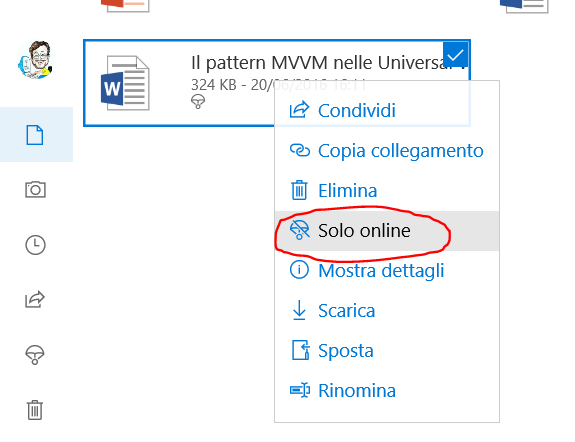
In particular, an horizontal area of the screen (see picture) does not react anymore to my finger, causing the tablet to be hardly usable in tablet mode!

Screen area where the finger touch is no more felt

Screen area where the finger touch is no more felt

Possible reasons for touchscreen problems can be (as in other contexts) software or hardware.
In the first case it could be sufficient to try one of the possible troubleshooting solution listed in the following post available in the Microsoft Community forum: Surface touchscreen: Problems with touch. The first solution is very simple, and it consists to properly clean the screen, … but some of the following solutions are more intrusive and possibly require a reset of the device in order to solve the software problem!

Therefore before starting with more intrusive possible solutions, it can be convenient to understand if it is really a software problem or, on the contrary, it is an hardware one that necessarily requires so send the device to a repair centre (hoping that it is still under warranty, that is 2 years long).
A further trial can be to download the Sony calibration tool (note: in fact, Surface Pro screens are made by Sony) and use it to fix the problem, as suggested from this post.

If the problem persists, to easily check if it is a HW problem, you can boot the Surface 3 Pro in BIOS mode (power + volume plus buttons pressed together for about 20 seconds) and then check if, even without Windows S.O. running, the same screen zone continues to not respond to a finger touch (so not opening the windows for choosing the related BIOS setup options): in that case please check if your Surface is still under warranty and (especially if the answer is yes) contact by phone the Customer service! My personal experience with that support was great and in a few minutes I received by email the label to sent (free of charge) my device to the repair centre in Germany.

On the contrary, if, with the BIOS screen the touchscreen properly works, it is surely a SW problem … so go on to try the possible solutions suggested in the previously described post!

Boot in BIOS mode (power and volume plus buttons pressed for 20 seconds) and verify that the touch problem persists also without Windows running

Boot in BIOS mode (power and volume plus buttons pressed for 20 seconds) and verify that the touch problem persists also without Windows running

For asking customer support you can use the following links:

New device registration

New device registration

Check manufacturer warranty end date

Check manufacturer warranty end date

If you are italian, you can use the following options to open a service request:


Protecting your data if you send your Surface in for service: if you need to ensure the security of your sensitive data by destroying all information from your Surface devices safely and permanently, use the Microsoft Surface Data Eraser tool.

Surface Tools for IT

PS: see also this other post.

Pubblicato in Review e test, Windows | Lascia un commento

Un breve libretto gratuito per provare a pensare un po’ diverso … e riflettere sulle possibili cause della crisi economica

Mi viene in mente una frase di una canzone del Banco (dal loro disco “Darwin“): “… prova a pensare un po’ diverso …“.

Oggi tutti, televisione e giornali, ci parlano di crisi, di debito pubblico, di meccanismi economici di cui, noi cittadini ignoranti (io tra i primi) non capiamo quasi nulla se non i soliti “slogan”.

Ho letto oggi questo breve libretto (scaricabile gratuitamente da Internet): “Nonna ti spiego la crisi economica” di Paolo Barnard.
Secondo me vale la pena di essere letto: sono poche pagine di lettura scorrevole, essendo strutturato come dialogo tra lo scrittore e la sua nonna che pone domande e replica come potrebbe fare chiunque di noi, privo di specifiche conoscenze di economia. Soprattutto dal capitolo 6 diventa particolarmente interessante e certi ragionamenti, inizialmente a me poco chiari e non molto condivisibili, diventano perlomeno verosimili e comprensibili anche ad uno come me che di finanza ed economia non ne sa nulla.

Non è probabilmente da prendere per oro colato tutto quanto scritto in quel libretto, ma in poche pagine penso sia capace di dare una visione alternativa ad alcuni luoghi comuni, con considerazioni non so se più vere, ma sicuramente verosimili e quindi da considerare.

Sicuramente è un libretto che ti fa pensare … e questo è sempre utile! … anche qualora non si condividano alcune delle considerazioni presenti.

Quando avevo tempo fa letto qualcosa sui Bitcoin, la moneta elettronica  creata nel 2009 dall’inventore noto con lo pseudonimo Satoshi Nakamoto, mi aveva analogamente già fatto pensare a quanto “strano” (e per certi versi direi assurdo) sia, sempre più, il concetto di denaro e di economia legata ad esso!! … e quanto poco sia collegato il benessere e la ricchezza di un popolo, rispetto al suo ingegno ed alla sua operosità. Anche l’andamento delle Borse non mi sembra segua necessariamente la produttività e bontà dei prodotti della singola ditta quotata, quanto più i rumors e le speculazioni di pochi …

Il FIL (Felicità Interna Lorda – in lingua inglese  GNH  – Gross National Happiness) rispetto al PIL (Prodotto Interno Lordo) come metodo per valutare una Nazione, … anche quello mi aveva fatto riflettere. Infatti, il PIL non distingue tra i beni ed i danni che una società produce: ad esempio rientrano in esso sia le spese che un governo sosterrà per acquistare un ospedale, sia quelle per l’acquisto di armi. Un’imprevista crescita del PIL ha certamente degli effetti positivi sui mercati azionari, in quanto comporta un incremento degli utili aziendali e dunque generalmente un aumento dei prezzi dei titoli,  ma questo comporta necessariamente un aumento della felicità? Il FIL invece mira ad affiancare al calcolo del livello del reddito e del consumo di una nazione, dei parametri che misurino, ad esempio, il livello d’istruzione, l’aspettativa di vita, il tasso di criminalità, la percentuale di suicidi, la qualità dell’ambiente, l’accesso all’acqua potabile: la convinzione di fondo è che l’aumento del reddito non corrisponda necessariamente al miglioramento della qualità della vita. … e sicuramente questo è un dato di fatto!!

Sicuramente Barnard è un giornalista (per quanto ho letto) egocentrico, per nulla diplomatico, capace di attirarsi le ire di molti. Soprattutto nei suoi ultimi scritti, che pubblica sul suo sito, sicuramente traspare la sua rabbia di “animale” profondamente ferito ed addolorato, adirato con molti se non con tutti: il suo linguaggio crudo, spesso aggressivo e volgare, talvolta anche arrogante, può dare fastidio … almeno a me ha infastidito. Ma non per questo non merita di essere ascoltato, perché anche da visionari come può essere lui, possono trasparire delle considerazioni perlomeno verosimili su cui riflettere.

Insomma può essere una lettura utile durante queste vacanze … per provare anche a pensare un po’ diverso dai luoghi comuni e dalle verità della televisione!

PS: se poi vuoi approfondire, puoi agevolmente trovare materiale relativamente all’MMT, ad esempio su Wikipedia: … devo però ammettere che, con le mie scarsissime conoscenze di economia, personalmente ho compreso di più dal dialogo terra terra tra nonna e Paolo che da altri testi trovati su Internet!! 😉

Pubblicato in Giustizia, burocrazia e malcostume, Pensieri&Parole | Lascia un commento

Restrizioni sui bagagli a mano nei voli aerei

Tempo fa ho scritto un post relativo all’utilizzo di mezzi pubblici per raggiungere l’aeroporto di Caselle.
In questo post mi soffermerò sulle restrizioni relative al bagaglio a mano, l’unico per default presente se non si richiedono esplicitamente ulteriori bagagli, nella richiesta del biglietto aereo.

Per default, viene calcolato un solo bagaglio a mano generalmente di UPTO18LB/8KG e UPTO46LI/118LCM: il significato del peso è ovvio mentre quello delle dimensioni può essere non così chiaro 😉 Si tratta di dimensioni lineari, vale a dire la somma di altezza, larghezza e spessore non deve superare il valore indicato.

Conviene comunque poi andare a ricercare sul sito specifico della compagnia aerea la sezione relativa alle restrizioni sul bagaglio a mano: ogni compagnia aerea ha in genere una sua specifica policy. Ad esempio, andando sulla pagina apposita del sito della Lufthansa,  si scopre che ci sono dei vincoli precisi anche sulle singole dimensioni dell’oggetto, vale a dire 55 x 40 x 23 cm o  per portabiti pieghevoli 57 x 54 x 15 cm:  la formula indicata sul biglietto viene rispettata per il primo bagaglio (55 + 40 + 23 = 118 cm) … ma non per il secondo (57 + 54 + 15 = 126 cm): non è quindi chiaro se quello che conta sono anche le singole dimensioni o solo la loro somma, come parrebbe da quanto indicato direttamente nel biglietto, o solo quelle specifiche dimensioni indicate!

Andando poi sempre a vedere sul sito della compagnia, si può scoprire che oltre a quel bagaglio, si può anche portare eventualmente altro piccolo bagaglio, anche quello di apposite dimensioni. Sempre come esempio, nel sito della Lufthansa viene indicato: “un altro collo (max. 30 x 40 x 10 cm, ad esempio borsetta, portacomputer), per ogni bambino un porte-enfant o un seggiolino o un passeggino pieghevole (eventuale trasporto in stiva) e sedia a rotelle/supporti ortopedici (ad esempio ausili alla mobilità)“. Resta da sperare che i controlli sulle dimensioni non siano effettuati proprio al centimetro ed uno zainetto normale, comunque venga accettato!!

==================

Potresti essere interessato al mio precedente post Collegamento Torino – Aeroporto di Caselle: come arrivare con mezzi pubblici

==================

Questo post si aggiunge ad altri che sono specificatamente indirizzati a colleghi.🙂

PS: puoi trovare gli altri post filtrando, nella combobox a desta, sulla categoria “Aziendali”. Alcuni sono protetti da password per cui se ti interessano puoi contattarmi tramite l’email aziendale o telefonicamente.

Pubblicato in Aziendali, Review e test | 3 commenti

Use of Office 365 in a business working group

I already wrote an old post related to possible tools that can be useful especially in a smart working and collaboration work, speaking of Office 365 for Business that can be used by companies employees like the one I work for.

Every employee can access to Office 365 for Business through a browser from the  https://portal.office.com URL, logging with his own Corporate credentials: the offered service allows to have a 1 Tera personal storage area on OneDrive, where it is possible to share also documents with colleagues and collaborators. Moreover it is available also all the other components Office 365 Online suite that allows also the shared editing of a document (in real time). For example, more users can access to the same PowerPoint slide or OneNote item, that can be also used as a shared blackboard to draw what needed and share ideas and schemas: cooperative work can be done with whatever other Office program, like Word Online, allowing to make changes in the text by more editors, in real time.

It allows also the creation of SharePoint sites, possibly each associated to a project and accessible from all the involved colleagues, with the capability to share documents (handling also versioning): all that documents can be easily synchronized with a local directory on the PC of every member defined for the site.

Office 365 services can be accessed from both a PC Windows or Mac (web access to the portal) and a smartphone, installing proper free Microsoft apps available for all platforms (e.g. SharePoint from Windows Store iTunes or GooglePlay).

===========================================================


In the following, I will describe in detail how to create a SharePoint site to be shared among colleagues, accessible everywhere from Internet, attaching also documents possibly synchronized on your PC on a SharePoint/SiteName folder. SharePoint uses the OneDrive, available in Office365, to store those files so the synchronizing method, with a local copy on the PC, is nearly the same used with the OneDrive associated to every Microsoft account.

The setting procedure is simple, but even more it will be easy to access to the site and all the related data (e.g. stored documents) afterwards the first time, simply accessing to a site from a browser or using an app on your smartphone!! In the following the step by step instructions:

Step 1 – Go to https://portal.office.com: if it is the first access (and possibly you have already a private access to Office 365) you have to select Use another account to login with your business account.

Login with the account associated to your Company (<em>username</em>: your company email) [not with your private personal <em>Microsoft Account </em>]

Login with the account associated to your Company (username: your company email) [not with your private personal Microsoft Account ]

Step 2 – In the new user input credential form, to login with the account associated to your Company, type your company email: as soon as you click for the password input, you’ll be redirected to your Company authentication server.

Type your company email as username

Type your company email as username

Redirection to the Company authentication server

Redirection to your Company authentication server (associated to the inserted email)

Step 3 – Insert your email and your company password (no username input is required)

Insert your email and your company password

Insert your email and your company password

Step 4 – You then access to the Office 365 Dashboard: note that the next time you browse into portal.office.com you will access directly this Dashboard page. From here you can access to all the offered services: for example if you want to access to your 1 TByte OneDrive business storage, you have to click on the OneDrive tile.
Because in the following we want to deal with the SharePoint features, the SharePoint tile is the one of our interest.

Office 365 Dashboard

Office 365 Dashboard

Step 5 – The SharePoint section shows the sites you already follows and possibly suggest some other ones. Note that there is also on the bottom right a Get the mobile app link that allows to download the proper app also from your smartphone. Have a look at the end of the post if you are interested in details on how to use the mobile app.

SharePoint section

SharePoint section

SharePoint mobile apps download

SharePoint mobile apps download

Step 6 – If you want to create a new site, you have to click on + Create site link on the upper menu (see this link for more detailed instructions). The name of the Team site should be unique within your Company, because the site address includes that name. You can set the privacy of the site in order that everyone in your organization can see it or define only some members of it. You can then chose additional owners of the site and, set members that can have full access to it: starting to write the surname of each you colleague, allows you to choose him from a proper combo that shows the filtering results from your Company directory. As stated in the form. “Members will receive group conversations and events in their inbox. They can unsubscribe themselves at any time by selecting the unsubscribe link in group emails“.

Note that if you want to make the site private (neither reading access to other colleagues not includes as members of the group)  you have to click afterwards on the Setting icon on the top right (the Microsoft wheel icon) and then select Site information: the same if you want to modify its name or change other site options.

Creation of a new SharePoint site

Creation of a new SharePoint site

Definition of the owners and members of the group site

Definition of the owners and members of the group site

Change site settings (e.g. privacy)

Possibly change site settings (e.g. privacy)

Step 7 – Every user, set as member of the group, will receive a Welcome email with the link to check out the team site. Clicking on the Check out the team site link will open that site on the predefined browser: possibly the user can save that link in the favorites.

Email received by all inserted members

Email received by all inserted members

Step 7 – Once accessed the site, if the Follows link is selected, that site will appears in the SharePoint main page (and so it can be easily always accessed from portal.office.com selecting the SharePoint tile).

Click the <em>star</em> icon to follow that site and have it listed in your SharePoint homepage

Click the star icon to follow that site and have it listed in your SharePoint homepage

The new site is available also from the SharePoint homepage among the followed

The new site is available also from the SharePoint homepage among the followed sites

Step 7 – To add and share whatever documents in the Documents section of the site (select Documents item from the left menù), all members of the group can use two possible way:

  • Drag & drop  the file in the Document section (see next screenshot)
  • Insert the file in the folder SharePoint/NameOfSite – Document (e.g. if the site is called Enzo, the folder will be SharePoint/Enzo – Documents, as shown in last screenshot od next step 8).

Note that it may be required to force a refresh of the page in the browser to have an updated view of some possible new available files.

Drag &amp; drop files in the Documents section of the site and possibly synchronize with a directory on your PC

Drag & drop files in the Documents section of the site and possibly synchronize with a directory on your PC

Step 7 –  Please READ THE IMPORTANT NOTE at the end of this step.
Possibly all the Documents section can be synchronized with a directory on your PC, simply clicking on Sync top menu item and agreeing in the Microsoft OneDrive for Business alert popup. If the OneDrive for Business is not installed yet, possibly you have to install it (see the Get the OneDrive for Business app that’s right for me link).
A proper directory nameOfSite – Documents will be created in a SharePoint directory, in a similar way as it happens for your OneDrive synchronization: that folder will contain all the documents available in that site and always synchronized. If someone modify a synchronized file, whenever it is saved locally, it is updated on the site repository and then there is an automatic synchronization of that file on all members PC directory (obviously if that kind of sync was activated by that user).

Moreover, as already said in previous step description, every new file inserted in that directory will be automatically synchronized with the Documents section of the associated SharePoint site.

Sync with a directory on your PC

Sync with a directory on your PC

Start now the synchronization

Start now the synchronization

Agree to the alert popup of OneDrive for Business

Agree to the alert popup of OneDrive for Business

A directory with the NameOfSite - Documents is created in the SharePoint folder

A directory with the NameOfSite – Documents is created in the SharePoint folder

IMPORTANT NOTE
Note that the synchronization is done by OneDrive for Business and so the procedure is currently the one implemented by OneDrive. Therefore if you create that association with a local directory on your PC, you must take in mind the following warning that makes  the use of this feature not recommended in a not

  • ALL the files, available remotely on that site, currently are downloaded also locally and so, if the file repository is going to become big, it should waste a lot of your PC memory: in fact with the current version of OneDrive for Business it is yet not possible to have only a placeholder for some files and ask to have only some of them downloaded locally (or downloaded only when you click on the placeholder of that file). This is going to change  and that feature – called File on-demand –  was already available years ago in Windows 8 for the consumer OneDrive, before big changes in the Windows architecture had implied to rewrote the code for some components!): already the preview of the public OneDrive very recently introduced again in the Windows 10 Insider Preview Build 16215, so if you configure the OneDrive setting to have File on-demand, you can activate or deactivate for each file the option Save space and download the file only when you use it.
    Online-only files don’t take up space on your computer (You see a cloud icon for each online-only file in File Explorer, but the file doesn’t download to your device until you open it; you can’t open online-only files when your device isn’t connected to the Internet. When you open an online-only file, it downloads to your device and becomes a locally available file. You can open a locally available file anytime, even without Internet access. If you need more space, you can change the file back to online. Just right-click the file and select “Free up space.”). Only files that you mark as Always keep on this device have the green circle with the white check mark. These files download to your device and take up space, but they’re always there for you even when you’re offline. For more details see Learn about OneDrive Files On-Demand.
    However that feature will be available in the next update of Windows 10 (in few weeks) on the public OneDrive, but I do not know when it will be introduced also in One Drive for Business (usually a bit slower in upgrading): fortunately, being  Office365 for Business an on-line platform, it does not require any update by the Company and so any new improvement done in the platform will be available to everyone as soon  introduced by Microsoft.
    Note that, with the current OneDrive for Business version, the Stop syncing a folder… , available in the right click menù on the associated taskbar icon, allows only to detach a SharePoint site directory (e.g. all the Enzo – Document folder, and not possibly only some folders created inside that site 😦    )
  • If you delete a file in your local directory (currently each file must be always downloaded and synchronized) that change is reflected in the remote repository … so that file will be deleted also remotely as soon as there is an Internet connection and the automatic synchronization is performed. Fortunately, you can always recover a deleted file (no matter where it was deleted from – i.e. phone, PC, web site) going to the Recycle bin section of that SharePoint site.

Management of OneDrive for Business from taskbar icon (left click)

Management of OneDrive for Business from taskbar icon (left click)

Management of OneDrive for Business from taskbar icon (right click)

Management of OneDrive for Business from taskbar icon (right click)

File On-Demand next feature (not yet available in OneDrive for Business)

Recycle bin where all deleted files can be restored if the case (no matter where it was deleted from)

Recycle bin where all deleted files can be restored if the case (no matter where it was deleted from)

Step 8 – Note that it is also automatically handled the versioning, so also previous versions of each document can be always be recovered, if the case. If someone else is working on the same document, it will be forbidden to edit/save (and then automatically sync) that file: therefore, if you want to a cooperative editing of the same file you should open it from the site using the on-line editor (see some more details how to do, at end of the post).
After one file modification, if you go to the site Document section, you will see that the new version of that file is already saved and available to everyone: right clicking on one file, the list of all the versions list is shown in a popup window. Each version can be downloaded simply clicking on the date/hour link or can be possibly made again the current version if the case choosing from the associated combo menu . Take care that the date/hour shown is (at least for my Company) the one of Seattle and not the local one, possibly a configuration problem of the business Office365!!! There should be a proper setting voce in the Settings top menu that should allows to set the language and time zone … but at least in the version I tested, with my user privileges, that item is not available (see here where it should be that menu item).

No simultaneous local editing of a local document is allowed: use instead the online version of Office

No simultaneous local editing of a local document is allowed: use instead the online version of Office

The changed file is suddenly saved and made available to every member ot the group

The changed file is suddenly saved and made available to every member ot the group

The versioning is handled automatically

The versioning is handled automatically

All versions can be listed and possibly downloaded/restored

All versions can be listed and possibly downloaded/restored

Combo menu to View, Restore or Delete; left click to the date/time link to download that version

Combo menu to View, Restore or Delete; left click to the date/time link to download that version

=============================================================

Possibly you want to have your OneDrive folder not in your User folder (as it is for default), but somewhere else (e.g. C:/Data): you can do it ONLY during the setting of the OneDrive Syncronization with with your PC and you will have this choice on both your OneDrive – Personal  and your OneDrive for Business/Sharepoint.

FIrst synchronization of a Sharepoint Document folder

OneDrive app will be started

Possibly you have t update OneDrive app from the link provides in the previous popup window

Here is the only possible way to choose a different folder location on your PC/tablet  for your OneDrive (personal, business or Sharepoint Document)

Select the folder you like (e.g. C:/Data)

Now the chosen folder is shown as the one the OneDrive folder will be created

From the cloud icon Setting menu option, you can manage all the business cloud features [for your OneDrive for Business space and the Sharepoint Document one). There is a futhermore cloud icon for the OneDrive – Personal (not business)]

Two locations are available: one from OneDrive for Business user space and another for the Sharepoint Document I asked to be synchronized.

Synch option for the Sharepoint Document folder

Synch option for my own OneDrive for business folder

In the File Explorer I will find 3 folders (located in C:/Data as requested) 1) public OneDrive – Personal; 2) OneDrive for Business of my user; SharePoint Document folder I asked to be synchronized

===========================================

What previously explained is only the handling of documents inside a SharePoint site, but that is only one of the possible features that can be handled using that site to support a project and/or a collaborative work.
It is possible also to have not only a collaborative editing of documents in real time (see in the following of this post for some details) but also insert pages in that site (to introduce some useful information to be shared and always updatable), see all the recent activities and/or create customizable lists to keep team activities organized (e.g. adding a list called TODO list, it will be shown on the left menu, easily accessible; each list can be associated to a flow that can be defined by Microsoft Flow).
On the left menu of each SharePoint site, just next to the Documents item, there is the Notebook item that let you go to a OneNote Online file associated to that site: as the desktop version of OneNote, you can create more sections and for each one more pages and possibly share also these information with some colleagues.

Add news to the site

Add news to the site

See last activities, view and share files, get organized with lists

See last activities, view and share files, get organized with lists

Add pages to the site

Add pages to the site

Custom list creation with a possible creation of a specific flow defined with Microsoft Flow

Custom list creation with a possible creation of a specific flow defined with Microsoft Flow

Definition of a flow associated to a list

Definition of a flow associated to a list


Notebook menu item associates a OneNote file, possibly sharable

Notebook menu item associates a OneNote Online file, possibly shareble

=============================================================

Here you can find some screenshots related to the installation and access of the SharePoint site from a smartphone: the same SharePoint app is available for every platform (Windows Store iTunes or GooglePlay) so you can see all the site content  also on your smartphone!
The following screenshots show all the step by step procedure for the first access after the installation: afterwards, you will only to launch the app 😉

=============================================================

Cooperative editing of documents in real time

We saw in step 8 that it is forbidden to locally edit the same file available in a synchronized SharePoint / OneDrive for Business local directory.

If you want to a cooperative editing of the same file you should open it from the site using the on-line editor as explained at the end of the post. For example to have a cooperative editing in real time of a Word document listed in the Document section of a  SharePoint site you have to:

  • Double click on the document file to have it opened with Word Online
  • Click on +Share in the right top menu to open a sharing popup page
  • Invite one or more colleagues: starting writing the surname of each in the input box, it makes a combo show a subset taken from the Company LDAP.
  • Choose if they can edit the document also to those people or they can only view it.
  • Click on the Share button in the popup to have an email sent to everyone, inviting them to the cooperative work.

Cooperative editing of a document

Cooperative editing of a document

This method can be useful also for having something similar to a blackboard where everyone can draw something, helping in the discussion: in that case possibly a PowerPoint Online or (better) OneNote Online file is the more appropriate one: with OneNote you can even  use a pen to handwrite, if you have a Surface 😉


==================

Questo post si aggiunge ad altri che sono specificatamente indirizzati a colleghi.🙂

PS: puoi trovare gli altri post filtrando, nella combobox a desta, sulla categoria “Aziendali”. Alcuni sono protetti da password per cui se ti interessano puoi contattarmi tramite l’email aziendale o telefonicamente.

Pubblicato in Aziendali, Review e test, Smartphone OS, Windows | 3 commenti

Windows 10: a further option to project a screen of an external device on your PC when both connected to the same WiFi

I already wrote some posts related to how showing a Windows 10 Mobile device screen on an external display using Continuum and the Microsoft Display Dock or with a wireless connection using  Miracast. I  also show in another post how to see, on an external display, the phone screen as it is.

A further option (among many!) is the one explained in the following using a function available in Setting -> System -> Project in this PC: howeer it works only if both devices (e.g. PC and smartphone) are connected to the same WiFi.

It is sufficient to

  • set the proper settings depending of your needs (see the following screenshots),
  • click on Connect in the Notification Centre,
  • select the Project in this PC link available at the bottom,
  • select the proper device you want to show,
  • agree  that device that you want its screen to be projected.

Alternatively you can ask the connection from the external device (e.g. from the Lumia 950XL smartphone ask the connection to a PC – e.g. SurfaceEnzoLab in the screenshots) and then agree, on the popup that will appear on the PC,  that the screen of that device will be projected on that PC.

Connect tile in the Notification Center

Connect tile in the Notification Center

Project in this PC options

Project in this PC options

hhh

Consent popup on the smartphone

The result is nearly the same when using a Continuum connection, even thought the performance are not the same … but it should be a solution when some delay in the definition of the displayed image can be acceptable!

Pubblicato in Review e test, Smartphone OS, Windows | Lascia un commento

How to remote display, in real time, the screen of Windows 10 Mobile, Android or iOS devices

Sometime it is very useful to show on an external display the phone screen, for example during a presentation.

If you are using a Windows 10 Mobile smartphone, you know that with Continuum (connecting the phone to a display/projector with the Microsoft Display Dock or with a wireless connection using a Miracast adapter (e.g. Microsoft CG4-00003 Display Adaptor; ScreenBeamMini2) if the remoter device  support that kind of standard wireless connection – possibly even using a Miracast adapter attached to it) you can use your smartphone as a PC … but in that case the shown UI is not the same as it appears on a phone, so that is not what you want.

Therefore if you want to show on an external display/projector exactly what you see on a smartphone, you can install on your PC the Project My Screen app. If you have a Windows 10 Mobile device attached to that PC with a USB cable, when that app is running (possibly in full screen mode), on the smartphone display appears a popup asking the consent to let the screen be projected. If you agree, the screen is remotized and everything displayed locally will be shown in real time on the remote screen too.

A popup on the USB connected smartphone will ask the consent to project its screen

A popup on the USB connected smartphone will ask your consent to project its screen

Nothing is shown on the remote PC screen till the consent is done

Nothing is shown on the remote PC screen till the consent is done

On the remote PC screen is displayed in real-time the smartphone screen

On the remote PC screen is displayed in real-time the smartphone screen

If you need to make a record of the screen you can use any screen recording SW to create a screencast or a tutorial for an app: there are a lot software around the web, but you can start with CamStudio, which is a free and open-source SW that allows you to record the entire desktop, a window, or just an specific region of the screen. It is convenient to maximize the Project My Screen app window and then launch CamStudio. You can use the Region option to record only a part of the screen and choose if you want your voice to be recorded as well. PS: you could try also movavi, … it seems fine even though I haven’t tried yet!

=============================================================

If you are using an Android smartphone, you can use Vysor or Mobizen (see also Mobizen Screen Recorder).

For both methods, you need to make Android Debugging enabled on your phone to being discovered (e.g. by Vysor app running on the PC). If you have not the Developer Options section in Settings, maybe you have to enable that section clicking more time on Build Number in Settings -> About Phone (IT: Impostazioni -> Info sul telefono): see, for example, How To Enable USB Debugging Mode Android. If USB Debugging mode is enabled, as soon you connect the Android smartphone to the PC via USB, a popup will ask your consent. Then an .apk is installed in the smartphone too. Last note: unfortunately, if you are using the free Vysor (not pro) version, every now and then an advertising …

USB Debugging must be enabled from Developer Options

USB Debugging must be enabled from Developer Options (1)

USB Debugging must be enabled from Developer Options (2)

USB Debugging must be enabled from Developer Options (2)

Window popup to allow access

The smartphone screen is displayed in real-time

Vysor: the smartphone screen is displayed in real-time

==============

Using Mobizen is very similar: I found the smartphone displayed on the PC screen nicer, but the procedure to make it work took me a little bit more.
I had to connect the PC directly to Internet to maker the first authentication (if you are in an intranet with a firewall, it cannot connect to its remote server for checking for new versions and so it closes): however once launched and logged, it will continue to work even though you switch again to the intranet network …
Following the  site instructions here  did not help to me so much, because it was not clear to me where to get the requested 2-steps verification code to be inserted: so I launched on both PC and smartphone the app and login with the same Mobizen account … that’s all to make it work … 😉  Note that it is better to register an account in Mobizen (I did not succeeded to make it work using my social Google account). Sometime the connection got lost …

Mobizen crashes if launched when connected to a intranet with firewall

Mobizen crashes if launched when connected to a intranet with firewall


The PC app, at first launch, looks for updates

The PC app, at first launch, looks for updates

Login with the Mobizen account

Login with the Mobizen account

=============================================================

If you are using an iOS device, you can try Quicktime player (see e.g. this video) , AirServer or use another specific app. … I did no test on that environment, though!

Pubblicato in Just for fun!, Review e test, Smartphone OS, Windows | 1 commento

Viaggiare sicuri … anche in trasferta

Dovendo prossimamente andare in trasferta all’estero, oltre al processo di richiesta sia dell’autorizzazione sia dei documenti di viaggio, ora si deve anche compilare uno specifico modulo sul sito aziendale del Control Room Security. Un’apposita email mi ha ricordato la nuova procedura piuttosto semplice e che sicuramente può essere di utilità per aumentare la sicurezza di chi  si deve recare all’estero per lavoro: si tratta poi di una buona abitudine anche per viaggi di vacanza, andando a registrarsi anche in un sito del Ministero dove consigliato. Si scopre infatti che alcuni Paesi anche europei sono classificati ad alto rischio ed è quindi opportuno adottare le dovute precauzioni.

Riassumo nel seguito la procedura richiesta aziendalmente, per poi passare ad un’analisi dei siti che, anche per viaggi di piacere all’estero, è utile consultare ed eventualmente iscriversi per essere costantemente aggiornati da un punto di vista della sicurezza.

Si deve accedere al sito intranet dedicato di TravelSecurity tramite le credenziali aziendali. La compilazione del modulo, per ciascun viaggio che si deve effettuare, è piuttosto semplice e basta accedere alla sezione My Travel presente nel menù: unicamente al primo accesso al servizio, si devono compilare anche alcuni dati personali (e.g. numero carta di identità, passaporto).
Solo una segnalazione: ho notato che nel modulo di inserimento dei dati personali (I miei dati)  non viene valorizzato il numero di cellulare aziendale (e non è possibile inserirlo), così come anche nel modulo di compilazione dei dati della trasferta on-line (Modulo trasferta on-line): tuttavia poi ho visto che trasferta nel foglio di Report associato ad un nuovo inserimento salvato, quel numero di cellulare aziendale viene valorizzato … probabilmente è un piccolo baco nel sito. Perciò, quando, nella compilazione di un nuovo modulo viene richiesto di inserire un Altro telefono (secondario rispetto a quello principale aziendale presente già nella directory aziendale), è inutile inserire quello aziendale in quanto comunque è registrato (anche se non visualizzato durante la procedura e visibile solo nel report finale): meglio invece inserire quello di un familiare.

Nel modulo I mie dati, il numero di cellulare primario non viene valorizzato e non si può inserire

Nel modulo I mie dati, il numero di cellulare primario non viene valorizzato e non si può inserire

Nella compilazione di un nuovo Modulo trasferte on-line, il numero di cellulare primario non viene valorizzato e non si può inserire

Nel report finale, invece, il numero del cellulare aziendale viene valorizzato

Nel report finale, invece, il numero del cellulare aziendale viene valorizzato

Per ciascuna nuova trasferta, premere Nuovo modulo nella sezione Modulo trasferta on-line

Per ciascuna nuova trasferta, premere Nuovo modulo nella sezione Modulo trasferta on-line

Il sito presenta anche altre sezioni di possibile interesse, oltre quello di My Travel, ad esempio quello relativo al Country Risk dove viene fornita una indicazione del livello di rischio associato a ciascun Paese del mondo. Purtroppo non viene fornita alcuna indicazione relativamente al motivo per cui è stato associato quel livello di rischio per cui, ad esempio, viene indicato per il Marocco un livello elevatissimo di rischio, e solo andando a vedere su altri siti (e.g. Travel advisory risk levels) viene fornita la motivazione e una indicazione in quale zona particolare di quel Paese quel rischio indicato è riferito!

Livello di rischio per ciascuna nazione (senza specifiche indicazioni)

Livello di rischio per ciascuna nazione (senza specifiche indicazioni)

Livello di rischio per ciascuna nazione (con specifiche indicazioni)

Livello di rischio per ciascuna nazione (con specifiche indicazioni) [e.g. Travel advisory risk levels]

Come indicato anche nella email che è seguita, relativamente alla ricezione del modulo da me compilato, sono andato poi a registrarmi nel sito del Ministero degli Affari Esteri all’indirizzo www.dovesiamonelmondo.it.

Sito del Ministero degli Affari Esteri all'indirizzo www.dovesiamonelmondo.it

Sito del Ministero degli Affari Esteri all’indirizzo http://www.dovesiamonelmondo.it

Sito del Ministero degli Affari Esteri all'indirizzo www.dovesiamonelmondo.it (2)

Sito del Ministero degli Affari Esteri all’indirizzo http://www.dovesiamonelmondo.it (2)

Come indicato nel sito della Farnesina Ministero degli esteri – Viaggiare sicurii dati assunti nel corso dell’attività di valutazione del rischio Paese sono messi a disposizione del cittadino attraverso diversi strumenti, in primo luogo il sito www.viaggiaresicuri.it“. In particolare in http://www.viaggiaresicuri.mae.aci.it/home.html si accede ad una pagina che, in tempo reale, fornisce indicazioni relative alla sicurezza, suddividendole in:

  • Informazioni generali
  • Situazione sanitaria
  • Sicurezza
  • Mobilità
  • Ultim’ora

Segnalazione eventi in tempo reale - http://www.viaggiaresicuri.mae.aci.it/home.html

Segnalazione eventi in tempo realehttp://www.viaggiaresicuri.mae.aci.it/home.html

In una apposita pagina di quel sito istituzionale viene poi indicato che è anche scaricabile app per smartphone e tablet, disponibili per sistemi sia Android sia Apple sia Microsoft, rendendo più agevole l’accesso alle informazioni durante un viaggio.

Dovrebbero essere disponibili app per smartphone/tablet per sistemi Android, Apple e Microsoft

Dovrebbero essere disponibili app per smartphone/tablet per sistemi Android, Apple e Microsoft

Tuttavia andando a ricercare l’app Unità DI Crisi – Farnesina nello Store di Microsoft (ora unificato per tutti gli ambienti – PC, tablet e smartphone) non si riesce a trovare, né da PC né da smartphone. Andando a cliccare proprio sul link fornito dalla pagina del sito della Farnesina si accede allora effettivamente ad una pagina che indica “Questa app non funziona sul tuo dispositivo” (sia su un tablet/PC Windows 10 sia su uno smartphone Windows 10 Mobile)!! Si tratta perciò di un’app obsoleta, realizzata con chissà quale tecnologia (generalmente, infatti, con le nuove versioni di Windows è stata mantenuta la compatibilità per le vecchie app!) e non più mantenuta da tempo. … incredibile!! Non è, di fatto, più disponibile per il sistema operativo più diffuso su tablet/PC.

L'app Unità di Crisi - Farnesina non risulta più installabile su PC/tablet con Windows 10

L’app Unità di Crisi – Farnesina non risulta più installabile su PC/tablet con Windows 10

L'app Unità di Crisi - Farnesina non risulta più installabile su smartphone con Windows 10 Mobile

L’app Unità di Crisi – Farnesina non risulta più installabile su smartphone con Windows 10 Mobile

Si tratta perciò di un’app obsoleta e non più mantenuta da tempo … incredibile!! Non disponibile più per il sistema operativo più diffuso su PC/tablet.
Ho provato quindi a segnalare il problema con l’unico form di contatti trovato dal sito della Farnesina a cui il portale www.viaggiaresicuri.it è collegato: vediamo se forniranno qualche risposta 😦

==================

Questo post si aggiunge ad altri che sono specificatamente indirizzati a colleghi.🙂

PS: puoi trovare gli altri post filtrando, nella combobox a desta, sulla categoria “Aziendali”. Alcuni sono protetti da password per cui se ti interessano puoi contattarmi tramite l’email aziendale o telefonicamente.


Pubblicato in Aziendali, Review e test, Smartphone OS, Windows | Lascia un commento

Protetto: Identità digitale TIMid: test della procedura di cambio password

Il contenuto è protetto da password. Per visualizzarlo inserisci la password qui sotto.

Pubblicato in Aziendali, Review e test | Inserisci la tua password per visualizzare i commenti.

How to check your privacy setting in Facebook and possibly modify it

By chance, I noticed that a new post of mine in Facebook had a visibility “Public” that is everybody could see it.

I did not remember to have changed the privacy setting and I supposed that every new post was visible only to “Friends” …
… on the contrary I realized that all my last posts (I did not check since when) were all Public!!

Therefore if also you do not want that all your Facebook post can be seen by everyone, it is convenient that you check your privacy settings in the Facebook site: possibly this feature is available also from the app, but usually from a site you can have more capabilities compared with the app ones, therefore I checked how to modify my default privacy settings from the Facebook site.
At a first look, it is not so stressed how to navigate into the privacy settings page: I know that it is not a section that you have to see everyday but, in my opinion it should be more easy to be found. Moreover, searching in Internet, I found several blogs with instructions that were related to old user interface of the Facebook site … and I realized that now the privacy section is much more difficult to be found than in the past! Therefore, in the following you can see some screenshot I took that can help you to check your privacy settings.

First of all, check the privacy of (for example) your last post, just to see if  it is Public and not Friends, as I suppose you’d like too! You can check it going in the Edit Post section that can reached both from the Timeline or from the post detail popup page:

Check the privacy of your last post (1)

Check the privacy of your last post (1)

Check the privacy of your last post (2)

Check the privacy of your last post (2)

Check the privacy of your last post (3)

Check the privacy of your last post (3)

Check the privacy of your last post (4)

Check the privacy of your last post (4)

Then, if your default privacy setting, applied to that post,  is not the one you like, go to the Privacy Settings and Tools page as follows:

How to change your own privacy settings (1)

How to change your own privacy settings (1)

How to change your own privacy settings (2): default setting for next posts

How to change your own privacy settings (2): default setting for next posts

If you then wants to change the settings of past posts, you can do changing one by one from the editing page seen previously or (in a more easy way if you want to change them all) going into the Limit Past Posts link available in the Privacy Settings and Tools page:

How to change your own privacy settings (3): limits past posts

How to change your own privacy settings (3): limits past posts

How to change your own privacy settings (4): limits past posts

How to change your own privacy settings (4): limits past posts

Then, if you set your phone number in Facebook (I wonder why), it can be useful to let it be visible only to Friends and not to everyone:

How to change your own privacy settings (5): phone number visibility

How to change your own privacy settings (5): phone number visibility

___________

One more trick: if you want to move a picture, available in a past post, in a specific album you have (or that can be created), you can do as follows (two different ways). Note that every picture in a generic post is available in the Timeline Photos folder of the Photo section.

How to move a picture in a specific album (1)

How to move a picture in a specific album (1)

How to move a picture in a specific album (2)

How to move a picture in a specific album (2)

How to move a picture in a specific album (3)

How to move a picture in a specific album (3)

Pubblicato in Review e test | Lascia un commento

Calcolo della pensione

… pian piano si invecchia e può capitare di chiedersi: quando potrò andare in pensione? Con le nuove regole, sempre più penalizzanti, tale scoperta può tuttavia essere traumatizzante, ma comunque penso sia sempre bene esserne a conoscenza!
C’è comunque sempre da sperare che ci sia un qualche nuovo decreto che favorisca nel prossimo futuro il sicuramente utile ricambio generazionale nel mondo del lavoro … altrimenti, come benefit aziendale, anziché gli asili, si dovranno predisporre dei badanti!  😉

______________________________________________________________

P.S. 2022 Anche il fondo pensionistico Telemaco ha messo a disposizione dei motori di calcolo per avere le informazioni necessarie sulla pensione pubblica e su quella complementare, con la stima dei relativi valori: calcola la tua pensione.

Ci sono diversi siti che forniscono una indicazione, con buona approssimazione, della data in cui un lavoratore può andare in pensione e generalmente richiedono di inserire principalmente sia il proprio anno di nascita sia il totale (in settimane) di contributi totali accreditati. Ad esempio esiste il modulo nel sito irpef.info che mostra una interfaccia seguente. Si noti che i calcoli effettuati negli anni forniscono risultati differenti in quanto i parametri di calcolo si sono modificati nel tempo …

P.S. Per conoscere le settimane di contributi versati, che risulta uno dei dati fondamentali da inserire nel form, vedere il post ECOCERT: come richiederlo dal sito dell’INPS e come interpretare la colonna relativa ai contributi settimanali utili ai fini pensionistici (nota che basta solo conoscere i contributi versati, senza la necessità di una certificazione, ed è perciò sufficiente andare sul sito dell’INPS nella sua sezione “I miei contributi per vedere elencati anno per anno quelli attualmente registrati nell’INPS).

Calcolo della data della pensione

Calcolo della data della pensione (al 31/1/2017)

 P.S. dicembre 2017
Ho riutilizzato il medesimo form con i contributi aggiornati al mese precedente ed ora mi fornisce una data precedente (???) … le regole previdenziali evidentemente si sono ancora modificate con il tempo!

Calcolo della data della pensione (al 30/11/2017)

P.S. novembre 2018

E’ stata inserita, in via sperimentale, la possibilità di simulare la situazione pensionistica anche applicando la Quota 100 oltre che la Fornero: è sufficiente scegliere OK o annulla nella popup che compare richiedendo il calcolo.


P.S. – Giugno 2019:

aa

4/6/2019

Sempre su irpef.info c’è un modulo che consente un calcolo approssimativo della pensione futura:

Quota 100: ecco il calcolatore per scoprire se conviene andare in pensione prima

Calcolatore epheso:

Dope per il calcolo dello stipendio netto da quello lordo indicato nel 730 si può usare questo form:

_____________________________

In alternativa si può anche usare il sito pensionioggi che ha un form analogo che, almeno nel mio caso, ovviamente fornisce gli stessi risultati! Quel sito ha anche un forum interessante moderato da Enrico Paura che mi sembra sappia rispondere a molte domande …

Esistono poi anche siti che forniscono l’ammontare approssimativo della propria prossima pensione, ad esempio in questa pagina  o quest’altra.

Resta da sapere quante sono le settimane di contributi totali accreditati e per questo è indispensabile accedere al sito dell’INPS: lo si può fare accedendo il nuovo portale tramite le credenziali rilasciate dall’ente stesso (con una procedura non particolarmente agevole che, almeno quando l’avevo fatta io, prevede l’invio di parte della password via email e parte per posta; frequentemente viene poi richiesto di rigenerarla per cui è indispensabile sempre tenere traccia delle modifiche!) o utilizzando un’identità digitale SPID, ad esempio il TimId: a tale proposito potete vedere un mio precedente post a tale riguardo.

Login nel portale dell'INPS

Login nel portale dell’INPS

Una volta autenticati, non è secondo me particolarmente agevole trovare il modo di ottenere il proprio estratto conto previdenziale, … in termini di usabilità quel portale mi sembra abbia ancora molto da migliorare! Trovare la sezione relativa alla propria pensione non è quindi uno scherzo e forse, a posteriori, il metodo più agevole è quello di cercare la scritta “La mia pensione” (PS: 25/5/2017 – cambiata in “La mia pensione futura“) filtrando tra tutti i servizi disponibili sulla lettera “L“, come mostrato nella figura seguente (“ovviamente” se ricerchi su “P” la voce “Pensione” non la trovi!!).

Ricercare "La mia pensione"

Ricercare “La mia pensione

Accedere al servizio "La mia pensione" (1)

Accedere al servizio “La mia pensione” (1)

Accedere al servizio "La mia pensione" (2)

Accedere al servizio “La mia pensione” (2)

Situazione contributiva attuale

Situazione contributiva attuale

Da qui è possibile accedere alla pagina relativa all’estratto conto contributivo!

Link relativo all'estratto conto contributivo

Link relativo all’Estratto Conto Contributivo

PS: se invece vi si presente la seguente scritta in cui è assente il link Estratto Conto Contributivo, l’unica è telefonare al Call Center  indicato (i.e. 803164 da fisso o 06164164 da cellulare) e, indicando come motivo della chiamata “Estratto Conto Contributivo“, vi verrà chiesto (da un risponditore automatico) se si desidera il suo invio al proprio domicilio, fornendo la data di nascita , nome e cognome.

E' assente il link relativo al Estratto Conto Contributivo: chiamare il Call Center indicato

E’ assente il link relativo al Estratto Conto Contributivo: chiamare il Call Center indicato

Il seguente estratto conto contributivo si può poi salvare come file pdf per eventualmente stamparlo, o si può anche scaricare un file XML contenente in modo strutturato le medesime informazioni, per elaborarle successivamente da un eventuale SW.

Estratto conto contributivo

Estratto conto contributivo

In tale tabella non esiste tuttavia il dato che fornisce chiaramente il dato cercato, vale a dire il numero complessivo di settimane di contributi accreditati per cui si deve fare la somma a manina. Ma se uno è pigro o vuole comunque avere un termine di confronto, esiste un altro metodo, vale a dire scaricare, sempre dal sito dell’INPS (ovviamente non particolarmente pubblicizzato per cui non agevolmente reperibile!), un programmino che, connettendosi probabilmente a qualche servizio del  portale che fornisce i propri dati (probabilmente con lo stesso formato XML scaricabile anche come file e  visto precedentemente), fornisce subito un sunto delle informazioni utili.

Il programma in questione si chiama CARPE PC e l’ultima versione (attualmente 15/2/2018 – la 7.02.50) può essere scaricate da questa pagina del sito dell’INPS (Tutti i software -> Ricerca software, filtrando sulla Tipologia = Per il cittadino)

CARPE PC – SW per il calcolo de4lla retribuzione media pensionabile

Sebbene non molto visibile come link, risulta necessario cliccare sulla scritta in basso per finalmente scaricare lo zip del programma (CA-70250.zip): la pagina è attualmente questa ed il link per scaricarlo è il seguente, anche se probabilmente si modificherà nel tempo (essendo il nome del file e quindi della URL, associata al numero di versione):

Link per scaricare il programma CARPE PC

Una volta installato il programma, per conoscere il numero di settimane fatidico è necessario premere sul pulsante Carica, fornire le proprie credenziali INPS (l’uso alternativo dello SPID non è qui dato come possibile alternativa), premere quindi il pulsante Prelieva estratto: a questo punto vengono forniti tutti i dati relativi alla propria utenza ed in particolare il TOTALE delle settimane (es. negli screenshot seguenti 1856 settimane).

Visualizzazione estratto

Visualizzazione estratto

Premendo il tasto Stampa, si ottiene anche il tabulato dell’estratto conto da cui si deduce anche l’ultimo mese calcolato (in genere qualche mese prima di quello attuale).

Estratto conto scaricabile premendo il tasto Stampa

Estratto conto scaricabile premendo il tasto Stampa

Chiudendo la finestra di popup relativa alla Visualizzazione estratto e tornando poi nella pagina principale dell’applicazione, selezionando il pulsante opportuno (es. Telefonici) si riescono ad ottenere altri dati potenzialmente utili, quali probabilmente anche l’importo della pensione che si prevede verrà elargita: purtroppo non esiste (o almeno il non ne sono a conoscenza) una legenda o un manuale che spieghi al cittadino (al quale è espressamente rivolto tale programma) come interpretare i dati forniti dal medesimo!


Allego infine un file excel, fornitomi da un gentile collega, che può ulteriormente aiutare nel verificare la data di pensionamento fornendo il numero di settimane di contribuzione.

Per conoscere poi, in modo abbastanza preciso, l’importo della pensione, puoi utilizzare questo altro file excel (personalizzando opportunamente sia le colonne A e B – inserendo 1 in corrispondenza del primo anno di contribuzione ed indicando solo nel medesimo rigo gli anni che si aveva di età – sia il reddito anno per anno nel nella colonna D).

==================

Qualora risultino delle mancanze dopo il 2005, è possibile avere una visione di dettaglio maggiore andando nel servizio “Posizione annuale da lavoratore dipendente (dal 2005)“: per trovare questo servizio conviene ricercarlo tramite l’apposita finestra di search in alto a destra nel portale INPS.

  Infine risutta anche possibile inoltrare una richiesta via email andando nel servizio INPS Risponde, che si può trovare agevolmente sempre tramite il search:

Per contattare l’INPS, anche telefonicamente ad esempio per prenotare un appuntamento, si può vedere le possibilità dalla voce di menu Contatti:

Contatti INPS

===================================

Tip: come salvarsi una pagina utile del sito dell’INPS per poterci agevolmente accedere nel futuro

Dal momento che non è sempre agevole navigare nella padina del postale contenente la sezione di proprio interesse, per fortuna una volta trovata è possibile salvarla in modo da renderla agevolmente accessibile dalla sezione Le tue prestazioni.

Click su Aggiungi alla tue prestazioni per avere accessibile questa sezione direttamente da quella voce di menù

Successivamente la si può eventualmente anche rimuovere

Ora il link comparirà nella pagina Le tue prestazioni, accessibile direttamente da menù

============================================================

P.S. Può risultare di tuo interesse anche successivi post:

==================

Questo post si aggiunge ad altri che sono specificatamente indirizzati a colleghi.

PS: puoi trovare gli altri post filtrando, nella combobox a desta, sulla categoria “Aziendali”. Alcuni sono protetti da password per cui se ti interessano puoi contattarmi tramite l’email aziendale o telefonicamente.

Pubblicato in Aziendali, Giustizia, burocrazia e malcostume, Review e test | 10 commenti

How to possibly solve Windows Update problems

Unfortunately, even in Windows 10, it happens that the Windows Update starts to not work properly, giving some “strange” errors.

The reasons of the error could be different: obviously you must be rightly connected to Internet, so if you are using some kind of proxy try first to have a direct connection to the Web. But, if you continue to have the issue even after having done a Disk Cleanup and also (as an administrator) a cleanup for system files and then a restart of the PC, you can try the following methods I found looking into the Microsoft Community forum and Microsoft support site.
Note that in Windows 10 a restart is different from a shutdown because only in the first case really the OS starts from the beginning without using possibly cached information in order to startup as quicker as possible.
Having done a some cleanup in the disk and system file could have reset in someway some temporary file the Windows Update could have created before … but anyway it can be useful also for deleting, for example, previous Windows versions so freeing disk space! 😉

Disk cleanup

Disk cleanup

Cleanup system files


Method 1: run the Windows Update Troubleshooter (even more times) [see also, at the end of this post, where to find the embedded troubleshoots]

Method 2: Perform a clean boot. Start Windows by using a minimal set of drivers and startup programs. This kind of startup is known as a “clean boot” that can helps eliminate software conflicts. See this article below to perform clean boot referring to the section How to reset the computer to start as usual after troubleshooting with clean boot of the Kb article to boot the computer in normal startup after fixing the issue.

Method 3: if issue still persists I would suggest you to manually reset Windows Update components possibly using the method from the this article.

Note that there is also an embedded troubleshoot for Windows Update embedded in Windows 10 and you can find it searching for “troubleshoot” in Settings or in Control Panel: you can try that one too.

Search for embedded troubleshoots

Search for embedded troubleshoots

Embedded Windows Update troubleshoot

Embedded Windows Update troubleshoot

Troubleshoots from Control Panel

Troubleshoots from Control Panel

Windows Update troubleshoot

Windows Update troubleshoot


Hope this help!!! … you can possibly suggest in comments other methods, if you know some more 😉


Pubblicato in Review e test, Windows | Lascia un commento

That’s a Mole!! Bella iniziativa a cui partecipare … ;-)

Già gli scorsi tre anni avevo notato i bellissimi cartelloni esposti d’estate in via Montebello, di fronte alla Mole Antonelliana, e relativi al concorso grafico That’s a Mole.

Tuttavia non avevo preso in considerazione la possibilità di partecipare attivamente all’iniziativa, credendo fosse rivolta principalmente a grafici di professione. Casualmente quest’anno ho visto pubblicizzato su Facebook l’evento e, andando a leggere il regolamento sul loro sito, ho notato con piacere che l’iniziativa è rivolta a chiunque, senza limiti di nazionalità e di età (anzi almeno due delle opere saranno scelte tra gli under 18). Ciascuna persona (o gruppo di persone) possono caricare al massimo tre opere, semplicemente operando su un link reso disponibile nel sito e compilando solo pochi dati anagrafici: semplice no?

Inoltre la partecipazione è completamente GRATUITA!! Solitamente un qualsivoglia concorso ha una seppur minima quota di iscrizione o richiede comunque alcuni requisiti ai partecipanti: anche in questo, l’iniziativa That’s a Mole si distingue!!
================

P.S. 2018
La partecipazione era gratuita. Nel 2018 invece ha avuto un costo di 10€ che è comunque sempre accettabile … sebbene la gratuità rendesse l’iniziativa più allettante 🙂

================

Suvvia, dunque: partecipa anche tu: hai tempo fino al 18 aprile ed il divertimento è assicurato! Per agevolarti, se intendi proporre un’opera realizzata con tecniche digitali e se per caso usi Photoshop, condivido il link del file psd con la maschera della mole che ho creato partendo dall’immagine pdf fornita nel sito di Thatsamole.

File <em>Photoshop</em> con la maschera della Mole

File Photoshop con la maschera della Mole Antonelliana

Sicuramente vale la pena dare un’occhiata alle opere premiate gli scorsi anni (2014, 2015, 2016 e prossimamente 2017) per farsi un’idea delle molteplici interpretazioni possibili. Interessante notare come non sia indispensabile proporre un disegno che stia tutto dentro (e ben delimitato) nella sagoma proposta della Mole … basta infatti che il richiamo al monumento risulti evidente: ad esempio l’opera premiata nell’edizione 2015 è stata quella seguente dove la sagoma della Mole è tutt’altro che delimitata con precisione!

Opera premiata nell’edizione 2015

Quest’anno ho deciso quindi di partecipare all’iniziativa, cercando di coinvolgere anche mia figlia minorenne che di idee e capacità artistiche ne ha di innate! Mi è sembra infatti bello partecipare ad una iniziativa come questa che, oltre a stimolare la fantasia, tende a valorizzare la mia bella città.

P.S.
Nel regolamento è indicato che è vietato pubblicare le proprie opere prima dell’esito della giuria, pena la squalificazione: per cui, anche se non ambiamo necessariamente ad essere tra i 26 finalisti che vedranno pubblicate le loro opere, dovrete aspettare qualche settimana prima di vedere pubblicate su questo stesso post le nostre proposte!! 😉

=============================================================

Sigh, … le opere di Laura e le mie non sono state selezionate tra i vincitori, ma d’altra parte le opere che la giuria ha dovuto visionare erano ben 2240 … per cui siamo comunque contenti di avere partecipato!! 😉

Ed ora, che non ci sono più vincoli, possiamo quindi pubblicare le nostre opere 🙂

La prima è nata da una collaborazione: un disegno di Laura ed una mia fotografia … sapientemente fuse con fotoritocco 😉

==============================================================

La seconda opera nasce da una mia rivisitazione di un vecchio quadro di mio zio Mario che è a casa di mio padre: mi è sempre piaciuto molto e perciò, da molto tempo, volevo proprio da quello prendere spunto per un mio quadro …

Acrilico su tela (45 x60)


==============================================================I due successivi disegni mi sono stati suggeriti da una tela che un ragno ha fatto nell’androne dove ho il garage: proprio da quella tela mal fatta (in quanto probabilmente disturbato più volte dal passare delle auto), fotografata e poi riprodotta su carta, è nato il primo disegno e poi successivamente il secondo … questa volta con una tela a regola d’arte, come solo i ragni sanno fare!!!


==============================================================
Quest’ultimo è esclusivo frutto della fantasia di Laura 😉

================================================

P.S.

Alcuni cartelloni dei finalisti dell’edizione 2018, ovviamente esposti mei pressi della Mole Antonelliana!


Pubblicato in Arte e Bellezza, Dipinti, Fotografie, Just for fun!, Pensieri&Parole, Review e test | 4 commenti